

Your AI team — who's who and how to give them work
This is the third chapter. It explains the most important part of AutoAgency and, by far, the one that confuses newcomers the most: you didn't hire a program, you hired a team.
Every person on that team has a name, a job title and a specialty. One takes care of your ads on Google, another writes the copy, another answers your WhatsApp, another organizes your bills to pay. You talk to them by writing in plain English, the way you would talk to an employee of flesh and blood — and they answer, do the work and come back to ask for your "OK" when the decision is yours.
There are two families of people working for you, and they don't mix:
- the agents (the house calls them specialists), who come along with the modules you subscribed to and take care of your marketing and your customer;
- the virtual employees, whom you hire one by one and who work inside your company — paperwork, spreadsheets, calendar, invoice checking.
If you still don't know your way around the system, read the chapter Getting started first. If you want to know how to ask for something today, read Day to day.
What's in here
- 1. Who's who — the whole team in one table
- 2. Agent or virtual employee — what's the difference
- 3. How to talk to the team
- 4. Our specialists — the team catalog
- 5. Talking directly with a specialist
- 6. Employees — hiring someone for inside the company
- 7. Talking with your employee
- 8. The employee's record
- 9. The employee's connections
- 10. My AI agent teams
- 11. Build AI agent team
- 12. Playbooks — the step-by-step the team follows
- 13. "Team" — the real people who access your account
- 14. What they do on their own and what always asks for your OK
- 15. Four old addresses that only redirect
1. Who's who — the whole team in one table
The three who are always there
Before the big list, three names you will always find, without having to choose anyone: Orion and Arcturus join every team, and Rita shows up in every hire of a virtual employee.
| Name | Role | What they do |
|---|---|---|
| Orion | Team Coordinator | Is the Director you talk to in the chat. Listens to your request, calls the right specialists and makes sure it gets delivered. |
| Arcturus | Onboarding Concierge | Notices which connections (Google, social networks, WhatsApp) are still missing and guides you step by step over WhatsApp and email. |
| Rita | Virtual Employee HR | Interviews you when you want to hire a virtual employee and puts together the file of whoever is coming in. |
On the build-team screen, the block with Orion and Arcturus is called Direction and companionship, with the explanation: "Orion and Arcturus join every team, without taking a specialist slot."
All the specialists
This is the complete team the system has to offer. You don't hire anyone on this list one by one: who goes into action depends on the modules you have and on what you ask for. The list is in alphabetical order, so you can find each one by name.
| Name | Role (as it appears on the screen) | What they do |
|---|---|---|
| Alice | Email Deliverability | Checks whether the emails on your list really exist and tells you which ones to remove before sending. |
| Aline | Marketing Automation | Builds automated email sequences that nurture and convert customers without you doing anything manually. |
| Amanda | Product Launch | Plans and runs the launch of new products or services to maximize sales. |
| André | Affiliates & Partnerships | Creates affiliate programs and partnerships with other companies to expand sales. |
| Arcturus | Onboarding Concierge | Detects which integrations still need to be activated and guides you step by step via WhatsApp and email. |
| Atlas | Market Research | Uncovers what your competitors do, what your customer wants and where the opportunities are for your business. |
| Ava | 24/7 Virtual Agent | Answers your WhatsApp 24 hours a day with your company's intelligence. |
| Beatriz | UX Writing | Improves the copy on your site and app to make the experience clearer and friendlier. |
| Bia | Online Community | Manages your brand's groups and communities and monitors what people say about you online. |
| Bruno | Brand Identity | Defines your business's visual identity and communication style. |
| Caio | Call Tracking | Tracks the calls that come in and helps improve phone service. |
| Camila | Push Notifications | Writes, segments and sends alerts that reach the browser and the phone of people who have already visited you. |
| Carla | Customer Success | Creates processes to delight new customers, reduce cancellations and grow revenue. |
| Cora | Copy That Sells | Writes copy for ads, emails and social media that convinces customers to get in touch or buy. |
| Daniela | Email Marketing | Creates campaigns and automated email flows to nurture and convert customers. |
| Diana | LGPD & Privacy | Brings your marketing actions in line with the rules of the LGPD (Brazil's data protection law) to avoid fines and complaints. |
| Diego | Design & Visuals | Directs the visual identity of ads and posts so your company stands out. |
| Eduardo | Online Store | Strategy for Mercado Libre, Shopee, Nuvemshop and Google Shopping, with a diagnosis based on your real data and actions to win back people who already bought from you. The work inside each marketplace is still done by you, in its own panel. |
| Elisa | Email Account Manager | Your account manager in your email: replies to your messages, sends billing links and does what you ask without you leaving your inbox. |
| Emerson | Emergency Traffic | Manages Google ads for emergency services (drain cleaning, locksmith, gas and the like) — brings in more calls and protects your budget against fake clicks. |
| Felipe | LinkedIn & B2B Sales | Builds authority and prospects business customers through LinkedIn. |
| Fernanda | Customer Loyalty | Creates strategies so your customers come back more often, buy more and don't go to the competition. |
| Gabriel | Growth Strategy | Creates strategies for the business to grow consistently and attract more customers. |
| Gustavo | Tracking & Analytics | Sets up conversion tracking to measure the return on your actions. |
| Heitor | Click Fraud Protection | Detects and contains click fraud on Google Ads and Meta Ads (bots, invalid clicks, fake data sent to the ads), protecting your conversions and your media budget. |
| Helena | Press & PR | Writes press releases and gets your company into news portals and media outlets. |
| Hélio | Pricing Strategy | Sets prices and promotions so you sell more without hurting your margin. |
| Hugo | Customer Support | Handles your questions and support requests on any channel, solves what can be solved and routes the rest. |
| Igor | Partners & Referrals | Identifies influential people in your city or niche and sets up partnerships to promote the business. |
| Íris | AI Voice Agent | Installs and trains a voice agent that talks to your customers 24/7 on your website and by phone, in your brand's voice, and notes down and qualifies the contacts on its own. |
| Juliana | Crisis Management | Acts fast in online reputation crises to protect your company's image. |
| Klara | CRM & Sales Funnel | Runs SalesFlow from end to end: follows each sales opportunity, builds the proposal, generates the contract for signing, opens the project with the agreed stages and prepares the invoice. |
| Larissa | Brand Storytelling | Crafts the narrative and stories that connect your company with its customers. |
| Leo | Process Automation | Automates repetitive marketing and sales tasks using tools like Zapier and Make. |
| Luana | Sales Optimization | Improves your pages and sales processes so more visitors actually become customers. |
| Lúcia | Google Business Profile | Boosts your visibility on Google Maps and improves reviews to attract local customers. |
| Marcelo | Trade Marketing & POS | Visibility and sales strategies at the physical point of sale and in retail. |
| Marcos | Facebook & Instagram Ads | Creates and manages your Facebook and Instagram ads to attract the right customers while spending less. |
| Mariana | Blog & Content | Builds a blog strategy and topic plan to attract customers from Google with content. |
| Marina | E-commerce Manager | Manages your Shopify store: checks products, analyzes orders and creates promotions to increase your online sales. |
| Maya | TikTok & Short Videos | Builds strategy and scripts to go viral on TikTok, Reels and YouTube Shorts. |
| Nina | Data & Reports | Builds dashboards and reports to understand what is working in your marketing. |
| Orion | Team Coordinator | Coordinates all the specialists, organizes the tasks and makes sure everything is delivered on time. |
| Otávio | Audience Strategist | Finds out who your business's ideal customer is and designs the profiles of the people who buy from you. |
| Patrícia | Results Analysis | Analyzes campaign results and shows what is working and where the money pays off. |
| Pedro | Organic Growth | Strategies to grow without depending on paid ads — referrals, virality and content. |
| Priscila | Microsoft Ads (Bing) | Manages search ads on Bing and the Microsoft network — monitors them, pauses what wastes money and adjusts the budget aiming for the lowest cost per contact. |
| Rafa | Seasonal Planning | Plans and runs campaigns for important dates: Mother's Day, Christmas, Black Friday and others from the Brazilian calendar. |
| Rebeca | Lead Capture & Messaging | Handles your Direct, Messenger, WhatsApp, Telegram, TikTok, website and email in a single inbox. |
| Renata | Reviews & Reputation | Takes care of your online reputation: Google reviews, replies to complaints and building a good image. |
| Ricardo | Google Ads | Manages your Google ads so you show up when someone in your city searches for your service. |
| Rita | Virtual Employee HR | Understands the role your company needs and turns the conversation into a clear profile and work plan. |
| Rodrigo | Technical SEO | Improves the technical side of your website so it ranks better on Google. |
| Sara | Google Ranking | Gets your business to show up in the top positions on Google when someone searches for what you sell. |
| Sérgio | Website Agent | Answers your website visitors 24/7 — handles questions, qualifies, books and passes to a human when needed. |
| Simone | Partnerships & agencies | Tracks your partner level, shows what's missing for the next discount and the margin of your client portfolio. |
| Sofia | Social Media | Builds your content calendar, captions and posting strategy for Instagram, Facebook and beyond. |
| Spencer | B2B Proposals & Sales (SPIN) | Writes commercial proposals, presentations, prospecting emails and meeting scripts using the SPIN Selling method. |
| Téo | Web Infrastructure | Buys domains, configures DNS, creates professional emails and puts sites online — without you leaving the platform. |
| Thiago | Checkout & Recovery | Reduces cart abandonment and improves the checkout process in your online store. |
| Tiago | Podcast & Audio | Builds a podcast strategy to position your company as a go-to reference in your market. |
| Tomás | AI Creative at Scale | Generates large volumes of images, videos and copy using artificial intelligence. |
| Vera | Videos & Reels | Writes scripts and directs the editing of short videos for social media. |
| Viviane | Franchise & Regional Marketing | Marketing for franchise networks, with a strategy by region and brand standardization. |
| Walter | WhatsApp Sales | Service and sales strategy on WhatsApp to turn more contacts into customers. |
| Yuri | YouTube & Videos | Builds a content strategy to grow your channel and attract customers through YouTube. |
Two similar names, different people. Hugo is AutoAgency's support — the one who solves your problem with the system. Ava, Sérgio, Íris and Rebeca serve your customer, each on one channel: WhatsApp, website, phone and the message inboxes.
Names that work behind the scenes — and don't show up for you
Besides the specialists above, the system has 13 names that work behind the scenes and don't take customer requests: Thomas (AutoAgency's administrator), Clara (audiovisual), Laís, Bento and Sandra (the SDRConvert module's team, who work through that module's screens and not through the chat), and the infrastructure and security technicians — Sigma, Cipher, Nyx, Vault, Watchdog, Vitória, Bernardo and Mateus.
They don't show up in your list of specialists, and that's how it should be. Until September 22, 2026 the screen showed them along with the others: the header announced 79 specialists available when only 66 were actually available, and the role of those 13 came out in backstage language ("Site Reliability Engineer (internal)"). None of them belonged to any team — the "in active teams" count didn't change by even one. Today the list shows only the ones you can call on.
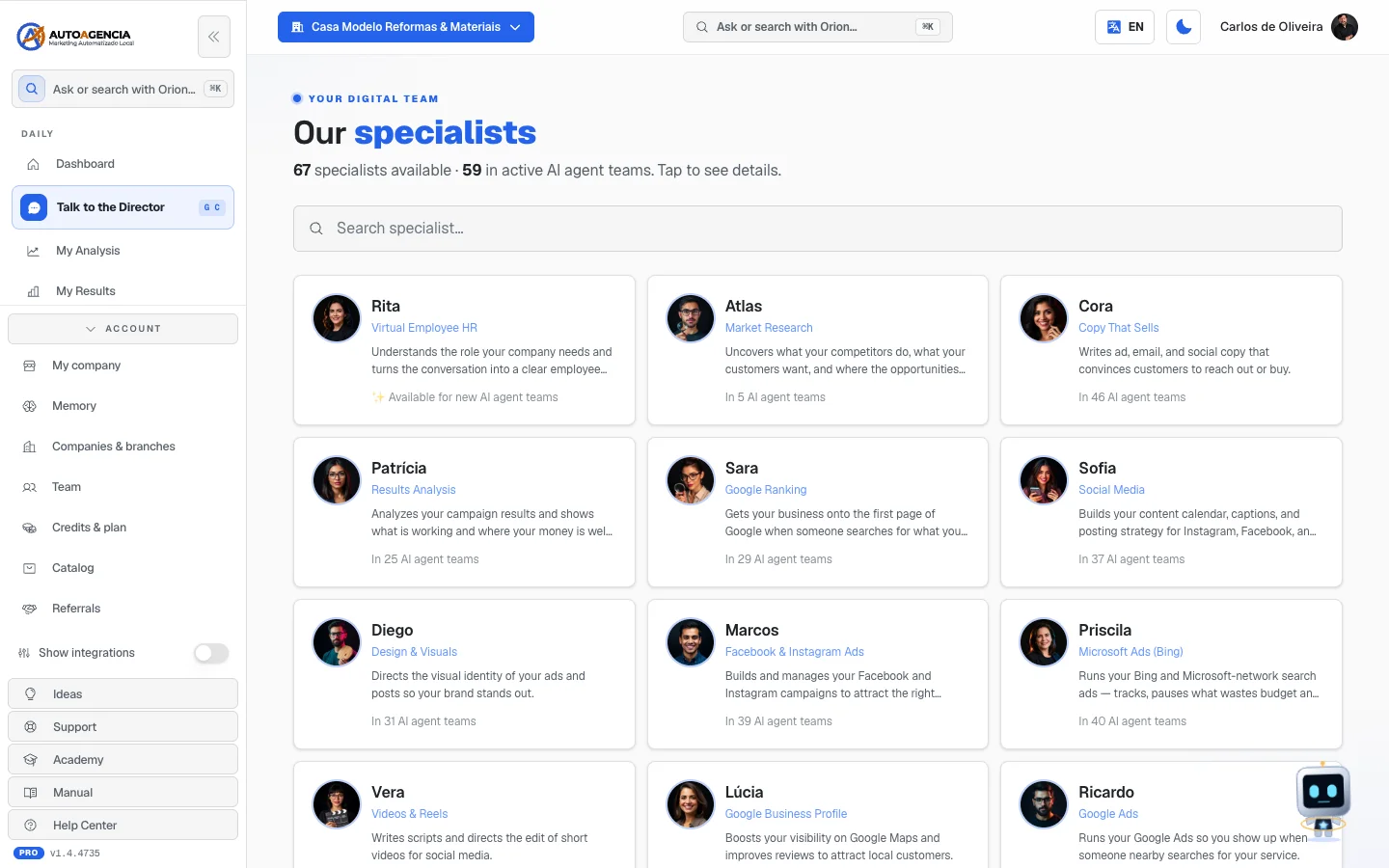 The /app/agentes screen with the grid of specialist cards, showing photo, name, role and the "In N AI agent teams" line
2. Agent or virtual employee — what's the difference
This is question number one. The short rule:
The agent works your marketing and talks to your customer. The virtual employee works inside your company and talks only to you.
| Agent (specialist) | Virtual employee | |
|---|---|---|
| How they reach you | They come along with the module you subscribed to | You hire them one by one, with a name and a role |
| Who picks the name | The name belongs to the house (Ava, Sofia, Ricardo…) | You pick the name when you hire |
| Who they talk to | With you and, in some cases, with your customer | Only with you and with whoever you authorize — never with your public |
| Where you talk to them | Talk to the Director, the module's screen, or /app/agentes | /app/funcionarios |
| What they do | Ads, copy, posts, SEO, customer service, reports | Contracts, invoices, spreadsheets, calendar, procedures, internal proposals |
| What they learn from | From your company's profile and from Memory (chapter 2) | From the material that you teach them, and that only they see |
| Affect your bill | They aren't hired separately — they come with the module | Yes. Each hire changes the monthly fee, and the amount shows on the screen before you confirm |
| Can be let go | No | Yes — Let the employee go |
The employees screen itself says this in so many words: "Hire AI employees for the areas of your business. They learn from your company's material and work on the inside — they don't serve your public."
And Rita, from HR, is forbidden from promising otherwise: if you ask her for a virtual employee to answer customers on WhatsApp, she tells you that part belongs to another team in the house (Ava) and carries on with the inside hire.
3. How to talk to the team
There are four doors. All of them work, and all of them are conversations written in plain English.
Door 1 — the general chat, with Orion
Where to find it: full menu → Daily → Talk to the Director
Address: /app/chat
This is the main door. You write the request, Orion chooses who to call, and the Your team panel (on the right on a computer; on a phone, through the Team button) shows who is working and where each one stands.
Inside the Your team panel, clicking a name shows you the What it did block and the Chat directly link — which swaps the general conversation for a conversation with only that specialist, without leaving the screen.
That screen is documented in detail in chapter 2: Talk to the Director.
Door 2 — inside the module
Each module has an owner specialist. When you open a module, they are there in one of two possible ways:
- The conversation is the screen itself. In modules guided by an agent — SalesFlow (the CRM), Image Creation, Content & Copy, Email marketing, Automation, E-commerce, Email Concierge and Video Creation — the Home tab is the chat with the module's owner, with shortcut chips on top: little buttons that write a ready-made request into the field. You click, complete it with your case and send.
- The conversation stays on the side. In modules with a dashboard of numbers, the content stays on the left and the right column is called Talk to the specialist (on a phone, it moves below the dashboard).
If the module has more than one specialist, a row of little buttons with each one's photo and name appears above the conversation. Click a name to switch people. Three examples: Growth & Launches brings together Gabriel, Pedro, Amanda and Luana; Retention / CS brings together Fernanda and Carla; Analytics & Reports brings together Nina and Atlas.
In both forms, above the conversation there are the History button (with the number of saved conversations) and New.
Door 3 — the specialist catalog
Address: /app/agentes → click someone's card
It's for when you know who you want to talk to. Details in item 4 and in item 5.
Door 4 — the conversation with your virtual employee
Address: /app/funcionarios → click the person's name
It's a conversation separate from everything else. Details in item 7.
How to write the request
There is no command, magic word or format. Write the way you'd talk to an employee:
- "I want to advertise drain cleaning in Goiânia this weekend"
- "make me a post for Friday's promotion"
- "my phone number changed, update it everywhere"
- "how much did I spend on ads this month?"
In any of the conversations, Enter sends and Shift+Enter starts a new line without sending.
Common questions
Do I need to know the right person's name? No. Write the request in Talk to the Director and Orion calls whoever is needed. Knowing the name is only a shortcut.
I talked to two specialists. Does one know what the other did? Each conversation has its own memory, and in addition there is the company's Memory, explained in chapter 2. What is in Memory, everyone sees.
A "Sources" notice appeared below the answer. The specialist went looking for information outside the system. Click to see where they got it from.
4. Our specialists — the team catalog
Where to find it: full menu → More drawer → Our specialists
Address: /app/agentes
This item may not show up in your menu. It is only listed for agency accounts (and administrator accounts). On a regular company account, the item doesn't appear — but the address still opens if you type it. If you are an agency, you still need to turn on the Show integrations switch, at the bottom of the menu, to see the item inside the More drawer; in quick search (
Ctrl+Kor⌘K) it appears without depending on the switch, in the Specialists & AI agent teams group. The switch is explained in chapter 1.
What it's for
It's the "who's who" inside the system — the same table as in item 1, only alive, with photos and with the information on how many teams each person is in. It's for finding out who takes care of a subject before asking, and for opening a direct conversation with someone you already know you want to talk to.
What you see
At the top, the Your digital team strip, the Our specialists title and a summary line: "N specialists available · M in active AI agent teams. Tap to see details."
Right below, the Search specialist… field. The search looks at the name, the role and the description — if you type "whatsapp" or "ad", it finds them.
Then, the cards, three per row on a computer and one per row on a phone. Each card has:
- the photo and the name;
- the role, in smaller letters;
- two lines explaining what the person delivers;
- and, at the bottom, one of these three phrases:
- In every team · included — that's the case for Orion and Arcturus;
- In N AI agent teams — how many ready-made teams in the catalog already include that person;
- ✨ Available for new AI agent teams — nobody has assigned them yet.
Step by step — finding who takes care of a subject
- In the full menu, click Our specialists (or type the address
/app/agentes). - In the Search specialist… field, type the subject: "google", "website", "email", "price".
- The list filters as you type.
- Click the person's card to open the conversation with them.
Common questions
"No specialist found for …" appeared. The screen suggests: "Try a shorter term — the search looks at name, role and specialty."
A card says "Available for new AI agent teams". Are they on a day off? No. It only means that none of the ready-made teams in the catalog has that person in their file. You can talk to them all the same.
5. Talking directly with a specialist
Where to find it: /app/agentes → click someone's card
Address: /app/agentes/<nome-interno-do-especialista>
What it's for
Talking to just one person, without going through Orion. Useful when the request clearly belongs to one area ("Sofia, build the October post calendar") and you don't want to explain the whole context again.
What you see
At the top: the ← arrow to go back, the photo, the name and the role. On the right, a round button with an i (About the specialist) and, as soon as the conversation starts, the New button.
The first message is their introduction: "Hi! I'm [Name] — role. What they deliver. Tell me what you need."
Right below, when it exists, an italic button starting with 💡 Example: — it's a ready-made request. Clicking it writes the text into the field; you adjust it and send.
At the bottom is the Talk to [Name]… field and the Send button. While they work, the field changes to Waiting for response….
In the answer, these can appear:
- a tag with the drawing of a wrench, saying what they are using at that moment;
- a Sources (N) block with the addresses they looked at outside the system;
- a Plan ready to run card — explained in item 14.
Step by step — asking a specialist for something
- Open
/app/agentesand click the person's card. - Read the introduction. If there's a 💡 Example: button, click it to use the template.
- Write the request in the field at the bottom and press
Enter(or click Send). - Follow the answer. If a plan card comes, read it and decide.
- To start from scratch, click New, at the top right. That opens a really new conversation — the specialist forgets the previous subject.
The "i" button — About the specialist
Opens a drawer from the bottom of the screen with:
- the photo and the name;
- the role and what they deliver;
- ID — their internal name in the system (useful for quoting in a support request);
- Tools — what they know how to do, in short phrases, or none;
- In N AI agent teams — little buttons with the name of each team.
The little team buttons take you out of the panel, to the public page for that segment on AutoAgency's website. It isn't an error; it's the page that describes the team. Use the browser's back arrow to return.
Each tool shows up as a short phrase, in the language of your panel — for example Searches the internet, Reads web pages or Creates images. When two tools do the same thing for the person using them (pausing a campaign or an ad on Facebook, for example), the phrase shows up only once. If the list is long, the drawer shows the first ones and the See all (N) button opens the rest; Show less closes it again.
Need to quote a tool in a support request? On a computer, hold the mouse over the phrase: its internal name appears, which is what support looks for.
Common questions
"This specialist doesn't have an executable configuration yet." The conversation doesn't open for that person. Let support know through Talk to the Director.
"Specialist not found." The address is wrong or the specialist left the system. Click ← Back to specialists.
"Connection failed". The internet dropped in the middle of the answer. Send it again.
Can I choose the "AI model"? Not on this screen. The system always uses each specialist's default model.
6. Employees — hiring someone for inside the company
Where to find it: Home → Your apps → Employees, if you subscribed to the app; without it,
full menu → More drawer → Employees
Address: /app/funcionarios
It needs the Virtual Employees module. Without it, the address takes you to the module showcase with that product highlighted. The module itself is documented in Virtual Employees — this section documents the work area that module sends you to.
What it's for
Hiring artificial intelligence people for internal work: checking invoices, organizing payments, reading contracts, building procedures, taking care of the calendar, preparing proposals. It's the office work that today falls on you or on someone at the counter.
Each employee has a role, a name chosen by you, an agreed way of working, their own material that only they see and routines that happen on their own at the scheduled time.
What you see
At the top, the Employees title and the sentence: "Hire AI employees for the areas of your business. They learn from your company's material and work on the inside — they don't serve your public."
Below, the Hire an employee button and, beside it, the explanation: "Rita, from HR, talks with you to understand what you need and puts together the file of your new hire." At the end of the sentence, the I'd rather pick directly. link.
Further down, the list of the people you've already hired — one card per person, with the role's icon, the name, the role and, when applicable, the · on trial mark.
If you haven't hired anyone yet: "You don't have any employees yet. Hire your first one."
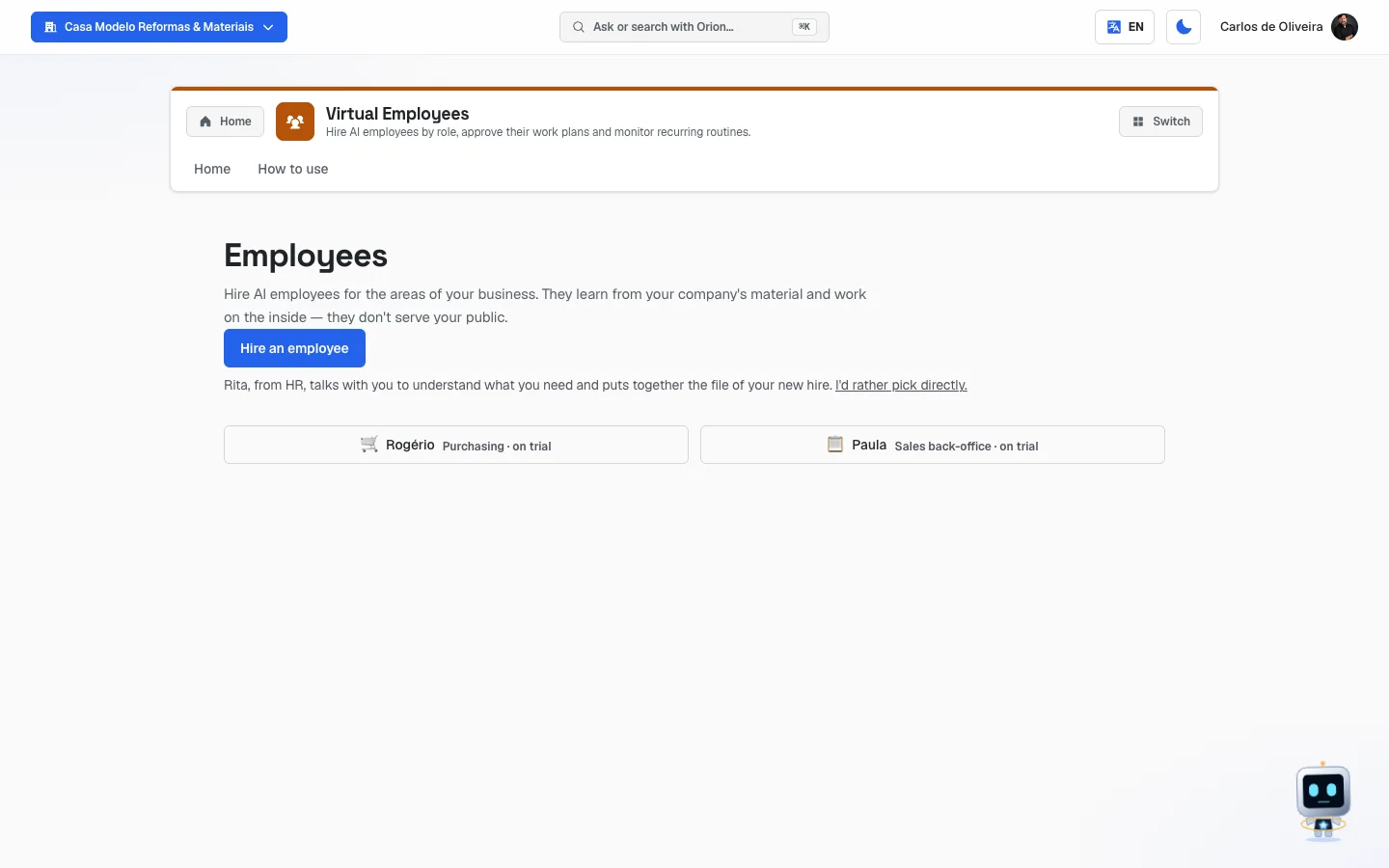 The /app/funcionarios screen with the "Hire an employee" button at the top and two already-hired employee cards below
The roles the house has already trained
The employee already arrives knowing the job. You only teach what belongs to your company.
| Role | What this person does |
|---|---|
| ⚖️ Legal | Reads and summarizes contracts, flags risky clauses, tracks renewals and drafts documents. |
| 💰 Finance | Checks invoices, organizes payments by due date, builds cash flow and chases overdue items. |
| 👥 People & HR | Answers staff questions about policy, writes job descriptions and organizes onboarding paperwork. |
| 🛒 Purchasing | Compares quotes, prepares orders, tracks delivery and keeps vendor history. |
| ⚙️ Operations | Writes and maintains procedures, builds checklists and follows routine execution. |
| 🗂️ Executive assistant | Organizes the calendar, prepares meetings, drafts emails and keeps the owner's loose ends in check. |
| 📋 Sales back-office | Builds proposals, updates customer records and prepares follow-ups — never talking to the end customer. |
| 🏠 Personal | Takes care of personal routines: documents, bills, reminders and day-to-day organization. |
| ✨ Custom role | Any role outside the list: describe what you need and the employee is built to fit. |
Step by step — hiring by talking with Rita (the recommended way)
- In the full menu, open More → Employees.
- Click Hire an employee.
- The conversation with Rita — Human Resources opens, with the notice: "She interviews you and puts together the file of your new hire. The interview is free."
- Answer her questions in the Answer Rita… field. She asks one thing at a time: which area is asking for help, what that person will do day to day, how often, with what company material and how you want to be notified when the work is ready.
- She suggests a person's name for the employee. If you prefer another, just say so.
- When she understands enough, the Candidate file card shows up in the right column, with What they already know, What they will do here, Manner and How they report back.
- Read the file and click the Hire [Name] button.
- You land straight in the conversation with the newly hired person.
Two links are always available on that screen: Start the conversation over (restarts the interview from scratch) and Leave it for later (closes without hiring).
Rita doesn't hire. She only proposes. The one who hires is you, with the button, after reading the file. And she never asks for a password, login or card details — if any conversation asks for that, it isn't her.
Step by step — hiring directly, without an interview
- On the Employees screen, click I'd rather pick directly.
- The Pick directly block opens, with the notice: "Choose the role. The employee already knows how to do the job — you only teach what belongs to your company."
- Click the role you want, in the grid of buttons.
- Read the cost box that appears right below: it says how much this hire will cost per month and when it is charged.
- Fill in What you want to call this person (up to 60 characters). Example: Marina.
- If you want, fill in Any preference on manner? (optional) — for example, "be very direct and to the point" (up to 280 characters).
- Click Hire.
- The confirmation Confirm hiring [Name]? appears, with the amount again. Click Confirm hiring to finish, or Back to rethink it.
- You land straight in the conversation with the person.
That block also has the I'd rather talk to Rita and Cancel buttons.
Each field explained
| Field | What to write |
|---|---|
| Position | The area that is asking for help. If none fits, use Custom role. |
| What you want to call this person | A short person's name. It's how they will sign and how you will call them. |
| Any preference on manner? (optional) | The tone you want. "Very direct", "formal", "explains everything calmly". It can be changed later. |
Common questions
Does hiring cost money? The interview with Rita is free. The hire changes your monthly fee — that's why the amount appears twice: next to the button and again in the confirmation.
I got the name wrong when hiring. It can be fixed later, without losing anything: in the conversation with the person, click Edit name and manner.
"We couldn't load your employees right now." Reload the page in a moment.
7. Talking with your employee
Where to find it: /app/funcionarios → click the person's card
Address: /app/funcionarios/<id>
What it's for
It's where you send work, teach what belongs to your company, approve the routines and see what was agreed. It's the person's work desk.
What you see
At the top: their name and, below, the status. Newly hired, it says: "On a trial period — teach them the company material and talk to see how they work." Later it becomes "Permanent employee." If you agreed on a manner, the line Agreed manner: … appears. On the right, the Edit name and manner button.
Two links right below: View record and View connections.
In the middle (big column): the conversation. When tasks were already noted at hiring, the person introduces themselves on the first time, repeats the list of what was agreed and asks: "I have already thought through how I plan to do each one. Want to see before I start?" — that's how the Agreed work items are born. If the conversation starts empty, this shows: "Talk to [Name] the way you'd talk to someone on your team." While they think: "[Name] is thinking…". The writing field says Write to [Name]…, with the Send button.
Below the conversation two blocks can appear:
- Access they asked for — when the person needs email, a spreadsheet, a calendar or your system to work. Details in item 9.
- Agreed work — one card per proposed routine. Explained below.
In the right column:
- What was agreed ("Noted when you hired them"), with three lists: What they do, What they need to learn and How they report back. This block only appears when the hire was made by talking with Rita, who notes the tasks.
- Company material, with the notice "What you teach here is visible only to [Name]."
- Lastly, the Let the employee go link.
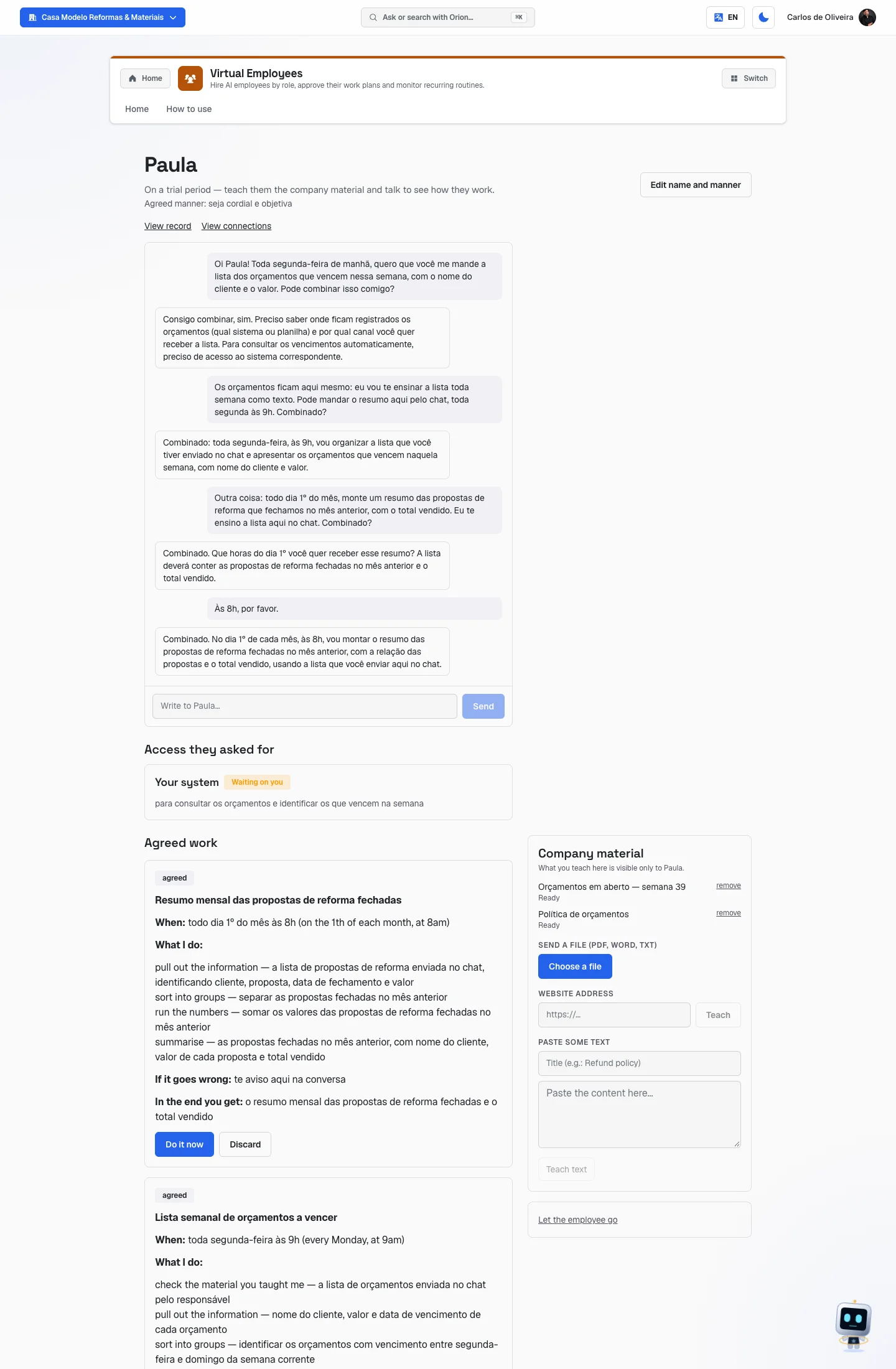 The /app/funcionarios/<id> screen with the conversation on the left, an "Agreed work" card below and the "Company material" column on the right
Step by step — teaching the company material
You can teach in three ways, all in the right column:
- File — under Send a file (PDF, Word, TXT), click Choose a file and pick one. It
accepts
.pdf,.docx,.txtand.md. - Website — under Website address, paste the address (starting with
https://) and click Teach. - Pasted text — under Paste some text, fill in the Title (e.g.: Refund policy), paste the content in the big box and click Teach text. The text must have at least 20 characters.
In any of the three, the confirmation message is: "Material received. They're learning it."
Each material becomes a row in the list, with a status beside it:
| Status | What it means |
|---|---|
| Queued | Received, waiting its turn. |
| Learning… | Being read right now. The list updates by itself. |
| Ready | Can already be used in the work. |
| Failed | It couldn't be read. The reason shows beside it. |
To remove a material, click remove, beside it.
Step by step — agreeing on a work routine
When you ask for something that repeats ("every Monday, add up the invoices and send me the summary"), the person proposes a routine, and it becomes a card in Agreed work. The card is written in four parts: When, What I do, If it goes wrong and In the end you get.
The card goes through three stages, and each one has its button:
- waiting for the run-through tag → click Run through it. They do a test and show you the steps they took, without it counting for real.
- rehearsed, waiting for your approval tag → read the result of the run-through and click Approve. The message Agreed! appears.
- agreed tag → the routine starts happening on its own at the scheduled time. The Do it now button forces a round right away.
At any stage there is the Discard button, which throws the proposal away. When a tag says paused, the routine is stopped — see item 8.
When the work stops halfway
After Run through it or Do it now, the list of steps appears below the card. A step in yellow is a step that didn't work. One of these notices may come along:
| What appears | What it means | What to do |
|---|---|---|
| "That job is already being done right now — wait for it to finish and check the result." | You clicked twice, or the automatic routine started at the same time. | Wait and check. |
| "I stopped halfway because the job turned out bigger than we agreed." | The job went past the agreed size. | Ask again; it continues from where it stopped. |
| A question, with the Answer here… field | It got stuck on a decision that is yours. | Write the answer and click Reply. |
| "The job that was left hanging went down a different path…" | The routine changed after the attempt got stuck. | Click Forget it and start over. |
When the work stops halfway, the notice "If you ask again, I continue from where I stopped." appears along with the Start from scratch next time button — which makes the employee forget that attempt and redo everything from the beginning on the next request.
Step by step — changing the name or the manner
- Click Edit name and manner, at the top right.
- Adjust What you want to call this person and Any preference on manner? (optional).
- Click Save. "Name and manner updated." appears.
Nothing is lost: the conversation, the material and the routines continue.
Step by step — letting an employee go
- Go to the end of the right column and click Let the employee go.
- The system asks: "Let [Name] go? The conversation and the material stay saved."
- Confirm. "Employee let go." appears.
Common questions
"You're out of credits." The job didn't start for lack of balance.
What a credit is, and how to buy more. A credit is the token that pays for machine work — each image, each video, each minute of voice, each conversation with a virtual employee. The monthly fee pays for the team and the screens; credit pays for production. You have two separate balances (the plan's, which renew every month and don't accumulate, and the extra ones, which you buy whenever you want and last 6 months) — and some expenses only come out of the extra ones. It's all explained, with a table, in Account, plan and billing → Credits & plan. To buy, go to Account → Credits & plan → Top up credits block.
"This module isn't active on this account." The Virtual Employees module left your plan.
"This employee no longer exists." They were let go. Click Back.
The employee answered with asterisks and lists. It's normal formatting — bold and bullet points.
8. The employee's record
Where to find it: in the conversation with the employee → View record link
Address: /app/funcionarios/<id>/ficha
What it's for
It's the person's work history: how much they have already done this month, which routines are agreed, what they actually did and the files they delivered. This is where you check whether the money is turning into work.
What you see
At the top, the [Name]'s record title and the line "With you since (date). Everything they've done for you lives here." Below, the Back to the conversation link.
"This month" block — in big letters, "X of Y jobs", and below it "N credits used this month."
When the month's allowance runs out, the notice appears: "They've done everything included this month, so the automatic routines are paused. Asking directly still works." — along with the Release the rest of the month button. After you use it, the green Released until the end of the month badge takes its place.
"Agreed work" block — one card per routine, with a colored tag:
| Tag | What it means |
|---|---|
| Live (green) | The routine happens on its own, at the scheduled time. |
| When you ask (gray) | It has no schedule; it only runs when you tell it to. |
| Waiting on you (yellow) | It stopped because it depends on an answer or an access from you. |
| Paused — it failed (red) | The last attempt failed and the routine was paused. |
| Paused — monthly limit (yellow) | The month's allowance ran out. |
Each card also shows Wakes up (when), Next time: and last time:. On the two "Paused" tags, the Turn back on button appears.
"What they did" block — the list of runs, from the most recent to the oldest. Each row has a date and time, the name of the job and the result: ✅ in green when it worked, ⚠️ in yellow when it didn't. When the run generated a file, the Download (file name) button appears. When it failed, the I already fixed this button also appears.
If nothing has run yet: "No work has run yet" and, when the employee is brand new, "I haven't done anything here yet — ask me something and this starts filling up."
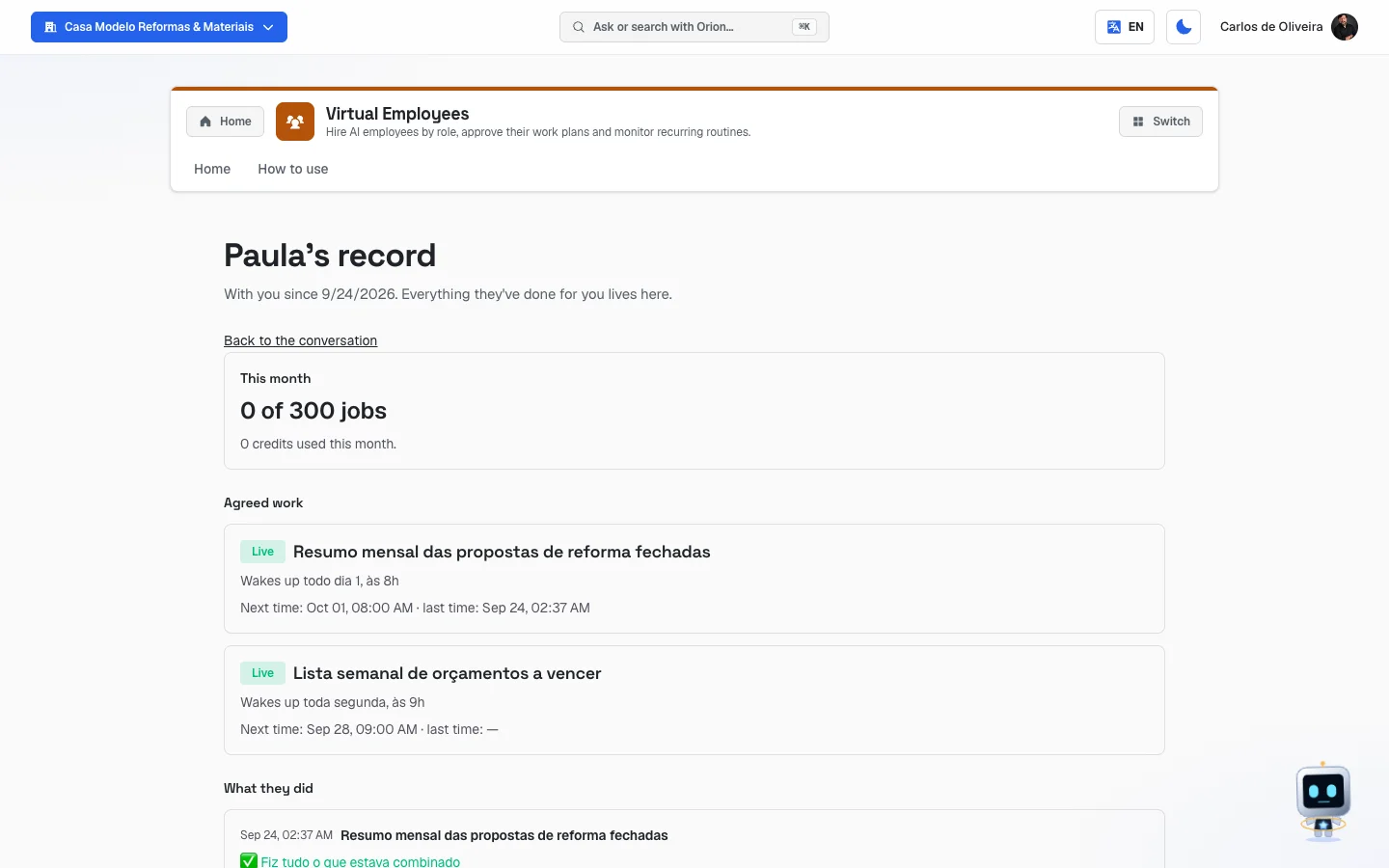 The /app/funcionarios/<id>/ficha screen with the "This month" block, two agreed jobs and the "What they did" list
Step by step — turning a stopped routine back on
- Open the record and look at the Agreed work block.
- Find the card with the Paused — it failed or Paused — monthly limit tag.
- If it's the monthly limit, first go to the This month block and click Release the rest of the month.
- Click Turn back on, on the card. "Work turned back on." appears.
Step by step — downloading what they delivered
- In the What they did block, find the run.
- Click the Download button with the file name. The download starts by itself.
If "I couldn't open the file." appears, try again — the file link is generated at the moment of the click and expires after a while.
Step by step — taking a failure off the count
If a job went wrong and you've already solved it outside, click I already fixed this on that run's row. "Marked as resolved. It leaves the panel count." appears — that way the module's failure alert stops nagging you about something that has already been solved.
Common questions
"X of Y jobs" — what is that Y? It's the total number of jobs included in the month for that employee, and the number is always 300. It doesn't change with the plan, or with the person's role, or with how many employees you have: each virtual employee has their own 300 jobs per month, counted in their time zone. When it reaches 240 (80% of the cap), the system warns you once that month.
I released the month. Will I pay extra? No. Releasing the rest of the month doesn't generate any charge: it only unlocks that employee's automatic routines until the end of the month and turns back on what the allowance had paused. What still applies is credit — the work itself consumes credit, as always, and if the balance runs out the work doesn't start (that's the message "You're out of credits").
Does it help to click "Release the rest of the month" more than once? It changes nothing. The release applies to the whole month in which you clicked — clicking again in the same month is harmless and makes no difference. At the turn of the month the 300 allowance comes back on its own, and the button reappears if it runs out again. There is no "released forever": you would have to remember to turn it off, and nobody remembers.
9. The employee's connections
Where to find it: in the conversation with the employee → View connections link
Address: /app/funcionarios/<id>/conexoes
What it's for
Giving the employee what they need to reach in order to work: their own email inbox, a spreadsheet, your calendar or your management system. The screen's title is What they can reach.
The connection belongs to the person, not to the company. If you have two employees, each has their own — and disconnecting one's doesn't touch the other's.
What you see
The title What they can reach and the Back to the conversation link.
If there's nothing yet: "Nothing connected yet. When they need something of yours, they'll ask you here."
When there is, one card per connection, with the name, a status tag and the reason they gave for asking.
| Connection | What it is |
|---|---|
| The emails that arrive for them | The person's own email inbox, inside the system. |
| An online spreadsheet | A spreadsheet that lives in AutoAgency's space and is shared with you. |
| Your calendar | Your Google calendar. |
| Your system | Your management system (today, Brazil's Bling). |
| Tag | What it means |
|---|---|
| Connected (green) | Working. |
| Waiting on you (yellow) | They asked; you still need to click Connect. |
| Stopped working (red) | It was connected and dropped. |
| The mailbox is still missing — click Connect | Their email doesn't exist yet. |
Step by step — connecting a connection
- In the conversation with the employee, click View connections.
- Find the card with the Waiting on you tag.
- Read the reason they wrote.
- Click Connect.
- If it's your calendar or your system, the browser takes you to the account authorization screen and comes back on its own.
Step by step — using their email inbox
When the email connection is connected, the card shows the person's address in monospace type, with the Copy address button and the explanation:
"Forward the emails you want them to read to this address. In your email panel, look for 'forwarding' and paste the address below."
- Click Copy address. "Address copied" appears.
- Open your email panel (Gmail, Outlook, whatever you use).
- Look for the forwarding option and paste the address.
- From then on, everything you forward reaches them.
Step by step — disconnecting a connection
- On the Connected connection's card, click Disconnect.
- The system asks: "Disconnect? They lose this ability right away."
- Confirm.
Common questions
About the spreadsheet: "The spreadsheet lives in our space and is shared with you — you get the invite by email and edit it normally."
"Your Google account is connected, but without calendar permission. Reconnect to enable it." The connection with Google exists, but without the calendar part. Redo the Google connection.
"Your session is unavailable right now. Refresh the page and try connecting Bling again." Reload the page and try once more.
"I couldn't open the connections right now." Click Try again.
Will the employee read all my email? No. They have their own address and read only what is forwarded there.
10. My AI agent teams
Where to find it: full menu → More drawer → My AI agent teams
Address: /app/equipes
Like item 4, this one only exists in the menu for agency accounts (and administrator accounts), with the Show integrations switch turned on. The address opens if you type it.
What it's for
A team (the screen also uses the word squad) is a named group of specialists, together with a written goal. It's the way of saying "for this business, the specialists that matter are these seven".
Some teams come already installed according to your segment — a pizzeria doesn't get the same specialists as a real estate agency. Others you build.
When is it worth building one? When you serve more than one type of business, or when you are running a specific front (a launch, a new store, a branch) and want to separate the people involved in it. For the owner of a single business, the team that came with the account is usually enough.
What you see
At the top, the My AI agent teams strip, the AI agent teams in operation title and the sentence: "AI agent teams you installed or built yourself. See the specialists in each." On the right, the + Build AI agent team button.
Below, one card per team, with:
- the team's name;
- below it, in small capital letters, the origin — the template's name, or Custom when you built it;
- the goal that was written, when there is one;
- the count: "N specialists" followed by "+ Orion and Arcturus, included";
- the red Delete button.
If you have none: a little robot, the title No AI agent teams yet and the text "Start with a ready-made AI agent team for your segment or build one from scratch." — with the View catalog and Build from scratch buttons.
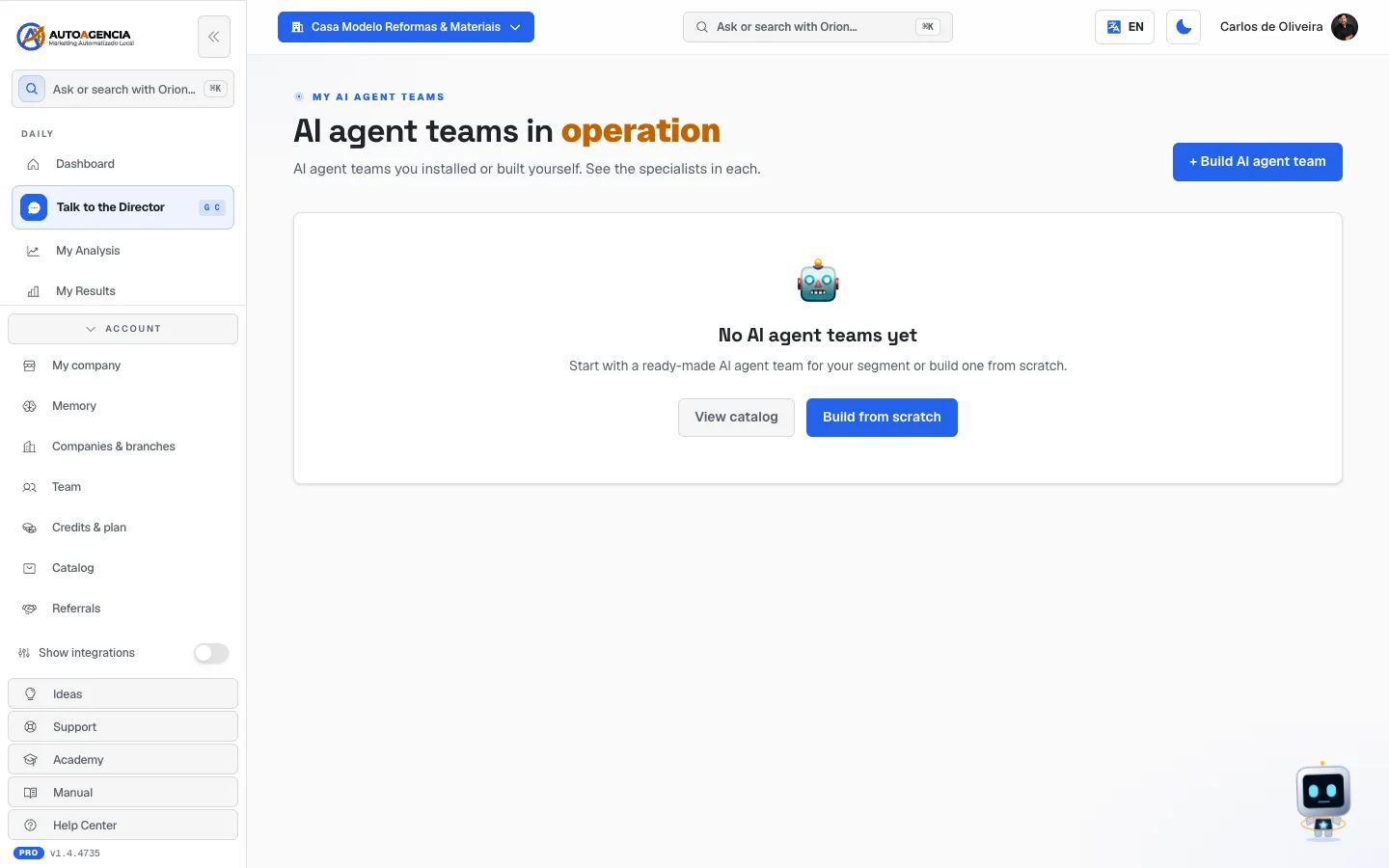 The /app/equipes screen with no team yet, with the "+ Build AI agent team" button and the "View catalog" and "Build from scratch" buttons
Step by step — deleting a team
- In the full menu, click My AI agent teams.
- Find the card and click Delete.
- The system asks "Delete this AI agent team?". Confirm.
Only the account owner or an administrator can create or delete teams.
Common questions
Does deleting the team delete the specialists? No. The specialists belong to the house and all stay there. The team is just a grouping.
Does Orion show up in the count? No. He and Arcturus join every team without taking a slot — that's why the "+ Orion and Arcturus, included" line comes separate from the count.
What changes day to day when I create a team? Just one thing changes: who shows up in the chat's Specialist selector. The team is your shortcut — the grouping of the people you want at hand when you go to talk directly to someone. Whoever has no team at all sees the "No specialists in your team" screen, with the Build team button.
The team does NOT limit the Director. When you use Talk to the Director, Orion calls whoever is needed — and what decides who he can call are the modules you subscribed to, never the teams you built. Building or deleting a team doesn't take anyone off or add anyone to Orion's list; subscribing to a new module does.
11. Build AI agent team
Where to find it: full menu → More drawer → Build AI agent team (or the
+ Build AI agent team button, on the previous screen)
Address: /app/montar-equipe
What it's for
Creating a custom team: giving it a name, writing the goal and checking the specialists.
What you see
At the top: the Build your AI agent team strip, the Create a custom AI agent team for you title and the sentence "Pick the right specialists and build the ideal digital AI agent team for your business."
Below, on the left:
- A card with two fields:
- AI AGENT TEAM NAME — example given on the screen: "e.g. Real estate marketing".
- GOAL — a bigger box, with the question "What should this AI agent team deliver?".
- The Direction and companionship card, with the explanation "Orion and Arcturus join every team, without taking a specialist slot." and the two cards, which you can't uncheck.
- The Select specialists (N) title — the number goes up as you check — and the grid of all the specialists, two per row. Each one is a button with photo, name and role. When checked, it gets a colored background.
On the right (on a computer), the Summary card, which follows you: Name:, Agents: and Included: Orion and Arcturus. At the bottom, the Save AI agent team button.
On a phone, the summary becomes a fixed bar at the bottom, with the count of specialists and the Save AI agent team button.
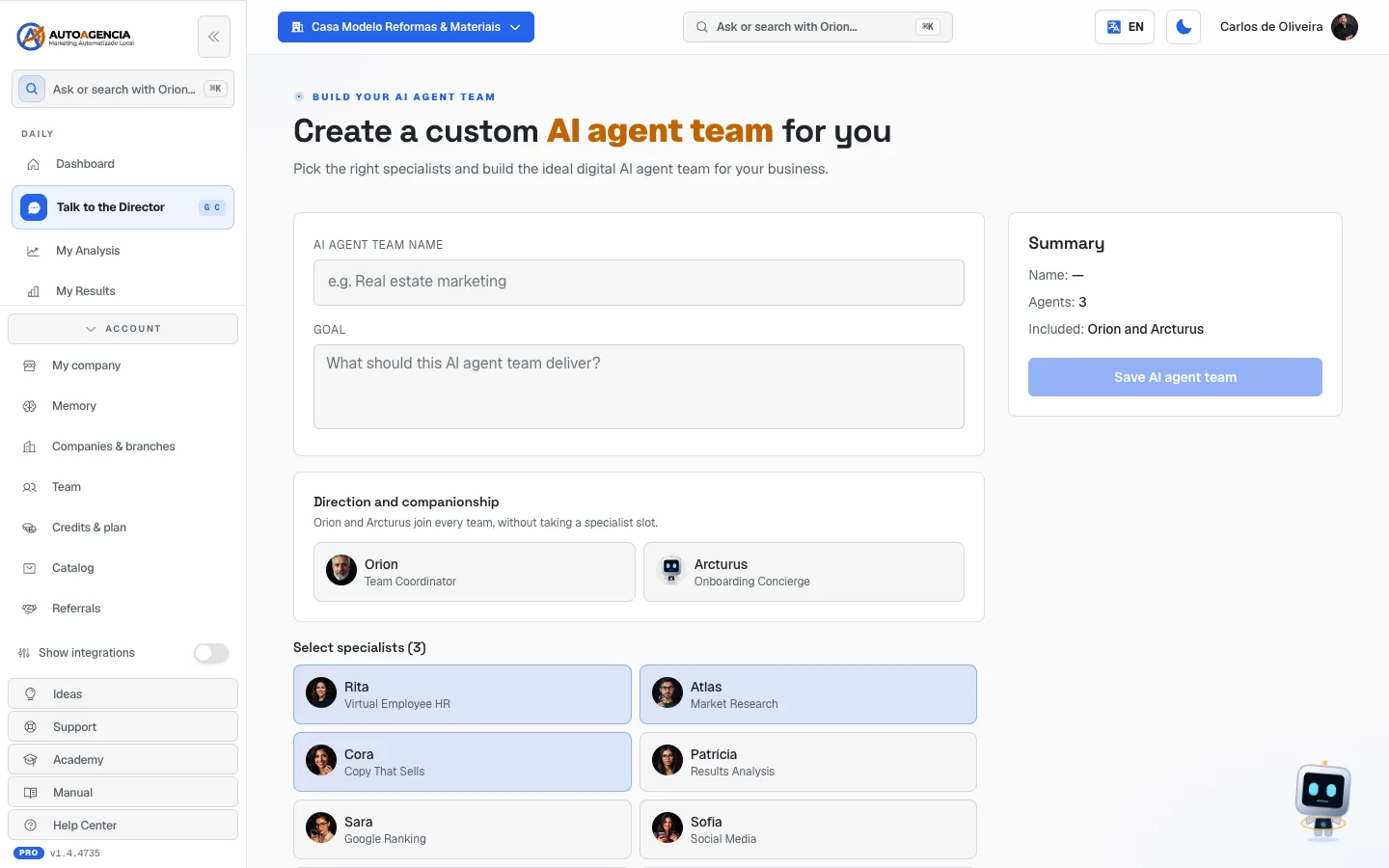 The /app/montar-equipe screen with a few specialists checked and the "Summary" card on the right
Step by step
- In the full menu, click Build AI agent team.
- Fill in AI AGENT TEAM NAME. It's required — without a name, the save button stays grayed out.
- Fill in GOAL in one or two sentences, in plain English. It's optional, but it helps the team understand what you expect.
- Scroll down to Select specialists and click the names you want. Click again to uncheck.
- Check the Summary card.
- Click Save AI agent team. The button shows "Saving…" and you go back to My AI agent teams.
Each field explained
| Field | What to write | Required |
|---|---|---|
| AI AGENT TEAM NAME | A short nickname you'll recognize: "Downtown store", "March launch". Between 2 and 120 characters. | Yes |
| GOAL | What this group should deliver. Up to 2,000 characters. | No |
| Select specialists | At least 1, at most 30. | Yes (at least one) |
Common questions
Can I put Orion on the team? He's already there, and Arcturus too. They don't appear in the selection grid because they don't take a slot.
The "Save AI agent team" button is grayed out. The name is missing, you haven't checked at least one specialist, or the saving is in progress.
Can I edit the team later? The screen has no editing. To change the makeup, delete it in My AI agent teams and build another.
12. Playbooks — the step-by-step the team follows
Where to find it: full menu → More drawer → Playbooks
Address: /app/playbooks
Like items 4, 10 and 11, this one only exists in the menu for agency accounts (and administrator accounts), with the Show integrations switch turned on.
What it's for
A playbook is the house's standard procedure for a type of request — the "service manual" the team follows. The screen itself explains:
"Standard procedures that Orion and the 50 specialists follow. Each playbook includes steps, prerequisites, tools to use and output format. It's what Orion loads automatically when your request matches one of the triggers below."
In other words: you don't need to use this screen for anything to work. When you write a request in the chat, Orion recognizes the subject and picks the right playbook on its own. The screen exists so you can read what they will follow — it's the guarantee that it isn't improvisation.
You don't create or edit playbooks. Each one carries the Curated by AutoAgencia badge.
What you see
At the top, an open book and the Playbooks title, with the explanation above.
Below, two controls:
- the Search by name, agent or trigger... field;
- a language selector with Português, English and Español — it starts on Português and changes only the playbooks' text, not the rest of the panel.
Then, the cards, three per row on a computer. Each card has:
- the playbook's name;
- three lines of description;
- up to five triggers — the words that make Orion choose that procedure;
- the Agents: line with the names of who takes part.
Clicking a card opens a window over the screen with the whole playbook: the title, the Curated by AutoAgencia badge and the full text of the procedure. Close it with the X or by clicking outside.
If you don't have any yet: "Your playbooks show up here" and "Playbooks are the step-by-step your agent team follows for each type of request. As soon as your plan is active, they show up here — just ask in the chat." — with the Talk to my team button.
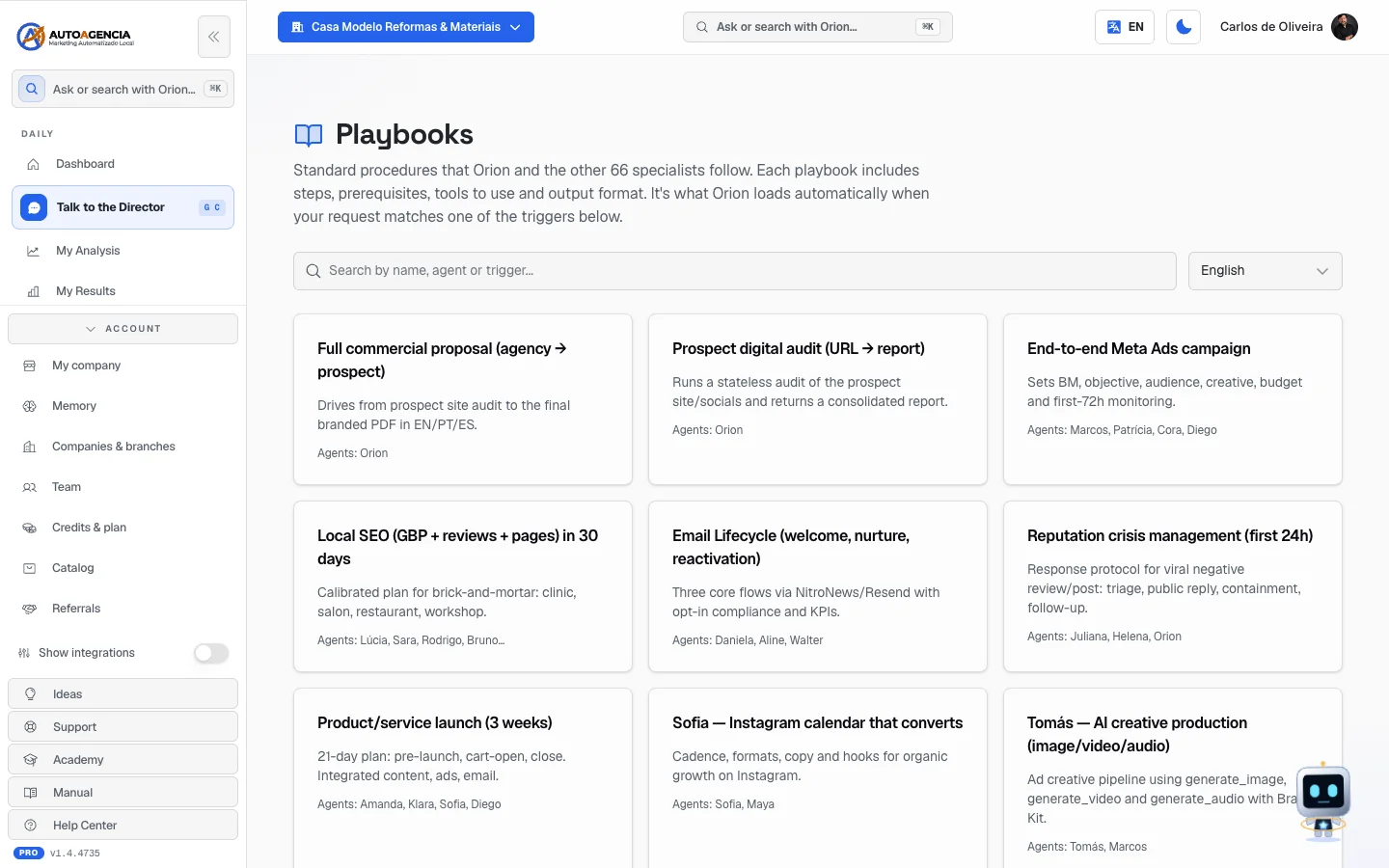 The /app/playbooks screen with the grid of cards, showing the triggers as tags
Step by step — seeing what the team does for a type of request
- In the full menu, click Playbooks (or type
/app/playbooks). - In the search field, type the subject: "ad", "post", "review".
- Click the card to open the whole procedure.
- Read it and close with the X.
Common questions
Do I need to choose a playbook before asking? No. Orion chooses on its own from what you wrote.
Can I change a playbook? Not on this screen. They are curated by AutoAgency.
"No playbook matches …" appeared. Click Clear search to see all of them again.
"Playbook not found in this language." appeared. That procedure hasn't been translated yet. Switch the selector back to Português.
Does the list of playbooks change according to my plan? No. Playbooks are the same for all clients — they are curated by AutoAgency and don't depend on what you subscribed to. On September 22, 2026 there were 71 procedures, all live.
Until September 22, 2026 the empty screen said "As soon as your plan is active, they show up here", and that was never true — it sent you to check your plan for a problem that wasn't there. Today it says the right thing: if the list shows up empty, it was a temporary reading glitch, and reloading the page fixes it.
13. "Team" — the real people who access your account
Where to find it: full menu → Account drawer → Team
Address: /app/team
Mind the name. This menu item is called Team, but it has nothing to do with the AI team. Here are the flesh-and-blood people who enter your account: partner, manager, secretary, accountant. The AI team lives in My AI agent teams (item 10).
What it's for
Giving other people in your company access to the panel, each with the right level — and taking the access away when someone leaves.
What you see
At the top, the Team title and the line "Members with access to (your company's name). Invite employees, partners and clients."
If you are an owner or administrator, below comes the Invite member card, with the email field
(email@empresa.com), a role selector and the Invite button.
Then, the Pending invites card ("Invites sent that have not been accepted yet"), when there are any — with the email, the role, the Copy link button and the Revoke invite button.
Lastly, the members table, with the columns Email, Role, Since and Actions. Whoever can manage sees the role as a selector (you can change it right there) and a Remove button on each row.
Empty: "No members yet."
The roles
| Role | What the person can do |
|---|---|
| Owner | The account's owner. Only they can pass ownership to someone else. |
| Admin | Manages everything, including inviting and removing people. |
| Editor | Works in the panel. |
| Member | The regular access. |
| Results only | "Someone in this role sees only the results screen — contacts that came in, where they came from and what was blocked. They can't open the rest of the system or change anything." |
The practical difference, which the screen doesn't explain. The five roles make up, in the system, three levels of power — and not five:
| Level | Who is in it | What only they can do |
|---|---|---|
| Who's in charge | Owner and Admin | Everything that touches money, contracts or the account's structure: buying from the catalog, inviting and removing people, changing someone's role, releasing a virtual employee's allowance, closing a module |
| Who works | Editor and Member | They use the whole panel day to day — they ask the AI team for things, create material, work on the module screens — and they run into the money and people actions above |
| Who only looks | Results only | Sees the results screen and nothing else. Changes nothing anywhere |
Editor and Member do exactly the same thing today. I checked on September 22, 2026: no rule in the system separates the two — they are two names for the same level of access. Pick whichever makes more sense for describing the person; what they can do is identical.
Only the Owner passes the account's ownership to another person. An Admin manages everything, but doesn't transfer the title.
Step by step — inviting someone
- In the full menu, open the Account drawer and click Team.
- In the Invite member card, type the person's email.
- Choose the role in the selector beside it. If you choose Results only, read the notice that appears below.
- Click Invite. ✓ Invitation sent appears.
- Right below comes Invite link (send it via WhatsApp):, with the link and the Copy link button. Send the link to the person.
Step by step — taking someone's access away
- Find the row in the table.
- Click Remove.
- Confirm at "Remove (email)?".
For an invite that hasn't been accepted yet, the way is the Revoke invite button, in the Pending invites card.
Common questions
"This user is already a member (role)." The person already has access. No need to invite them again.
I clicked Remove and nothing happened, only a red notice appeared. The system has safeguards: you can't remove the account's last manager, and an administrator can't touch the owner. The notice explains the reason.
I invited someone and they didn't receive the email. Use the Copy link button and send the link over WhatsApp — that's what it's there for.
14. What they do on their own and what always asks for your OK
This is the question every owner asks: "are they going to go off spending my money without telling me?".
What happens without you asking
| What | Who does it | Where you see it |
|---|---|---|
| Serving your customer 24 hours | Ava (WhatsApp), Sérgio (website), Íris (voice), Rebeca (messages) | In the customer-service modules |
| Warning which connections are still missing (Google, social networks, WhatsApp) | Arcturus | WhatsApp and email |
| Running an agreed routine at the scheduled time | Your virtual employee | Employee's record → Live, Next time |
| Looking up information outside the system during an answer | Any specialist | The Sources block below the answer |
| Stopping on its own when the month's allowance runs out | Your virtual employee | Record → "the automatic routines are paused" |
Note that the employee's routine only starts running on its own after you approved it. Until then, it's just a proposal.
What always stops and waits for you
1. The "Plan ready to run" card, in the chat. When the request becomes real work, the specialist builds a plan and stops. The card shows:
- a summary of what will be done;
- one line per person involved, with photo, name, role and their task;
- when there's a cost, the estimate in credits next to each task and the line "Estimated plan cost: ~N credits from your balance. If it exceeds what's available, we run it in phases."
Two buttons: Approve and start execution (the button shows "Dispatching team…" while it works) and I want to adjust (it closes the card and hands the floor back to you — just write what to change).
As long as you don't click Approve, nothing happens.
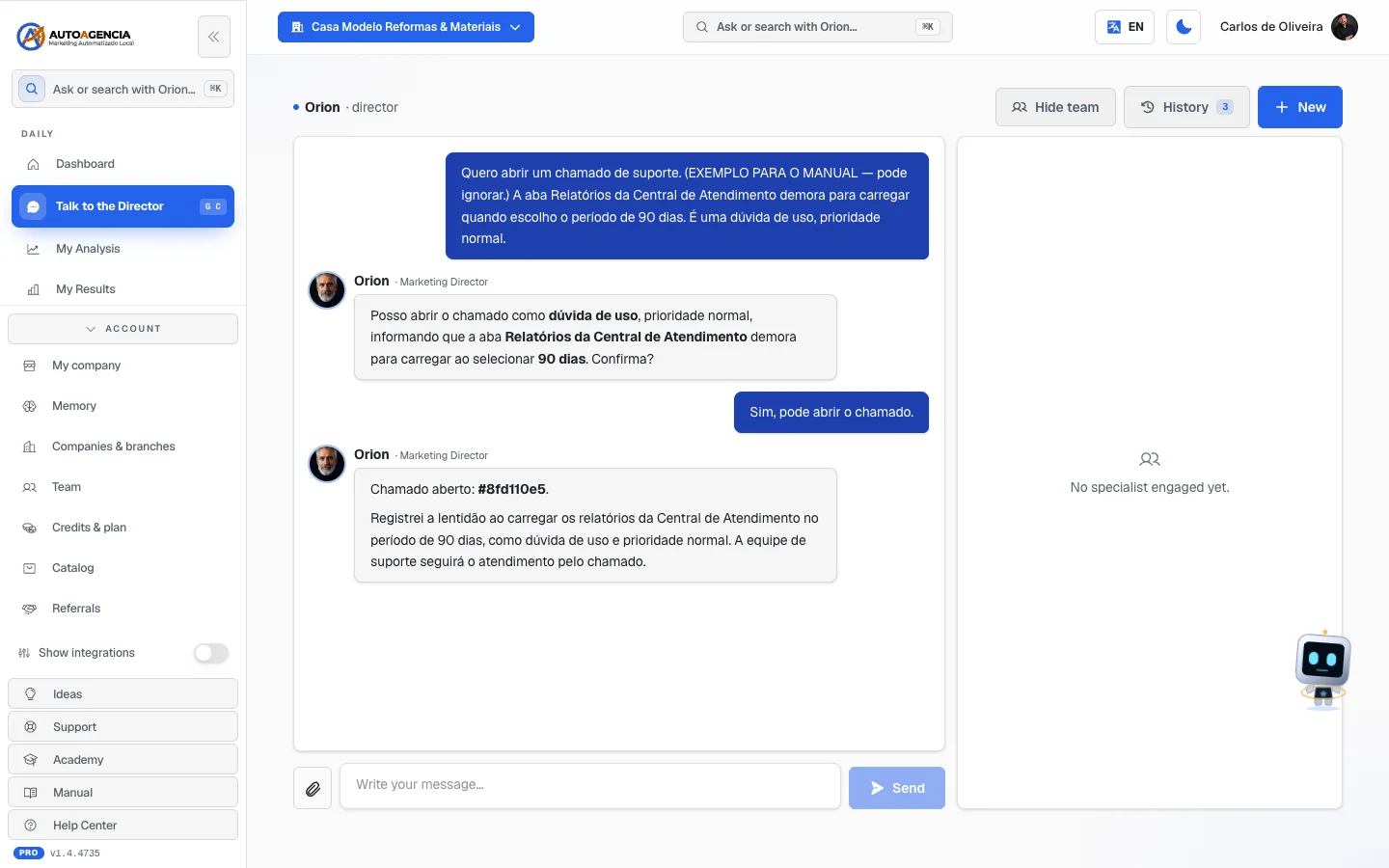 The "Plan ready to run" card in the chat, with the list of specialists and the two buttons
2. The ad budget and the keywords. A proposal to change the budget and the list of words to advertise go through the Approvals screen, documented in chapter 2: Approvals.
3. The virtual employee's routines. No routine starts happening on its own before going through Run through it → Approve. After it's approved, Do it now forces an extra round.
4. The employee's accesses. The employee never connects an email, a spreadsheet, your calendar or your system on their own. They ask, and the request stays with the Waiting on you tag until you click Connect.
5. Decisions in the middle of the work. When the employee gets stuck on a choice that is yours, they stop and ask, with the Answer here… field.
6. Everything that touches the bill or deletes things. Hiring an employee (Confirm hiring, with the amount on the screen), letting an employee go, deleting a team, disconnecting a connection, removing someone from your account — all of them ask for confirmation.
Common questions
I approved and regret it. Talk in Talk to the Director and tell what happened. There is no "undo" button on the screen.
I approved a plan and the cost went over my balance. The card itself warns beforehand: "If it exceeds what's available, we run it in phases."
I don't want anything to run on its own. Don't approve any routine on your virtual employee: leave the jobs as When you ask. That way nothing happens without your click on Do it now.
15. Four old addresses that only redirect
Four addresses keep working so old links and bookmarks don't break, but they are not screens of their own — they take you straight to the right place.
| Old address | Where it takes you today |
|---|---|
/app/squads | My AI agent teams (/app/equipes) — item 10 |
/app/squad-builder | Build AI agent team (/app/montar-equipe) — item 11 |
/app/ava | The 24/7 WhatsApp AI Support module (manual) |
/app/sergio | The AI Website Support module (manual) |
Ava and Sérgio are the only two specialists who got a short address with their own name, from when they still had a standalone screen. Today both of their work lives entirely inside their module — with a dashboard, conversation history and settings —, and that's where the shortcut takes you.