

AI Website Support
Where it is: Home → Your apps → Site AI (at the top of the screen the module shows as AI Website Support)
Address: /app/modulos/atendimento-site
Just subscribed? Sérgio's Guide takes you from zero to support up and running, step by step and with screenshots.
What it's for
Someone who visits your site almost never calls. They look around, can't find the price, wonder whether you serve their neighborhood — and leave. You never even find out they stopped by.
This module puts a virtual assistant on your site: that little chat bubble that appears in the corner of the screen. His name is Sérgio, he works 24 hours and answers based on what you taught him — your prices, your hours, the neighborhoods you serve, your warranty. When the person shows interest, he asks for their contact details and passes them to you.
Besides chatting, the module keeps an eye on what each visitor does on your site: how many pages they viewed, whether they clicked the quote button, whether they filled in a form, whether they chatted. With that it gives each visitor a score from 0 to 100. Someone with a high score is almost buying. You open the list in the morning and call whoever is at the top first — instead of calling everybody on a hunch.
Everyday example: you run a salon. A young woman lands on the site at 10 pm, looks at the page for hair straightening, looks at the prices page, goes back to the straightening page and opens the chat asking whether you're open Saturday. Sérgio answers yes, with the right hours, and asks for her WhatsApp. The next day she's at the top of your list with a score of 78, and you already know exactly what she talked about before you call.
Before you start
- The AI Website Support module has to be active on your account.
- The first time you open a newly purchased module, an invitation appears at the top of the page to set it up by chatting with Sérgio: "It's optional — the tabs below already work. Each reply from the specialist uses AI credits." Chat with Sérgio lets him get to know your company; Dismiss removes the invitation without chatting. If you open the chat, the Complete setup button at the end of it also removes the invitation.
- The chat bubble has to be installed on your site. It's set up on another tab of this same app: Website chat. There you choose the color, the position, the welcome message and copy the Code for your site — a little piece of text that you (or whoever runs your site) paste at the bottom of the site's page. If your site was built here on the platform, check the Show automatically on my AutoAgency Landing Pages option and you don't need to paste anything.
- Before putting Sérgio live, feed the Knowledge tab with what he needs to know. Without it he answers generically.
First steps
- On Home, under Your apps, click Site AI. You land on the Leads tab.
- Go to the Knowledge tab and add what Sérgio needs to know about your business — at least one document or your site's address. Wait for the sources to get the green READY tag. (See the section on the Knowledge tab, further down, about what to write.)
- Go to the Settings tab. Give the agent a name, choose the Role (persona) and the Tone of voice, write the Greeting (first message) and the After-hours message.
- Still in Settings, check the days and hours your company is open, and write the Qualifying questions — what he needs to find out before handing the contact to you.
- Check that the Sérgio active (replies in the site widget) checkbox is checked.
- Click Save configuration.
- Click the Website chat tab, at the top of the screen, adjust the look, click Save widget and copy the Code for your site. Paste it into your site (or ask whoever runs it to paste it).
- Visit your own site on your phone and chat with the assistant to check that he answers.
- From then on, follow the Leads tab (who's hot) and the Conversations tab (what was said).
 The chat bubble open on the company's page: the chat greeting, the visitor's question and the assistant Sérgio's reply
The tabs, one by one
Leads
/app/modulos/atendimento-site/leads
- What you see here: the list of your site's visitors ranked by buying interest — from hottest to coldest. At the top of the page appears Sérgio's panel, with a note about how your operation is going. Above the list, the sentence: "Your site visitors ranked by buying intent — the higher the score, the hotter the lead."
- The way to the bubble starts here. The module has no tab of its own for installing or configuring the chat bubble: that lives on the Website chat screen. When Sérgio's note mentions the widget — "the widget needs to be live on your site" or "check that the widget opens on your site" —, the button next to it is called Open Site chat and takes you straight there. It's the Website chat tab, in the app bar.
- Each row shows: a little colored square with the score (red = hot, yellow = warm, grey = cold), the person's name, email or phone (or "Anonymous visitor", if they haven't identified themselves yet), the page they were on and the date of the last activity.
- What you can do:
- Click a person to see, on the right-hand side, the whole path they took on your site.
- Click the refresh button (the circular arrows, in the corner) to fetch again. The list also refreshes on its own every 20 seconds.
- In the right-hand panel (after clicking a person) you'll see the Hot,
Warm or Cold tag, the breakdown of the score into four parts (Engagement, Intent,
Conversation, Contact) and the list of everything they did, in order:
- 👁 Page view
- 🖱 Clicked CTA (CTA = the page's main button, like "Request a quote")
- 📝 Submitted form
- Empty states:
- With nobody scored: "No scored leads yet", with the hint to turn Sérgio on in the Settings tab and feed the Knowledge base.
- Nobody selected: "Click a lead to see their browsing history."
- Person with no events: "No browsing events recorded".
Conversations
/app/modulos/atendimento-site/conversas
- What you see here: the list of conversations that took place in your site's chat bubble, from the most recent to the oldest, and — when you click one — the whole thread of messages, in bubbles. The assistant's messages are on the right-hand side, colored; the visitor's are on the left.
- What you can do: filter and read. This screen is read-only: you don't reply from here.
- The filters at the top (each shows the number in parentheses):
- All — everything.
- Open — conversations with no contact yet, with a message in the last 24 hours.
- Got contact — the visitor left a name, email or phone. That's the conversation that became an opportunity.
- Dropped off — left no contact and nobody has written in over 24 hours.
- On the right-hand side, the refresh button. The list also refreshes on its own every 15 seconds.
- Each row of the list shows who the person is (or "Anonymous visitor"), the page they were on, the won / dropped / open tag and the date.
- Empty states: "No conversations in this filter" (with the hint to clear the filter), "Click a conversation to see the message history." and "No messages in this conversation".
Settings
/app/modulos/atendimento-site/config
- What you see here: four panels and a big button at the bottom — Identity, Messages, Business hours and Qualifying questions.
- What you can do: teach the assistant how to behave: who he is, how he talks, when he answers and what he needs to ask.
Step by step:
- On Home, under Your apps, click Site AI → Settings tab.
- Fill in the four panels (explained below).
- Check the Sérgio active (replies in the site widget) checkbox.
- Scroll to the end and click Save configuration. While it saves, the button turns into "Saving…" and at the end the green notice "Sérgio updated." appears.
Each field explained — Identity panel:
| Field | What to do |
|---|---|
| Agent name | The name he uses to introduce himself. It comes as "Sérgio", but it can be whatever name you like. |
| Role (persona) | His job. Pick one of the options (see the table below). |
| Tone of voice | The way of speaking: Formal and professional, Casual and friendly, Excited and energetic or Consultative and expert. |
The Role (persona) options:
| Option | What it's for |
|---|---|
| Customer service — Questions, support | Answers questions from people who are already customers: order status, information, policies. |
| SDR — Qualify leads and book meetings | Finds out what the person needs and tries to set up a conversation with you. It's the one that comes selected in this module. |
| Sales — Sell, handle objections, close | Presents, answers objections and pushes toward closing. |
| Tech support — Diagnose and escalate | Asks diagnostic questions and passes the problem along. |
| FAQ — Answer common questions | Only answers common questions; transfers the rest. |
| Custom — Use your instructions below | He follows exactly what you write in "Specific instructions". |
Each field explained — Messages panel:
| Field | What to write |
|---|---|
| Greeting (first message) | The first sentence the person reads when they open the bubble. E.g.: "Hi! 👋 How can I help?" |
| After-hours message | What he says when someone writes outside the hours you set. E.g.: "We're outside business hours." |
| Specific instructions (optional) | Your own rules, written in plain language. E.g.: "Always offer 5% cash discount. Never promise Sunday delivery." |
| Sérgio active (replies in the site widget) | An on/off checkbox. Unchecked, whoever lands on your site isn't served. |
Business hours panel:
Here you check the days your company is open. The screen explains: "Check the days your company is open. The assistant uses this to know when to answer normally and when to use the after-hours message."
- Check the Time zone (it comes as
America/Sao_Paulo). - Tick the checkbox for the day you open. When you tick it, two time fields appear: from and to.
- An unticked day is written Closed.
- Below there's a reminder: "With no day checked, the assistant answers at any time — exactly as it does today."
If on any checked day the end time doesn't come after the start time, a notice appears in red and the system doesn't save anything. It's on purpose: saving halfway would make the assistant refuse to serve on a day you thought you had configured.
Qualifying questions panel:
These are the questions the assistant has to ask before handing you the contact. The screen explains: "What the assistant needs to find out before handing the contact to you. It asks one at a time, inside the conversation — never as a form."
- Click Add question.
- Write the question. E.g.: "Which neighborhood is the job in?"
- Repeat for the others. The limit is 10 questions; when you get there, the notice "You have reached the limit of 10 questions." appears.
- To delete one, click the trash can icon next to it.
In this same panel there's the Ask for a satisfaction rating at the end checkbox. If you uncheck it, he never asks for a rating ("When off, the assistant never asks for a rating.").
Website chat
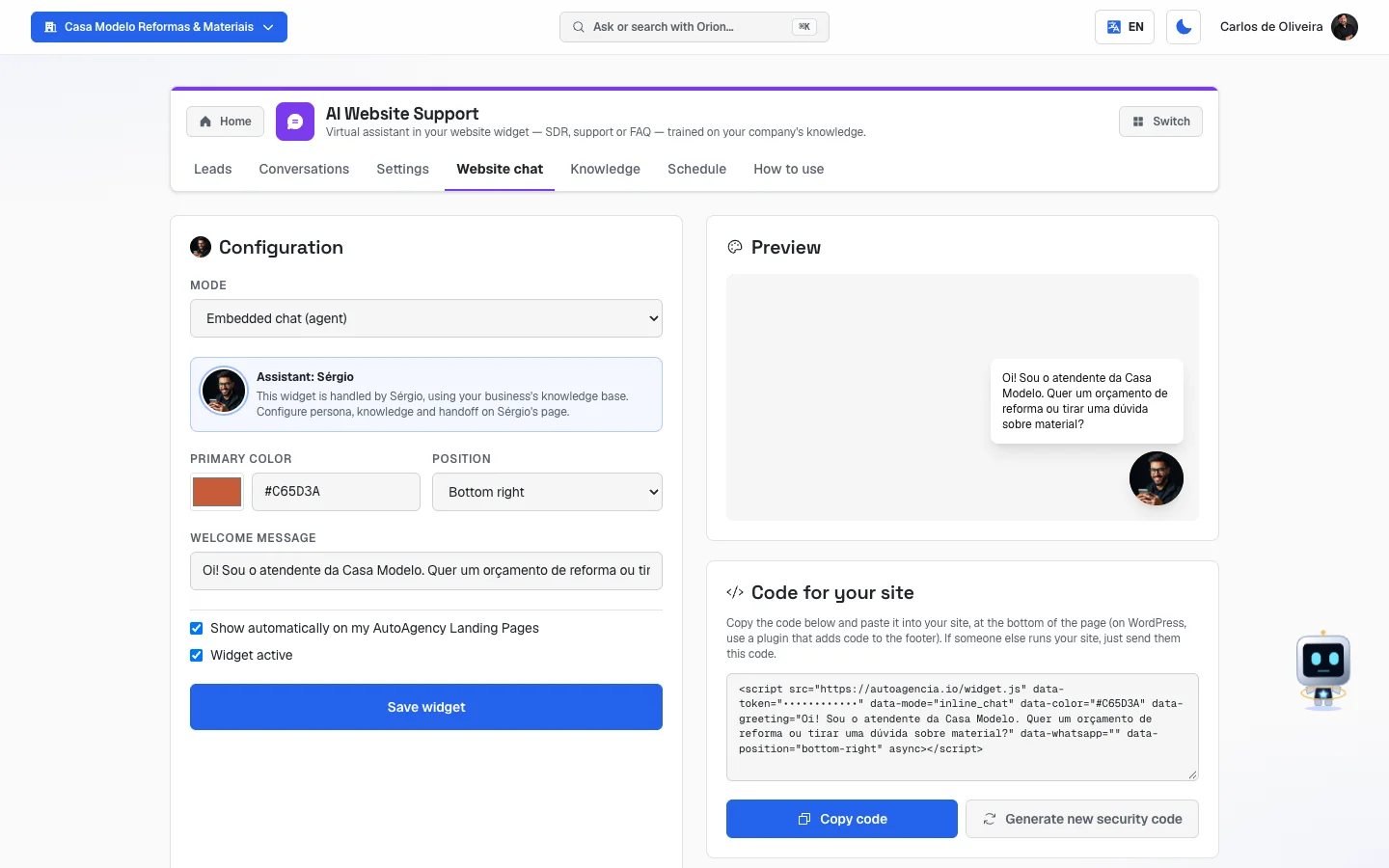
This is where you turn on the chat bubble on your site and get the code to paste into it: the Mode
(WhatsApp button, chat with the assistant or both), the Primary color, the Position, the
Welcome message, the checkboxes Show automatically on my AutoAgency Landing Pages
and Widget active, and the Save widget button. On the right, Preview
(the sample of the bubble) and Code for your site, with Copy code and Generate new
security code. Until September 27, 2026 this screen was outside the app, in the menu; the old address
(/app/widget) still takes you here. The full step by step is in chapter 2 of the manual,
under "Website chat".
Knowledge
/app/modulos/atendimento-site/base
This is the knowledge base: everything the assistant knows about your business. It's the most important tab in the module. An assistant without a knowledge base answers generically and is no use at all.
- What you see here:
- At the top, the Visible to box, where you choose who uses that material: Both (Ava and Sérgio), Ava only (WhatsApp) or Sérgio only (Site). On this tab it already comes as Sérgio only (Site).
- The Add document area, with the dotted rectangle: "Click or drop a PDF, DOCX, TXT or MD (up to 10MB)".
- Below, the list of what you've already added, with the file name and a status tag.
- What you can do: upload documents, update a document you already uploaded and remove what's no longer valid.
Step by step — put a document into the knowledge base:
- On the Knowledge tab, choose under Visible to who's going to use that material.
- Click the dotted rectangle and choose the file (PDF, DOCX, TXT or MD, up to 10 MB).
- Wait. The tag goes through QUEUED → INDEXING → READY.
- Only when it's READY does the assistant start using that content.
The buttons on each row of the list:
- The circular arrows = Update. Use it when you changed the file's content or when the tag ended up as ERROR.
- The trash can = Remove. The system asks "Remove this source?" before deleting.
What to write in the knowledge base so the assistant answers well
The assistant has a golden rule written into the system: never make up a price, hours, address, deadline or policy. If it isn't in the knowledge base, he says "I need to confirm" — or transfers you to a person. So everything you don't write here turns into an "I need to confirm" in front of your customer.
Write a simple document, in plain language, as if you were explaining the business to a new employee. It doesn't have to be pretty. It has to be complete. Cover:
- What you do. The list of your services or products, with the name the customer uses.
- How much it costs. Prices, price ranges ("from $X to $Y, depends on the size"), what's included and what's charged separately.
- Where you serve. Neighborhoods, cities, radius in kilometers. And what you don't serve.
- When you serve. Days, hours, whether you do on-call, whether you serve on holidays.
- How long it takes. Visit lead time, delivery time, execution time.
- How to pay. Cash, Pix (Brazil's instant payment system), card, installments, down payment.
- Warranty and policy. How many days of warranty, what it covers, how cancellation and rescheduling work.
- The questions you get asked most. Think of the 20 questions you answer every day on WhatsApp and write the answer to each one.
- What you don't do. "We don't do construction work", "we don't serve companies". That way he declines politely instead of promising what you don't deliver.
Practical tips:
- One topic per paragraph. Short sentences.
- Write the way the customer asks, not the technical way. If they say "clogged pipe", write "clogged pipe", not "hydraulic obstruction".
- If something changes (price, hours), update the document and click Update on its row. The assistant doesn't guess at changes.
- Don't put in anything you don't want coming out of his mouth: everything in the knowledge base he can tell a visitor.
The rule the assistant uses most is this: he answers first with what the knowledge base taught him, and only transfers to a person when the customer asks for a person or when even the knowledge base can't solve it. Good knowledge base = fewer transfers = fewer phones ringing in your hand.
How to use
/app/modulos/atendimento-site/como-usar
Every module has this tab at the end. It's the module's manual inside the system itself.
How to read the numbers
The visitor's score, from 0 to 100
It's how close to buying the person seems to be. The color of the little square says it all:
| Color | Score | What it means |
|---|---|---|
| Red/orange — Hot | 70 or more | Almost buying. Call today. |
| Yellow — Warm | from 40 to 69 | Has interest, still looking around. |
| Grey — Cold | under 40 | Just passed through the site. |
The score is the sum of four things, which appear when you click the person:
- Engagement — how many pages they viewed and how many were different. The more they browse, the higher it is.
- Intent — whether they clicked the main button and whether they submitted a form. Submitting a form is what weighs most.
- Conversation — how many messages they exchanged with the assistant.
- Contact — whether they left a name, email or phone.
The score cools down over time: someone who hasn't come back in over 3 days loses a bit, and someone who hasn't come back in over a week loses more. That's on purpose — a visitor from two weeks ago isn't the same as a visitor from yesterday.
The numbers in Sérgio's panel (at the top of the Leads tab)
- Ready to buy — how many visitors have a score of 70 or above.
- Scored visitors — how many people the system has already tracked on your site. It's a big number and doesn't mean a conversation: it counts every visit, even from someone who never said anything.
- Left contact — how many left an email or phone. That's the number that counts.
The counters on the Conversations tab
- All — all conversations ever opened in the bubble.
- Open — no contact, with a message in the last 24 hours.
- Got contact — the visitor identified themselves.
- Dropped off — didn't identify themselves and stopped writing more than 24 hours ago.
Frequently asked questions
Does the assistant answer at any hour? If you don't check any day under Business hours, he answers at any hour. If you do, outside those hours he uses the After-hours message.
Can he make up a price I don't charge? His rule is not to make up a price, hours, address, deadline or policy. If it isn't in the Knowledge tab, he says he needs to confirm. That's why the Knowledge tab is the most important part.
Do I need to know how to work on a website to install the bubble? If your site was built here on the platform, no: just check Show automatically on my AutoAgency Landing Pages on the Website chat screen. If your site is elsewhere (WordPress, for example), someone needs to paste the Code for your site at the bottom of the page. It's paste and save — anyone who works on your site does it in two minutes.
The person shows up in the list as "Anonymous visitor". Why? Because they browsed but haven't said who they are yet. As soon as they leave a name, email or phone, the name appears and the conversation moves to the Got contact filter.
Can I reply to the customer from this screen? No. The Conversations tab is read-only. To talk to the person, use the phone or the email they left.
What's the "Visible to" box on the Knowledge tab? It decides who uses that document. Both works for the site assistant and for the WhatsApp assistant. Sérgio only (Site) keeps that material exclusive to this module.
When something goes wrong
| Symptom | What to check | What to do |
|---|---|---|
| "No scored leads yet" on the Leads tab | Is the assistant on? Is the bubble really live on your site? | Check Sérgio active (replies in the site widget) in Settings, feed the Knowledge tab and check, in the Website chat menu, that Widget active is checked and the code was pasted into the site. |
| The panel says "No scored visitors yet — the widget needs to be live on your site." | The widget code isn't on the site. | Click Open Site chat, on the button next to the note (or go to Website chat, in the menu). Copy the Code for your site and paste it into your site's <body>. |
| The panel says there were visitors "but nobody has talked to the assistant yet — check that the widget opens on your site" | The bubble is there but doesn't open, or it's in WhatsApp-button-only mode. | Click Open Site chat, on the button next to the note. Visit your site on your phone and click the bubble; if it doesn't open, check the Mode — for the assistant to answer, use Embedded chat (agent) or Both. |
| The panel says "Your site assistant is turned off — whoever lands on the site isn't served." | The active checkbox is unchecked. | Go to the Settings tab, check Sérgio active (replies in the site widget) and click Save configuration. |
| A Knowledge document ended up with the ERROR tag | The file may be corrupted, password-protected or a scanned image with no text. | Hover over the tag to see the reason. Click the arrows (Update). If it persists, save the content in a plain TXT file and upload it again. |
| "Unsupported format. Use PDF, DOCX, TXT or MD." | The file is of another type (image, spreadsheet, presentation). | Convert it to PDF or copy the text into a TXT file. |
| "Max 10MB." | The file is too big. | Split it into two or three smaller files, or save the PDF at lower quality. |
| The document is READY but the assistant doesn't use that information | The content is written in a way that doesn't match the customer's question. | Rewrite it using the words the customer uses, one topic per paragraph, and upload it again. |
| The assistant says "I need to confirm" too often | The Knowledge tab is missing content. | Add prices, deadlines, neighborhoods served and the most common questions. See the list in the Knowledge section. |
| "Check the hours: on one of the days marked open, the closing time is not after the opening time." appears in red | On some checked day you put, for example, from 18:00 to 08:00. | Fix the day it points to. While the notice is there, nothing is saved. |
| "Only owner/admin can edit Sérgio's settings." or "Only owner/admin can add sources." | Your user isn't the account's owner or an administrator. | Ask the account owner to make the change or to promote you. |
| "You have reached the limit of 10 questions." | You've already registered 10 qualifying questions. | Delete one with the trash can to be able to add another. |
| The leads list looks stuck | It refreshes on its own every 20 seconds. | Click the arrows button in the corner to force a refresh. |