

Virtual Employees
Where to find it: Home → Your apps → Employees (at the top of the screen the module shows up as Virtual Employees)
Address: /app/modulos/funcionarios-virtuais
What it's for
This module hires artificial intelligence staff to work inside your company. It isn't a robot that serves your customer: it's someone who does the office work that today falls on you or someone on the team — checking accounts, organizing spreadsheets, looking at the calendar, answering internal email, following up on processes.
Each employee has a role, a name, a record, a way of working agreed with you, routines that run on their own at the scheduled time and their own access to the tools they need. You hire by chatting with Rita, from HR, who understands what you need and puts together the record of the person who is joining.
An example: you have a pizzeria and every Monday you lose the morning adding up the week's receipts. You hire an employee in the Finance role, connect the spreadsheet and agree with them: "every Monday at 8 a.m., add up the receipts and send me the summary". The following Monday, the summary is ready before you arrive.
Something important about this module: its screen (Home → Your apps → Employees) has just one tab,
which works as a front door. The actual employees live in a separate area of the
system, at /app/funcionarios, where this tab's button leads. This file documents the
front door and says what exists on the other side.
Before you start
- The module has to be active on your account. If it isn't, the screen shows the offer instead of the content.
- The first time you open a newly purchased module, an invitation appears at the top of the page to set it up by chatting with Rita, from HR: "It's optional — the tabs below already work. Each reply from the specialist uses AI credits." Chat with Rita lets her get to know your company; Dismiss removes the invitation without chatting. If you open the chat, the Complete setup button at the end of it also removes the invitation.
- Think beforehand about what you want to take off your plate. You'll explain it in plain language, with no technical terms.
- If the employee will need a calendar, a spreadsheet, email or your management system, have access to those accounts handy — but the connection is made by the system itself, and passwords are not kept in the record.
- Hiring changes your monthly bill. The amount appears on the screen beforehand and shows up again in the confirmation.
Getting started
- On Home, under Your apps, click Employees.
- On the Home tab, read the note at the top and click Open Virtual Employees.
- On the screen that opens, click Hire an employee. Rita, from HR, starts talking with you.
- Explain in your own words who you need and what this person should take on. She turns that into a role, responsibilities and a proposal.
- If you'd rather choose on your own, click I'd rather pick directly., check a role, give the person a name and, if you want, write a preference on manner. Click Hire and then Confirm hiring.
- You land right in the conversation with the newly hired employee. Have the first meeting: agree on priorities, materials, tone and how they should let you know when something depends on you.
- Teach them what belongs to your company: send files, paste text or point to a website address.
- Approve the work plan and turn on only the connections that are needed.
- Come back to the Home tab from time to time to see whether any question is waiting for you.
Besides the tab below, the module has an extra tab called How to use, with a short summary written by the system itself.
The tabs, one by one
Home
/app/modulos/funcionarios-virtuais/inicio
This is the module's only tab. It has two parts.
- What you see here:
- At the top, Rita's note: her photo, a sentence about how your virtual team is doing right now and, next to it, a button that goes straight to the place to fix it. Below it, three numbers: Employees hired, Active tasks and Failed runs. If there has already been work done, the "What's been done here" list also appears.
- While the note and the numbers load, a gray block appears in their place. If the system can't load them, the block doesn't go away: in its place appears the notice "I couldn't load the summary right now. Nothing has changed here — reload the page in a few moments."
- Below, a box with the title "Your virtual team works inside the company", a short text and the Open Virtual Employees button.
- What you can do: quickly see whether anything needs you and go to the employees' area. Nothing is edited on this screen.
- Step by step: click Open Virtual Employees to go to your team's list.
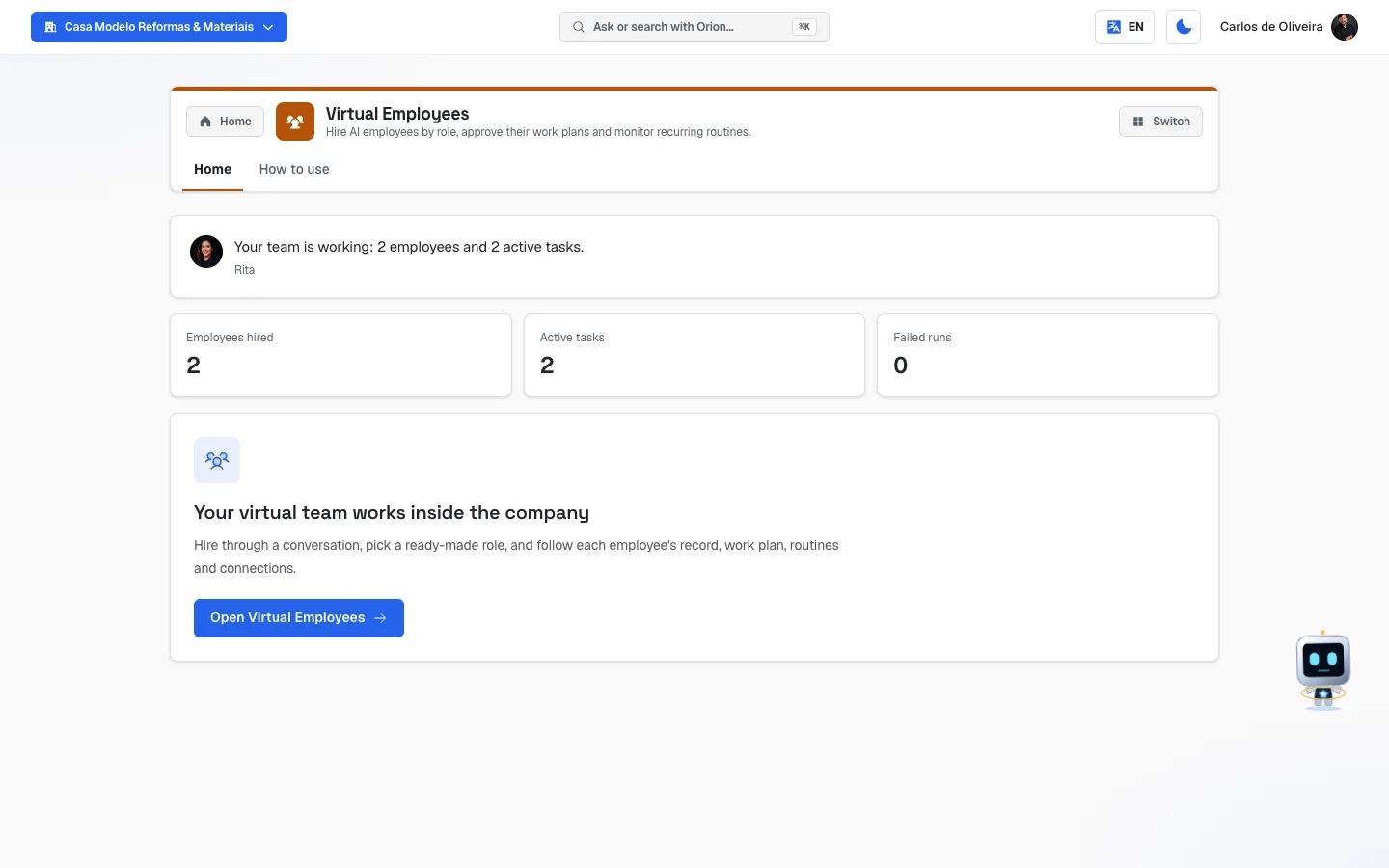 Home tab, with Rita's note and the three numbers at the top and the box with the "Open Virtual Employees" button below
What's on the other side
The button leads to the Employees screen (/app/funcionarios), described like this: "Hire AI
employees for the areas of your business. They learn from your company's material and
work on the inside — they don't serve your public."
The list — each employee appears on a card with the role's icon, the name and the role. Anyone who is still on trial appears with "· on trial". With nobody hired, the screen says: "You don't have any employees yet. Hire your first one."
Hiring — two paths:
- Hire an employee opens the conversation with Rita, from HR.
- I'd rather pick directly. opens the Pick directly box, where you check a role among
the ready-made ones — Legal, Finance, People & HR, Purchasing,
Operations, Executive assistant, Sales back-office, Personal
and Custom role — and fill in two fields:
- What you want to call this person (required; e.g.: "Marina").
- Any preference on manner? (optional) (e.g.: "be very direct and to the point"). After you click Hire, the confirmation appears with the amount again, so nobody decides without seeing the number.
The conversation with the employee — clicking a card takes you into their conversation. In there are, among other things: Edit name and manner, View record, Access they asked for, Agreed work (with Run through it, Approve, Do it now and Discard), What was agreed, Company material (Choose a file, Website address, Paste some text) and Let the employee go.
The record (View record) — shows This month (how many jobs were used out of the total included and how many credits), Agreed work (each routine with the badge Live, When you ask, Waiting on you, Paused — it failed or Paused — monthly limit, plus the schedule and the dates of the last and the next time) and What they did (the history).
The connections (What they can reach) — the list of what the employee can reach: The emails that arrive for them, An online spreadsheet, Your calendar and Your system. Each one has the Connect or Disconnect button. With nothing connected, the screen says: "Nothing connected yet. When they need something of yours, they'll ask you here."
The three screens above are already documented step by step, each in its own section, in the chapter 3 — Your AI team: the conversation with the employee is section 7, the record is 8 and the connections are 9. The summary here exists only so you know what you'll find on the other side of the button.
How to read the numbers
The three numbers at the top of the Home tab:
- Employees hired — how many AI people you have working right now. Anyone who has been let go doesn't count.
- Active tasks — how many routines are agreed and running. A "task" here is a chore that happens on its own, at the time you agreed.
- Failed runs — how many times a task tried to run and failed in the last 30 days. This number turns red when it's greater than zero. It only counts the last 30 days on purpose: that way it goes back to zero when the problem is fixed, instead of just climbing forever.
Rita's note, above the numbers, changes according to what's going on, and the order is by urgency:
- Pending question — a task stopped waiting for an answer from you. It's the only item only you can unblock, which is why it comes first.
- Failed run — something went wrong in the last 30 days.
- Paused task — some routine is stopped.
- No employee — you haven't hired anyone yet.
- No task — you have people hired, but nothing agreed to happen on its own.
- When none of that exists, it says everything is in order.
If the system can't read one of these numbers at that moment, the note says so before anything else — "I couldn't read your data right now — this doesn't mean it's empty. Try refreshing shortly." — and the three numbers show up with a dash (—) instead of zero. That's why a zero on the screen is always a real zero.
Inside each employee's record you also see the month's number: "X of 300 jobs". Each employee has 300 routine runs per month included. Beyond that, the automatic routines stop and the record offers the Release the rest of the month button. Asking for something on the spot, in the conversation, keeps working even with the limit used up.
And the "X credits used this month"?
Right below the jobs, the record shows a second line: "N credits used this month." A credit is the platform's internal currency — the same one that pays for video, images, voice minutes and WhatsApp messages. Every time the employee thinks and acts (each step of their work), some credits leave your balance. They're two different, independent accounts: jobs are that employee's monthly allowance; credits are your whole account's balance.
You see the balance, understand what it represents and buy more all on one screen: full menu → Account → Credits & plan. There you'll find:
- Plan Credits — "Renew monthly with the plan".
- Add-on Credits — "Expire in 6 months".
- Top up credits — the extra packs, with the price of each one. You click the pack and go to payment. If the box shows up with no packs, it was a momentary read failure: reload the page.
- Usage history — date, description, pool and how many credits left in each use.
- Invoices & payment — opens the billing portal to download an invoice, change a card or cancel.
On that screen there's also a What your balance represents box, with equivalents like "≈ 40 images". It covers video, voice, images and marketing messages — it does not translate the balance into virtual employee jobs. For the employee, the number that counts is the one on their record.
Frequently asked questions
Is this a chatbot with a different name? No. The employee has an internal role, working memory, an agreed plan, routines and tools of their own. They work in the company's operations; they don't serve your public. The ones who talk to your customer are the support modules (Rebeca for lead capture, Ava for support).
Why does this module have just one tab? Because it's a front door: it shows the summary and takes you to the area where the virtual team actually lives.
Do I need to know how to explain what I want in technical terms? No. You talk to Rita in plain language — "I need someone to organize the invoices" is enough. She turns that into a role and responsibilities.
Where are the passwords for my accounts kept? Passwords are neither shown nor kept in the employee's record. The connection to the calendar, spreadsheet, email and management system is made by the system itself, on the connections screen.
Can I let an employee go without losing what they did? Yes. In their conversation there's Let the employee go: that employee's routines stop, but the record and the history stay there.
Does hiring change my monthly bill? Yes. The amount appears on the screen before you hire and again in the confirmation, precisely so nobody decides without seeing the number.
When something goes wrong
The screen shows the module's offer instead of the content. The module isn't active on this account. You need to subscribe to it.
"We couldn't load your employees right now. Reload the page in a moment." Appears on the Employees screen when the system couldn't read your list. Reload the page.
"I couldn't load the summary right now. Nothing has changed here — reload the page in a few moments." Appears at the top of the Home tab, in place of Rita's note and the three numbers, when the system couldn't fetch the summary at that moment. It doesn't mean there's nothing waiting for you — it means it couldn't be checked. Reload the page in a few moments; meanwhile, the Open Virtual Employees button keeps working.
Rita's note says "I couldn't read your data right now" and the numbers show up with a dash (—). The summary arrived, but one of the counts couldn't be read at that moment. The dash stands in for the number on purpose, so the screen doesn't show a zero that isn't true — like "0 questions waiting" when there may be one. Reload the page in a few moments.
The "Failed runs" number is red. Click the button next to Rita's note. It takes you to the employees' area. Open the record and look under Agreed work for which routine has the Paused — it failed badge, and use Turn back on.
The note says there's a question waiting. A task stopped because the employee needs an answer from you. Open their conversation and answer — that's all it takes to unblock it.
The routine stopped and the record says "Paused — monthly limit". The employee has already done everything included in the month. On the record, click Release the rest of the month if you want them to continue. Asking on the spot, in the conversation, keeps working either way.
"I couldn't open the connections right now." Appears on the connections screen. Click Try again.
I connected the calendar and it says "Your Google account is connected, but without calendar permission." Reconnect the Google account, enabling access to the calendar.
A connection shows as "Stopped working". Open What they can reach and click Connect on that row to redo the connection.
"You're out of credits." The employee needs credits to work and your account's balance hit zero. Go to Credits & plan, in the full menu (under Account), and use Top up credits — add-on credits last 6 months and arrive right away. Plan credits come back on their own when the month rolls over. (This is different from "Paused — monthly limit", which is that employee's allowance of jobs: there, what fixes it is the Release the rest of the month button, on the record.)