

24/7 WhatsApp AI Support
Where to find it: Home → Your apps → WhatsApp AI (at the top of the screen the module shows as 24/7 WhatsApp AI Support)
Address: /app/modulos/atendimento-whatsapp
Just signed up? The Virtual Assistant Guide takes you from zero to Ava booking visits with your team, step by step and with photos.
What it's for
Your business's WhatsApp rings all day. "How much does it cost?", "do you cover the Garden neighborhood?", "do you have Saturday hours?". It's always the same ten questions — and you answer every one, one by one, between one job and the next. At night and on weekends, whoever writes is left without an answer and looks for someone else.
This module puts a virtual assistant on your WhatsApp. Her name is Ava, she answers right away, 24 hours a day, using what you taught her: your prices, your hours, the neighborhoods you serve, your warranty. She greets, answers, asks the questions you told her to ask — and when things get serious, she calls you.
The most important point is this: she knows when to step off the stage. When the customer asks to talk to a person, uses a word you set (like "complaint" or "cancel") or shows they want to close a deal, she alerts you on WhatsApp and by email and, when the customer writes again, waits up to 5 minutes for your reply before going back to answering. You take over the conversation without stepping on anyone.
Day-to-day example: you're a locksmith. At 11 p.m. someone writes "I'm locked out of my house". Ava answers right away, explains that you handle emergencies, asks the neighborhood and the type of lock — and since "emergency" is one of your handoff words, she stops there and sends an alert to your phone with the summary. You wake up, read three lines and call. The customer wasn't left hanging, and you didn't miss the 11 p.m. job.
Before you start
-
The 24/7 WhatsApp AI Support module has to be active on your account, with an active plan. Without a plan, Ava doesn't reply on WhatsApp or in the widget.
-
The first time you open the module, an invitation from Ava appears at the top of the module: "Want to set up … by chatting with Ava?". It's optional — the tabs already work — and each reply from her uses AI credits. Chatting helps Ava get to know your company. To make the invitation go away, click Dismiss or, after chatting, Complete setup.
-
The company's WhatsApp has to be connected. That's done on another screen: side menu → Integrations → WhatsApp (
/app/integracoes/whatsapp). This module has no connection tab of its own — look there.Start with the QR code. The two paths aren't competitors, and the screen itself says so: "Use both channels together: Phone WhatsApp, so Ava chats with your customers 24 hours a day, and Verified WhatsApp (Meta's official one), to send campaigns to many contacts at once with message templates approved by Meta." Notice that the QR tab is called, in so many words, "Phone WhatsApp — QR Code connection".
Phone WhatsApp (QR code) Verified WhatsApp What you need just the company's phone with WhatsApp a Meta Business account, an app created on Meta's developer portal, a verified official number, two codes to copy and a callback address to set up there How long it takes minutes — the screen promises "no Meta sign-up and no access code to copy. Just scan the QR Code" days, if the number isn't yet verified by Meta What it's for Ava's support, conversation by conversation messages to many contacts at once, campaigns and approved message templates Ava answers on both — that's real, not showroom talk: messages that arrive through Verified WhatsApp land in the same support flow. But two things depend only on the QR code: the handoff alert on WhatsApp (see the Handoff tab) and the Panel alert that says "Your WhatsApp is disconnected". Whoever uses only Verified WhatsApp goes without both.
In one sentence: if you want Ava answering, the QR code is the way. Verified WhatsApp comes in later, when you're going to send a campaign — and then both stay connected at the same time, which is the design.
-
Before putting Ava live, feed the Knowledge tab. Without it she answers generically.
-
Leave at least the WhatsApp or the email filled in on the Handoff tab — that's where the alerts go when she calls you.
First steps
- In the full menu, under More, click All connections → WhatsApp and connect the company's number.
- Go back to Home → Your apps → WhatsApp AI. You land on the Panel tab.
- Go to the Knowledge tab and add what Ava needs to know about your business — at least one document or your website address. Wait for the sources to get the green READY label. (See the section on the Knowledge tab about what to write.)
- Go to the Settings tab. Give the assistant a name, choose the Role (persona) and the Tone of voice, write the Greeting (first message) and the After-hours message.
- Still in Settings, check the days and hours your company is open and write the Qualifying questions.
- Make sure the Ava active (replies on WhatsApp and widget) box is checked and click Save configuration.
- Go to the Handoff tab. Write the keywords that should call you and fill in the Responsible person's WhatsApp and/or the Responsible email. Click Save handoff.
- Ask someone (or use another phone) to send a message to your company's WhatsApp and watch Ava reply.
- From then on, check the Panel every day and the Conversations tab when she calls you.
📷 This screen has no photo — on the phone of whoever writes, the conversation looks like any WhatsApp conversation: Ava's greeting and then her answer to the question — for example, the price of a service.
The tabs, one by one
Panel
/app/modulos/atendimento-whatsapp/painel
- What you see here:
- At the top, Ava's panel: a note from her telling you how the support is going and what needs your attention now (a conversation waiting for you, WhatsApp down, assistant turned off, empty knowledge base). It also shows your greeting, so you can check what sentence customers are welcomed with.
- Below, your plan box: whether it's active, which one it is, how many messages you've already used and the percentage of usage.
- What you can do: look. It's the "how is everything" screen. When the panel points to a problem, it brings the path to fix it (go to Conversations, to Settings, to the Knowledge tab or to the screen for connecting WhatsApp).
- Special states:
- While loading: "Loading…".
- If there's an error fetching the plan, a red banner appears with the error message.
- No active plan: "No active Ava plan" and, below, "Ava won't reply on WhatsApp/Widget until you subscribe to a plan."
Settings
/app/modulos/atendimento-whatsapp/config
- What you see here: four boxes and a big button at the bottom — Identity, Messages, Business hours and Qualifying questions.
- What you can do: teach the assistant how to behave: who she is, how she speaks, when she replies and what she needs to ask.
Step by step:
- On Home, under Your apps, click WhatsApp AI → Settings tab.
- Fill in the four boxes (explained below).
- Check the Ava active (replies on WhatsApp and widget) box.
- Scroll to the bottom and click Save configuration. While it saves, the button becomes "Saving…"; at the end the notice "Ava updated." appears.
Each field explained — Identity box:
| Field | What to do |
|---|---|
| Agent name | The name she uses when introducing herself. It comes as "Ava", but it can be whatever name you want — she never uses any other name. |
| Role (persona) | Her job. See the table below. |
| Tone of voice | The way of speaking: Formal and professional, Casual and friendly, Excited and energetic or Consultative and expert. |
The Role (persona) options:
| Option | What it's for |
|---|---|
| Customer service — Questions, support | Resolves questions from people who are already customers. It's the one that comes selected in this module. |
| SDR — Qualify leads and book meetings | Finds out what the person needs and tries to book a conversation with you. |
| Sales — Sell, handle objections, close | Presents, answers objections and pushes toward closing. |
| Tech support — Diagnose and escalate | Asks diagnostic questions and passes the problem along. |
| FAQ — Answer common questions | Only answers common questions; the rest she hands off. |
| Custom — Use your instructions below | She follows exactly what you write under "Specific instructions". |
Each field explained — Messages box:
| Field | What to write |
|---|---|
| Greeting (first message) | The first sentence the person reads. E.g.: "Hi! 👋 How can I help?" |
| After-hours message | What she says when someone writes outside the set hours. E.g.: "We're outside business hours." |
| Specific instructions (optional) | Your own rules, in plain language. E.g.: "Always offer 5% cash discount. Never promise Sunday delivery." |
| Ava active (replies on WhatsApp and widget) | On/off checkbox. Unchecked, whoever writes to the WhatsApp gets no reply. |
Business hours box:
The screen explains: "Check the days your company is open. The assistant uses this to know when to answer normally and when to use the after-hours message."
- Check the Time zone (it comes as
America/Sao_Paulo). - Check the box for the day you're open. When you check it, two hour fields appear: from and to.
- An unchecked day is written Closed.
- Below there's the reminder: "With no day checked, the assistant answers at any time — exactly as it does today."
If on any checked day the end time isn't after the start time, a warning appears in red and nothing is saved. That's on purpose: saving halfway would make the assistant refuse to help on a day you thought you had configured.
Qualifying questions box:
These are the questions she needs to ask before passing you the contact. The screen explains: "What the assistant needs to find out before handing the contact to you. It asks one at a time, inside the conversation — never as a form."
- Click Add question.
- Write the question. E.g.: "Which neighborhood is the job in?"
- Repeat. The limit is 10 questions; when you reach it, "You have reached the limit of 10 questions." appears.
- To delete one, click the trash can icon next to it.
In this box there's also the Ask for a satisfaction rating at the end checkbox. If you uncheck it, she never asks for a rating.
Knowledge
/app/modulos/atendimento-whatsapp/base
This is the knowledge base: everything Ava knows about your business. It's the most important tab in the module. An assistant without a knowledge base answers generically and is no use at all.
The tab has two parts, in the little buttons at the top: Documents and Sites.
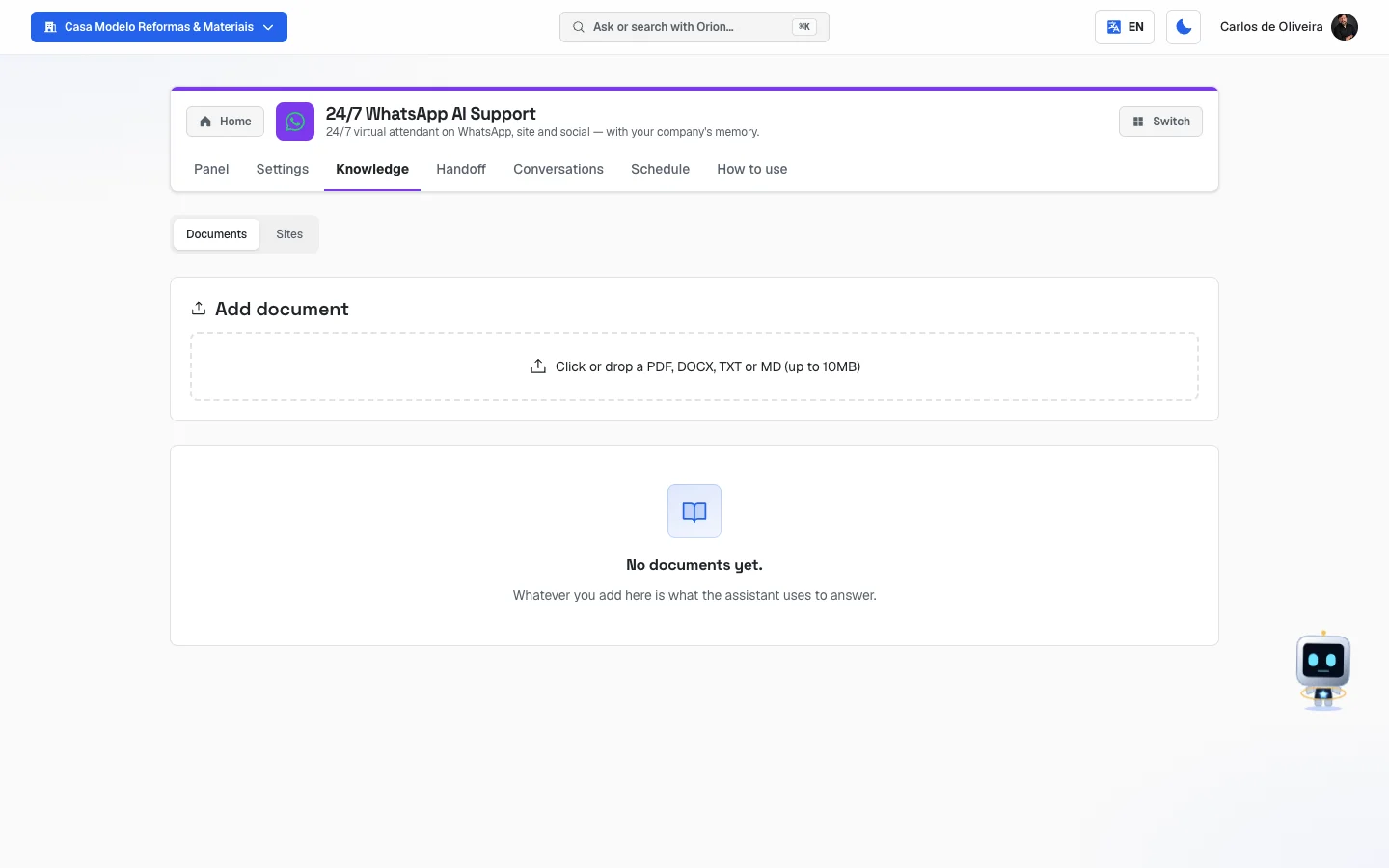 Knowledge tab with the two inner tabs (Documents and Sites) and the box for adding a document, still without any source
Documents
/app/modulos/atendimento-whatsapp/base (inner tab Documents — it's the one that opens by
default)
- What you see here: the Add document area, with the dotted rectangle "Click or drop a PDF, DOCX, TXT or MD (up to 10MB)", and below it the list of what you've already uploaded, each row with the file name and a status label.
- Step by step:
- Click the dotted rectangle and choose the file (PDF, DOCX, TXT or MD, up to 10 MB).
- Wait. The label goes through QUEUED → INDEXING → READY.
- Only when it's READY does Ava start using that content.
- The buttons on each row: the circular arrows = Update (use it when you changed the file's content or when the label ended up as ERROR); the trash can = Remove (the system asks "Remove this source?" before deleting).
- Empty state: "No documents yet." with the explanation "Whatever you add here is what the assistant uses to answer."
Sites
/app/modulos/atendimento-whatsapp/base?aba=sites
- What you see here: the Add site / address area, with an address field
(e.g.:
https://yoursite.com/about), the Read the whole site (all pages) checkbox and the add button. Below, the list of addresses already read. - Step by step:
- Paste the page's address into the field.
- If you want it to read the whole site (and not just that page), check Read the whole site (all pages) — the button changes to Read whole site.
- Click Add address (or Read whole site).
- Wait for the label to turn READY.
- Empty state: "No sites yet."
What to write in the knowledge base so Ava answers well
Ava has a golden rule written into the system: never make up a price, hour, address, deadline or policy. If it isn't in the knowledge base, she says she needs to confirm — or she calls you. So everything you don't write here becomes an "I need to confirm" in your customer's face, or a handoff to you.
Write a simple document, in everyday language, as if you were explaining the business to a new employee. It doesn't have to be pretty. It has to be complete. Cover:
- What you do. The list of your services or products, with the name the customer uses.
- How much it costs. Prices, price ranges ("from $X to $Y, depending on size"), what's included and what's charged separately.
- Where you serve. Neighborhoods, cities, radius in kilometers. And what you don't serve.
- When you serve. Days, hours, on-call shifts, holidays.
- How long it takes. Visit time, delivery time, execution time.
- How you get paid. Cash, Pix (Brazil's instant payment system), card, installments, deposit.
- Warranty and policy. How many days of warranty, what it covers, how cancellation and rescheduling work.
- The questions you get asked most. Think of the 20 questions you answer every day on WhatsApp and write the answer to each one. Those are the ones worth the most.
- What you don't do. "We don't do construction work", "we don't serve businesses". That way she declines politely instead of promising what you don't deliver.
Practical tips:
- One topic per paragraph. Short sentences. On WhatsApp she answers in two or three short messages, so rambling content gets in the way.
- Write the way the customer asks, not the technical way. If they say "clogged pipe", write "clogged pipe", not "hydraulic obstruction".
- If something changes (price, hours), update the document and click Update on its row. She doesn't guess at changes.
- Put the site in Sites to pick up the basics, but don't stop there: price and hours almost never appear on the site, and that's exactly what the customer asks.
- Don't include data you don't want coming out of her mouth: everything that's in the knowledge base she may tell a customer.
A good knowledge base = fewer handoffs. Ava only calls you when the customer asks for a person or when not even the knowledge base solves it. The more complete the knowledge base, the less your phone rings.
Handoff
/app/modulos/atendimento-whatsapp/handoff
Handoff is "passing the ball". It's here that you decide when the conversation leaves the AI's hands and goes into yours — and how you get alerted.
- What you see here: an explanatory text at the top and two boxes: When to transfer to a human and Where to notify.
What the screen explains, at the top:
"Ava handles chats on her own, 24/7. She hands the conversation over to you in these cases: when the customer uses one of the keywords below, openly asks for a person, or shows strong buying or complaint intent. At that point you get an alert on each contact set below (WhatsApp and email). When the customer writes again, Ava waits up to 5 minutes for your reply; if nobody replies, she takes over again and carries on, without waiting again. Marking the conversation as resolved (Return to AI) brings Ava back right away. With nobody set up to receive the alert, Ava doesn't wait: she keeps helping."
When the conversation passes from the AI to you — the three situations:
- The customer wrote one of your keywords. For example "complaint" or "cancel".
- The customer asked for a person. "I want to talk to someone", "is anyone there?".
- The conversation went beyond what Ava can solve — a complicated technical or commercial question, or strong buying or complaint intent.
What happens at that moment:
- Ava gives you the floor: when the customer writes again, she waits up to 5 minutes for your reply before going back to answering. She doesn't step on you.
- She replies to the customer with something like "I'll get someone from our team to help you, ok? Someone will be in touch shortly."
- You get an alert on WhatsApp and/or email, whichever you registered here, with the reason, a summary of the conversation, the classified intent and the customer's contact.
- The conversation starts showing with the orange human label in the Conversations tab — until you return it to the AI or 12 hours pass.
When Ava goes back to answering that conversation:
- When you click Return to AI in the Conversations tab — she's back right away; or
- On her own, if nobody replies: when the customer writes again, Ava waits up to 5 minutes for your reply; after that, she goes back to answering and carries on, without waiting again. With nobody set up to receive the alert, she doesn't wait: she keeps helping.
Step by step — setting up the handoff:
- On Home, under Your apps, click WhatsApp AI → Handoff tab.
- In the When to transfer to a human box, write the words in the
Keywords that trigger handoff (comma separated) field. Ready-made example on the
screen:
human, agent, manager, complaint, cancel. - In the Where to notify box, fill in the Responsible person's WhatsApp (country code +
area code + number) — all together, starting with Brazil's 55. Example from the screen:
+5511999999999(the+, spaces and dashes may stay or not: the system uses only the digits). - Fill in the Responsible email. E.g.:
sales@yourcompany.com. - Click Save handoff.
Each field explained:
| Field | What to write |
|---|---|
| Keywords that trigger handoff (comma separated) | The words that, said by the customer, make Ava call you right away. Separate them with commas. The screen explains: when the customer mentions one of those words, or openly asks for a human, or shows strong buying/complaint intent, she flags the conversation for you to take over. |
| Responsible person's WhatsApp (country code + area code + number) | The number that receives the alert, starting with the country code (55) and the area code: +5511999999999. |
| Responsible email | The email that receives the alert. |
| Kommo pipeline (optional) | Only appears for a company that already had Kommo connected (Kommo is no longer offered as a CRM). It's the number of the pipeline where Ava's deals should be created. If filled in, every deal she creates in Kommo goes into that pipeline — your choice always applies, and nothing and nobody works around it. If empty, the deal goes into the default pipeline of your Kommo account. You can leave it empty with no harm. |
Important: the screen itself warns — "This is where the alert lands when Ava calls you. Fill in at least the WhatsApp number or the email so you never miss a handoff." If both are empty, the conversation is marked as waiting for you, but nobody alerts you.
A trap worth knowing about: the WhatsApp alert needs a number from YOUR company. It doesn't go out from one of our numbers — it goes out from the WhatsApp you connected by scanning the QR code in Integrations → WhatsApp. If your company has no number connected that way (for example, if you only use Verified WhatsApp), the WhatsApp alert has nowhere to go out from, no matter how correct the responsible person's phone number is.
The screen warns you about that. As soon as you fill in the Responsible person's WhatsApp and your company has no number connected by QR code, an orange banner appears right below the field: "The WhatsApp alert won't go out: your company has no number connected via QR Code to send it. Connect one in Integrations → WhatsApp, or fill in the email — otherwise Ava calls and nobody finds out."
And when the alert fails halfway? It's sent in the background, on purpose: if sending the alert took down the support, the customer on the other end would be left without an answer because of an internal message. The cost of that choice is that a momentary failure (the company's phone without internet at that minute, for example) doesn't show up on any screen — it stays only in the server's technical log. So two practical recommendations: fill in the email too, which is a path independent of WhatsApp; and trust the Panel, which lights up the alert "Your WhatsApp is disconnected — no message reaches you until you reconnect the phone." when the company's number drops. And the Conversations tab, on the With a human filter, is your safety net: it shows who's waiting for you, whether the alert arrived or not.
Conversations
/app/modulos/atendimento-whatsapp/conversas
- What you see here: the list of your WhatsApp conversations, from the newest to the oldest, and — when you click one — the whole thread of messages in bubbles. Sent messages sit on the right side, colored; the customer's sit on the left side.
- The filters at the top (with the number in parentheses):
- All
- With a human — the conversations where Ava called a person and that haven't been returned to the AI yet.
- On the right side, the refresh button. The list also refreshes itself every 15 seconds.
- The labels on each row:
- 📋 form — the contact came through the website form.
- ✋ human — Ava called a person into this conversation.
- What you can do: read the conversations and return a conversation to the AI.
Step by step — returning a conversation to the AI:
- In the Conversations tab, click the With a human filter.
- Click the conversation you've already resolved.
- At the top of the right panel the orange banner "A person was called into this chat. When the customer writes, Ava waits up to 5 minutes for their reply; if nobody replies, Ava takes over again and carries on without waiting again." appears with the Return to AI button.
- Click Return to AI. The notice "Conversation returned to the AI." appears and Ava goes back to replying in that conversation right away, without waiting the 5 minutes.
- Special states:
- "No conversations in this filter" — with the tip to clear the filter.
- "Click a conversation to see the history."
- "No messages in this conversation."
- If the contact came from the website form and hasn't written anything yet: "This contact came from the website form. They left their name and phone and went to your WhatsApp. If they send a message, the history shows up here."
This screen is read-only. You don't reply to the customer here — you reply on WhatsApp itself, on your phone or in WhatsApp Web.
Schedule
/app/modulos/atendimento-whatsapp/agenda
- What you see here: the Team schedule box, with the visits Ava booked in the next 7 days, split by day. Each visit shows the time, the team member who's going (and the service), the customer's name and phone, and the address. Team and times are set in the Settings tab. With no visits, it shows "No visits in the next 7 days".
- What you can do:
- Reschedule a visit: the next free times show up (to see other days, change the date in Free times from); click the time you want. When the visit has the customer's phone, the Notify the customer on WhatsApp box comes checked and the customer gets the new time.
- Cancel a visit: the screen asks "Cancel this visit?"; the team member gets the alert, and you let the customer know in the conversation.
- Block time (lunch, a day off, a holiday, an appointment): choose Who (The whole team or one person), the Day, From and To what time and, if you want, the Reason (optional), and click Block. Ava doesn't offer any time inside the block. Anyone who already has a visit at that time isn't blocked — the screen says who, so you can reschedule or cancel first. The blocked time shows in the list as Blocked, with the Free up button to undo it.
The full step-by-step — registering the team, how Ava books the visit, rescheduling and blocking — is in the Virtual Assistant Guide.
How to use
/app/modulos/atendimento-whatsapp/como-usar
Every module has this tab at the end. It's the module's manual inside the system itself.
How to read the numbers
The three numbers on Ava's panel (Panel tab):
- Conversations — how many conversations your WhatsApp has had since the beginning. It's a number that only grows; it says nothing about this week.
- With you — how many conversations are right now with a person called by Ava (the ones not yet returned to the AI). This is the number to look at every day. If it's greater than zero, Ava called you and it's worth checking whether someone has already replied to the customer.
- Knowledge base — how many documents and sites Ava has to consult. Zero here means she's answering generically.
The panel's notes and what to do about each one:
| What the panel says | What it means | What to do |
|---|---|---|
| "X conversations asked to talk to a person — I alerted the contact you set up. If nobody replies to the customer within 5 minutes, I reply and carry on." | The customer asked for a person; Ava alerted you and is waiting for you. | Go to the Conversations tab, With a human filter. |
| "Your WhatsApp is disconnected — no message reaches you until you reconnect the phone." | The number dropped. | Go to Integrations → WhatsApp and reconnect. |
| "Your assistant is turned off — whoever writes on WhatsApp gets no reply." | The active checkbox is unchecked. | Go to the Settings tab and check Ava active. |
| "My knowledge base is empty — without it I answer generically." | You didn't put anything in the Knowledge tab. | Go to the Knowledge tab. |
| "No conversations yet — as soon as the first customer writes, it shows up here." | Nobody has written yet. | Send a test message from another number. |
| "Your support is running: X conversations handled, none waiting on you." | Everything is fine. | Nothing. |
The plan box (at the bottom, in the Panel tab):
- Plan — which plan you have.
- Status — whether the subscription is active.
- Messages — how many conversations you've used out of how many the plan gives per month (e.g.: "312 / 500").
- Usage — the same thing as a percentage. It turns orange above 80% and red when it runs out.
If the month's quota runs out, Ava stops replying normally. So it's worth checking Usage from time to time.
The counters on the Conversations tab:
- All — all the conversations.
- With a human — the ones that are with you now. It's the same number as "With you" on the panel.
Frequently asked questions
Does Ava reply from my actual number, or from another one? From the number you connected in Integrations → WhatsApp. For the customer it's your usual WhatsApp.
If I reply on WhatsApp while she's answering, does she step on my reply? No. When you reply to the customer from your phone, Ava doesn't talk over you: if the customer writes again, she waits up to 5 minutes for your reply and, if you don't come back, picks the conversation up again, reading what you already said. This applies to WhatsApp connected by QR code.
How do I make her stop in a specific conversation right now? Reply yourself on WhatsApp: Ava gives you the floor and, when the customer writes again, waits up to 5 minutes for your reply before going back to answering (on WhatsApp connected by QR code). If the conversation is marked human, the Return to AI button in the Conversations tab brings Ava back right away.
Can she make up a price I don't charge? Her rule is not to make up a price, hour, address, deadline or policy. If it isn't in the Knowledge tab, she says she needs to confirm. That's why the knowledge base is the most important part.
I wrote the keywords, but she handed off a conversation that had none of them. Why? Keywords are just one of the three triggers. She also hands off when the customer asks for a person and when the conversation goes beyond what she can solve.
I'm not getting the handoff alerts. Now what?
Go to the Handoff tab and check that the Responsible person's WhatsApp starts with the country
code and the area code (+5511999999999) and that the Responsible email is correct. If both
are empty, nobody gets alerted.
What's the difference between "Documents" and "Sites" in the Knowledge tab? They're two ways of teaching the same thing. Documents are files you upload (PDF, DOCX, TXT, MD). Sites are addresses she reads on her own. Use both.
When something goes wrong
| Symptom | What to check | What to do |
|---|---|---|
| "No active Ava plan" on the Panel | The module's subscription isn't active. | Purchase or reactivate the plan. In the meantime, Ava doesn't reply on WhatsApp or in the widget. |
| The Panel warns that WhatsApp is disconnected | The phone connected by QR code went offline (no battery, no internet, session ended). | Go to Integrations → WhatsApp and reconnect. While it's down, no message arrives. |
| The Panel warns "Your assistant is turned off" | The active checkbox is unchecked. | Settings tab → check Ava active (replies on WhatsApp and widget) → Save configuration. |
| The Panel warns "My knowledge base is empty" | No document or site registered. | Knowledge tab → upload at least one document with prices, hours and the most common questions. |
| Ava answers everything with "I need to confirm" | Content is missing from the Knowledge tab. | Add prices, deadlines, neighborhoods served and the most common questions. See the list in the Knowledge section. |
| A Knowledge document ended up with the ERROR label | The file may be corrupted, password-protected or a scanned image without text. | Hover over the label to see the reason. Click the arrows (Update). If it keeps happening, save the content as a plain TXT file and upload it again. |
| "Unsupported format. Use PDF, DOCX, TXT or MD." | The file is of another type (image, spreadsheet, presentation). | Convert it to PDF or copy the text into a TXT file. |
| "Max 10MB." | The file is too large. | Split it into smaller files or save the PDF in lower quality. |
| The address pasted in Sites doesn't get indexed | The site may block automatic reading, or the address is wrong. | Check that the address opens in the browser. If it stays in ERROR, copy the pages' text into a TXT file and upload it under Documents. |
| In red appears "Check the hours: on one of the days marked open, the closing time is not after the opening time." | On some checked day you put, for example, 18:00 to 08:00. | Fix the day pointed out. While the warning is there, nothing is saved. |
| "You have reached the limit of 10 questions." | You've already registered 10 qualifying questions. | Delete one with the trash can to be able to add another. |
| "Only owner/admin can edit Ava's configuration." or "Only owner/admin can add sources." | Your user isn't the account owner or an administrator. | Ask the account owner to make the change or promote you. |
| A conversation is stuck with the human label and nobody replied | It was handed off and got forgotten. | Reply on WhatsApp, or click Return to AI so Ava takes over again right away. If nobody does anything, Ava goes back to answering on her own when the customer writes again and 5 minutes pass without a reply; the human label goes away after 12 hours. |
| "Could not return to the AI." when clicking Return to AI | Momentary failure. | Refresh the page (F5) and try again. |
| The Panel shows a high number of Conversations but your WhatsApp is silent | The "Conversations" number counts a lifetime, not the day. | Look at the panel's notice about the WhatsApp connection; if it says it's down, reconnect in Integrations → WhatsApp. |
| A red banner appears on the Panel with an error message | Failure reading the subscription status. | Refresh the page (F5). If it continues, talk to support. |