

Account, plan and billing — everything that involves money
This is the fourth chapter. It covers the financial side: what you subscribe to, what you pay per month, what you pay for usage, where your invoices are, what those credits are and what happens if you cancel something — or if a monthly payment runs late.
This manual doesn't quote prices on purpose. Prices change, and the Catalog is the boss. What you'll find here is the mechanics: when the money leaves, where it comes from and what happens in each situation.
If you don't know your way around the system yet, read the Getting started chapter first.
What's in here
- 1. How AutoAgency charges — the money map
- 2. Catalog — the module store
- 3. Your modules — what you already have and what you can add
- 4. Credits and plan — the most important screen in this chapter
- 5. My Subscriptions — and how to cancel a module
- 6. Invoices, card, country and tax ID
- 7. Subscription confirmed — what happens after you buy
- 8. What happens if you don't pay
- 9. Companies and branches — when you have more than one business
- 10. My clients — for people who serve other companies
- 11. Billing — the panel for people who bill their own clients
- 12. Referrals — earn money by referring AutoAgency
- 13. Your promoter's Pix key page
- 14. Three money addresses that only redirect
1. How AutoAgency charges — the money map
Before we go screen by screen, it helps to understand that there are four different things that can come out of your pocket. They don't mix, and each one has its own screen.
| What it is | How it's charged | Where you handle it |
|---|---|---|
| Module (subscription) | Every month, or once a year | Catalog to subscribe, My Subscriptions to end |
| Usage (credits) | As you use it: each video, each image, each minute of voice, each message | Credits & plan |
| One-time purchase | Just once (publishing a website, a ready-made store, a package) | Catalog |
| Service with real people | Just once, or monthly | Catalog, Service Teams section |
And two rules that apply to everything:
- You can pay by credit card or boleto (Brazil's bank payment slip; in other countries you'll see the payment methods that apply to yours). That sentence appears next to every button that leads to payment.
- The payment itself doesn't happen inside AutoAgency. When you click subscribe or top up, the system takes you to the secure payment screen. The amount, the currency and the payment methods show up there, before you confirm. If you close that screen without finishing, nothing is charged — and the screen itself tells you so when you come back.
The 3 days to get to know it
A new account starts with a 3-day period to get to know the platform. A bar at the top of the screen explains:
"You have N days to explore the platform: browse freely and talk to the team. Creating campaigns, publishing and generating material starts when you subscribe."
In other words: during those 3 days you look around, talk to the team and ask for explanations — but the team doesn't carry out work yet. No publishing posts, no creating campaigns, no generating videos. And, importantly: the plan's monthly credits don't arrive during those 3 days; they are created when the first charge is confirmed.
When the 3 days end with no subscription, the bar turns red:
"Your 3 days to explore AutoAgencia are over. Subscribe and the team starts working."
From then on, the panel gives way to a screen asking you to subscribe — except on the screens you need precisely to become a customer or to talk to someone: Catalog, Credits & plan, Billing (clients), Support and the payment screens. That path is never locked.
2. Catalog — the module store
Where to find it: full menu → bottom of the menu → Account → Catalog
Address: /app/catalogo
What it's for
It's the store. This is where you see everything AutoAgency sells, pick what you want, build a cart and pay. It's also where the system sends you whenever you try to open a module you haven't subscribed to yet.
The screen doesn't make you know the product name. It first asks what you need to solve and shows the solutions that fit.
What you see
At the top, the AutoAgencia solutions bar with the question in big letters: "What do you need to solve?" and the explanation: "Choose by your business need. Each solution appears once, with clear options and pricing."
Right below, the payment period button, with two options:
| Option | What it says underneath | What it means when you cancel |
|---|---|---|
| Monthly | "Month-to-month flexibility" | "No lock-in: cancel before the next monthly renewal and you won't be charged again." |
| Annual | "One charge per year" (with the 2 months free tag) | "Cancel the renewal whenever you want: access continues until the end of the annual period already paid. No automatic prorated refund, except where required by law." |
Not every product has an annual plan. When one doesn't, the card says: Monthly plan only — "This product has no annual plan: the amount is charged every month."
Then come the filters: a search box ("Search by product, benefit, or need"), the Show recommended only switch and the needs panel — again with the question What do you need to solve? and the hint "Choose one or more needs". There are seven cards, each with an example of what's inside under the name: Attract more customers (Traffic · SEO · Acquisition), Strengthen your brand, Serve customers better, Sell more, Build your digital presence, Organize and automate and Expand your team.
And then the solutions, grouped. When there are solutions recommended for your case, the first list is Recommended for you ("Best place to start"). Then come the groups by need, each with its name and the number of solutions — for example, Attract more customers (15). At the bottom of the page is Service Teams ("Optional human support") — which is real people, not software.
Each solution card shows the name, what it solves, the price with the period (/month, /year
or One-time payment) and a button that changes depending on the case: Add to cart,
In cart, See options, See details or Configure and purchase.
The cards also carry status tags: Active (you already have it), Payment pending or Payment incomplete.
When you add something, the cart bar appears with the summary and the Continue to payment button.
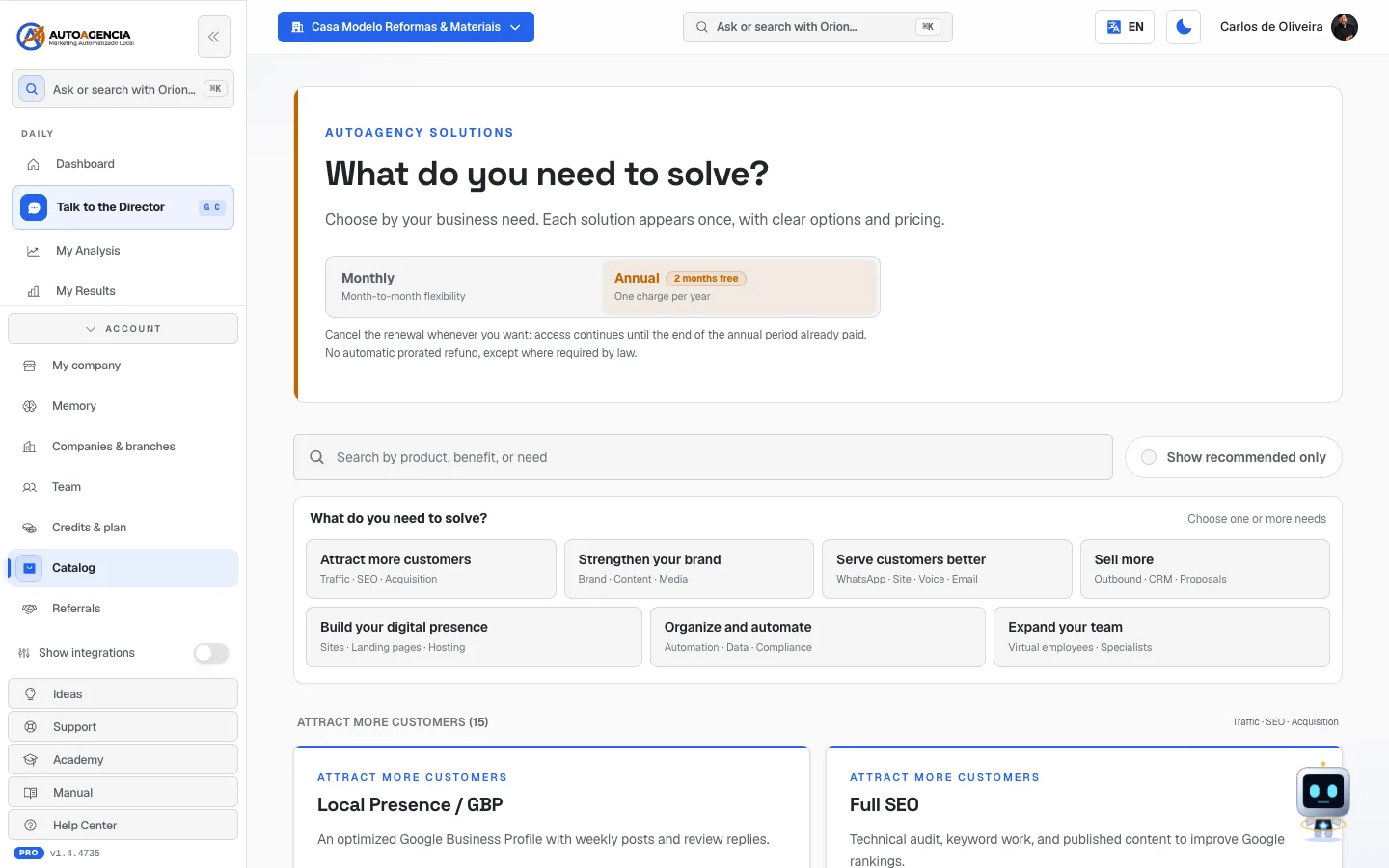 The /app/catalogo screen with the Monthly/Annual selector at the top, the need filters and the start of the "Attract more customers" group
Step by step — subscribing to a module
- In the full menu, open Account → Catalog.
- Choose Monthly or Annual at the top.
- Tick what you need to solve in the filter, or type in the search box.
- Read the cards. To see everything that's included, click See details — a panel opens with What is included and Before subscribing.
- Click Add to cart. You can add more than one.
- When you're done, click Continue to payment in the cart bar.
- Check the amount on the payment screen and complete it.
- You come back to the Subscription confirmed screen (item 7 of this chapter).
Step by step — hiring a service with people
- Scroll down to the Service Teams block, at the bottom of the page.
- Each card says whether it's a Professional service (One-time payment) or Monthly support ("Charged every month — cancel anytime").
- Click Purchase.
- After payment, the screen says: "Service purchased. Our team will contact you to coordinate the next steps."
Step by step — switching from monthly to annual (or the other way around)
If you're already a subscriber and you choose, at the top, a period different from the one you pay today, the Subscription cycle change block appears.
- Click to calculate the preview. It shows Credit for the current period, Amount to pay now and Effective from.
- Click Confirm change.
- The screen confirms: "Cycle change completed."
Common questions
I clicked on something and a "two separate purchases" notice appeared. That's on purpose. Some items (a ready-made store, an add-on) only work inside a module you don't have yet. The notice explains that these are two purchases: first the module, then the item — and the system brings you back on its own as soon as the module payment is confirmed. You choose between See the module and continue and Not now.
I came back from payment and a gray notice appeared. It says: "The purchase wasn't completed and nothing was charged. Your cart is still here." Exactly that — nothing was charged, and what you had picked is saved.
"This checkout accepts up to 12 items at a time." The cart is full. Remove a few items and do it in two purchases.
A card says "Price unavailable for your region". The product doesn't have a price in your country yet. Talk to us in the chat.
A card says "Custom" or "Amount set during configuration". The price depends on what you choose — for example, how much you want to invest in ads, or how many units your network has. Click Configure and purchase and the amount shows up once you fill in the details.
"This purchase is managed by the Service Team. Contact us in chat." That item can't be bought on its own — there are people involved in setting it up.
"Catalog in compatibility mode". Our mistake when assembling the storefront. The screen guarantees: "Your products remain protected." Click Reload.
3. Your modules — what you already have and what you can add
Where to find it: full menu → at the end of the list of modules, the Explore modules button
Address: /app/modulos
What it's for
It's the storefront split in two halves: what you already have and what you can still subscribe to. It's for opening the panel of a module you've subscribed to and for finding out what else exists.
What you see
Title Your modules, with the Your AI agency tag on top and the sentence "Active products. Click to open each module's panel."
First block — My Modules, with the count. Each module is a card with:
- the name and what it does;
- the active tag;
- the "Why do I have this?" line, which says where the access comes from — usually "Included in <product name>";
- the Open dashboard button, or the Managed in chat tag for modules that have no screen of their own.
Second block — Explore modules, with the sentence "Grow your agency. Add a new module whenever you like." Here each card shows the price and a Get started button. Some cards carry tags instead of a price:
| Tag | What it means |
|---|---|
| Coming soon | Not on sale yet |
| Pay per use (credits) | There's no monthly fee: you pay only for what you use, in credits |
| From …/mo | The final price depends on the setup |
| N credits included | How many credits that product drops into your balance every month |
When you haven't subscribed to any module yet, the My Modules block doesn't show up: the screen shows only the Your modules title and, right below it, Explore modules, with the price and the Get started button of each one (that's how it looks in the photo below). The Start building your agency notice / "You don't have active modules yet. Check out the available products.", with the View modules button, only shows up in the rare case that there's neither a subscribed module nor a module on sale for your account.
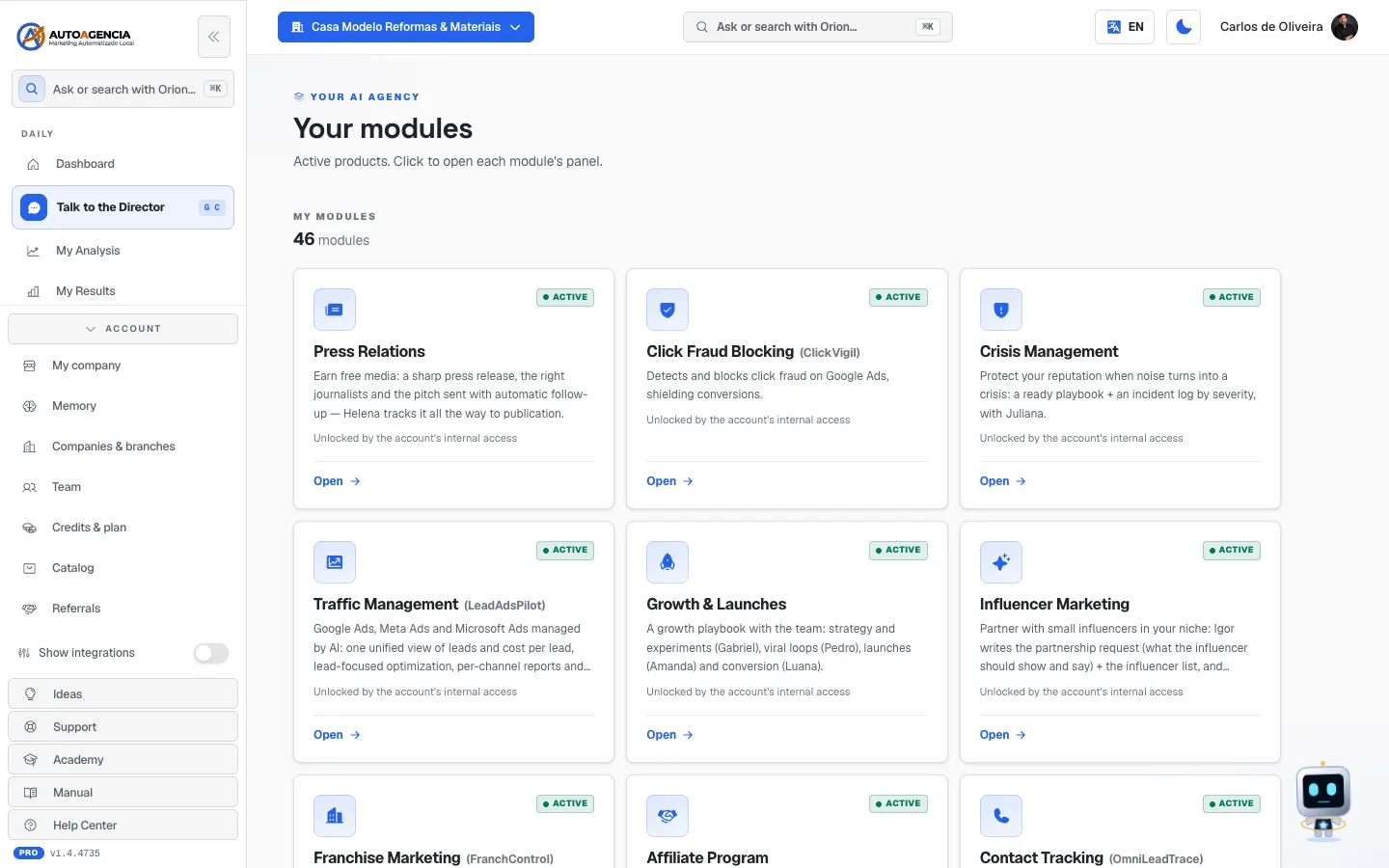 The Your modules screen of a company that hasn't subscribed to any module yet: only the Explore modules block shows, with the price and the Get started button of each one
Common questions
What's the difference between this screen and the Catalog? This one shows the modules — the screens and teams you use. The Catalog shows the solutions on sale, grouped by problem, with a cart and payment. The Catalog is always the one that does the subscribing.
I clicked "Get started" and landed on a module screen with a pay button. It's the same path, just straight into that module. The screen says: "Price, currency and payment method are shown on the next screen, before you confirm."
I went into a module I don't have and a screen appeared asking me to activate it. That's the not-subscribed-module notice. It says: "Subscribe from the catalog — the team starts the same day, no lock-in." and has the Activate in catalog button.
4. Credits and plan — the most important screen in this chapter
Where to find it: full menu → bottom of the menu → Account → Credits & plan
Address: /app/creditos
Read this section slowly. Several modules talk about "credits" and no screen really explains what they are. It's all together here.
What a credit is, in plain English
A credit is the token that pays for machine work. Every time your team generates a video, draws an image, calls someone with a robot voice, sends a WhatsApp marketing message or publishes a page, it costs us money — and that cost is charged to you in credits.
The module's monthly fee pays for the team and the screens. Credits pay for the production.
That's why two customers of the same module spend differently: someone who orders video every day burns credits; someone who only uses reports hardly burns any.
The two credit buckets
You have two separate balances, and they work in different ways. The screen shows both side by side:
| Bucket | How it shows on the screen | Where it comes from | Validity |
|---|---|---|---|
| Plan Credits | "Renew monthly with the plan" | They come with the modules you subscribe to | Renew every cycle |
| Add-on Credits | "Expire in 6 months" | You buy them whenever you want, in the Top up credits block | 6 months from the purchase |
The part that confuses people most: Plan Credits do NOT accumulate. At each renewal the plan balance is rewritten with your quota for the month — not added to what was left. If your quota is X and you spent nothing, when the month turns you still have X, not double. Add-on Credits, on the other hand, stay saved until they run out or expire after 6 months.
That's why, in the Usage history, the Plan renewal line shows up without a "+" sign in front. It's not a deposit: it's the month's balance being written again.
The rule nobody mentions: not every expense can use plan credits
This is the most expensive trap on the bill, so it gets its own table.
| Type of expense | Paid with… |
|---|---|
| Images, videos and music | Plan Credits first; if they run out, it draws from Add-on credits |
| Replies from the website chat and from virtual employees | Plan Credits, with Add-on credits as backup |
| Publishing a company website and a landing page | Plan Credits, with Add-on credits as backup |
| WhatsApp service messages (replies and confirmations) | Plan Credits, with Add-on credits as backup |
| External internet research and video assembly | Plan Credits, with Add-on credits as backup |
| Voice minutes and calls | Add-on Credits only |
| WhatsApp marketing messages (the mass-send ones) | Add-on Credits only |
| SMS | Add-on Credits only |
Translation: voice, calls, WhatsApp mass sends and SMS only go out if you've bought add-on credits. The plan quota doesn't cover those four, and there is no backup for them. If you subscribed to WhatsApp Campaigns or Voice Campaigns and nothing goes out even though your plan balance is full, this is almost always the reason.
What uses credits, in practice
- Each image generated (the more polished the engine, the more it costs).
- Each video — and video is charged in blocks of length: a 10-second video costs twice as much as a 5-second one.
- Each background music track, charged per minute.
- Each minute of voice spoken and each minute of calling.
- Each WhatsApp marketing message sent, and each SMS.
- Each reply from your website chat and each conversation with a virtual employee.
- The publishing of a page or a landing page.
- Each external research a specialist does on the internet to answer you.
- The assembly of a video in the studio.
- A new marketing analysis (the first one is free — see the chapter Day to day).
What you see on the screen
Title Credits & Plan, with the sentence "View your balance, what each credit represents, and usage history."
From top to bottom:
- Invoices & payment — a card with the Invoices & subscription button. It's the door to downloading invoices and receipts, changing the card and managing the subscription. Details in section 6 of this chapter.
- Billing country and Tax ID (CPF or CNPJ) — the country decides the currency of your invoice, and the tax ID goes on the invoice. (CPF and CNPJ are Brazil's tax identification numbers, for individuals and for companies.) Both are explained in section 6 of this chapter.
- The two balances, in big numbers: Plan Credits and Add-on Credits.
- What your balance represents — the number translated into concrete things: "With your total available credits you can use approximately:" and then, for example, ≈ N premium videos, ≈ N voice minutes, ≈ N marketing messages, ≈ N images.
- Traffic Management — only shows for people who have that module. It shows the Estimated monthly spend against the ceiling of your tier, and the Tier monthly fee. The explanation: "Fixed fee for your contracted investment tier. We'll alert you to upgrade if you exceed the ceiling."
- Top up credits — "Buy add-on credits anytime. Valid for 6 months." and "You can pay by credit card or boleto." With the available packages, each one showing how many credits it brings and how much it costs in your currency.
- Usage history — the table with Date, Description, Bucket and Credits.
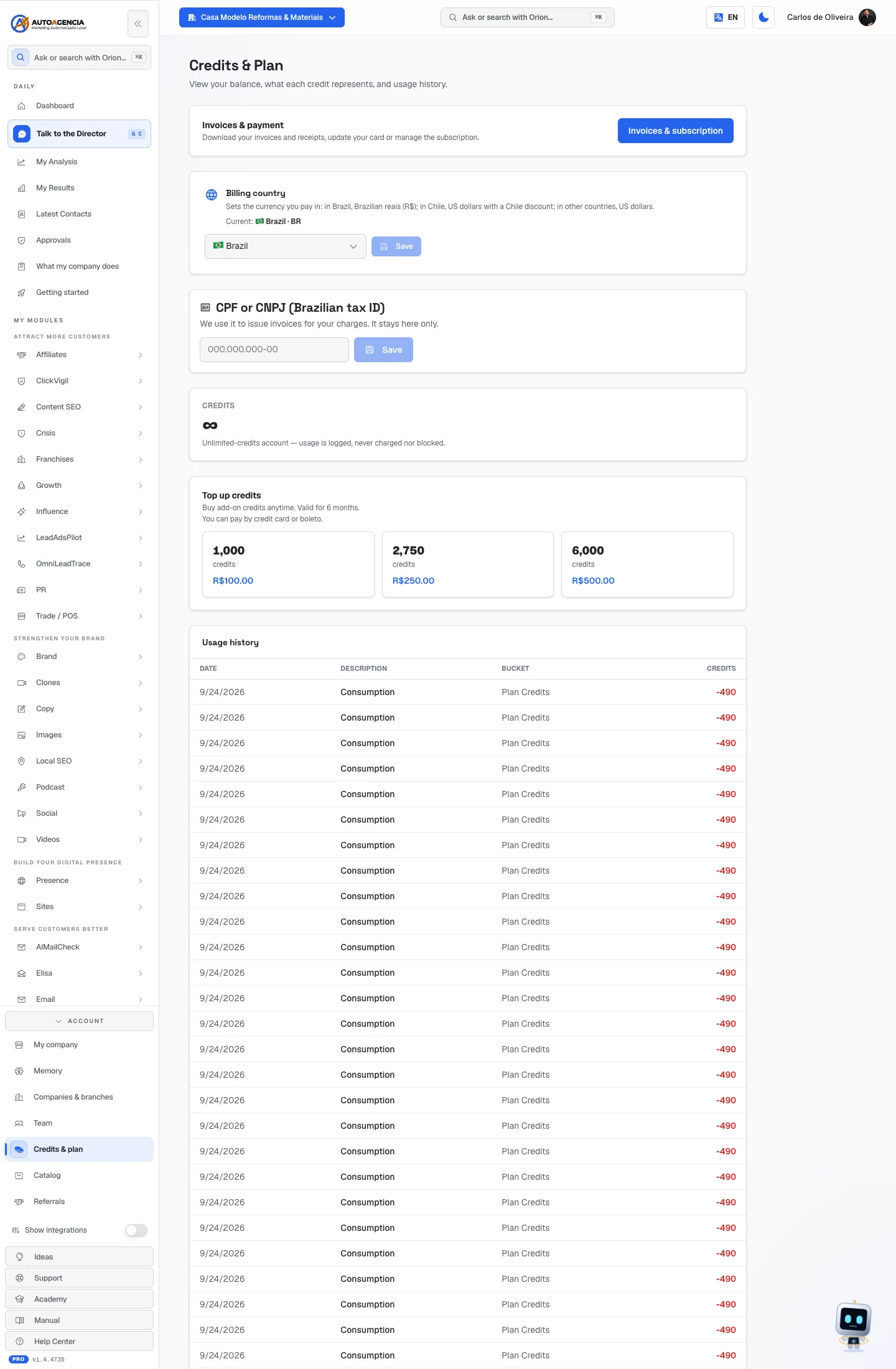 The Credits & Plan screen from top to bottom: Invoices & payment, Billing country, Tax ID (CPF or CNPJ), the two balance cards, the "What your balance represents" block, the top-up packages and the start of the Usage history
How to read the history
| Description | What happened |
|---|---|
| Plan renewal | The monthly quota was written into the plan balance (it's not a sum) |
| Top-up | You bought add-on credits |
| Consumption | Some work was done and charged |
| Adjustment | Correction made by our team |
| Expiry | Add-on credits expired (6 months) |
The Bucket column says which of the two balances the credits came out of or went into, with the same name as the cards at the top: Plan Credits or Add-on Credits. Numbers in green come in; in red, they go out.
Step by step — buying more credits
- In the full menu, open Account → Credits & plan.
- Scroll down to Top up credits.
- Click the package you want. The button shows "Opening…".
- Complete the payment on the next screen.
- The credits come in as Add-on Credits and are valid for 6 months.
If you're in the 3-day trial and you don't have anything to spend yet, a yellow card may appear: "Out of credits to test? Get N credits" — it's a one-time purchase, only during the trial, so you can try out videos, proposals and images.
What happens when credits run out
Nothing breaks. The work simply doesn't go out. But how that shows up changes from module to module:
- WhatsApp campaigns stop sending — the send is skipped, with no error on the screen.
- Scheduled posts and articles aren't generated in that cycle.
- Images and videos aren't produced; in the chat, the specialist replies that there wasn't enough balance.
- An email list verification sits waiting for credit — the batch doesn't even start.
- Calls and voice minutes stop.
What was already produced stays where it was — what's missing is the new work.
You're warned before it gets to that. The system sends an email when the balance gets low, and again when it gets critical:
"Your credits are running low — time to top up?" "…your account's credits are practically at zero — image/video generation, campaigns and paid publishing may stop until the renewal or a top-up."
The email offers two paths: top up credits (valid for 6 months) or upgrade your plan to get a bigger monthly quota. And it reminds you that the plan quota renews on its own in the next cycle — if it's not urgent, you can simply wait for the month to turn.
Each warning goes out only once per period, so it doesn't turn into spam.
Common questions
My balance shows as ∞. Your account has unlimited credits. The screen explains: "Unlimited-credits account — usage is logged, never charged nor blocked."
"We couldn't read your balance right now." It's a reading failure, not a loss of credits. The screen itself guarantees: "Your credits are safe — the read is what failed." Click Try again.
The balance shows as zero as soon as I open the screen. It doesn't — and that's on purpose. While it loads, the screen says "Loading your credits…". Zero on the screen is a real zero.
I'm in the trial and I have no plan credits at all. Correct. Plan credits are only created when the first charge is confirmed. During the 3 days, the only possible credit is the one from the trial package.
I bought credits and they didn't show up. Check the Usage history: the Top-up line has to be there. If the payment was by boleto, it only comes in after the bank clears it.
I spent credits on something that failed. In several modules — video production, proposals, reports, creator analysis — the credit is returned to your balance when the work fails after being charged. The refund shows up in the Usage history. If you don't see the line coming back, open a support request.
No records yet. Normal on a new account: "Every credit use shows up here with date and module."
5. My Subscriptions — and how to cancel a module
Where to find it: full menu → More drawer → My Subscriptions
Address: /app/assinaturas
What it's for
It's the list of what you pay for today. And it's the only place where you end a module on your own, without touching the others. The screen's sentence: "Everything you have today. Here you can also end one module without touching the others."
What you see
Title My Subscriptions and, underneath, one card per subscribed module. Each card carries:
- the name of the module;
- "Paid through <date>.", when there's a paid cycle ahead;
- or "Ends on <date> — you keep access until then." in yellow, when the exit has already been requested;
- and a button: Cancel module, or Keep the module if the exit is already scheduled.
The card for your plan doesn't have that button. In its place you get the sentence "This is your plan — closing the account is a different path, handled by support."
When you have nothing: "You don't have any modules yet." / "Once you subscribe, they show up here."
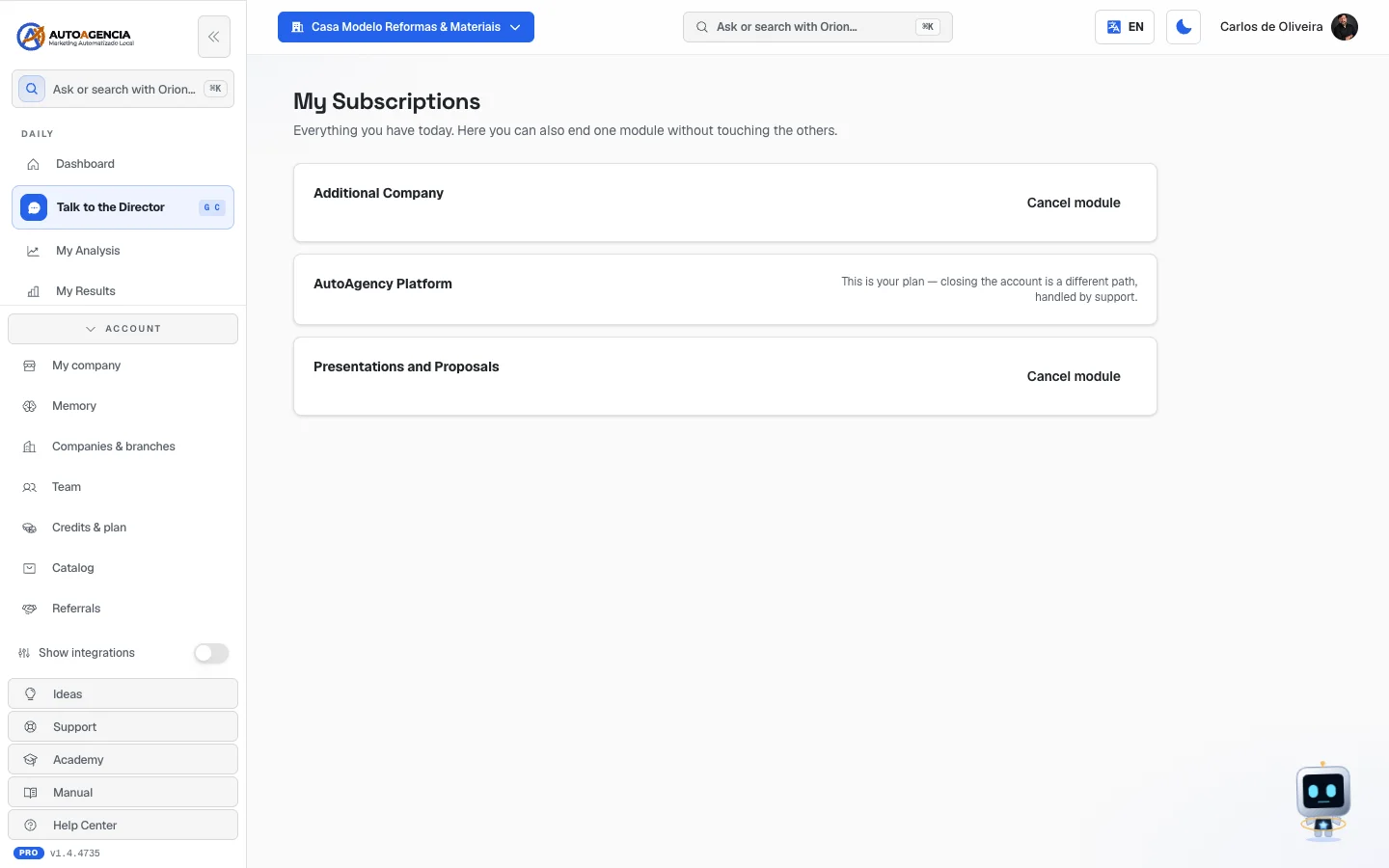 The /app/assinaturas screen with the plan card, which instead of the "Cancel module" button says that closing the account is handled by support
Step by step — canceling a module
- In the full menu, open the More drawer → My Subscriptions.
- Find the module and click Cancel module.
- Read the preview that opens. It's honest and worth reading:
- The first line says when access ends. Either "Access ends as soon as you confirm.", or "You keep access until <date> — there will be no new charge for this module."
- The What gets turned off list shows, item by item, what stops working. It isn't a generic list: it's what really belongs to that module — for example, "Stop the campaigns that are still going to go out", "Hand back to the customer the connected social network accounts", "Take the website offline".
- If you want, write the reason in the Want to tell us why? (optional) field.
- Click Confirm. The button shows "Ending…".
- The confirmation says "Module canceled." or "You keep access until <date>."
Step by step — changing your mind about the cancellation
- While the exit is scheduled, the card shows the Keep the module button.
- Click it. The screen confirms: "Module kept."
- The module goes back to renewing normally.
When access ends: the two rules
| Situation | What happens |
|---|---|
| You pay directly and there's a paid cycle ahead | You keep access until the end of what you already paid. Nothing is turned off today. There's no new charge. |
| There's no paid period ahead, or someone else pays (the agency that looks after you, or a courtesy) | Access ends the moment you confirm |
On the annual plan, the rule is the same one the Catalog already warned about: access continues until the end of the year you already paid, and there is no automatic prorated refund, except where required by law.
What you lose and what stays saved
What stays saved, in almost every module: what was already produced. The artwork, texts, videos, articles, conversation history, support requests and captured contacts stay in your account and are yours. The exit notices say so in so many words — for example: "What was already produced stays saved in your account and is yours. If you want it back, just subscribe again — it opens the same day, with the history where it was."
What stops right away: the execution. Scheduled posts are canceled, campaigns stop, tracking numbers go offline, connected accounts are handed back to you, and what was being published stops being published.
What has a deadline to disappear for good — only in the modules that host something of ours:
| Module | What happens |
|---|---|
| Hosting / website | We keep a copy of the website and the database, the website goes offline, and permanent removal is scheduled for 30 days later |
| Store (e-commerce) | Same thing: copy saved, store offline, permanent removal in 30 days |
| Podcast | The show goes offline in 30 days and the account is deleted on day 90 |
In those cases the notice is explicit about the point of no return. Within the deadline, subscribing again brings everything back.
Common questions
I can't cancel my plan. That's on purpose. The screen answers: "This is your plan — closing the account is a different path, handled by support." Talk to us in the chat.
"This module can't be ended yet." Something depends on it. The reason is written right below — for example, hosting won't go while website creation is active.
"We don't recognize this subscription here — talk to us before changing anything." It's an old contract, outside the current catalog. It exists and is valid; it just doesn't leave through this door.
I canceled and I still see the module. If the exit was scheduled for the end of the cycle, that's exactly it: you paid until then and you use it until then.
"We couldn't read your subscriptions right now." Reading failure. The screen guarantees: "Nothing changed — the read is what failed." Click Try again.
Does canceling a module delete my credits? No. Credits belong to the account, not to the module. What changes is that the monthly quota of that module stops coming in on the next renewals.
6. Invoices, card, country and tax ID
Where your invoices and card are
Where to find it: full menu → bottom of the menu → Account → Credits & plan → the Invoices & subscription button
The card at the top of the credits screen explains: "Download your invoices and receipts, update your card or manage the subscription."
When you click Invoices & subscription, the system opens the payment portal — a secure area, outside AutoAgency, where you can:
- download your invoices and receipts;
- change the card on file;
- manage the subscription.
Attention: that button is also how you cancel the whole subscription. To end only one module and keep the rest, the path is My Subscriptions, in the More drawer (item 5).
Step by step:
- Open Account → Credits & plan.
- Click Invoices & subscription. The button shows "Opening…".
- You're taken to the portal. Download what you need or update the card.
- Go back to AutoAgency using your browser.
Billing country and tax ID
Where to find it: full menu → bottom of the menu → Account → Credits & plan, just below the
Invoices & payment card.
Address: /app/creditos
They moved on September 22, 2026. Before that, the two fields lived on the Billing (clients) screen (
/app/cobranca), and the only menu item that led there only shows up for people who use AutoAgency as an agency. In other words: the regular customer had no way to fix the currency of their own invoice or to register the CPF/CNPJ for the invoice. Now they're on the Credits & plan screen, which is in everyone's Account drawer — it's the screen for the same subject. If you use agency mode and were looking for the fields in Billing (clients), they're here.
Billing country — "Sets the currency you pay in: in Brazil, Brazilian reais (R$); in Chile, US dollars with a Chile discount; in other countries, US dollars." It's what decides in which currency your next invoices and purchases will come out. Right below, Current: shows the country saved today, followed by the code of the price region (BR for Brazil, CL for Chile, US for everyone else). Choose the country and click Save; the confirmation says: "Country updated. Prices will be shown in that region's currency."
Tax ID — the field changes its name depending on the country: Tax ID (CPF or CNPJ) in Brazil, Company RUT in Chile. The explanation: "We use it to issue invoices for your charges. It stays here only."
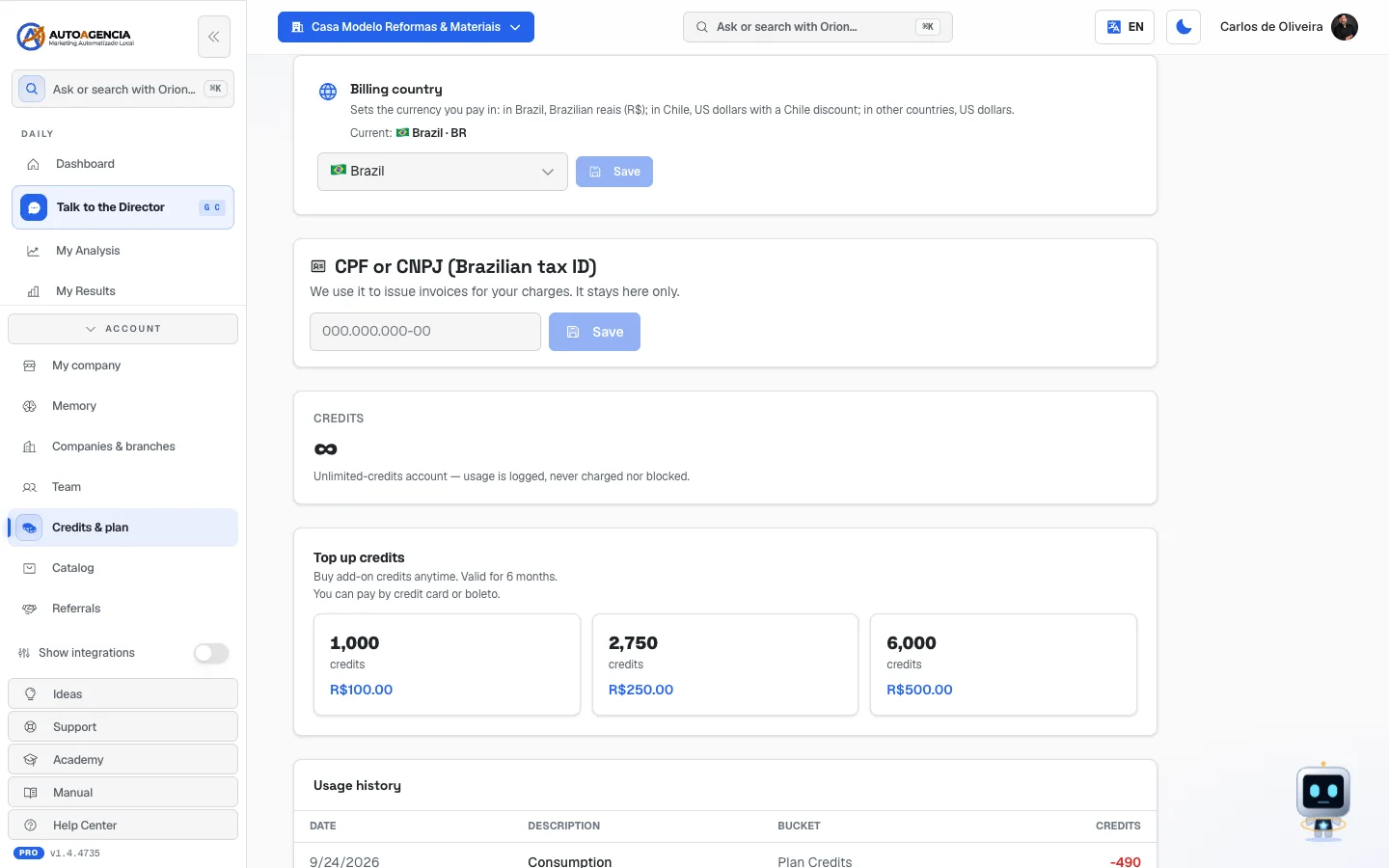 The Credits & plan screen scrolled to the Billing country block (Current: Brazil), with the Tax ID (CPF or CNPJ) field right below it, the two balance cards, the What your balance represents block and the start of Top up credits
Common questions
I changed country and prices are still in the old currency. Save the Billing country and reload the screen. That field is the one in charge — not the place you access from.
"That number doesn't check out. Please review the digits." The document has a typo. The screen also warns when "That number has too few or too many digits."
"We don't check documents from your country yet — talk to us." Your country doesn't have automatic validation yet. Open a support request.
I need the tax invoice. Register the tax ID first; then download the invoice with the Invoices & subscription button.
7. Subscription confirmed — what happens after you buy
Where to find it: you land here on your own, right after paying. There's no menu item.
Address: /app/assinatura-sucesso
What it's for
It's the arrival screen after the purchase. It confirms what came in, shows the credits unlocked and pushes you toward the next steps.
What you see
It depends on the moment:
While it confirms. "Activating your subscription…" / "Just a moment while we confirm the payment."
When it worked. The title Subscription confirmed! 🎉 and "Your subscription is active and ready to use." Below it:
- a big card with the number of credits unlocked this month and the translation into concrete things (≈ N premium videos, ≈ N images, and so on);
- the Next steps block, with three shortcuts: Talk to Orion ("Ask for a full analysis of your business."), Connect your integrations ("Google, WhatsApp, ads and metrics.") and Complete your business profile ("The more the AI knows, the better the result.");
- sometimes, an invitation to upgrade your plan (Next level of your plan) or to hire a dedicated team (Boost with a dedicated team);
- and the Go to Dashboard button.
When the payment is still being processed. "We're processing your payment" / "It can take a few moments. Your subscription shows in the dashboard once confirmed." With the Check again button. It's what usually happens with boleto.
When you bought more than one group of items. The screen says "Taking you to the next charge…" and takes you on its own to the next payment.
When you gave up. Purchase not completed or This purchase expired, with the guarantee: "Nothing was charged. You can rebuild your cart anytime." and the Back to catalog button.
📷 This screen has no photo — it appears right after paying for a subscription, with "Subscription confirmed!", the card with the credits unlocked and the next steps.
Common questions
"Your payment went through, but we couldn't confirm it right now". The screen explains what it is: "This is a read failure on our side, not a lost charge. Try again in a few seconds — if it persists, the Dashboard already shows what is active on your account."
I was buying something else and the system asked for the module first. After you pay for the module, the screen says: "Module unlocked! Taking you back to the item you picked…" and sends you back on its own to the purchase that was left half done. While the payment isn't confirmed, it says: "We kept the item you picked — as soon as the payment clears, we take you back to it."
I want to change plans. The change doesn't go through the regular cart (there's only one base plan at a time). The Next level of your plan invitation takes you to the chat, where the change is made "without paying for two plans at the same time".
8. What happens if you don't pay
This section has no screen of its own: it's what the system does by itself. It's worth knowing before you need it.
The timeline
| When | What happens |
|---|---|
| The charge fails | Your account is marked as overdue. You keep normal access and the team keeps working. The first notice goes out, a gentle one. |
| ~24 hours later | Second notice, firmer. |
| ~48 hours later | Third and last notice, warning that the cutoff is near. |
| After 72 hours (3 days) | The account is suspended. |
| 30 days of suspended account | The work we built is taken out of your accounts — the campaigns, structures and settings the team built are removed. |
The block only happens after the last notice has gone out. If for some reason the notices run late, the cutoff is postponed — you're never blocked without having been warned three times.
What the suspended-account screen looks like
It takes over the whole screen:
Account suspended "Your account is suspended because of an outstanding payment. As soon as it clears, access comes back automatically."
"While the account is suspended, the ad campaigns we run for you stay paused — no budget is spent in the meantime. They come back on their own, in the same state, once the payment clears."
"The up-to-date boleto is in the email registered on your account."
And two buttons: Settle payment and Sign out.
📷 This screen has no photo — it only appears when the monthly payment is outstanding: a text explaining the situation and the "Settle payment" button.
Common questions
Does my ad budget keep being spent while I'm suspended? No. Campaigns are paused. The screen is explicit: "no budget is spent in the meantime".
I paid. How long until it comes back? Access comes back automatically as soon as the payment is confirmed, and campaigns come back on their own, in the same state they stopped in.
Did I lose my work? In the first 30 days of suspension, no — it's all there waiting. That's why the deadline exists.
Can I pay with the old boleto? No. The updated boleto goes to the email registered on the account.
Is "Account deactivated" the same thing? No. That's a different situation: "Your account has been deactivated. Contact support to reactivate it."
9. Companies and branches — when you have more than one business
Where to find it: full menu → bottom of the menu → Account → Companies & branches
Address: /app/empresas
What it's for
For people who have more than one company of their own, or a company with branches. Each one keeps its own data, reports and settings, and you switch between them using the selector at the top of the screen.
Don't confuse it with My clients (item 10). Here they're companies in your group. There they're companies belonging to other people that you serve.
What you see
Title Companies & branches, with the Structure tag and the sentence "Manage your group's companies and their respective branches."
If your account is still a single-company one, the Enable multi-company mode invitation comes up first: "Your company is still a single one. Once enabled, you can register multiple companies, each with its own branches — all switchable from the top selector." With the Enable multi-company button.
If your plan includes only the main company and you don't yet have a free Additional Company, the invitation explains it — "Your plan includes only the main company. To get one more — company, branch or client — add an Additional Company, then come back here to turn it on." — and, in place of Enable multi-company, it shows the Add company button (see "When the quota runs out", below).
Then, three tabs — Active, Archived and Trash — and the table with Name, Type (Company or Branch), Status, Relationship (the parent company, or "root company") and Actions. The company you're in right now is marked • current.
At the top is the + New company button. And, right below the header, the quota bar: a progress bar with "N / M companies and branches used". The M is what your plan includes plus your Additional Companies that aren't with clients (see "How the Additional Company counts", below). The bar turns yellow when you pass 80% and red when it fills up.
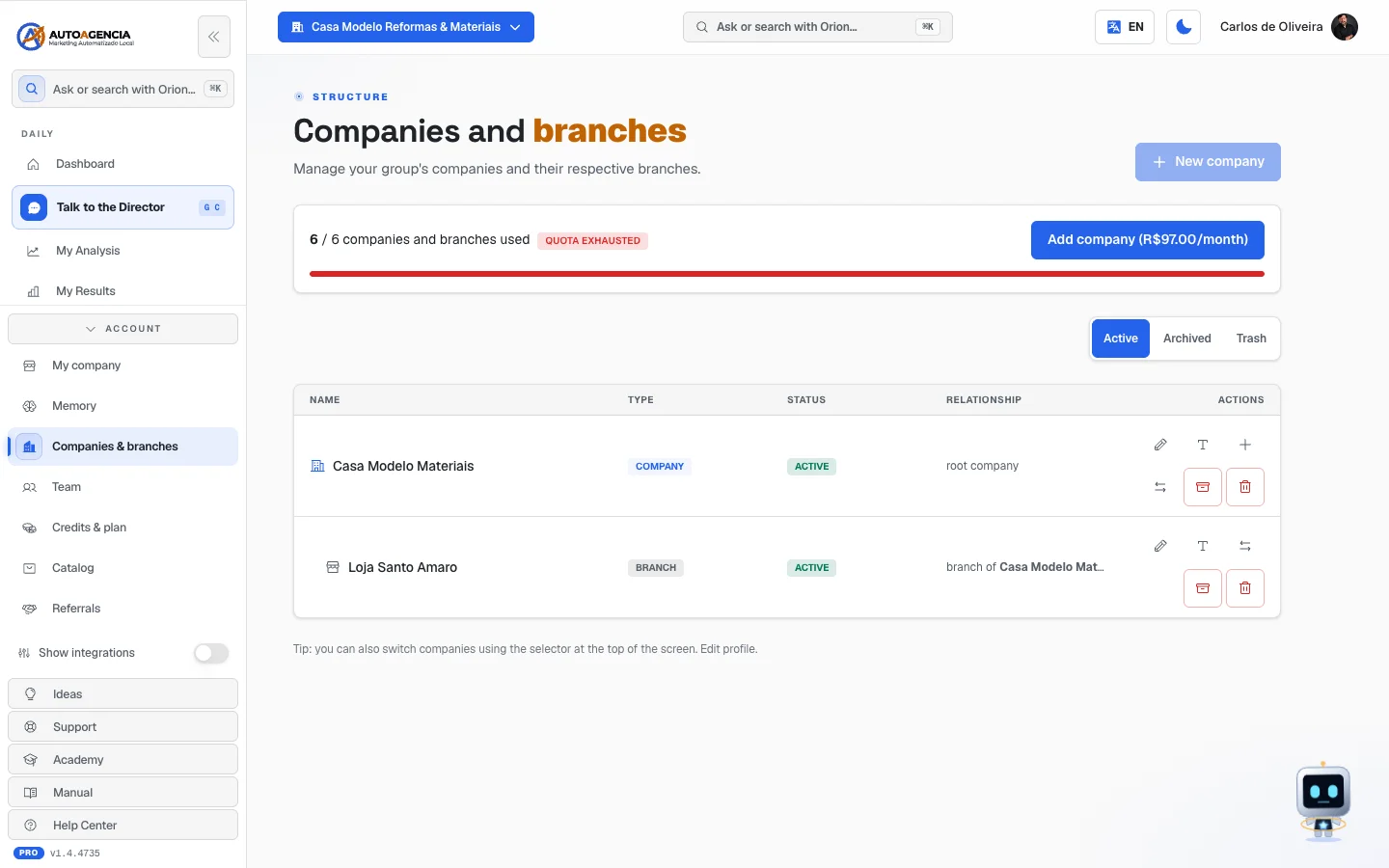 The /app/empresas screen with the table of companies, the Active/Archived/Trash tabs and the quota count
Step by step — registering a new company
- In the full menu, open Account → Companies & branches.
- If it's the first time, click Enable multi-company first. If Add company shows up in its place, subscribe to an Additional Company first and come back.
- Click + New company and give it a name.
- To create a branch of a company that already exists, use the New branch button on its row.
- To work inside a company, click Switch to this company.
Step by step — when the quota runs out
- With the quota full, the + New company button is disabled. When you hover over it, it explains: "Quota exhausted — add an Additional Company".
- In the quota bar, the red Quota exhausted tag appears and, next to it, the Add company button, with the price per month in your account's currency — the price shown in the catalog, in your country's currency.
- That button opens the Catalog with the Additional Company highlighted. Choose how many you want and finish the payment.
- Go back to Companies & branches: the bar now counts the new slot and + New company works again.
You can buy from inside any company or branch of the group. The charge stays with the company that's open on the screen, but the slot is valid for the whole group. The exception is when you're inside one of your clients: it's a separate account, and a purchase made there doesn't increase your group's slots. In that case, instead of the button you get the notice "You are inside a client. To get one more slot here, buy the Additional Company in the main company (<name>) or in a company of its group: switch in the top selector and come back here."
The same Add company button shows up on the Companies & branches card of the My company screen (full menu → bottom of the menu → Account) when the quota fills up.
How the Additional Company counts
Each Additional Company is one more business on your account: a company of yours, a branch or a client. It's valid for the whole group, no matter in which company or branch of the group you subscribed to it. It's a single stock, split between two screens:
- in Companies & branches, each free Additional Company is one more slot on top of what the plan includes;
- in My clients (item 10), each free Additional Company is one more client.
The one that one screen uses stops being free on the other. With 2 Additional Companies, for example, you can have one extra company and one client, two clients, or two extra companies — never both things with the same unit. The Companies & branches card on the My company screen shows where each one is: "Additional companies: N (X with companies and branches, Y with clients, Z free)".
The money side
- The quota of companies and branches is what the plan includes plus your Additional Companies. The plan on sale today, the AutoAgencia Platform, includes 1 — the main company, which takes that slot. To have the second, the third and the following ones, you need one Additional Company for each.
- Archiving frees the slot. The quota counts only active companies and branches; what's archived or in the trash takes up no room.
- Some accounts have an unlimited quota (by plan or by agreement), and the screen says so.
- A client never takes up the slot the plan includes — it only uses Additional Company. When one is with a client, the quota bar explains it, for example: "1 of your 3 Additional Companies is with a client — each one counts for a company of yours or a client, and the count above already accounts for it." When none is, the screen says: "The count above is for your group's companies. The N clients in the list below do not take slots."
- An agency account with an old plan that gave unlimited clients stays unlimited — and those clients don't use up Additional Company.
Common questions
Is archiving the same as deleting? No. Archive takes it off the active list and frees the slot, without losing anything — you can Restore it later. Delete sends it to the Trash: "The company and its branches will go to trash. Recoverable for 30 days."
And after the 30 days? There's Delete permanently, and it warns: "This erases <name> and all linked data, with no way back." To confirm, you have to type the company's name.
"Switch to another company before archiving this one." You can't archive the company you're working in. Switch to another one first.
I archived the parent company and the branches disappeared. That's the Archive <name> notice: "This company has active branches. What would you like to do?" — the option is Archive company and all branches.
10. My clients — for people who serve other companies
Where to find it: full menu → turn on the Show integrations switch at the bottom of the menu → More drawer → My clients
Address: /app/clients
This screen only shows up with Show integrations turned on — and that switch only exists on agency accounts. It's for people who use AutoAgency this way: they serve other people's companies and charge for it. If you don't see the switch at the bottom of the menu, your account isn't that type; talk to us in the chat if you want to start serving clients.
What it's for
Registering the companies you serve, deciding what each one has subscribed to, who pays and how much you charge. Each client has separate data and reports.
What you see
Title Your clients, with the Agency mode tag and the sentence "Manage each client with a separate space for data and reports in <your account>. Tap a client to enter their panel."
Each client is a card with the Open panel button. Inside a client's record you find:
- Their products — what to add or remove;
- Enabled modules — and which product enables them, with the important notice: "A module can come from more than one product. Check here before removing: when two products support the same module, removing one doesn't remove access.";
- Client access per module — "Sets what the client's LOGIN can do in each contracted module. You (agency) always have full access.";
- The billing mode (the money part, right below);
- the viewer invitation, to give the client a read-only screen with the results.
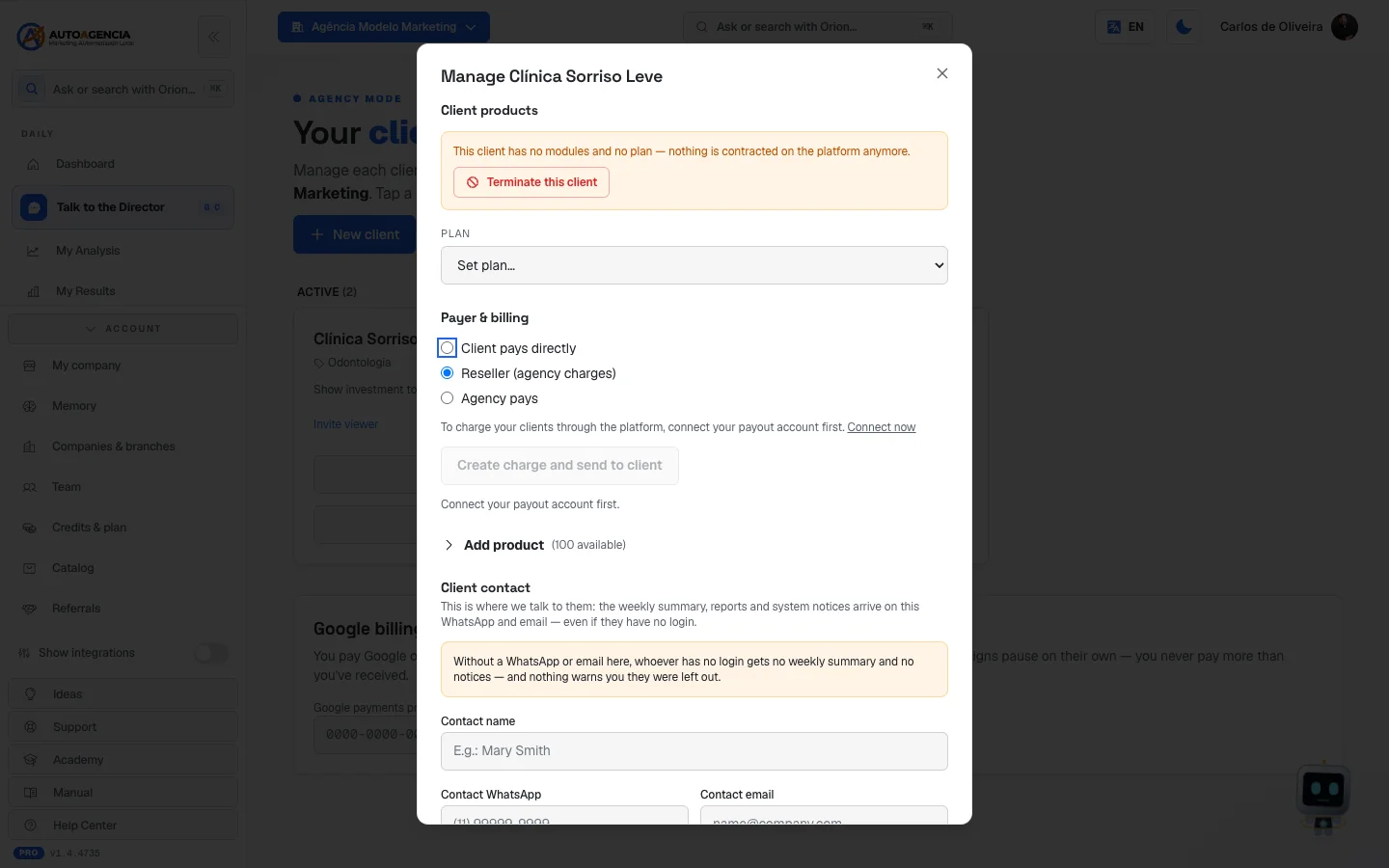 The /app/clients screen with the list of clients and a client's record open
The three billing modes
This is where you decide who pays what. The choice is per client.
| Mode | Who pays AutoAgency | Who bills the end client |
|---|---|---|
| Pays directly | The client themselves, with their own card | Nobody — they already pay directly |
| Resale | You, and you charge the client for the platform | You, from the Billing (clients) panel |
| Agency pays | You, and billing the client is your business, outside the platform | You, outside |
When nothing is chosen, the mode is Resale.
Step by step — registering a client
- Turn on Show integrations at the bottom of the full menu.
- Open the More drawer → My clients and click New client.
- Fill in Name (required), Segment, Sites and the social networks.
- Click Create client.
- Go into their record and choose the products and the billing mode.
Step by step — giving the client a results screen
- In the client's record, use Invite viewer.
- Type the email (and the WhatsApp for a reminder, if you want) and click Send.
- The screen confirms and offers the direct link: "Invite sent by email. If you prefer, send this link directly (e.g. WhatsApp):"
- The Show investment to client switch decides whether they see how much is spent on ads.
Common questions
"To create new clients, you need an Additional Company…" Creating a new client requires an Additional Company — each one counts for a client or one more company of yours (see "How the Additional Company counts", in item 9). You subscribe to it in the Catalog. The screen reassures you: "The clients you already have keep working normally."
"All of your Additional Companies (N) are already in use." Each client uses one Additional Company, and a company or branch of yours beyond what the plan includes uses one too. When part of them are with your own companies, the message says how many — for example, "— 1 with your companies and 2 with clients". To create one more client, subscribe to another Additional Company in the Catalog.
"Connect your payout account first." To bill your clients through the platform, you first have to connect your payout account.
A client's ad management fee changed on its own. That's the design: "The ad management fee follows the investment tier — it adjusts monthly by real spend."
Does removing a product from the client remove the module? Not always. Check the Enabled modules — and which product enables them block: when two products support the same module, it shows "Removing just one keeps the module".
"This client has no modules and no plan". They have nothing subscribed on the platform anymore.
11. Billing — the panel for people who bill their own clients
Where to find it: full menu → turn on the Show integrations switch at the bottom of the menu → More drawer → Billing (clients)
Address: /app/cobranca
For the regular customer, this screen is only for the two fields in item 6 (billing country and tax ID) — and, for them, there's no menu item leading here. Everything described below only gets content for people who serve clients.
What it's for
Seeing, client by client, how much you pay, how much you charge and how much is left over — and sending out each one's bill. The screen's sentence: "Charge your clients with payment links (monthly or one-off). AutoAgency retains the platform fee."
What you see
Title Billing. From top to bottom:
- Your partner level — the Partner Program card, with your level (Bronze, Silver, Gold or Diamond), how many active clients you have, the average value per client and what's missing for the next level. Anyone who doesn't have a level yet reads: "Your level starts with your first active client — and the discount grows with you."
- Billing country and tax ID (item 6).
- The month's summary, in three numbers: You charge, You pay and Left over per month. The leftover shows in green when it's positive and in red when it's negative.
- The clients table, grouped by status: Past due, Needs setup, Draft, Sent, Active and Canceled. Each row carries Client, Mode, You pay, You charge, Left over, Status and the Generate & send button.
- On the right, on a computer, the chat Talk to Simone · Partnerships.
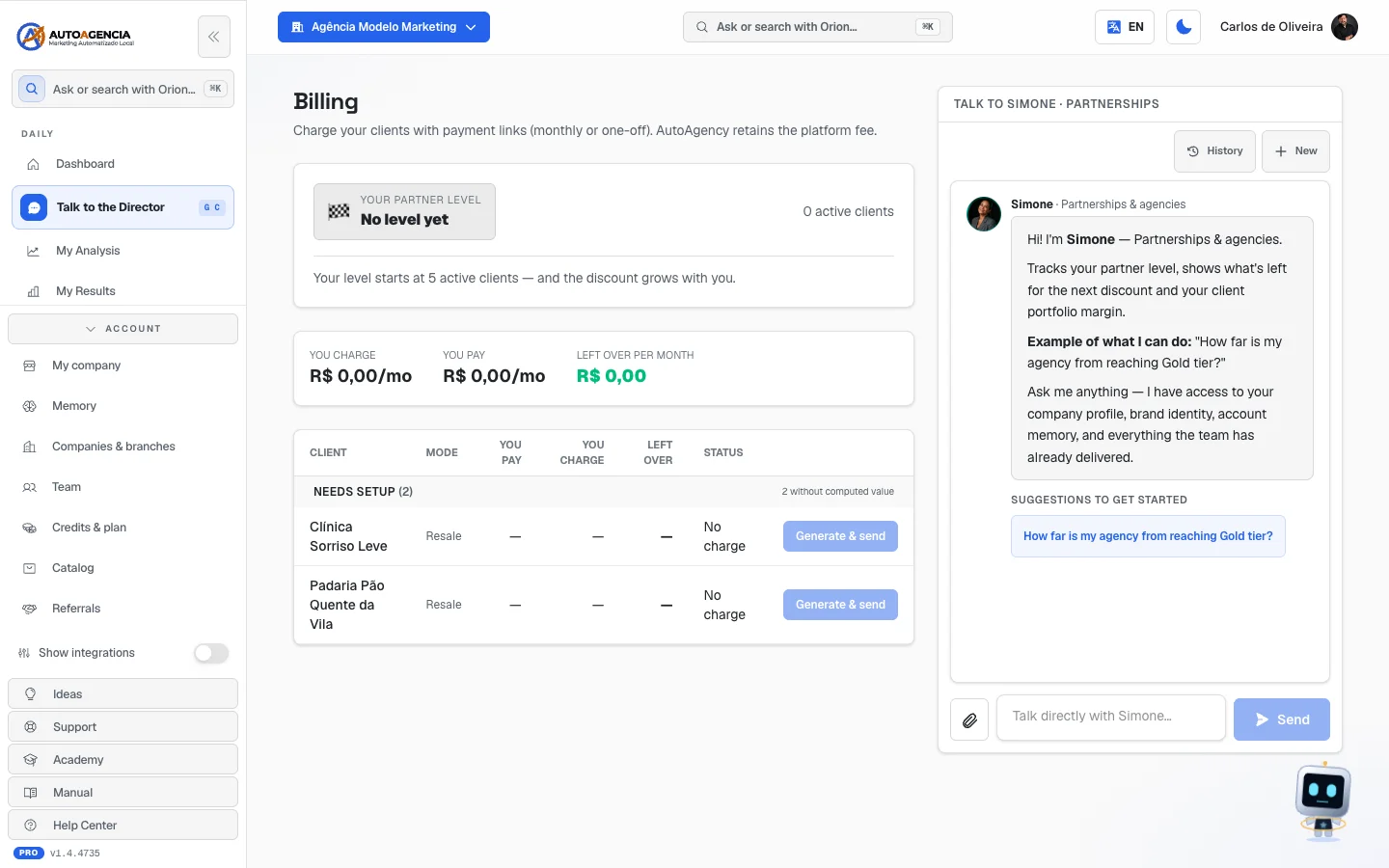 The /app/cobranca screen with the partner level card, the month's summary and the grouped clients table
Step by step — billing a client
- Turn on Show integrations and open the More drawer → Billing (clients).
- Find the client in the table.
- If set what you charge or N service(s) missing a price shows up, resolve that first in the client's record (item 10).
- Click Generate & send. The button shows "Sending…".
- The confirmation says how it went out — email, WhatsApp or both.
How to read the numbers
| What shows | What it means |
|---|---|
| You pay | What leaves your pocket to AutoAgency for that client |
| You charge | What you charge them |
| Left over | The difference. In red: "You pay more than you charge this client" |
| N client(s) need attention | A price or a billing method still needs to be set up |
| No charge | That client doesn't have a set amount yet |
Common questions
"No clients yet. Add them in My Companies." You don't have clients yet. Register them in My clients (item 10).
"We couldn't read your clients right now." Reading failure, and the screen is clear: "Nothing was lost and no charge changed — the read is what failed." Click Try again.
My partner discount is "awaiting certification". One step is missing: "finish the 'Build your agency' track in the Academy. It's the prerequisite for the Partner Program — when the account owner or an administrator completes it, the discount goes into the charges on its own." The screen has the Take the Academy track button.
There's a charge waiting for payment. The screen offers the link for you to send straight to your client.
12. Referrals — earn money by referring AutoAgency
Where to find it: full menu → bottom of the menu → Account → Referrals
Address: /app/afiliado
What it's for
You earn money by referring AutoAgency to other people. The screen sums it up: "Refer AutoAgencia and get paid in cash." and "You don't have to manage anyone: just share your link. Whoever signs up through it is linked to you."
How the commission works
The mechanics, in order:
- You get your link.
- Someone signs up through it and is linked to you.
- When that person pays the monthly fee, you earn a percentage of it, for a set number of months. The exact percentage and the term are written at the top of the screen itself — what it says there is what counts, because the rule can change.
- What does NOT count: one-off services, credits and one-time purchases. Only the monthly fee counts.
- The payment goes to your Pix key (Pix is Brazil's instant payment system), and we make it, separately from your invoice — it's not a discount on the monthly fee, it's money that comes in.
What you see
Title Referrals and the sentence "Refer AutoAgencia and get paid in cash."
Before you get the link, the screen is short: a box with the commission rule (the percentage and the term), the sentence "You don't have to manage anyone…", the Get my link button (which turns into Generating… while it prepares) and, underneath, the line "Managing clients? See the Partner Program tiers."
After you get the link, the screen shows:
- the Your link block, with the Copy button;
- the numbers: Referrals (how many signed up), Paying today (how many are active), This month and Pending payout — and, after the first commission, also All time;
- Where you get paid — the field for your payout key, with the explanation "Add your payout key. We pay it out separately from your invoice." and the Save button;
- Ready-made materials — texts already written for you to spread the word, in three formats: Short blurb, email template and Social post, with the Copy text button;
- History — the table with Date, Commission and Status (Paid or Pending);
- and, if you serve clients, the invitation to the Partner Program: "If you manage your own clients you join the Partner Program and pay less as your volume grows.", with the See Partner tiers button.
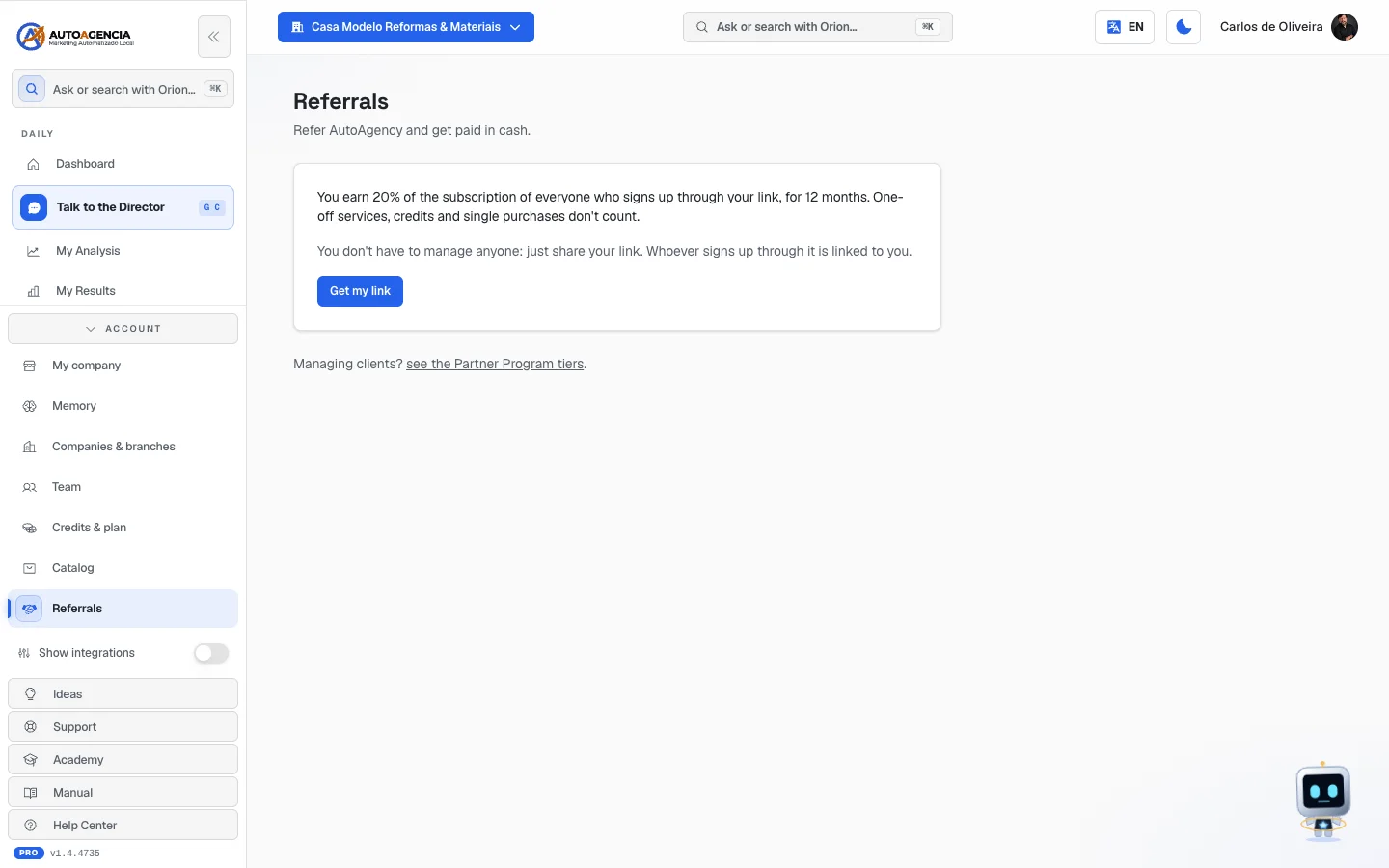 The /app/afiliado screen before getting the link, with the commission rule and the "Get my link" button
Step by step — starting to refer
- In the full menu, open Account → Referrals.
- Click Get my link. The screen confirms: "Your link is ready!"
- Register your payout key (Pix) under Where you get paid and click Save.
- Open Ready-made materials, choose the format and click Copy text.
- Send it to whoever you like, with your link.
Common questions
No commission has shown up yet. "Your first commission shows up when a referral pays their first invoice." Signing up alone doesn't generate a commission.
"Your link is paused". The screen explains: "new referrals are not counted. What was already registered still counts. Talk to us in the chat to reactivate it."
I referred someone and they only bought credits. It doesn't count. Credits, one-off services and one-time purchases are left out — only the monthly fee counts.
The amounts show on more than one line. Each currency shows separately. Someone who refers in different countries gets paid in different currencies, and adding them up would give a number that matches no payment at all.
What's the difference between Referrals and the Partner Program? Referrals is just passing on the link — you don't serve anyone. The Partner Program is for people who serve their own clients and get a discount on the price list as they grow (item 11).
13. Your promoter's Pix key page
Address: /afiliado/<code>
Attention, because it's easy to mix up: this page is not yours. It belongs to the Affiliate Program module — the one in which your company sets up a referral program and recruits promoters. This is the screen that your promoter opens.
What it's for
It's where the person who promotes your company registers their own Pix key, the one that will receive the commission. They don't have a login on AutoAgency: the link you send by email is the credential.
The person who types the key is always its owner. The page itself says: "This is the key your commission will be paid to. Only you can register it — that way nobody types it wrong for you."
What the person sees
The name of your company at the top, the greeting ("Hi, <name>!"), the explanation above and the Your Pix key field, with the hint "CPF, CNPJ, email, mobile number or random key". While they type, the screen keeps telling them what it understood — "Understood as CPF", "Understood as mobile number". At the end, the Save my key button and the confirmation "Done! Your key is saved."
If they already have a key registered, the page shows the key masked (never in full) and the field is renamed Change the key.
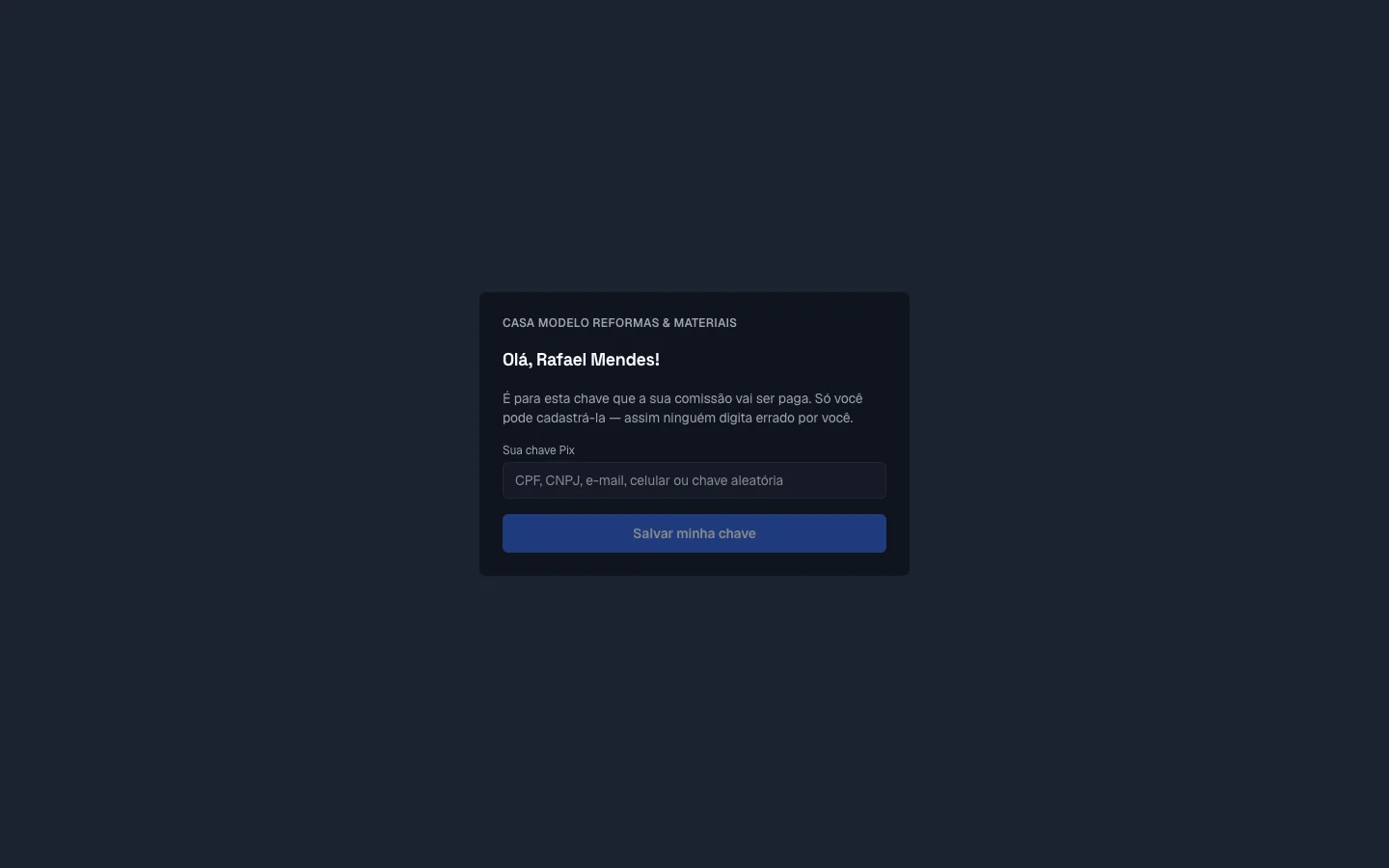 The public page /afiliado/<code> with the Pix key field and the "Save my key" button
Common questions
My promoter says "This link is no longer valid". The link expired or was replaced. Generate a new one from the Affiliate Program module and send it again — the page itself guides them: "Ask your partner for a new one."
Can I register the key for them? No, and it's on purpose: a wrong key lands in a stranger's account and doesn't come back. The person who answers for it is the one who owns it.
Can the promoter see my numbers? No. They only see your company's name and their own key, masked.
14. Three money addresses that only redirect
Three old addresses still work so links and bookmarks don't break, but they aren't screens of their own: they take you straight to the right place.
| Old address | Where it goes today |
|---|---|
/app/billing (the old "Plan & billing") | Credits & plan (/app/creditos) |
/app/checkout/upsell (the old post-purchase offer) | Credits & plan (/app/creditos) |
/app/propostas | The tab of the Commercial Proposals module |
If you click one of those links and land on another screen, it's not an error — it's the redirect working.
In the case of
/app/propostas, the redirect preserves the result of the purchase: someone who has just paid for a proposals package arrives at the module already seeing the notice about what happened.