
This guide is for anyone who has just hired Ava, the virtual assistant that answers your business WhatsApp. It goes from start to finish: connecting WhatsApp, teaching Ava about your business, setting up your team's schedule and following the day-to-day. You don't need any tech skills — every step names the exact button.
The screenshots are real, taken in the panel of a sample company (Casa Modelo Reformas & Materiais). The sample company is Brazilian, so the texts it wrote itself (the greeting, the keywords) show up in Portuguese; in your account you'll see your own.
What Ava does for you
Ava answers everyone who writes to your business WhatsApp — day, night and weekends. She:
- answers questions with what you taught her (services, prices, the area you cover);
- understands audio, photos and documents the customer sends — and replies to the content;
- asks the right questions before handing the contact to you (the ones you choose);
- books the visit with whoever on your team can go — she picks the person by area and by that day's schedule, confirms to the customer and alerts the person on WhatsApp (part 6 of this guide);
- sends the PIX payment code with the agreed amount, if you want (Brazil only — she never says the payment arrived; you check it);
- calls you when the customer asks for a person or uses a word you chose.
What she does not do: make up prices you didn't teach her, promise what isn't in your knowledge base, or pretend to be human. When she doesn't know, she says so honestly.
Before you start
Have these four things ready and you'll set everything up in one go. A Google account is optional (part 6).
| What | Why |
|---|---|
| Your own panel login | You set everything up with it — and, if you use Google Calendar, it's the signed-in person's account that gets connected. |
| A phone with your business WhatsApp | It's the number Ava will answer. Use your support number, never your personal one. |
| Who does the visits (name and, if you like, each person's phone) | It's the team Ava spreads the visits across. Don't know the names yet? Start with "Technician 1", "Technician 2". |
| Your price list and list of services | It's what Ava uses to answer. It can be a PDF, a spreadsheet saved as PDF or plain text. |
Step 1 — Connect your WhatsApp
Where: menu → All connections → WhatsApp Business card → Phone WhatsApp — Ava support.
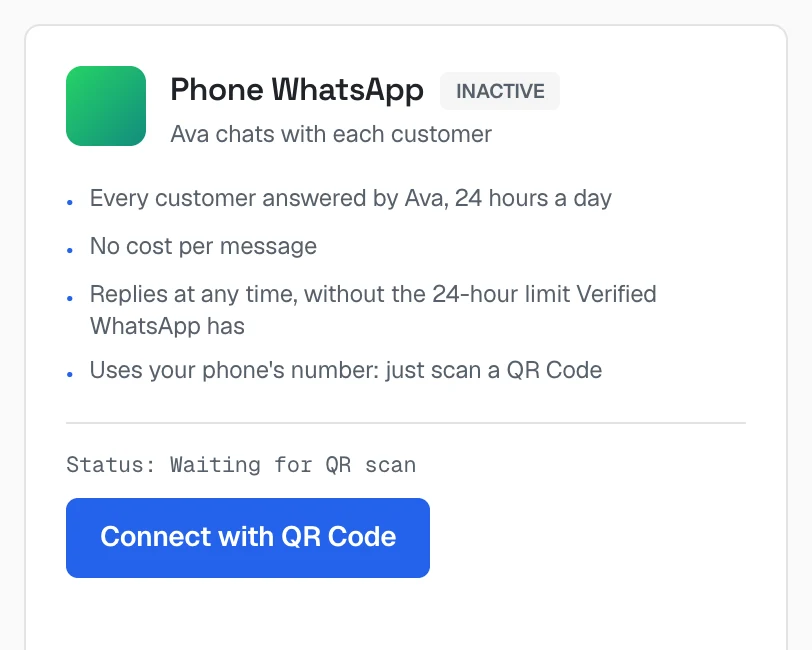 The "Phone WhatsApp" card marked INACTIVE, its four benefits (every customer answered by Ava 24 hours a day, no cost per message, replies at any time, uses your phone's number) and the "Connect with QR Code" button
- Click Connect with QR Code. A small square (the QR Code) appears on the screen.
- Now pick up the business phone. Open WhatsApp and go to Settings → Linked devices → Link a device.
- Point the phone's camera at the square on the computer screen.
- Done: the screen shows WhatsApp connected with the number next to it.
One important rule for WhatsApp Business
If you use WhatsApp Business, turn off its automatic "Greeting message" (on the phone: Business tools → Greeting message → off). Ava does the greeting now. With both on, the customer gets two welcome messages in a row — and the contact count the system keeps goes wrong. The away message (outside business hours) can stay on.
Step 2 — Teach Ava about your business
Where: Home → Your apps → WhatsApp AI (at the top of the screen it shows as 24/7 WhatsApp AI Support). The module has six tabs at the top: Panel, Settings, Knowledge, Handoff, Conversations and How to use.
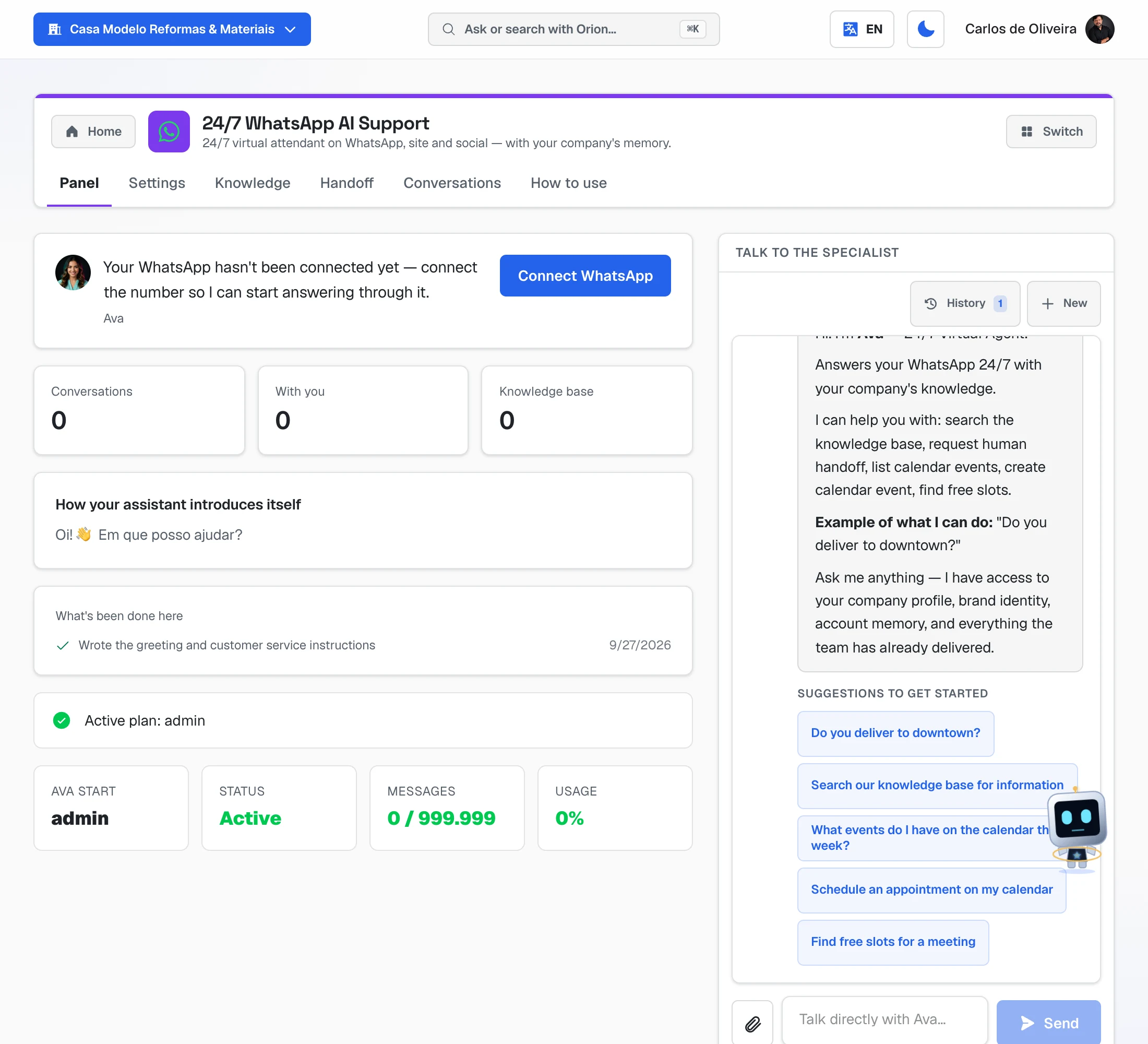 The Panel tab of 24/7 WhatsApp AI Support: the notice that WhatsApp isn't connected yet, the conversation counters, the assistant's greeting and, on the side, the chat with Ava and its starter suggestions
4a. Who she is and how she talks (Settings tab)
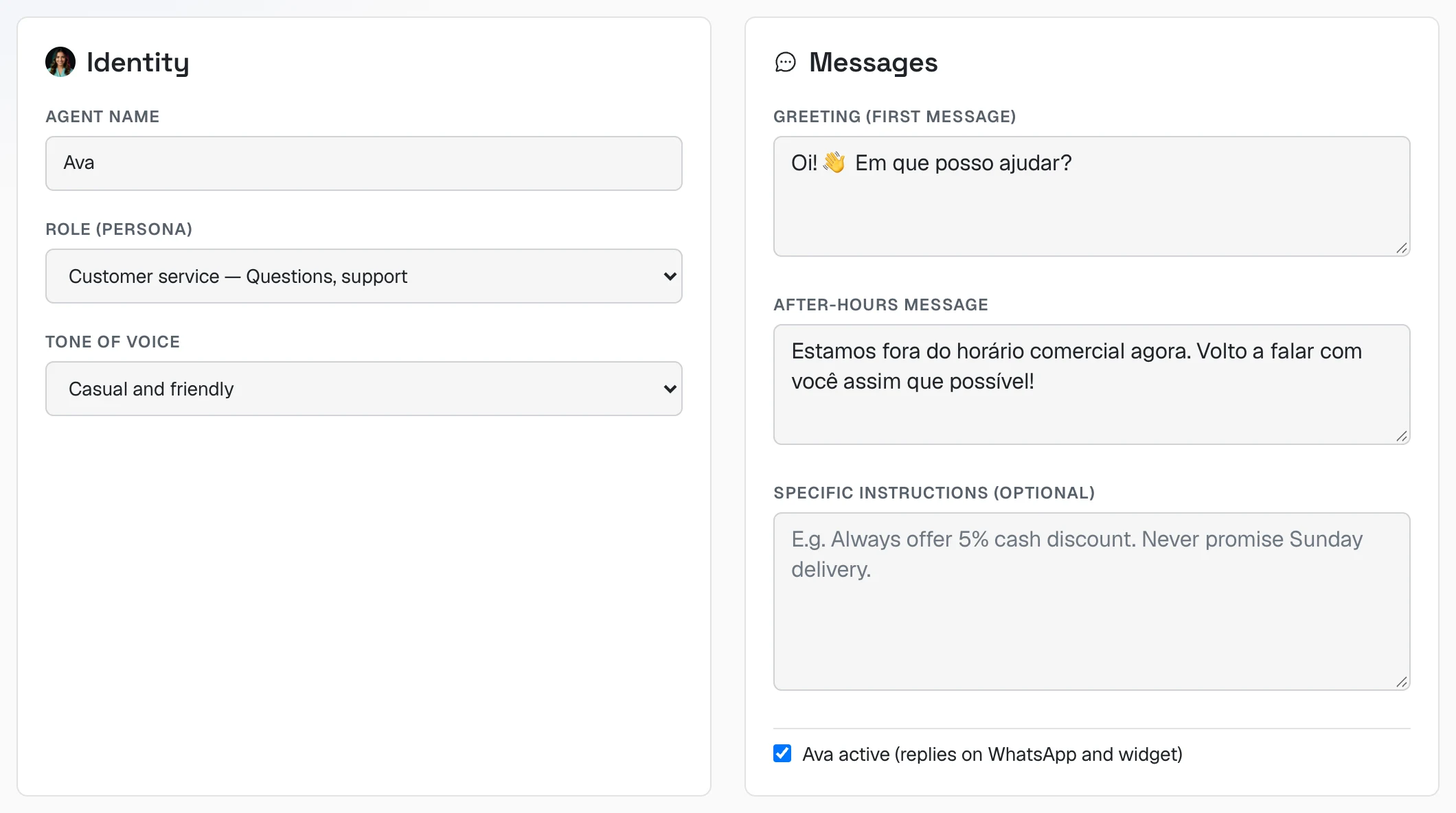 Identity and Messages cards: agent name, role, tone of voice, greeting, after-hours message, specific instructions and the "Ava active" checkbox
| Field | What to enter |
|---|---|
| Agent name | The name the customer sees. Keep "Ava" or change it. |
| Role (persona) | If you sell services and book visits, choose Sales — Sell, handle objections, close or SDR — Qualify leads and book meetings. |
| Tone of voice | How she talks. Casual and friendly works well for most services. |
| Greeting (first message) | The first line the customer reads. Short, with your business name. |
| After-hours message | What she says when someone writes outside the hours you set below. |
| Specific instructions | Your house rules, in plain sentences. E.g. "Payment only after the job is done." "We don't service water heaters." |
| Ava active | Keep it checked. Unchecked, she stops answering — it's the pause button. |
4b. Business hours
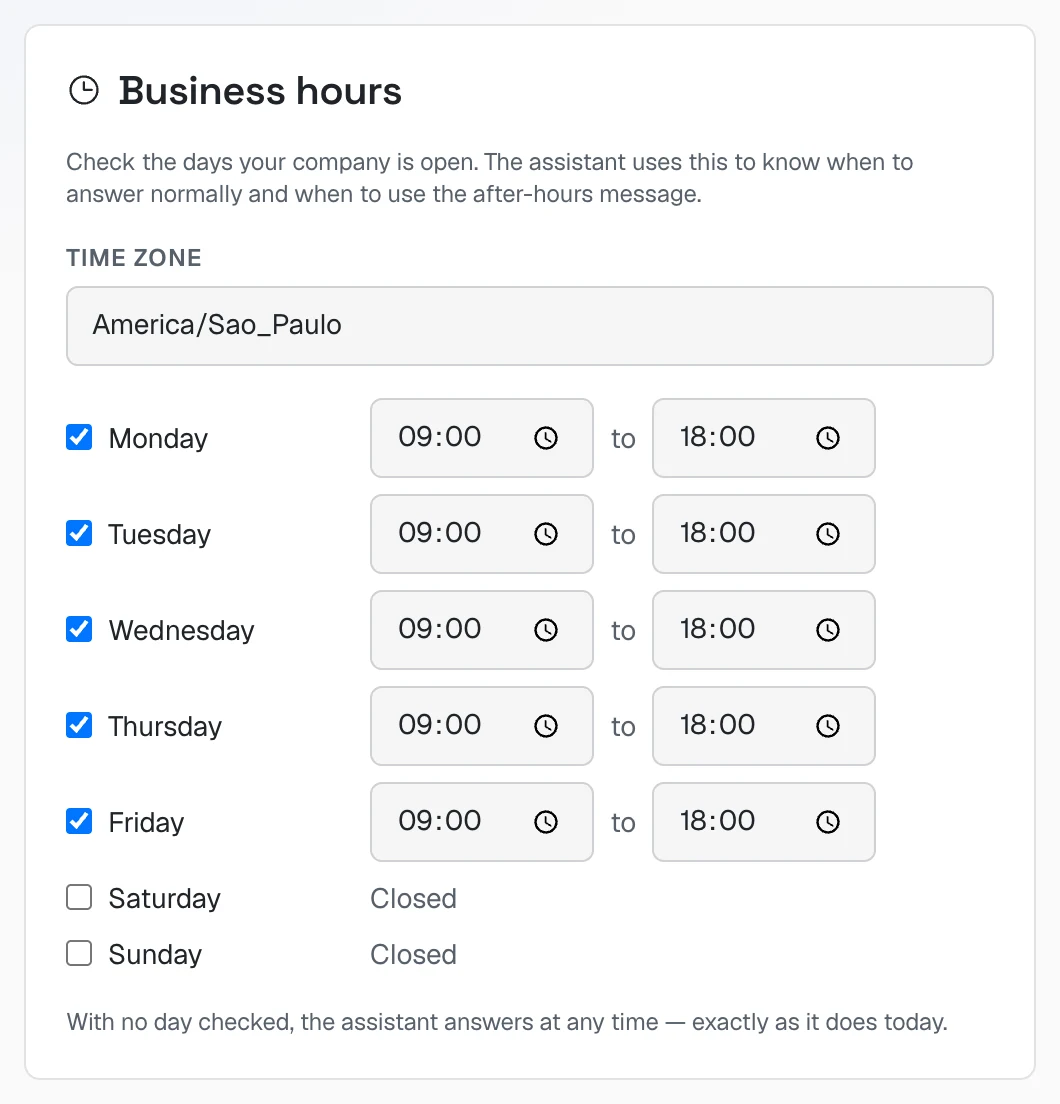 Business hours card: time zone America/Sao_Paulo, Monday to Friday checked from 09:00 to 18:00, Saturday and Sunday closed
Check the days your business is open and the hours for each one. Outside those hours Ava keeps answering, but uses the after-hours message to say the team will get back later.
4c. Questions before handing over to you
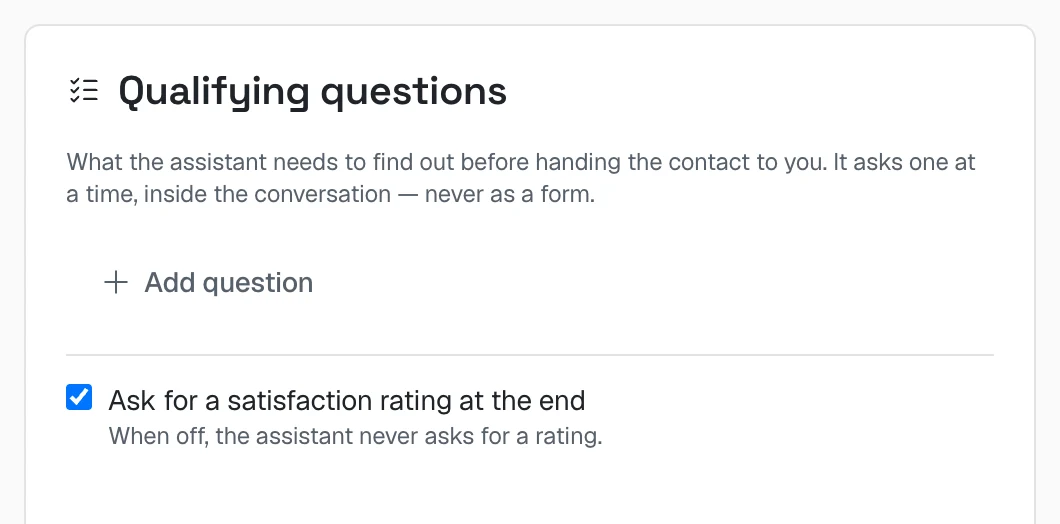 Qualifying questions card with the "Add question" button and the "Ask for a satisfaction rating at the end" option
Click Add question for each thing you need to know before you take the job. E.g. "Which neighborhood?", "Freestanding stove or cooktop?". She asks one at a time, inside the conversation — never as a form.
Ask for a satisfaction rating: when on, she asks the customer for a 1-to-5 rating at the end.
4d. Get paid by PIX (optional, Brazil only)
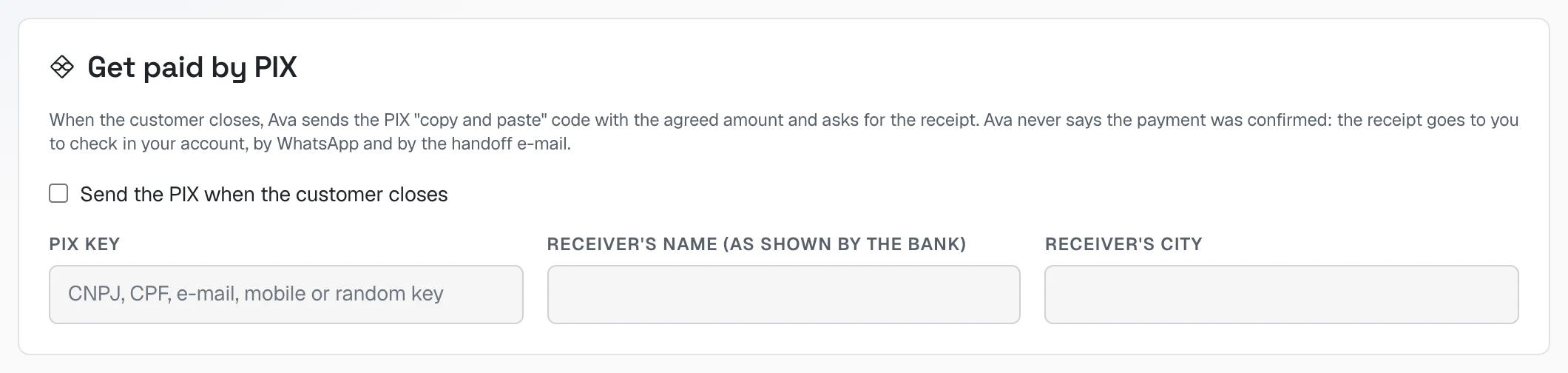 Get paid by PIX card: the "Send the PIX when the customer closes" checkbox and the PIX key, receiver's name and receiver's city fields
Check Send the PIX when the customer closes and fill in the PIX key, the receiver's name (exactly as the bank shows it) and the city. When the customer closes, she sends the PIX "copy and paste" code with the agreed amount and asks for the receipt. She never confirms payment — the receipt goes to you to check in your account.
After changing these cards, click Save configuration (the blue button at the bottom).
4e. Photos, videos and PDFs she can send
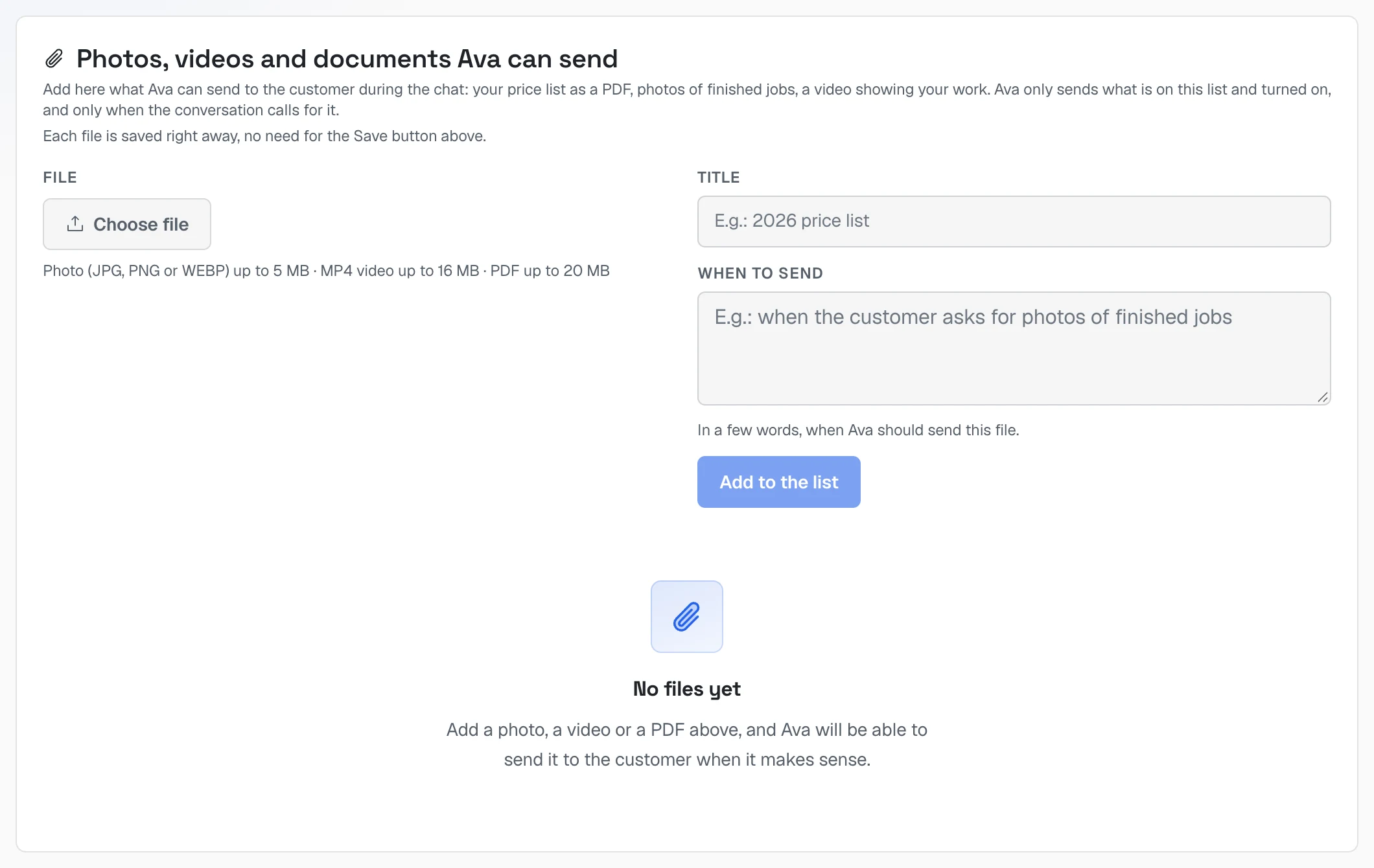 The "Photos, videos and documents Ava can send" card with the file field, title and "when to send", and the "Add to the list" button
Add here what Ava may send to the customer: your price list as a PDF, photos of finished jobs, a video of your work. For each file:
- Choose file (photo up to 5 MB, MP4 video up to 16 MB, PDF up to 20 MB);
- Title — e.g. "2026 price list";
- When to send — e.g. "when the customer asks for the price list";
- Add to the list. This card saves right away, no Save button needed.
She only sends what is on this list, and only when the conversation calls for it.
4f. The knowledge base (Knowledge tab)
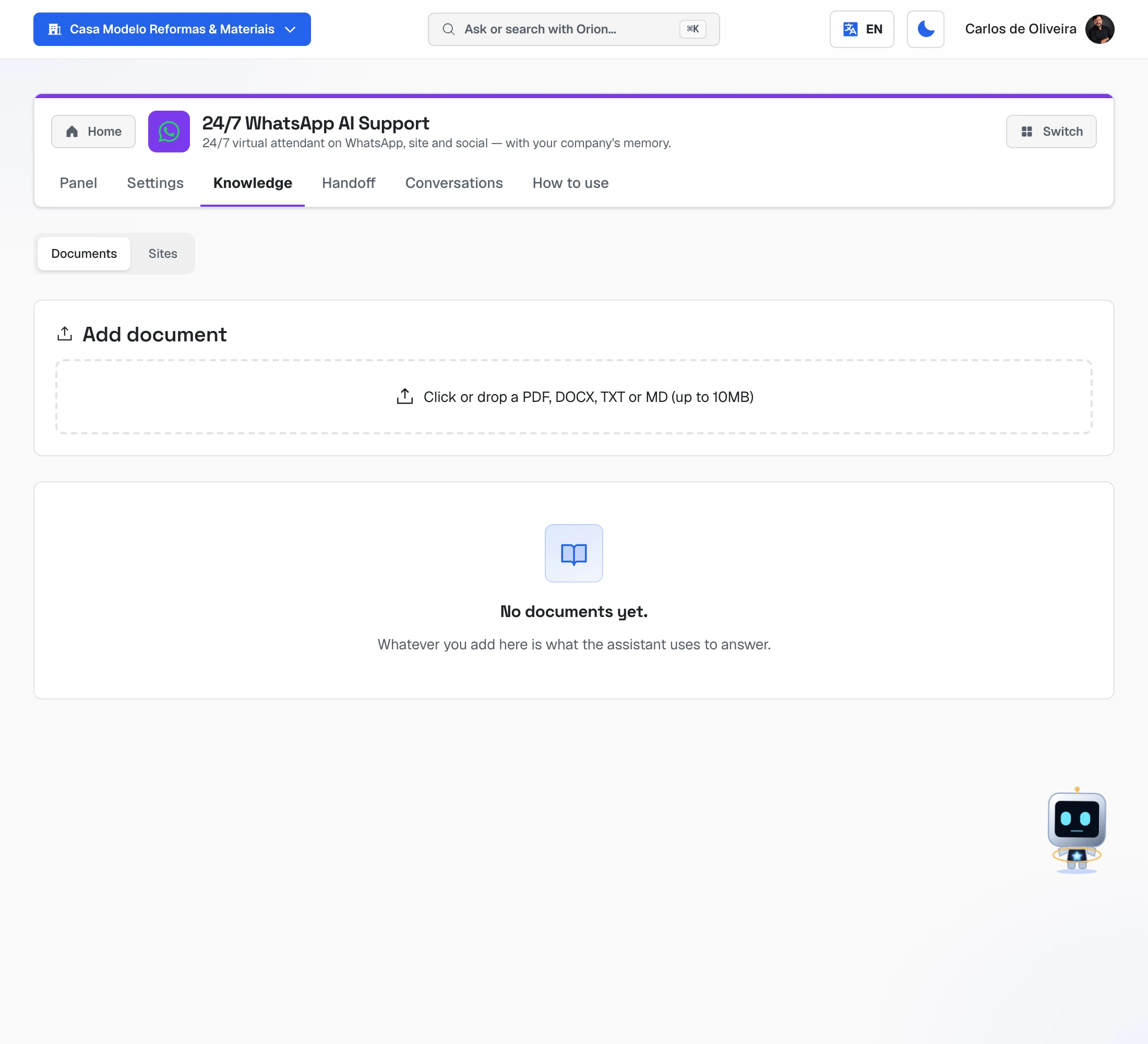 Knowledge tab with the Documents and Sites sub-tabs and the "Add document" box to drop a PDF, DOCX, TXT or MD
This is where Ava gets her answers. On the Documents sub-tab, drop your price list, your list of services, the questions customers ask most. On the Sites sub-tab, paste your website address so she reads it.
Wait for each source to be ready before testing. Empty knowledge base = generic answers.
Step 3 — Tell her when to call you
Where: Handoff tab.
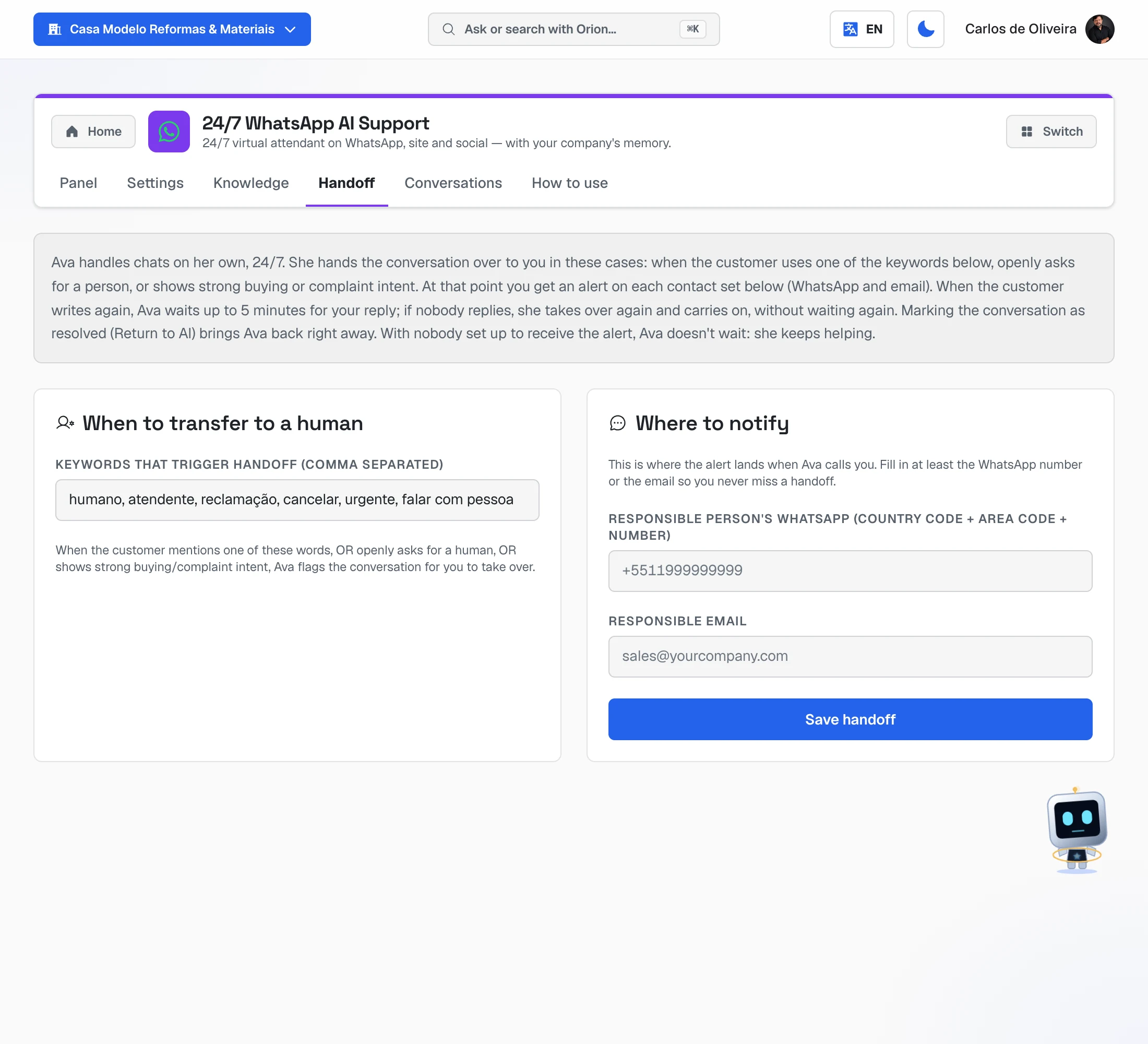 Handoff tab: the explanation of how Ava hands the conversation over, the "When to transfer to a human" card with the keywords and the "Where to notify" card with the responsible person's WhatsApp and email
- In Keywords that trigger handoff, keep the ready-made ones and add your own, separated by commas.
- In Responsible person's WhatsApp, enter the phone of whoever gets the alert — with country code + area code + number, no spaces. E.g. 5511999998888.
- In Responsible email, the email of whoever gets the alert.
- Click Save handoff.
Step 4 — Set up your team's schedule
With your team added, Ava books the visit by herself and picks who goes: she offers two real free slots, the customer picks one, she confirms right there and the person who's going gets the alert on WhatsApp. No Google needed — the schedule lives here in the panel, on the Schedule tab.
With and without a team — what changes
| Nobody added | Team added | |
|---|---|---|
| What Ava offers | A day and a time window, and asks for the address with zip code | Two free slots, already saying who goes |
| Who confirms | Your team, on WhatsApp — she says "the team will confirm the time" | She does: "Booked: Tuesday, 9 to 11, with Technician 1" |
| Who finds out | You, reading the conversation | The person who's going, on WhatsApp, and you, on the Schedule tab |
Both ways work. Without a team you don't lose the customer — you just confirm the time by hand.
Add who does the visits
Where: Ava's Settings tab → Team on call card.
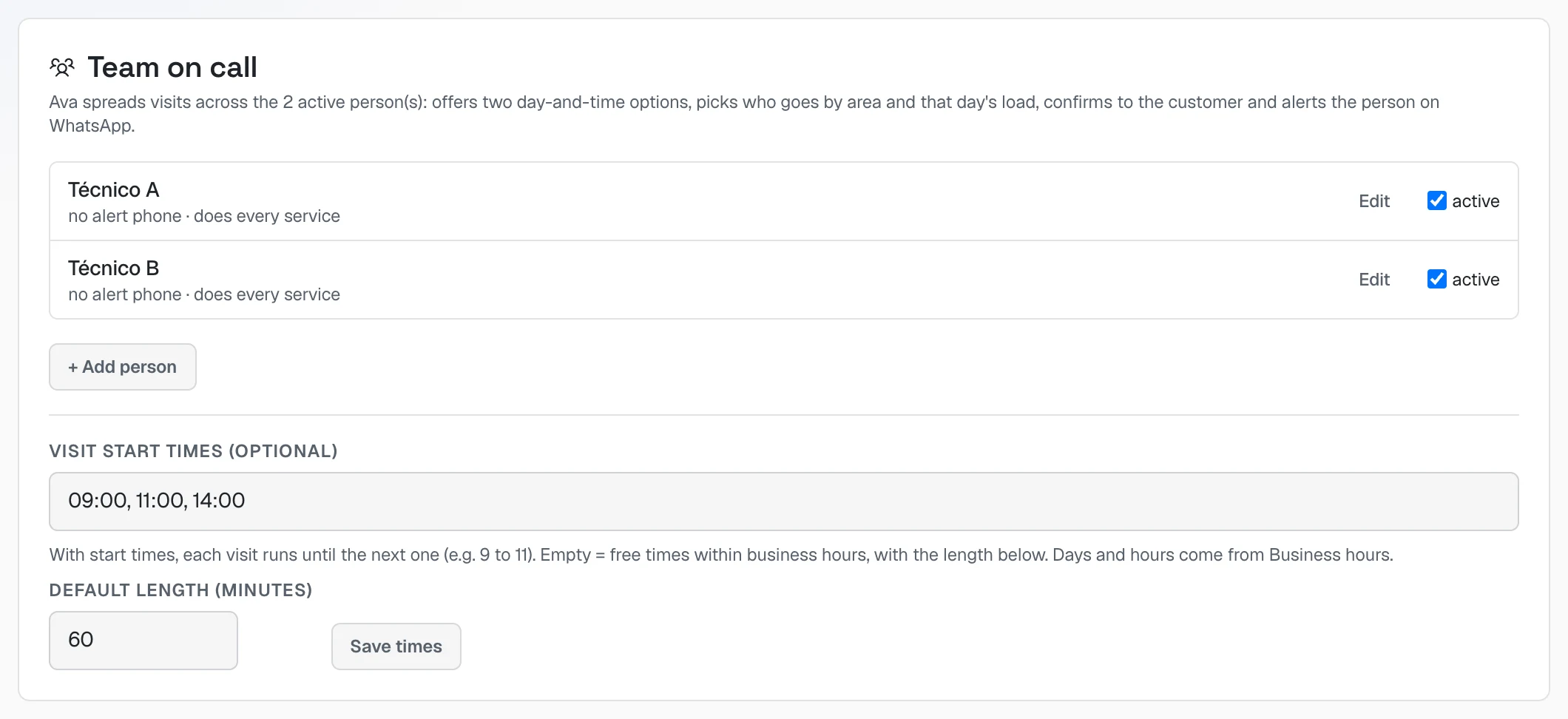 The "Team on call" card with two active people, the visit start times (09:00, 11:00, 14:00) and the default length
- Click + Add person.
- Fill in the Name — a technician, a professional or a department ("Technician 1", "Dr. Ana", "Billing").
- If you like, also fill in:
- Alert phone — the number where the person gets each booked visit (day, time, service, address and the customer's contact). Without a phone, the visit only shows on the Schedule tab.
- Gmail — to get a copy of each visit in their Google Calendar (see Optional — Google Calendar, below).
- Services — separated by commas. Empty means they do everything. Use it when each person does something different (Ava only offers who does the requested service).
- Click Save person. Repeat for each person.
The active box next to each name takes the person out of upcoming bookings without deleting anything — use it when someone goes on vacation or leaves.
Visit times
On the same card, below:
- Visit start times — if you work in windows (e.g. 09:00, 11:00, 14:00), write them here. Each visit runs until the next start time: 9 to 11, 11 to 14, and the last one until closing.
- Empty — Ava offers free times within business hours, with the Default length.
Click Save times. Days and hours come from Business hours (part 4b): if Saturday is open until 2 pm there, she books on Saturday until 2 pm.
How Ava picks who goes
For each free slot, she picks in this order:
- The person the customer asked for ("I want Dr. Ana"), if they're on the team.
- Who does the requested service.
- Who already has a visit in the same area that day (by zip code) — so the technician doesn't cross the city.
- Who has the fewest visits that day.
Two customers never get the same slot with the same person: if someone just took it, she offers another.
Optional — your team's spreadsheet
If your team already organizes visits in a Google spreadsheet, Ava works alongside it:
- Each visit she books becomes a new row in the spreadsheet — date, period, phone, customer, service, price, address, postal code, technician and status "Pending". If the visit is rescheduled, the same row changes; if it is cancelled, the status becomes "Cancelled".
- What the team writes by hand also counts: a technician with a visit in the spreadsheet on that day and period (morning or afternoon) isn't offered again. A row without a period takes the first free slot of the day. A finished or cancelled row doesn't take anyone's time.
- The technician's name in the spreadsheet must match the team added above (the first name is enough).
To connect it:
- The spreadsheet must be in Google Sheets format. If it's an Excel file stored in Drive, open it in Google Drive → File → Save as Google Sheets and use the new spreadsheet from then on (Google doesn't let any system write to an Excel file).
- In Google Drive, click Share on the spreadsheet, paste the email shown on the Schedule spreadsheet card and choose Editor.
- On Ava's Configuration tab, Schedule spreadsheet card, paste the spreadsheet link and click Connect spreadsheet. The card shows how many visits it read and which technicians it found — and warns if a name in the spreadsheet isn't in the team.
The spreadsheet may have a title row (Date, Technician, Status…) or not: without titles, the column order is company, date, period, phone, customer, service, price, address, postal code, technician and status. Ava uses one extra column at the end for a code that identifies her row — don't delete it.
Optional — Google Calendar
Google is used for two things:
- With a team: each visit gets a copy in the Google Calendar of whoever has a Gmail added (that person's calendar must be shared with the business account connected here). If the person has no Gmail, the copy goes to the connected account's own calendar, with the person's name in the title.
- Without a team: Ava books straight into the Google calendar of the connected account (9 am to 6 pm, Monday to Friday, with 15 minutes between appointments).
If you need neither, skip this part.
🟥 The rule you can't skip
Make this connection yourself, signed in to the panel with YOUR login, and pick the business Google account. The system connects the Google account of whoever is signed in. If your agency or a relative connects it for you, their calendar gets connected — and your customers' visits end up on the wrong calendar.
Step by step
Where: menu → All connections → Google connections card. There's also a shortcut: on Ava's Settings tab, Visit schedule card, Connect Google Calendar button.
 The "Visit schedule" card before connecting: the "No Google calendar connected" notice explaining that, without a calendar, Ava offers a day and time and the team confirms, and the "Connect Google Calendar" button
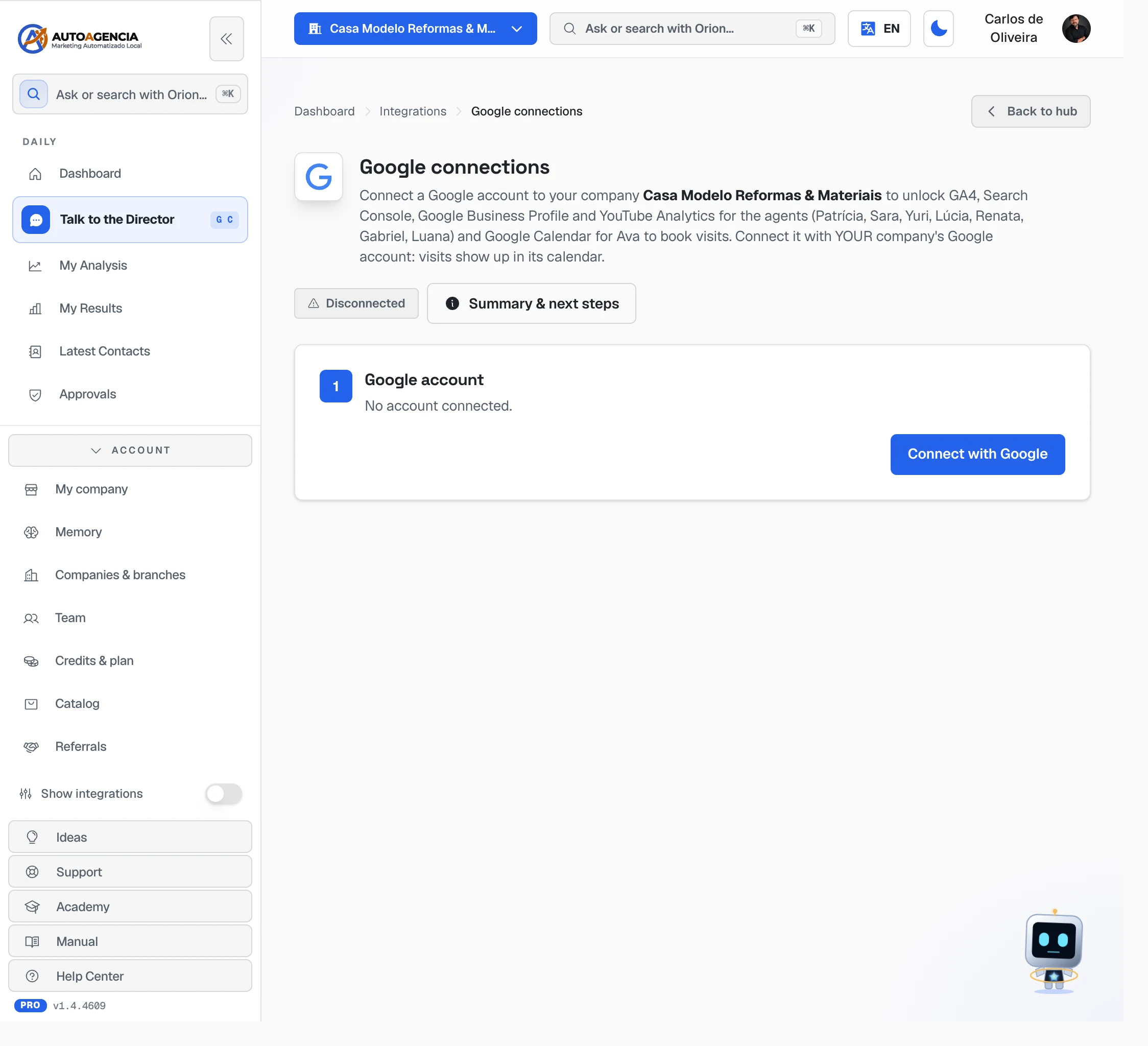 Google connections screen before connecting: the explanation that the connection unlocks Google Calendar for Ava to book visits, the Disconnected tag and the "Connect with Google" button
-
Click Connect with Google.
-
This is where you leave the panel and go to a Google screen. On Choose an account, click your business Google account (if there's more than one, check the email carefully).
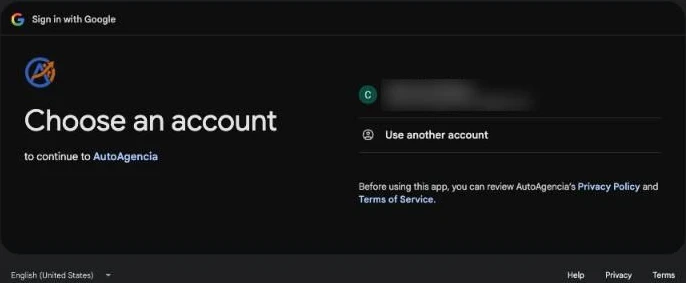 Google's "Choose an account — to continue to AutoAgencia" screen, with the account (blurred in the screenshot) and "Use another account"
 -
Google may ask you to confirm it's you (password, fingerprint or phone). That's Google protecting your account — confirm the way it asks.
-
If your business has a YouTube channel, Google shows a screen asking you to choose your account or a brand account. Pick your account (the top one, with your email) — not the channel.
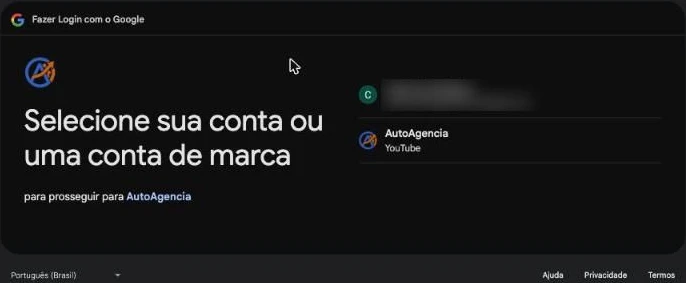 Google screen "Choose your account or a brand account", with the personal account on top and the YouTube channel below
 -
Google now shows AutoAgencia wants access to your Google Account and the list of what it will be able to do. Check that the two Google Calendar lines are there ("View and edit events on all your calendars"). If you see checkboxes next to the items, check them all — especially the Google Calendar ones; whatever you don't allow, Ava can't use.
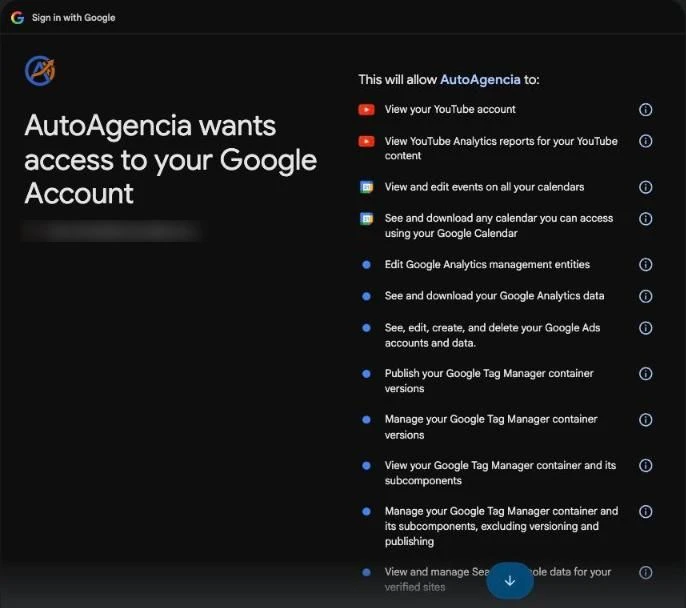 Google's "AutoAgencia wants access to your Google Account" screen with the list of permissions, including the two Google Calendar ones
 -
Scroll to the end of the list and click Allow. You're taken back to the panel with the message Google account connected! (If the screen still says "Disconnected", reload the page.)
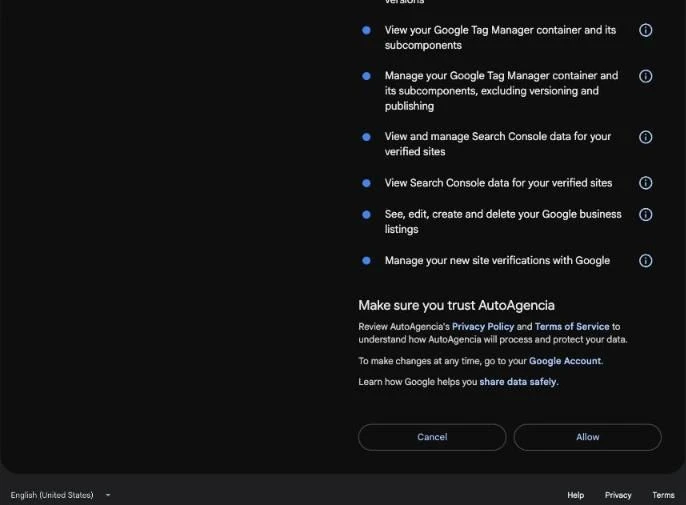 End of Google's permissions screen, with the Cancel and Allow buttons
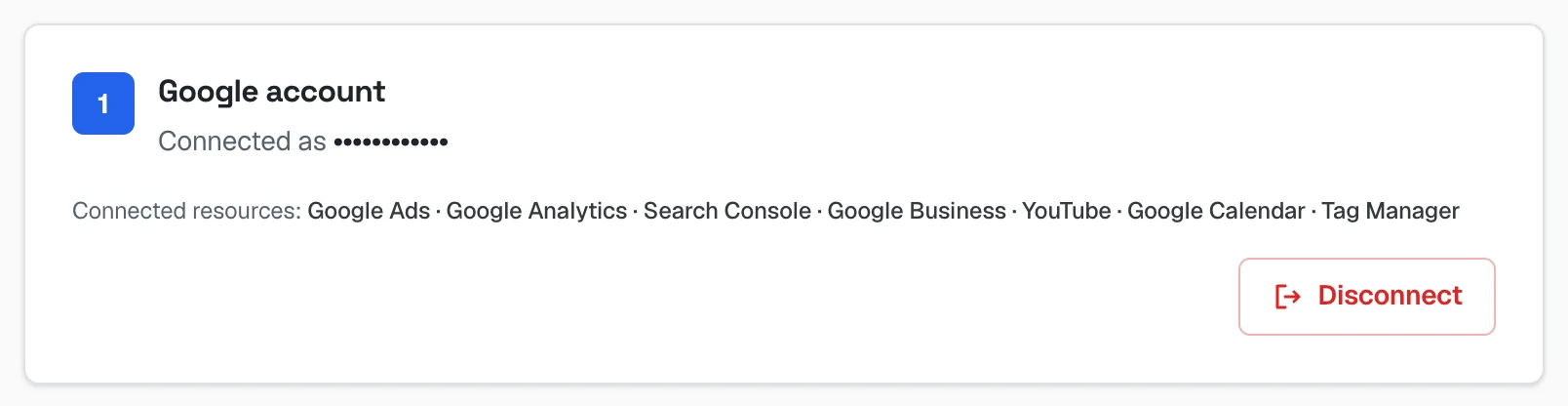 Google connections screen after connecting, showing the connected account and the list of connected resources — Google Calendar among them
Allow Google for Ava
Go back to Ava's module → Settings tab → Visit schedule card.
 The "Visit schedule" card with the calendar connected: the checked "Ava can book visits on the Google calendar" box with the account email (blurred in the screenshot) and the explanation of what happens if you uncheck it
- Box checked → with a team, visits get the copy in Google; without a team, Ava books straight into the Google calendar.
- Box unchecked → with a team, nothing changes in the conversation (there's just no copy in Google); without a team, she goes back to the "no calendar" way: offers a day and time, asks for the address with zip code and says the team will confirm.
Check the email next to the box: that's the calendar where visits will go. Then click Save configuration.
Seeing an orange warning?
 The "Visit schedule" card with the box unchecked and the orange warning "This Google account belongs to the AutoAgency team, not to your company", followed by the "Open Google connections" link
It means our team connected it, not you — that's why the box stays unchecked, so your visits don't land on our calendar. Follow the Open Google connections link, click Disconnect and connect again signed in with your own login, as in the step by step above.
Using the schedule day to day
How Ava books a visit
- The customer asks for a time on WhatsApp.
- Ava asks for what's missing — name, service and address with zip code — and offers two options of day and time, already with who goes.
- The customer picks one. She books it and replies "Booked: Thursday, 9 to 11, with Technician 1".
- The person who's going gets the alert on WhatsApp, and the customer gets a WhatsApp reminder one day and one hour before the visit.
Where you see the visits
On the Schedule tab of Ava's module: the visits for the next 7 days, by day, with the time, who goes, the service, the customer and the address.
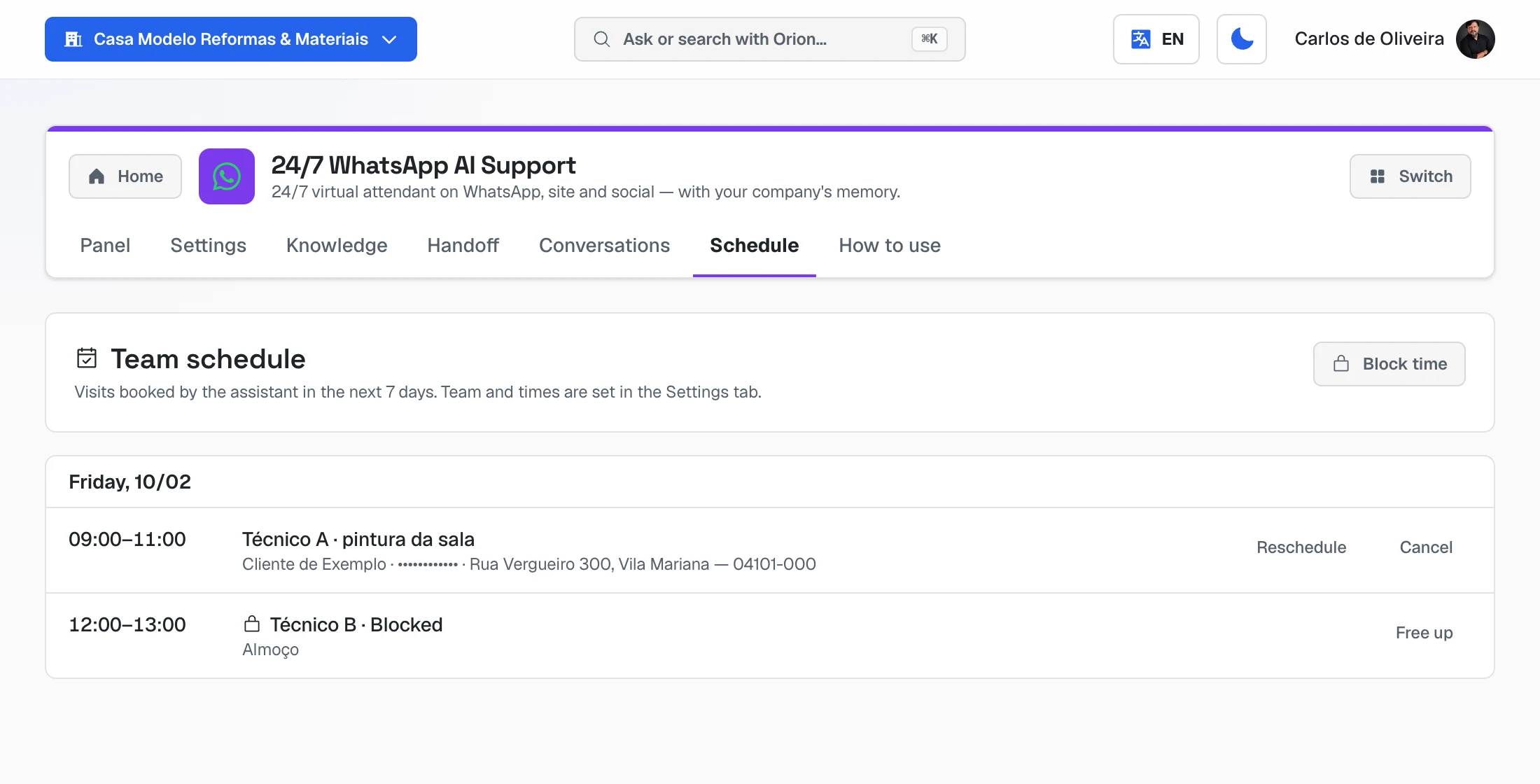 Schedule tab with one visit from 09:00 to 11:00 (team member, service, customer with the contact blurred and address, Reschedule and Cancel buttons) and a blocked lunch slot with the Free up button
Whoever has a Gmail added also sees their own visits in Google Calendar on their phone (part 6, Optional — Google Calendar).
Rescheduling or cancelling
-
The customer asks on WhatsApp: Ava changes the time or cancels, and alerts the team member.
-
You need to cancel: Schedule tab → Cancel on the visit. The team member gets the alert; let the customer know in the conversation.
-
You need to change the time: Schedule tab → Reschedule on the visit. The next free times show up (with who goes); to see other days, change the date in Free times from. Click the time you want: the team member is alerted and, with the Notify the customer on WhatsApp box checked, the customer gets the new time.
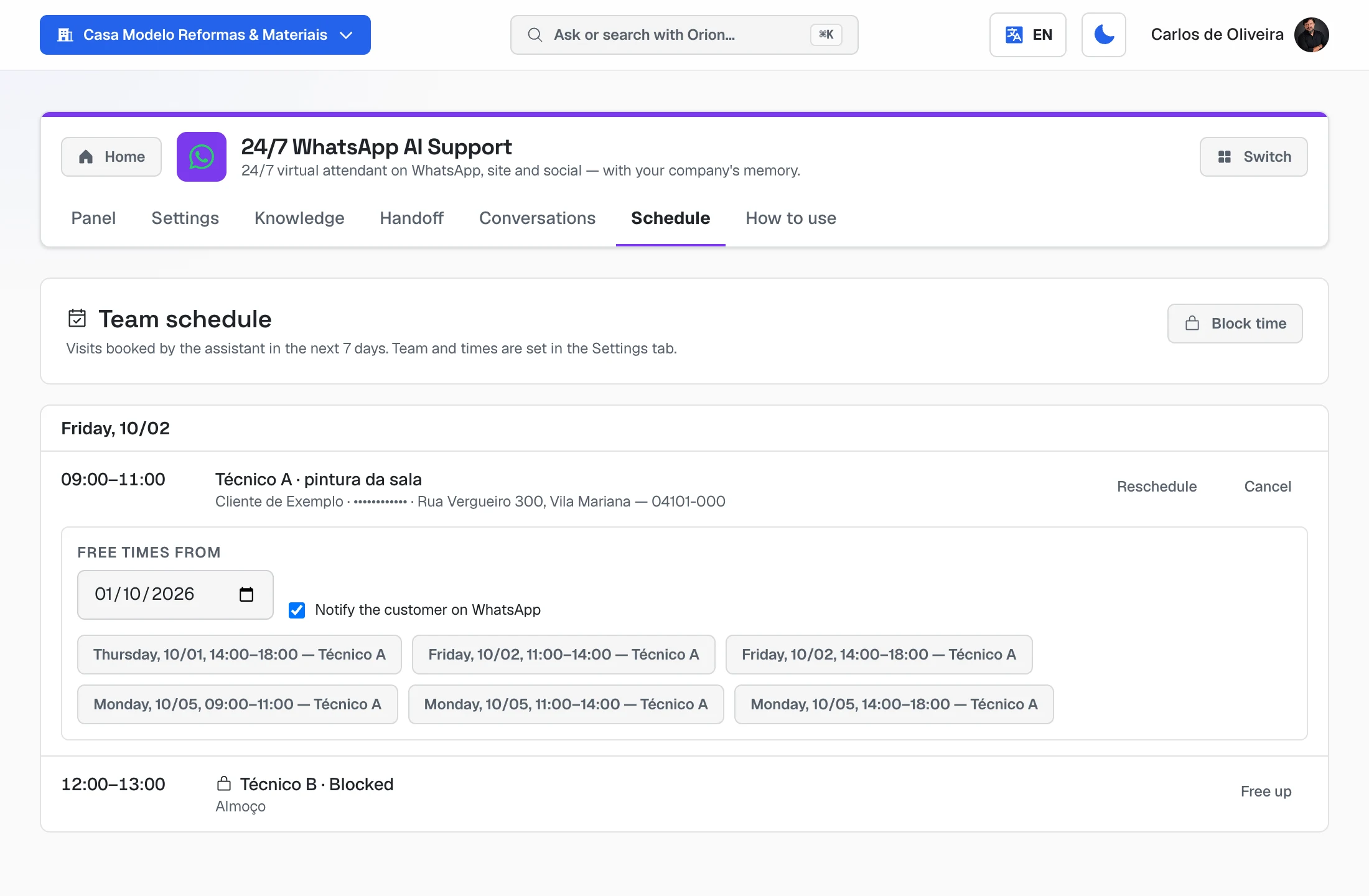 Reschedule panel open under the visit: the "Free times from" field, the checked "Notify the customer on WhatsApp" box and six free times with who goes
Blocking a day or a time
-
Lunch, a day off, a holiday, an appointment: Schedule tab → Block time. Pick who (one person or the whole team), the day, from and to, and a reason if you like, then click Block. Ava won't offer anything inside the block. It shows on the schedule with a lock and the Free up button. Anyone who already has a visit at that time isn't blocked — the message says who, so you can reschedule or cancel first.
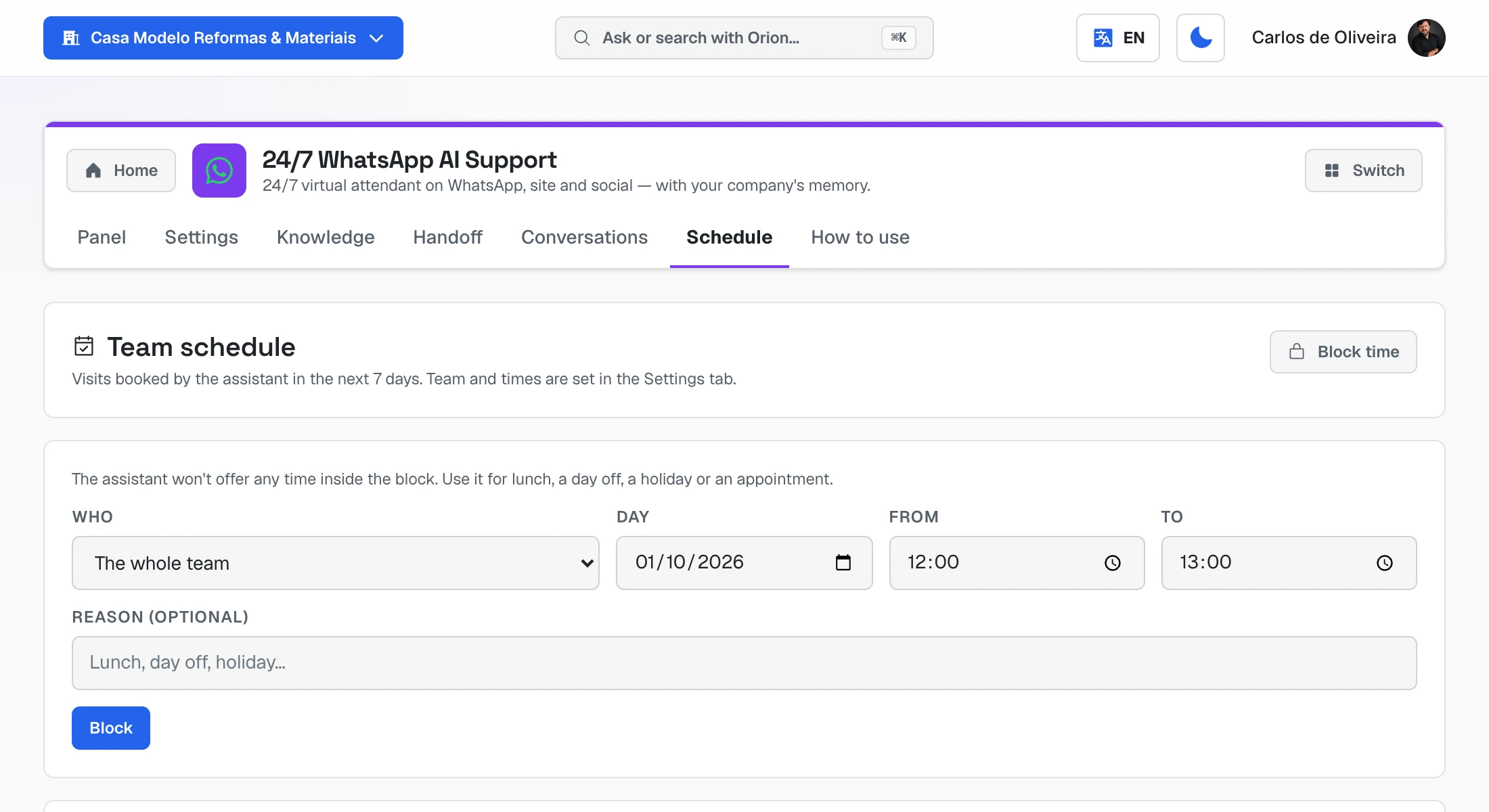 Block time form: who (the whole team or one person), day, from, to, reason and the Block button
 -
Someone on vacation: uncheck active next to their name on the Team on call card, and check it again when they're back. Visits already booked stay.
-
Whoever has a Gmail: an event in that person's Google Calendar also blocks the time.
Asking Ava about the calendar
On the module's Panel, the chat with Ava (Talk to the specialist box) takes questions like "What free slots do I have tomorrow for a 1-hour visit?". That chat reads the connected Google calendar — with a team, check the visits on the Schedule tab.
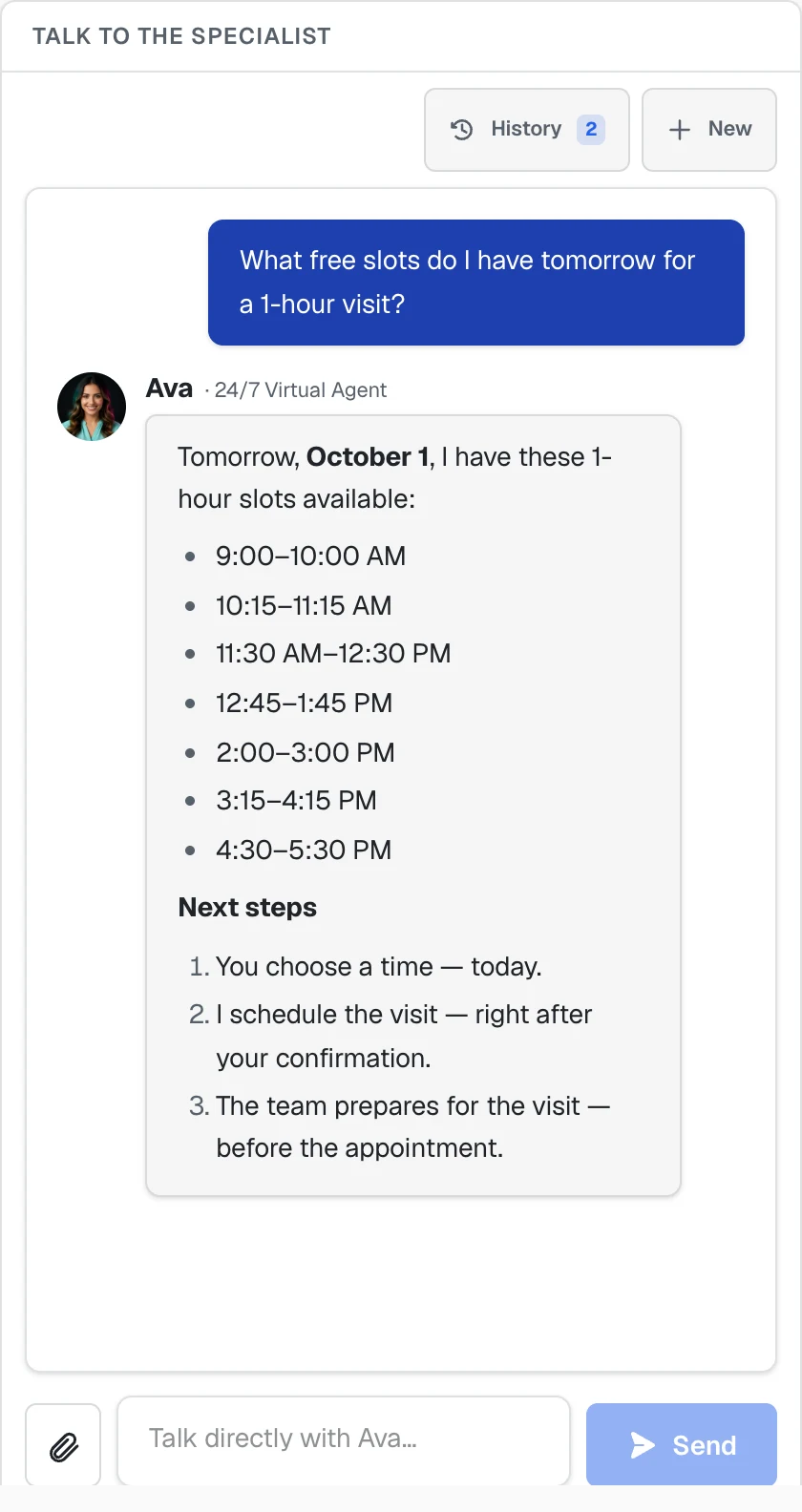 Chat with Ava on the Panel: the question "What free slots do I have tomorrow for a 1-hour visit?" and her answer with seven free slots, 15 minutes apart, and the next steps
Turning the schedule off
- Stop booking with the team: uncheck active for everyone. Ava goes back to offering a day and time window and saying the team will confirm.
- Stop the copy in Google: uncheck the box on Visit schedule and save; or Google connections → Disconnect. Visits already copied stay in Google Calendar.
Following the conversations
Where: Conversations tab.
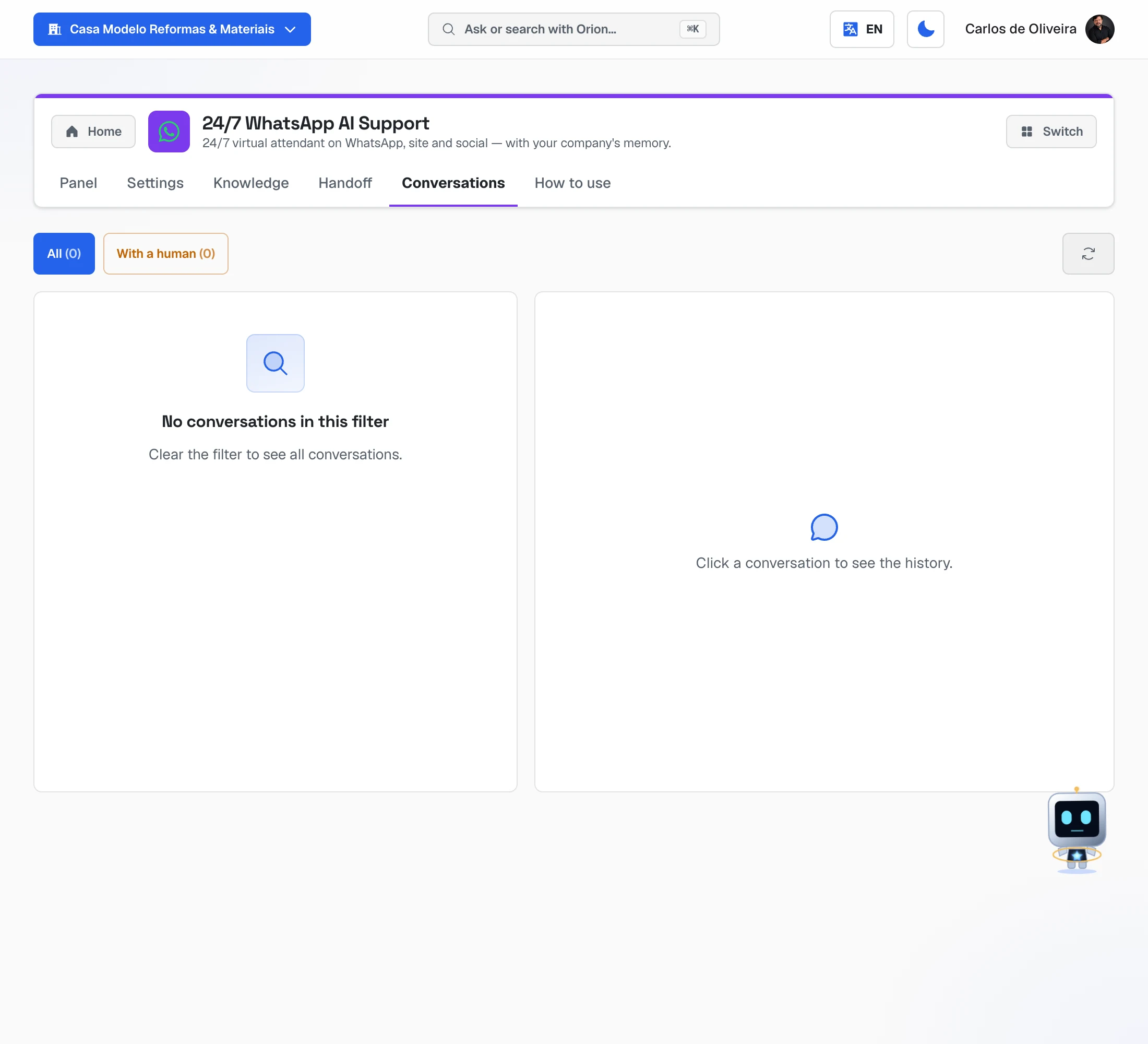 Conversations tab with the "All" and "With a human" filters and the area where each conversation's history shows up when you click it
- All shows every conversation Ava handled. Click one to read it all — including the text of the audios the customer sent.
- With a human shows the ones she handed over to you.
Taking over and handing back
- To take over: reply to the customer from the phone's WhatsApp, as usual. Ava notices and waits up to 5 minutes for your reply before speaking again.
- To hand back to Ava: in the conversation, use Return to AI. She's back right away.
The Panel
The Panel tab shows, at the top, whether WhatsApp is connected and three numbers: Conversations, With you (the ones waiting for a person) and Knowledge base (how many sources she has read).
Frequently asked questions
Does Ava answer voice messages? Yes. She listens to the audio, understands it and replies. If the customer spoke, she can reply with audio too.
What if the customer sends a photo of the stove or the problem? She looks at the photo and replies to what she saw. Photos, PDFs and videos are read the same way.
Can she give discounts on her own? Only what you write in Specific instructions or in the knowledge base. Without a written rule, she doesn't make up a discount.
Can I pause Ava? Yes: uncheck Ava active on the Settings tab and save. To resume, check it again.
Does Ava book visits on Saturday? With a team added, yes: she follows the days and hours in Business hours (part 4b). If Saturday is open from 8 am to 2 pm, she offers Saturday slots until 2 pm. (Without a team, booking straight into Google Calendar, she only looks Monday to Friday.)
I have more than one technician. Does each have a schedule? Yes: add each one on the Team on call card (part 6). Ava spreads the visits across them by area and by that day's schedule, and each one gets theirs on WhatsApp.
Can each person have different days and hours? Not yet — everyone follows the business's Business hours. To take someone out for a day or a time, use Block time on the Schedule tab.
What about Rebeca and Sérgio? They're the other AutoAgency assistants: Rebeca answers Instagram, Messenger, email and WhatsApp in one inbox, and Sérgio answers the chat bubble on your website — and also books visits with your team. Each has their own guide: Rebeca's Guide and Sérgio's Guide.
When something goes wrong
| What happens | What to do |
|---|---|
| Ava doesn't answer anyone | Check on the Panel that WhatsApp is connected. If it is, check that Ava active is checked. |
| The customer gets two welcome messages | Turn off WhatsApp Business's Greeting message on the phone (part 3). |
| She says "I don't have that information" | It's missing from the knowledge base. Add it on the Knowledge tab or in Specific instructions. |
| Ava doesn't offer times with the team | Check on the Team on call card that there are people with active checked, and in Business hours that the days are open. |
| The team member didn't get the alert | Check their Alert phone (with area code) and that the business WhatsApp is connected (part 3). The visit is on the Schedule tab either way. |
| Google copies are going to the wrong calendar | Check the email on the Visit schedule card. If it isn't the business one, disconnect and connect again with your own login (part 6). |
| The Google calendar box doesn't show | The Google account isn't connected, or was connected without the Google Calendar permission. Connect again allowing everything. |
| Nobody is alerted when she hands over | Fill in the Responsible person's WhatsApp on the Handoff tab. |
| The QR Code vanished before scanning | Click Generate new QR and scan again. |
Still have questions? In the full menu, use Talk to the Director — our team answers there. The Academy and help chapter shows the way.
The other guides