
This guide is for anyone who has just hired Rebeca, the virtual assistant of the OmniLeadHub module. She answers whoever messages your business on Instagram, Messenger, WhatsApp, Telegram, email and your website chat — all in one inbox —, finds out what the person wants and hands the lead to the right person on your team. You don't need any tech skills: every step names the exact button.
The screenshots are real, taken in the panel of a sample company (Casa Modelo Reformas & Materiais). The sample company is Brazilian, so the texts it wrote itself show up in Portuguese; in your account you'll see your own.
What Rebeca does for you
People who message your business want an answer now — and whoever waits goes looking elsewhere. Rebeca answers right away, on any channel, at any time. She:
- answers questions with what you taught her (services, prices, the area you cover);
- understands audio, photos and documents the person sends — and replies to the content;
- finds out who she's talking to and what they want, asking the questions you choose;
- asks for a WhatsApp number or email during the chat, so the lead isn't lost;
- sends the lead to your pipeline (your CRM) and alerts you on WhatsApp with a summary;
- hands the conversation to the right area of your team — sales, quotes, support;
- sends the PIX payment code with the agreed amount, if you want (Brazil only — she never says the payment arrived).
What she does not do: make up prices you didn't teach her, promise deadlines that aren't written down, or pretend to be human. When she doesn't know, she says so honestly.
Before you start
| What | Why |
|---|---|
| Access to your social accounts | To connect Instagram and Messenger you sign in with the Facebook account that manages your business Page. |
| A phone with your sales WhatsApp | If you want Rebeca on WhatsApp. It can be the number you already use or one just for sales. |
| The WhatsApp of whoever receives the leads | That's where each qualified lead alert goes. |
| Your price list and list of services | It's what Rebeca uses to answer. It can be a PDF, a page on your website or plain text. |
Step 1 — Connect your channels
Where: Home → Your apps → OmniLeadHub → Channels tab.
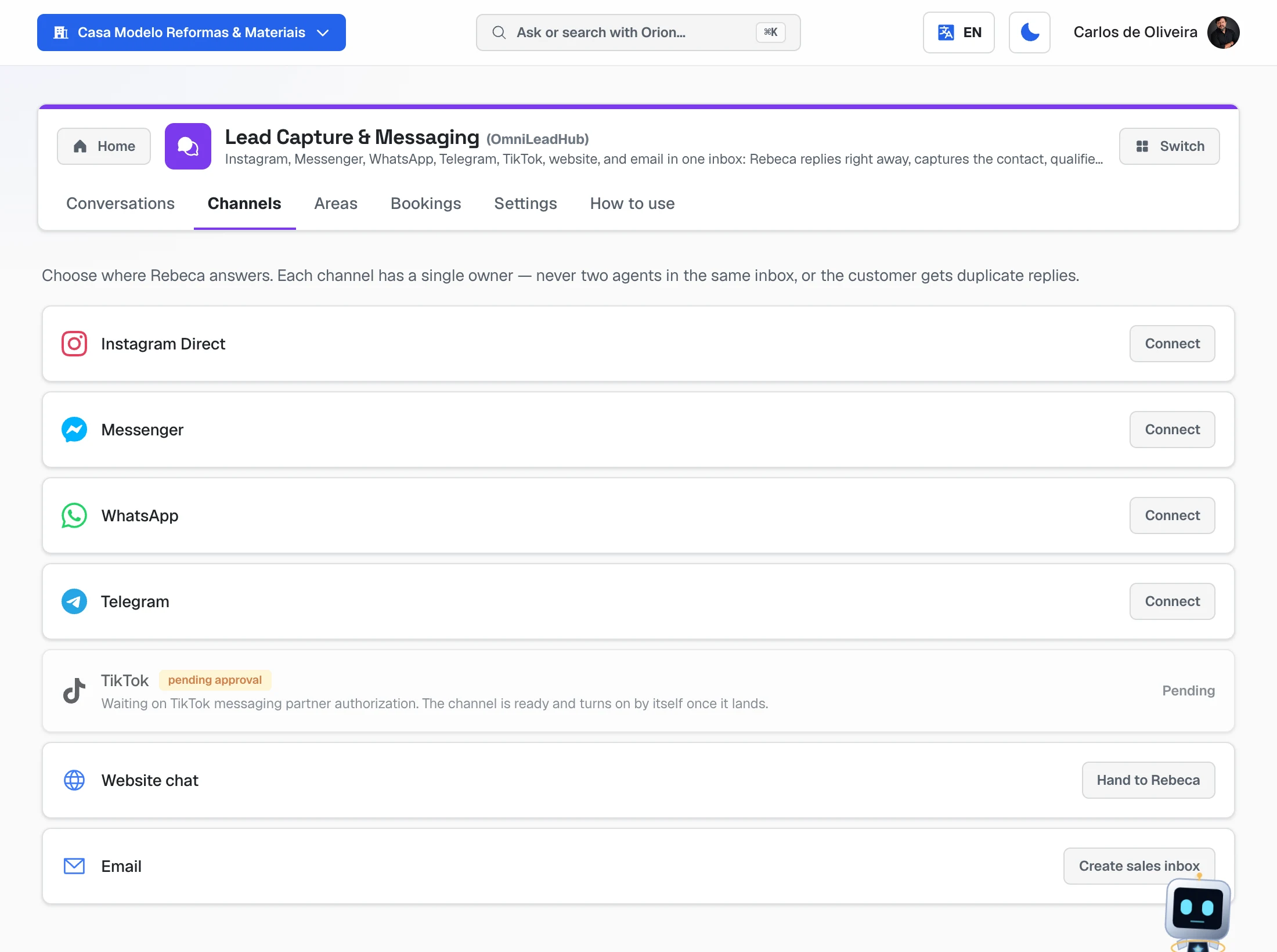 Channels tab with the seven channels: Instagram Direct, Messenger, WhatsApp and Telegram with the Connect button, TikTok pending approval, Website chat with "Hand to Rebeca" and Email with "Create sales inbox"
Each channel has a single owner — never two assistants in the same inbox, or the customer gets duplicate replies. Connect one at a time:
Instagram and Messenger
- On the Instagram Direct (or Messenger) card, click Connect.
- You leave the panel and go to Facebook. Sign in with the account that manages your business Page and authorize the Page.
- You're taken back to the panel with a success message. If it says the authorization was saved and the channel turns on when Meta approves it, everything's fine: just wait.
- On the WhatsApp card, click Connect.
- Choose Use the current number (the WhatsApp your business already uses) or Connect a dedicated number (a SIM just for Rebeca).
- A QR Code appears. On that number's phone, open WhatsApp → Linked devices → Link a device and point the camera at the code.
- Keep the screen open: the code refreshes by itself and the screen tells you when it connects.
Click Create sales inbox. The system creates an email address and shows it to you. Everything that arrives there lands in Rebeca's inbox.
Website chat
Click Hand to Rebeca. A piece of code appears: click Copy code and paste it into your site, at the bottom of the page (if someone else runs your site, send them the code). If your site is already handled by Sérgio, pick one of the two — the channel belongs to only one.
Telegram
Click Connect and follow the 4 steps the screen shows (create a bot with Telegram's BotFather and paste the code it returns into the Bot token field).
Step 2 — Teach Rebeca about your business
Where: Settings tab.
4a. Who she is and how she talks
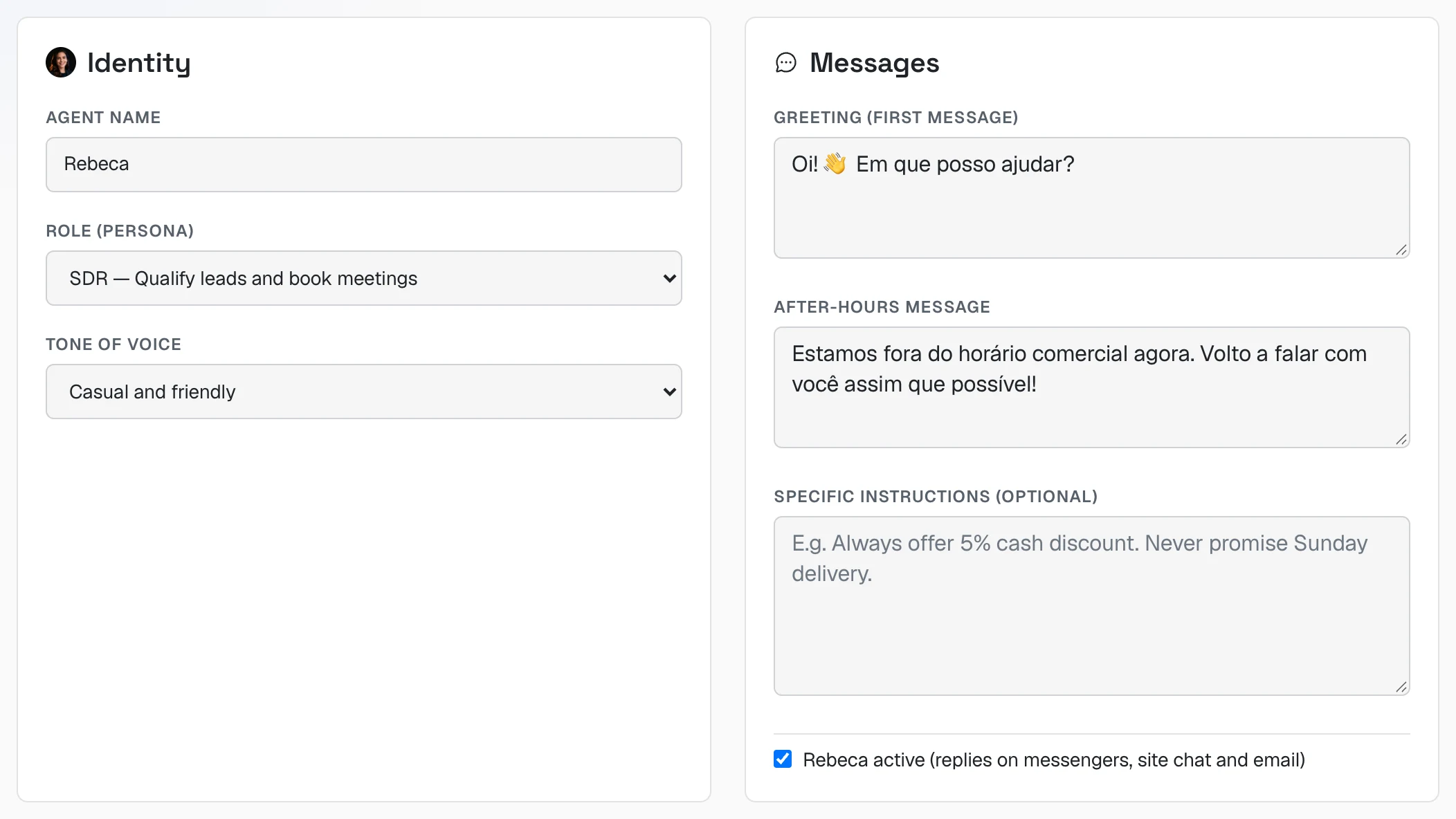 Rebeca's Identity and Messages cards: name, role, tone of voice, greeting, after-hours message, specific instructions and the "Rebeca active" checkbox
| Field | What to enter |
|---|---|
| Agent name | The name the customer sees. Keep "Rebeca" or change it. |
| Role (persona) | If you sell services, SDR — Qualify leads and book meetings or Sales — Sell, handle objections, close. |
| Tone of voice | Casual and friendly works well for most services. |
| Greeting | The first line the person reads. Short, with your business name. |
| After-hours message | What she says when someone writes outside the hours you set. |
| Specific instructions | Your house rules, in plain sentences. E.g. "We're closed on Sundays." |
| Rebeca active | Keep it checked. Unchecked, she stops answering on every channel. |
4b. Hours and questions
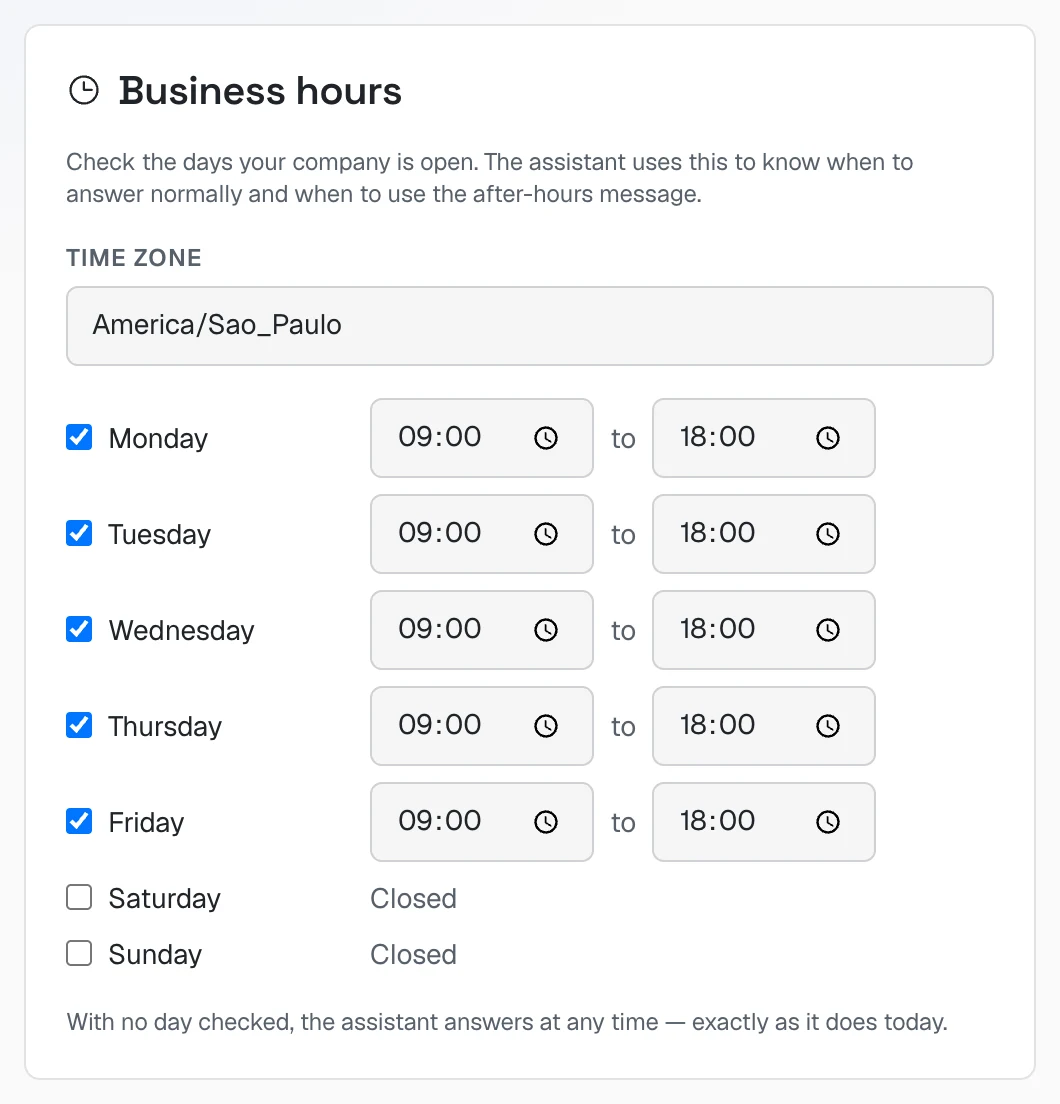 Business hours card: time zone America/Sao_Paulo, Monday to Friday from 09:00 to 18:00, Saturday and Sunday closed
Check the days and hours your business is open. Outside those hours she keeps answering, but says the team will get back later. Right below, in Qualifying questions, click Add question for each thing you need to know before taking the job (e.g. "Which neighborhood?"). She asks one at a time, inside the conversation — never as a form.
4c. What she needs to know to sell
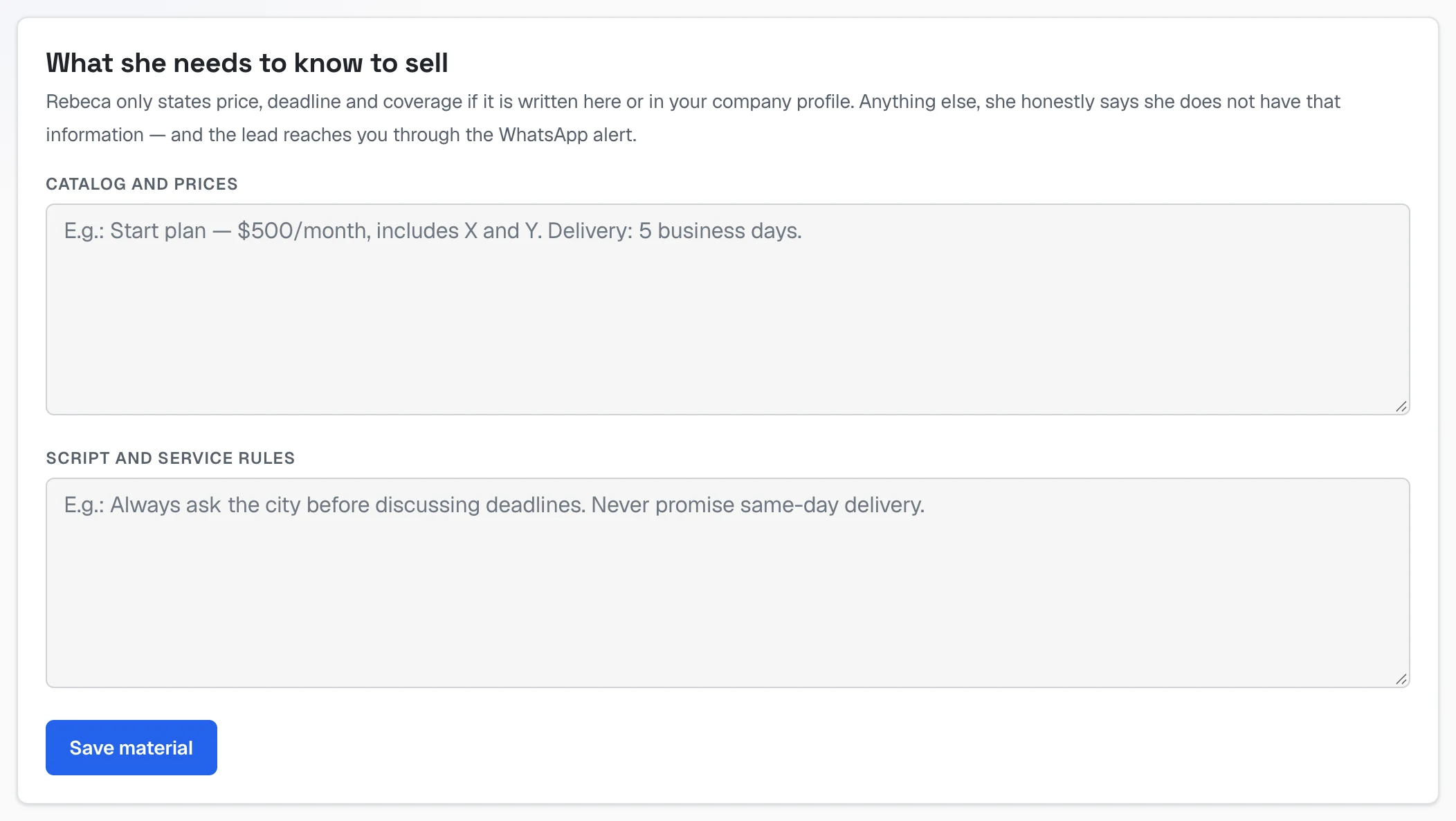 The "What she needs to know to sell" card with the Catalog and prices and Script and service rules fields, and the Save material button
This is the most important card. Rebeca only states price, deadline and coverage if it's written here (or in your company profile).
- Catalog and prices: each service with its price and what it includes. E.g. "Bathroom renovation: from $1,600, includes demolition and tiling. Lead time: 15 business days."
- Script and service rules: how you want her to run the conversation. E.g. "Always ask the city before discussing deadlines."
Click Save material.
4d. Files and pages she reads
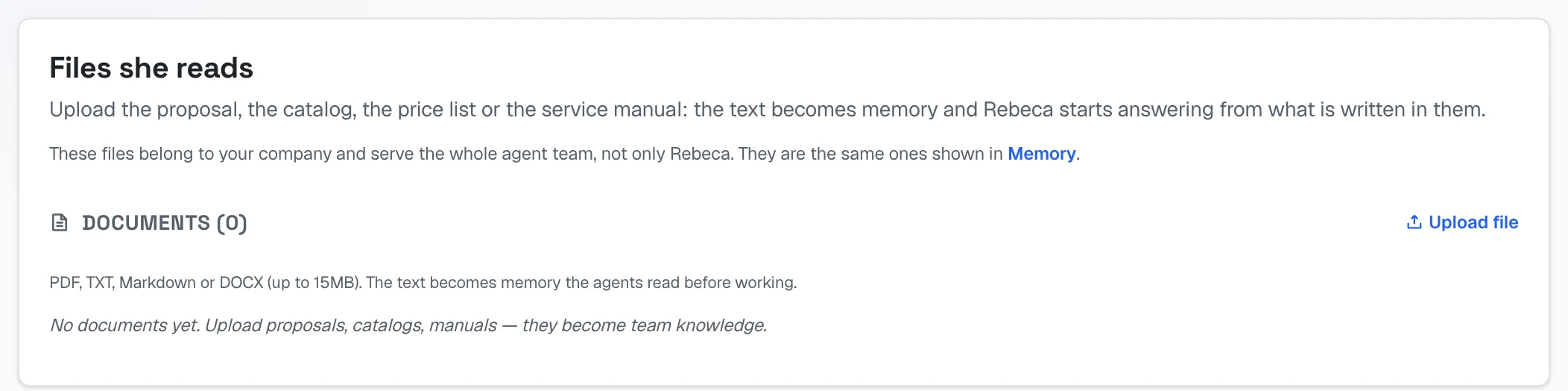 The "Files she reads" card with the Upload file button: PDF, TXT, Markdown or DOCX up to 15MB
Under Upload file, send your proposal, catalog or price list as a PDF. The text becomes memory and she starts answering from what's written there.
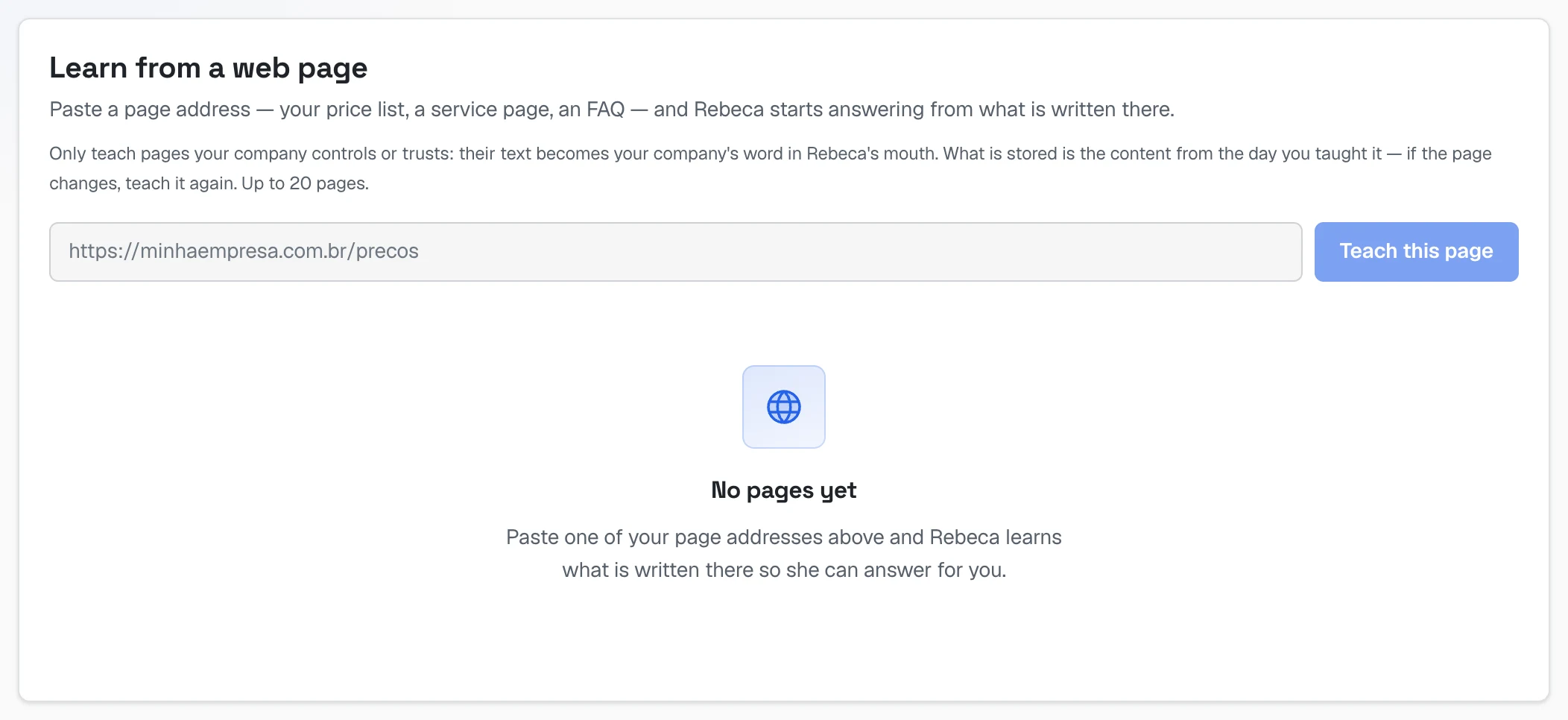 The "Learn from a web page" card: the field to paste a page address and the "Teach this page" button
Under Learn from a web page, paste the address of a page on your site (prices, a service page, an FAQ) and click Teach this page. If the page changes, teach it again.
4e. PIX and files to send (optional)
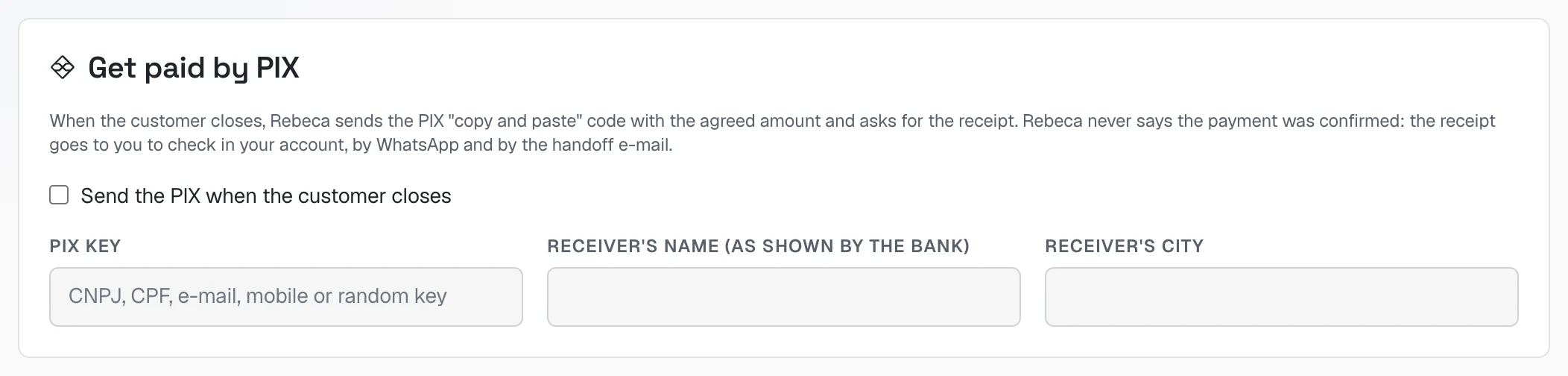 Rebeca's Get paid by PIX card: the "Send the PIX when the customer closes" checkbox and the key, receiver's name and city fields
PIX is Brazil only. Check Send the PIX when the customer closes and fill in the key, name (as the bank shows it) and city. She sends the PIX "copy and paste" code and asks for the receipt — she never confirms payment.
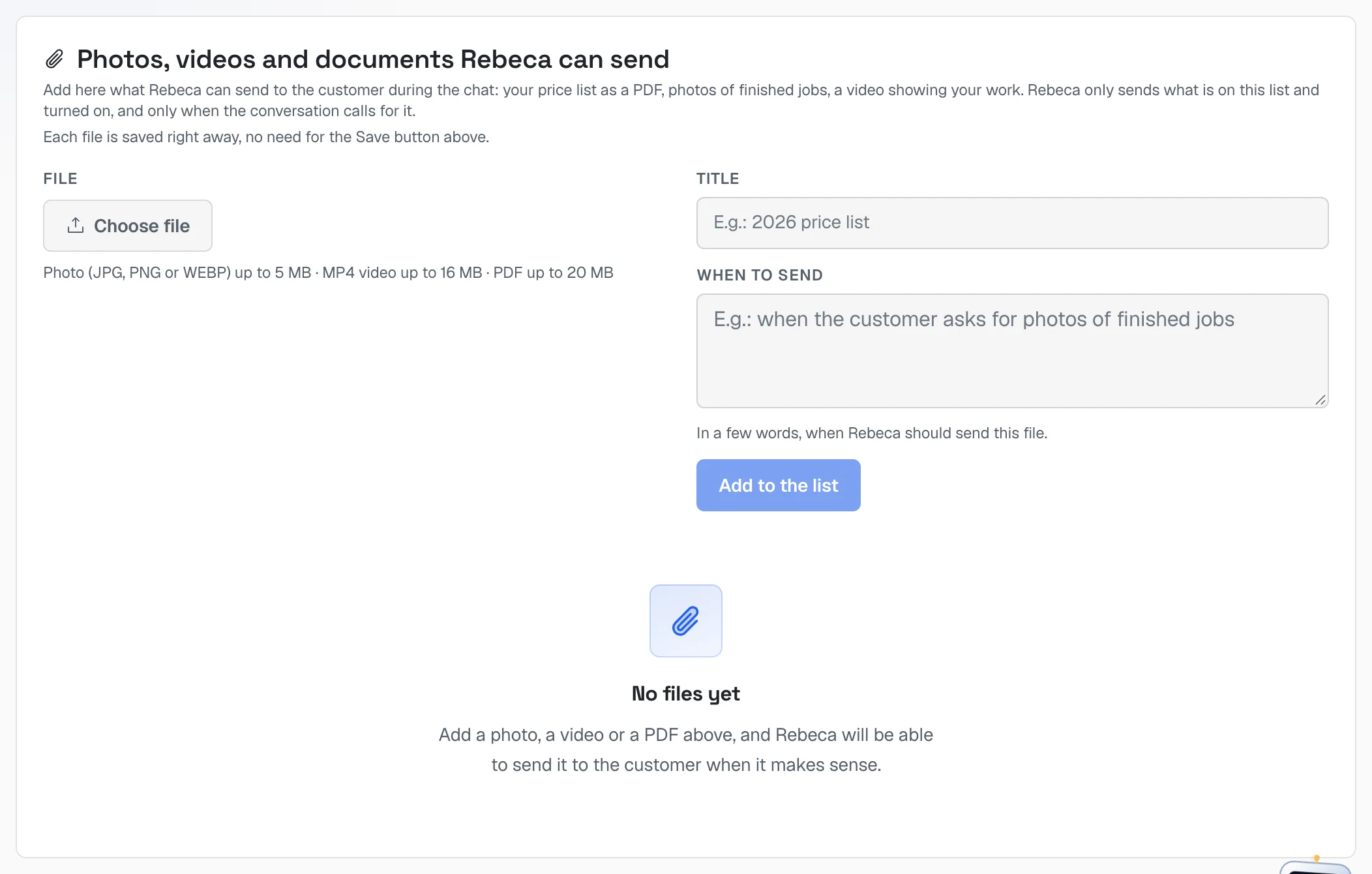 The "Photos, videos and documents Rebeca can send" card with the file field, title and "when to send"
Add here what she can send the customer (price list PDF, photos of finished jobs, a video): Choose file → Title → When to send → Add to the list. This card saves right away.
After changing the cards above, click Save configuration.
Step 3 — Tell her who gets the lead
The alert for each lead
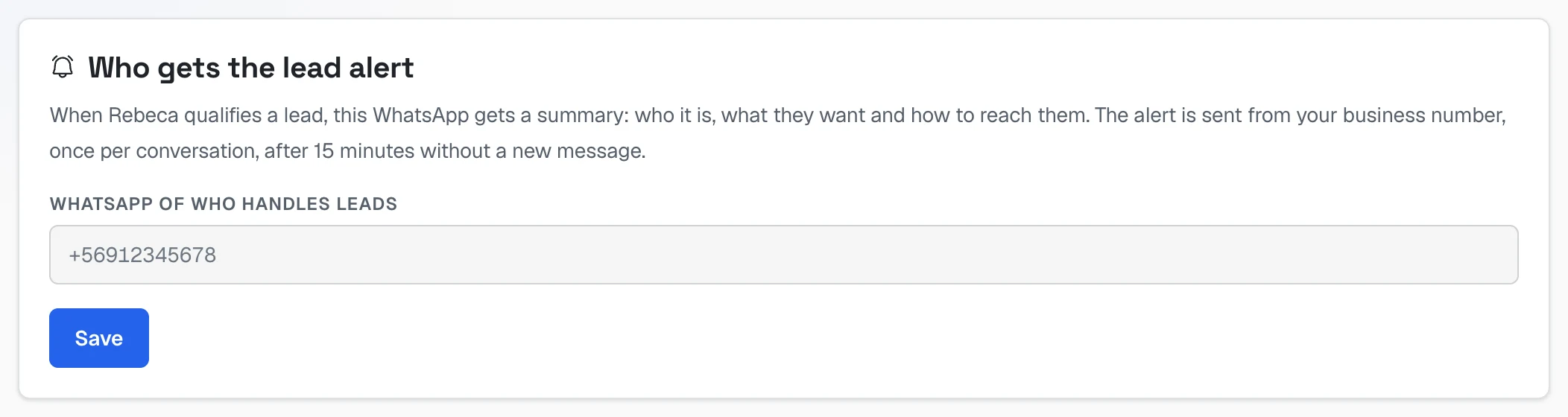 The "Who gets the lead alert" card with the "WhatsApp of who handles leads" field and the Save button
On the Settings tab, Who gets the lead alert card, enter the WhatsApp of whoever handles leads (with country code and area code) and click Save. When Rebeca qualifies a lead, that WhatsApp gets a summary: who it is, what they want and how to reach them. The alert goes out once per conversation, after 15 minutes without a new message.
Your team's areas
Where: Areas tab.
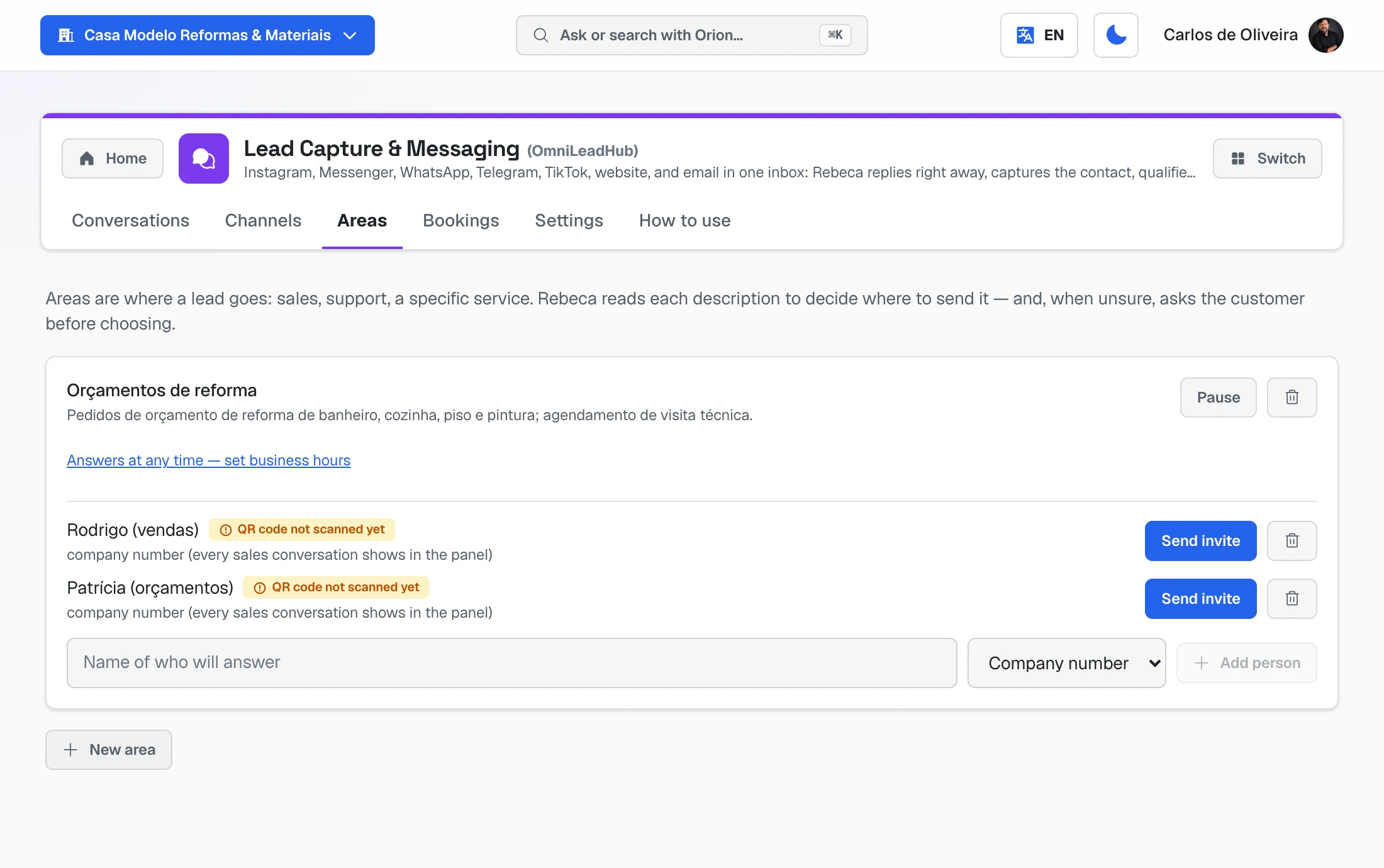 Areas tab with the renovation quotes area, the description of what it handles, two people with the "QR code not scanned yet" tag and the "Send invite" button, and the New area button
An area is who handles each type of lead: sales, quotes, support. Rebeca reads each area's description to decide where to send it — and, when unsure, asks the customer.
- Click New area, give it an Area name and write what this area handles — be specific (e.g. "bathroom and kitchen renovation quotes, site visits"). Click Create area.
- On the area's card, type the Name of who will answer, choose Company number or Personal number and click Add person.
- Click Send invite. The link is copied: send it to that person's phone.
- The person opens the link on their phone and scans the QR. The tag changes from QR code not scanned yet to connected.
Following and taking over conversations
Where: Conversations tab.
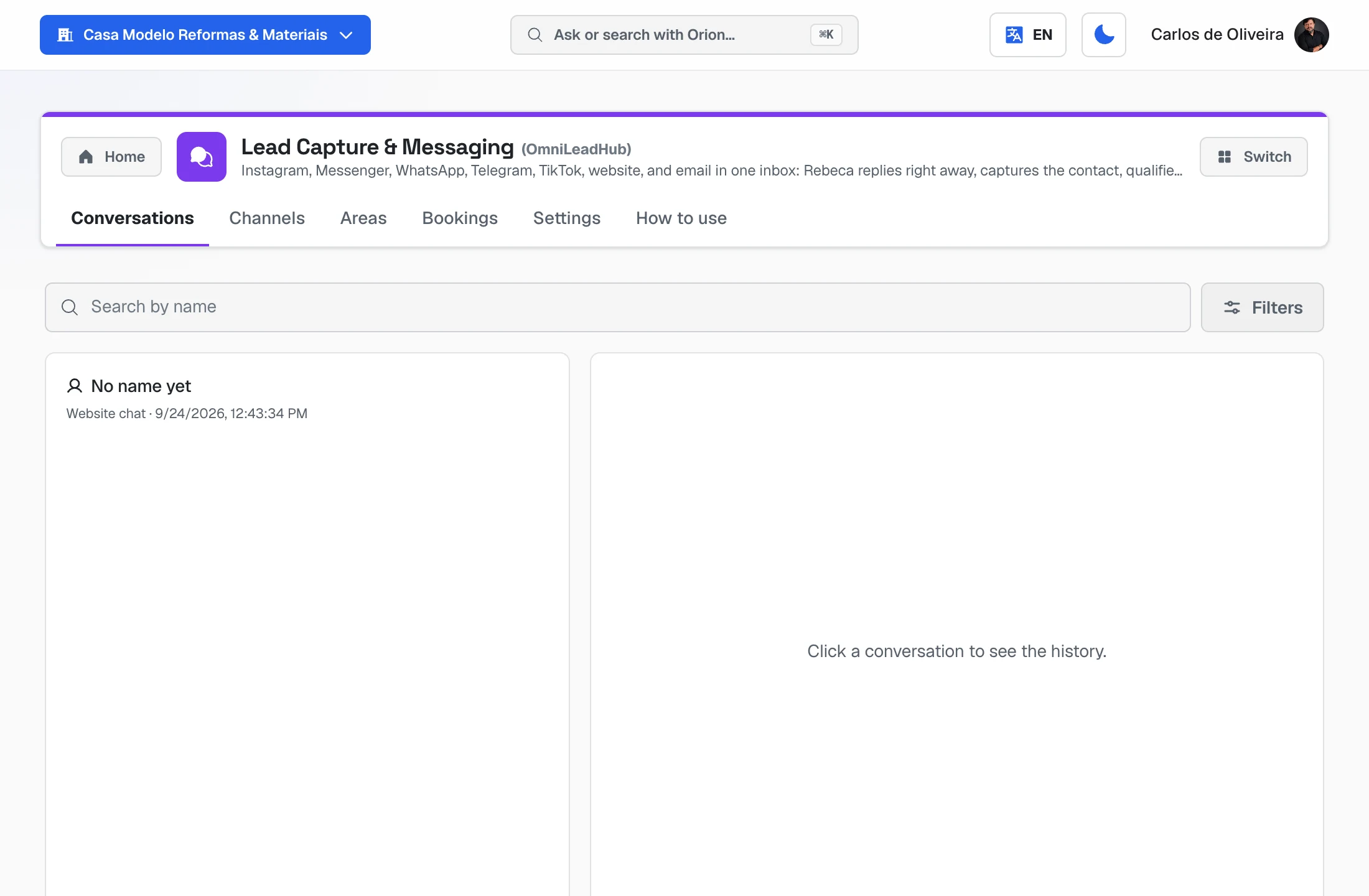 Conversations tab: search and filters at the top, the list of conversations on the left and the area where the history shows up when you click
Everything that arrives, from every channel, shows up here. Click a conversation to read it all — including the text of voice messages.
- To take over: open the conversation and click Take over. Rebeca stops answering right away and the reply box appears for you.
- To hand back: click Return to Rebeca — she starts answering again.
- Send to pipeline: on the contact card strip, click Send to pipeline so the lead enters your CRM with the whole conversation.
- Hand off to an area: click Hand off to an area, choose the area and Hand off now. The person gets a summary and continues on their own WhatsApp.
Frequently asked questions
Does she answer voice messages and photos? Yes. She listens to the audio and looks at the photo, and replies to the content.
Can I use a different WhatsApp from the one I already use? Yes. In Channels → WhatsApp → Connect, choose Connect a dedicated number. It's common to separate the number that sells from the number that does support.
Can I reply to an Instagram contact days later? Rebeca on her own can only reach the person up to 24 hours after their last message — it's Meta's rule, in any tool. If you take over the conversation, the window goes to 7 days. That's why she asks for a WhatsApp number or email during the chat.
Does she book visits on the calendar? No. Booking visits on your team's schedule is done by Ava (WhatsApp) and Sérgio (website). Rebeca passes the lead to your team to arrange it.
Can I pause Rebeca? Yes: uncheck Rebeca active on the Settings tab and save.
When something goes wrong
| What happens | What to do |
|---|---|
| She doesn't answer on a channel | On Channels, check the card is connected. If it asks you to reconnect, click it and connect again. |
| The customer gets duplicate replies | Two assistants on the same channel (e.g. Rebeca and Sérgio on the website chat). Keep only one. |
| Two welcome messages in a row on WhatsApp | Turn off WhatsApp Business's Greeting message on the phone. |
| She says "I don't have that information" | It's missing from Catalog and prices or the files. Complete the Settings tab. |
| Nobody gets the lead alert | Fill in the WhatsApp in Who gets the lead alert. |
| The area's person doesn't get the lead | Their tag still says QR code not scanned yet: send the invite again. |
Still have questions? In the full menu, use Talk to the Director — our team answers there. The Academy and help chapter shows the way.
The other guides