
This guide is for anyone who has just hired Sérgio, the virtual assistant that chats with people who visit your website, through the little chat bubble in the corner of the screen. It goes from start to finish: setting Sérgio up, putting the bubble on your site, teaching him about your business, setting up your team's schedule and seeing who's close to buying. You don't need any tech skills — every step names the exact button.
The screenshots are real, taken in the panel of a sample company (Casa Modelo Reformas & Materiais). The sample company is Brazilian, so the texts it wrote itself show up in Portuguese; in your account you'll see your own.
What Sérgio does for you
People who visit your site have a question and little patience. With no answer right away, they close the page. Sérgio chats with them right away, at any time. He:
- answers questions with what you taught him (services, prices, the area you cover);
- understands audio and photos the visitor sends through the bubble;
- asks the right questions and asks for contact details (name, WhatsApp, email) so you can follow up;
- books the visit with whoever on your team can go, right in the website bubble (part 6);
- alerts you when the visitor asks to talk to a person;
- scores each visitor by buying intent, so you know who's hottest.
What he does not do: make up prices you didn't teach him or pretend to be human. When he doesn't know, he says so honestly.
Before you start
| What | Why |
|---|---|
| Your own panel login | You set everything up with it — and, if you use Google Calendar, it's the signed-in person's account that gets connected. |
| Access to your website (or to whoever runs it) | To paste the bubble's code, just once. |
| Who does the visits (name and, if you like, each person's phone) | It's the team Sérgio spreads the visits across. A Google account is optional. |
| Your price list and list of services | It's what Sérgio uses to answer. |
Step 1 — Tell him who he is
Where: Home → Your apps → Site AI (at the top of the screen it shows as AI Website Support) → Settings tab.
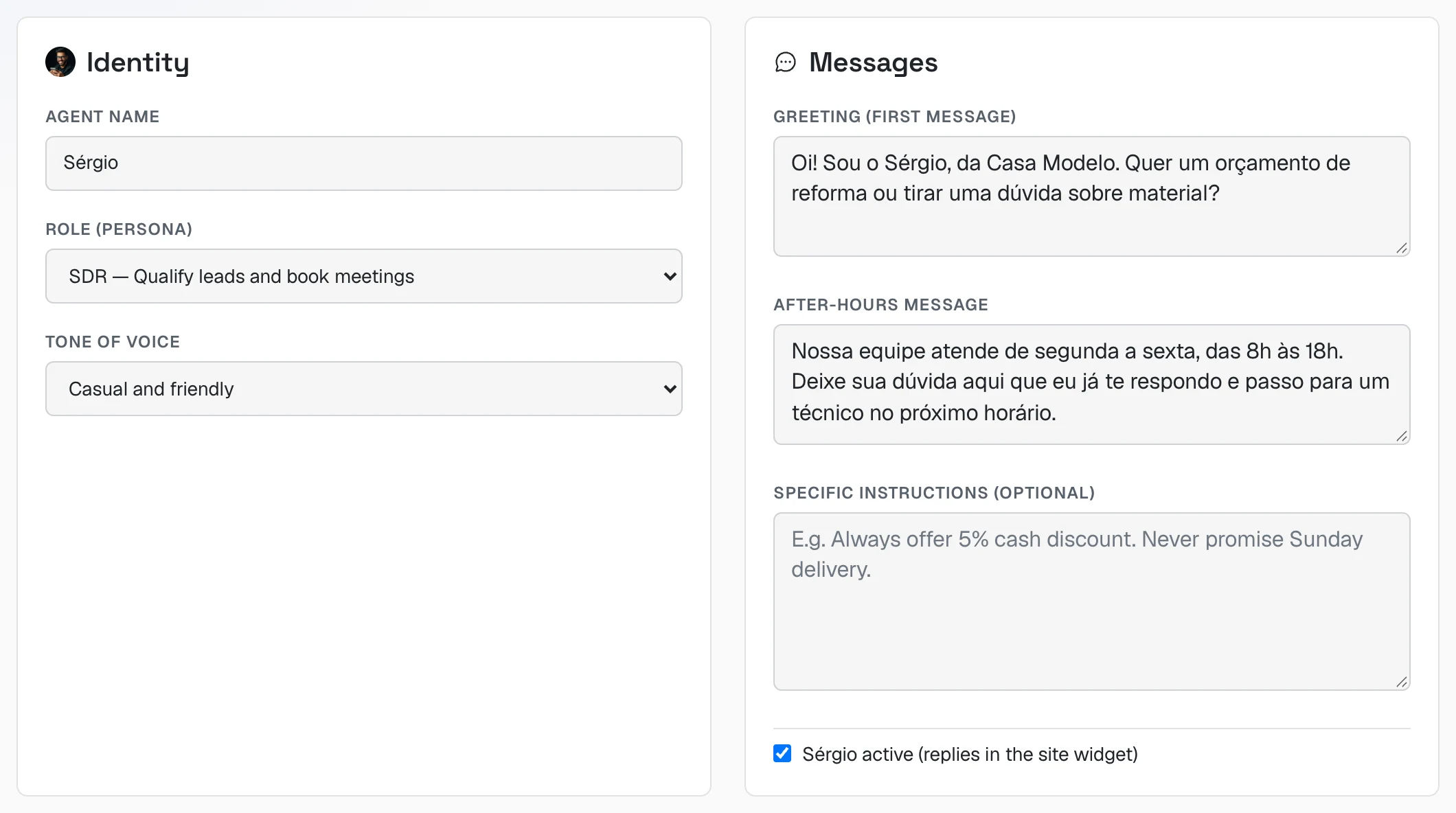 Sérgio's Identity and Messages cards: name, role, tone of voice, greeting, after-hours message, specific instructions and the "Sérgio active" checkbox
| Field | What to enter |
|---|---|
| Agent name | The name the visitor sees. Keep "Sérgio" or change it. |
| Role (persona) | If you sell services, SDR — Qualify leads and book meetings. |
| Tone of voice | Casual and friendly works well for most. |
| Greeting | The bubble's first line. E.g. "Hi! I'm Sérgio from Casa Modelo. Want a quote?" |
| After-hours message | What he says outside the hours you set. |
| Specific instructions | Your house rules, in plain sentences. |
| Sérgio active | Keep it checked. Unchecked, he stops answering on your site. |
Right below are Business hours and Qualifying questions — the same as Ava's:
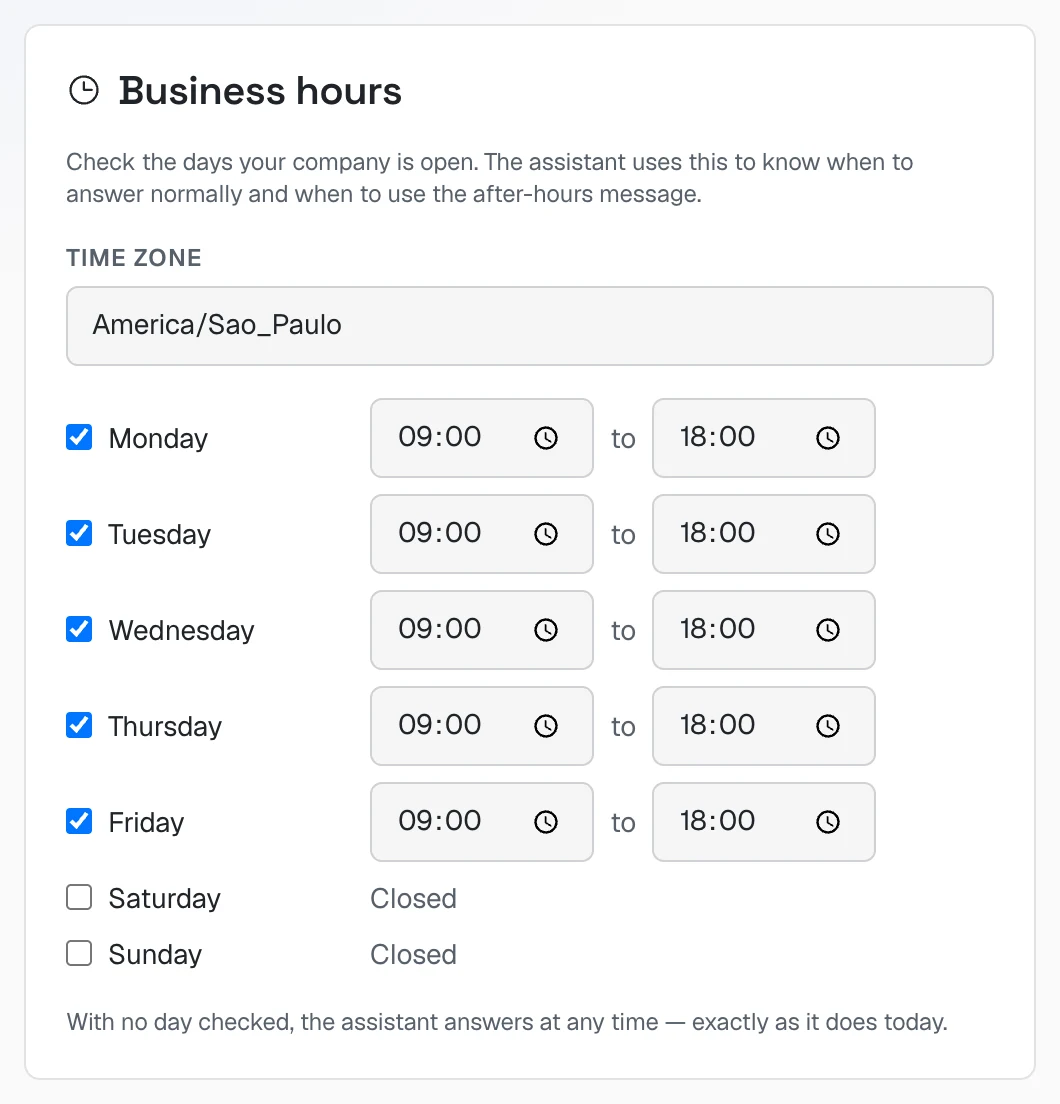 Business hours card: time zone America/Sao_Paulo, Monday to Friday from 09:00 to 18:00, Saturday and Sunday closed
Who gets the alert
 The "Who gets the alert" card: the explanation and the WhatsApp and e-mail of who answers fields
On the Who gets the alert card, enter the WhatsApp (country code + area code + number) and the e-mail of whoever answers. When a visitor asks to talk to a person, Sérgio sends the conversation summary there. With no one set, he doesn't promise contact — he keeps helping and asks for the visitor's WhatsApp so you can follow up.
Files he can send
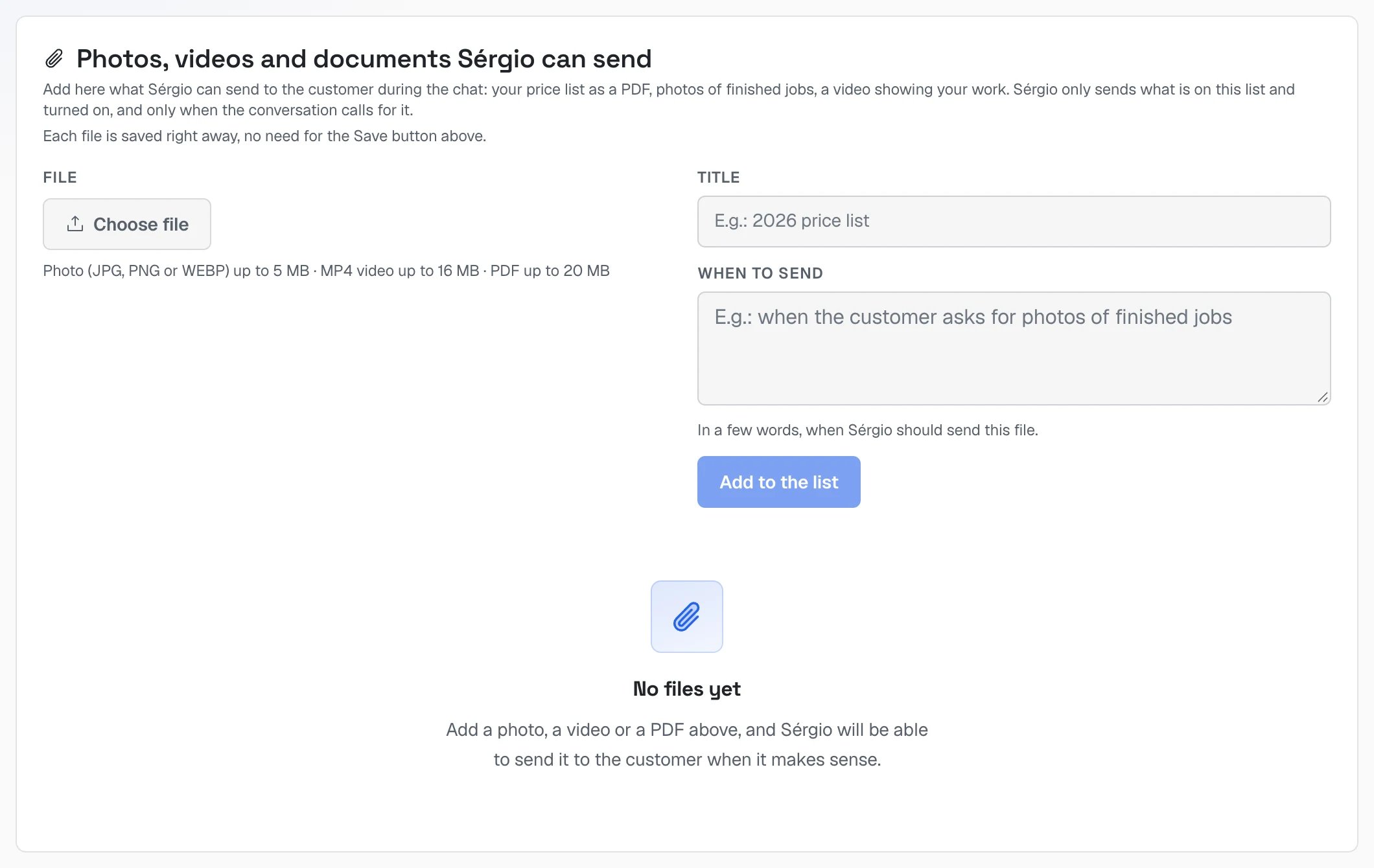 The "Photos, videos and documents Sérgio can send" card with the file field, title and "when to send"
Add what he can send the visitor (price list PDF, photos of finished jobs, a video): Choose file → Title → When to send → Add to the list.
After changing the cards, click Save configuration.
Step 2 — Put the bubble on your site
Where: Website chat tab.
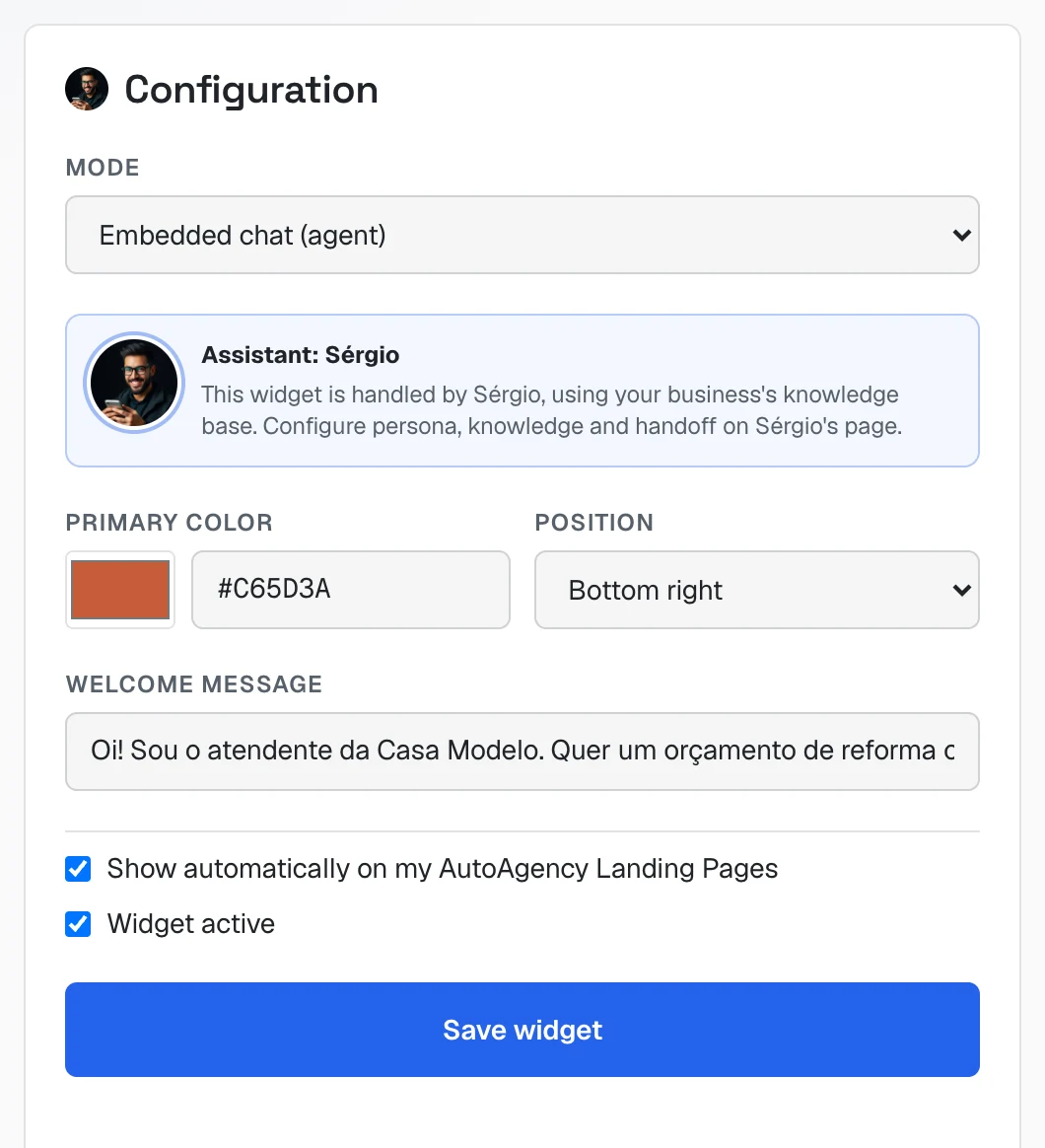 Website chat tab: on the left the bubble's Configuration (mode, color, position, welcome message, "Widget active" and "Save widget"); on the right the Preview and "Code for your site"
- In Mode, choose Embedded chat (agent) — that's Sérgio chatting. (If you also want a button for the visitor to go to your WhatsApp, choose Both and fill in the number.)
- Choose the Primary color (your brand color) and the bubble's Position.
- Write the Welcome message.
- Keep Widget active checked and click Save widget. The Preview box shows the bubble the way visitors will see it.
Paste the code into your site
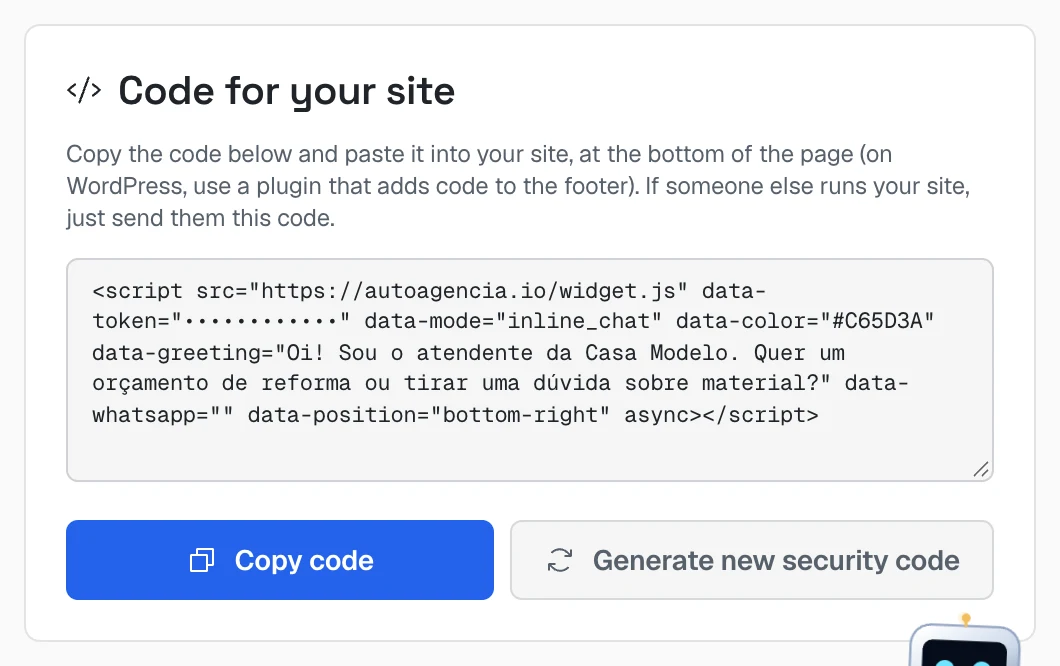 The "Code for your site" card with the bubble's code (the security code is blurred in the screenshot) and the "Copy code" and "Generate new security code" buttons
- Click Copy code.
- Paste it into your site, at the bottom of the page. On WordPress, use a plugin that adds code to the footer. If someone else runs your site, just send them the code.
- Open your site: the bubble shows up in the corner. Send a question to test it.
Step 3 — Teach Sérgio about your business
Where: Knowledge tab.
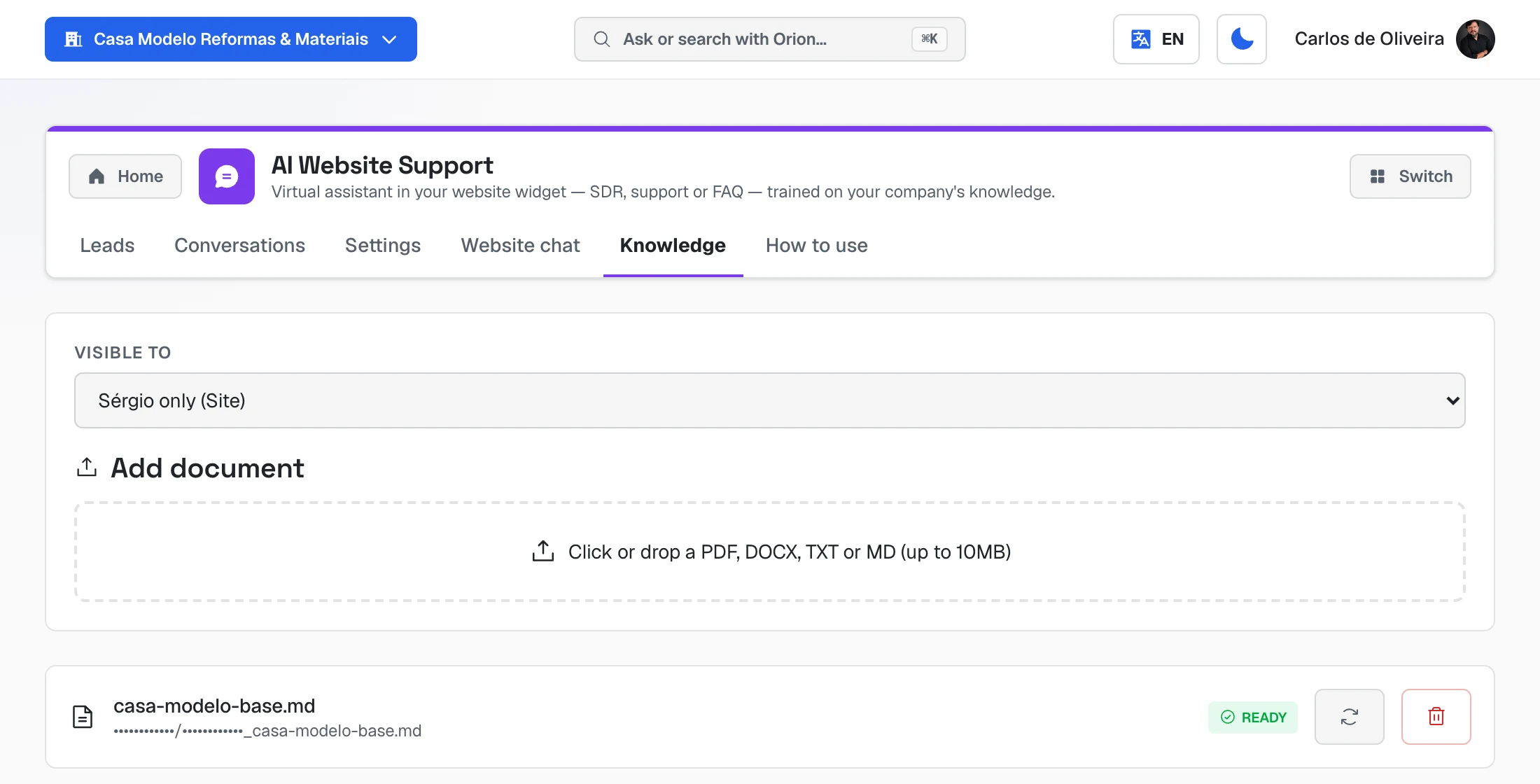 Knowledge tab: the "Visible to" choice (Sérgio only, Ava only or Both), the "Add document" box and a document marked READY
- In Visible to, choose who uses the document: Sérgio only (Site), Ava only (WhatsApp) or Both.
- Click or drop a file (PDF, DOCX, TXT or MD, up to 10 MB): price list, list of services, frequently asked questions.
- Wait for the READY tag before testing.
Step 4 — Set up your team's schedule
With your team added, Sérgio books the visit by himself, right in the website bubble: he offers two free slots already saying who goes, the visitor picks one, he confirms right there and the team member gets the alert on WhatsApp. No Google needed.
| Nobody added | Team added | |
|---|---|---|
| What Sérgio offers | A day and a time window, and asks for the address with zip code | Two free slots, already saying who goes |
| Who confirms | Your team — he says "the team will confirm the time" | He does: "Booked: Thursday, 9 to 11, with Technician A" |
Add your team
Where: Sérgio's Settings tab → Team on call card.
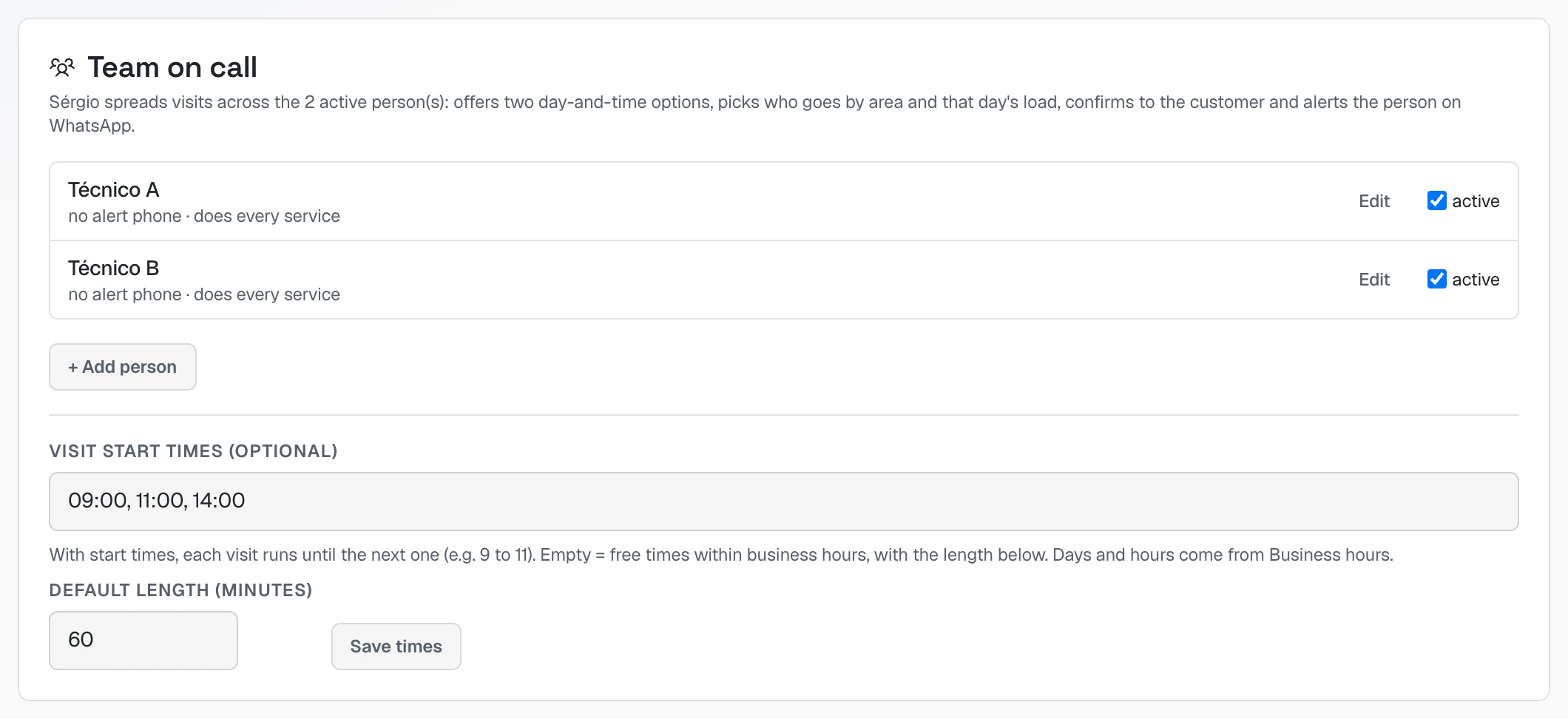 Sérgio's "Team on call" card with two active people, the visit start times and the default length
- + Add person → Name (a technician, a professional or a department) and, if you like, Alert phone, Gmail and Services (empty = everything) → Save person.
- In Visit start times, write your windows (e.g. 09:00, 11:00, 14:00) or leave it empty for free times with the Default length. Click Save times. Days and hours come from business hours.
The team is the same as Ava's: whoever you add here shows up there, and visits booked by both land on the same schedule — the same technician is never booked twice at the same time.
To pick who goes, Sérgio looks, in this order, at: the person the visitor asked for, who does the service, who already has a visit in the same area that day (by zip code) and who has the fewest visits. The details are in Ava's Guide.
See, cancel and block
- See the visits: Sérgio's Schedule tab — the next 7 days, by day, with who goes and the address.
- Cancel: Cancel on the visit, on the Schedule tab. The team member is alerted; let the visitor know using the contact they left.
- Reschedule: Reschedule on the visit → pick one of the free times. The team member is alerted and, if the visitor left a WhatsApp, they get the new time.
- Lunch, a day off, a holiday: Block time on the Schedule tab — one person or the whole team, the day, and from and to what time. Free up undoes it.
- Vacation: uncheck active next to the name on the Team on call card.
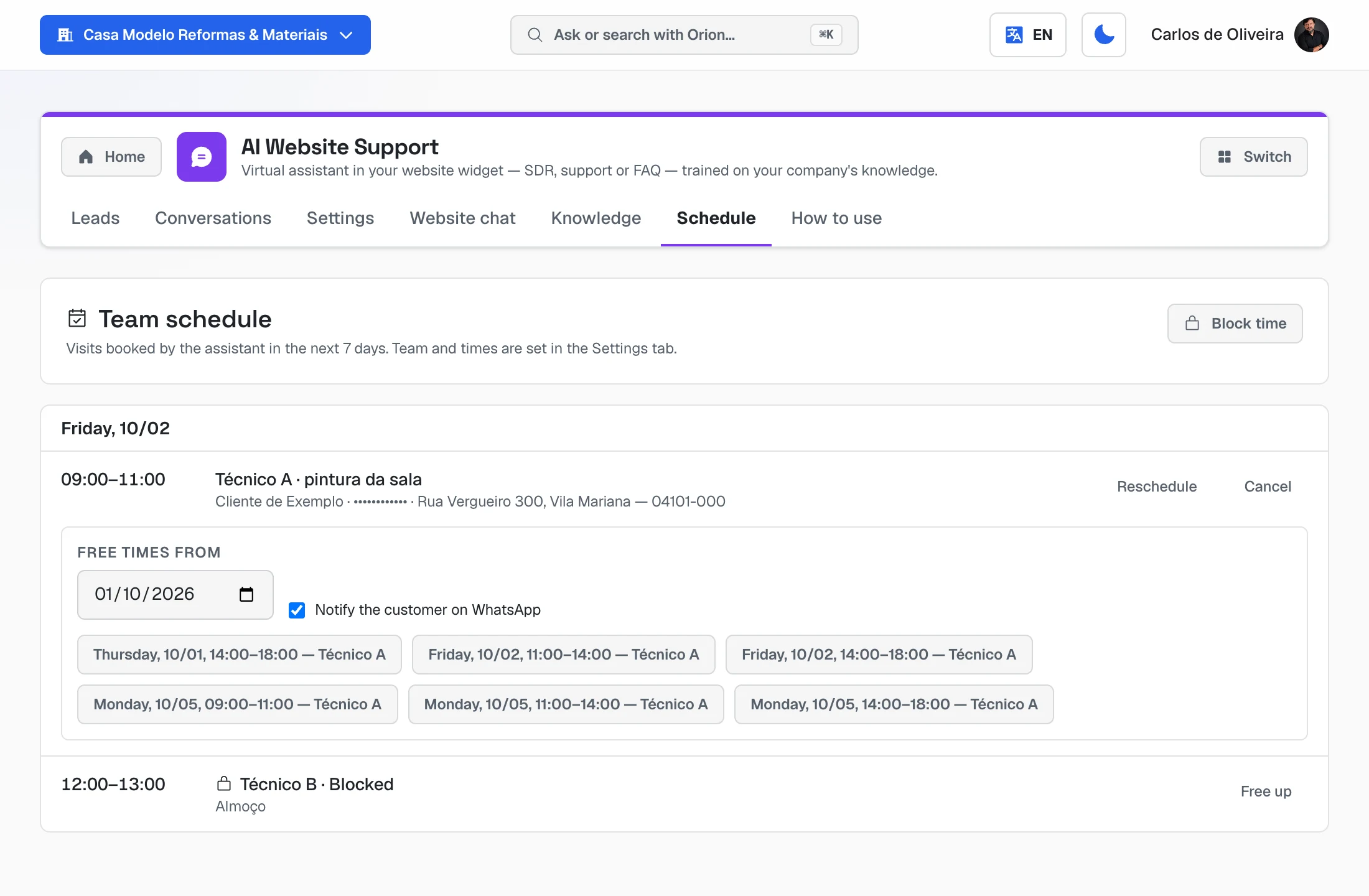 Reschedule panel open under the visit: the "Free times from" field, the checked "Notify the customer on WhatsApp" box and six free times with who goes
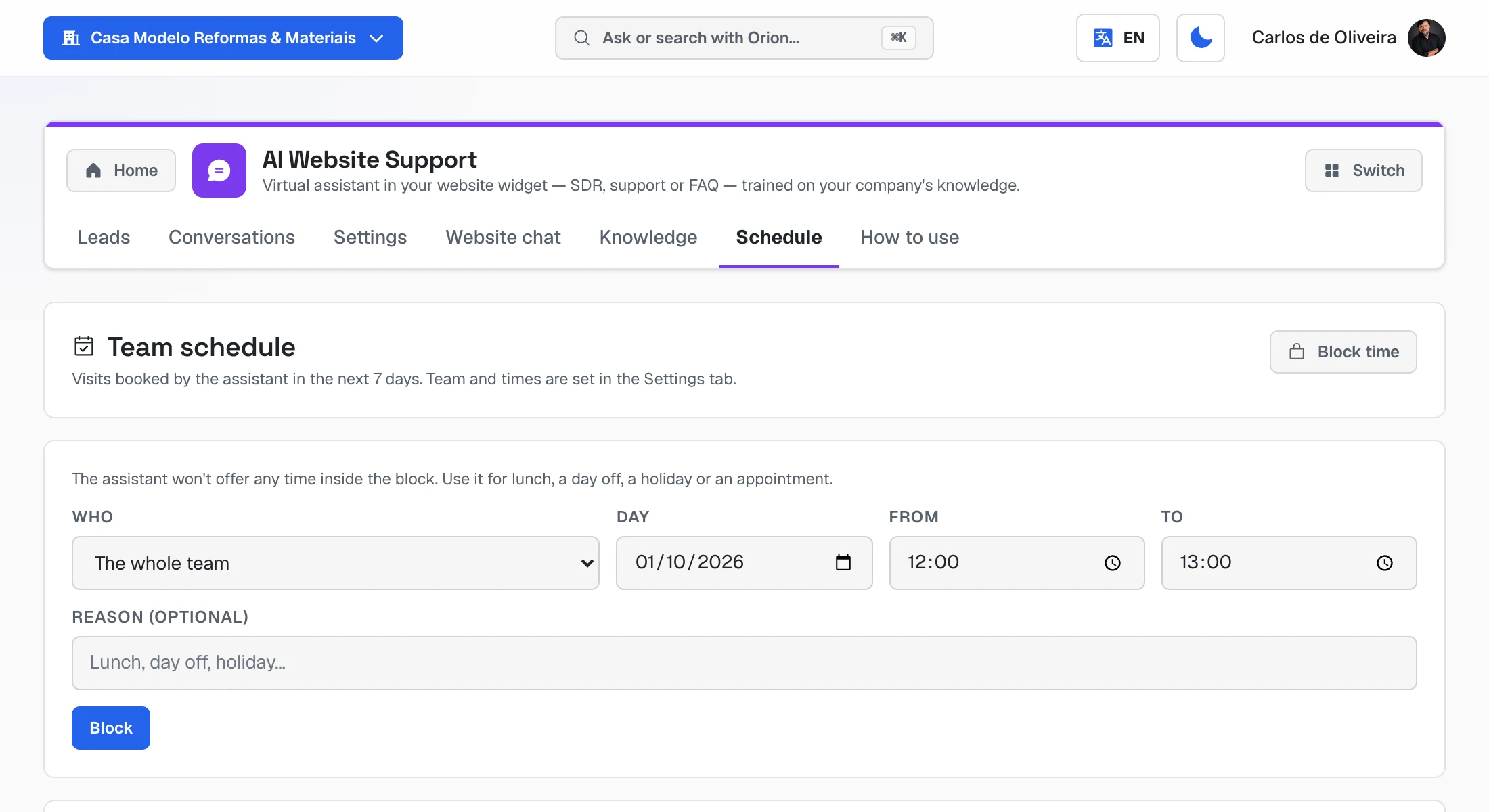 Block time form: who (the whole team or one person), day, from, to, reason and the Block button
Optional — your team's spreadsheet
If your team already organizes visits in a Google spreadsheet, Sérgio works alongside it:
- Each visit he books becomes a new row in the spreadsheet — date, period, phone, customer, service, price, address, postal code, technician and status "Pending". If the visit is rescheduled, the same row changes; if it is cancelled, the status becomes "Cancelled".
- What the team writes by hand also counts: a technician with a visit in the spreadsheet on that day and period (morning or afternoon) isn't offered again. A row without a period takes the first free slot of the day. A finished or cancelled row doesn't take anyone's time.
- The technician's name in the spreadsheet must match the team added above (the first name is enough).
To connect it:
- The spreadsheet must be in Google Sheets format. If it's an Excel file stored in Drive, open it in Google Drive → File → Save as Google Sheets and use the new spreadsheet from then on (Google doesn't let any system write to an Excel file).
- In Google Drive, click Share on the spreadsheet, paste the email shown on the Schedule spreadsheet card and choose Editor.
- On Sérgio's Configuration tab, Schedule spreadsheet card, paste the spreadsheet link and click Connect spreadsheet. The card shows how many visits it read and which technicians it found — and warns if a name in the spreadsheet isn't in the team.
The spreadsheet may have a title row (Date, Technician, Status…) or not: without titles, the column order is company, date, period, phone, customer, service, price, address, postal code, technician and status. Sérgio uses one extra column at the end for a code that identifies his row — don't delete it.
Optional — Google Calendar
With a team, Google is only used to copy each visit into the Google Calendar of whoever has a Gmail added. Without a team, Sérgio books straight into the Google calendar of the connected account (Monday to Friday, 9 am to 6 pm, with 15 minutes between appointments).
🟥 Make the connection yourself, signed in to the panel with YOUR login, and pick the business Google account — the system connects the Google account of whoever is signed in.
 Sérgio's "Visit schedule" card before connecting: the "No Google calendar connected" notice and the "Connect Google Calendar" button
- Click Connect Google Calendar and then Connect with Google. The connection is the same as Ava's — if you already connected there, skip to step 3.
- On Google's screen, pick the business account, check the two Google Calendar lines (if you see checkboxes, check them all) and click Allow. The step by step with screenshots is in Ava's Guide.
- On the Visit schedule card, leave the box checked (with a team: makes the copy; without a team: books straight into Google), check the email next to it and click Save configuration.
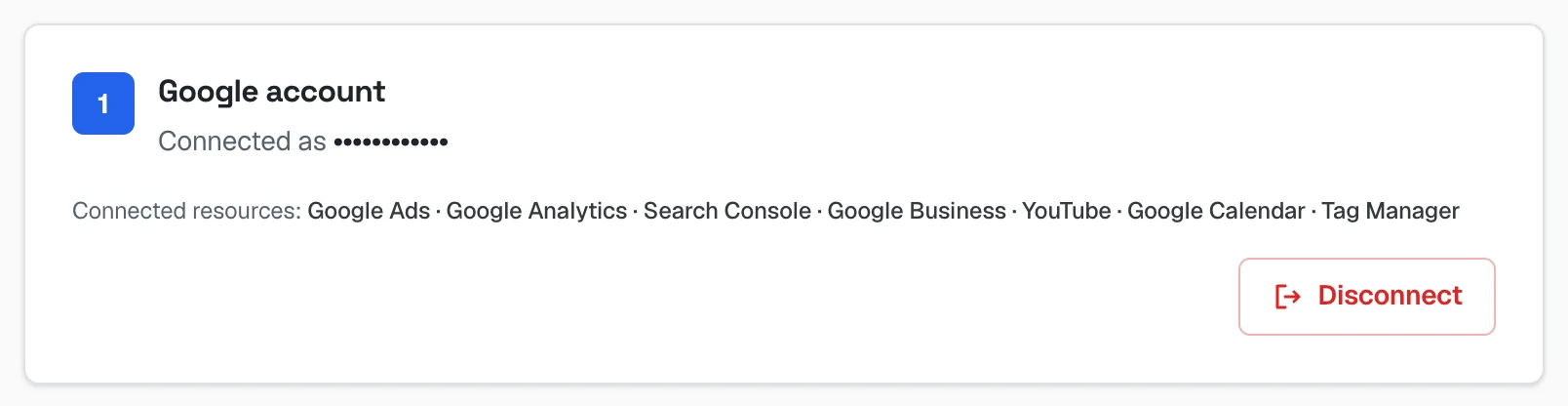 Google connections screen after connecting, with the list of connected resources — Google Calendar among them — and the Disconnect button
See who's close to buying
Where: Leads tab.
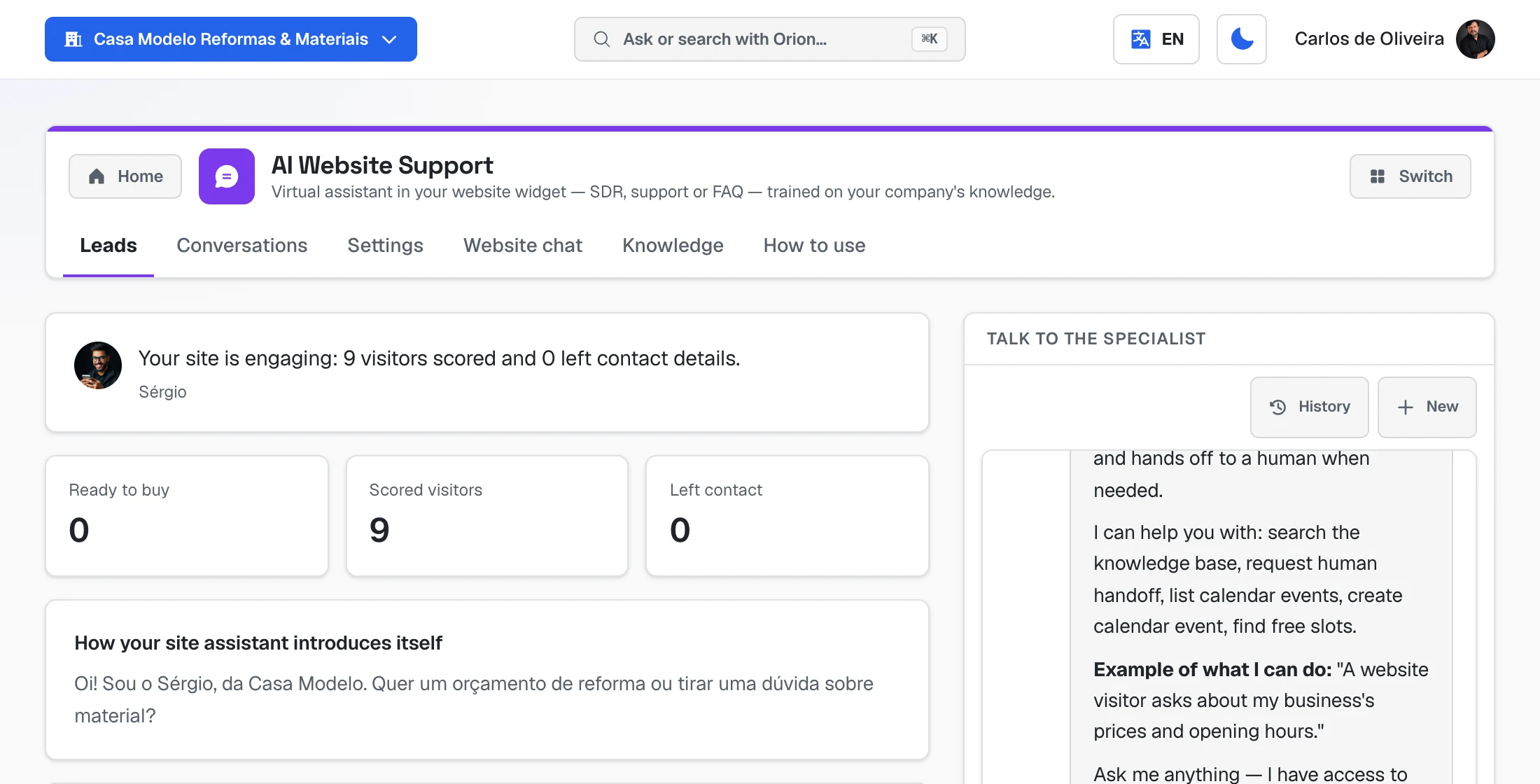 Leads tab: the "Your site is engaging" summary, the Ready to buy, Scored visitors and Left contact numbers, and the chat with Sérgio on the side
- Ready to buy, Scored visitors and Left contact sum up your site.
- Each visitor gets a score from 0 to 100 for buying intent — the higher, the hotter. Click a visitor to see the pages they visited before chatting.
- On the Conversations tab, the Open, Got contact and Dropped off filters show how each conversation ended.
Frequently asked questions
Does the bubble slow down my site?
The code loads after the page (it has async), so the page opens first.
Do I need a developer to install it? No: it's copy and paste, once. On WordPress, a plugin that adds code to the footer does it. If someone runs your site, send them the code.
I changed the color or the greeting. Do I have to paste the code again? No. Save it in Website chat and the bubble updates on your site by itself.
What is "Generate new security code" for? It switches off the old code. Use it only if someone put your bubble on a site that isn't yours — and then paste the new code into your site.
What about Ava and Rebeca? Ava answers your WhatsApp and Rebeca answers Instagram, Messenger, email and WhatsApp in one inbox. Each has her own guide in this manual.
When something goes wrong
| What happens | What to do |
|---|---|
| The bubble doesn't show on the site | Check Widget active is checked and saved, and that the code was pasted into the page. |
| The bubble shows but doesn't answer | Check Sérgio active is checked on the Settings tab. |
| The visitor gets duplicate replies | Rebeca and Sérgio on the same website chat. Keep only one. |
| He answers "I don't have that information" | It's missing from Knowledge. Upload the document and wait for READY. |
| Nobody is alerted when the visitor asks for a person | Fill in Who gets the alert on the Settings tab. |
| He doesn't offer times with the team | Check that there are people with active checked on the Team on call card and that the days are open in business hours. |
| The team member didn't get the alert | Check their Alert phone (with area code) and that the business WhatsApp is connected. The visit is on the Schedule tab either way. |
| Google copies going to the wrong calendar | Check the email on the Visit schedule card. If it isn't the business one, disconnect and connect with your own login. |
Still have questions? In the full menu, use Talk to the Director — our team answers there. The Academy and help chapter shows the way.
The other guides