

Digital Presence
Where to find it: Home → Your apps → Presence (at the top of the screen the module appears as Digital Presence)
Address: /app/modulos/presenca-digital
What it's for
This is the module for your company's "plumbing" on the internet: your website's address, the computer where the site lives, and the emails with your company's name. These are the three things that make a business look serious — and they're exactly the three that tend to end up scattered across three different companies, with three passwords nobody remembers.
Everything is in one place here. The one who operates it is Téo, the module's specialist: he registers the domain, sets up the server, creates the email mailboxes and builds the site. You follow along on these screens and, when you need to, talk to him in the chat on the side.
A day-to-day example: you're a gas technician and until now you've been giving your customers your personal Gmail.
Here you register neighborhoodgas.com, get hosting, Téo builds the site with
your pages, and then you create contact@neighborhoodgas.com. A customer who
receives a quote from that address trusts you more than they would neighborhoodgas1988@gmail.com — and
it's that kind of detail that decides who wins the job.
A heads-up before anything else: this is the most technical module in the system. Most of what is here you don't need to understand — just press the buttons in order. Only one tab, DNS, has things you can break without meaning to. It's explained at the end, with what you can touch and what is better to ask for help with.
Before you start
-
The Digital Presence module has to be active on your account. If it isn't, the screen shows the subscription card with the Activate in catalog button.
-
The first time you open the module, an invitation appears at the top of the screen to set it up by chatting with Téo. It's optional: the tabs below already work, and each reply from the specialist uses AI credits. Click Chat with Téo so Téo gets to know your company (when you're done, click Complete setup) or Dismiss to remove the invitation without chatting.
-
As long as you don't have any site or hosting, all the tabs show the same screen: "You don't have a site or hosting yet", with the hint "Create a site with Téo in the chat". On the Hosting tab the Get WordPress hosting button also appears.
-
You don't need your own domain to get started. The platform gives you an address for free, and you swap it for yours whenever you like.
-
To create professional email you do need a connected domain of your own. Without it, the Email tab warns: "Connect a custom domain above to be able to create email addresses."
-
If your company has more than one address on the internet, an Account: box appears at the top of the tabs so you can choose which one you're talking about. With only one, that box doesn't appear. It's not the company selector — it shows the "homes" of this same company, and each one has its own domain, its own emails and its own DNS.
Where a second home comes from: (a) each site that exists on your account becomes one, with the site's name — even a draft, you don't have to publish it; it's created on its own the first time you open this module; (b) each WordPress hosting you subscribe to becomes another, with the domain name (or the nickname you gave in the Nickname (optional) field); (c) a site that already existed on our server and was adopted into your account. In other words: two sites in the Sites module, or one site plus a subscribed WordPress, already make the box appear. The name shown in the box is the nickname, and when there's no nickname, the domain.
The three words you need to understand (read this first)
Everything in this module revolves around three things. They seem complicated because they have technical names, but they're simple:
1. Domain — it's your store's address
A domain is your business's address on the internet: neighborhoodgas.com. It's what
people type in, what you put on your business card, on your car and in your ad.
Think of a street store. The domain is the address: "120 Flower Street". The address isn't the store — it's the name that takes people to it.
Just like a store's address, a domain:
- Is rented, not bought forever. You pay per year. If you stop paying, it goes back on the market and someone else can take it.
- Exists only once in the whole world. If
neighborhoodgas.comalready belongs to someone, you have to choose another name. - Is registered in your name. That's why, when you register, the system asks for a CPF or CNPJ (Brazil's tax ID numbers for individuals and companies), an address and a phone number. That information goes to the domain's official registration.
Where you work with this: the Domain tab.
2. Hosting — it's the building where the store operates
Hosting is the computer, on 24 hours a day, where your site is stored. Continuing the comparison: if the domain is the address, the hosting is the building. You pay a monthly (or yearly) rent for it.
You can have the address without the building (a registered domain and no site live) and you can have the building without the address (a site working on a free platform address). The normal thing is to have both.
Where you work with this: the Hosting tab.
3. DNS — it's the sign that says where the address is
Here's the part almost nobody understands, and it's simpler than it looks.
When someone types neighborhoodgas.com on their phone, their device doesn't know where
that site is. It needs to ask someone: "where does this address live?" The one that
answers is the DNS.
DNS is your address's signpost. It isn't the site, it isn't the store, it doesn't store anything of yours. It just points a finger and says: "the site is on that computer over there, and the email arrives at that other one".
A sign like that has several lines, and each line is a record. The main ones:
| Record | In practice, it says |
|---|---|
| A | "The site is on this computer here" (it points to a number, like 191.2.3.4). |
| CNAME | "This address is a nickname for another one" — for example, www.yourcompany.com follows the same path as yourcompany.com. |
| MX | "This domain's email is delivered at that server over there." It's the mail record. |
| TXT | A text note. It lets other services prove the domain is really yours. |
| NS | "Whoever runs this entire sign is so-and-so." |
Two consequences of this that are worth gold:
- Changing the DNS doesn't delete your site or your emails. Changing the DNS changes the sign. If you change the sign wrong, people stop finding the store — but the store is still there, and fixing the sign is all it takes for everything to come back.
- A DNS change takes time. The old signs stay stored in devices all over the world for a while. That's why the system keeps warning that it can take "from a few minutes to a few hours". That's normal. Don't redo anything, don't click ten times.
Where you work with this: the DNS tab (and, without you noticing, also the Domain and Hosting tabs — they write the DNS for you).
What about professional email?
Professional email is a mailbox with your domain's name:
contact@neighborhoodgas.com instead of neighborhoodgas@gmail.com. It's the same email as
always — you open it in the browser, on your phone, and you can even have a copy land in your Gmail.
The only difference is the name after the @, and that's what conveys trust.
You can only create professional email after connecting your domain, because email uses the same address as the site.
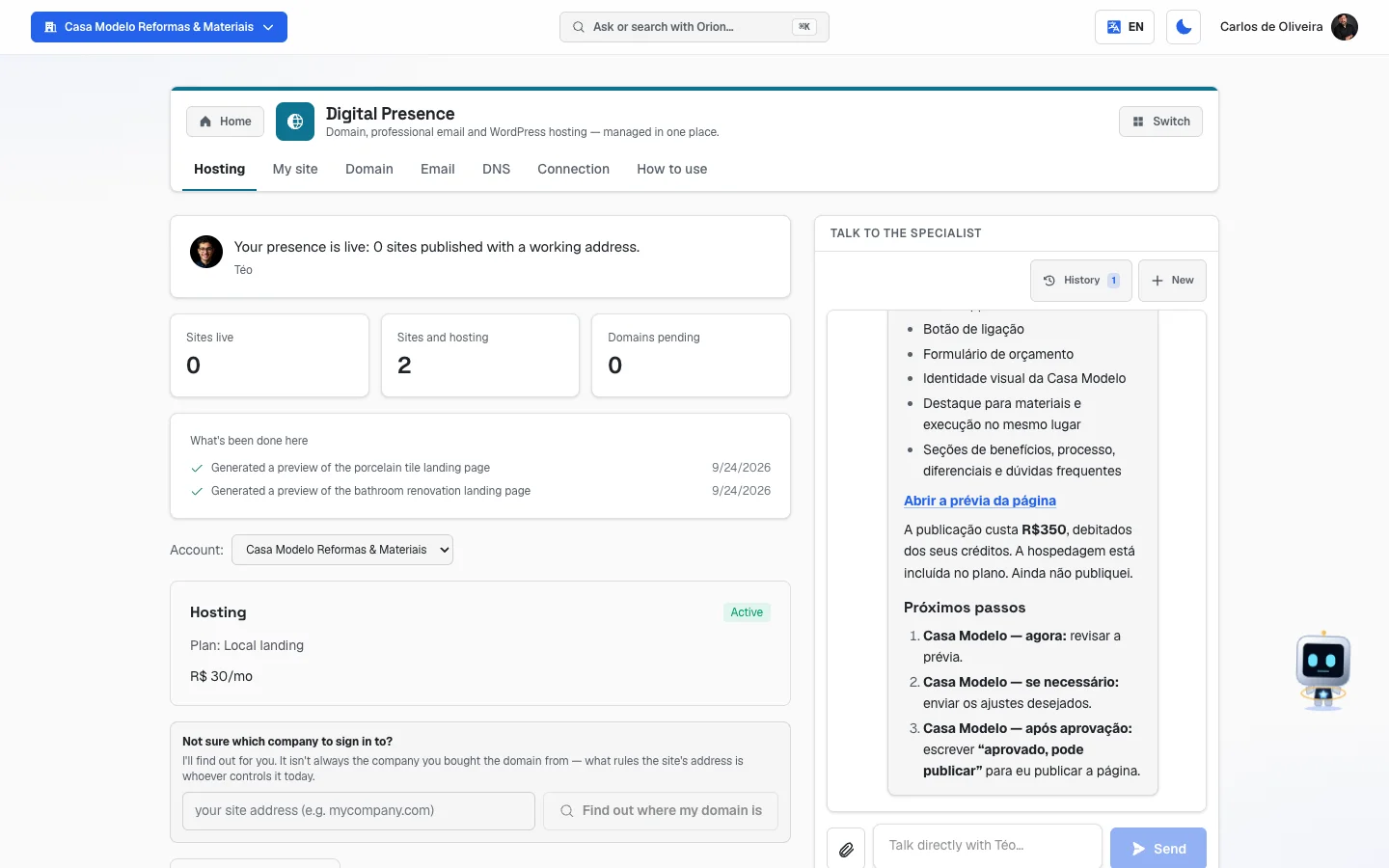 Hosting tab of an account with no site yet: Téo's panel with the three numbers, the "You don't have a site or hosting yet" box with the Get WordPress hosting button and Téo's chat on the right
First steps
The simplest path, from zero to everything working:
- On Home, under Your apps, click Presence. You land on the Hosting tab.
- Click Get WordPress hosting.
- Answer "What do you need?":
- I already have my site — the platform just puts your WordPress online and you handle the content.
- I want you to build my site — Téo writes and builds the entire site.
- Answer "Do you already have a web address?":
- Yes, I have one — type your domain in the Site domain field.
- Not yet — type Your company's name and the system shows, under "Your site will be born at:", a provisional platform address. The notice explains: "This is our address, so the site goes live right away. When you have your own, just point it here — the site stays the same."
- If you chose to have Téo build the site, fill in the About your company block: the Company name, What your company does, the WhatsApp or phone and the City you serve (optional). The notice is direct: "Without them the site would come out generic."
- Choose Monthly or Annual (annual has 2 months free) and click the subscribe button. You go to the payment screen.
- After paying, go back to the Hosting tab. "Creating your WordPress…" will appear. You can close the page: when it's ready, the panel shows up here.
- When "Your WordPress is live" appears, click Show credentials and keep the User and the Password somewhere safe. The password isn't shown again automatically.
- Go to the My site tab to see the finished pages and open the site.
- When you want your own address, go to the Domain tab.
- With the domain live, go to the Email tab and create
contact@yourdomain.com.
The tabs, one by one
Hosting
/app/modulos/presenca-digital/hospedagem
This is the tab that opens first. It's the panel for the "building" where your site lives.
- What you see here:
- At the top, the module panel: Téo's note with a button for the next step (for example, View hosting), three numbers — Sites live, Sites and hosting and Domains pending — and what he delivered.
- If you don't have a site or hosting yet, below the panel only a box appears with that notice, the hint "Create a site with Téo in the chat" and the Get WordPress hosting button. The items below start appearing once a site exists.
- If your account has simple site hosting, a Hosting box with Plan: and a status label: Included in your plan, Active, Complimentary or Not contracted.
- If you have WordPress, the big WordPress card (see below).
- The Not sure which company to sign in to? box — a tool that finds out where your domain is being controlled today.
- The Get WordPress hosting button, at the end.
- On the side, the chat with Téo.
- What you can do: get hosting, see the site's address, get the username and password for the WordPress panel, and find out which company your domain is with.
What the "Hosting / Plan:" box means. The name that appears there is the hosting tier the platform chose for your site — Local landing, Website or Emergency landing. Three things to know about it:
- You don't choose this name, and you don't need to. The platform decides, at the time of publishing, looking at two things: whether what you published is a full site (then it's Website) or a single capture page (then it's one of the two "Landing" tiers); and, in the case of the single page, what's written in your company's Segment field (full menu → Account → My company). An emergency segment — drain unclogging, locksmith, plumber, tow truck, towing, pest control, leaks, "24h" — falls into the Emergency landing tier; everything else falls into Local landing.
- What changes from one tier to another is the monthly price, and nothing else. The live site is the same, with the same features: no tier unlocks or blocks any function of the platform.
- You don't need to do anything with this information. It's there so you know which tier you're being billed for. If you think the tier doesn't match your business, talk to support — there's no button to switch tiers on this screen.
The WordPress card's states:
| What the screen says | What's happening | What to do |
|---|---|---|
| "Creating your WordPress…" | It's being built. "This takes a few minutes. You can close this page." | Wait. The screen updates on its own. |
| "The payment hasn't arrived yet" | The purchase wasn't confirmed. "If you have already paid, this usually takes a few minutes." | Refresh the page in a moment. If you gave up midway through the payment, just subscribe again — the address is still reserved. |
| "We couldn't start the setup" | There was a problem starting. The team has already been notified. | Click Contact support. |
| "We couldn't create your WordPress" | The creation failed. | Click Contact support. |
| "Your WordPress is live" | All good. | Use the buttons below. |
Step by step — getting your WordPress username and password:
- On the Hosting tab, on the "Your WordPress is live" card, click Show credentials.
- The User and the Password appear, each with a Copy button.
- Keep both in a safe place. The notice is clear: "Keep these details safe. The password is not shown again automatically."
- Click Open WordPress panel to log in and edit the site yourself.
The box that appears below the card changes depending on your case:
- If your site was born at a platform address: "Want an address of your own?", with the I want my own address button, which takes you to the Domain tab.
- If you use a domain of your own: "Point your domain to the site", with the instruction to create an A record pointing to the server's number. There's also a step-by-step guide there — see the DNS tab section further on, it's the same subject.
Step by step — finding out where your domain is:
This settles the most common question of all: "I bought the domain, but I don't know which site I have to log in to in order to change it".
- On the Hosting tab, find the Not sure which company to sign in to? box.
- Type your site's address in the field (e.g.:
mycompany.com). - Click Find out where my domain is.
- Téo answers right there, saying which panel you need to log in to.
The screen itself warns why this is needed: "It isn't always the company you bought the domain from — what rules the site's address is whoever controls it today." It's very common to buy from Registro.br (the official registry for Brazil's .br domains) and end up with the address being controlled somewhere else.
If information about your company is missing, the box "We need a few details to build your site" appears at the top of this tab, with the explanation: "Your WordPress is live. So we can write the pages with your business in mind — instead of generic text — we need this:" Fill in the fields and click Send and build my site. The response is: "Got it! We'll build your site pages in the next few hours."
My site
/app/modulos/presenca-digital/meu-site
This is the tab for keeping track of the site the platform built for you.
- What you see here: it depends on your site's state.
| What the screen says | What it means |
|---|---|
| "No site of ours on this account yet." | You don't have a WordPress site built here. |
| "Setting up your WordPress" | The server is still being created. |
| "We're building your site" | We already have everything we needed. "The pages are ready within an hour and show up here." |
| "We still need a few details to build your site" | You still have to answer about the company. There's an Answer now button, which takes you to the Hosting tab. |
| "This site is yours, and we don't touch it" | You already had this WordPress when you signed up for hosting. "We take care of the server, security and backups — the content stays yours." |
| "Your site is live" | Everything is ready. |
- What you can do when the site is live:
- Open my site — opens the site in a new tab.
- Open WordPress panel — logs you in to the panel to edit it yourself. The notice reminds you: "Your username and password are on the Hosting tab."
- See the Site pages list, with the name and address of each page. Each one has a link to open it.
- Fix the company details that are printed on the site.
Step by step — fixing the name, phone and description that appear on the site:
This is an important step and almost nobody thinks about it. The company name appears at the top of every page, and the phone number appears on the contact buttons. If it's wrong, it's wrong across the whole site.
- On the My site tab, find the Fix your company details box.
- Fix the Company name, What your company does, the WhatsApp or phone and the City you serve (optional).
- Click Save details. It shows: "Details saved. Now click “Update the site” to apply them to the pages."
- Click Update the site with these details. When it finishes, the screen says how many pages were updated.
Saving isn't enough. Saving keeps the fix; Update the site is what carries the fix to the pages.
To change the text of the pages (and not just the registration details), the tab's footer says: "Want to change something in the text? Just ask Téo in the chat beside this page."
Domain
/app/modulos/presenca-digital/dominio
This is where you sort out the site's address.
- What you see here: the Your site's address box, with the explanation "Use your own address (e.g., yourcompany.com) instead of the free one."
- What you can do: use a domain you already have, register a new domain, or stop using the current domain.
The possible states:
| What the screen says | What it means |
|---|---|
| "Using the free address: …" | You don't have an address of your own yet. The two action buttons appear. |
| "Connecting your address — it may take a few minutes." | You've already started the connection and the system is waiting for the DNS to change. |
| "Live at yourcompany.com" | Done, the address is yours and it's working. |
Path A — use a domain you already have (the simple way)
This is the recommended path. You make a single change, once, and never again need to touch anything.
- On the Domain tab, click Use a domain I already have.
- Type your address in the field (e.g.:
yourcompany.com) and click Connect. - The system shows "One moment — we're noting everything your domain uses today." It's copying your current sign before changing anything — including your email's records, so it doesn't stop working.
- When it finishes, the screen says what it found:
- "We found your email and copied everything. It keeps working normally after the change." — you can go ahead.
- "This domain has no email set up — there is nothing to preserve." — you can go ahead.
- "Don't change anything yet" — STOP. See the red notice further down.
- "Paste these two names into your domain's panel" appears, with Server 1 and Server 2 and a Copy button next to each.
- Follow the five steps the screen itself writes, under How to do it (takes 2 minutes):
- Sign in to the site where you bought your domain (in most cases it's registro.br, the official registry for Brazil's .br domains).
- Click your domain and look for "Change DNS servers" — in some panels it appears as "Name servers" or "Nameservers".
- Delete the names that are there and paste the two names above, one in each field.
- Save.
- Wait. "It can take from a few minutes to a few hours."
- Come back here and click I've changed it — check now.
What can show up when you check:
| Message | What it means |
|---|---|
| "Done! Your address is live." | That's it. Nothing more to do. |
| "Your domain still points to …" | The change hasn't arrived yet. If you just saved, wait a few minutes and click again. |
| "Your domain doesn't point to us yet." | Same thing: wait and check again. |
| "Got it! We're now preparing your site's security padlock — it can take a few minutes." | It worked. Only the certificate (the browser's little padlock) is missing, which takes a few more minutes. |
🟥 If "Don't change anything yet" appears, really don't change anything. The screen explains: "We couldn't copy everything your domain uses today. If you switch now, what's listed below may stop working." Translated: your email (or another service) may die the moment you switch. In that case the screen hides the two names on purpose — there's nothing to copy. Call Téo in the chat, as the message itself says. He sorts it out in minutes.
Path B — setting up the records by hand (only if path A doesn't work)
There's the link "I can't change my domain's servers". It opens the advanced path, in which you create the records yourself. The screen's notice is serious: "Create ALL the items below — if one is missing, the site won't come up."
- Click "I can't change my domain's servers".
- Type your domain and click Connect.
- The screen lists the records you need to create, each with Type, Name, Value and a Copy button.
- Create each one of them in your domain's panel, exactly as written.
- Come back and click I've applied it — verify.
- If you'd rather go back, there's the Back to the simple way link.
If you have no idea what this is, use path A or ask Téo. There's no prize for doing it the hard way.
Path C — registering a new domain
- On the Domain tab, click Register a new domain.
- The system already starts searching with your company's name. The notice says: "We start with your company name — feel free to change it."
- If you want another name, type it in the field and click Check availability. Suggestion buttons also appear, like Try just "shortname".
- The list shows each option as Available or Unavailable (this one is crossed out).
- Click the register button for the domain you want.
- Check the Order summary: the name, the price per year and two notices — "Renews automatically every year. You can cancel any time." and "Includes the official registration in your company's name and the connection to your site, with a security certificate."
- Fill in the Domain owner details. The screen explains: "These details go on the official domain registration."
| Field | What to write |
|---|---|
| Full name | The name of whoever owns the domain (you or the company's legal name). |
| Tax ID (CPF or CNPJ) | The owner's document. |
| An email you actually read — renewal notices arrive there. | |
| Phone | The owner's contact phone. |
| Address, City, State (UF), ZIP code | The owner's address. |
- Click Continue to payment. After you pay, the system takes care of the rest on its own — including the records.
Stop using a domain
- With the domain live, click Stop using this domain.
- Read the question: "Are you sure? The site will go back to the free address."
- Click Confirm.
A domain registered by the platform can't be disconnected from here. If you try, it shows: "Domains registered by AutoAgency can't be disconnected here. Contact support."
/app/modulos/presenca-digital/emails
- What you see here: the Professional email box, with the explanation "Create email addresses using your site's domain, like contact@yourdomain.com." Below it, three blocks: Lost messages (catch-all), the list of your mailboxes and Email aliases. At the end there's a shortcut to Smart email triage (AI).
- What you can do: create email mailboxes, see the password, open webmail, set it up on your phone, mirror to Gmail, create aliases and delete mailboxes.
- If you don't have a domain: the screen only shows "Connect a custom domain above to be able to create email addresses." Sort that out on the Domain tab first.
Step by step — creating an email mailbox:
- On the Email tab, click Add email mailbox.
- Under Name before the @, write what goes before the at sign —
contact,sales,finance. The domain already shows fixed on the right side. - Click the create button (it shows the mailbox's monthly price) and complete the payment.
- The mailbox appears in the list with the label "Setting up your mailbox — takes a few minutes." When it's ready, it becomes Active.
Why this manual doesn't repeat the price written on the button. It's the same rule as in the chapter Account, plan and billing: "this manual doesn't quote prices on purpose — prices change, and the Catalog is what rules". And there's one more reason here: the price on the button changes with your account's billing country, not with the screen's language. The same button shows the price in reais for people billed in Brazil, in pesos for people billed in Chile and in dollars in all other countries. A number written in this manual would be wrong for some readers by the next day. What counts is always the price on the screen, and after that the price on the payment screen.
Step by step — starting to use the mailbox:
- Click Set up and use on the mailbox's row.
- Click Show password. Copy it and keep it: "Write down your password. You can change it later in webmail."
- To use it on the computer, click Open webmail — it's email in the browser, just like Gmail.
- To use it on your phone, open the Set up on your phone block. That's where the four details your phone's email app will ask for are:
| Detail | Where it appears |
|---|---|
| Incoming mail server (IMAP) | The server's address, on port 993 (SSL). |
| Outgoing mail server (SMTP) | The same address, on port 465 (SSL). |
| Username | The whole email, @ and all. |
| Password | The one you copied in step 2. |
Step by step — getting a copy in your Gmail:
It's so you don't have to check two mailboxes.
- Under Set up and use, find the Mirror/reply via my Gmail block ("Get a copy of everything in your Gmail.").
- Write your Gmail address in the field.
- Click Save. After that the screen starts showing "Forwarding to: …".
Lost messages (catch-all):
It's the mailbox that catches everything sent to an address that doesn't exist on your
domain. If a customer writes to sales@yourcompany.com and you never created that
mailbox, the message lands here instead of getting lost.
- In the Lost messages (catch-all) block, click Set up.
- Write the email that will receive those messages (it can be your Gmail).
- Click Save. It shows: "Done! Lost messages now arrive at this email."
- To turn it off, click Remove.
Email aliases:
An alias is an address that exists only to forward, without being a real mailbox (and without the cost of a mailbox). The screen explains: "An alias forwards to another email, without creating a new mailbox."
- Click Create alias.
- Write the name before the @ (e.g.:
sales) and the destination email. - Click Create.
- To take it away, click Remove and confirm "Remove this alias?".
To delete a mailbox: click Delete mailbox and confirm: "Delete this mailbox? This can't be undone."
The shortcut at the end of the screen: Smart email triage (AI) takes you to the Email Concierge module, where Elisa filters spam, organizes and routes your inbox.
DNS
/app/modulos/presenca-digital/dns
This is the most technical tab in the entire system. Read the DNS explanation above before touching anything here.
The screen itself warns, right at the top: "Here you control where your domain points — site, email and verifications. Only change this if you know what you're doing; the records we manage for you stay protected."
You probably don't need this tab. When you connect a domain or get hosting, the system writes the records on its own. This tab exists for when you want to connect your domain to an outside service — for example, using Gmail with your domain, or pointing your online store.
- What you see here: your domain's name and a table with all the records — Type, Name, Value, TTL and Actions.
- What you can do: apply a ready-made template, add a record, edit and delete.
What you can touch without fear:
- ✅ Apply a ready-made template. It's the safe option. The templates were tested and the screen guarantees it: "The records are added without erasing the rest."
- ✅ Look. Viewing the table doesn't change anything.
- ✅ Create a TXT record that an outside service asked you for to "confirm domain ownership". A TXT is just a note: it doesn't redirect anything.
What's better to ask for help with:
- ⚠️ Changing MX records. MX is the mail. Getting it wrong here makes the company's emails stop arriving, and you might not even notice for a whole day.
- ⚠️ Changing or deleting existing A and CNAME records. They're what takes people to your site. Getting it wrong here takes the site down.
- ⚠️ Deleting any record you didn't create. If it's there, something depends on it.
- 🔒 Records with the padlock and the "Managed by the system" mark have no edit or delete button. They're the records the platform takes care of for you. That's on purpose: it's the protection that stops you from taking your own site down by accident.
When in doubt, call Téo in the chat and say what you want to achieve ("I want to use Gmail with my domain", "I want to connect my Shopify store"). It's faster and safer than typing records by hand.
Step by step — applying a ready-made template (the safe way):
- On the DNS tab, click Apply template.
- The Ready-made templates window opens, with the explanation "Point your domain to a known service in 1 click."
- Choose the service:
| Template | What it's for |
|---|---|
| Google Workspace | Google's professional email (Gmail with your domain). |
| Microsoft 365 | Microsoft's professional email (Outlook with your domain). |
| Vercel | Site hosting on Vercel. |
| Netlify | Site hosting on Netlify. |
| Shopify | Online store on Shopify. |
- If the template asks for any information, fill in the fields that appear.
- Click Apply template.
Two notices that may appear at that point:
- "Your domain already points to a site. Applying this template may create duplicate pointers — remove the old one afterward to avoid conflicts." It happens with the site templates (Vercel, Netlify, Shopify). You can go ahead, but know that you'll need to clean up the old record afterward — and that's a job for Téo.
- "This domain already uses AutoAgency email. Remove the mailboxes before applying this template." It happens when you try to connect Google or Microsoft to a domain that already has mailboxes here. You can't have both: choose one.
Step by step — adding a record by hand:
Only do this with an instruction in hand, copied from whoever asked you to.
- Click Add record.
- Choose the Type: A, AAAA, CNAME, MX, TXT, NS or SRV.
- Fill in the Name. If it's for the main address (the bare domain), use
@. If it's for a sub-address, write just the front part (e.g.:www,shop). - Fill in the Value — it's what the service told you to paste.
- The TTL already comes filled in with 3600 (one hour). Leave it as is; it only says how
often the sign is re-read. If you need to change it, the value is in
seconds, and ranges from 1 to 604,800 (seven days) — none of this is written on the screen.
Outside that range nothing is saved and "We couldn't complete this right now. Try
again." appears, which doesn't say the reason. Leaving the field empty, or typing
0or a negative number, doesn't give an error: the screen uses 3600 instead. - For the MX and SRV types, Priority also appears. Use the number the service asked for.
- Click Save.
Step by step — deleting a record:
- On the record's row, click Delete.
- The row asks "Delete this record?" right there.
- Click Delete to confirm, or Cancel to back out.
Screen states:
- "Loading records…" — it's fetching.
- "No records to show yet." — "The domain's DNS records show up here as soon as the zone responds."
- "Connect a domain in the Domain tab to manage DNS." — you don't have a domain of your own connected yet. There's no sign to change.
Connection
/app/modulos/presenca-digital/conexao
This tab is for a specific case: someone who already has their own Hostinger account and wants purchases to come out of it instead of going through the platform. If you don't have a Hostinger account, you can ignore this whole tab — everything works without it.
- What you see here:
- The Hostinger / Digital Presence header with a status label.
- A colored notice saying which mode you're in.
- The block for connecting your account.
- The Téo's latest actions table.
- What you can do: connect, swap or disconnect your Hostinger account, and see the history of what Téo did.
The two modes:
| Mode | What the screen says | What it means |
|---|---|---|
| AutoAgency (orange) | "Shared AutoAgency environment" | Téo operates on the platform's account on your behalf. "Domain, email and hosting costs will be passed through on your next invoice." It's the default, and for most people it's the best one. |
| Your account (green) | "Connected account: …" | Téo operates on your Hostinger account. "All purchases and changes are billed directly to your Hostinger." |
Step by step — connecting your Hostinger account:
- Go to your Hostinger panel, at hpanel.hostinger.com → Account → API, and generate a token. (A token is a long password that gives a program permission; it's not your login password.)
- Go back to the Connection tab and paste the token in the Hostinger API Token field.
- Click Validate and connect.
- The screen's notice: "The token must have permission for domains, DNS, email and hosting. We store it securely and never display it back."
To disconnect: click Disconnect and confirm. The window explains what happens: "Téo will go back to operating in the shared AutoAgency environment. Domains and sites already registered on your account stay intact — only the integration with the platform is removed."
The Téo's latest actions table keeps the last 50 operations (domain, DNS, email, hosting), with Date, Action, Mode, Ref, Status (✓ ok or × failed) and Cost (US$). If nothing has happened yet, it shows "Téo hasn't performed any actions yet".
How to use
/app/modulos/presenca-digital/como-usar
Every module has this tab at the end. It's the module's manual inside the system itself.
How to read the numbers
This module has few numbers, and none of them is about performance — they're all about status.
On the Hosting tab, in the Hosting box:
| Label | What it means |
|---|---|
| Included in your plan | You pay nothing extra for it. |
| Active | It's subscribed and working. |
| Complimentary | It's working at no charge, by the platform's decision. |
| Not contracted | It doesn't exist yet. Until you subscribe, the site doesn't publish. |
On the Connection tab, in the Téo's latest actions table:
- Action — what he did (buy a domain, create an email, adjust DNS…).
- Mode — whether it was done on the platform's account (AutoAgency) or on yours (Your account).
- Status — ✓ ok it worked, × failed it didn't. Hover over "failed" to see the reason.
- Cost (US$) — how much that operation cost the provider, in dollars. It's not your final bill; it's the cost of the operation.
On the DNS tab, in the TTL column: it's a number of seconds. It says how often the world re-reads that line of the sign. The lower it is, the faster a change spreads. You don't need to touch this.
Frequently asked questions
What's the difference between a domain and hosting? Do I need both? The domain is the address; the hosting is the building. To have a site live you need both — but the platform lends you an address for free, so you can start with just the hosting and sort out the domain later.
Can changing the DNS delete my site? No. The DNS is the sign, not the store. Changing it wrong makes people stop finding the site (or the emails stop arriving), but nothing is deleted. Fix the sign and everything comes back. Even so: if you're not sure, call Téo.
I changed the setting and nothing changed. Is it broken? Almost certainly not. An address change on the internet takes time — it can take from a few minutes to a few hours. The system repeats that notice on several screens precisely because of that. Wait and click check again.
Can I use Gmail with my company's email? In two ways. The simple one: create the mailbox here and turn on Mirror/reply via my Gmail — you get a copy of everything in your usual Gmail. The other: use Google Workspace for real, by applying the Google Workspace template on the DNS tab — but then you need to remove the mailboxes from here, because the two can't coexist.
What's this "token" the Connection tab asks for? It's a long password that authorizes a program to act on your Hostinger account. It's not your login password, and you can cancel that token at Hostinger whenever you like. If you don't have a Hostinger account, ignore that tab.
If I stop paying for the domain, do I lose the site? You lose the address, not the site. The site stays on the server and can come back on a new address. But people who had your address written down can no longer find you — that's why it's worth leaving automatic renewal on.
I lost the WordPress panel password. Now what? Go to the Hosting tab and click Show credentials on your WordPress card.
When something goes wrong
| Symptom | What to check | What to do |
|---|---|---|
| All the tabs show "You don't have a site or hosting yet" | You don't have any site or hosting under management. | On the Hosting tab, click Get WordPress hosting, or ask Téo for a site in the chat. |
| "Creating your WordPress…" for a long time | The spinner alone says nothing; wait for the screen to change the message. | If it changes to "The payment hasn't arrived yet", check the payment. If it changes to "We couldn't start the setup", click Contact support. |
| "The payment hasn't arrived yet" | The purchase wasn't confirmed. | If you already paid, refresh the page in a few minutes. If you gave up midway, subscribe again: the address is still reserved. |
| "We couldn't create your WordPress" | There was an error preparing the site. | Click Contact support. |
| The site is live but with the wrong name at the top | The company's registration came out wrong at creation. | My site tab → Fix your company details → Save details → Update the site with these details. |
| "We still need a few details to build your site" | The company briefing is missing. | Click Answer now and fill it in on the Hosting tab. |
| "Don't change anything yet" on the Domain tab | The system couldn't copy everything your domain uses today. Switching now could take your email down. | Don't touch anything. Call Téo in the chat, as the message asks. |
| "Your domain still points to …" | The server change hasn't spread yet. | Wait a few minutes and click I've changed it — check now again. It can take hours. |
| "We haven't received the record yet." | The advanced path's records didn't arrive, or were saved wrong. | Check that you created all the items on the list, exactly as written. Save in the domain's panel and verify again in a few minutes. |
| I don't know which panel to log in to in order to change the domain | It's not always where you bought it. | Hosting tab → Not sure which company to sign in to? box → Find out where my domain is. |
| "Invalid address. Check it and try again (e.g. yourcompany.com)." | You typed the address wrong (with http://, with a slash, with a space, or without the ending). | Write just the bare address: yourcompany.com. |
| "This domain is already in use in another account." | The address is already connected to another account on the platform. | Talk to support to sort out ownership. |
| "Domains registered by AutoAgency can't be disconnected here." | A domain registered by the platform has a different path. | Talk to support. |
| "Check the owner details — something is incomplete or invalid." | A field in the domain registration is wrong (the CPF/CNPJ or ZIP code, usually). | Check field by field and send again. |
| "This domain isn't available. Try another name." | Someone has already registered that name. | Try one of the suggestions, or a different name. |
| The Email tab only shows "Connect a custom domain above to be able to create email addresses." | You don't have a domain of your own connected. | Sort out the Domain tab first. |
| The email mailbox ended up as "Failed — contact support." | The mailbox creation didn't finish. | Talk to support. |
| "Invalid email name. Use letters, numbers, dots, or hyphens." | You used a space, accent or symbol in the name before the @. | Use only letters without accents, numbers, dots or hyphens. |
| "This email address already exists." | A mailbox with that name already exists. | Choose another name before the @. |
| The DNS tab says "Connect a domain in the Domain tab to manage DNS." | There's no domain of your own connected. | Connect or register a domain on the Domain tab. |
| "This record is managed by AutoAgency and can't be changed here." | You tried to change a record with the padlock. | It's on purpose: changing it would take your site down. If you really need to change it, call Téo. |
| "This domain already uses AutoAgency email. Remove the mailboxes before applying this template." | You tried to connect Google/Microsoft to a domain that already has mailboxes here. | Choose one of the two. If you're going to migrate, delete the mailboxes from here first — and only then apply the template. |
| "Your domain already points to a site." when applying a template | It will create a duplicate record. | You can go ahead, but ask Téo to clean up the old record. |
| "Fill in all the template fields." | A field the template asked for wasn't filled in. | Fill everything in and apply again. |
| "We couldn't complete this right now. Try again." | A momentary failure. | Try again in a moment. If it persists, call Téo. |
| "Token too short — check it in the Hostinger panel." | What you pasted isn't a complete token. | Generate a new token at hpanel.hostinger.com → Account → API and paste it whole. |