

Support Desk (OmniDeskSuite)
Where it is: Home → Your apps → OmniDeskSuite (at the top of the screen the module shows as Omnichannel Customer Support)
Address: /app/modulos/omnidesksuite
What it's for
This is the module for supporting people who are already your customers: someone who bought and now has a question, a problem or a complaint. WhatsApp, email and website chat all land in a single queue, and each conversation becomes a support case that someone has to resolve — with a deadline, an owner and a history.
Ava is this module's artificial intelligence assistant. She picks up the conversation first, tries to solve it with what's written in your help articles, and hands it to a person on your team when she can't. Everything stays tied to that customer's single history.
An example: you sell equipment. A customer emails to say the device stopped working. Ava replies right away with the reset steps that are in your help center. Didn't solve it? The conversation goes into the queue with the deadline counting down, someone on your team takes it, and in the end the customer gets a satisfaction survey.
One important thing about this module: its screen (Home → Your apps → OmniDeskSuite) has
just one content tab (plus the How to use tab, which every module has), and it works as a front
door. The real work happens in a separate area of the system, the Support Desk at /app/desk, which
is where this tab's buttons take you. This file documents the front door and says what's on the
other side.
Before you start
- The module has to be active on your account. If it isn't, the screen shows the offer instead of the content.
- The first time you enter, an invitation from Ava appears at the top of the screen: "Want to set up … by chatting with Ava?". It's optional — the tabs already work — and each reply from her uses AI credits. To set up by chatting, click Chat with Ava; to make the invitation go away, click Dismiss or, after chatting, Complete setup.
- Have at least one support channel to connect: website chat, a WhatsApp number or an email address.
- If you want Ava to answer well, it's worth writing a few help articles first, covering the questions that come up most.
Getting started
- On Home, under Your apps, click OmniDeskSuite.
- On the Overview tab, read Ava's note at the top of the page and look at the four numbers.
- Click the Open support desk card. You go to the Support Desk, in the queue.
- There, click the Get started tab to see the setup checklist. It shows what's already done and what's missing, and it moves forward on its own as you set things up.
- Click the Settings tab and connect your channels (website chat, WhatsApp, email), add your team and set up Ava.
- Click the Help center tab and write your first articles.
- Run a real test: send a message through a connected channel, check that it shows up in the Queue, reply and resolve the conversation.
- Come back to the Overview tab from time to time to check whether any deadline has been missed.
The tabs, one by one
Overview
/app/modulos/omnidesksuite/visao-geral
This is the module's only content tab — next to it is the How to use tab, the short manual every module comes with. It has two parts.
- What you see here:
- At the top, Ava's note: her photo, a sentence about how the operation is doing right now and, next to it, a button that takes you straight to the place where you fix it. Below the note, four numbers: Conversations in queue, Missed deadlines, Open tickets and Help center articles. If some work has already been done, a list called "What's been done here" also appears.
- While the note and the numbers load, a gray block appears in their place. If the system can't load them, the block doesn't go away: in its place you see the message "I couldn't load the summary right now. Nothing has changed here — reload the page in a few moments."
- At the bottom, four large cards, which are shortcuts.
- What you can do: quickly see whether anything is urgent and go to the right place with one click. Nothing is edited on this screen.
- The four cards and where they take you:
- Open support desk — "View the queue, reply to conversations, and track tickets." Takes you to the Support Desk queue.
- Help center — "Create articles, translations, and your customer portal."
- Import history — "Bring Zendesk or Intercom data with pause and resume."
- View results — "Track SLA, CSAT, volume, team, and knowledge."
- All four open the same Support Desk (
/app/desk), each one already on the right section.
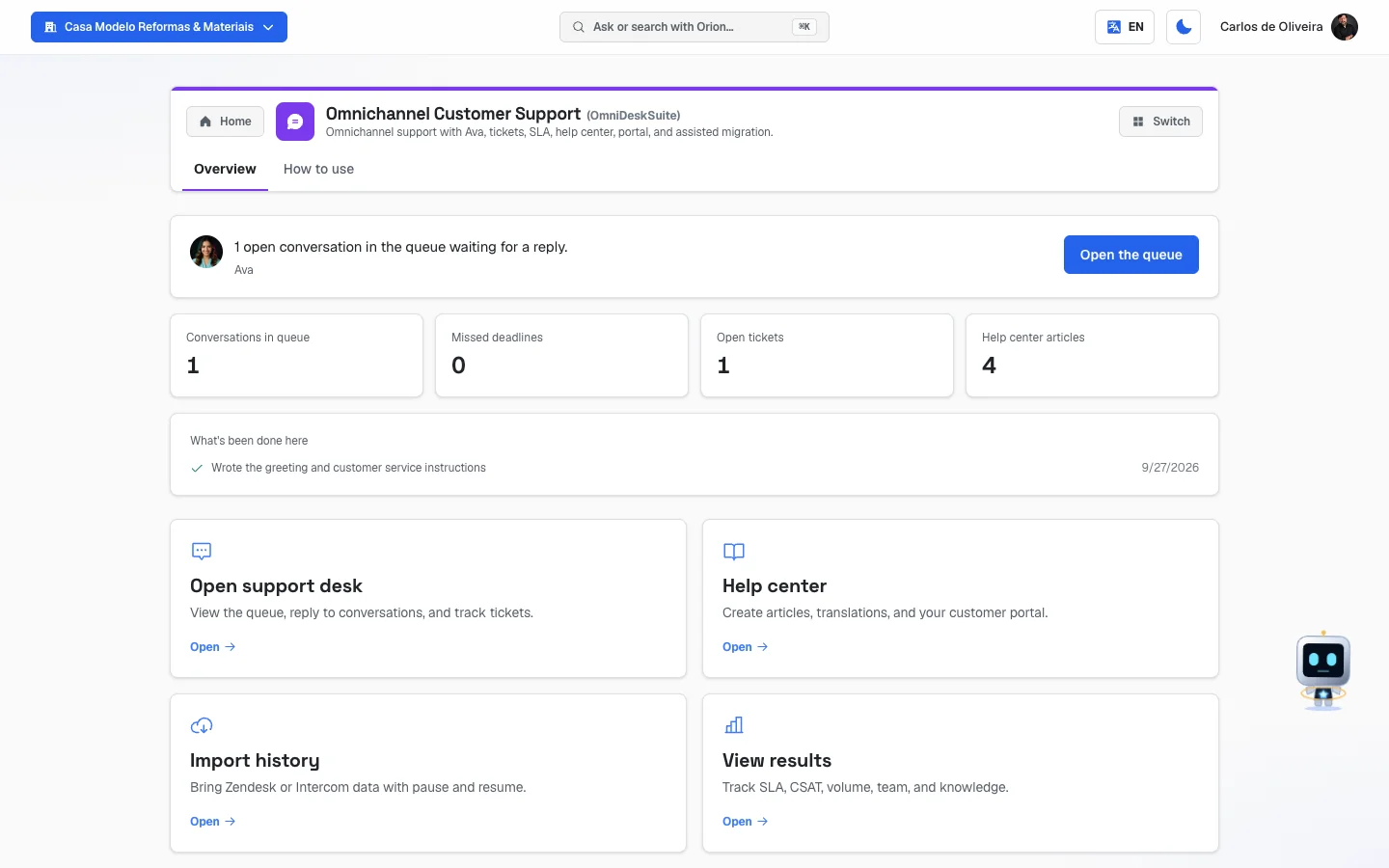 Overview tab, with Ava's note and the four numbers at the top and the four shortcut cards below
What's on the other side
When you click any card, you arrive at the Support Desk. It opens with the same app bar at the top (the name, Home and Switch) and, right below it, eight tabs of its own, in this order:
- Queue — the inbox. Conversations are split into Open, At risk, Mine, Unassigned, Awaiting and Resolved. The screen is divided in three: the queue, the conversation and the contact's profile.
- Tickets — the work that spans several conversations: status, fields and forms.
- Reports — volume by channel, first response time, resolution time, missed deadlines, satisfaction, team performance and help center usage.
- Help center — the collections and articles, by language, plus the customer portal.
- Migration — bring over your history from Zendesk or Intercom, with pause and resume.
- Get started — the setup checklist, which moves forward on its own with your real data.
- Manual — the module's own help text.
- Settings — team and permissions, channels, Ava, deadlines (SLA) and the satisfaction survey (CSAT).
All eight tabs are already documented field by field, each with its own section, in chapter 6 — Support Desk, in this same order: 1. Queue, 2. Tickets, 3. Reports, 4. Help center, 5. Migration, 6. Get started, 7. Manual and 8. Settings. The list above is only there so you know what you'll find on the other side of each card.
How to read the numbers
The four numbers at the top of the Overview tab:
- Conversations in queue — how many conversations are open or waiting for a reply. It's the size of your pile right now.
- Missed deadlines — how many support deadlines have already passed. This number turns red when it's greater than zero, and it's the only one that demands immediate action: a missed deadline is a broken promise to someone who's already waiting.
- Open tickets — how many tickets are open (new, in progress or awaiting). A ticket is different from a conversation: it can bring together several conversations about the same topic.
- Help center articles — how many articles you've written so far. It matters because Ava pulls her answers from them.
Ava's note, right above the numbers, changes with what's going on, and the order is the order of urgency: first a missed deadline, then a conversation waiting, then a desk that isn't set up, then a help center with no articles. When none of that applies, it says everything is in order. The button next to the note takes you straight to the place where you fix it.
If the system can't read one of those numbers at that moment, the note says so before anything else — "I couldn't read your data right now — this doesn't mean it's empty. Try refreshing shortly." — and the four numbers show a dash (—) instead of zero. That's why a zero on the screen is always a real zero.
If the module was just purchased and the first version is still being prepared, the note talks about that instead of saying everything is in order.
Frequently asked questions
Why does this module have only one content tab? Because it's a front door. The app screen shows the summary and the shortcuts; the support work happens in a larger area of the system, which opens when you click one of the cards.
What's the difference between this module and Lead Capture & Messaging (OmniLeadHub)? Lead Capture & Messaging takes care of people who are just arriving — the stranger who sent a message wanting to buy. The Support Desk takes care of people who are already customers — questions, problems, support. They're two different assistants: Rebeca for lead capture, Ava for support.
Who is Ava? She's this module's AI assistant. She's the same Ava as in the WhatsApp support module — what she does shows up in both places.
The "Missed deadlines" number is red. What do I do? Click the button next to Ava's note. It takes you straight to the overdue tickets.
I have history in Zendesk or Intercom. Do I lose it all? No. The Import history card takes you to the migration screen, which brings the content over keeping dates and authors, without duplicating anything, and which can be paused and resumed.
When something goes wrong
The screen shows the module's offer instead of the content. The module isn't active on this account. It needs to be purchased.
The screen stays on "Loading…" and doesn't move on. Reload the page. If it keeps happening, the system couldn't reach the server.
All four numbers show zero. That's expected on a new account: there are no conversations, tickets or articles yet. Start with the Open support desk card and follow the checklist on the Get started tab. (When the system can't read the data, the numbers don't show zero — they show a dash, as explained a little further down.)
"I couldn't load the summary right now. Nothing has changed here — reload the page in a few moments." It appears at the top of the Overview tab, in place of Ava's note and the four numbers, when the system couldn't fetch the summary at that moment. It doesn't mean there are no missed deadlines or waiting conversations — it means it wasn't possible to look. Reload the page in a few moments; meanwhile, the four shortcut cards keep working.
Ava's note says "I couldn't read your data right now" and the numbers show a dash (—). The summary arrived, but one of the counts couldn't be read at that moment. The dash stands in for the number on purpose, so the screen doesn't show a zero that isn't true. Reload the page in a few moments.
I clicked a card and landed on a screen asking me to activate it in the catalog. The support area has the same subscription lock as the module. If it appears, the module isn't active.