

Video Creation
Where it is: Home → Your apps → Videos (at the top of the screen the module shows as Video Creation)
Address: /app/modulos/criacao-videos
What it's for
Video is what gets seen the most today. A 15-second Reel showing your service reaches more people than ten written posts. But making video is work: filming, cutting, picking music, writing the caption. And then the week goes by and you haven't posted anything.
This module is your video studio. You describe what you want — in plain English, the way you'd say it out loud — and the system generates the video. It works for Reels, TikTok, Shorts, YouTube videos, your company's presentation video. You download it and post it.
There are two ways to use it. The first is to chat: on the Home tab you talk to Vera (who handles scripts and short videos for social media) and to Yuri (who handles the YouTube channel). You ask, they do it. The second is to do it yourself: on the Studio tab there's a form where you write the description, pick the format and length, and click Generate.
And there's a third way, which is the best of all for anyone short on time: turn on the Weekly video. Then the system picks the topic, writes the script, builds the video and sends it to you on WhatsApp so you only have to reply "ok". Every week, on its own.
Everyday example: you own a pizzeria. You turn on the Weekly video for Friday at 11am. Every Friday morning a finished vertical video arrives on your WhatsApp — one about the house pizza, another about Wednesday's all-you-can-eat night, another about free delivery in the neighborhood. You watch it, reply "ok", and it goes out to TikTok, YouTube, Instagram and Facebook.
Everything that gets generated — by you, by Vera, by Yuri or by the weekly video — is saved in the Gallery tab, ready to download whenever you want.
Before you start
- The Video Creation module needs to be active on your account. Without it, any attempt to generate answers: "Media Studio is part of the creation modules. Subscribe to Media Studio (or a package that includes it) in the Modules tab to generate."
- The first time you open a newly purchased module, an invitation appears at the top of the page to set it up by chatting with Vera, its assistant: "It's optional — the tabs below already work. Each reply from the specialist uses AI credits." Chat with Vera lets her get to know your company; Dismiss removes the invitation without chatting. If you open the chat, the Complete setup button at the end of it also removes the invitation.
- Credits. Every video generated deducts credits from your account (a credit = the "token" the system uses to charge for what it generates). If your balance is short, the screen warns you first: "Not enough credits to generate the video (needs N)."
- Optional, but recommended: register your company's visual identity (colors, tone and logo) in the Company Profile or in the Brand module. Without it, the Use the company's visual identity box is grayed out and says: "Your company has no visual identity yet — fill it in on the Company Profile to use it here."
- Optional: to use the 🧑💼 Spokesperson button (a video with your face and your voice talking) you need an authorized clone, created in the Clones & Videos module. It explains how there.
- Optional: to turn on the Weekly video you need your company's WhatsApp connected, because that's how the finished video reaches you for your "ok".
First steps
- On Home, under Your apps, click Videos. You land on the Home tab.
- If Vera's invitation appears, you can accept (Chat with Vera) or click Dismiss — the tabs already work either way.
- Still on the Home tab, click the Video or Reel for social shortcut. The chat opens with the sentence already started — you just finish it with the topic. E.g.: "Create a script + short video (Reel) about: weekend drain-unclogging promotion".
- Now try doing it yourself: click the Studio tab. It opens on the 🎬 Video button.
- Write the video description in the big field, pick the Aspect ratio 9:16 (the vertical Reels format), leave the Duration at 5s to test and click Generate.
- Wait. The notice on the screen says: "AI video generation. May take 1-3 minutes."
- The video shows up below, in Your materials. Click Download.
- Click the Gallery tab: it's there, along with everything your team has already generated.
- When you want to automate, go to the Weekly video tab, read the cost table, pick the day and time, check the confirmation and turn it on.
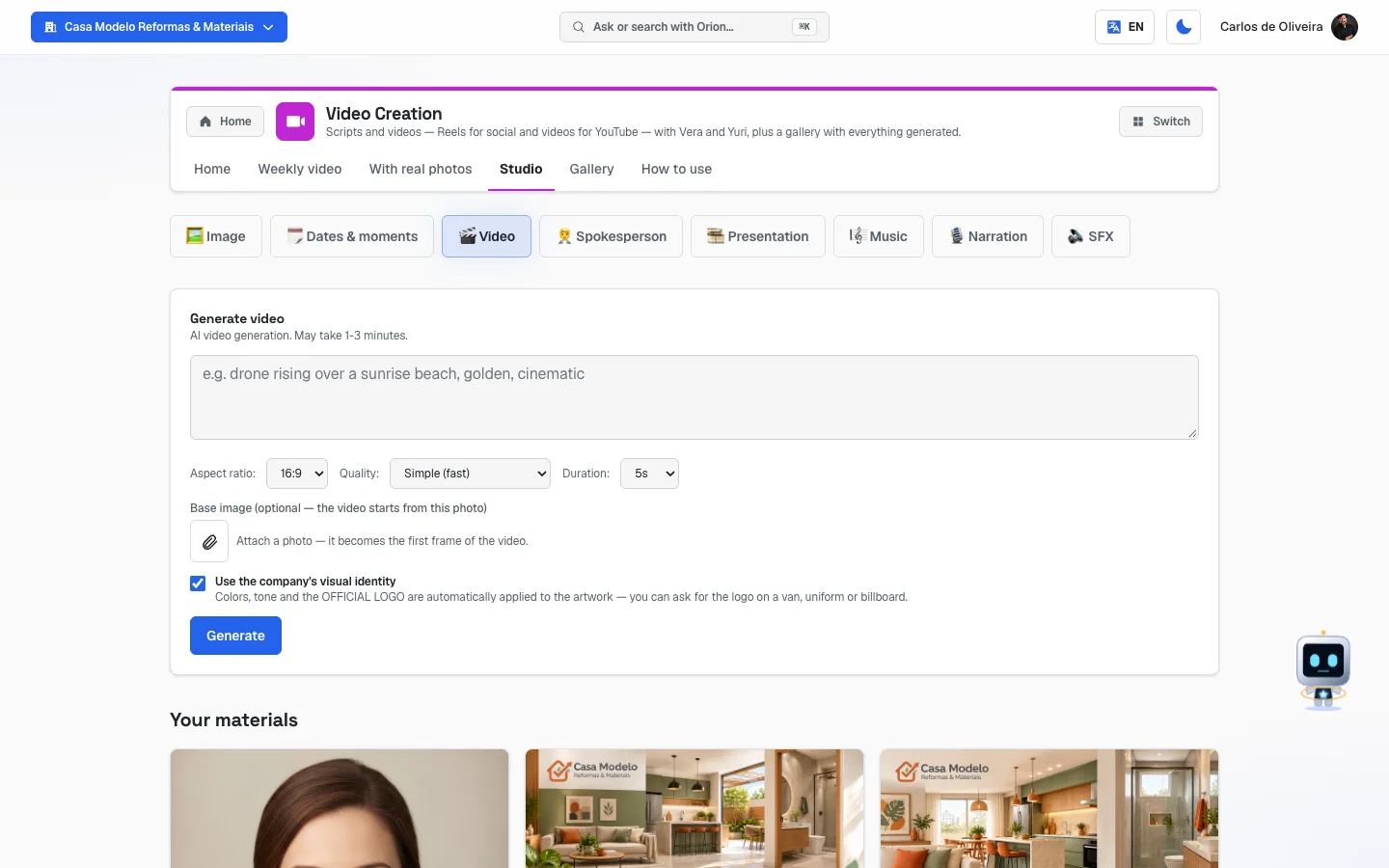 Studio tab with the eight buttons at the top and the 🎬 Video form open
The tabs, one by one
The module has four tabs — Home, Weekly video, Studio and Gallery — which sit on the app bar at the top of the screen. At the end of the bar there's also the How to use tab.
Home
/app/modulos/criacao-videos/inicio
- What you see here:
- At the top, Vera's panel: a note from her about how your video production is going, with three numbers — Videos in the gallery, Created last month and Didn't finish.
- Below it, the chat with the video team, with two ready-made shortcuts.
- At the bottom, the line "Prefer to generate it yourself?" with the Open the Media screen link, which takes you to the Studio tab.
- What you can do: chat. The shortcuts are:
- Video or Reel for social — Vera writes scripts and directs the editing of short videos for your social media. The shortcut already types "Create a script + short video (Reel) about:" and you finish it.
- Video for YouTube — Yuri plans your channel's content and directs longer, optimized videos. The shortcut already types "Plan a YouTube video (title + script) about:" and you finish it.
- What Vera can tell you on the panel (one note shows at a time):
| Note | What to do |
|---|---|
| "N video didn't finish generating — you asked and didn't get it." | Open the Gallery and see what got stuck. |
| "Your video gallery is empty — ask for the first one in the chat or create it on the Media screen." | Use a shortcut here or go to the Studio. |
| "Nobody has generated a video in over 30 days — and video is what reaches the most today." | Go to the Studio and make one. |
| "Your gallery has N videos, N created in the last month." | Everything's in order. |
Weekly video
/app/modulos/criacao-videos/video-semanal
This is the autopilot tab. Turned on, it produces one vertical video per week, on its own, and sends it to you for approval.
- What you see here: the explanation of how it works, the table of what each video costs, the choices for spending, day, time and networks, and the switch to turn it on.
- What you can do: set up and turn on (or off) the weekly production.
- How it works, in the screen's own words: "Every week Sofia picks the topic and format, Vera writes the script and Yuri handles the YouTube title. The vertical video waits for your OK before going live."
Who is Sofia? She's the assistant of the Social Media module, not this one. The topics and tone she uses to pick the video's subject come from the same schedule that runs your posts: Home → Your apps → Social → Editorial Schedule tab. It's a single plan for the whole company — if you want to change what the videos are about, that's where you do it.
The "What each video costs" box:
It's a table with four columns — Video (the length), Audio, Credits and Amount (the same cost in money, in your region's currency: real in Brazil, peso in Chile, dollar in the United States). There are 15 rows: five lengths — 10, 15, 20, 25 and 30 seconds — combined with three kinds of audio:
| Audio | What it is |
|---|---|
| with voice-over | A voice narrating over the video. |
| music only | No voice, just background music. |
| no audio | Silent. |
The notice on the box explains the logic: "The amount comes from your account credits. More scenes and more audio means richer — and pricier." Each scene of the video is 5 seconds, so a 30-second video is a six-scene video.
Why this manual doesn't reproduce the numbers in the table. It's not shyness about talking money: it's that the numbers aren't fixed. They're calculated on the spot, from the price of the image, sound and voice engines the system uses at that moment, from the dollar rate the system has on file and from your region's table — so today's table may not be the one a month from now, and Brazil's isn't Chile's. A number printed here would go stale without anyone noticing, and you'd decide looking at the wrong price. The table on the screen is always the current one, and it's the one that counts.
Two things the table guarantees, and these have no expiration date: the amount shown is what you pay (already including the system's margin; it's not our supplier cost), and a video that fails deducts nothing in the end. Pay attention to how that happens, because it can be a shock: the credit leaves your balance when production starts, not when the video is ready. If the video doesn't come out, it comes back to you. So, if you look at your balance in the middle of production, you'll see it lower — and it refills on its own if something goes wrong.
Step by step — turn on the weekly video:
- On the Weekly video tab, read the What each video costs table.
- Under How much you want to spend, pick one of the two options:
- With a cap per video — you type a number in the credits per video field. If Sofia's choice goes over the cap, she shortens the video to fit.
- Open — Sofia decides the length based on what the topic needs, within the table.
- Under When, click the days of the week you're happy to receive it (it comes with Fri checked). At least one day has to stay checked. Next to it, pick the time in the at box (it comes with 11:00).
- Under Where to publish, click the networks: TikTok, YouTube, Instagram, Facebook. They all come checked. At least one has to stay checked.
- Check the Turn the weekly video on box.
- A gray cost confirmation box appears. Check "I saw the table above and agree that each video deducts those credits from my account."
- Click Save. While it saves, the button turns into "Saving…". When it's done you see All saved.
Each field explained:
| Field | What it does |
|---|---|
| With a cap per video | A credit limit per video. It's the brake that keeps an expensive video from happening without you ordering it. |
| credits per video | The cap number. Next to it, the system shows how much that comes to in your currency. |
| Open | No cap. Sofia picks the length based on what the topic needs. |
| When (days) | On which days of the week the video can go out. You can check several; one goes out per week. |
| at (time) | From what time of day. Before that time the system doesn't produce. |
| Where to publish | Which networks the video goes to, after you approve it. |
| Turn the weekly video on | The master switch. Unchecked, nothing is produced. |
| Cost confirmation | Required the first time you turn it on. After that it no longer appears. |
How the video reaches you:
- On the day and at the time you chose, the system builds the video.
- You get a notice on WhatsApp when it's ready.
- You reply "ok" on WhatsApp — and it publishes.
- If you'd rather approve from the computer, the piece also waits for you on the
Approvals screen — it's in the full menu, under that name, in the "Daily" section
(next to Dashboard, My Results and Latest Contacts), and what's waiting for you also shows on
Home, under Needs you; the direct address is
/app/aprovacoes. It shows for every account owner, even those who never used the feature, because that's where the approval requirement is turned on and off. The Approve and publish and Reject buttons are there. While it's being made, the piece shows up as Building your video, with the note: "As soon as it's ready I'll message you on WhatsApp so you can give the OK." - After your "ok": "I'll publish it within 10 minutes."
One video goes out per week, not one per day. Checking five days doesn't make five videos: it only means that, if the system misses Friday, it has other days to try within the same week.
Studio
/app/modulos/criacao-videos/estudio
This is the do-it-yourself screen. It's shared with the Image Creation module — which is why there are image, music and narration buttons here too. When you come in through the videos module, it already opens on the 🎬 Video button.
- What you see here: a row of eight buttons at the top, the form for the chosen button, and below it the Your materials section with the latest materials generated by the company.
- The eight buttons:
| Button | What it generates | How long it takes (per the screen) |
|---|---|---|
| 🖼️ Image | An image from your description. | "May take 15-40s." |
| 🗓️ Dates & moments | A ready-made graphic for a holiday or a sales moment. | (the screen doesn't say) |
| 🎬 Video | A video from your description. | "May take 1-3 minutes." |
| 🧑💼 Spokesperson | A video of your clone speaking the text you write. | "within ~30 minutes" |
| 🎞️ Presentation | Joins several videos into one, with narration, music and logo. | "in a few minutes" |
| 🎼 Music | A soundtrack. Each generation returns 2 variations and charges once. | (the screen doesn't say) |
| 🎙️ Narration | A voice reading the text you write. | (the screen doesn't say) |
| 🔊 SFX | A short sound effect, from 0.5 to 22 seconds. | (the screen doesn't say) |
The 🖼️ Image, 🗓️ Dates & moments, 🎼 Music, 🎙️ Narration and 🔊 SFX buttons don't make video. They're here because the screen is the same as Image Creation's — and because narration and music serve as raw material for the 🎞️ Presentation button.
🗓️ Dates & moments generates a GRAPHIC, not a video — it's the same button as in the Image Creation module, with the same holiday cards and the same fields. It isn't explained here on purpose, so there aren't two explanations that could drift apart: the full step by step is in the Image Creation manual, in the section "🗓️ Dates & moments" (Image Creation). The result lands in the images Gallery, not the videos one.
🎬 Video — step by step:
- In the Studio, click 🎬 Video.
- In the big field, describe the video. Write the way you'd explain it to a person. The screen's own example is: "drone rising over a sunrise beach, golden, cinematic".
- Pick the Aspect ratio: 16:9 (landscape, YouTube), 9:16 (portrait, Reels and TikTok) or 1:1 (square).
- Pick the Quality: Simple (fast) or Premium (more credits).
- Pick the Duration: 5s, 10s or 15s.
- If you want the video to start from a photo of yours, click the button with the drawing of a paperclip (📎, Attach image), under Base image (optional — the video starts from this photo). The screen's hint: "Attach a photo — it becomes the first frame of the video."
- Leave the Use the company's visual identity box checked if you want your brand's colors, tone and logo to go into the creation.
- Click Generate. The button turns into "Generating…".
Each field explained (🎬 Video):
| Field | What to write |
|---|---|
| Description | What should appear in the video, in plain English. The more specific, the better: what shows up, from what angle, what mood. |
| Aspect ratio | The screen format. 9:16 for Reels/TikTok/Shorts; 16:9 for YouTube; 1:1 for a square feed. |
| Quality | Simple is faster and cheaper. Premium uses more credits and delivers better. |
| Duration | 5, 10 or 15 seconds. The charge goes up with the length. |
| Base image (optional) | A photo of yours that becomes the first frame. Useful for animating a photo of your product or your shop. |
| Use the company's visual identity | Turns on the company's colors, tone and official logo in the creation. It's grayed out if you haven't registered the identity. |
🧑💼 Spokesperson — step by step:
This is the video with a person speaking. The screen is called VidDouble clone, with the notice: "Use an identity created and authorized in VidDouble for this video."
- In the Studio, click 🧑💼 Spokesperson.
- Under Authorized clones, click the photo of whoever is going to speak.
- Under Make them speak, write the text. The limit is 200 characters (~13 seconds per video), and the screen counts as you type. The notice is clear: "The text is spoken exactly as written."
- Pick the Voice.
- If you want, write the Scene direction (optional) — e.g.: "gesturing, upbeat tone".
- Click Produce talking video. The button turns into "Sending to production…".
- This notice appears: "🎬 Video in production! It shows up ready in the library below within ~30 minutes — credits are only charged on delivery."
If there's no clone at all, the screen shows "No authorized clone available" and explains: "Clone creation, authorization and management happen in VidDouble. Video Creation only uses identities that have already been cleared." There's an Open VidDouble button that takes you straight to the Clones tab over there.
🎞️ Presentation — step by step:
This is the Company presentation video: it joins clips you already have into a single video, with narration, music and the logo in the corner.
- In the Studio, click 🎞️ Presentation.
- Under Video clips — click in playback order, click the videos in the order they should appear. Each one gets a number. You can join up to 8 clips. To start over, click Clear selection.
- Under Narration (optional), pick a narration you've already generated (in the 🎙️ Narration button). Or leave it on None.
- Under Background music (optional), pick a soundtrack (from the 🎼 Music button). Or leave it on None.
- Pick the Format: 16:9, 9:16 or 1:1.
- Leave the Apply the company logo to the video corner box checked and pick the Logo corner.
- Write the Composition name (e.g.: "Company presentation").
- Check the cost line: "Fixed price: N credits per composition — charged only on delivery."
- Click Compose video. The button turns into "Sending to composer…".
- This appears: "🎞️ Composition in production! The video shows up ready in the library below in a few minutes — credits are only charged on delivery."
If you haven't generated any video yet, the screen warns: "No ready videos in your library yet. Generate some in the Video or Spokesperson tabs first." Only videos that are already finished go into the composition — what's still in production doesn't show in the list.
The "Your materials" section, below the form, shows the latest materials your company generated, of every type. Each card has the description that generated that material, the type label (Video, Image, Music, Narration, Sound effect, Document) and the Download and Delete buttons.
Gallery
/app/modulos/criacao-videos/galeria
- What you see here: the Video Gallery — "Every video your company has generated — in chat or on the Media screen — gathered here." It loads 60 at a time, newest to oldest; past that, a View more button appears below, which brings the next 60 and so on until the company's first video. Each card shows the video playing right there, the description that generated it, the Video label and the Download and Delete buttons.
- What you can do: watch, download and delete. You don't generate here — there's the Generate now shortcut in the corner, which takes you to the Studio.
- Empty state: "No videos generated yet", with the hint: "Ask in the Home tab: 'create a 15-second video about this week's promotion'".
Deleting here can't be undone. The confirmation says: "The file is deleted for good and disappears for everyone in the company. This cannot be undone." Download before you delete.
How to use
/app/modulos/criacao-videos/como-usar
Every module has this tab at the end. It's the module's manual inside the system itself.
How to read the numbers
On Vera's panel (Home tab):
- Videos in the gallery — how many videos your company has generated, ever.
- Created last month — how many in the last 30 days. It's the number that shows whether you're keeping the pace or have stopped.
- Didn't finish — how many videos fell by the wayside. If it's greater than zero, the number turns an alert color and it's worth opening the Gallery to take a look.
On the material cards (Studio and Gallery):
| Label on the card | What it means |
|---|---|
| In production (with the 🎬 blinking) | The video is still being made. It has no file to download yet. |
| Failed — no credits charged (with ⚠️) | The generation didn't work, and you didn't pay for it. You can delete the card and try again. |
| Video (or Image, Music, Narration…) | It's ready. The Download and Delete buttons work. |
On the Weekly video table:
- Video is the length in seconds. Every 5 seconds is a scene.
- Audio is the kind of sound: with voice-over, music only or no audio.
- Credits is how much that combination deducts from your account.
- Amount is how much that comes to in money, in your region's currency.
Frequently asked questions
What's the difference between asking in the chat (Home) and generating in the Studio? In the chat you talk: you ask, Vera or Yuri write the script, make suggestions, go over it with you. In the Studio you fill in a form and the video comes out directly, with no conversation. The result of both ends up in the same place: the Gallery.
How long does it take? It depends on what you asked for, and the screen says so in each case: a regular video, 1 to 3 minutes; a spokesperson video (with the clone speaking), up to about 30 minutes; a presentation composition, a few minutes. An image comes out in 15 to 40 seconds.
My video showed up as "In production" and isn't changing. What do I do? Wait for the time the screen gave for that type. While it says "In production" the file doesn't exist yet, so there's nothing to download. If it goes well past the deadline and turns to "Failed", you weren't charged — delete the card and ask again.
Was I charged for a video I didn't receive? No. When the generation fails, the card says "Failed — no credits charged". For the spokesperson and the composition, the screen itself warns you beforehand: "credits are only charged on delivery".
My spokesperson text doesn't fit. Now what? The limit is 200 characters per video (about 13 seconds of speech). Trim the text, or split the message into two videos. For longer talking videos, use the Clones & Videos module, which produces up to 120 seconds on the higher tiers.
Can I create a clone right here? No. Here you only use clones that have already been created and authorized in the Clones & Videos module. Creating, authorizing, revoking and deleting a clone happens there — and that's on purpose, because creating a clone involves the authorization of a real person.
I turned on the weekly video. Am I going to get one video a day? No. One goes out per week. The days you check are only the days the system may produce; as soon as it produces that week's video, it stops until the following week.
Does the weekly video publish on its own without me seeing it? No. It always waits for your "ok". You get it on WhatsApp and reply, or approve it from the Approvals screen. After your ok, it publishes within 10 minutes.
When something goes wrong
| Symptom | What to check | What to do |
|---|---|---|
| "Media Studio is part of the creation modules. Subscribe to Media Studio (or a package that includes it) in the Modules tab to generate." | Is the Video Creation module subscribed? | Turn the module on in the Catalog. |
| "Not enough credits to generate the video (needs N)." | Your credit balance is below what's needed. | Shorten the duration, switch the Quality to Simple, or top up credits. |
| The Use the company's visual identity box is grayed out | The company has no visual identity registered yet. | Fill in colors, tone and logo in the Company Profile (or in the Brand module) and come back. |
| The video card shows "Failed — no credits charged" | The generation didn't work. | You didn't pay. Click Delete on the card and generate again, preferably changing the description a little. |
| The card stays on "In production" and has no download button | The file doesn't exist yet. | Wait for the time shown on the screen and refresh the page (F5). |
| "No authorized clone available" in the 🧑💼 Spokesperson | There's no clone ready on the account. | Click Open VidDouble and create a clone there, in the Clones & Videos module. |
| The Produce talking video button is disabled | You haven't picked the clone, or the text has fewer than 3 letters. | Click a clone's photo and write at least a few words. |
| I can't type any more in the spokesperson text | You reached the 200 characters. | Trim the text or split it into two videos. |
| "No ready videos in your library yet. Generate some in the Video or Spokesperson tabs first." in the 🎞️ Presentation | You don't have videos ready to join yet. | Generate at least two videos first (with the 🎬 Video or 🧑💼 Spokesperson button) and come back. |
| The Compose video button is disabled | No clip has been selected. | Click the videos, in the order they should appear. |
| The composition complains about the logo | There's no logo registered anywhere. | Register the logo in the Brand module or in the company profile — or uncheck Apply the company logo to the video corner. |
| I can't save the Weekly video — "Check the cost confirmation to turn it on." appears | The cost confirmation box isn't checked. | Read the table and check "I saw the table above and agree that each video deducts those credits from my account." |
| "To turn on the weekly video you need to see the cost per piece and confirm — or choose a credit cap." | Same case as the one above, warned by the server. | Check the cost confirmation, or pick With a cap per video. |
| "The weekly video is part of the creation modules. Subscribe to Media Studio (or a package that includes it) in the Modules tab." | The module isn't active. | Turn on Video Creation in the Catalog. |
| I turned on the weekly video and nothing came | Has the day and time already passed this week? Has a video already gone out this week? | One goes out per week, on the day and from the time you chose. Check that the Turn the weekly video on switch stayed checked and that Save confirmed with "All saved." |
| I didn't get the weekly video on WhatsApp | Is the company's WhatsApp connected? | Approve from the Approvals screen (/app/aprovacoes) while you sort out the WhatsApp connection. |
| I deleted a video by accident | Deletion is permanent and removes the file for the whole company. | There's no way to undo it. Generate again. Next time, download before you delete. |
| "⚠️ Feature unavailable right now" in Your materials | A momentary failure loading the materials list. | Refresh the page (F5). If it persists, contact support. |