

Image Creation
Where it is: Home → Your apps → Images (at the top of the screen the module shows as Image Creation)
Address: /app/modulos/criacao-imagens
What it's for
This module creates images for your business: the artwork for a post, the banner for an ad, the photo of a dish, the poster for a promotion. You describe in words what you want and the system draws it. You don't need to know how to use a design program or hire someone for each piece.
There are two ways to get the same thing. You can ask in a conversation — like messaging a designer — and let Diego (the system's creative specialist) lead the way. Or you can do it yourself in the Studio, by filling in a form: you write what you want, pick the format and click Generate.
Everything that gets created, by either way, is saved in the same place: the Gallery tab. From there you download the image whenever you like and use it wherever you need it.
An everyday example: you own a pizzeria and want a Mother's Day post. You open the Studio, go to Dates & moments, click the Mother's Day card, type in the artwork "Mother's Day: all you can eat with 20% off for moms", check Use the company's visual identity so it comes out with your colors and your logo, pick the square format and click Generate. In under a minute the artwork is on the screen, ready to download and post.
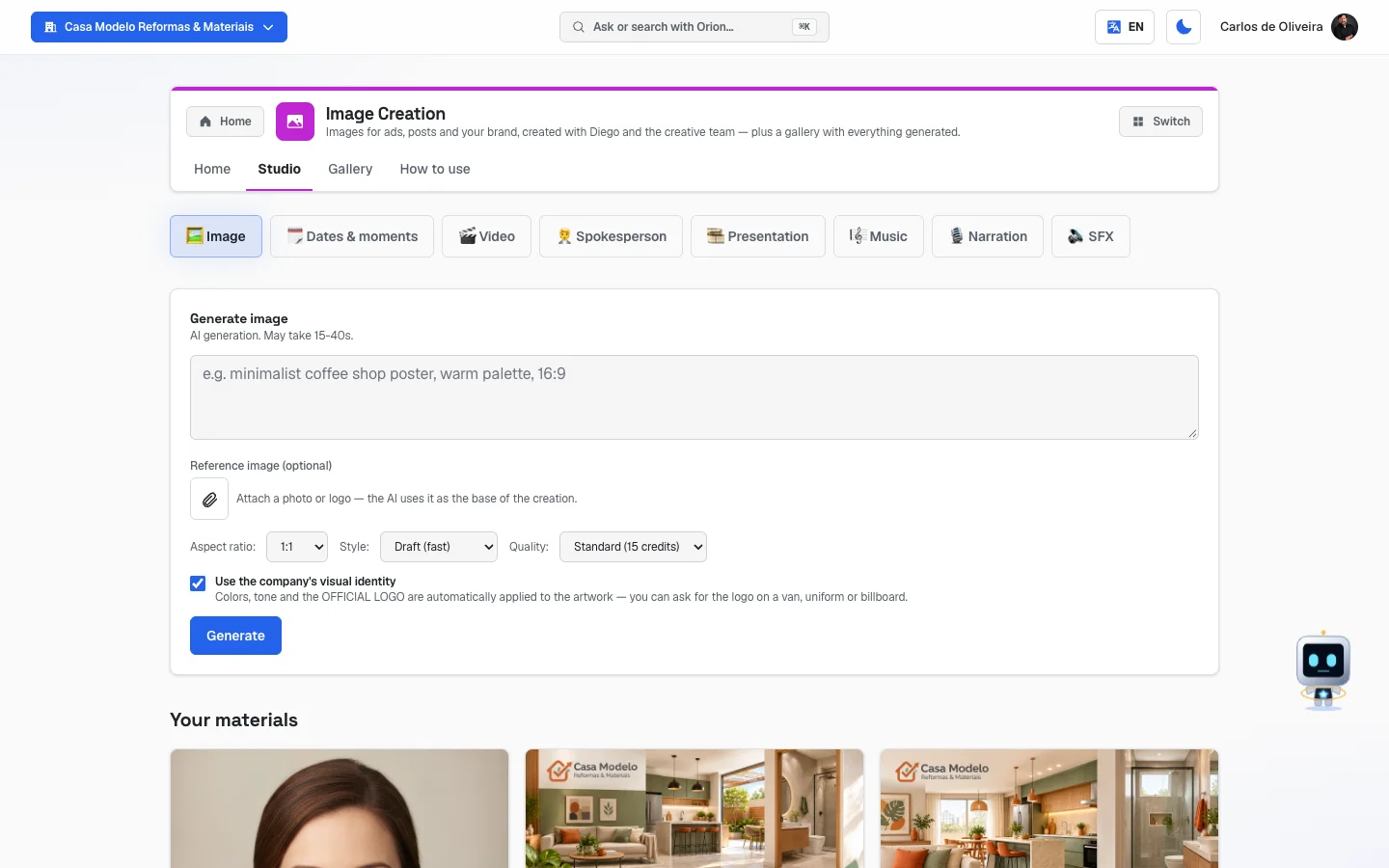 Studio tab open on the "🖼️ Image" sub-tab, with the description field and the selectors below it
Before you start
- The Image Creation module needs to be active on your account. If it isn't, the screen warns you: "Media Studio is part of the creation modules. Subscribe to Media Studio (or a package that includes it) in the Modules tab to generate."
- Each image generated uses credits from your account. With no balance, the system refuses and tells you how many credits that image would need.
- For images to come out with your colors and your logo, the company's visual identity has to be registered. If it isn't, the "Use the company's visual identity" checkbox is grayed out with the notice: "Your company has no visual identity yet — fill it in on the Company Profile to use it here."
First steps
- On Home, under Your apps, click Images.
- Open the Studio tab. It already opens on the 🖼️ Image sub-tab.
- In the big field, write what you want to see in the image. Be specific: what appears, where, with what mood. The example the screen itself suggests: "minimalist coffee shop poster, warm palette, 16:9".
- Under Aspect ratio, choose the format:
1:1(square, for posts),9:16(vertical, for Stories and Reels),16:9(horizontal, for covers and YouTube),4:3or3:4. - Under Style, choose Draft (fast), Realistic photo, Illustration or Logo/text.
- Leave the Use the company's visual identity checkbox checked if you want your colors and your logo on the artwork.
- Click Generate. The button changes to "Generating…". The screen says it can take 15 to 40 seconds.
- The image shows up in "Your materials", right below the form. Click it to see it larger, and click Download to save it to your computer or phone.
- Don't like it? Change the description and generate again. Each try is a new image.
The tabs, one by one
The module has three tabs — Home, Studio and Gallery — which are in the side menu, right below the name Images (the list is already open when you're inside the module). Besides them, the module has a How to use tab at the end, with a short summary inside the system itself.
Home
/app/modulos/criacao-imagens/inicio
- What you see here: at the top, a panel with Diego's photo, a sentence about how your gallery is doing and a shortcut button. Below, three numbers: Images in the gallery, Created last month and Didn't finish. Then, two shortcut buttons and the conversation. At the bottom of the page, the sentence "Prefer to generate it yourself?" with the Open the Media screen link, which takes you to the Studio.
- What you can do: ask for images by chatting, instead of filling in a form.
- Step by step — how to ask for an image in the chat:
- Click one of the two shortcuts:
- Image for an ad or post — Diego handles the visual direction and creates an image that makes your brand stand out.
- Images at scale with AI — Tomás generates several files at once, varying angles, styles and formats.
- The start of the request already appears written in the chat box (for example: "Create an image for a post/ad about: ").
- Complete it with what you want and send. Example: "…our Tuesday promotion, pizza coming out of the oven, cozy mood, square format for Instagram".
- Keep chatting to fine-tune: "lighter", "remove the text", "put the logo in the corner".
- The finished image also goes to the Gallery.
- Click one of the two shortcuts:
- The sentence at the top changes depending on your situation. With no images: "Your image gallery is empty — ask for the first one in the chat or create it on the Media screen.", with the Open the Media screen button. If a generation got stuck halfway, the notice comes first, with the Open the gallery button.
Studio
/app/modulos/criacao-imagens/estudio
This is the screen where you ask for the image yourself, without chatting. You can also get
here through the old address /app/midia, which redirects here.
- What you see here: a row of buttons at the top (the Studio's sub-tabs), the form for the chosen sub-tab in the middle, and Your materials at the bottom — the latest files generated by your company, of every type.
- The sub-tabs at the top are: 🖼️ Image, 🗓️ Dates & moments, 🎬 Video, 🧑💼 Spokesperson, 🎞️ Presentation, 🎼 Music, 🎙️ Narration and 🔊 SFX. The first two belong to your images module. The other six are part of the Video Creation module — they appear on the screen, but only really generate if that other module is active on your account.
🖼️ Image
- What you can do: create an image from scratch, or change an image you already have.
- Step by step:
- Write in the big field what you want to see.
- Adjust Aspect ratio, Style and, if it shows up, Quality.
- Leave Use the company's visual identity checked, if you want your colors and your logo.
- Click Generate and wait.
- Each field explained:
- Description (the big field) — what appears in the image. The more detail, the better: object, setting, colors, mood, whether there are people or not.
- Reference image (optional) — click the button with the drawing of a paperclip (📎, the Attach image) to send a photo or a logo. Next to it the screen says: "Attach a photo or logo — the AI uses it as the base of the creation." Here the behavior changes: with an image attached, the system doesn't create from scratch — it edits the image you sent, following your description. It's the way to say "use this photo of my salon, just change the background".
- Aspect ratio — the format:
1:1square,16:9horizontal,9:16vertical,4:3and3:4. - Style — Draft (fast) to test an idea, Realistic photo to look like a real photograph, Illustration for a drawing, Logo/text when the artwork needs to have words written in it and have them come out readable.
- Quality — only shows up when the visual identity is turned on and registered. The options on screen are Standard (15 credits) and Premium (45 credits).
- Use the company's visual identity — the screen explains: "Colors, tone and the OFFICIAL LOGO are automatically applied to the artwork — you can ask for the logo on the van, the uniform, the billboard."
🗓️ Dates & moments
- What you see here: a panel called Seasonal templates, with two rows of cards. Upcoming dates brings the holidays and special dates of the next 90 days (Mother's Day, June Festival, Black Friday, Christmas and others), each card showing the day and how many days are left. Sales moments (work all year) brings situations that don't depend on the calendar: Flash sale, Launch, Business anniversary, Customer testimonial, Before & after, This week's schedule, Behind the scenes and Quick tip.
- What you can do: start from a ready-made date or moment and get the artwork customized for your business, with your text written exactly as you typed it.
- Step by step:
- The screen already opens with the first date under Upcoming dates chosen (the card is highlighted) and the fields show up below. To use another date or a sales moment, click the card you want — it becomes highlighted. If there are no dates in the next 90 days, nothing comes chosen and the screen says: "Tap a template above to personalize and generate the artwork."
- Fill in Text that appears on the artwork — it's the sentence that will be written on the image. Example the screen gives: "Mother's Day: 20% off sitewide".
- If you like, fill in Business name (optional) and Offer (optional).
- If you like, fill in Visual identity (optional) — for example "blue and orange palette, logo at the bottom".
- Choose the Aspect ratio.
- Leave Use the company's visual identity checked, if that applies.
- Click Generate.
- The Generate button only turns on after you write the text that appears on the artwork.
- When there are no special dates in the next 90 days, the top row is empty with a notice — use the sales moments below.
The other sub-tabs
🎬 Video, 🧑💼 Spokesperson, 🎞️ Presentation, 🎼 Music, 🎙️ Narration and 🔊 SFX belong to the Video Creation module. They appear here because it's the same Studio, but when you click Generate without the video module subscribed, the system refuses and explains what you need to subscribe to.
Your materials
- What you see here: the latest files generated by your company, in little squares, with the request that produced each one written below it. It covers every type, not just images.
- What you can do: click the image to see it at full size, Download and Delete.
- Each little square can appear in three situations:
- ready — shows the image, with Download and Delete;
- In production — with a blinking icon; some types take a while and stay like this until they arrive;
- Failed — no credits charged — with a warning icon and, when there is one, the explanation of the error.
- Delete can't be undone. The screen confirms first: "The file is deleted for good and disappears for everyone in the company. This cannot be undone."
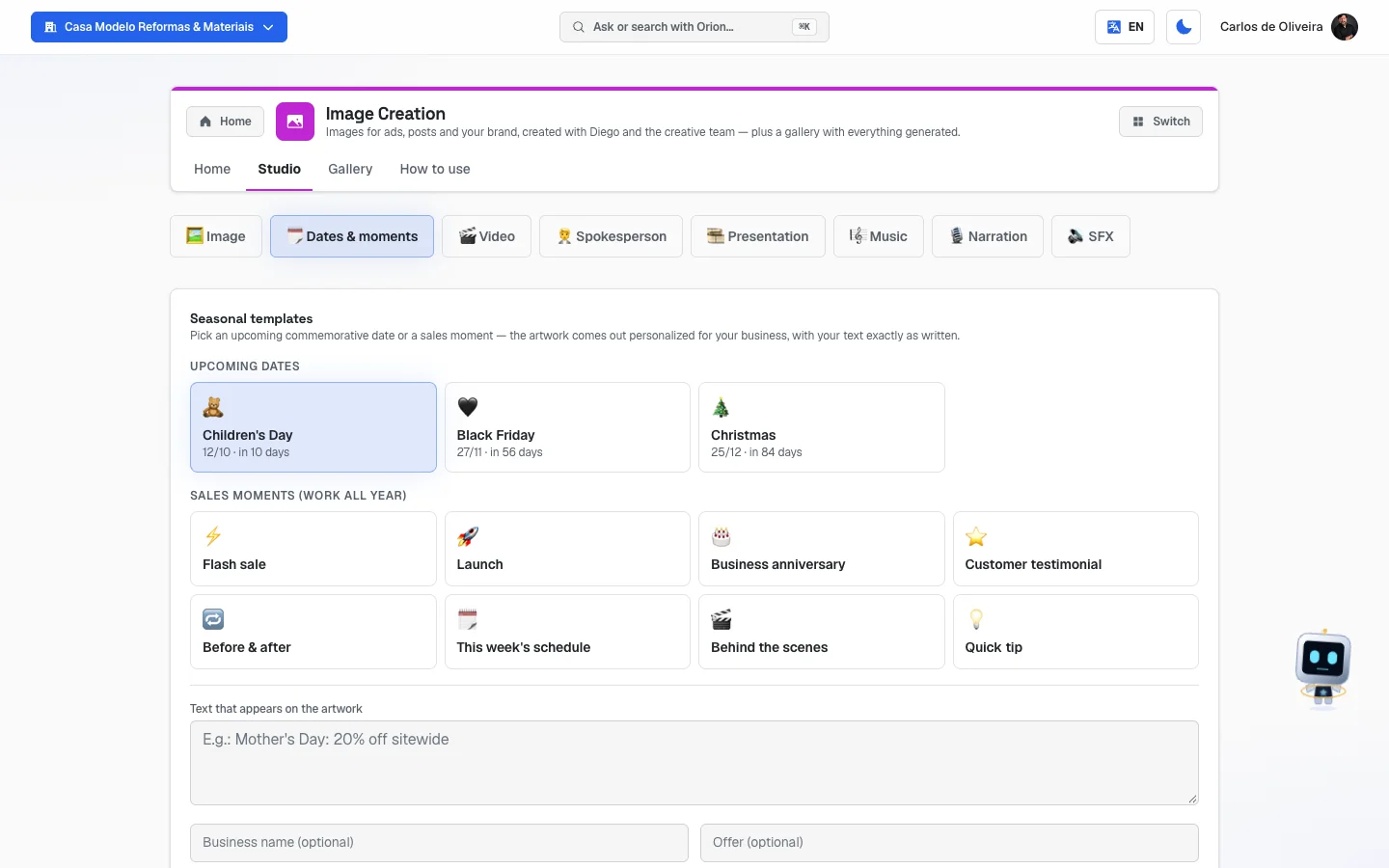 The "Dates & moments" sub-tab with the upcoming dates cards and the customization fields below
Gallery
/app/modulos/criacao-imagens/galeria
- What you see here: only the images, all together — the ones from the conversation and the ones from the Studio. Each card shows the image, the request that generated it and the Image tag. At the top right, the Generate now link takes you to the Studio.
- What you can do: look at it full size, Download and Delete.
- Step by step:
- Scan the cards and click the image you want to see better — it opens large in the middle of the screen (close it by clicking outside or pressing Esc).
- Click Download to save the file.
- To remove it, click Delete and confirm.
- When there's nothing, the screen says: "No images generated yet", with a tip to ask on the Home tab.
- The Gallery loads 60 images at a time, from newest to oldest — and has a button to see the rest. Once you've generated more than 60, the View more button shows up below the grid: each click brings the next 60, older ones, and they add to the ones already on screen. Keep clicking until you get where you want; when the button disappears, there's nothing more to bring. Once in a while the button shows up and the click brings nothing — it means the same thing: you've reached the first image your company ever generated.
- Nothing disappears on its own. An old image isn't deleted and doesn't expire: it stays saved and only leaves the Gallery if someone on your account clicks Delete. Even so, it's worth downloading what you use a lot — the file on your computer doesn't depend on anything.
How to read the numbers
The three numbers are on the Home tab, at the top. There are no performance metrics here — no likes or reach. They're production numbers: what you've already created and what fell by the wayside.
- Images in the gallery — how many images your company has generated in total (counting the ones from the conversation and the ones from the Studio).
- Created last month — how many came out in the last 30 days. If it's zero but you have old images, Diego tells you your communication has looked the same for over a month.
- Didn't finish — images you asked for that never got ready. This number turns an alert color when it's greater than zero, because that's the case where you asked and didn't receive. Click the Open the gallery button in the notice to see which ones they are.
An image's performance after it's published isn't here: if it went into a post, look in the Analytics tab of the Social Media module; if it went into an ad, in the channel report under Traffic Management.
Frequently asked questions
What's the difference between asking in the chat and using the Studio? In the chat, Diego and Tomás lead the creation for you — you can explain in loose words and keep adjusting in the conversation. In the Studio, you choose the options yourself (format, style, identity) and click Generate. The result goes to the same Gallery.
How do I make the image come out with my company's colors and logo? Leave the Use the company's visual identity checkbox checked, at the bottom of the Studio form. If it's grayed out, it's because the company's visual identity hasn't been registered yet — the screen itself tells you to fill it in on the Company Profile.
Can I use a photo of mine as the base, instead of making everything up? Yes. In the Studio, on the 🖼️ Image sub-tab, click Attach image and send the photo. With a photo attached, the system edits your image following the description, instead of creating a new one from scratch.
How long does it take? The screen itself tells you: the image takes 15 to 40 seconds. Meanwhile the button reads "Generating…".
Can I generate several variations at once? Yes — ask Tomás in the chat, with the Images at scale with AI shortcut. He generates several images varying styles and angles.
How do I choose between "Realistic photo", "Illustration" and "Logo/text"? Use Realistic photo when the image should look like a photograph; Illustration when you want a drawing; Logo/text when the artwork needs to have words written in it and they have to come out readable (it's the style "Dates & moments" uses); and Draft (fast) when you just want to test an idea before spending more.
Is the generated image mine to use wherever I want? It's saved in your company's Gallery and everyone on your account sees it. Download it with the Download button and use it on your channels.
When something goes wrong
"Media Studio is part of the creation modules. Subscribe to Media Studio (or a package that includes it) in the Modules tab to generate." → The creation module isn't active. Activate it in the Modules tab.
"Not enough credits to generate the image (needs X)." → The account is short on credits. The message already says how many that image needs.
The little square shows "Failed — no credits charged" → The generation didn't work and nothing was charged. Click Delete to remove the little square from the screen and try again, preferably changing the description a bit.
The little square has been "In production" for a long time → Some file types take a while (video and spokesperson, for example, can take much longer than an image). Come back to the screen later. If the Didn't finish number on the Home tab keeps going up, Diego's notice points out the cases where you asked and didn't receive.
The "Use the company's visual identity" checkbox is grayed out and won't let me check it → Your company has no visual identity registered yet. The screen says where to fill it in: on the Company Profile.
The "Generate" button on the "Dates & moments" sub-tab won't turn on → The Text that appears on the artwork is missing. Fill in that field and the button frees up.
"No images generated yet" in the Gallery, but I already asked for an image in the chat → Reload the page. The Gallery shows what your company generated through both ways (chat and Studio); if it stays empty, check in Your materials, inside the Studio, whether the file is in production or failed.
In "Your materials" a "feature unavailable" notice shows up → It's a notice that the materials list is down right now, not that your files disappeared. The screen tells you to contact support.
I deleted an image by accident → It can't be recovered. The confirmation warns about this beforehand: the file is deleted for good and disappears for everyone in the company. Generate it again from the description, which stays written below the other cards.
The word written on the artwork came out wrong or jumbled → Use the Logo/text style, which is the one made for artwork with written words, and keep the text short. On the Dates & moments sub-tab, the text you type in "Text that appears on the artwork" comes out exactly as written.