

Clones & Videos (VidDouble)
Where it is: Home → Your apps → Clones (at the top of the screen the module shows as Clones & Videos)
Address: /app/modulos/viddouble
Two names, one module. In the menu and at the top of the screen it's called Clones & Videos. Inside the module (in your plan, in the authorization terms and in the email the person receives) it shows up as VidDouble. It's the same thing.
What it's for
You need to show up on video. Everybody does these days — on Instagram, TikTok, YouTube, WhatsApp. But recording is a hassle: you have to fix your hair, find a quiet corner, memorize what you're going to say, record it five times because you messed up, and in the end the lighting was bad. So you put it off, and "later" never comes.
This module solves that by creating a clone of you: the system learns your face and your voice just once, and after that you only write (or not even that — just state the goal) and the video comes out ready, with you speaking. You never have to record again.
An everyday example: you own a salon. On Monday morning you want to announce that you have an opening on Thursday. Instead of recording a video, you open the Studio, pick your clone, type "Hi everyone! There's an opening Thursday afternoon for a cut and blow-dry. Message me on WhatsApp and I'll save the time for you", click Create and produce and go have a coffee. In a few minutes the video is ready, with your face and your voice, in the Reels format, ready to download and post.
The module also lets you create a virtual influencer: a person who doesn't exist, made up from scratch, to be the face of your brand. Handy when you don't want to appear on camera, or when you want a fixed "character" for the store.
And for when the video really matters (a commercial, a sales video), there's Premium Production: a bigger production that goes through our team's review before it reaches you.
Before you start
- The Clones & Videos module has to be active on your account. It has three plan levels: VidDouble Essential, VidDouble Pro and VidDouble Premium. What you subscribed to changes what you can produce (see The four production levels). Without any of them the screen shows the offer and the Activate in catalog button, and the system says "VidDouble is not active for this tenant" (tenant = your company's account).
- The first time you open the module, an invitation appears at the top of the screen to set it up by chatting with Clara. It's optional: the tabs below already work, and each reply from the specialist uses AI credits. Click Chat with Clara so Clara gets to know your company (when you're done, click Complete setup) or Dismiss to remove the invitation without chatting.
- You need at least one ready clone before asking for any video. Without one, the Studio says: "You have no released clone yet. Create one in the Clones tab."
- Only the account owner and administrators can create, revoke or delete clones. Other users in the company can produce videos with the clones that are already released, but they don't touch the library. Anyone who isn't an administrator gets the message "Only administrators can manage identities."
- For a Real Clone you need the person. You can't register someone without their taking part: they're the one who opens a link, reads the terms, sends a photo and records a video giving their authorization. Have their email (or WhatsApp) handy.
- Credits. Producing video uses credits from your account (a credit = the "token" the system deducts for each thing it generates for you). The screen shows how much it will cost before you send it to production. Some accounts have the cost covered and show "Production at no cost on this account".
Getting started
- On Home, under Your apps, click Clones. You land on the Home tab.
- If the invitation to the setup conversation shows up, chat with Clara and click Complete setup, or click Dismiss. The tabs work either way.
- Click the Clones tab. This is where the face of your videos is born.
- If the video will be with you (or someone on your team): fill in the Register Real Clone box, with the person's name and email, and click Create invitation. The person gets an email and gives their authorization (the step by step is in How the authorization works).
- If you'd rather have a made-up person: fill in the Create Virtual Influencer box, pick a voice, attach the image and click Create identity. That one is ready right away.
- Wait for the clone's card to show the green Ready to use label.
- Go to the Studio tab. Fill in the Project name, pick the Clone, write the Objective (or the Spoken text) and check the credit estimate.
- Click Create and produce. The system takes you to the Projects tab on its own.
- In the Projects tab, click your project to follow it. When it shows Ready, watch it, click Download and, if it looks good, click Approve delivery.
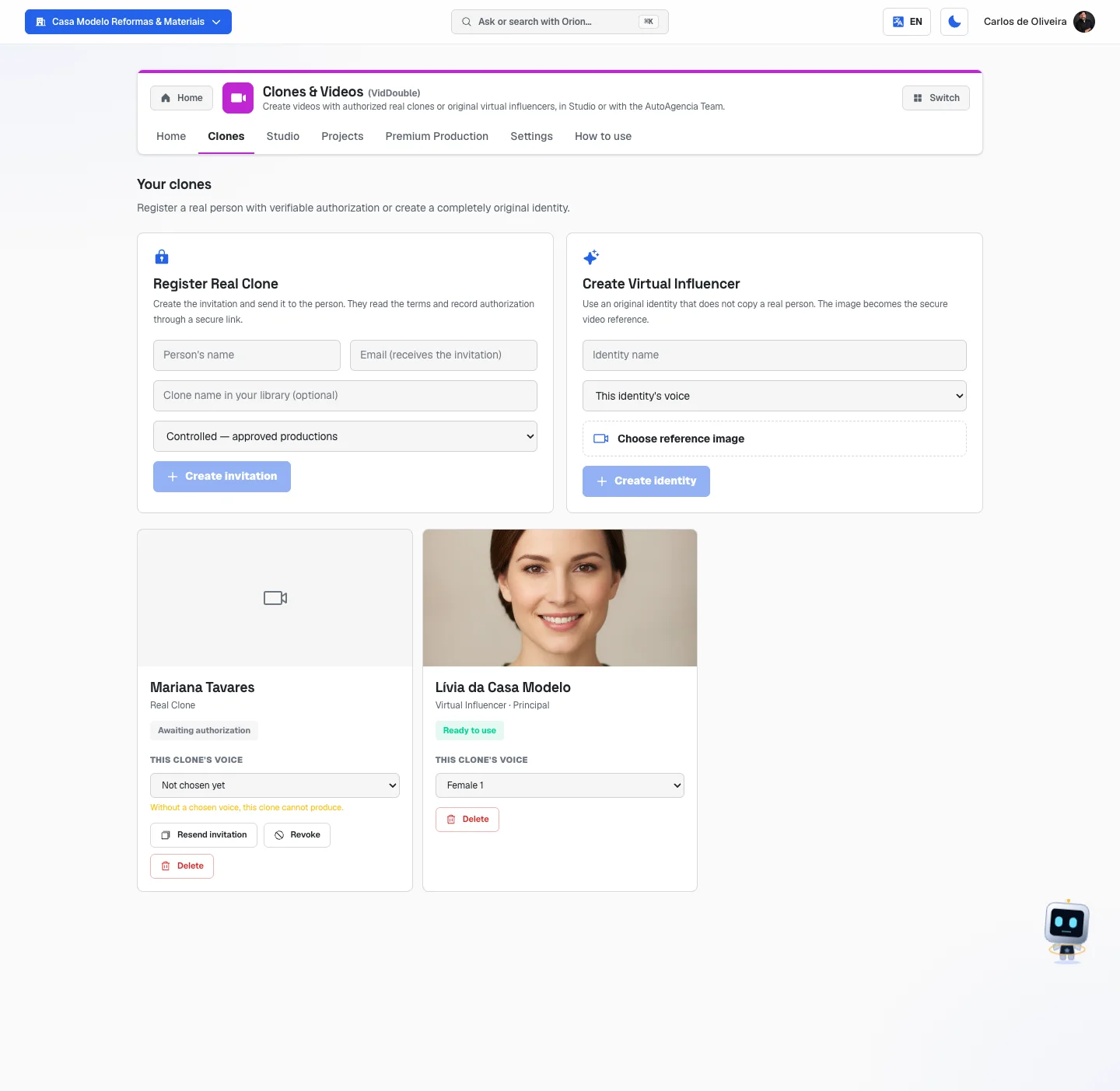 Clones tab with the two creation boxes at the top (Register Real Clone and Create Virtual Influencer) and the card of a Virtual Influencer "Ready to use" — a Real Clone requires the authorization of a real person, so it doesn't appear in the example company
Understanding the module (read this first)
Three words come up all the time. Worth understanding now, because the rest of the manual depends on them.
| Word | What it means |
|---|---|
| Clone (the system also calls it an identity) | The face and voice that will appear in your videos. You register it once and use it forever. It lives in the Clones tab. |
| Project | One video request. Every time you send something to production, a project is born. It lives in the Projects tab. |
| Credit | The "token" the system deducts for each video generated. The screen shows the math before you decide. |
The two types of clone
Real Clone — a real person: you, a business partner, an employee. It only works with their authorization, given by them, through a protected link. Without that authorization the system produces nothing — not even one video.
Virtual Influencer — a made-up identity that doesn't copy anyone. You give it a name, pick a voice from the catalog and attach a reference image. It doesn't need anyone's authorization, because it isn't anyone. It's ready right away.
The screen says it in so many words, in the empty state of the Clones tab: "no loose photo from Video Creation becomes a clone". A random photo you generated in another module won't work. A clone is registered here, the right way.
The two ways to request a video
On the Home tab you'll see two cards. In both, the one who writes the script, directs the scenes and follows the production is Clara — what changes is how much you need to decide:
- Create in Studio — you decide everything: which clone, which format, which production level, the language, the audience, the spoken text. It opens the full form in the Studio tab.
- Ask the Team — the short way. You write only the objective, in one sentence (e.g. "I want to sell the winter bundle") and click Ask the Team. Clara picks the clone, the format and the level within what your plan and your balance cover, writes the script from your objective and sends it to production — without stopping halfway to ask for your approval. Before you send it, the screen shows what she picked and how much it may cost. See Ask the Team, step by step.
Ask the Team starts on the VidDouble Pro plan. If you're on Essential and click that card, you see the message "Ask the Team is part of the Pro plan. Choose Studio to produce now." and a Create in Studio button, which your plan covers.
The four production levels
The level decides the size and polish of the video. The higher the level, the more scenes fit, the longer the video can be and the more credits it costs.
| Level | Maximum video length | What changes |
|---|---|---|
| Express | up to 15 seconds (1 scene) | The basics: a single take, straight to the point. |
| Realistic | up to 30 seconds (2 scenes) | Two takes, so you can have a beginning and an end. |
| Cinematic | up to 60 seconds (4 scenes) | Four takes, high-resolution image (1080), and Clara writes the visual direction of each scene. |
| Premium | up to 120 seconds (8 scenes) | Eight takes, high-resolution image (1080), visual direction per scene and mandatory internal review before it reaches you. |
A scene is a piece of the video. Each scene holds up to 15 seconds of speech. The system splits your text into scenes on its own, respecting sentences — it never cuts a word in half.
Which plan unlocks which level:
| Your plan | Levels released | Team mode |
|---|---|---|
| VidDouble Essential | Express | No |
| VidDouble Pro | Express and Realistic | Yes |
| VidDouble Premium | All four | Yes |
In the Level box in the Studio, whatever your plan doesn't cover appears grayed out, with "· Pro" or "· Premium" next to it. In the Configuration tab the same information shows as a list, with the Released or Requires a higher plan label.
How credits work
This is written on the screen itself and worth reading slowly:
"Credits are reserved now and charged only when the video is delivered. A technical failure returns everything."
In plain English: when you click Create and produce, the system sets aside the credits (like when a card "holds" an amount at a hotel). It only deducts them for real when the video is ready and delivered. If production fails because of a technical problem, the credits go back in full to your account — you don't pay for a video you didn't get. And if you cancel a project that isn't ready yet, the reserved credits go back too.
How the authorization works (read this carefully)
This is the most important part of the module. Let's take it slowly, because here you're handling the face and voice of a real person.
What the authorization is
The system won't let you create a clone of someone without that person agreeing. It's not a formality you can skip: it's a real lock. Until the person authorizes, the clone keeps the Awaiting authorization label and doesn't produce a single video.
You don't type the "I agree" for them. The person authorizes it themselves, on a link that's theirs alone, with their phone in hand.
The step by step, on your side
- In the Clones tab, fill in the Register Real Clone box:
- Person's name — their real name. (Required.)
- Email (receives the invitation) — their email. If you fill it in, the system sends the invitation on its own. If you leave it blank, you send the link yourself.
- Clone name in your library (optional) — just a nickname so you can find it later. Useful when the clone has a role, for example "Store spokesperson". If you leave it blank, the person's name is used.
- The mode box (explained right below).
- Click Create invitation.
- The system tells you what it managed to do:
- "Invitation created and sent by email." — done, they've already got it.
- "Invitation created. Copy the link and send it to the person." — a green link appeared on the screen. Click it to copy it and send it yourself, by WhatsApp.
- The link is valid for 48 hours. After that it stops working. If the deadline passes, click Resend invitation on the clone's card — the system generates a new link.
- When they authorize, the card goes from Awaiting authorization to Preparing identity. After that step it becomes Ready to use — or Not approved, if the material isn't good enough (see below).
What happens in "Preparing identity" — and how long it takes. In this step the system checks on its own what was sent: it compares the face in the video with the one in the photo and listens to the speech to see whether the person said their name and that they authorize. The check runs every 10 minutes, so in most cases the clone is released within a few minutes. When the automatic check is in doubt (a face that's similar but not identical, speech that can't be understood, more than one person in the video…), the case goes to someone on our team, who decides. In any case, we release it within 1 business day after the authorization — the card shows the deadline until the check is done.
It's at the moment of release that the clone's voice is created, from the very recording the person sent. That's why the clone speaks with their voice, not with a catalog voice.
No video is produced until this is finished, and there's nothing for you to do: there's no "speed it up" button. While the card is in Preparing identity, the clone doesn't appear in the Studio list. If the 1-business-day deadline passes, we're notified automatically — the check is ours, not yours.
If the card ends up "Not approved". The reason appears on the card itself, in plain words — for example "The person's face does not appear in the video", "Nobody can be heard speaking in the video" or "The person in the video does not look like the one in the photo". Click Ask for a new video: the person gets a new invitation (valid for 48 hours) and records again, and the card goes back to Awaiting authorization. When it was our team that rejected it, the card doesn't show a detailed reason — contact support if you want to know more.
The step by step, on their side
The person gets an email with the subject "<your company> asked for your authorization to use your image in videos", explaining in simple language that your company wants to make videos with their image and voice and needs their written authorization before anything happens. The email also says: "If you weren't expecting this invitation, ignore this email. Nothing happens without your confirmation."
They click Read the terms and authorize and a page opens with the title Identity authorization. There they do three things:
- 1. Read the full terms — the whole text of the authorization, in a box that scrolls. It's not a summary: it's the complete document.
- 2. Send the evidence — two files:
- Front-facing photo — a clear photo of the face, straight on. Accepts JPG, PNG or WEBP, up to 15 MB.
- Authorization video — a short video, recorded by them, saying their name, the date and that they authorize the use described in the terms. Accepts MP4, WEBM or MOV (file from an iPhone), up to 90 MB.
- Check the box "I read the full terms, confirm that I am the identified person, and agree to this authorization." and click Confirm authorization.
When they're done, they see Authorization received and a note that we're now checking whether the video, the photo and the spoken authorization match — "in most cases within a few minutes, and always within 1 business day" — and that no production is released before that step. The invitation email already mentions this deadline before they start.
To pass the check on the first try: face clearly visible in the video (no cap, no backlighting, only them in the frame), saying out loud their own name, the date and the sentence that they authorize — for example "I, Mariana Souza, today, September 23, authorize the use of my image and my voice in the company's videos".
The person doesn't need an account or a password. They open the link in their phone's browser and take care of everything there.
Controlled or Autopilot: the choice that changes everything
In the registration there's a box with two options. It changes the text of the terms the person will read and sign — so choose carefully, because it's what they're authorizing.
| Option on screen | What the person is authorizing |
|---|---|
| Controlled — approved productions | Each video depends on a request or brief approved inside the system. It's the tightest mode, and the default. |
| Autopilot — authorized automatic production | The company can produce automatically, within the registered guidelines, without the person approving piece by piece. |
If the person is you, Autopilot is convenient. If it's an employee, a business partner or someone hired, think twice: with Autopilot they're giving up looking at each video before it exists.
What the authorization allows — and what it forbids
The terms are specific. Summed up in business-owner language, the person authorizes the company to use their image, appearance, movements and voice to create videos in that company's projects. The result may be adapted to different formats, languages and channels covered by the project.
What the terms do NOT allow, in either mode:
- Using their identity outside what was agreed — another brand, another purpose.
- Illegal content.
- Misleading content (making the clone say something false, promising what doesn't exist).
- Discriminatory content.
- Sexually explicit content.
- Political or electoral content, unless there's a specific authorization for it.
- Putting personal statements in their mouth that aren't part of the approved project — opinions, positions, fights.
Put another way: the clone is for your business to speak. It's not for the person to say things they wouldn't say.
They can change their mind
They can, and so can you. Two different things, on the clone's card:
- Revoke — cuts off future use. The screen asks "Immediately revoke new productions with this identity?" and, once you confirm, no new video is generated with that clone. The person's cloned voice is also erased from the speech system.
- Delete — erases the identity. The screen asks "Request deletion of this identity and block new productions?". The card changes to Deleting… while the system erases the voice and the files, and then shows Deleted.
What revoking and deleting do NOT do: they don't automatically erase the videos that have already been published out there. A Reel that's already on Instagram stays on Instagram — you're the one who takes it down. The terms say this to the person clearly.
And the voice?
It depends on the type of clone:
- Real Clone that went through the authorization: the system creates the person's own voice, from the video they sent themselves. When that happens, the card shows a green strip The person's own voice with the text: "This clone speaks with the subject's own voice, built from the video they submitted. No catalog voice is used." Then there's nothing to choose — it's their voice.
- Clone without its own voice (including the Virtual Influencer): you pick a voice from the catalog, in the This clone's voice box on the card. There are six: three Male and three Female. Until someone picks, it shows Not chosen yet and the orange warning: "Without a chosen voice, this clone cannot produce."
Pick the voice once, on the clone's card. That way every video from that clone is born with the right voice and you don't need to decide again on every project.
The tabs, one by one
Home
/app/modulos/viddouble/inicio
- What you see here:
- At the top, an intro box with the line "One identity. Many videos. Always under your control." and, beside it, the four levels numbered 01 to 04.
- Below, Clara's panel: a note from her saying what's holding up your production right now, with the numbers Clones ready, Videos in production and Videos delivered.
- Two big cards: Create in Studio and Ask the Team.
- At the bottom, Recent projects — the last five, with level, mode and status.
- What you can do:
- Click Create in Studio — opens the full form in the Studio tab, where you pick everything.
- Click Ask the Team — opens the short way: you write only the objective and Clara takes care of the rest.
- What Clara can tell you in the panel (one note at a time, the most urgent):
| Note | What to do |
|---|---|
| "N clone is waiting for the real person's authorization — I can't record anything without it." | Nudge the person, or resend the invitation in the Clones tab. |
| "N project failed in production — worth checking what got stuck." | Open the Projects tab and look at the project. |
| "N project came back with changes to make — open it to see what was asked." | Open the Projects tab and click the project: the reason is there. It happens when our internal review rejected the piece, or when you yourself asked for a change. |
| "N project is waiting for your approval to go into production." | Open the Projects tab. In practice you won't see this note: no screen in the module creates a project in that situation today — see the explanation in the statuses table, further down. |
| "You don't have a clone yet — it's where your videos' face and voice come from." | Go to the Clones tab and create the first one. |
| "N clone is training — as soon as it's ready, the studio opens up." | Just wait. |
| "Your clone is ready and no video has been requested yet — tell me the goal and I'll handle the rest." | Go to the Studio tab. |
| "N video in production and N delivered so far." | Everything's in order. |
- Empty state: with no projects at all, it shows "No projects yet" with an explanation that projects show up there as soon as you request your first video.
- Heads up: the projects listed in this tab can't be clicked. To open a project, go to the Projects tab.
Clones
/app/modulos/viddouble/clones
- What you see here: the two registration forms (Register Real Clone and Create Virtual Influencer) and, below them, your clone library as cards, each with a photo, name, type and status label.
- What you can do: create clones, pick each one's voice, resend an invitation, revoke and delete.
Step by step — registering a Real Clone:
- In the Clones tab, in the Register Real Clone box, fill in Person's name.
- Fill in Email (receives the invitation), if you have it. Without an email the invitation is still created — you just have to send the link yourself.
- If you want, fill in Clone name in your library (optional).
- Pick the mode: Controlled — approved productions or Autopilot — authorized automatic production.
- Click Create invitation.
- If the green link appears on the screen, click it to copy it and send it to the person.
- Wait for the person to authorize. Follow along with the card's label.
Step by step — creating a Virtual Influencer:
- In the Create Virtual Influencer box, fill in Identity name.
- Pick the voice in the This identity's voice box (among Male 1, 2, 3 and Female 1, 2, 3). Required.
- Click Choose reference image and pick the photo. Accepts JPG, PNG or WEBP, up to 15 MB.
- Click Create identity. The clone is born ready, without waiting for anyone.
Each field explained:
| Field | What to write |
|---|---|
| Person's name | The real name of whoever will be cloned. It appears in the terms they sign. |
| Email (receives the invitation) | Their email. This is how the invitation goes out on its own. |
| Clone name in your library (optional) | A nickname just for you, to find the clone later. E.g. "Corporate spokesperson". |
| Mode (Controlled / Autopilot) | How much the person is authorizing. See Controlled or Autopilot. |
| Identity name (virtual) | The name of the character you're making up. |
| This identity's voice (virtual) | How they'll speak. Required — without a voice the clone doesn't produce. |
| Reference image (virtual) | The image that becomes their face in every video. |
The labels on each card:
| Label | What it means |
|---|---|
| Ready to use (green) | Can produce. It's the only status that appears in the Studio's clone list. |
| Awaiting authorization | Real Clone waiting for the person to open the link and authorize. |
| Preparing identity | The person has already authorized. The system is checking the material — in minutes in most cases, and always within 1 business day. The card shows the deadline. |
| Not approved | The check rejected the material. The card shows the reason and the Ask for a new video button. |
| Use suspended | This clone's use is on hold. |
| Deleting… | You requested deletion and the system is erasing the voice and the files. |
| Deleted | It's over. It no longer produces. |
| Setup pending | Something is missing from the registration before it's ready. |
The buttons on each card:
- Resend invitation — only appears on a Real Clone that is Awaiting authorization. Generates a new link (valid for another 48 hours) and resends the email.
- Ask for a new video — only appears on a Real Clone that is Not approved. Sends the person a new invitation (valid for 48 hours) to record again, and the card goes back to Awaiting authorization.
- Revoke — only appears on a Real Clone whose authorization hasn't been revoked yet. Cuts off future use right away.
- Delete — erases the identity. Both buttons disappear when the clone is already Deleting… or Deleted.
Empty state: "Your clone library is empty", with an explanation that you need to create an authorized Real Clone or an original Virtual Influencer.
Studio
/app/modulos/viddouble/estudio
- What you see here: at the top, a label with your plan (VidDouble Essential, VidDouble Pro or VidDouble Premium) and another with N credits available — or Production at no cost on this account, if your account is covered. Below, the New project form.
- What you can do: request a video, from start to finish, seeing the price first.
Step by step — requesting a video:
- In the Studio tab, write the Project name. E.g. "Launch commercial". Required.
- Write the Objective: what this video needs to make happen. E.g. "get past customers to come back in March".
- If you want to close the video with your brand, check Close the video with my brand. Two fields open: Invitation (optional) (e.g. "Talk to us") and Website (optional).
- Fill in Who it speaks to (e.g. "restaurant owners") and Where it will be published (e.g. "Instagram").
- In Spoken text (optional), write the speech word for word — or leave it blank for Clara to write it from the objective. Under the field the system reminds you of the limit: "Up to Xs at this level".
- Pick the Clone. Only the ones that are Ready to use appear.
- Check the Voice. It fills in on its own from the clone you picked.
- The Production box comes set to Studio. Here in the full form, Studio and Team produce the same way — you were the one who picked the clone, format and level — and the option only becomes the project's label in the list. For Clara to pick for you, use the Ask the Team card on the Home tab.
- Pick the Level: Express, Realistic, Cinematic or Premium. What your plan doesn't cover is grayed out.
- Pick the Video language: Portuguese, English or Spanish.
- In Formats, check one or more: 9:16 (vertical, Reels and TikTok), 16:9 (horizontal, YouTube) and 1:1 (square). It comes with 9:16 checked. At least one has to stay checked.
- Read the estimate box and check that it fits your balance.
- Click Create and produce. While it sends, the button turns into "Starting production…".
- The system says "Production started: N scenes, M credits reserved." and takes you to the Projects tab on its own.
Each field explained:
| Field | What to write |
|---|---|
| Project name | A name so you can find it later. Only you see it. Required. |
| Objective | The result the video needs to deliver. If you don't write the spoken text, Clara writes the script from this. |
| Close the video with my brand | Turns on a 3-second card at the end, with the company logo and the invitation you write. Comes turned off. |
| Invitation (optional) | The sentence on the final card. Up to 60 characters. E.g. "Talk to us". |
| Website (optional) | The site that appears on the final card. |
| Who it speaks to | The audience. Helps Clara get the tone right. |
| Where it will be published | The network. Helps Clara get the style of the conversation right. |
| Spoken text (optional) | The exact speech. Up to 4,000 characters, respecting the level's cap. Left blank, Clara writes it. |
| Voice | Comes from the chosen clone. If the clone speaks with the person's own voice, whatever is here isn't used — and the screen says so. |
| Clone | Who appears and speaks in the video. Required. |
| Production | The project's label in the list (Studio or Team). In this form the two produce the same; the way for Clara to pick for you is the Ask the Team card. |
| Level | The size and polish. See The four levels. |
| Video language | The language the clone will speak. |
| Formats | The aspect ratios you want to receive. Each checked format is one more edit — and more credits. |
The estimate box:
- If you wrote the spoken text: "Estimate: N credits" — the exact count.
- If you left it blank: "Up to N credits" — the level's ceiling, because the script doesn't exist yet. The video may come out for less.
- Below, always: "Credits are reserved now and charged only when the video is delivered. A technical failure returns everything."
- If the text doesn't fit the level, a warning shows in red like "The Express level produces videos of up to 15 seconds (1 scene). Shorten the text or pick a higher level."
- If your balance falls short, "Your balance does not cover this production." shows in red and the button is turned off.
Ask the Team (the short way)
/app/modulos/viddouble/estudio?modo=equipe — it's where the Ask the Team card
on the Home tab takes you.
Step by step:
- On the Home tab, click Ask the Team.
- In the What does this video need to do? field, write the objective in one sentence. E.g.: "I want to sell the winter bundle".
- Read the How the Team will produce box: it shows the clone, the level and the format that Clara picked, and "Up to N credits" — the ceiling; the video may come out for less.
- Click Ask the Team. While it sends, the button turns into "Sending to the Team…".
- The system tells you that Clara wrote the script and production has started, with the number of scenes and reserved credits, and takes you to the Projects tab.
How Clara chooses:
| What | How she decides |
|---|---|
| Clone | Only clones that are ready to use and have a voice qualify (the voice picked on the clone's card, or the person's own voice). If only one qualifies, that's the one. If several qualify, she uses the one from your most recent project; with no earlier project, the most recently created clone. |
| Level | The highest one your plan unlocks and your balance covers. On Pro: Realistic; if the balance doesn't cover it, Express. On Premium: Premium; if the balance doesn't cover it, it steps down to Cinematic, Realistic or Express. |
| Format | Just one: 9:16, vertical (Reels, Stories, TikTok, WhatsApp status). |
| Video language | The same language you're using the system in. |
| Script | Clara writes it from your objective and from what the system already knows about your business. |
| Project name | The objective itself, as you wrote it. |
Credits work as in the Studio: reserved when you send, charged only when the video is delivered, and returned in full if there's a technical failure.
When the short way can't go ahead, the screen tells you why and what to do:
| What appears | What to do |
|---|---|
| "Ask the Team is part of the Pro plan. Choose Studio to produce now." | Click Create in Studio, or upgrade to VidDouble Pro in the Catalog. |
| "For the Team to produce, you need a released clone…" | Click Go to Clones and create your first clone. |
| "The clone X has no voice yet…" | Click Go to Clones and pick the voice on its card. It's a one-time step. |
| "Your balance does not cover this production. The simplest video in your plan costs up to N credits and you have M." | Top up your credits. |
Want to decide some detail yourself (another clone, two formats, the exact text)? Click I'd rather choose everything myself in Studio, below the form.
Projects
/app/modulos/viddouble/projetos
- What you see here: all your projects, in a list. Each row shows the name, the level, whether it was Studio or Team, how many credits were reserved and the status.
- What you can do: click a project to open its full page — follow the production, read the script, watch, download, approve, request a change or cancel.
- The list refreshes on its own every 30 seconds while any project is in production. You don't have to keep pressing F5.
- Empty state: "No project created", with a hint to request a video in the Studio tab.
What each status means:
| Status | What's happening |
|---|---|
| Draft | The project exists, but nothing has been sent to production yet. |
| Awaiting approval | The project is stopped, waiting for a "go ahead" before it enters production. You won't see this status today: in the Studio, approving the brief and sending it to production are the same click (the Create and produce button), so the project is born already heading into production. The status exists in the system for the day there's a separate approval step — until then it stays empty. |
| Credits reserved | The credits were set aside. Production is starting. |
| Queued | It's waiting its turn to be produced. |
| In production | It's being generated right now, scene by scene. |
| Automated review | Production finished and the system is checking on its own. |
| Internal review | Our team is checking before releasing it to you. It happens on Premium projects. |
| Ready | The video is made and waiting for you to watch and approve it. |
| Delivered | You approved it. End of the road. |
| Changes requested | You asked for a change and it's recorded. |
| Failed | Production didn't work out. No credits were charged. |
| Cancelled | You cancelled it. The reserved credits came back. |
The project page (opens when you click a row):
- At the top: the project name, the level, whether it was Studio or Team, the formats requested, the language and the status label. Below, the objective, the "For" and the "Where", and how many credits are reserved.
- While it's producing, a spinning strip appears with: "Producing scene X of Y. Video production takes 10 to 30 minutes per scene." That's the only time estimate the system gives — and it's per scene. An eight-scene Premium video takes a lot longer than a one-scene Express.
- If it's in internal review: "Production finished and is in the mandatory internal review of the Premium level. You get it as soon as it is released."
- If it failed: a red strip with "Production failed and no credits were charged. You can try again."
- Deliveries: a box for each requested format, with the video playing right there and the Download button.
- Approved script: the script scene by scene. Each scene shows Scene N · Xs, the speech, and its status: Ready, Producing, Waiting or Failed. When the scene has a setting, it appears with 📍. If the system couldn't apply that setting, it says so: "not applied — this scene used the clone photo's setting". In other words: the screen never promises a setting the video doesn't have.
- The page refreshes on its own every 20 seconds while it's producing.
- Back to projects — the link at the top to leave the page.
The buttons, depending on the status:
| Button | When it appears | What it does |
|---|---|---|
| Approve delivery | When it's Ready | Closes the project. It goes to Delivered. |
| Send to production | Draft, Failed or Changes requested | Sends (or resends) the project to the production queue. |
| Request a change | Ready or Delivered | Opens the change form (below). |
| Cancel | Draft, Credits reserved, Queued, Changes requested or Awaiting approval | Asks "Cancel this project? Reserved credits go back to your account." and closes it. |
Step by step — requesting a change:
- On the project page, click Request a change.
- Read the notice at the top: "Technical defects and deviations from what was approved are corrected at no cost. Changes of taste, script, clothing or setting create a new version and charge full credits."
- Pick the reason in the box:
- Technical defect — the video came out broken, frozen, with no sound, with the mouth out of sync. Not charged.
- Approved brief deviation — it came out different from what was agreed. Not charged.
- Creative change — you changed your mind about the content. Charges the full credits.
- Preference change — you want different clothes, a different setting, a different style. Charges the full credits.
- In the text field, write what needs to change and in which part. At least 3 letters.
- Click Send request.
- The system answers right away saying what will happen: "Correction recorded. There will be no charge." or "New version recorded: N credits."
Be honest about the reason. Picking "technical defect" when you actually changed your mind doesn't go unnoticed, and the reason is recorded on the project.
Premium Production
/app/modulos/viddouble/producao-premium
- What you see here: only your Premium level projects, in the same list as always. At the top, the explanation that "Commercials, sales videos and demanding pieces go through mandatory internal review before delivery", and a highlighted strip: "Clara coordinates script, direction, identity, video and quality control. Technical defects and deviations from the approved brief are corrected at no cost."
- What you can do: click a project's row to open its step-by-step progress — the same detail screen as the Projects tab, with the scenes, the deliveries, the script and the status of each stage. The Back button takes you back to the list.
- The list refreshes on its own while any production is in progress — you don't have to keep pressing F5 to watch the internal review move along.
- Empty state: "No Premium production in progress", with the promise that the production shows up here "with step-by-step progress" — which is exactly what clicking the row opens.
What changes in Premium, compared with the regular Studio:
| Studio (Express, Realistic, Cinematic) | Premium Production | |
|---|---|---|
| Video length | up to 15s, 30s or 60s | up to 120 seconds (8 scenes) |
| Image quality | high-resolution (1080) only on Cinematic | high-resolution (1080) |
| Visual direction for each scene | only on Cinematic | yes |
| Review before you see it | no — as soon as it's ready, you get it | yes, mandatory: it goes through our team before it reaches you |
| Fixing a technical defect | no cost | no cost |
| Who coordinates | Clara (script, direction, review) — with you picking the clone, format and level in the Studio, or her picking everything in Ask the Team | Clara coordinates script, direction, identity, video and quality control |
| Plan needed | depends on the level | VidDouble Premium |
In short: Premium is for the video that can't go wrong. It takes longer (because it waits for our team's review), costs more credits (because it has more scenes) and arrives more polished. For this week's promo announcement, Express does the job. For the commercial you're going to boost, use Premium.
Configuration
/app/modulos/viddouble/config
- What you see here: a read-only screen with what applies to your account today. There's nothing to fill in.
- Three boxes at the top:
- Plan — VidDouble Premium, VidDouble Pro, VidDouble Essential or No active plan.
- Available credits — your balance, or No cost if the account is covered. A dash (—) means the system is still fetching it.
- Clones ready — how many of your clones are ready, in the format "2 / 5" (two ready, out of five registered).
- Levels released on your plan — the list of the four levels, each with the maximum video length and the Released or Requires a higher plan labels.
- Authorizations in force — only appears if you have Real Clones. Lists each one with the authorization status: Active authorization, Revoked, Rejected or Waiting for the person.
- Product rules — four rules that apply to every project:
- Controlled consent — real clones only produce with active authorization verified by our team. Revoking blocks new productions immediately.
- Brief as reference — a technical defect or a deviation from what was approved is corrected at no cost. A creative or preference change charges the full credits for the affected video.
- Credits reserved, not spent — when you send a project to production, credits are reserved. The charge only happens on delivery; a technical failure returns everything.
- Who can register clones — only the account owner and administrators create, revoke or delete identities. Other users produce with clones that are already released.
How to use
/app/modulos/viddouble/como-usar
Every module has this tab at the end. It's the module's manual inside the system itself.
How to read the numbers
In Clara's panel (Home tab):
- Clones ready — how many clones have the green Ready to use label. If it's zero, no video comes out.
- Videos in production — how many projects are moving along right now (between "Credits reserved" and "Ready").
- Videos delivered — how many projects you've approved, ever.
In the Configuration tab:
- Clones ready "2 / 5" — the first number is the ones that work; the second, all that exist. If the gap is big, there are people who still haven't authorized.
In the project list:
- "N cr" next to the level is how many credits were reserved for that project. It's not what was charged — the charge happens on delivery.
On the project page:
- "Producing scene X of Y" — X is how many scenes are already done plus the one coming out now; Y is the total. Multiply the remaining scenes by 10 to 30 minutes to get an idea of the time.
Frequently asked questions
Do I have to record again every time I want a video? No. That's the beauty of the module. You record once (the authorization video) and after that you only write. Every new video comes from the clone that's already there.
Can I make a clone of my employee without her knowing? No, and that's on purpose. The system doesn't allow it. She has to open a link, read the terms, send a photo and record a video saying she authorizes it. Without those three things the clone stays stuck on "Awaiting authorization" and produces nothing.
What if she asks to leave later? You click Revoke on her card, and no new video is generated. If she wants everything erased, click Delete — the system erases the voice and the files. What's already published out there doesn't disappear on its own: you're the one who takes it down from Instagram.
How long does a video take? The system says it on the project screen: 10 to 30 minutes per scene. An Express (1 scene) comes out fast; a Premium (8 scenes) takes a lot longer, and also goes through our team's review before it reaches you.
The video failed. Did I lose the credits? No. The screen says it in so many words: "Production failed and no credits were charged. You can try again." Click Send to production again.
What's the difference between the regular Studio and Premium Production? Premium makes longer videos (up to 120 seconds), with visual direction per scene, high-resolution images and — most important — it goes through our team's review before you see it. It's for the video that has to come out perfect. The regular Studio is for day-to-day use.
Can I use my clone in the Video Creation module? Yes. In the Video Creation Studio there's a 🧑💼 Spokesperson button, which uses the same authorized clones from here. But creating, authorizing and deleting a clone is only done here — the screen over there says so and offers an Open VidDouble button.
My clone doesn't appear in the Studio list. Why? Because only clones that are Ready to use appear. Go to the Clones tab and look at its label: it may be waiting for the person's authorization, in preparation, with no voice chosen, revoked or deleted.
When something goes wrong
| Symptom | What to check | What to do |
|---|---|---|
| The screen says "VidDouble is not active for this tenant." or the module's offer appears | Is the Clones & Videos module subscribed on your account? | Click Activate in catalog. |
| "Only administrators can manage identities." | Are you the owner or an administrator of the account? | Ask the account owner to create the clone, or ask for administrator access. |
| "You have no released clone yet. Create one in the Clones tab." in the Studio | No clone is Ready to use. | Go to the Clones tab and create one, or unblock the one that's there. |
| The clone has been in Awaiting authorization for days | Did the person get the invitation? Has the link already expired? | The link is valid for 48 hours. Click Resend invitation on their card and send the new link by WhatsApp. |
| The person says the link opened "Invalid link" | The address was copied wrong or got cut off. | Click Resend invitation and send the whole link, without cutting it. |
| The person says they got "This invitation is no longer available" | The link expired, was already used or was revoked. | Click Resend invitation. |
| The clone is in Preparing identity | Has the deadline shown on the card already passed? | Until the deadline, just wait: there's nothing for you to do. If it passes, we've already been notified automatically — if you want, contact support. |
| The clone ended up Not approved | Read the reason written on the card itself. | Click Ask for a new video and guide the person: face clearly visible, only them in the frame, saying their name, the date and that they authorize. |
| The person can't send the photo or the video — it says the format doesn't work | The photo has to be JPG, PNG or WEBP; the video has to be MP4, WEBM or MOV. | Ask them to record straight from the phone's camera app and send the original file. |
| The person sees that the file went over the limit | Photo up to 15 MB; video up to 90 MB. | Ask for a shorter video (a few seconds is enough) or in lower quality. |
| "The file says it is … but the content is in a different format." | Someone changed the file extension by hand. | Ask them to open the photo and save it again in the right format before sending. |
| The clone's card says "Without a chosen voice, this clone cannot produce." | Nobody picked its voice. | On the card itself, open the This clone's voice box and pick one. It saves right away. |
| In the Studio the Voice box says "this choice is not used" | That clone speaks with the person's own voice. | That's the correct behavior. Their voice always wins. You can ignore the field. |
| The Level box shows grayed-out options with "· Pro" or "· Premium" | Your plan doesn't cover that level. | Check under Configuration → "Levels released on your plan". To unlock it, upgrade your plan in the Catalog. |
| The Team option in the Production box is grayed out | You're on the Essential plan. | Team mode starts at VidDouble Pro. |
| I clicked Ask the Team and the objective field didn't appear | Something is missing first: plan, clone, the clone's voice or balance. | The screen itself says which one and has the button to fix it. See Ask the Team. |
| "Your balance does not cover this production." | The credit balance is below the estimate. | Shorten the text, remove a format from the list, pick a lower level — or top up credits. |
| "The … level produces videos of up to N seconds" shows in red | Your spoken text is longer than the level allows. | Shorten the text or pick a higher level. |
| The Create and produce button is turned off | The project name is missing, a clone hasn't been picked, the text doesn't fit the level, or the balance doesn't cover it. | Check all four. The warning about what's missing shows in red on the screen. |
| "This clone has no voice yet. Pick one and save it in the Clones tab so you never decide again." | The chosen clone has no voice. | Go to the Clones tab, pick the voice on its card and send it to production again. |
| The project shows as Failed | Production had a technical problem. | No credits were charged. Open the page and click Send to production. |
| The project got stuck in Internal review and won't move | It's a Premium project. | It's the level's mandatory step: our team is checking. You get it as soon as it's released. |
| In the script, a scene says "not applied — this scene used the clone photo's setting" | The system couldn't build that setting. | The video came out with the background from the clone's photo. If the setting matters, use Request a change → Technical defect. |
| "The clone library could not be loaded." | Momentary failure loading the list. | Refresh the page (F5). If it persists, contact support. |
| "Projects could not be loaded." | Momentary failure loading the list. | Refresh the page (F5). |
| I requested deletion and the card is stuck on Deleting… | The system is erasing the voice and the files, in that order. | Wait. When it finishes, the label becomes Deleted. |
| I requested a change and got charged | The reason picked was Creative change or Preference change. | Only Technical defect and Approved brief deviation are free. Pick the right reason next time. |