

Hospitality Management (StayConvert)
Where to find it: Home → Your apps → StayConvert (at the top of the screen the module appears as Hospitality Management)
Address: /app/modulos/stayconvert
What it's for
If you run an inn, a hostel, cabins or you rent out rooms, this module is your booking notebook — only digital and connected to your website. You register what you rent and for how much, and the guest can pick the dates, book and pay on their own, without going through a portal that charges you commission.
The main benefit is never selling the same bed twice. Each night of each room exists only once inside the system. If two people try to book the same cabin for the same night at the same moment, one gets it and the other is told right away that those dates have just been taken.
A day-to-day example: you have 4 cabins. You register all 4, say that the nightly rate for 2 people is some amount X and that on New Year's Eve the minimum is 3 nights. You put the link to your booking page on Instagram. A guest comes in at dawn, picks 2 nights, pays online and the booking is born already confirmed. In the morning, you open the Today tab and see who's arriving, who's leaving and how many cabins are occupied tonight.
The module also talks to Airbnb and Booking. You paste in the calendar link from those sites and, when they sell a date, it's taken here too — and vice versa.
Before you start
- The module has to be active on your account. If it isn't, the screen shows the offer instead of the tabs.
- The first time you open the module, an invitation appears at the top of the screen to set it up by chatting with Rebeca. It's optional: the tabs below already work, and each reply from the specialist uses AI credits. Click Chat with Rebeca so Rebeca gets to know your company (when you're done, click Complete setup) or Dismiss to remove the invitation without chatting.
- An account that receives the payments (optional): Mercado Pago or your company's
Stripe. Without either one you record payments by hand. With one of them, the guest pays
online through the link and the booking confirms itself. The connection is made at
/app/integracoes/mercadopagoor/app/integracoes/stripe— or with the buttons on the Configuration tab. Stripe only works with your company's account cleared to receive and in the same currency as the property; in Chile it doesn't open business accounts, and there Mercado Pago is used. - If you're coming from Sirvoy: export your bookings and your payments as CSV first (that's two files; the bookings in the Sirvoy-compatible format — see "Import from Sirvoy"), and register the accommodations here with the same names they have there.
- If you advertise on Airbnb/Booking: have the calendar link for each listing handy.
First steps
- On Home, under Your apps, click StayConvert.
- Go to the Configuration tab. Choose the Currency, fill in Check-in from, Check-out until and the Time zone. Click Save settings.
- Go to the Units tab. In the Unit types section, click New type and register the first one (e.g.: "Double room"), with the Maximum guests and the nightly price. Click Save.
- Still in Units, in the Units section, click New unit and register each real room/cabin you have of that type (e.g.: "Room 1", "Room 2"). It's the number of units that prevents double selling.
- Go to the Rates tab only if you charge differently at some time of year. Click New season, choose the period and the prices. If you charge the same all year, skip this step — the base price you set on the type applies.
- Go back to the Configuration tab and check Public booking page enabled. Click Save settings.
- Still in Configuration, in the Your booking link box, click Copy and paste that address on your website, on Instagram and on WhatsApp.
- If you have a listing on Airbnb or Booking, go to the Channels tab and click Connect channel.
- Done. From the next day on, your starting point is the Today tab.
Besides the tabs below, the module has an extra tab called How to use, with a short summary written by the system itself.
The tabs, one by one
Today
/app/modulos/stayconvert/hoje
- What you see here: at the top, Rebeca's panel — a note from her about how the property is doing today, with a shortcut button, and four numbers: Arrivals today, Occupancy today, To receive and Awaiting confirmation (the last one is highlighted as an alert when it's greater than zero). Right below, three panels — Check-ins today, Check-outs today and Occupancy today. Then, two lists side by side: Today's arrivals and Today's departures. Further down, the Bookings awaiting confirmation list.
- What you can do: see the day's activity, open any booking to see the details and confirm the pre-bookings that are waiting.
- Rebeca's note changes depending on what's missing, and each one comes with a button that takes you straight to the right place: no accommodation registered ("without one there's nothing to book") → Units tab; accommodation but no rate → Rates tab; everything registered but the booking page off → Configuration tab; pre-bookings waiting ("they hold the dates without being paid") → Bookings tab. If none of that is missing, she talks about the day's activity — "Today you have N arrivals and N departures" — whenever there's an arrival or departure today. Only on a day with no activity at all and no pending items does she say how many active accommodations you have and today's occupancy. One note shows at a time, in that order of priority.
- Step by step — confirming a pre-booking:
- On the Today tab, scroll down to Bookings awaiting confirmation.
- Click Details to check the guest, the dates and the amount.
- If everything looks right, click Confirm. The notice "Booking confirmed." appears.
- When nobody is arriving, the list just says "No arrivals today." (and the departures list, "No departures today.") — that's normal, not an error.
- When nothing is waiting, the panel shows "Nothing waiting." and explains: "Pre-bookings guests make on their own through your booking link, or through Rebeca, show up here for you to confirm." (The booking link is the address that's on the Configuration tab, under Your booking link.)
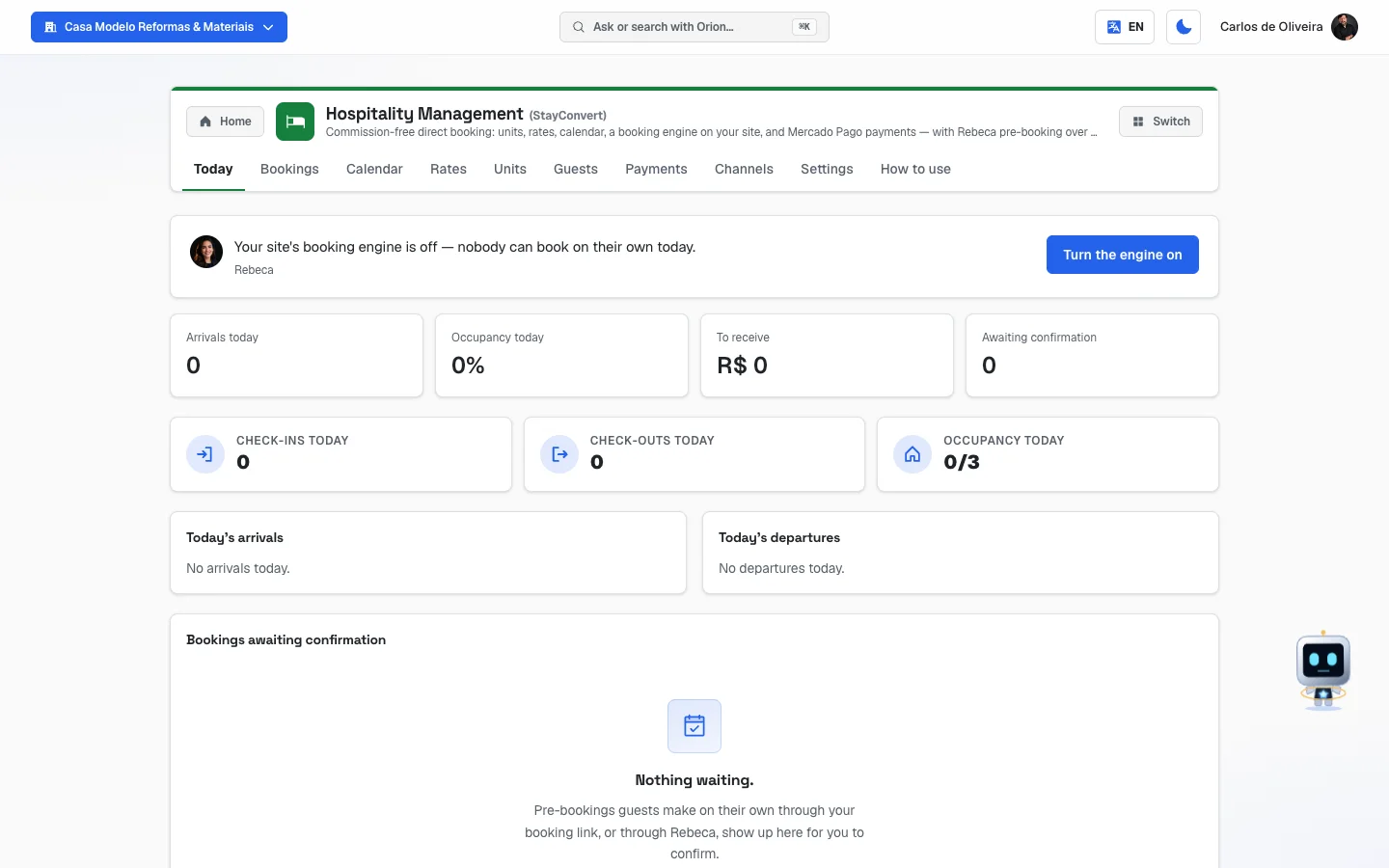 Today tab with Rebeca's note asking you to register the first accommodation, the four numbers and the three panels of the day, the arrivals and departures lists and the bookings-awaiting-confirmation panel, still empty
Bookings
/app/modulos/stayconvert/reservas
- What you see here: the full list of bookings, in a table, with the columns Guest, Unit, Check-in, Check-out, Nights, Total, Status and Origin.
- What you can do: filter, search, open each booking and create a new booking from the panel (for example, when someone calls you).
- Filters: at the top are the buttons All, Unconfirmed, Confirmed, Checked in, Checked out, Cancelled, No-show and Blocked. Below, the search field ("Search by guest, email or unit…") and the dates Check-in from and to.
- Step by step — creating a booking from the panel:
- On the Bookings tab, click New booking.
- Fill in Check-in, Check-out and Guests.
- Choose the Accommodation from the list that appears — it shows how many units are free and the nightly price.
- Fill in the Guest name (required) and, if you have them, Email, Phone and Document.
- If you want, choose the Extras, type a Coupon and write Notes.
- If it's not a firm booking yet, check Create as unconfirmed (pre-booking).
- Click Create booking.
- Each field explained:
- Check-in / Check-out: the arrival day and the departure day. Check-out has to be after check-in.
- Guests: how many people will stay. It changes the price, because the nightly rate is registered by number of guests.
- Accommodation: the type (double room, cabin…). The system picks a free unit of that type.
- Coupon: the discount code, if the guest has one.
- Extras: breakfast, extra bed, pet — whatever you have registered.
- Notes: an internal note about the booking. Only you see it.
- Create as unconfirmed (pre-booking): checked, the booking holds the dates but sits in the "awaiting confirmation" queue. Unchecked, it's born already confirmed.
- Step by step — the guest didn't show up ("no-show"):
- Open the booking: click its row here in Bookings — or, on the day of arrival, the guest's name in Today's arrivals, on the Today tab.
- Click No-show. The button only appears from the check-in day on, and only on a booking that is Unconfirmed or Confirmed — someone who already checked in did show up.
- The system asks if you're sure. Confirm. The notice "Marked as no-show — nights released." appears.
- What changes when you mark "no-show":
- The booking's nights become free right away: they leave the Calendar, become available for another booking on your page and stop showing as blocked on Airbnb/Booking the next time the site reads your link (Channels tab).
- The booking doesn't disappear: it stays in the list, with the amount, in the No-show status — and it stays in the guest's history, on the Guests tab, so you know who has stood you up before.
- Its amount doesn't count in the To receive number on the Today tab, and the booking stops generating a payment link. If you charge a night to someone who didn't show up, record the money on the Payments tab.
- The guest doesn't get any message about this.
- It can't be undone. If the person shows up later, create a new booking for the nights that are still free.
- "No-show" or "Cancelled"? If the guest warned you beforehand that they aren't coming, it's Cancel booking. If the day came and they simply didn't show up, it's No-show.
- Step by step — the guest left earlier than planned:
- Open the booking and click Check-out, as usual.
- Since departure was set for another day, the system says how many nights are left over and asks whether you confirm — check-out can't be undone. Confirm.
- The nights that were left over, today's included, become free right away for another booking. The notice "Checked out — the remaining nights are free again." appears. The booking keeps the agreed dates and amount.
- On a check-out on the planned day none of this appears: there's no night left to release.
Calendar
/app/modulos/stayconvert/calendario
- What you see here: at the top, the arrows to switch months with the month name in the middle and, on the right, the Block unit button. Below, a grid for the month. Each row is one of your units (grouped by type) and each column is a day; the grid scrolls sideways when the month doesn't fit on the screen. The colored bars are bookings, with the guest's first name written on the day of arrival; a blocked period shows with a ✕. Today's date is highlighted in the header.
- What you can do: move between months with the arrows, open a booking by clicking its bar, create a booking by clicking an empty day and block a unit for a period.
- Step by step — booking straight from the calendar:
- On the Calendar tab, click an empty little square on the unit's row and the arrival day's column. When you hover over it, it says "Free — click to book".
- The New booking window opens with that unit and that date already filled in.
- Fill in the rest and click Create booking.
- Step by step — blocking a unit (renovation, family use, maintenance):
- On the Calendar tab, click Block unit.
- Choose the Unit and fill in From and To.
- Write the Reason (optional) — for example "maintenance".
- Click Block.
- The period shows up marked on the grid. To free it later, click the block and use Remove block.
- If you haven't registered any unit yet, the screen warns: "No units yet." and sends you to the Units tab.
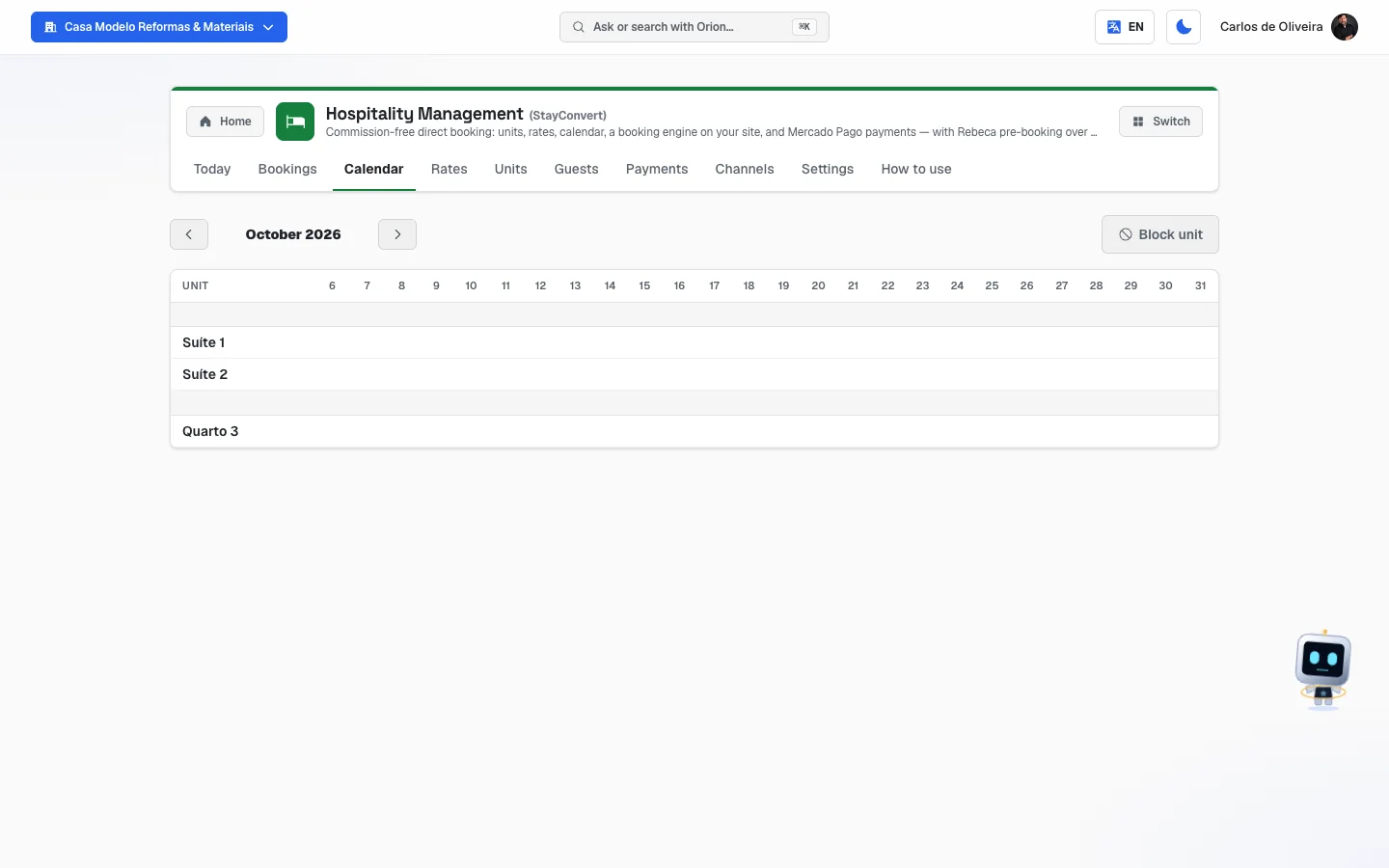 September 2026 calendar with the month arrows and the Block unit button at the top; on the grid, the units Suite 1, Suite 2 and Room 3 in the rows, the days in the columns (the 24th, today, highlighted) and three bookings as green bars with the guest's name (Beatriz, Ana and Gustavo)
Rates
/app/modulos/stayconvert/tarifas
- What you see here: two boxes. Seasons, with the list of periods with a different price, and Next 30 days, a table showing the price the guest will see for each night.
- What you can do: create, edit and remove seasons; check in the table whether the price is coming out the way you expect.
- What a season is: it's a period when the nightly rate changes. High season, holiday, weekend. Where there's no season, the base price you set on the accommodation type applies.
- Step by step — creating a season:
- On the Rates tab, click New season.
- Write the Name (e.g.: "High season").
- Fill in From and To.
- Under Weekdays, leave checked only the days when that price applies. For a weekend price, for example, leave only Fri, Sat and Sun.
- Under Nightly price in this season, fill in the amount for each accommodation type, for each number of guests.
- Click Save.
- Each field explained:
- Name: just so you can find it in the list.
- From / To: the first and last day of the season.
- Weekdays: by default all of them are checked. Uncheck the ones that don't apply.
- Nightly price: one amount per type and per number of guests. A type left blank keeps its base price.
- In the Next 30 days table, the cells with a highlighted background are the nights when a season is in effect. Hover over it to see its name. The dash "—" means there's no price set for that night — and without a price the system refuses the booking.
- Removing a season sends the nights of that period back to the base price.
Units
/app/modulos/stayconvert/unidades
This is the tab for registrations. There are five boxes, from top to bottom.
Unit types — "Double room, cabin, suite… The nightly price lives here, by number of guests."
- Step by step: click New type → fill in Name, Description, Maximum guests and the Nightly price, by number of guests → Save.
- Removing a type deactivates it: its units go away too, but past bookings still exist.
Units — "Each real room/cabin. Their count is what blocks overbooking."
- Step by step: click New unit → choose the Type → write the Name (e.g.: "Room 1") → Save.
- Think of it this way: the type is what you advertise ("cabin for 4"); the unit is the real door ("Blue Cabin"). If you have 3 identical cabins, you register 1 type and 3 units.
Extras — "Breakfast, extra bed, pet… The guest picks them and the amount joins the quote."
- Step by step: click New extra → Name, Price and How it charges → Save.
- How it charges has four options: Per stay (just once), Per night, Per guest and Per guest/night.
Coupons — "Discount codes for campaigns — % off, fixed amount, or free nights."
- Step by step: click New coupon → Code, Kind, Value, Valid from and Valid to → Save.
- Kind accepts % off, Fixed amount and Free nights.
Stay restrictions — "Minimum/maximum nights — overall or per type, year-round or for a period."
- Step by step: click New restriction → choose Applies to (All types or one type) → From and To → Min nights and Max nights → Save.
- Max nights left blank means "no limit".
- With no restriction registered, any stay length is accepted.
Guests
/app/modulos/stayconvert/hospedes
- What you see here: the list of people who have stayed, with Name, Email, Phone, Document and Stays (how many bookings that person has, not counting cancelled ones, "no-show" ones and blocks). If the person already booked and didn't show up, next to the number a red label appears: No-show: 1 (or 2, 3… — how many times).
- What you can do: search by name, email or phone; register a guest by hand; fix someone's details; see the stay history.
- Step by step — viewing a guest's history:
- On the Guests tab, click the person's row.
- A window opens with the name, the contact details and the list of their bookings — each with its status, including the ones marked No-show.
- Click a booking to open its details.
- Step by step — fixing a record: click Edit on the person's row, adjust Name, Email, Phone, Document or Notes, and click Save.
- You normally don't need to register anyone here: each booking creates (or reuses) the guest automatically.
Payments
/app/modulos/stayconvert/pagos
- What you see here: the list of payments that have already come in, with Date, Guest, Method, Amount, Comment and Recorded by. At the top right, the Total of what's filtered. If there are payment links, they show up in a box at the bottom of the page, called Payment links: each line shows the amount, the date, who receives (Mercado Pago or Stripe) and the link's status — paid, pending, expired or disabled.
- What you can do: filter by period and by method, record a payment that came in outside the system, and copy a payment link to resend to the guest (only a link that still charges has the Copy button).
- Step by step — recording a cash or transfer payment:
- On the Payments tab, click Record payment.
- Choose the Booking from the list. A booking marked No-show also appears, with "No-show" at the end of the line — this is where the night you charge someone who didn't show up goes.
- Choose the Method: Transfer, Cash, Gift card, Mercado Pago, Stripe or Other.
- Type the Amount.
- Write a Comment if you want (e.g.: "deposit paid on arrival").
- Click Record.
- Did you refund money to the guest? Record the amount with a minus sign. The screen warns: "A negative amount records a refund to the guest." and the amount shows in red in the list.
- In the Recorded by column, what came in automatically through Mercado Pago shows as "Mercado Pago (automatic)", what came in through Stripe shows as "Stripe (automatic)", and what came from the old system's spreadsheet shows with the imported from Sirvoy label. The Date of an imported payment is the day it was paid there, not the day of the import — that's why it lands in the right period filter.
Channels
/app/modulos/stayconvert/canais
This tab is the link between your calendar and the sites where you also advertise (Airbnb, Booking.com, Expedia, Vrbo). It works through the "calendar link" those sites provide.
There are two directions, independent of each other:
-
Read: we read their calendar every 15 minutes. Whatever they sell becomes a busy date here.
-
Publish: we generate a link of yours for you to paste over there. The dates that are busy here show up blocked on their listing.
-
What you see here: one card per link, with the name you gave it, the site's brand, which accommodation it applies to, the direction and the time of the last read. If something failed, the card explains what to do.
-
Step by step — connecting Airbnb:
- On Airbnb, go to Calendar → Availability → Sync calendars and copy the calendar link.
- In the module, on the Channels tab, click Connect channel.
- Under Site, choose Airbnb.
- Under What you call this link, write a name of your own (e.g.: "Airbnb — Cabin 1").
- Under Which unit this channel advertises, choose the unit or the type.
- Under Direction, leave Read and publish.
- Under OTA calendar link, paste the link you copied.
- Leave On checked and click Save channel.
- Back in the list, copy the address that shows under Link to paste on the OTA and paste it in the same place over on Airbnb. That's what closes the way back.
-
Each field explained:
- Site: Airbnb, Booking.com, Expedia, Vrbo or Other.
- What you call this link: just a nickname, so you can find it.
- Which unit this channel advertises: choose a single unit when the listing is for one specific room. Choose all of a type when the listing sells "any cabin" — that way the system can move between the identical ones and avoid conflicts.
- Direction: Read and publish (both ways), Only read from the OTA or Only publish to the OTA.
- OTA calendar link: the address you copied over there.
- On: unchecked, the link stops working without being deleted.
-
Sync now forces a read right away. It only appears on links that read data. On a link that only publishes, the card explains: "The OTA reads this link on its own — nothing to sync here."
-
Dates we could not fit on our own: when this red box appears, the site sold a date that was already taken here and there was no other free unit of the same type. Sort it out on the site's panel (or move the booking) and click Mark as resolved.
-
Removing a link asks for confirmation and warns what you lose: one that published stops sending the busy dates (the double-booking risk comes back); one that read leaves the dates already imported on the calendar, which you have to free by hand if they aren't sold.
📷 This screen has no photo — with a channel connected (Airbnb or Booking), its card appears with the "Link to paste on the OTA" and the last-read line.
Configuration
/app/modulos/stayconvert/configuracao
There are four boxes.
Your property — "Currency, times, and rules that apply to every booking."
- Each field explained:
- Currency: CLP — Chilean peso, BRL — Brazilian real or USD — US dollar.
- Check-in from and Check-out until: the times that appear in the messages to the guest.
- Time zone: written in the format
America/Sao_Paulo(in Chile,America/Santiago). It's the clock that defines what "today" is across the whole module: the Today tab and the numbers at the top of it, the first day your booking page lets people choose, the No-show button and early check-out. If what's written isn't a time zone that exists, that "today" becomes Santiago, Chile's — check the format. - Tax name and Tax (%): shown itemized on the quote. The system notes: "Already included in the price".
- How guests pay (a box inside Your property): it applies to the link that goes out from
your booking page, from Rebeca and from the panel. The money goes straight to your company's
account — AutoAgency is not in the middle. There are two choices:
- Who receives the payment: Mercado Pago or Stripe — your company's account, 0% commission. Stripe is only available with your company's account connected and cleared to receive, and in the same currency as the property; if it isn't, the option stays disabled and a note below says what is missing.
- How much the link charges: The full stay (the link charges the full booking amount), Only a deposit (a number field appears, the Deposit (%), from 1 to 99, with % of the total beside it — the link charges that part and you collect the rest on arrival) or Nothing online — collect on arrival (no payment link: the pre-booking waits for you to confirm it, with no deadline). If you choose the deposit and leave the percentage outside 1 to 99, saving shows the notice: "Enter a deposit between 1% and 99% — or choose to charge the full stay or collect on arrival."
- A pre-booking with a link waits 24 hours for payment. Without payment, it expires on its own and the dates are free again — nobody has to cancel it by hand. (This note doesn't appear under Nothing online.)
- House policies: free text (e.g.: "free cancellation up to 7 days before; no pets").
- Public booking page enabled: turns your booking page on and off.
- Finished? Click Save settings.
Your booking link — shows the address of your public page and the Copy button. If the page is off, the notice appears: "The page is off — the link shows “bookings unavailable” until you enable it above."
Accounts that receive — the accounts where the booking money lands, with one part for each:
- Mercado Pago — says whether the account is connected. The button leads to Connect Mercado Pago (or Manage connection, if it's already connected). Once connected, "payment links go straight to your account, and an approved payment confirms the booking on its own".
- Stripe — says where your company's Stripe account stands: no account connected ("In Chile, Stripe doesn't open business accounts: use Mercado Pago."), account created but not yet cleared ("finish the sign-up to charge bookings through it") or ready to receive (with its currency, and the reminder to choose Stripe under How guests pay). The button leads to Connect Stripe (or Manage connection).
Import from Sirvoy — brings in the guests, bookings and payments from the old system, in two files: the bookings file first, then the payments file.
- Step by step — bookings:
- In Sirvoy, open the bookings export in the settings.
- Choose the period you want to bring in.
- Under format, pick the Sirvoy-compatible one and click Export. The other two formats don't work: Compact doesn't say which room each booking is for, and Detailed mixes rooms, extras and payments. If you upload one of those, the screen says which one it is and asks for the Sirvoy-compatible one.
- Before uploading, register the accommodations here with the same names used there — that's how
each booking finds its own. Accents, capital letters and extra spaces don't get in the way
(
CAbin 7findsCabin 7). - On the Configuration tab, click 1. Upload bookings CSV and choose the file.
- The result shows right below: how many came in and, line by line, the reason for the ones that were left out.
- A future booking comes in locking the nights on the calendar; a past stay comes in as history.
- A multi-room booking: becomes one booking per room here (each one locks its room's nights). The first room's, in name order, carries the full booking amount and receives the payments; the others come in with zero value and a note saying which room holds the amount and the payments. That's how the Balance in the detail comes out right: in Sirvoy the payment belongs to the booking, not to a room.
- The booking amount is the sum, room by room, of the nightly rate times the nights — the same math as Sirvoy.
- You can upload the same file again without worry: a booking that already came in isn't duplicated.
- Step by step — payments (after the bookings, because each payment looks for its booking):
- In Sirvoy, open the Payments page and click Export. Sirvoy asks you to confirm your identity before releasing the file. Each payment states its booking ("Booking 38239"), and that number is how it finds the booking that came in during the previous step — which is why the bookings for the same period must have come in first.
- On the Configuration tab, click 2. Upload payments CSV and choose the file you downloaded.
- The result shows right below, in three numbers: how many payments were imported, how many already existed (from a previous import) and how many were left out — with the reason for each group.
- Each payment goes into the Payments tab, inside its booking, with the date it was paid, the method (transfer, cash, gift card; a method the system doesn't know comes in as Other, and the name it had in Sirvoy stays in the comment), the amount and the comment, if any. It appears with the imported from Sirvoy label, and in the booking's detail the Paid and the Balance already count what was paid there.
- You can upload the same file again without worry: what already came in isn't duplicated. That also holds for overlapping periods.
- Did the file stop at 1,000 payments? Sirvoy may hand over the list cut short — in a real export, from an account with more than three thousand payments, the file had exactly 1,000, the most recent ones. The screen warns when the file reaches 1,000 lines and says the date of the oldest payment that came in. In Sirvoy, export by period, up to that date, and upload the new file: only what was missing comes in.
- Payments that get left out, and why: a payment with no booking in Sirvoy (here every payment belongs to a booking); a payment whose booking wasn't imported (import the bookings for the same period first and upload the payments again); a payment tied to something that isn't a booking; a zero or unreadable amount; an invalid date.
- After the import, you record each new payment on the Payments tab (or it comes in on its own, if Mercado Pago or Stripe is connected).
How to read the numbers
- Arrivals today (number at the top of the Today tab): how many bookings have an arrival today, including the ones that already checked in. Unit blocks, cancelled bookings and "no-shows" don't count.
- Check-ins today: how many people arrive today. It counts bookings with an arrival date of today that are Unconfirmed or Confirmed.
- Check-outs today: how many people leave today. It counts only those who already checked in (status Checked in).
- Occupancy today: shows as "3/4". The first number is how many units are occupied tonight; the second is how many active units you have in total.
- Nights: the number of nights in the booking (the math is check-out minus check-in).
- Total: the full booking amount, already including extras, coupon and tax.
- Paid: the sum of what has come in for that booking.
- Balance: how much is still left to receive. It shows in orange when it's greater than zero and in green when it's paid off.
- A booking's Status, in the screen's words:
- Unconfirmed — holds the dates, but isn't firm yet. It's how the site's pre-booking arrives, and the one Rebeca makes over WhatsApp. If it has a payment link, the detail says Waiting for payment until …: without payment by then — the deadline is 24 hours —, the pre-booking expires on its own and the dates are free again.
- Confirmed — it's firm.
- Checked in — the guest already checked in.
- Checked out — already checked out. If they left earlier than planned, the nights that were left over were released.
- Cancelled — the nights were released. If it was a pre-booking nobody paid in time, the detail says Expired unpaid on ….
- No-show — the guest booked and didn't show up. The nights were released, but the booking keeps the amount and stays in their history. It doesn't count toward To receive.
- Blocked — it's not a guest: it's a unit you took off sale yourself.
- Origin: where the booking came from, written out in full in the column and also in the detail: Created here in the panel (you typed it), Booking page (the guest booked on their own through your link), Rebeca (chat) (Rebeca pre-booked over WhatsApp), Imported from the old system (it came from the spreadsheet you uploaded in Configuration) and External channel (it came from a connected channel, like Airbnb or Booking).
- Total on the Payments tab: the sum of the payments on screen, respecting the date and method filters you chose.
Frequently asked questions
Can the system sell the same room twice? No. Each night of each unit exists only once. If two people try the same dates at the same time, one gets it and the other is told right away that the dates have just been taken.
Do I need to have Mercado Pago or Stripe? No. Without either one, you record payments on the Payments tab and confirm the bookings yourself; if you don't want to charge online, choose Nothing online — collect on arrival in Configuration. With one of the accounts connected, the guest pays online through the link and the booking confirms itself.
What's the difference between a "type" and a "unit"? The type is what you sell ("cabin for 4 people") and it's where the price lives. The unit is the real door ("Blue Cabin"). If you have 3 identical cabins, you register 1 type and 3 units — and it's that number 3 that stops you from selling a fourth.
How do I take a room off sale for renovation? Go to the Calendar tab, click Block unit, choose the unit and the period. It shows as blocked on the grid and stops being offered on your page.
Does the guest get any automatic message? Yes. The system sends a message when the pre-booking is created (with the payment link and the deadline to pay, when there is a link), when the booking is confirmed and a reminder before check-in. The reminder goes out in the morning, in the time zone of your property, and never mentions money.
Does this replace Airbnb and Booking? It doesn't have to. The Channels tab exists precisely so you can keep advertising there and keep the two calendars in sync, while you sell directly through your link without paying commission.
When something goes wrong
"No price is set for those dates/guest count. Check the Rates tab." A price is missing. Go to the Units tab → Unit types, open the type and fill in the Nightly price for that number of guests. Without a price, the system refuses any quote. In the Next 30 days table on the Rates tab, those nights show with a dash "—".
"Those dates were just taken for that unit." Someone booked first, or a channel brought in a sale. Pick another unit or other dates.
"Stay rules don't allow those dates (minimum nights or arrival day)." A restriction you registered is blocking it. Check the Units tab → Stay restrictions.
"No free unit of that type on those dates." All the units of that type are already occupied or blocked in the period.
"Invalid or expired coupon." Check the code and the Valid from / Valid to dates in Units → Coupons.
"Invalid dates — check-out must be after check-in." Swap or correct the dates.
"That state change is not allowed." The statuses follow an order: Unconfirmed → Confirmed → Checked in → Checked out. Cancelling and marking No-show only work while the guest hasn't checked in — someone who is already Checked in did show up. After Checked out, Cancelled or No-show, the booking no longer changes.
"You can only mark a no-show from the check-in day on." The guest's arrival day hasn't come yet — they may still show up. If they warned you they aren't coming, use Cancel booking.
"Connect Mercado Pago in Integrations first." You tried to generate a Mercado Pago payment link without the account connected. Go to the Configuration tab, the Accounts that receive box, the Mercado Pago part, and click Connect Mercado Pago.
"The company's Stripe account isn't ready to receive yet. Finish it in Integrations → Stripe, or switch back to Mercado Pago in Settings." You chose Stripe under How guests pay, but the account hasn't been cleared yet. Finish the sign-up with the button in the Stripe part (the Accounts that receive box), or choose Mercado Pago again under Who receives the payment.
"The company's Stripe account doesn't take this booking's currency. In Settings, switch back to Mercado Pago." Stripe only charges in its account's currency, and the property charges in another. Use Mercado Pago, or change the property's Currency.
"There are bookings on those dates — cancel or move them before blocking." You tried to block a unit in a period that already has a booking.
Channel with an error — "Failed". The channel's card says what to do, and each cause calls for something different:
- "The OTA refused access to this link — these usually expire." → generate a new calendar link on the site's panel and paste it here.
- "This link no longer exists at the OTA." → copy the calendar address over there again.
- "The OTA did not respond just now." or "The OTA took too long to respond." → it's temporary, the automatic read tries again in 15 minutes.
- "Could not reach that address." → check that the link was pasted in full, with no spaces.
The Sirvoy import left some lines out. The result shows the reason for each one: "accommodation not found" (create the accommodations with the same names as in Sirvoy and import again), "already imported before", "repeated line in the file", "the booking changed in Sirvoy after the first import" (another room or other dates — adjust that booking by hand here; the import doesn't overwrite what already came in), "the dates are already taken here", "invalid dates on the line", "line with no booking number", "the file doesn't look like a Sirvoy bookings export" and "failed to save".
The bookings import says "this is the Compact export" (or "Detailed"). The file came in a format that doesn't work for migrating. In Sirvoy, open the bookings export in the settings, choose the same period, pick the Sirvoy-compatible format, click Export and upload the new file. Nothing came in with the wrong file, so there's nothing to undo.
The Sirvoy payments import left some payments out. The reason shows in each group: "this payment's booking isn't here" (import the bookings file for the same period first and upload the payments again — what already came in isn't duplicated), "payment with no booking in Sirvoy", "payment tied to something that isn't a booking", "zero or unreadable amount", "invalid date on the line", "line with no payment number", "the file doesn't look like a Sirvoy payments export" (check that you exported from the Payments page, not the bookings one) and "failed to save".
The screen shows "No units yet." on the Calendar. You haven't registered units yet. Go to the Units tab.
The guest says the booking page is down. Go to the Configuration tab and check that Public booking page enabled is checked. When it's off, the link shows "bookings unavailable".