

Local SEO + Google Profile
Where to find it: Home → Your apps → Local SEO (at the top of the screen the module appears as Local SEO + Google Profile)
Address: /app/modulos/seo-local
What it's for
When someone types your business name into Google — or searches for "plumber near me" on Google Maps — a box shows up on the side of the screen with the company name, the star rating, the phone number, the hours, the photos and the buttons to call and get directions. That box is the Google Business Profile (inside the system it also appears under its old name, "Google My Business"). It's your storefront on the busiest street in the world, and it's almost always the first contact a customer has with you.
That box is free and it belongs to you. The problem is that almost nobody takes care of it: the hours are wrong, there are three photos from 2019, nobody replies to reviews and the description is blank. Meanwhile, the competitor on the corner has 120 reviews, all answered, and shows up first. The Local SEO module exists to turn that game around.
Here you connect your Google profile to the system and get, on one screen: a score from 0 to 100 that says how well filled in your profile is and what's missing; the reviews from your customers, with room to reply; how many people viewed your profile, called and asked for directions; the words people typed into Google to reach you; and a place to post updates and promotions straight to the profile.
Everyday example: you're a locksmith. You open the module and your profile score is 48 out of 100. The list points to the reason: only 3 photos, no business hours and no description. You fix the three things in twenty minutes. The following week the score went up, the evolution curve shows the climb, and on the Insights tab you see that call clicks grew. In the meantime, a customer left a 2-star review complaining about the wait — Renata, the reputation specialist, already replied with an apology and an invitation to sort it out in private, before you even woke up.
Who works with you in this module: Lúcia (Google Business Profile), who takes care of the profile, the posts and the reports, and Renata (Online Reputation), who replies to the reviews.
The two always come together. There is no plan that unlocks Lúcia without Renata: any product that activates this module — Local SEO, Complete SEO, Local Presence/GBP or the agency bundle — brings both. In other words, if the module is active on your account, the automatic review reply is active too, with no extra purchase.
Before you start
- The Local SEO + Google Profile module has to be active on your account. If it isn't, the screen shows a subscription box with the Activate in catalog button.
- You need to have a Google Business Profile already created and verified (that process in which Google confirms the business is yours, usually by postcard, phone or video). The module takes care of a profile that already exists; it doesn't create one from scratch.
- Your Google account has to be connected to AutoAgency. That is done outside the module, on the Google integration page.
- Only the owner or an administrator of the account can change the connection, reply to reviews and post. Anyone with read-only access sees everything, but the buttons are disabled, with the notice "Only owner/admin can change the connection."
- The first time you open the module, an invitation appears at the top of the screen to set it up by chatting with Lúcia. It's optional: the tabs below already work, and each reply from the specialist uses AI credits. Click Chat with Lúcia so Lúcia gets to know your company (when you're done, click Complete setup) or Dismiss to remove the invitation without chatting.
- Optional: the Prospecting tab only works with the Local Prospecting add-on. Without it the tab shows a padlock. If you own a single business and don't sell services to other companies, you can ignore that whole tab.
Getting started
- On Home, under Your apps, click Local SEO. You land on the Connection tab.
- If the invitation to the setup conversation shows up, chat with Lúcia and click Complete setup, or click Dismiss. The tabs work either way.
- Still on the Connection tab, if the screen says "Connect Google first", click the Connect Google button. You go to the Google integration page, click Connect with Google, sign in to your account and authorize. Then come back to this tab.
- Back on Connection, in the Profile account field, click Detect. The system looks for the Google Profile accounts tied to your login and fills it in on its own.
- In the Location field, click Detect. If your account has more than one address, the field turns into a list so you can pick which one is this business.
- Click Save profile. The message "Profile connected." appears and the label at the top of the screen turns green.
- Click the Profile health tab. In a few seconds your score from 0 to 100 appears, along with the list of what's missing. That list is your to-do list.
- Click the Reviews tab, copy the review request link and download the QR code. Send the link to the next customer you serve and stick the QR on the counter.
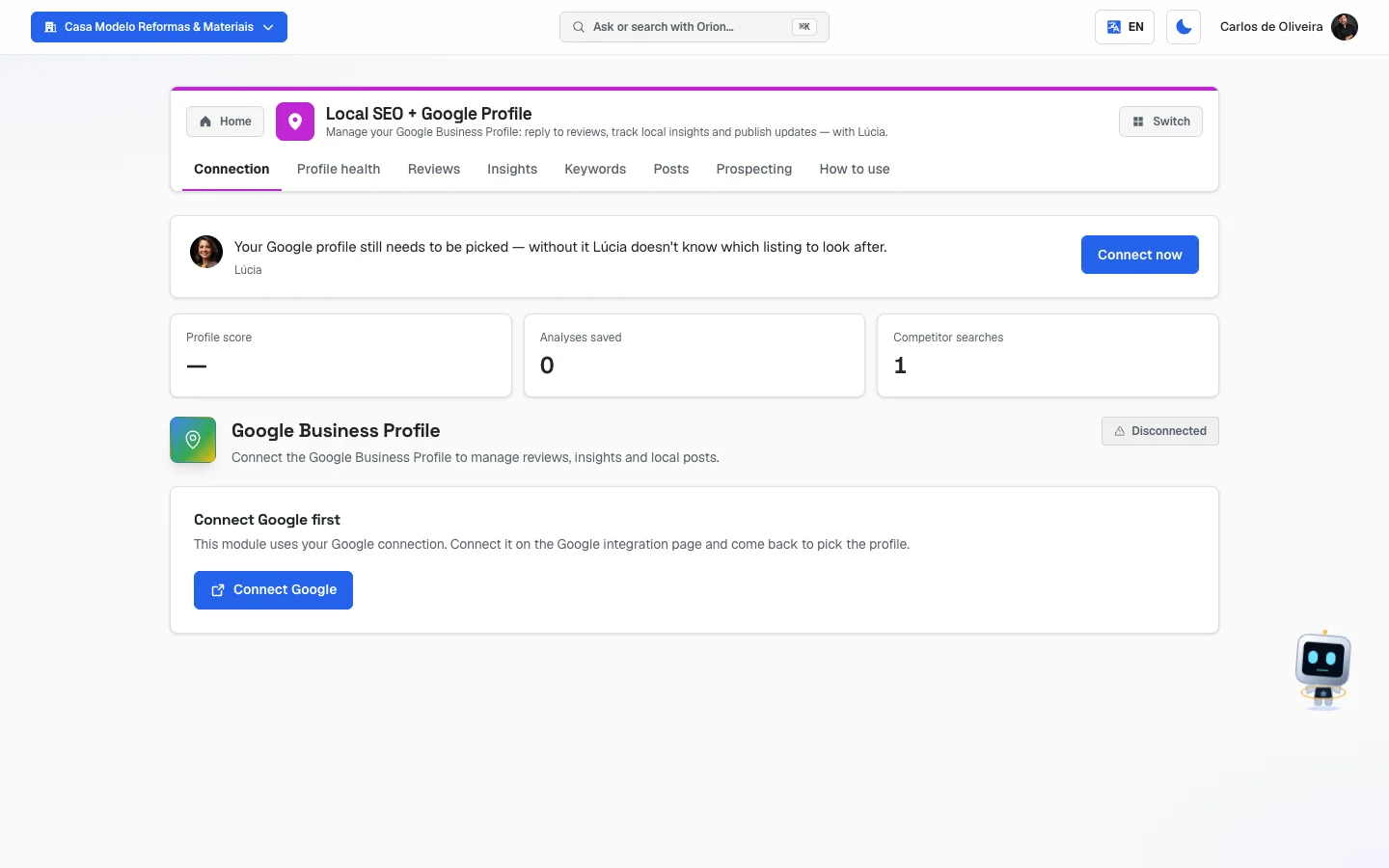 Connection tab of an account that hasn't connected Google yet: Lúcia's panel with the three numbers, the "Disconnected" label and the "Connect Google first" card with the Connect Google button
The tabs, one by one
Connection
/app/modulos/seo-local/conexao
- What you see here:
- At the top, Lúcia's panel: a note from her about the state of your profile, with a button for the next step (for example, Connect now) and three numbers — Profile score, Analyses saved and Competitor searches. When there hasn't been any measurement yet, the score shows as —, and that means "nobody has measured yet", not "your score is zero".
- A Google Business Profile header with a status label: connected, pending or disconnected. "Pending" means Google is connected but you haven't yet chosen which one is your profile.
- If Google isn't connected yet, only the Connect Google first box appears, with the Connect Google button. After you connect, in its place comes the Pick this business's profile box, with two fields: Profile account and Location, each with a Detect button.
- What you can do: point out which of your Google profiles belongs to this business.
Step by step — connecting the profile:
- On the Connection tab, click Detect next to Profile account.
- If you have more than one Profile account, the system uses the first one and tells you on screen which one it picked. If it's the wrong one, clear the field and paste the other by hand.
- Click Detect next to Location.
- If a list appears, pick the right address. If only one comes back, it's filled in already.
- Click Save profile.
Each field explained:
| Field | What it is |
|---|---|
| Profile account | The Google "folder" where your profiles live. A text that starts with accounts/ followed by numbers. You don't need to know that number — the Detect button looks it up for you. |
| Location | The profile for that specific address. A text that starts with locations/. If your business has three stores, that's three locations, and you pick the one for this account. |
Important: AutoAgency only stores the authorization you gave on Google, never your password. The connection with Google itself is made on the Google integration page, not here — this tab only says which profile to look after.
Profile health
/app/modulos/seo-local/saude
This is the most useful tab in the module. It's a check-up of your profile: the system looks item by item at what Google shows about your business, gives it a score from 0 to 100 and tells you exactly what to fix.
- What you see here:
- A big circle with the score from 0 to 100 and, next to it, the word that translates that score: Excellent, Good, Fair or Weak.
- Two little arrows showing how much the score went up or down in 7 days and in 30 days.
- A Review request link, which opens the screen for reviewing your business on Google directly.
- The Score evolution (last 90 days) — a line showing the score over time. It only appears from the second day of measurement. The screen notes: "The evolution curve appears here from the 2nd day of measurement (we measure daily, automatically)."
- The Profile checklist — the list of everything that was checked, each item with a colored dot and, when something is missing, a sentence saying what to do.
- An Automatic email report box.
- What you can do: read the diagnosis, follow the recommendations (you make the fixes themselves on Google) and choose how often you want to receive the report by email.
What each dot means:
| Dot | Means |
|---|---|
| ✅ | It's done. Nothing to do. |
| 🟡 | It's halfway there. It can be improved. |
| 🔴 | It's missing. This is where you lose points. |
| ⚪ | This item couldn't be checked right now. It drops out of the score calculation — the system doesn't guess and doesn't penalize you for something it couldn't see. |
What each checklist item means, in plain English:
| Item on screen | What the system is checking | What to do if it's red |
|---|---|---|
| Claimed profile (owner-verified) | Whether the profile has a declared owner — that is, whether you've already proven to Google that the business is yours. | Claim the profile on Google. Without that you control nothing on the profile: you can't change the hours, reply to reviews or post. It's the most important item on the list. |
| Primary category set | The category that describes your business ("Locksmith", "Pizzeria", "Plumber"). | Set the exact category. It's the item that weighs the most for showing up in searches in your area. Pick the one that describes what you do, not the most generic one. |
| Phone published | Whether there's a phone number on the profile. | Publish the business phone number. It's what makes Google's "Call" button work. |
| Full address | Whether the address is filled in completely. | Complete the address. "Near me" type searches depend on it. |
| Business hours | Whether the hours for each day are entered. | Enter the hours, including holidays. A profile without hours loses clicks — customers won't risk going and finding it closed. |
| Photos (minimum 10) | How many photos the profile has. The full score starts at 10. | Upload at least 10 real photos: storefront, interior, the team and the service being done. A stock photo convinces nobody. |
| Secondary categories (2+) | Extra categories that describe other services you offer. The full score starts at 2. | Add 2 or more secondary categories (Google accepts up to 9). A locksmith can also be "Door opening service" and "Lock repair". |
| Rating (4.4★+ dominates the Local Pack) | Your average stars. From 4.4 up, the item's score is full. | Ask satisfied customers for reviews and reply to the negative ones. ("Local Pack" is the name of that block with three businesses that Google shows at the top of the search.) |
| Review volume (50+) | How many reviews the profile has. The full score starts at 50. | Build a routine of asking for a review after each job. Businesses with 50 or more dominate the area. |
| Website linked | Whether there's a website address tied to the profile. | Link a website, even if it's a simple page. The profile converts more when there's somewhere to send the person. |
| Business description | Whether there's a text describing the business, and how long it is. | Write 400 to 750 characters saying what you do, the area you serve and what sets you apart. |
| Questions & answers | Whether the profile has answered questions in Google's questions area. | Add the 3 to 5 questions people ask you most, already with the answer. That area is a showcase and almost nobody uses it. |
| Attributes filled in | Google's tick boxes: accessibility, payment methods, amenities. | Fill in the attributes. It takes five minutes and helps the customer decide. |
These last two often show up as ⚪, and there's an explanation — it's not a bug.
- "Q&A not visible" is what you will always see in the health check of YOUR profile. Google doesn't return the count of questions and answers through the door the system uses to read your own profile, so the system doesn't know how many exist — and, by rule, it doesn't guess. That item only shows a number when the analysis is done from the outside, on a competitor's profile (in the Prospecting tab), because there the data comes from another source. On your profile, then, adding questions and answers doesn't change your score — but it's still worth it, because what decides is whoever reads the profile, not our scoreboard.
- "Attributes not visible" is different: here the system tries to read the attributes on each analysis and shows how many groups it found. It falls to ⚪ when that reading doesn't come back — Google down at that moment, query limit, or the read permission not yet granted to your account. It usually fixes itself on the next analysis; if it lasts for days, it's a case for talking to support.
In both cases the item drops out of the score calculation: a ⚪ never pulls your score down.
Step by step — choosing how often to get the email report:
- On the Profile health tab, scroll down to the Automatic email report box.
- Click one of the three options: Monthly (day 1), Biweekly (days 1 & 16) or Off.
- It saves instantly and "Preference saved." appears.
Lúcia sends this report by email to the account owners, with the profile health and — when available — the performance numbers and the search keywords. The default is monthly.
A notice that may appear at the top: "Analysis based on the profile's public data (the official Google connection is pending an approval, already requested…)". That means the system is reading your profile the way anyone sees it on Google, not from the inside. The analysis is just as valid; it only gets even more complete once the approval comes through. If "⚠️ Please confirm the profile shown is really your business." comes along with it, check the name shown next to the score before trusting the diagnosis.
📷 This screen has no photo — with the Google profile (Google Business Profile) connected, the Health tab shows the profile score in a circle, the evolution curve and the checklist, with a colored dot on each item.
Reviews
/app/modulos/seo-local/avaliacoes
- What you see here:
- At the top, the Ask for reviews box, with a QR code, the link address and the Copy link and Download QR buttons.
- Your average stars and the total number of reviews on the profile.
- How many are unanswered, in orange.
- The list of reviews: name of the person who wrote it, the stars and the text. Someone who reviewed without identifying themselves appears as Anonymous.
- Under each review that's already been answered, a green Your reply box with the text that was published.
- On the ones that don't have a reply yet, a Reply link.
- What you can do: ask for new reviews and reply to the ones that came in.
What the artificial intelligence answers on its own:
Renata, the reputation specialist, sweeps your reviews every 6 hours. Every review that doesn't have a reply yet she answers and publishes on Google, without you asking — unless you chose to see it first (see "I want to approve the replies first", right below). She writes according to the rating:
- Good review: a personalized thank-you, mentioning what the person praised, with an invitation to come back.
- Bad review (1 or 2 stars): empathy, no arguing and no defending yourself, an apology for what happened and an invitation to sort it out in private.
She replies to at most 10 reviews per round — if a flood came in, the rest goes out in the next round. And she never replies twice to the same review: as soon as a reply exists, that review leaves her queue.
This only applies to Google. On sites that don't allow automatic replies (Reclame Aqui, for example, a Brazilian consumer complaints site), Renata writes the ready-made text in the chat for you to paste there.
I want to approve the replies first. There are two ways, and the first one takes precedence over the second:
-
Approve each one with one tap, on WhatsApp. Turn on, in the Automation module, the recipe "New reviews arrive with a reply already drafted". From then on Renata doesn't reply on her own: each new review arrives on your WhatsApp with the written reply and a link — one tap on the link publishes it. The details are in the Automation module's manual.
-
Approve on the Approvals screen, with a one-day deadline. In the full menu, under Approvals → Google Business Profile, choose Always — every piece goes through me. From then on the reply Renata writes waits for your OK and you get a notice "A reply to a Google review is waiting for your OK". On the Approvals screen the Reply to a Google review card appears, with who reviewed, the stars, the comment and the reply — you can change the text before clicking Approve and publish, or click Reject.
🟥 The deadline is 24 hours. If you don't decide in that time, Renata publishes the reply anyway — a review with no reply weighs more than a reply without your OK — and notifies you with "I published the reply to the review from … — 24 hours passed without your OK". If you want to change the text afterward, just edit the reply directly on your Google profile.
A rejected reply doesn't come back: Renata doesn't write another one for the same review, and it stays unanswered until you reply by hand.
With the Only the first one per channel and Never — publish right away options, Renata replies and publishes on her own, as described above.
What needs you:
- Replying by hand, when you want to say something specific that only you know ("Mr. John asked for the installation on Saturday and we managed to move it up").
- Deciding who has the last word. With neither of the two ways above, the reply that Renata publishes is final on Google and doesn't go through you. With one of them, nothing goes out without your OK — or without the notice that the deadline ran out.
- Actually solving the problem. The public reply is only the beginning: whoever complained is waiting for the phone call.
Step by step — replying to a review yourself:
- On the Reviews tab, find the review and click Reply.
- Write in the Write a courteous reply… field.
- Click Reply. "Reply sent." appears and your text starts showing in the green Your reply box.
What to do about a bad review (the step by step that works):
- Don't delete it and don't argue. You can't delete a review — neither the system nor Google can, except in cases of abuse that you report directly there.
- Reply quickly and in public. The people reading your profile aren't the angry customer; they're the next ten customers. They want to see how you react.
- Write in this order: acknowledge the annoyance → apologize for what happened → don't go into the details of the case in public → invite them to the phone or WhatsApp to sort it out.
- Fix it. A customer who's been taken care of sometimes edits their own review.
- Make up for it with volume. One bad review among ten good ones barely weighs; among three, it weighs a lot. Use the QR code and the link to bring in the good ones.
Step by step — asking for reviews with the QR code:
- On the Reviews tab, in the Ask for reviews box, click Download QR.
- Print it and stick it on the counter, at the reception desk or on the receipt you hand out.
- Click Copy link and send it on WhatsApp right after each job — it's the moment when the person is happiest.
The link opens straight to the little screen for writing the review. The customer doesn't need to search for anything on Google.
Notices that may appear:
- "No reviews yet on this profile" — the profile is connected, it just doesn't have any reviews yet.
- "Showing the N most recent reviews." — the system loads the newest ones (up to 50). The total next to the star is the real number for your profile; the list on screen is a sample. When that happens, the unanswered counter says "N unanswered among the most recent", because it only knows how to count what's on screen.
Insights
/app/modulos/seo-local/insights
"Insights" is just the name Google uses for "your profile's numbers". This is where you see whether your profile is working for you.
- What you see here: little squares, each with a big number, and underneath the change compared to the previous period, in green (went up) or red (went down). The period is about 28 days, ending about 3 days ago — that's how long Google takes to close the books.
- What you can do: just look. It's a read-only screen. Next to it is the chat Talk to the specialist, where you can ask Lúcia for explanations.
The numbers, one by one:
| Number | What it is |
|---|---|
| Views on Maps | How many times your profile showed up for someone on Google Maps. |
| Views on Search | How many times it showed up in regular Google search. |
| Call clicks | How many people tapped the call button right on your profile. This is the number that turns into money. |
| Website clicks | How many went from the profile to your website. |
| Direction requests | How many asked for the way to you. For anyone with a physical store, it's almost a visit. |
Empty states: if "No performance data yet" appears, the profile is new or had little activity — the numbers show up as it gains traction.
Keywords
/app/modulos/seo-local/palavras
- What you see here: the list of what people actually typed into Google and Maps before landing on your profile, from the most searched to the least searched, with a little bar beside it showing the size of each one. At the top, four period buttons: 3 months, 6 months, 12 months (the one that comes selected) and 18 months.
- What you can do: choose the period and read. It's a read-only screen.
How to use this in practice: the terms here are your customers' words, not yours. If you call yourself a "metalworks shop" and people type "custom iron gate", use "custom iron gate" in your profile description, in your posts and on your website.
How to read the numbers: the number on the right of each term is how many times your profile showed up for that search in the period. When "up to" is written before the number (for example, "up to 15"), it's a Google estimate — it doesn't reveal very small counts.
Empty state: "Google hasn't returned keywords yet" means a new profile or one with little reach. The terms show up as the profile grows.
Posts
/app/modulos/seo-local/publicacoes
Your Google profile accepts posts, similar to social media ones, which show up for people searching for your business. This is where you write those posts.
- What you see here: the New post box, with four type buttons, a text field of up to 1500 characters and the Publish button.
- What you can do: publish an update, an offer, an event or an alert straight to your Google profile.
The four types:
| Button | When to use it |
|---|---|
| Update | The regular everyday post: a new service, a job that's finished, a tip. |
| Event | Something with a set date: a fair, an opening, a community drive. |
| Offer | A promotion. |
| Alert | An announcement: change of address, closed for the holiday, emergency service. |
Step by step — publishing:
- On the Posts tab, choose the type by clicking Update, Event, Offer or Alert.
- Write the text in the big field. The counter underneath shows how much you've used (for example, 180/1500).
- Click Publish. "Post published to the Profile." appears and the field empties.
Automatic posts: besides what you write here, Lúcia publishes one post per week on her own, written based on what she knows about your business, following a theme that rotates each week: Featured product or service, What sets the business apart, Season's news, Authority and trust and Useful industry tip. When possible, she also generates an image to go with the text.
Depending on your setup, that weekly post may wait for your OK before going live. This is adjusted in the full menu under Approvals, in the When do you want to approve before publishing? box, on the Google Business Profile row:
- Always — every piece goes through me: every post waits for your approval. And Renata's replies to reviews too — those with a 24-hour deadline, after which she publishes and notifies you (see "I want to approve the replies first", on the Reviews tab, above).
- Only the first one per channel: only the first post waits; after that Lúcia publishes on her own. It's the default for anyone just starting out. A reply to a review doesn't count as a "first publication": the first post still waits for your OK.
- Never — publish right away: she publishes without consulting you.
When a post is waiting, it shows up on the Approvals screen with the title "Google Business Profile post waiting for your OK" and the Approve and publish and Reject buttons.
Google has no scheduling queue for posts: what's on the profile is already published. If you want to stop the automatic posts, don't delete one post at a time — and there is no button called "pilot" in any tab of this module. The way is the box you just read: full menu → Approvals → Google Business Profile → Always — every piece goes through me. From then on no weekly post goes live without you clicking — and whatever stays waiting for 7 days expires on its own and isn't published (the system notifies you when that happens, so you don't think it went out).
Notices that may appear: if Google refuses because of a usage limit, the screen shows "Google turned down the last request due to a temporary usage limit. You can draft it now; publishing goes through as soon as the limit clears." Wait a few minutes and try again.
Prospecting
/app/modulos/seo-local/prospeccao
This tab belongs to the Local Prospecting add-on. Without it, the screen shows a padlock, the phrase "Local Prospecting add-on feature" and the Activate Local Prospecting button.
It's for looking at other people's profiles — competitors or companies you want to sell to. There are three tools.
1. Profile X-ray
Analyzes any Google profile, even one you don't have access to, and returns the same score from 0 to 100 and the same list of problems as the Profile health tab.
- Fill in Business name, City and UF (the state abbreviation).
- Click Analyze.
- The score appears, along with the address, the stars, the number of reviews, the number of photos and — when applicable — the profile NOT claimed tag.
- Below, up to 6 weak points of that profile.
- Two buttons generate a document: Full PDF and Sales teaser PDF, both with your logo and your colors. The file opens in a new tab and is also saved in Media.
Cap: 20 analyses per day. Beyond that, the screen warns "Daily pre-analysis cap reached (20/day). Try tomorrow."
2. Competitor heat map
Shows the top 10 on Google Maps for a term in a city, drawn on a real map.
- Fill in Term (e.g. plumber), City and UF.
- Click Map it.
- The map appears with numbered dots. The number is the position on Maps and the size of the dot is the review volume. The color tells the strength: red = strong competitor, yellow = medium, green = weak (opportunity).
- Below the map, the list of the 10 with stars, reviews and photos, and a final line with the local median — the neighborhood's yardstick. If the median is 4.6 stars with 80 reviews and you have 4.2 with 12, you know exactly how big the gap is.
Cap: 10 queries per day.
3. Batch pre-analysis
For analyzing a whole list of businesses at once.
- If you want, give it a Batch name (optional).
- Paste the list in the big field, one business per line, in the format
Name; City; State(business name; city; state). Example:Desentupidora Alfa; Goiânia; GO. - Click Create batch. Up to 60 businesses fit in a batch.
- The queue runs on its own, respecting the cap of 20 per day — whatever doesn't fit today continues tomorrow, without losing anything.
- Click the batch name to open it and see each business with its score: 🟢 good, 🟡 average, 🔴 weak, ⚪ no profile found. A ⚠️ next to it means the name didn't match 100% and it's worth checking whether it's really the right business.
You can have at most 3 batches in progress. If you try to create a fourth, "3 batches already in progress — wait for one to finish." appears.
How to use
/app/modulos/seo-local/como-usar
Every module has this tab at the end. It's the module's manual inside the system itself.
How to read the numbers
The profile score (0 to 100): it isn't a Google score — it's the score the system gives your profile, looking item by item at the checklist. It's calculated only over what could be checked: an item marked ⚪ drops out of the calculation instead of penalizing you.
| Range | Word on screen | What it means in practice |
|---|---|---|
| 85 to 100 | Excellent | The profile is in great shape. Now it's about keeping it up and asking for reviews. |
| 70 to 84 | Good | It's fine, a few details missing. |
| 50 to 69 | Fair | There's a visible gap. Look at the 🔴 items and fix one per week. |
| 0 to 49 | Weak | The profile is getting in your way. Start with the items at the top of the list. |
The 7 and 30 day arrows: how much the score changed in those periods. Green going up is what you want to see after fixing something.
The evolution curve: the line for the last 90 days. The system measures your profile every day, on its own, and each visit of yours to this tab also counts as that day's measurement.
In Insights: the big number is the total for the period (about 28 days). The percentage underneath compares it with the previous 28 days. It only appears when the previous period had activity — without a basis for comparison, the system prefers to show nothing rather than show a number that makes no sense.
In Reviews: the average stars and the total come from your real profile. The list on screen, on the other hand, shows the most recent ones — hence the notice "Showing the N most recent reviews" when your profile has more than fits on the screen.
In Lúcia's panel (Connection tab): Profile score is the same number as on the Health tab. Analyses saved is how many measurements already exist in your history. Competitor searches is how many prospecting queries you've already made.
Frequently asked questions
Do I need to go into Google or can everything be fixed from here? It depends on the item. From AutoAgency you reply to reviews, publish posts and see the entire diagnosis. Changes to the listing — photo, hours, description, category, attributes, questions and answers — you make on Google itself, because that's where they live. The Profile health tab tells you exactly what to change; you change it there and the score goes up here the next day.
My score dropped and I didn't touch anything. Why? The score also moves on its own: a bad review pulls down the average, a competitor doesn't change your score but the review volume counts, and photos or questions can drop off. Open the checklist and compare it with what was red before.
Will Renata reply for me even if I don't want her to? Only if you let her. She replies to the reviews that are unanswered, every 6 hours, and is included in every plan that activates this module — but you decide whether the reply goes out directly:
- in Approvals → Google Business Profile → Always — every piece goes through me, each reply waits for your OK on the Approvals screen. If you don't decide within 24 hours, she publishes anyway and notifies you — so the review doesn't stay unanswered;
- with the "New reviews arrive with a reply already drafted" recipe turned on in the Automation module, Renata doesn't publish on her own: each reply arrives on your WhatsApp with a link, and it only goes to Google when you tap it.
You can also reply yourself before she does: as soon as a review has a reply, it leaves Renata's queue for good — and the sweep is every 6 hours, so there's leeway. Or ask Lúcia in the chat to write without publishing, and paste the text yourself.
Can I delete a bad review? No. Not from here and not on Google — a review only comes down if it breaks Google's rules and you report it there. What really fixes it is replying well and bringing in good reviews.
What's the difference between the Profile health tab and the Prospecting tab? Profile health analyzes your profile. Prospecting analyzes other people's — competitors and potential customers — and it's an add-on paid separately.
"Pending an approval from Google" appeared. Do I need to do anything? No. It's an approval that AutoAgency has already requested from Google and it applies to the whole platform. Until it comes through, some items are left out of the score calculation (marked with ⚪) and the system analyzes your profile using public data. You don't need to do anything.
My competitor shows up ahead even with a worse score. How come? The score measures how completely filled in the profile is, which is the part that's in your hands. The order on Google also depends on the distance between the customer and you, on the business's history and on review volume. A well-filled profile is a necessary condition, not a guarantee — but it's the only part of the game you control.
When something goes wrong
| Symptom | What to check | What to do |
|---|---|---|
| The screen shows a subscription box with the Activate in catalog button | The Local SEO module isn't active on your account. | Click Activate in catalog. |
| "Connect Google first" on the Connection tab | Your Google account isn't tied to AutoAgency. | Click Connect Google, authorize on the Google page and come back to this tab. |
| "Pick the profile in the Connection tab" on the Reviews, Insights, Keywords or Posts tabs | Google is connected, but you haven't yet pointed out which one is your profile. | Go to Connection, click the two Detect buttons and Save profile. |
| "No Business Profile account found." when clicking Detect | The Google account you connected doesn't manage any Business Profile. | Connect Google with the email that actually manages the business profile. |
| "No location found in this account." | The account exists, but has no address entered — or Google didn't return it. | Check on Google that the profile is really in that account. If it is, paste the location code by hand into the Location field. |
| "Only owner/admin can change the connection." | Your access is read-only. | Ask the account owner to make the connection, or to upgrade your access. |
| "Google turned down the request due to a temporary usage limit." | Nothing wrong on your side — it's a temporary Google limit. | Wait a few minutes and reload the page. |
| "We couldn't find the business profile on Google." on the Health tab | The business name and city in the account profile don't match any profile, or the profile isn't connected. | Check the business name and city in your account profile; or connect the profile on the Connection tab. |
| "⚠️ Please confirm the profile shown is really your business." | The system found a similar profile, but the name didn't match 100%. | Look at the name next to the score. If it isn't your business, connect the right profile on the Connection tab. |
| The evolution curve doesn't appear | There's only one measurement so far. | Wait until the next day. From the second measurement on the line appears on its own. |
| "No reviews yet on this profile" | Nobody has reviewed yet. | Use Copy link and Download QR in the Ask for reviews box. |
| "Reply on hold: Google turned it down due to a temporary usage limit." | Temporary Google limit at the time of publishing the reply. | Try again in a few minutes. The text wasn't lost — rewrite and resend. |
| "Google profile not selected." when replying or publishing | The profile wasn't saved on the Connection tab. | Go to Connection and click Save profile. |
| "Post on hold: Google turned it down due to a temporary usage limit." | Temporary limit. | Wait a few minutes and click Publish again. |
| "No performance data yet" in Insights | New profile or one with little activity in the period. | Nothing to do — the numbers show up as the profile receives searches and clicks. |
| "Google hasn't returned keywords yet" | Same reason: little reach so far. | Try a longer period (18 months) and come back in a few weeks. |
| The Prospecting tab shows a padlock | The Local Prospecting add-on isn't active. | Click Activate Local Prospecting. |
| "Daily pre-analysis cap reached (20/day). Try tomorrow." | You used the 20 analyses for the day. | Wait until the next day, or use Batch pre-analysis, which processes them little by little. |
| "Daily ranking cap reached (10/day). Try tomorrow." | You used the 10 maps for the day. | Wait until the next day. |
| "3 batches already in progress — wait for one to finish." | Limit of simultaneous batches. | Wait for a batch to finish before creating another. |
| "We couldn't find a Google profile for that name/city." in the X-ray | The name is spelled differently from what's on Google, or the city was missing. | Check the exact spelling and fill in City and UF. |
| "Maps didn't return enough coordinates to draw the map for this search." | The search brought back few results with an address. | Try a more common term or a larger city. |
| "Only team members can run prospecting." | Your access is as a guest. | Ask the account owner to change your access level. |
| "I published the reply to the review from … — 24 hours passed without your OK" | With Always selected on Google Business Profile, Renata's reply waited 24 hours in Approvals and was published, as agreed. | Nothing to do. To change the text, edit the reply directly on your Google profile. |
| A review is still unanswered | You rejected the reply in Approvals (Renata doesn't write another), or the "New reviews arrive with a reply already drafted" recipe is on and the WhatsApp link wasn't tapped. | Reply by hand on the Reviews tab — or tap the link in the message, which is good for 7 days. |