

B2B Outbound (SDRConvert)
Where it is: Home → Your apps → SDRConvert (at the top of the screen the module shows as B2B Outbound)
Address: /app/modulos/sdrconvert
What it's for
Almost everything AutoAgency does is wait for the customer to show up: the ad runs, the person calls, you answer. This module does the opposite. It goes after companies that could buy from you and starts the conversation first. That has a name in the market: outbound prospecting — instead of waiting for the phone to ring, you knock on the door.
Here's how it works. You say what kind of company interests you (for example: "restaurants and bakeries, 10 to 50 employees, in Goiânia, talking to the owner or the manager"). The system builds a list of companies with that profile, looks up each one's email and phone number, and sends a sequence of messages over several days. Anyone who replies lands in an inbox in here, so you can answer and book the meeting.
A day-to-day example: you're a gas fitter and you want a standing contract with a condominium. On your own, you'd have to find the buildings, figure out who the building manager is, call, fail to reach them, call again, forget to call the third time. The module does that chasing for you: the first email goes out today, the second three days from now, and the call is scheduled for day six. You only step in when someone replies — and that's where the sale is.
Three names show up on the screens all the time. They're this module's agents (assistants):
| Name | What they do |
|---|---|
| Laís | Builds the list of target companies from the profile you described. |
| Bento | Writes the sequence's messages and the call scripts. |
| Sandra | Scores each company and handles whoever replies (classifies the reply, books the meeting, removes from the list anyone who said no). |
Important: nothing goes out automatically without rules. Email to a leadership role stops in your approval queue before it goes out, anyone who replies makes the sequence stop right away, and every message carries an unsubscribe link in the footer.
Before you start
- The B2B Outbound module has to be active on your account. Without it, the screens say "The SDRConvert module is not active on this tenant." (tenant = your company's account).
- The first time you open the module, an invitation appears at the top of the screen to set it up by chatting with Laís. It's optional: the tabs below already work, and each reply from the specialist uses AI credits. Click Chat with Laís so Laís gets to know your company (when you're done, click Complete setup) or Dismiss to remove the invitation without chatting.
- Required: describe your ideal customer on the Settings tab (sectors, company sizes, regions and roles). The list of companies comes from there.
- Required to send email: a sending domain just for prospecting. It's not the email you
already use — it's a separate address (for example
envio.suaempresa.com.br). You'll need to make a change once in the panel of the place where your domain was registered (Registro.br, the Brazilian domain registry, Hostinger, GoDaddy…). After that, the system "warms up" that domain for a few days, sending just a little each day, before releasing the normal volume. - Optional: the closing WhatsApp number. It's the number the message sends the hot lead to. Without that number, the sequence step that uses the WhatsApp link is not sent.
- Optional: calls made by a voice agent. They only happen if your account already has a voice persona created in the voice campaigns — the agent reuses the same one. With none, the call isn't made.
- There's nothing to ask AutoAgency for. Until September 4, 2026 there was, besides your domain, one last sending switch that only AutoAgency turned on. It was turned on on that date, all at once, for all accounts — there's no longer a release queue or anything to request. Today the only thing that decides whether email goes out is your sending domain: while it isn't verified and warmed up, the screen answers "Sending still disabled (activation pending)." — you can set everything up, but nothing goes out. The way forward is to finish the domain on the Settings tab and wait for the warm-up to finish; there's no one to contact.
Getting started
The Panel itself guides you: as long as something is missing, the How to get started box appears right below Laís's note and the numbers, with the sentence "5 steps for SDRConvert to start prospecting on its own." and a Go button on each step that hasn't been done yet. The five steps in the box are: 1. Ideal customer profile, 2. Sending domain, 3. Target list, 4. Message cadence and 5. Cadence enrollment. The walkthrough below goes through the same five, in more detail:
- On Home, under Your apps, click SDRConvert. If the invitation to the setup conversation appears, chat with Laís and click Complete setup, or click Dismiss. The tabs work either way.
- Go to the Settings tab and fill in the Ideal customer profile (ICP): Sectors, Company sizes, Regions and Target roles, separated by commas. Also fill in the Tone of voice and the Closing WhatsApp number. Click Save.
- Still in Settings, in the Sending domain box, type the address of the domain you'll use only for prospecting and click Connect. The screen shows what you need to create at your domain provider. Once that's done, verification happens on its own within a few hours.
- Go to the Prospecting tab and build the list. You have three paths: Build list (Laís), Find real (Maps) or Import CSV (if you already have a list ready). You can also add companies one by one with Add target.
- Click Enrich pending so the system looks up the email and phone number of the companies on the list, and then Qualify (Sandra) so each one gets a score.
- Go to the Cadences tab and create the sequence of messages. If you prefer, click 🤖 Bento builds it for me, write what the goal is and review what he proposed.
- Go back to the Prospecting tab, check the companies you want to approach, choose the cadence in the Choose sequence… box, click Enroll in sequence and confirm.
- Done. From there, follow the Conversations tab — that's where replies, calls to make and messages waiting for your "go ahead" arrive.
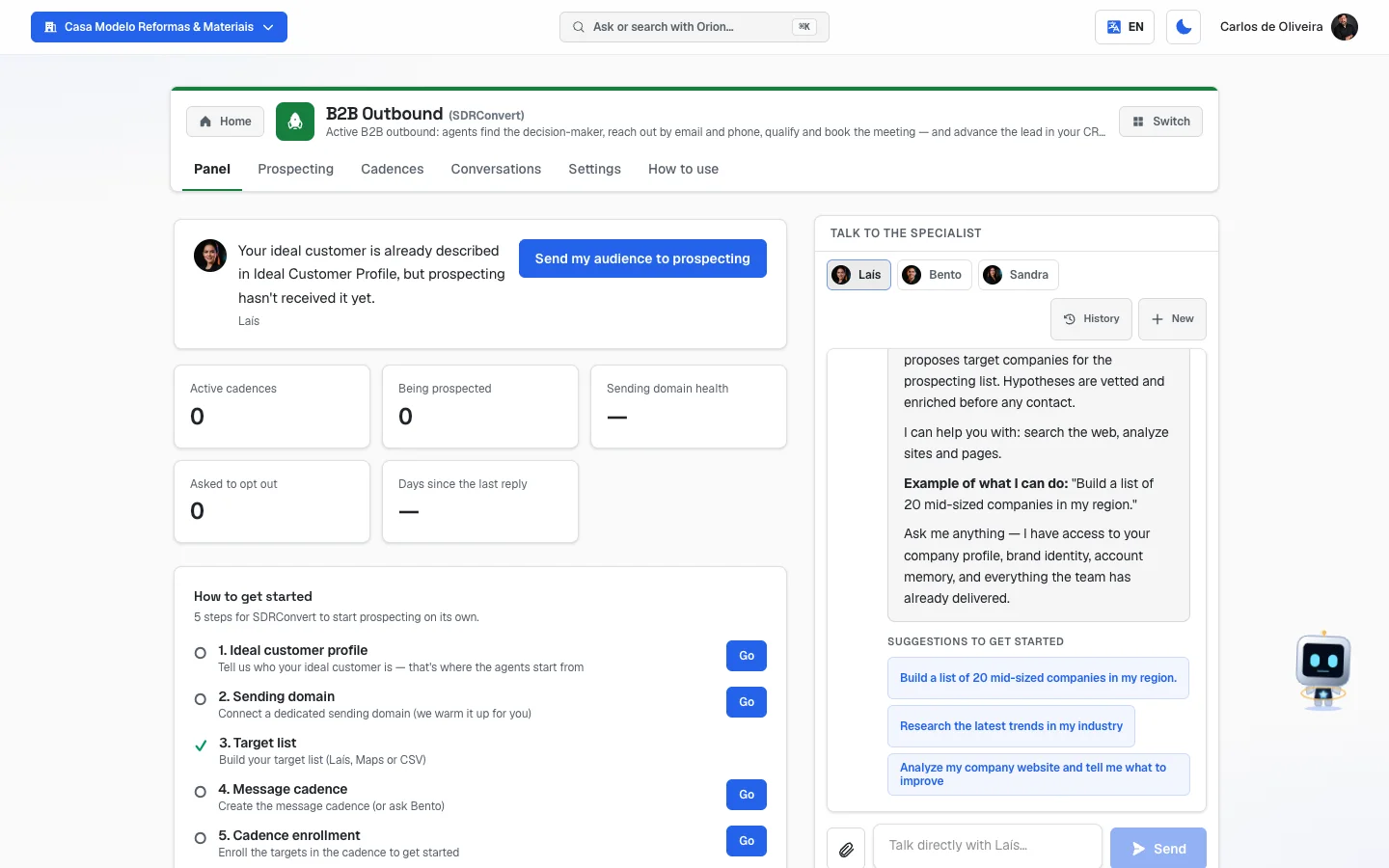 Panel tab with Laís's note, the five prospecting numbers, the "How to get started" box (5 steps) and, beside it, the chat with Laís, Bento and Sandra
Three words you need to understand
Target. It's each company on your list. A target has the company's name and, when the system manages to find them, the person's name, role, email and phone number.
Cadence. It's the sequence of attempts over the days. It's not a single message: it's a polite chasing plan. For example: email today, another email 3 days later, a call on day 6, a last email on day 10. Each of those lines is a step, and each step has a Day. Day 0 is the day the company enters the cadence.
Enroll. It's putting the chosen companies inside a cadence. Before you enroll, nothing is sent to anyone. Once you enroll, the queue starts moving.
Two more buttons have strange names:
- Enrich — go looking on the internet for the data that's missing for that company (mainly the email, which Google Maps never returns). Without an email, the cadence has nowhere to send.
- Qualify (Sandra) — give the company a score from 0 to 100, looking at the contact's role, the company's size, whether the sector matches what you asked for and whether there's an email and phone number. The score becomes a label: 🔥 Hot, 🟡 Warm or 🔵 Cold.
How a cadence really works (read this first)
This is the part that prevents surprises later:
- The system runs once a day, in the morning. It's not minute by minute. If you enrolled someone this afternoon, the first email goes out in the next day's round, at the round's time.
- It only goes out on business days. Weekends and national holidays don't count: the step waits for the next Monday (or the next business day). Nothing is lost, it just goes out later.
- Never two touches on the same day to the same company. And the interval between one step and the next is counted from the last send, not from the enrollment date — that is, if the queue fell behind because of a holiday, it doesn't "catch up" by sending everything at once.
- Bento rewrites each message for each company before sending it, using the text you wrote as a base and that contact's data. The text you write is the anchor, not a straitjacket.
- Every message carries an unsubscribe footer. Whoever clicks it leaves your list right away and receives nothing more.
- Email to a leadership role doesn't go out on its own. If the contact's role contains one of these words — owner, proprietor, partner, founder, president, vice president, director, head, CEO, CFO, CTO, COO or CMO —, the message stops in the Conversations → Approvals tab waiting for you to read it, edit it and release it.
- Whoever replies makes the cadence stop. As soon as a reply arrives (except an automatic out-of-office reply), that company stops receiving the next steps. From then on, you're the one talking.
- Whoever says "I'm not interested" leaves the list. Sandra marks them as lost and removes them from sending.
The tabs, one by one
Panel
/app/modulos/sdrconvert/painel
- What you see here:
- At the top, Laís's note about how your operation is doing, with a button that takes you straight to what's missing, and five numbers: Active cadences, Being prospected, Sending domain health, Asked to opt out and Days since the last reply. Below, when there is one, the What's been done here box.
- The How to get started box, with the 5 steps and the Go button. A finished step gets a ✓ and loses its button. The box disappears on its own when all five are done.
- The Waiting on you box, which only appears when there's something for you to do: Pending approvals, Pending calls and Hot replies. Clicking any of them takes you to the right tab.
- Four big numbers: Targets, In contact, Qualified and Meetings booked.
- The Funnel box, with a little bar for each stage and the percentage of the total.
- Beside it, the Talk to the specialist chat, with the little buttons to switch between Laís, Bento and Sandra.
- What you can do: look, click the shortcuts and chat with the agents. There's no form on this tab.
- Empty state: with no company registered, you see "No targets yet — the funnel fills once you add targets in the Prospecting tab."
The six funnel stages:
| Stage | What it means |
|---|---|
| Possible customers | The company entered the list. It hasn't received anything yet. |
| In contact | The cadence's first email has already gone out to it. |
| Qualified | It replied with interest or with a question. Worth your attention. |
| Meeting booked | It replied setting a date and time. |
| In CRM | The deal was handed to the SalesFlow module (the platform's CRM) so you can run the sale. |
| Lost | It said it isn't interested, or asked not to be contacted. |
Prospecting
/app/modulos/sdrconvert/prospeccao
This is where your list of companies lives.
- What you see here: at the top, the Add target box (click Expand to open it) and the Import CSV button. Below, the Targets (N) list, one row per company. In the right-hand column is the same Talk to the specialist chat from the Panel tab, with Laís, Bento and Sandra — in this module it appears next to every tab.
- What you can do: build the list, filter to find a company, look up missing data, score companies, enroll them in a cadence, fix them and delete them.
The four buttons above the list:
| Button | What happens when you click |
|---|---|
| Build list (Laís) | Laís suggests 15 companies that match the profile you described in Settings. She proposes name, sector and region — she never makes up an email, phone number or CNPJ (Brazil's company registration number). |
| Find real (Maps) | Looks up real companies on Google Maps, by your niche and city. Before it runs, the screen asks: "Queries Google Maps and spends from balance. Confirm?" — click Confirm or Cancel. Maps returns name, phone and website, but never email. |
| Qualify (Sandra) | Scores the targets and puts the 🔥/🟡/🔵 label on each one. |
| Enrich pending | Goes looking for the data that's missing on the targets in the queue. When it finishes, the screen tells you how many were enriched and how many were skipped because they'd already been tried less than 30 days ago. |
What the screen answers after building the list: a short sentence next to the Import CSV button, for example "Laís added 12, 3 already existed". It also warns you when a company was left out for already being your client, and when Google Maps didn't recognize the city or state you wrote.
Step by step — adding a company by hand:
- On the Prospecting tab, click Add target (it opens and closes; the text beside it switches between Expand and Collapse).
- Fill in at least Company * — it's the only required field.
- Fill in whatever you know: Tax ID, Contact (the person's name), Role, Email, Phone, LinkedIn, Sector, Company size and Region.
- Click Add.
Step by step — importing a list you already have (CSV):
- Save your spreadsheet in CSV format (in Excel or Google Sheets: "Save as" → CSV).
- Check the header row. The screen says which columns it understands: "CSV columns: empresa/company (required), nome/name, cargo/role, email, telefone/phone, setor/sector, porte/company_size, regiao/region, cnpj."
- Click Import CSV and choose the file.
- The Import report opens, saying how many rows came in and how many were skipped. If there's a problem, the Skipped lines box shows which row and why (a row without a company is discarded; a misspelled email is saved without an email).
- Click Close.
Step by step — enrolling companies in a cadence:
- Check the box next to each company you want to approach. To check them all at once, use the checkbox next to the Targets heading.
- A gray bar appears saying "N selected".
- In the Choose sequence… box, choose the cadence. Only Active cadences appear.
- Click Enroll in sequence.
- The screen asks: "The selected contacts join the sequence and will start receiving touches once sending is enabled. Confirm?" Click Confirm.
- At the end the result appears, for example "38 enrolled, 2 already in the sequence.".
If you select a lot of people at once, the system does the job in rounds. If a round fails halfway, the message says how many have already gone in and asks you to select the ones that are missing — never redo everything from scratch on your own.
The other buttons on the selected bar: Enrich, Qualify (Sandra) and Delete (this one asks "Delete the selected contacts? This can't be undone."; it deletes at most 100 at a time and warns you when it cut off).
Each row in the list shows:
- The company name (clickable — opens the dossier).
- The score label: 🔥 Hot, 🟡 Warm or 🔵 Cold. When you hover over it, the 0-to-100 score appears.
- Contact, role and email, when they exist. If there's nothing, a dash (—) appears.
- Source: where that data came from (Laís's list, Maps, the CSV, manual entry).
- The Edit and Enrich buttons, the stage box and Delete.
About the stage box: every new company starts at Possible customer (the first stage: it entered the list and hasn't received anything yet). The box lists the six stages, but the system doesn't let you skip stages ahead: the ones you can't reach from the current stage appear grayed out, with no click. Move one at a time. Lost can be marked at any time; and a lost company can only go back to Possible customer.
The list filter: right above the targets there's a search field — "Filter by company, person, email, sector, region or phone". Type a piece of what you're looking for (from two letters on) and the list rebuilds itself, searching those six fields. The counter next to Targets starts saying how many there are in this filter, and the Clear filter button brings back the whole list.
Three things worth knowing:
- The search runs across your whole base, not just the ones on screen. That's why it's the way to reach companies that were left out of the cap notice, right below.
- If you had companies checked and changed the filter, the check only stays valid for those that still appear. That's on purpose: nobody enrolls or deletes in bulk what they can't see.
- With a filter and no results, the screen says "No target matches this filter" — which is different from "No prospecting targets yet", which only appears when your list is truly empty.
When the list is big: it shows 100 at a time, with a Load more (X of Y) button at the end. Past a thousand companies, the notice "Showing the 1000 most recent contacts. Use the filters to reach the rest." appears — the filter in the paragraph above is exactly that way.
The target dossier (opens when you click the company name): shows the full data (email, phone, LinkedIn, sector, size, region), the score label, the stage and the Interaction history — every email sent, every reply, every call, in order. At the bottom are Close, Edit and Enroll. If nothing has happened yet, it shows "No interactions yet".
The dossier is where you read WHY something didn't happen. When a step doesn't go out — an email that wasn't sent, a voice-agent call that wasn't made —, the history row carries, right below the title, a sentence explaining the reason. For example: "The voice-agent call didn't happen: this account doesn't have a voice created in the voice campaigns yet.", "The step wasn't sent because this lead has no value for {{cargo}}." or "Waiting for this contact's email — the step goes out as soon as it's found." It's the only place on the platform where that reason shows up: the queue on the Conversations → Calls tab shows only the calls in I call mode, which are the ones waiting for you.
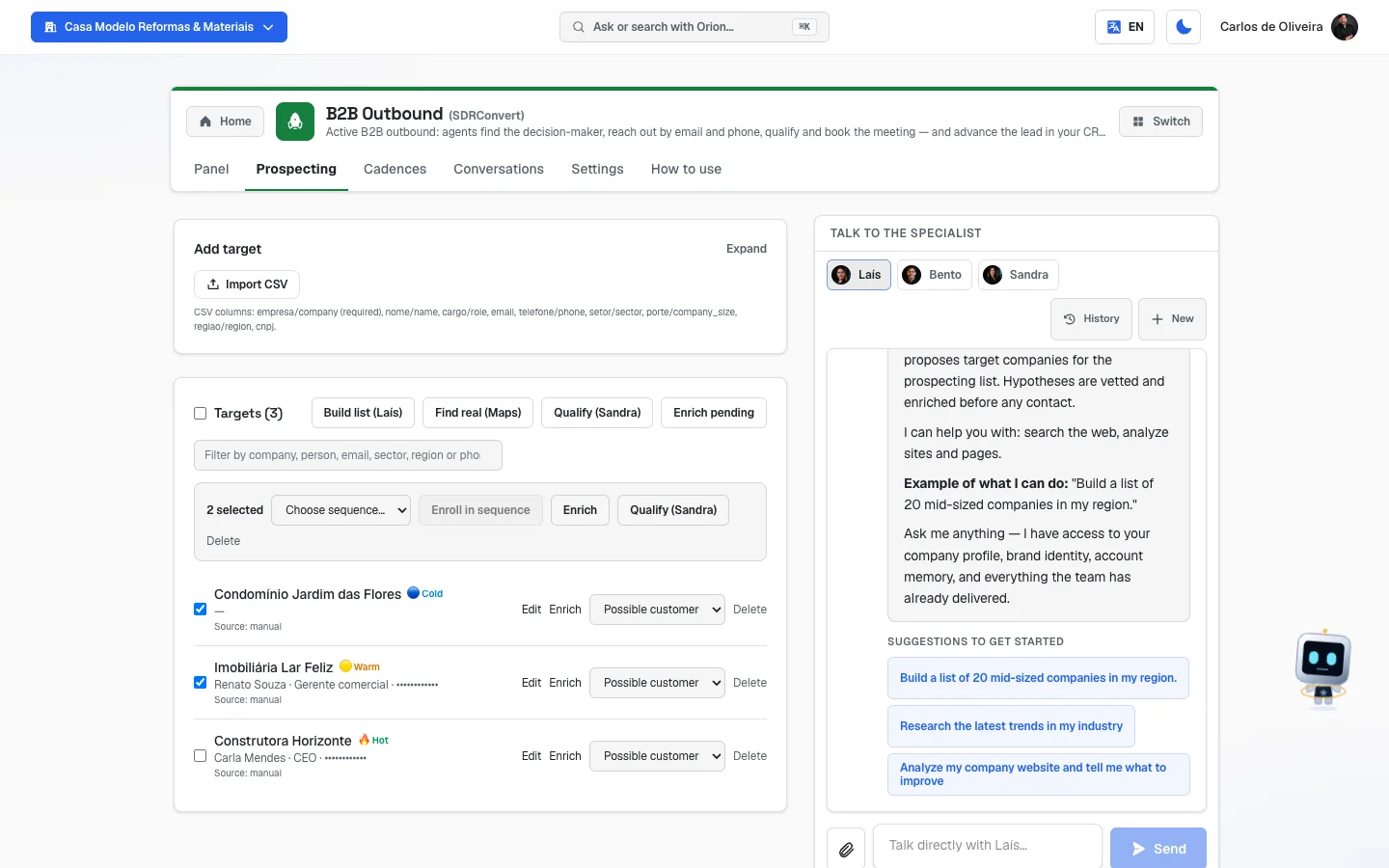 Prospecting tab with the Add target box and the Import CSV button at the top, the Targets (3) list with the four buttons and the filter, the "2 selected" bar open, three companies with the Cold, Warm and Hot labels and the stage box on Possible customer, and the chat with Laís, Bento and Sandra in the right-hand column
Cadences
/app/modulos/sdrconvert/cadencias
- What you see here: at the top, the form to create (or edit) a cadence. Below, the Cadences (N) list with the ones you already have.
- What you can do: build the sequence of messages step by step, or ask Bento to build it; pause, reactivate, edit and delete.
Step by step — creating a cadence from scratch:
- On the Cadences tab, type the name in the Cadence name field (for example "Condominiums – first approach").
- The first step already comes ready on the screen. Fill in:
- Day — how many days after enrollment that step happens. The first one is normally 0 (the same day).
- The middle box — Email or Call.
- Message… — the text. For a call, it's the basis of the script Bento will build.
- To put the person's and company's name inside the text, use the little buttons above the form: {{nome}}, {{empresa}}, {{cargo}}, {{wa_link}} and {{setor}}. They're the "Variables auto-filled per lead". Click the button and the code goes into the text of the step you were writing.
- Click + Step to add the next attempt. Repeat as many times as you like. To remove a step, click Remove.
- Click Save cadence. It's born active.
Each field explained:
| Field | What to write |
|---|---|
| Cadence name | A name you'll recognize later. Only you see it. |
| Day | The number of days counted from enrollment. 0 = the same day; 3 = three days later. |
| Email / Call | The channel of that step. |
| Message… | The email text, or the basis of what to say on the call. Without text, the save button doesn't turn on. |
| {{nome}} | Becomes the person's name. |
| {{empresa}} | Becomes the company's name. |
| {{cargo}} | Becomes their role. |
| {{wa_link}} | Becomes a WhatsApp link that leads to the number you put in Closing WhatsApp number, with the message "Hi! I saw your interest — shall we talk?" already written. Without that number in Settings, the step that uses this code isn't sent. |
| {{setor}} | Becomes the company's sector (the target's Sector field). Useful for opening the email by talking about their line of business: "we work with several companies in {{setor}}". |
Careful with variables: if you use {{cargo}} (or {{setor}}) and the system doesn't know that data for that person, that step isn't sent to them — instead of sending an email with a hole in the middle, the system holds it back. The reason is written in the target's dossier, on the Prospecting tab.
Step by step — asking Bento to build it:
- Click 🤖 Bento builds it for me.
- Answer "What's the goal of this cadence?" — for example "book a technical visit with condominium managers".
- Click Generate (while he works, the button says "Bento building…").
- His cadence appears filled in on the screen, with the orange notice "Bento's draft — review before saving". Nothing has been saved yet.
- Read it, fix whatever you like and click Save cadence.
If there's a Call step, an extra box appears, Who calls?:
- Our agents call (AI voice) — a voice agent calls in your place. When you choose this, the Style box appears, with three options: Converses and qualifies (it talks and tries to work out whether it's worth it), Opens and transfers (it opens the conversation and passes the call to a human) and Leaves a voicemail (it leaves the message and hangs up).
- I call (queue + WhatsApp alert) — the call goes into your queue, on the Conversations → Calls tab, and you get an alert on the WhatsApp connected to the account. This is the option that comes selected by default.
- Deadline to resolve (days) — how many days the system waits for you to log that call's outcome before considering the matter overdue. It comes with 3; it accepts from 1 to 30.
The cadence list shows, on each row:
- The name and the Active (green) or Paused (gray) label.
- The steps as little bubbles: D0 ✉️, D3 ✉️, D6 📞 — the D is the day, the envelope is email and the phone is a call. When you hover, you read the beginning of the message.
- That cadence's numbers: enrolled · done · replies · qualified.
- The Edit, Pause (or Reactivate) and Delete buttons — the last one asks for confirmation in Confirm delete?.
Pause is the handbrake: the cadence stops sending the next steps and disappears from the choice list when enrolling. Nobody loses their place.
Conversations
/app/modulos/sdrconvert/conversas
This tab is your work inbox for the day. It has three buttons at the top, and each one shows a little number when something is waiting for you: Replies, Calls and Approvals. Each has its own address:
- Replies —
/app/modulos/sdrconvert/conversas?aba=respostas - Calls —
/app/modulos/sdrconvert/conversas?aba=ligacoes - Approvals —
/app/modulos/sdrconvert/conversas?aba=aprovacoes
Replies
- What you see here: Inbox (N) — everything the companies replied, from newest to oldest, with the sentence at the top explaining: "Lead replies and what Sandra did with each. You answer replies here — Sandra never replies on her own."
- Each reply shows the company, the email, the subject, the text the person wrote, a classification label and a line starting with Sandra: saying what she's already done.
The labels and what Sandra does with each:
| Label | What it means | What Sandra does |
|---|---|---|
| Interested (green) | The person showed interest. | If the reply includes a day and time, she creates the calendar event and moves it to meeting booked. If not, she moves it to qualified and waits for you. |
| Question (blue) | The person asked a question. | Moves it to qualified and waits for your reply. |
| Not interested (red) | The person said no. | Marks it as lost and removes it from sending. |
| Auto-reply (gray) | It's an out-of-office notice, a robot reply. | Ignores it. In these cases there's no field to reply. |
| To triage (orange) | The system couldn't classify it. | It waits for you to read it. |
Step by step — replying to someone:
- On the Conversations tab, click Replies.
- Find the conversation and read what the person wrote.
- If you want help getting started, click Sandra's draft — she writes a suggestion inside the text field. It's a suggestion: delete it, fix it, rewrite it.
- Write your reply in the "Write your reply to the lead…" field.
- Click Send reply. Sent. appears beside it when it worked.
The reply goes out in the same thread as the original email, so the person receives it as a continuation of the conversation.
- Empty state: "No replies yet" — and the hint that the cadences are what generate replies.
Calls
- What you see here: Call queue (N) — the calls the cadence scheduled for you to make, with the company name, the person and the phone number, and the script Bento prepared. Further down, the History of calls already resolved.
- What you can do: make the call (from your own phone) and log what happened.
Step by step — logging a call:
- On the Conversations tab, click Calls.
- Call the number shown on the row, using the script as support.
- Click Log the call.
- Choose one of the outcomes: Answered, No answer, Voicemail, Booked meeting, Not interested, Wrong number or Asked not to contact.
- If you like, write what was discussed in Notes (optional).
- Click Save outcome.
What each outcome does to the target:
| Outcome | What happens |
|---|---|
| Booked meeting | The company advances to "Meeting booked". |
| Not interested / Asked not to contact | The company goes to "Lost" and leaves the sends. |
| Wrong number | It stays marked for you to check the phone number. |
| Answered / No answer / Voicemail | It's logged; the cadence continues on its course. |
- In the History, when the call was made by a voice agent, the Recording and Transcript links appear.
- Empty states: "No calls yet" (none of your cadences has a call step) or "No pending calls" (queue cleared).
A voice-agent call doesn't show up in this queue — the queue is only for I call mode, which is the one waiting for you. If you set Our agents call (AI voice) and don't see any call happening, open the Prospecting tab, click that company's name and read the Interaction history in the dossier: that's where the reason is written (for example, that the account doesn't have a voice created in the voice campaigns yet).
Approvals
- What you see here: Pending approvals (N) and the explanation: "Emails paused because the lead is a senior decision-maker. Nothing goes out until you release it."
- Each card shows the company, the person, the role, the email, the Senior decision-maker label and the exact text that would go out — with the name and company already filled in, inside a box you can edit.
Step by step — releasing a send:
- On the Conversations tab, click Approvals.
- Read the text in the box.
- Change whatever you like. What's written there is what will go out, word for word.
- Click Approve & release.
Attention: approving releases that contact's entire cadence. Their next steps no longer stop in this queue. It's written on the card itself: "Review the text before releasing. Approving unlocks this contact's whole cadence."
To not send it, click Reject — that send is canceled.
If the cadence was changed after the message stopped here, an orange notice appears saying the step no longer exists and asking you to write the text you want to send.
- Empty state: "Nothing awaiting approval".
📷 This screen has no photo — when the cadence builds an email for a senior decision-maker, it waits for your approval in this sub-tab: a card with the "Senior decision-maker" label, the text you can edit and the Approve & release / Reject buttons.
Settings
/app/modulos/sdrconvert/config
There are three boxes.
1. Ideal customer profile (ICP) — "Comma-separated. This is what the agents use to build the target list."
| Field | What to write |
|---|---|
| Sectors | The lines of business you're interested in. E.g.: "Manufacturing, Logistics". |
| Company sizes | The size of the companies. E.g.: "50-200 employees, Mid". |
| Regions | Where they are. E.g.: "SP, South". For the Maps search to work, write cities and states that really exist. |
| Target roles | Who you want to talk to. E.g.: "Sales Director, CEO". |
| Tone of voice | How the messages should sound. E.g.: "consultative, direct, no jargon". |
| Closing WhatsApp number | The number the hot lead is sent to. Without a country code, the system assumes Brazil (+55). |
Click Save. A green Saved appears beside it.
2. Sending domain — "A dedicated domain just for prospecting — never your main one. We set up SPF, DKIM and DMARC and warm it up gradually before the first send."
Step by step — connecting the domain:
- In the Connect domain field, type the address (the example on the screen is
envio.suaempresa.com.br). - Click Connect.
- The box "One step left at your domain provider" appears, with two paths. You choose one of
them:
- Option 1 (simplest): point the domain's nameservers to the two addresses the screen shows. After that, AutoAgency takes care of the rest.
- Option 2: keep the DNS where it is and create, in your provider's panel, the records the screen lists (the table brings the Type, Name and Value of each one — it's copy and paste).
- Save it there at the provider. "After saving, verification happens on its own within a few hours — the three badges above turn green."
What the domain row shows:
| Indicator | What it means |
|---|---|
| Checking DNS… | What you have to do at the provider is still missing, or the check hasn't finished. |
| Warming up — day X/Y | Everything is fine and the domain is being warmed up. It already sends, but only a little per day. |
| Ready to send | Warm-up finished. |
| Paused by you | You pressed Pause sending. |
| SPF ✓ / DKIM ✓ / DMARC ✓ | The three badges that prove the email really is yours. Green = ready. |
| Today's limit: N/day | How many emails go out today, at most. |
| Readiness: N% | How much of the technical preparation is done (half is the DNS, half is the warm-up). |
The Pause sending and Resume sending buttons are on that same row. Pausing stops everything on that domain without deleting anything.
3. CRM and approvals — a fixed note: "Approvals live in the Conversations tab. Qualified leads automatically enter your CRM (SalesFlow module)." — it's the same SalesFlow that appears in the menu.
How to use
/app/modulos/sdrconvert/como-usar
Every module has this tab at the end. It's the module's manual inside the system itself.
How to read the numbers
In Laís's note (top of the Panel):
- Active cadences — how many of your sequences are switched on. A paused one doesn't count.
- Being prospected — how many companies are inside some cadence right now.
- Sending domain health — a 0-to-100 score of your domain's technical readiness. When there's no domain at all, a dash (—) appears, not zero. A low score shows in an alert color: sending a lot with a poorly prepared domain burns your deliverability.
- Asked to opt out — how many people clicked unsubscribe.
- Days since the last reply — how many days it's been since anyone replied. It's there so you get suspicious when "Hot replies" shows zero: it may be that nobody really replied, or that the inbox stopped receiving.
In the four big numbers:
- Targets — the size of your list.
- In contact — how many have already received the first email.
- Qualified — how many have already replied with interest, already booked a meeting or already gone to the CRM.
- Meetings booked — how many have a meeting scheduled (including those that have already gone to the CRM).
In the funnel: each row carries the number of companies and the percentage of the total. If the giant bar is Possible customers, it's because your list exists but nobody has been enrolled. If it's In contact and nothing moves forward, the problem is in the cadence's text.
In each target's label: the score goes from 0 to 100. From 70 up it's 🔥 Hot; from 40 to 69 it's 🟡 Warm; below 40 it's 🔵 Cold. It goes up with a leadership role, a bigger company, a sector that matches what you asked for, and having an email and phone number.
In the cadence list: "12 enrolled · 5 done · 3 replies · 2 qualified" — enrolled is who went in, done is who went through all the steps, replies is how many people answered and qualified is how many were worth it.
In the sending domain: the Today's limit grows on its own as the warm-up advances — it starts low in the first week and keeps rising up to the normal ceiling. That's not a defect: it's what makes your email reach the inbox instead of spam.
Frequently asked questions
Isn't this spam? The difference is in the safeguards: the message goes to the business address the company itself publishes, every email carries the unsubscribe link in the footer, whoever clicks leaves right away, whoever replies "I'm not interested" is removed, and sending is gradual, from a domain separate from your main email. Even so, write like a person: a message with "promotion", "unmissable", "click here", lots of exclamation marks or ALL CAPS is blocked before it goes out.
Why do I need a separate domain? Can't I use my usual email? No, and it's for your own good. Cold prospecting always generates some complaints, and complaints damage the reputation of the address that sends. If that happens on your main domain, the quote you send to an existing customer could start landing in spam. The separate domain protects your work email.
I enrolled the companies and nothing went out. Is it broken? Probably not. Check, in this order: (1) the round happens once a day, in the morning; (2) weekends and holidays don't count; (3) the domain has to be Warming up or Ready to send; (4) the target has to have an email — without an email, it waits for enrichment; (5) if the contact is a leadership role, the message is waiting for you in Conversations → Approvals.
What happens if the person replies? The cadence stops right away for that company. The reply lands in Conversations → Replies, Sandra classifies it and does the obvious (books the meeting, moves the stage or takes them off the list), and you're the one who writes the reply. Sandra never replies on her own.
Do I have to keep pressing "Enrich" every day? No. The daily round already looks up the missing data before sending. The button is there for when you're in a hurry with a specific target.
How many companies does Laís build per click? Fifteen at a time, both in Build list (Laís) and in Find real (Maps). Click again to bring more.
What's the difference between "Build list (Laís)" and "Find real (Maps)"? Laís suggests companies that match your profile — they're hypotheses, and sometimes one doesn't exist under that exact name. Maps brings real companies, with phone and website, but it uses up balance and never brings an email (the email comes later, in enrichment).
Does the qualified lead go into my CRM on its own? Yes. When the company reaches "Qualified" or "Meeting booked", it's handed to the SalesFlow module (the platform's CRM) with the dossier included (company, contact, role, phone, sector, size, score and the meeting date, when there is one).
When something goes wrong
| Symptom | What to check | What to do |
|---|---|---|
| The screen says "The SDRConvert module is not active on this tenant." | Is the module subscribed on your account? | Activate B2B Outbound in the Catalog. |
| An invitation appears at the top of the screen to set up the module by chatting with Laís | The initial conversation hasn't been held or dismissed yet. | It's optional — the tabs already work. Click Dismiss, or chat with Laís and click Complete setup. |
| The domain stays on Checking DNS… for days | Did you actually do the step at your domain provider? Did you point the nameservers or create the records from the table? | Redo Option 1 or Option 2 from the domain box and wait a few hours. The three badges (SPF, DKIM, DMARC) turn green on their own. |
| When connecting the domain, "Couldn't set it up right now. Try again shortly." appears | It was a momentary failure. | Wait a few minutes and click Connect again. |
| The reply to the contact shows "Sending still disabled (activation pending)." | Your sending domain isn't ready yet: either it wasn't registered, or the records at your domain provider haven't been verified yet, or the warm-up hasn't finished. It's not a release from AutoAgency: that switch was turned on for all accounts on September 4, 2026. | Open the Settings tab, check the Sending domain and finish whatever is missing. You can keep building your list and cadence in the meantime. |
| No email goes out, even with everything set up | Is the domain Paused by you? Is the cadence Paused? | Click Resume sending in Settings and Reactivate on the cadence. |
| A target never receives anything | Does it have an email? Look at the dossier. | Click Enrich on that target. If it still can't find an email, fill it in by hand in Edit. |
| A cadence step is never sent | Does the text use {{cargo}}, {{nome}}, {{setor}} or {{wa_link}} and that data is missing? Open that target's dossier (Prospecting tab, click the company name): the history says which variable was missing. | Complete the data on the target, or take the variable out of the text. For {{wa_link}}, fill in the Closing WhatsApp number in Settings. |
| The screen answers "It didn't work… Try again; if it repeats, contact support." | There was a failure at the moment of the click. | Click again. If it repeats, call support. |
| After enrolling a lot of people, "X of Y have already gone in; round N failed." appears | Part went in and part didn't. | Select only the ones that were missed and enroll again. Don't redo everything. |
| "Can't go from … straight to …: move one stage at a time." | That company's stage changed while the screen was open (for example, the agent qualified it), and the choice skipped a stage. | Refresh the page (F5) and choose the next stage. |
| When qualifying or deleting, "Target not found." appears | That target was deleted while the screen was open. | Refresh the page (F5). |
| On an approval, "Send not found or already resolved." appears | Someone already approved or rejected that send. | Refresh the page. The queue shows only what's still pending. |
| On an approval, an orange notice that the step no longer exists | You edited the cadence after the message stopped in the queue. | Write right there the text you want to send and click Approve & release. |
| When replying, "Contact has no email." appears | That contact has no address saved. | Open the target in Edit and fill in the email. |
| The CSV won't import: "CSV is missing the required column 'empresa'" | The spreadsheet's header row. | Rename the company-name column to empresa and save as CSV again. |
| The import report shows "row N: no company — skipped." | Blank rows or rows without the company name. | Fill in or delete those rows and import again. |
| The report shows "invalid email … — saved without email" | The address is misspelled. | The company went in anyway; fix the email in Edit, or use Enrich. |
| "CSV exceeds the 2000-row limit" | The spreadsheet is too big for one go. | Split it into smaller files and import one at a time. |
| "Could not load the dossier." | Momentary failure when opening the profile. | Close it and open it again. |
| Enrichment says "Could not count how many were skipped just now" | The system enriched, but couldn't close the count of skipped ones. | There's nothing to do; check again shortly. |
| You chose Our agents call (AI voice) and no call happens | Open the dossier of one of that cadence's targets (Prospecting tab, click the company name): the Interaction history carries the reason, written out. The most common one is that the account has no voice persona created in the voice campaigns. | Create the voice persona in the voice campaigns module. Until there is one, choose I call (queue + WhatsApp alert) on the cadence. |
| I deleted 790 selected and the screen said "Deleted the first 100 selected." | It's the safety limit per click. | Repeat the operation until done. Deleting can't be undone. |