

AI Commercial Proposals
Where to find it: Home → Your apps → Proposals (at the top of the screen the module appears as AI Commercial Proposals)
Address: /app/modulos/propostas-comerciais
What it's for
Every time someone asks you for a quote, you stop what you're doing and write everything over again: what you'll do, what's included, how much it costs. An hour of your day disappears. And the paper that comes out of it almost never looks like a big company — it's a WhatsApp text, a voice message, a loose number.
This module writes the proposal for you. You say who the customer is and what they need, check the packages you're offering, and in under a minute you get a PDF document, with your brand, your prices and a professional conversation from start to finish. You download that PDF and send it to the customer however you prefer.
There's a second path, made for people who sell marketing services: instead of telling it what the customer needs, you paste the address of their website. Orion (this module's assistant) calls in seven specialists at the same time — each one looks at a part: the website, Google, social media, the copy, the ads, the brand. At the end, the document brings the diagnosis of that person's business and the proposal of what you would do to fix it.
Everyday example: you're a gas technician and you're going to quote a water heater installation for a condominium. Instead of writing in your notes app, you open the module, type the name of the building manager, write "gas water heater installation for 12 apartments", check the two packages you set up and click Generate proposal. Out comes a nice PDF, with your phone number and your e-mail in the footer, ready to send.
What this module does NOT do. It writes and puts together the proposal. It doesn't send the proposal to the customer, doesn't generate a link for the customer to open and has no "customer accepted" or "customer declined" button. That's done by SalesFlow (the CRM module), on the Proposals tab — there the proposal becomes a link, the customer responds and you follow along. The two modules are independent: this one is the writing of the document; the CRM is the sending and the response.
Before you start
- The AI Commercial Proposals module has to be active on your account. Without that the screen shows the module's name and the notice that it "is part of a product you haven't subscribed to yet", with the Activate in catalog button.
- The first time you open the module, an invitation appears at the top of the screen to set it up by chatting with Spencer. It's optional: the tabs below already work, and each reply from the specialist uses AI credits. Click Chat with Spencer so Spencer gets to know your company (when you're done, click Complete setup) or Dismiss to remove the invitation without chatting.
- You need to have a balance. Every proposal generated uses up balance. There are three ways to have a balance: subscribe to the module (Decks & Proposals, which brings 10 analyses per month — they go into your balance when you open the module that month), buy the one-off pack of 10 analyses, or have an active plan (each proposal deducts credits from the plan). Without a balance, the fields on the screen are grayed out and nothing can be generated.
- Recommended before the first proposal: go through the Settings tab and enter your Packages (briefing mode) — it's the list of services with prices that you'll check off when putting each proposal together. Without that, the screen shows "Add packages in the Configuration tab.".
- Optional: fill in the Contact links (Calendly, sales email and WhatsApp). They appear in the footer of every proposal, as the invitation for the customer to talk to you.
Getting started
- On Home, under Your apps, click Proposals. You land on the Panel tab.
- If the invitation to the setup conversation shows up, chat with Spencer and click Complete setup, or click Dismiss. The tabs work either way.
- Click the Settings tab. Under Generation defaults, choose the Default language (PT — Português) and the Default price currency (R$ — BRL).
- Still on Settings, scroll down to Packages (briefing mode) and click Add package. Write the Package name, the Description (optional) and the price. Repeat for every service you sell.
- Fill in the Contact links with your sales email and your WhatsApp.
- Click Save settings.
- Go back to the Panel tab. Look at the Monthly balance box: the number under Total available is how many proposals you can still generate. If it's at 0, buy balance with the Buy pack button (the button text shows the quantity and the price).
- In the New prospect analysis box, leave Proposal by briefing selected.
- Fill in Client name, What does the client need?, check at least one package and click Generate proposal.
- Go to the List tab. When the label turns completed, click PDF. The file opens in a new browser tab, ready for you to download and send.
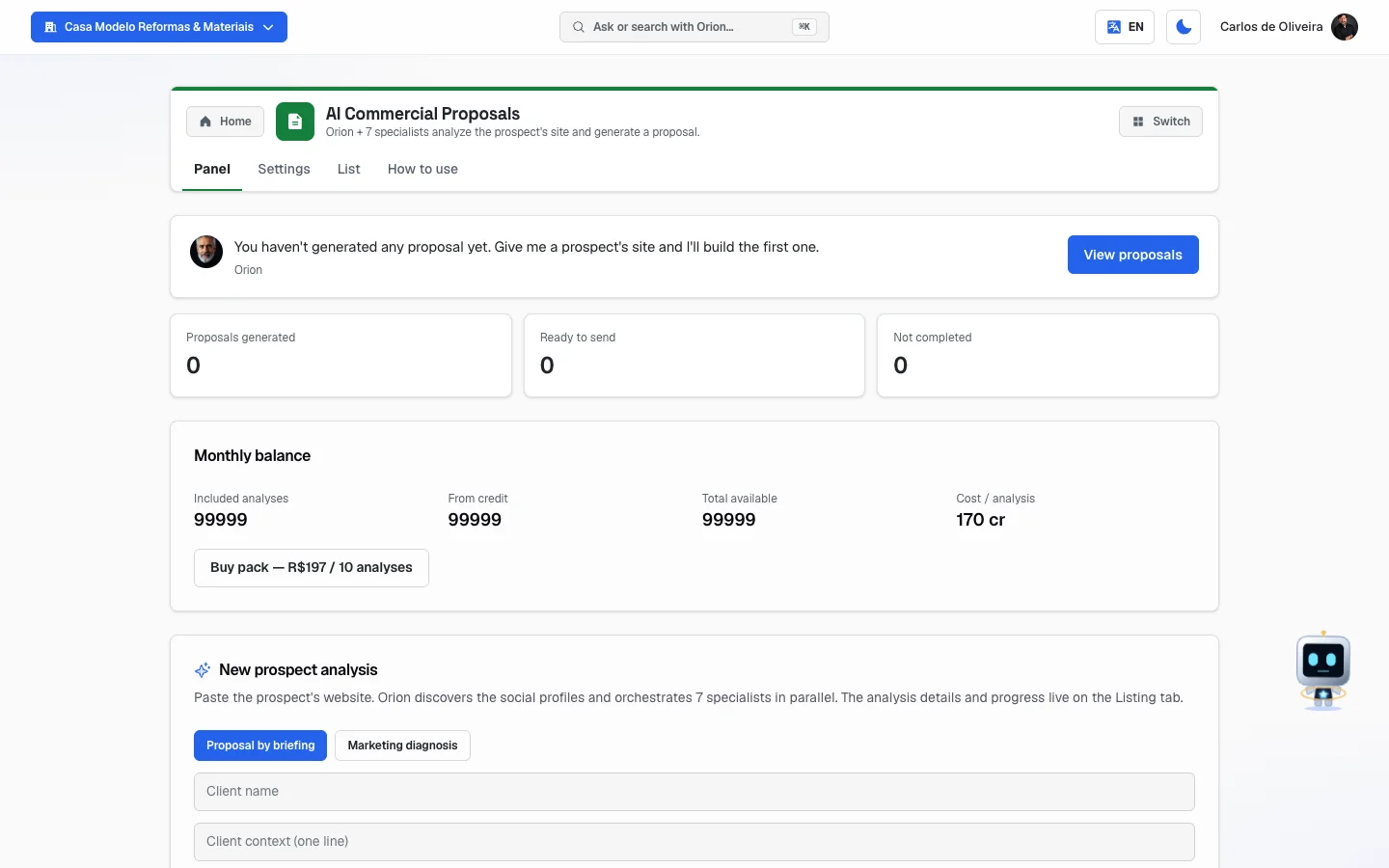 Panel tab showing the "Monthly balance" box with the four numbers and, below it, the "New prospect analysis" box with the two mode buttons
The two ways to put together a proposal
In the New prospect analysis box, on the Panel tab, there are two buttons side by side. They completely change what the screen asks of you.
| Button | When to use it | What the system does |
|---|---|---|
| Proposal by briefing | Any business. You already know what the customer needs. | You fill in a short form. The system writes the proposal right away, with the packages you checked. |
| Marketing diagnosis | When you sell marketing services and want to impress. | You paste the website (or the Instagram/Facebook) of the potential customer. Seven specialists read everything and the document comes out with the diagnosis of their business plus your proposal. |
The system already opens with the mode that makes the most sense for your type of account selected, but both are always available — just click the other button.
Watch your balance: both modes use up the same thing. A proposal by briefing costs the same as a full diagnosis.
The tabs, one by one
Panel
/app/modulos/propostas-comerciais/painel
- What you see here:
- At the top, Orion's note: a sentence saying how things stand for you — "You haven't generated any proposals yet…", "You have X proposal(s) ready to send." or a notice that a proposal couldn't be generated. Next to the sentence there's usually a button that takes you straight to where you can fix it.
- Three numbers: Proposals generated, Ready to send and Not completed.
- The Monthly balance box, with four numbers (explained further down, in "How to read the numbers") and the Buy pack button.
- The New prospect analysis box, with the two mode buttons.
- If a proposal is being generated at that moment, the Analysis in progress box appears, with the customer's name, a blinking dot, the sentence saying what's happening and the percentage.
- Below, the Summary box: Total analyses, Completed and Last analysis.
- What you can do: buy balance and generate proposals.
Step by step — proposal by briefing (the most common path):
- On the Panel tab, click the Proposal by briefing button.
- Fill in the Client name field.
- If you want, fill in Client context (one line).
- In the big field, answer What does the client need?. Write the way you would say it: "wants to replace all the kitchen piping, complains that the sink clogs every week".
- If you want, paste the Client site/Instagram (optional).
- Under What I'm offering (packages), check the boxes for the packages that go into this proposal. If the list is empty, "Add packages in the Configuration tab." appears.
- If the service has something outside the packages, write it in the Custom item (optional) field and the price in the Price field next to it.
- Click Generate proposal. The button turns into "Generating…".
- You must fill in the name and the need, and check at least one package or write a custom item. If something's missing, the screen warns: "Fill in client and need." or "Pick at least one package or custom item.".
Each field explained (Proposal by briefing):
| Field | What to write |
|---|---|
| Client name | The name of the person or company that will receive the proposal. It's the name that's printed on the document. |
| Client context (one line) | A sentence about who they are. E.g.: "neighborhood pizzeria, 3 employees, sells a lot through delivery". |
| What does the client need? | Their problem, in your own words. The more concrete, the better the proposal comes out. |
| Client site/Instagram (optional) | If they have one. It helps the system speak the language of their business. |
| What I'm offering (packages) | Check the services that go in. The list comes from what you entered on the Settings tab. |
| Custom item (optional) + Price | A service that isn't in your packages and goes into this proposal only. |
Step by step — marketing diagnosis:
- On the Panel tab, click the Marketing diagnosis button.
- Paste the potential customer's website address in the field (e.g.:
https://exemplo.com.br). - If you want to adjust something first, click Customize — it opens the window explained just below.
- If you don't want to adjust anything, click Analyze prospect right away. The button turns into "Starting…" and the notice "Analysis started. It will take 30–60s." appears.
- The system checks that the website exists before using up your balance. If the address is wrong or the site is down, it tells you and doesn't charge anything.
- Follow the progress in the Analysis in progress box or on the List tab.
If on the Settings tab you chose Always open in the "Wizard before generating" block, the Analyze prospect button opens the customize window instead of starting right away.
The "Customize before generating" window (Customize button):
- What do you want to analyze? — three buttons: Website, Instagram and Facebook. If you choose Instagram or Facebook, you paste the brand's @ instead of the website address. The screen itself says what will be looked at: for Instagram, "bio + last 9 posts + frequency"; for Facebook, "page + latest posts + about".
- Areas to analyze (check what matters) — by default Full analysis (all) comes checked, which calls the seven specialists. You can check only what matters: SEO (Google), Website / landing, Social media, Content / Copy, Paid traffic, Brand / Positioning, Local SEO / GMB and E-commerce.
- Proposal language and Pricing currency — for when the customer is from abroad.
- Customize pricing for this proposal only — by checking the box, you change the names and values of the three plans for that proposal only, without touching your default table.
- To confirm, click Analyze. To back out, Cancel.
Settings
/app/modulos/propostas-comerciais/config
This is the tab you set up once and almost never touch again. It defines how every proposal comes out by default.
- What you see here: five boxes, one below the other, and the Save settings button at the end.
- What you can do: adjust everything and save. Only the account owner and administrators can save; for everyone else "Only owner/admin can edit the module settings." appears.
Box 1 — Generation defaults
| Field | What it is |
|---|---|
| Default language | The language the proposal comes out in when you don't choose at the time: PT — Português, EN — English or ES — Español. |
| Default price currency | R$ — BRL, US$ — USD, CLP$ — CLP or € — EUR. |
| Default Gamma theme | The look of the slide presentation (explained on the List tab). It comes written as "Oasis". Write the theme name exactly as it appears in your Gamma account — that name is what the system sends along when it generates the presentation. If the name doesn't exist there, the presentation comes out anyway, with Gamma's standard look: nothing gets stuck and nothing is lost. |
Box 2 — Contact links. They appear in the footer of each proposal, as the invitation for the customer to talk to you.
| Field | What to write |
|---|---|
| Calendly URL | The link to your calendar, if you use Calendly (a website where the customer picks the meeting time on their own). You can leave it empty. |
| Sales email | The email the customer should reply to. |
| WhatsApp (with country and area code) | Your WhatsApp with the country code (55 is Brazil's) and the area code up front, like the example on the screen: +55 11 91234-5678. |
Box 3 — Wizard before generating. Decides whether the "Customize before generating" window appears on its own. Three buttons:
- Always open — every time you click analyze, the window opens.
- Optional (default) — the window only opens if you click Customize.
- Never open — the Customize button disappears from the screen.
Box 4 — Default pricing table. These are the three plans that appear in the proposal in the Marketing diagnosis mode. Each one has Plan name, Price, a Recommended box (marks which plan is the highlighted one) and the list of Features (one per line) — what's included in that plan. Use Feature to add a line and the trash can to remove one.
Box 5 — Packages (briefing mode). It's your list of services with prices, used in the briefing mode. Each line has Package name, Description (optional) and the price. Use Add package to create one and Remove to delete one. If you leave that list empty, agency accounts fall back to the automatic suggestion of the three marketing plans from the previous box.
Lastly: the Proposals balance box, with the Buy pack button and, for people who don't have a plan, the See plans shortcut.
Step by step — saving: after changing any box, scroll to the end and click Save settings. While it saves, the button turns into "Saving…" and at the end "Settings saved." appears. Nothing is saved automatically — if you leave the tab without clicking, you lose what you changed.
List
/app/modulos/propostas-comerciais/listagem
This is where you pick up the finished document.
- What you see here: two boxes.
- Prospect analyses — everything you generated from the Panel, from newest to oldest. Each line shows the customer's name (or address), the date and a status label.
- Proposals generated in chat — PDF documents that Orion and the specialists put together while chatting with you in the chat, outside this module. Only that. A PDF that was born in another module — the Brand Manual, the Influencer Marketing agreement, the Google profile X-ray — doesn't appear here. It stays saved with the rest of your company's material, and the place where it can be seen is the Studio tab of the Image Creation module (Home → Your apps → Images → Studio tab): there it shows up as a card labeled PDF that opens the document. Don't look on the Gallery tab — it only shows images and videos, and documents don't go in it. 🟥 With an important caveat: the Studio only shows the 50 most recent materials of the company, and has no search or see-more button. If you generate a lot of art, the PDF leaves that window after a few weeks and no longer has a screen where it can be seen — it doesn't disappear from the system, but you can't reach it that way anymore. Until that changes, download the PDF when it's generated, or ask for it again in the chat of the module that created it.
- In each box, the spinning arrows button in the corner refreshes the list.
- What you can do: download the PDF, generate the slide presentation, retry what failed and delete what's no use.
What each label means:
| Label | Means |
|---|---|
| under review | It's being written now. A progress bar appears with the sentence saying what's happening. |
| completed | It's ready. The PDF and presentation buttons appear. |
| failed | It didn't work out. The line shows the reason in red. |
The sentences that appear while the analysis runs (marketing diagnosis mode), in order: "Starting the analysis…", "Reading the prospect's website…", "Looking for the prospect's social media", "Calling in the 7 specialists", "Consolidating the executive diagnosis", "Consolidating the proposal with AI (Gemini)…" and, at the end, "Analysis complete".
Step by step — downloading the PDF:
- On the List tab, find the proposal's line with the completed label.
- In the first little box, choose the language: PT, EN or ES.
- In the second little box, choose the currency: R$ BRL, US$ USD, CLP$ or € EUR.
- Click PDF. "PDF ready!" appears and the file opens in a new browser tab.
- Save the file to your computer or phone and send it to the customer.
You can generate the PDF of the same proposal as many times as you like, even in another language or another currency. It doesn't use up balance again.
Send the file, not the address. The address that opens in the new tab is good for 30 days — after that, it stops opening. That never gets in your way in here: every click on PDF generates a new address on the spot, and the Proposals generated in chat box also renews its own every time the List tab is opened. The problem is only for anyone who copied the address and sent it on WhatsApp or by email: a month later the customer clicks and, instead of the document, a line of raw technical text (
"InvalidJWT") appears — it isn't one of our screens and there's nothing there they can do. That's why the right way is to download the file and attach it. If you already sent the address and the deadline has passed, go back to the List, click PDF again and send the file.
Step by step — generating the slide presentation (Gamma):
- On the completed proposal's line, click the Gamma button.
- "Generating Gamma presentation… ~1 min." appears and the button turns into Generating….
- When it's ready, the button turns into Open Gamma and opens the presentation in a new tab.
Gamma is a website outside AutoAgency that turns the proposal's text into slides. It's for when you're going to present the proposal in a meeting instead of just sending the file.
The other buttons on each line:
- Retry — only appears on proposals with the failed label that were made with the Marketing diagnosis mode. It restarts the analysis.
- Trash can — deletes the line. The question "Delete this analysis?" appears first. You can't delete while the label is under review.
What appears when there's nothing:
- In the top box: "No analysis yet", with the explanation "Paste a prospect's website in the analysis tab and the proposal is born from its X-ray." and the tip "Start from the Dashboard tab".
- In the bottom box: "No PDF generated in chat yet", with the tip "Ask Orion: “put together a proposal for company X”".
How to use
/app/modulos/propostas-comerciais/como-usar
Every module has this tab at the end. It's the module's manual inside the system itself.
The full path: from the finished proposal to the customer
This is the part that raises the most questions, so it's worth reading slowly.
- You generate the proposal on the Panel tab (by briefing or by diagnosis).
- The document is stored on the List tab.
- You download the PDF (PDF button) or open the presentation (Open Gamma button).
- You send it to the customer with your own hands — attach it on WhatsApp, in an email, print it, whatever you prefer. The module doesn't send anything on its own and doesn't generate a proposal link.
- The customer replies to you through the channel you sent it on. There's no accept or decline button inside this module's document.
What the PDF proposal has inside: the title Commercial Proposal, who it was prepared for (Prepared for), who presents it (Presented by), the issue Date, the Executive Summary, the Complete Digital Diagnosis, the Prioritized Action Plan, What our agency delivers and, at the end, Next steps — which is where your Contact links go. The footer carries your brand and the word "confidential".
And the proposal's validity? This module has no validity field. The document carries the date it was generated, and that's all. Nothing expires, nothing changes status on its own, nothing lapses. If you need a proposal with a deadline, that the customer opens through a link and accepts or declines on their phone — and that turns "Expired" on its own when the deadline passes —, that feature is in the SalesFlow module, Proposals tab.
Want to record that the customer accepted and create an agreement? That's also through SalesFlow. This module stores the document; the CRM stores the negotiation.
What you find on the other side, on SalesFlow's Proposals tab: a Valid until field, the send button, a link that the customer opens on their phone (no account and no password), the accept and decline buttons on their screen, and a status per proposal — Draft, Sent, Accepted, Declined and Expired. When the validity date passes, the proposal turns Expired on its own and the link shows the customer "This proposal has expired. Contact the company for a new one.". It's all explained in the SalesFlow manual, in the Proposals section.
How to read the numbers
The three numbers at the top (Orion's note):
- Proposals generated — how many you've asked the system to write, adding up the ones that worked and the ones that didn't.
- Ready to send — how many have the completed label, that is, with the PDF available.
- Not completed — how many failed. If it's greater than zero, the number turns an alert color and Orion suggests trying again.
The Monthly balance box:
| Number | What it means |
|---|---|
| Included analyses | How many proposals are still left from the month's analyses of your subscription added to those of the one-off pack, if you bought one. The month's ones you don't use stay in the balance. |
| From credit | How many proposals your plan's credit balance can still pay for. Shows "—" if you don't have a plan. |
| Total available | The sum of the two above. This is the one that matters. If it's at 0, the screen won't let you generate anything. |
| Cost / analysis | How many credits each proposal deducts from the plan. |
In the Summary box:
- Total analyses — the same as "Proposals generated".
- Completed — the same as "Ready to send".
- Last analysis — the date of the most recent one. Shows "—" if you haven't generated any yet.
The percentage of the analysis in progress is just the progress of the work (5%, 10%, 25%, 50%, 88%, 92%, 100%). It has nothing to do with quality or the customer's score.
Frequently asked questions
Do I need to know how to write well to use this? No. You write in your own words, the way you talk. The system is what turns that into a professional document.
How long does it take? The proposal by briefing comes out almost instantly. The marketing diagnosis warns "It will take 30–60s", but it can take a bit longer depending on the customer's website. You can close the page — when you come back to the List tab, it'll be there.
I generated the PDF in Portuguese and the customer is from abroad. Do I have to generate everything again? No. On the List tab, change the language box (PT/EN/ES) and the currency box and click PDF again. It doesn't use up balance.
I put in the wrong website and the analysis didn't start. Did I lose balance? No. The system checks that the website exists before deducting. If the address is wrong, it tells you and doesn't charge.
Can I change the prices for just one proposal, without touching my table? Yes. Click Customize before generating, check Customize pricing for this proposal only and adjust there. Your default table stays intact.
Can the customer sign this proposal? Not here. This module delivers a PDF. For the customer to accept through a link and sign an agreement on their phone, use the SalesFlow module.
I deleted a proposal by accident. Can it be recovered? No. Deletion is permanent — that's why the screen asks "Delete this analysis?" first.
When something goes wrong
| Symptom | What to check | What to do |
|---|---|---|
| The screen shows the module's name and says it "is part of a product you haven't subscribed to yet" | The module isn't active on your account. | Click Activate in catalog. |
| "We couldn't verify your access right now." | It was a connection failure, not a missing subscription. | Click Try again. |
| The fields are grayed out and you can't type | The Total available in the Monthly balance box is at 0. | Buy balance with the Buy pack button or top up your plan's credits. |
| "Empty address. Paste the prospect's website or profile." | You clicked analyze with the field blank. | Paste the customer's website address. |
| "Invalid address. Use the format https://exemplo.com.br." | What you pasted isn't a website address. | Copy the address straight from the browser's address bar. |
| "Incomplete address — the domain is missing (e.g.: .com, .com.br, .net)." | The end of the address is missing. | Write the full address. |
| "I couldn't find the website …" | The address is typed wrong, or the site no longer exists. | Check letter by letter. Try opening the site in a new tab first. |
| "… took too long to respond. Check that it's online." | The customer's website is slow or down. | Wait a few minutes and try again. |
| "… is having a problem (HTTP 5…). Try again in a few minutes." | The problem is on the customer's website, not yours. | Try later. |
| "I couldn't identify the Instagram user…" | You chose Instagram but pasted something else. | Paste the brand's @ (e.g.: @suamarca) or the full address of the profile. |
| "Fill in client and need." | The client's name or the need field was missing. | Fill in both and click Generate proposal again. |
| "Pick at least one package or custom item." | You didn't check any package or write a custom item. | Check a package or write a custom item with a price. |
| "Add packages in the Configuration tab." in place of the package list | You haven't entered your services yet. | Go to the Settings tab, Packages (briefing mode) box, and click Add package. |
| "Insufficient credit balance…" | The plan's credits ran out. | Top up credits or buy the one-off proposals pack. |
| "Only owner/admin can edit the module settings." | You're not the owner or an administrator of the account. | Ask the account owner to save the settings. |
| The proposal got the failed label and the sentence "The analysis exceeded the time limit and was stopped. Start again." | It took too long and the system stopped on its own. | Click Retry. If it fails again, try with fewer areas checked under Customize. |
| A briefing mode proposal failed and has no Retry button | The retry button only exists in the marketing diagnosis mode. | Delete the line with the trash can and generate again from the Panel. |
| The Gamma button stays stuck on Generating… | The presentation is still being put together on the other end. | Wait about a minute and click the refresh button (spinning arrows) at the top of the box. |
| I saved the settings and nothing changed | You changed the fields but didn't click the button. | Scroll to the end of the Settings tab and click Save settings. |
| The Gamma presentation came out with a different look than what I wrote in Default Gamma theme | The name you typed doesn't match any existing theme in the Gamma account. | The presentation comes out like that anyway, with the standard look — it's not an error. To use your theme, copy its name exactly as it appears in Gamma. |
| The customer says the PDF link I sent doesn't open anymore | The file's address is good for 30 days. | Go back to the List tab, click PDF again and send the file instead of the address. |