

Affiliate Program
Where it is: Home → Your apps → Affiliates (at the top of the screen the module shows as Affiliate Program)
Address: /app/modulos/programa-afiliados
First of all: whose program is this?
This module builds your own referral program. The people who refer are your partners (the electrician who sends you work, the architect who recommends you, the neighborhood page on Instagram), and the one who pays the commission is you, out of your own pocket, to them.
Don't confuse it with the Referrals screen (in the full menu, under Account, address /app/afiliado). That one is
something else: it's AutoAgency's own program, where you refer the platform to
someone else and AutoAgency pays you. They're two separate things, with separate screens and
money flowing in opposite directions.
| Affiliate Program (this module) | Referrals (/app/afiliado) | |
|---|---|---|
| Who refers | Your partners | You |
| Who pays | You | AutoAgency |
| Who receives | Your partners | You |
The rest of this manual talks only about the first one.
What it's for
You already know most of your business comes from referrals. The problem is that referrals have no tracking: someone sends you a customer, you say thanks, and three months later nobody remembers how many there were or how much they brought in. Then the person stops referring, because they never saw any return.
The Affiliate Program turns that goodwill into an agreement. Each of your partners gets their own link. When someone clicks that link, the system counts the click and takes the person to your site. When that contact turns into a sale, you record the sale on the screen and the system calculates that partner's commission on its own — you never type how much you owe, only how much the sale was worth.
At the end of each month, the system closes the books: how much each partner is owed. You approve, make the Pix (Brazil's instant payment system) transfer from your bank, paste the transaction code — and the partner gets an email with the receipt. No more distrust on either side.
An everyday example: you're a locksmith. You make a deal with three neighborhood building managers: 10% of everything that comes in through their referrals. Each one gets their link by WhatsApp and puts it in the description of the building's group chat. During the month seven jobs come in. You record all seven on the screen, each under the right manager's name. On the 1st of the next month the finished tally shows up: manager A is owed $ 180, B is owed $ 70, C brought in nothing. You approve, make two Pix transfers and you're done.
Before you start
- The Affiliate Program module has to be active on your account. Without it, the screens show the notice "The Affiliate Program module is not active for this tenant. Turn it on in the Modules tab to use it." (tenant = your company's account).
- Your site's address has to be registered in the company profile, in the Website field.
That's where the affiliate's link sends the person. If there's no address starting with
http://orhttps://registered, the link lands on AutoAgency's site — and your partner's click becomes a lost click. - All the links go to the same place. There's no way to send one affiliate to one page and another to a different one: there's a single destination, the Website in the company profile, the same for everyone. What tells one link from another is whose click it is, not where it goes. If you want to send a partner to a specific page, agree on that with them separately — their link keeps counting the click the same way.
- Each affiliate needs to have an email registered. It's how the invitation to the Pix key page and the payment receipt get sent.
- You need an account with Pix to pay. The money doesn't leave from here: the system only calculates, approves and records. You make the transfer in your own bank.
Getting started
- On Home, under Your apps, click Affiliates. You land on the Home tab. The module's tabs are on the app bar, at the top of the screen.
- Click Edit program and write, in your own words, how the program works: Commission model, Commission & tiers, Platform and Rules. Click Save program. This is just the text of the agreement — the math comes in step 4.
- Go to the Affiliates tab.
- In the Program commission box, write the percentage each affiliate earns per
sale (for example,
10). That number is what calculates everything. Without it, every commission comes out zero. - Click Add affiliate. Fill in the Name, the Channel (@ or company), the Tier (bronze/silver/gold) if you use levels, and above all the Email (for the link and the receipt).
- Click Save. Only after saving is the affiliate's link created — before that, in its place the sentence "The link appears as soon as you save this affiliate." shows up.
- Click Copy next to the link and send that link to your partner. That's the link they'll spread around.
- Also click copy their link (the smaller link, in the sentence about the Pix key) and send it along. That second link is the page where they themselves register the Pix key that will receive the money. You don't register anyone's key.
- Done. From here on: when a sale comes from a partner, you come back to this tab and click Record a sale for this affiliate.
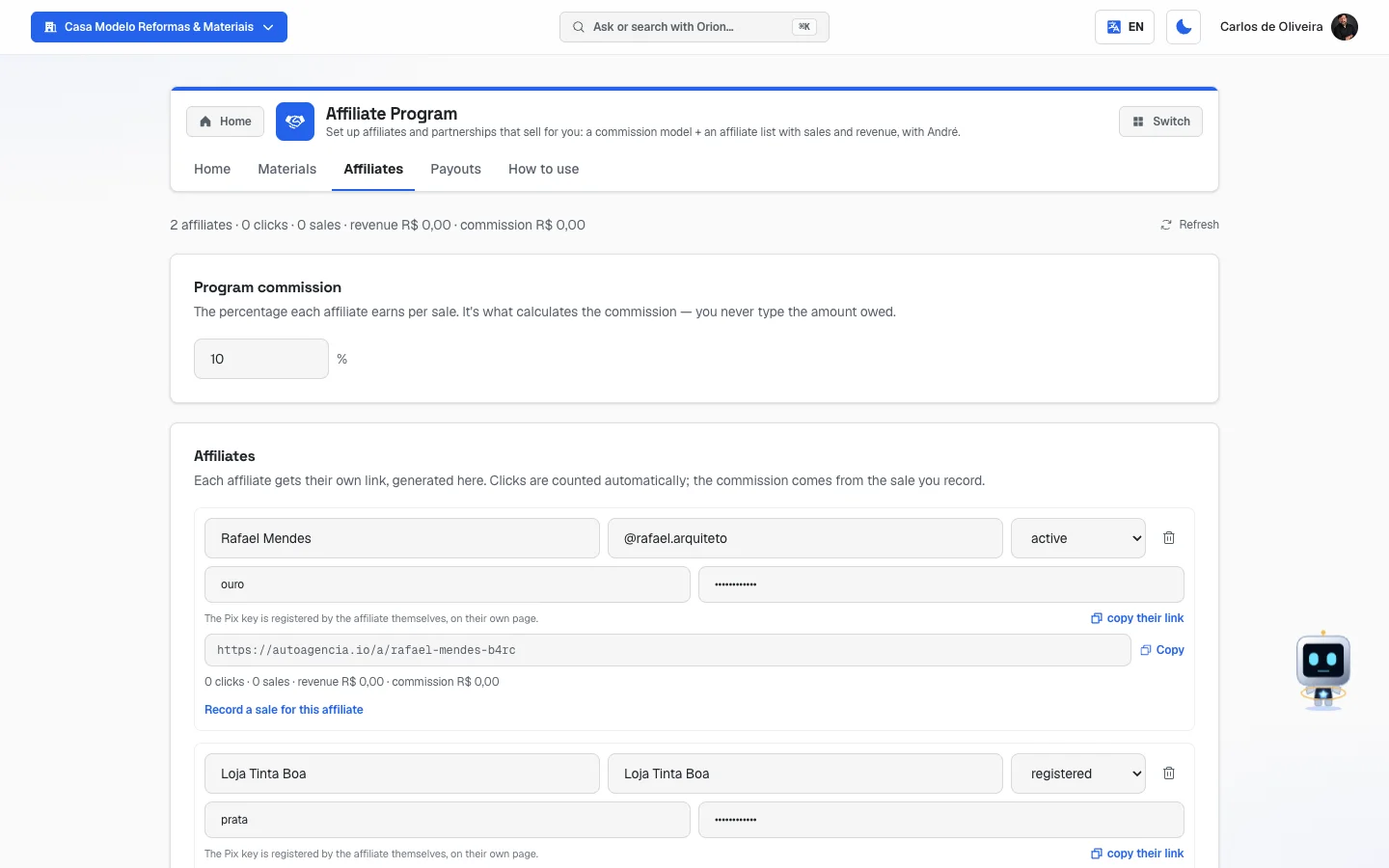 Affiliates tab with the summary line at the top, the Program commission box at 10% and two registered affiliates; each shows name, channel, status, level, the Pix key sentence with "copy their link", the generated link with the Copy button, the counters for clicks, sales, revenue and commission, and the Record a sale for this affiliate link
The three things that cause confusion (read this first)
1. How the affiliate joins the program
The one who registers the affiliate is you, by hand, in the Affiliates tab. The affiliate doesn't sign up on their own, doesn't create an account, has no password and doesn't enter the platform. They exist as a row in your list.
Each affiliate has a status, which you choose in the selection box on their row:
| Status | What it means |
|---|---|
| prospect | You've thought of them, haven't contacted them yet. |
| invited | You contacted them, they haven't confirmed yet. |
| registered | They said yes and are in the program. |
| active | They're really promoting. |
That status is just a control for you — you're the one who changes it, by hand. It doesn't block anything and the system doesn't change it on its own.
2. How the sale is attributed to the affiliate
Here's the point that causes the most confusion, so straight to it:
- The click is counted automatically. When someone opens the affiliate's link, the system records the click and sends the person to your site. That's automatic.
- The sale is NOT attributed automatically. The system doesn't know that visitor became a customer. You're the one who says so, by clicking Record a sale for this affiliate and entering the amount.
In other words: the link measures interest, you declare the sale. In practice, when you close a job that came through a referral, the habit is: open the Affiliates tab, find the row of the person who referred it and record the sale there.
When recording you fill in:
| Field | What to write |
|---|---|
| Sale amount ($) | How much the sale was worth, in full. You can use a comma (e.g. 450,00). |
| Order no. (optional) | The number of your invoice, work order or quote. It helps you find it later and avoids recording the same sale twice. |
The commission isn't typed in. The system does the math instantly, using the percentage in the Program commission box, and shows you the result in a message: "Sale recorded — commission of $ X".
If you change the percentage later, the sales already recorded keep the commission that applied the day they were recorded. The new percentage only applies from then on.
3. How the payout is paid
The path has four stops, and none of them moves money on its own:
- The month closes. On the first day of the next month, the system adds up that affiliate's commissions and creates a row in the Payouts tab. Only a month that has ended counts — the current month never appears, because it can still grow.
- You approve. Click Approve Pix. This doesn't transfer anything: it only locks in the amount and that affiliate's Pix key on that row, so the receipt matches later.
- You pay through your bank. Open your bank's app and make the Pix to the key that appears on the row. The money doesn't leave AutoAgency.
- You record it. Click Already paid, paste the Pix transaction code and click Record. Without the code the button doesn't turn on — it's the code that proves the payment happened.
When you record it, the affiliate gets an email with the subject "Your <month> commission has been paid", with the amount, the key used (hidden in the middle) and the transaction code.
The tabs, one by one
Home
/app/modulos/programa-afiliados/inicio
- What you see here:
- At the top, the Refresh link, to reload the numbers.
- André's panel (this module's specialist): a note from him about how the
program is doing, and sometimes a shortcut button beside it. The possible sentences are:
- "Your affiliate program has no written rules yet — without them there's nothing to offer." (Set up program button, which opens this same Home tab, where the Edit program button is)
- "The program is ready, but there are no affiliates registered yet." (View affiliates button)
- "You have N affiliates on the list and none selling yet." (View affiliates button)
- "Your program is running: N active affiliates and N sales."
- Four numbers: Active affiliates, Registered, Sales and Link clicks.
- A Your affiliate program box with the text you wrote (model, commission and rules), once there is one.
- A What's been done here box, with André's latest deliveries.
- Beside it, the chat with André.
- What you can do: chat with André and write the program.
Step by step — writing the program:
- On the Home tab, click Edit program.
- Fill in the four fields.
- Click Save program. The notice "Saved" appears.
Each field explained:
| Field | What to write |
|---|---|
| Commission model | In what situation you pay. Example: "paid per closed sale". |
| Commission & tiers | The description in words of how much you pay, including by level. Example: "10% on everything; whoever passes 10 referrals in the month moves up to 15%". |
| Platform | Where the sale happens. The screen gives "Hotmart, Eduzz, Monetizze, custom" as an example, but it's a text field: write whatever you like. Writing here doesn't connect the system to any of those platforms — a sale on Hotmart, Eduzz or Monetizze doesn't enter your program on its own; every sale is recorded by you in the Affiliates tab. What this field does is tell André where you sell, so he answers with your case in mind. |
| Rules | The agreement in writing: contract, the obligation to disclose that it's advertising, how and when payment is made, what's not allowed. |
Heads up: those four fields are free text. None of them does any math. The percentage that actually calculates the commission is on the Affiliates tab, in the Program commission box — and it's a separate field. If you write "10%" here and forget to enter
10there, all the commissions will come out as zero.
Assets
/app/modulos/programa-afiliados/materiais
- What you see here: a Material kit box with a big text area. The explanation on the screen says: "The ready-made material each affiliate gets: posts, stories, emails and banners. Ask the team for the pieces in the chat and paste the consolidated kit here."
- What you can do: write or paste the kit and save it.
Step by step:
- On the Assets tab, write (or paste) in the box the ready-made texts and links your affiliate can use: the Instagram caption, the WhatsApp text, the link to the folder with the artwork.
- Click Save kit. The notice "Kit saved" appears.
This tab is a notepad, not a file folder. You don't upload images here — you paste links to where the images are, and the ready-to-copy text. Sending the kit to the affiliate is up to you: copy it from here and send it by WhatsApp or email.
Affiliates
/app/modulos/programa-afiliados/afiliados
This is the tab where the program actually happens.
- What you see here:
- At the top, a summary line: "N affiliates · N clicks · N sales · revenue $ X · commission $ Y". While the system is fetching, it shows "Loading the numbers…".
- The Program commission box, with the percentage field.
- The Affiliates box, with one row per partner.
- The Commission ranking box, which only appears once at least one sale has been recorded.
- What you can do: set the percentage, register and delete affiliates, copy the links, record sales.
What each field on the affiliate's row means:
| Field | What to write |
|---|---|
| Name | The partner's name. It also becomes the start of the link (without accents). |
| Channel (@ or company) | Where they promote: the Instagram @, the store name, "building group chat". |
| Status box | prospect, invited, registered or active (see the table above). |
| Tier (bronze/silver/gold) | Their level, if you use levels. It's just a label: it doesn't change the commission math, which is a single percentage for everyone. |
| Email (for the link and the receipt) | Their email. Without it they don't get the payment receipt. |
| Trash icon | Removes the affiliate from the list. |
The box names disappear when you type. Name, Channel (@ or company), Tier (bronze/silver/gold) and Email appear written inside the box only while it's empty. Once filled in, each affiliate looks like this: on top, Name, Channel and the status box; below, Tier on the left and Email on the right.
Below the fields, each affiliate also shows: the Pix key sentence with the copy their link button, the little gray box with the link and the Copy button (the link is only born after you save the affiliate), the line with their numbers ("N clicks · N sales · revenue $ X · commission $ Y") and the Record a sale for this affiliate link.
The limit is 200 affiliates per account. Once you get there, the Add affiliate button stops creating rows and warns: "The list reached the limit of 200 affiliates. Delete one before adding another."
Step by step — registering an affiliate:
- On the Affiliates tab, click Add affiliate. A blank row appears.
- Fill in Name, Channel (@ or company), Tier (if you use it) and Email.
- Choose the status in the selection box.
- Click Save. The notice "Affiliates saved" appears.
- Their link appears in the little gray box on the row. Click Copy and send it to them.
Step by step — having the affiliate register their Pix key:
- On the affiliate's row, click copy their link (next to the sentence "The Pix key is registered by the affiliate themselves, on their own page.").
- Send them that link by WhatsApp or email.
- They open the link on their phone, with no account and no password. The page is called Your payout key.
- They write the key in the field (CPF, CNPJ, email, mobile number or random key — CPF and CNPJ are the tax ID numbers for individuals and companies in Brazil) and click Save my key. The page confirms: "Done! Your key is saved."
- You never see the whole key — only a piece of it, with the middle hidden.
Why do they type it themselves? Because a wrong Pix key lands in a stranger's account and doesn't come back. The person who answers for the key is its owner. If you click copy their link and "Save the affiliate first" appears, it's because the row hasn't been saved yet — click Save and try again.
Step by step — recording a sale:
- On the affiliate's row, click Record a sale for this affiliate.
- Fill in Sale amount ($).
- If you want, fill in Order no. (optional).
- Click Record. The notice with the calculated commission appears.
The ranking: at the bottom of the page, once there are sales, the Commission ranking box lists who brought in the most money, from highest to lowest, with a trophy on the first. The order is by commission; in case of a tie, whoever generated more revenue wins; after that, whoever had more clicks.
Payouts
/app/modulos/programa-afiliados/repasse
- What you see here: the Commission to pay out box, with one row per affiliate per closed month. The explanation on the screen says: "Every closed month becomes a line here. You approve, pay by Pix, and the affiliate gets the receipt."
- Each row shows: the affiliate's name, the month spelled out ("August 2026"), how many sales, the commission amount, the status and the Pix key hidden in the middle.
- What you can do: approve and record the payment.
The row's statuses:
| Status | What it means | What to do |
|---|---|---|
| waiting for you | The month closed and nobody has approved yet. | Click Approve Pix. |
| approved — pay by Pix | You approved. The amount and the key are locked in. | Make the Pix in your bank and click Already paid. |
| paid | Recorded. Next to it "receipt saved" appears. | Nothing. |
When the button doesn't appear: in its place comes a sentence explaining why, with a shortcut when it can be fixed:
- "Waiting for <name> to register their Pix key." — click copy their link and send it again to the affiliate.
- "There's no commission to pay this month." — that affiliate didn't generate anything that month.
Step by step — paying a commission:
- On the Payouts tab, find the row and check the amount.
- Click Approve Pix. A notice appears with the hidden key ("Payment of $ X to Fulano approved — key ***").
- Open your bank's app and make the Pix to that key.
- Come back to the screen and click Already paid.
- Paste the Pix transaction code in the field and click Record.
- If the affiliate has an email registered, "Payment recorded — Fulano got the receipt by email" appears. If not, a yellow notice appears: "Payment recorded, but we couldn't notify Fulano: their email is missing" — in that case let them know yourself and fill in their email on the Affiliates tab.
If there's nothing here yet: "No closed month yet" appears, with an explanation that as soon as a month ends with recorded commission it shows up for your approval.
A sale recorded late: if you record today a sale from a month that was already approved, the system does not touch the old month (that would change a number you already approved and maybe already paid). The difference comes in as an adjustment in the following month. It's what any accountant does.
How to use
/app/modulos/programa-afiliados/como-usar
Every module has this tab at the end. It's the module's manual inside the system itself.
How to read the numbers
On the Home tab:
- Active affiliates — how many partners have the active status.
- Registered — how many are on registered or active (in other words, they've already said yes).
- Sales — how many sales you recorded, adding up all the affiliates. That number comes from what was recorded, not from what someone typed into a little box.
- Link clicks — how many times your affiliates' links were opened. It counts the total, not different people: if the same person opens it three times, that's three clicks.
On the Affiliates tab, in the top line and below each affiliate:
- clicks — how many times that partner's link was opened.
- sales — how many sales you recorded under their name.
- revenue $ — the sum of the value of those sales. It's your money, what came in.
- commission $ — how much of that is theirs. It's what you owe.
Comparing clicks with sales tells you whether the partner brings people who buy or just people who browse. Lots of clicks and no sales = their audience isn't yours.
On the Payouts tab: each row's amount is that affiliate's commission for that month, already net of what earlier months recorded. There's no need to add anything up by hand.
Frequently asked questions
Is this module AutoAgency's affiliate program? No. This is your program, with your partners, paid out of your pocket. AutoAgency's program, where you refer the platform and get paid for it, is in the full menu, under Account → Referrals.
Does my affiliate need to create an account in the system? No. They never enter the platform. They receive two links by WhatsApp or email: the promotion link (the one they spread around) and the link to the page where they register their Pix key. That's all.
Does the system deduct the commission from my cash on its own? No. The system calculates, shows and records. You make the Pix, in your bank. Nothing is transferred automatically.
Why doesn't the sale come in on its own when the customer closes? Because the system counts the click on the link, but doesn't know what happened afterward — whether the person called, negotiated and closed. You're the one who knows. That's why recording the sale is manual.
I wrote "15%" in the Commission & tiers field and the commission came out zero. Why?
That field is text, it doesn't calculate anything. The percentage that does the math is the field in the
Program commission box, on the Affiliates tab. Write 15 there and save.
Can I pay different percentages to different affiliates? Through the screen, no: there's a single percentage, for the whole program, and it applies to everyone. The Tier field is for you to note down each one's level, but it doesn't change the math.
I changed the percentage. Do the old commissions change too? No. Each sale keeps the rate that applied when it was recorded. The new rate only applies to the next ones.
Why doesn't the current month show on the Payouts tab? Because it can still grow. Promising an amount on the 15th and having it change on the 30th would be promising wrong. Only a month that has ended becomes a row to approve.
When something goes wrong
| Symptom | What to check | What to do |
|---|---|---|
| "The Affiliate Program module is not active for this tenant." | Is the module subscribed on your account? | Turn on the Affiliate Program in the Modules tab. |
| Where the link should be, "The link appears as soon as you save this affiliate." shows | You added the row but didn't save. | Click Save. The link is born right away. |
| When clicking copy their link, "Save the affiliate first" appears | Same thing: the row doesn't exist in the system yet. | Click Save and try again. |
| The affiliate says their link lands on AutoAgency's site and not yours | Is your site's address registered in the company profile, in the Website field? Does it start with https://? | Register your site's full address in the company profile. |
| "Enter the sale amount" when recording | The field was left empty, with zero, or with a value that isn't a number. | Write the amount with numbers (e.g. 450 or 450,00). |
| "That sale was already recorded (duplicate reference)." | You used an Order no. that had already been recorded. | Check that you're not recording the same sale twice. If it's a different sale, use another number. |
| "Affiliate not found in this program." | The affiliate was deleted from the list while the screen was open. | Click Refresh and try again. |
| The calculated commission came out as $ 0.00 | Is the field in the Program commission box filled in? | Write the percentage (e.g. 10) and click Save. Then record the sale again. |
| "I couldn't read all the numbers right now — what you see may be incomplete." | It's a failed-read notice, not a mistake on your part. | Wait a few moments and click Refresh. |
| On the Payouts tab, "Waiting for Fulano to register their Pix key." | The affiliate hasn't opened their page's link yet. | Click copy their link and send it again, asking them to register the key. |
| "The affiliate hasn't registered their Pix key yet." when approving | Same thing, only the screen was out of date. | Reload the page and send them the link. |
| "This month has already been approved." or "This month has already been paid." | Someone on your team already clicked, in another tab or on another computer. | Reload the page. The row will then show the right status. |
| "Approve the Pix before recording the payment." | You skipped the approval. | Click Approve Pix first, then Already paid. |
| "Enter the Pix receipt (the transaction code)." | The field was left empty. | Paste the transaction code your bank shows after the Pix. |
| "There's no commission to pay this month." | That affiliate didn't generate sales that month. | Nothing to do. |
| The affiliate says the key page shows "This link is no longer valid. Ask whoever invited you for a new one." | The link was regenerated or the registration changed. | Click copy their link again and send the new link. |
| Yellow notice "Payment recorded, but we couldn't notify Fulano: their email is missing" | The Email field on their row is empty. | Fill in the email on the Affiliates tab, click Save, and let them know yourself this time. |