

Live Presentations (PresentaLive)
Where it is: Home → Your apps → PresentaLive (at the top of the screen the module shows up as Live Presentations)
Address: /app/modulos/presentalive
What it's for
You know that monthly reporting meeting you keep putting off? The one where you have to open your computer, show the numbers to the client, explain what happened and answer their questions? PresentaLive holds that meeting in your place.
You send the client a link. They open it on their phone or computer, without installing anything and without creating an account. A presentation screen opens, with slides, and a voice presenter starts talking — explaining each slide, running the presentation from start to finish. And the client can talk to the presenter: ask "why did it drop in March?" and get the answer right away. If you want, the presenter even appears on video, with a face you choose yourself.
You build the presentation in three ways: by writing a summary of the topic (the system builds the slides and the speech), by sending a PDF you already have, or by letting the system do it on its own every 1st of the month with last month's results for each of your clients.
Everyday example: you handle the marketing for eight clients. On the 1st, eight presentations get built on their own — one for each, with how much was invested, how many leads came in, how many calls. Each client gets their link by email and WhatsApp. You didn't open your computer. Three of them watch the same day, ask questions, and the answer comes out right away. You can also download the same thing as a PDF, to send in writing.
Before you start
- The PresentaLive module has to be active on your account. Without it the screen warns: "PresentaLive is a subscription module. Subscribe to PresentaLive in the Modules tab to create live presentations."
- The first time you open the module, an invitation appears at the top of the screen to set it up by chatting with Spencer. It's optional: the tabs below already work, and each reply from the specialist uses AI credits. Click Chat with Spencer so Spencer gets to know your company (when you're done, click Complete setup) or Dismiss to remove the invitation without chatting.
- Your subscription already includes a number of presentations per month. The screen shows how many are included and how many you've already used. Beyond that, each extra presentation comes out of your credits — the amount shows up on the screen itself.
- To create from a briefing: nothing but the text. You write it and that's it.
- To create from a PDF: a PDF file of up to 8 MB, with real text inside. A PDF that's just a photo of a page (scanned) won't work. Have a PowerPoint? Use "Save as PDF" and send the PDF.
- For the presenter with a face: a photo of the face in PNG or JPG, up to 2 MB.
- For the automatic monthly presentation: your clients need to exist as companies inside your account, and each one needs a connected ad account — that's where the month's numbers come from.
First steps
The first time, when the module has just been subscribed to, an invitation appears at the top of the screen to set it up by chatting with Spencer. It's optional: the tabs below already work. Click Chat with Spencer and, when you're done, Complete setup — or click Dismiss to remove the invitation without chatting.
- On Home, under Your apps, click PresentaLive. You land on the Presentations tab. The first time it says "No presentations yet".
- Click the Create tab.
- Leave From a briefing selected.
- Write the Presentation title (at least 3 letters).
- In the big field, paste or write the content: the topic, the numbers, the points. It needs at least 20 letters — the more detail, the better it comes out.
- Leave the Duration and the Voice as they are.
- Click Create live presentation. The message appears: "Presentation being prepared! Track it in the Presentations tab — it takes a few minutes."
- Go back to the Presentations tab. Yours shows up with the Generating… label and, when it's done, it becomes Ready. You can close the screen — it keeps being prepared.
- When it's Ready, click the Open room icon to watch it yourself before sending it to the client.
- Like it? Click the Copy link icon and send it to the client. Or use the Resend link to client one, which sends it by email and WhatsApp automatically.
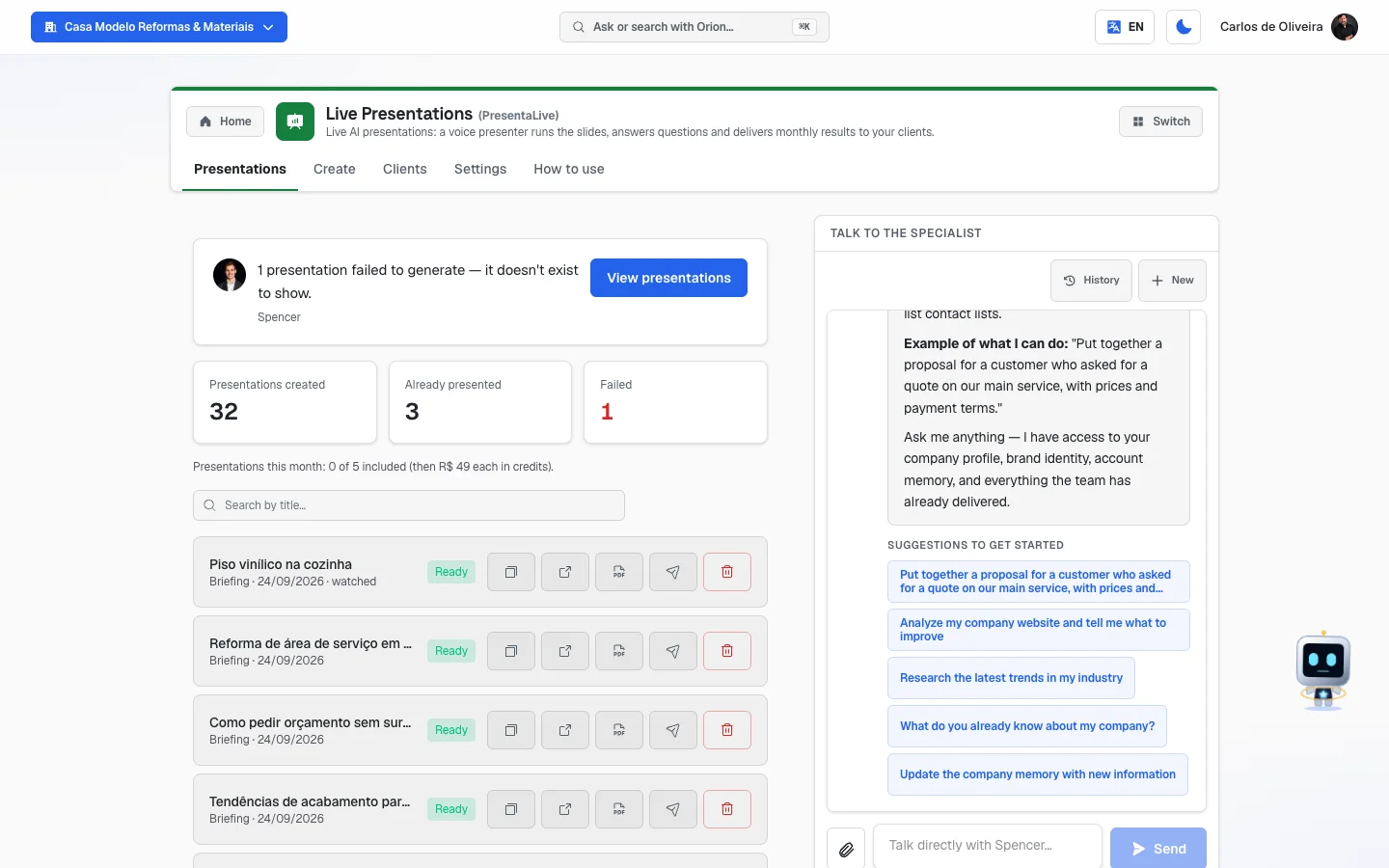 Presentations tab with two ready presentations, each with the icons to copy link, open the room, download as PDF, resend and delete, and the search field at the top
How the presentation works for the person watching
This is what your client sees. It's worth knowing so you can explain it to them.
- They click the link (
/sala/...). It doesn't ask for a login, doesn't ask to install anything. - "Joining the room…" appears for a few seconds.
- The presentation starts. The slides advance on their own, a voice presenter talks about each one. In the bottom corner the slide count appears ("3 / 8") and in the top corner a clock with the time left.
- The client can talk. As soon as the room opens, the system already turns on their microphone — that's why the browser asks for permission right at the start. With that they ask out loud and the presenter answers right there. At the bottom of the room there's a round button saying "Your microphone is on — tap to mute". Tapping it turns the microphone off and the button now says "Microphone off — tap to speak". That's how the client listens to the presentation without broadcasting the noise of their room.
- If you turned on the presenter with a face, a little video square appears in the corner, with the person talking.
- At the end the screen "Presentation ended — Thanks for watching!" appears — and their microphone is turned off at that moment, without them having to do anything.
The link is the key. There's no password: whoever has the link, watches. So send it only to the client. The page doesn't show up on Google — the system asks search engines not to index it.
The tabs, one by one
Presentations
/app/modulos/presentalive/apresentacoes
- What you see here:
- Spencer's panel (this module's assistant): a note from him with a shortcut button and three numbers — Presentations created, Already presented and Failed.
- A line saying how many presentations you made this month, how many are included in the subscription and how much each extra one costs, in credits.
- The Search by title… field, right above the list.
- The list of your presentations, from newest to oldest. The screen shows the 30 most recent; when there are more, "Showing 30 of 57." appears below and the Load more presentations button, which brings the next 30 — and so on all the way to the first one you created. None is left without a way to reach it.
- Alongside (or below, on mobile), the Talk to the specialist chat — that's Spencer.
- What you can do: follow the build, search for a presentation by title, copy the link, open the room, download as PDF, resend the link to the client and delete the one that's no longer needed.
- Empty state: "No presentations yet", with tips to create the first one in the Create tab or enable the monthly presentation in the Clients tab.
- Searched and found nothing: "No presentation with that title" — check the word you typed or clear the search to see the whole list.
How the search works: write one or more words from the title. You don't need accents or capital letters — "report pizzeria" finds "March report — Joe's Pizzeria" —, and the words can come in any order. The search looks at all your presentations, not just the ones already on the screen. Deleted ones don't show up.
What each line shows: the title, where it came from, the date and — when applicable — the word watched, which means someone has already opened the link.
Where it came from:
| Label | Meaning |
|---|---|
| Monthly results | It was built on its own, on the 1st, with last month's numbers for a client of yours. |
| Briefing | You wrote the content in the Create tab. |
| Uploaded PDF | You sent a PDF file in the Create tab. |
The status of each one:
| Label | Meaning |
|---|---|
| Generating… | It's being built. It takes a few minutes. The screen updates on its own. |
| Ready | You can send it to the client. |
| Failed | It didn't work. The reason shows up in red, under the title. |
The four buttons (only shown when it's Ready):
| Button | What it does |
|---|---|
| Copy link | Copies the room's address. Paste it into WhatsApp, email, wherever you like. |
| Open room | Opens the presentation in a new tab — it's exactly what the client will see. |
| Download as PDF | Downloads the same slides as a file, to send in writing. It doesn't have the voice. |
| Resend link to client | Sends the link through the client's communication channels (email, WhatsApp, Slack). Confirms with "Link resent.". |
The delete button (the trash can icon, in red):
- It shows up in any status — Generating…, Ready or Failed —, because a presentation created by mistake is usually noticed right away, while it's still being built.
- It only shows up for the account owner and administrators. A regular team member doesn't see the trash can.
- Before deleting, the screen asks "Delete this presentation?" and explains what's going to happen. Nothing is deleted without you clicking Delete on that question.
- When you delete, "Presentation deleted. Its link no longer opens." appears and it disappears from the list, from search and from the numbers on Spencer's panel.
What deleting does, no fine print:
- The room link stops opening right away. Whoever opens it afterward — even someone who already had the link — sees "This presentation is no longer available.". The PDF download stops along with it.
- Deleting doesn't give back the month's spot. It keeps counting in the month's presentations when it was created — deleting and creating again isn't free.
- It can't be undone. Deleted the wrong one? Create it again and send the new link.
- If someone is watching at that exact moment, their session isn't cut off midway; the link is what stops opening from then on.
While any is Generating…, this shows up at the end of the list: "Assembly takes a few minutes — you can leave this screen, the presentation keeps being prepared."
Create
/app/modulos/presentalive/criar
- What you see here: two buttons at the top — From a briefing and From a PDF — and, below, the form that changes depending on what you chose.
- What you can do: create a new presentation.
Step by step — from a briefing (you write the content):
- On the Create tab, click From a briefing.
- Write the Presentation title. At least 3 letters.
- In the big field, write or paste the content: the topic, the data, the points. At least 20 letters. The screen explains: "Describe the topic and paste the content here (data, topics, text). The AI builds the slides and the presenter's speech."
- If it helps, fill in Who is it for? (optional) — for example "restaurant owner, doesn't understand marketing". That changes the way of speaking.
- Choose the Duration: 10, 15, 20, 30, 45 or 60 minutes.
- Choose the Voice.
- If you want the presenter on video, check Presenter with a face and upload the photo.
- Click Create live presentation.
Step by step — from a PDF (you already have the material):
- On the Create tab, click From a PDF.
- Write the Presentation title.
- Click the dashed box — Click to choose the PDF (max 8 MB) — and choose the file.
- Choose Duration and Voice.
- Click Create live presentation.
The system does not use your PDF's pages as slides. It reads the content and builds new slides, with the presenter's speech. The screen says: "We reuse the file's content and build fresh slides with the presenter's speech."
Each field explained:
| Field | What to write / choose |
|---|---|
| Presentation title | The name the client sees. "August results — Joe's Pizzeria". Minimum of 3 letters. |
| Content (briefing mode) | Everything you want said: numbers, topics, running text. Minimum of 20 letters. The more you give, the less the system has to guess — and it's instructed not to invent anything that isn't in there. |
| Who is it for? (optional) | Who's going to watch. It's used to adjust the tone. |
| Duration | How long the presentation should last. It's the clock time the client sees on the screen. |
| Voice | Natural conversation (recommended) is the best quality. Eduardo voice (economical) is the cheaper option. |
| Presenter with a face | When checked, the presenter appears on video with the face from the photo you upload. The label on the screen shows, in parentheses, how much that costs in credits per minute. |
About the presenter with a face:
- The photo has to be PNG or JPG, up to 2 MB. Otherwise the screen warns: "The photo must be a PNG or JPG." or "The photo is too large (max 2 MB)".
- If you check the box and don't upload a photo, the create button warns: "Upload a photo of the presenter's face."
- You're only charged when someone watches. The screen explains: "The amount is debited from your credits when the presentation is first watched." And it's charged only once, not every time it's opened.
- If at opening time there aren't enough credits, the presentation happens anyway, just without the face. It never gets stuck because of that.
The Create live presentation button stays grayed out while the title, content (or the PDF) is missing. While it sends, it turns into "Preparing…".
Clients
/app/modulos/presentalive/clientes
This tab is for those who serve several clients inside the platform. This is where you turn on each client's automatic monthly presentation.
- What you see here: the explanation at the top and, below, the list of companies registered in your account, each with an on/off switch.
- What you can do: turn each client's monthly presentation on and off. It saves right away, with no save button.
- Empty state: "No clients registered", with the tip: "Create your clients' companies in Companies to enable the monthly presentation."
Step by step:
- On Home, under Your apps, click PresentaLive → Clients tab.
- Find the company in the list.
- Click the switch on the right side. On = the monthly presentation is active.
- Done. There's no save button.
What happens when it's on, in the screen's own sentence: "Every 1st of the month, clients with the switch ON receive a live presentation with last month's results — via each client's communication channels. Each generated presentation counts toward your monthly allowance."
In plain English:
- Every 1st in the morning, the system builds the presentation for each client that's on.
- It carries the previous month's numbers: how much was invested in ads (Google Ads, Meta Ads), how many leads came in and how many calls.
- The client themselves gets the link, through their channels (email, WhatsApp, Slack). You don't need to send anything. The email arrives with the subject "Your results presentation is ready".
- The presentation also shows up in your Presentations tab, with the Monthly results label.
- A client with no activity in the month is skipped. If there was no campaign activity that month, the system doesn't generate anything — instead of sending an empty presentation.
- These presentations use the best-quality voice and last 15 minutes.
Settings
/app/modulos/presentalive/config
- What you see here: three read-only boxes. There's nothing to fill in.
- What you can do: just read.
Your allowance — how many presentations your subscription includes per month, how many you've already used this month, and what each extra presentation costs in credits.
Voice and duration — reminds you that those two things are chosen when creating each presentation, on the Create tab; that the "Natural conversation" voice has the best quality and "Eduardo" is the economical one; and that the clients' monthly presentations use the natural voice with 15 minutes.
The box with the information icon — two important rules:
- The language of the presentation follows the company's communication language (Profile → Communication language). It isn't the language you're using the system in.
- The room link is secret: whoever has the link, watches. Share it only with the client.
How to use
/app/modulos/presentalive/como-usar
Every module has this tab at the end. It's the module's short manual inside the system itself.
How to read the numbers
On Spencer's panel (Presentations tab):
- Presentations created — the total that exists today in your account. The ones you deleted leave that count.
- Already presented — how many someone actually opened. Work that turned into a meeting.
- Failed — how many couldn't be built. When it's more than zero, the number is highlighted as an alert — and it's worth a look, because there may be a meeting scheduled for a presentation that doesn't exist. When you delete the one that failed, its alert goes away.
- Spencer's note changes depending on the situation. For example: "3 presentations are ready and haven't been shown to anyone yet." — it's him warning you there's finished work sitting idle.
On the allowance line (Presentations tab and Settings tab):
- Presentations this month: X of Y included — X is how many you've already used, Y is how many your subscription gives per month. The count resets on the 1st.
- Beyond Y, each new presentation comes out of your credits, for the amount the screen itself shows.
- Heads-up: what counts is creating, not watching. A presentation you created and then deleted still counts in the month — that's why this number can be bigger than the total of Presentations created on the panel, which only counts the ones that still exist.
On each presentation's line: the word watched appears as soon as someone opens the link for the first time. If it doesn't appear, the client hasn't seen it yet.
Frequently asked questions
Does the client need to install anything or create an account? No. They open the link in their phone's or computer's browser and the presentation starts. Their microphone comes in on, so they can ask out loud — and the button at the bottom of the room turns it off and back on whenever they like.
Can anyone with the link watch it? Yes. The link is the key — there's no password. So send it only to the client. Since the address has a random part and the page asks not to be indexed by Google, nobody gets to it by accident.
What language does the presentation come out in? In the communication language registered for that company (Profile → Communication language). It isn't the language you're browsing in.
Do I need to be present at the time? No. That's the beauty of it. The presenter runs it alone and answers the client's questions. You can watch along if you want, but you don't need to.
Can I send the presentation in writing too? Yes. Click Download as PDF on the presentation's line. It's the same slides, without the voice.
I sent a PowerPoint and it didn't work. It only accepts PDF. In PowerPoint, use "Save as PDF" and send the PDF. And remember: the system doesn't copy your pages — it reads the content and builds new slides.
What happens if I go over the amount included in the month? The extra presentations are charged in credits, for the amount the Settings screen shows. If there are no credits, the presentation isn't built and the reason shows up on its line.
I created one by accident. Can I delete it? Yes — if you're the account owner or an administrator. On the Presentations tab, click the red trash can on the line and confirm in Delete. It disappears from the list right away and the room link stops opening: whoever tries to get in sees "This presentation is no longer available.". You can delete in any status, even while it's still Generating…. Two things before you click: it can't be undone, and it still counts in the month — deleting doesn't give the spot back.
I have lots of presentations. How do I find an old one? Type a word from the title in the Search by title… field, at the top of the list — the search looks at all of them, including the ones that haven't shown up on the screen yet, and doesn't care about accents or capital letters. Or scroll to the end of the list and click Load more presentations as many times as you need.
When something goes wrong
| Symptom | What to check | What to do |
|---|---|---|
| An invitation appears at the top of the screen, before the tabs, to set up the module by chatting with Spencer | The module was just subscribed to and the initial conversation hasn't been held or dismissed yet. | It's optional — the tabs already work. To remove the invitation, click Dismiss, or chat with Spencer and click Complete setup. |
| The screen says "PresentaLive is a subscription module" | Is the module subscribed to on this account? | Subscribe to PresentaLive in the Modules tab. |
| The presentation has been Generating… for a long time | How much time has passed? The build takes a few minutes. | Leave the screen and come back later. It keeps being prepared even with the screen closed. |
| The presentation shows Failed with "We couldn't build this presentation right now. Our team has already been notified — please try again in a few minutes." | Nothing on your side. There was a problem in the build and the team has already been notified. | Wait a few minutes and create it again. |
| "You've already used the 5 presentations for the month and there aren't enough credits to generate another one." | How many have you used this month? Do you have credits? | Add credits in Credits, or wait for the month to roll over. |
| "We couldn't structure the presentation from the briefing. Try adding a bit more detail to the content." | What you wrote is too short or too loose. | Go back and write more: numbers, topics, what should be said in each part. |
| "We couldn't structure the presentation from the PDF. Try a file with more text." | The PDF has little text. | Send a fuller file, or use the From a briefing mode and paste the content by hand. |
| "We couldn't read the content of this PDF. If it's only images, export it with text and try again." | Is the PDF a scanned document or made of photos of pages? | Export the PDF again from the original file (Word, PowerPoint, Canva), so it comes out with real text inside. |
| "The PDF is too large (8 MB limit)." | The file size. | Export a lighter version (lower image quality) and send it again. |
| "Upload a PDF. Have a PowerPoint? Use 'Save as PDF' and upload the PDF." | You chose a file that isn't a PDF. | Convert it to PDF and send it. |
| "The photo must be a PNG or JPG." or "The photo is too large (max 2 MB)." | The format and size of the face photo. | Use a smaller PNG or JPG photo. |
| I turned on the presenter with a face, but it didn't show up in the room | Were there credits at the moment the client opened it? | The presentation happens without the face when credits run short — it's on purpose, so the client's meeting doesn't get stuck. Add credits before the next one. |
| The Create live presentation button is grayed out | Does the title have at least 3 letters? Does the content have at least 20? Was the PDF chosen? | Complete what's missing — the button turns on on its own. |
| The client says they saw "Presentation not found." | Is the link complete? Did the presentation become Ready? | Copy the link again with the Copy link button and send it once more. |
| The client says they saw "This presentation has ended." | Is the PresentaLive module still active on the account? | That message appears when the module is no longer active: the rooms close along with the product. Reactivate the module so the links open again. |
| The client says they saw "This presentation is no longer available." | Did someone on your account delete that presentation in the Presentations tab? | It's the deleted-presentation screen, and deleting can't be undone. Create the presentation again and send the new link. |
| I can't find an old presentation in the list | Does it show up when searching for a word from the title? | The screen shows 30 at a time: use the search or click Load more presentations at the end of the list. If searching for a correct word from the title doesn't find it, it was deleted — or it was created in another company on your account. |
| The Presentations tab says "Could not load your presentations" | Nothing on your side — the list wasn't fetched; that does not mean they disappeared. | Click Try again. |
| The trash can to delete doesn't show up | Are you the account owner or administrator? | Only the owner and administrators delete presentations. Ask one of them. |
| "Only the account owner or an administrator can delete presentations." | Your role on the account. | Ask the owner or an administrator to delete it. |
| The client says they saw "We couldn't open the room right now." | Nothing on your side — it's temporary. | Ask them to refresh the page in a few moments. The link is still valid. |
| The client says the screen stayed on "Joining the room…" | Their connection, or the room is still opening. | Ask them to refresh the page. If it persists, send the PDF as an alternative. |
| "Presentation not found or not ready yet." when clicking resend | Is it Ready? | Wait until it's Ready. You can only resend the link of a ready presentation. |
| I turned on a client's switch and on the 1st nothing came | Did that client have campaign activity last month? Are their ad accounts connected? | A client with no campaign data in the month is skipped on purpose. Connect their ad accounts and check the following month. |
| The Clients tab is empty | Are your clients' companies registered on your account? | Register them in Companies. Only those who exist as a company inside your account show up here. |
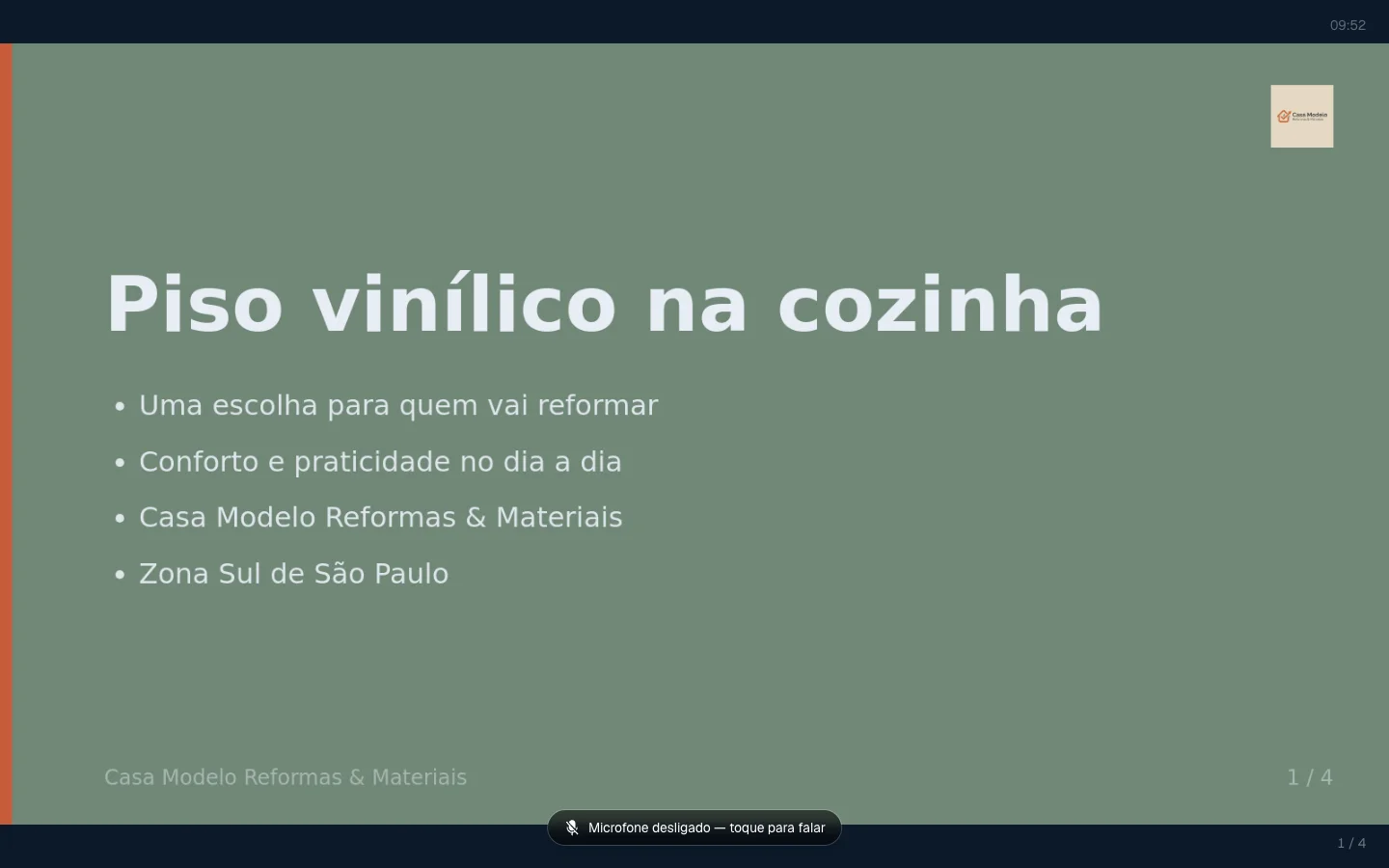 The presentation room open on the first slide, with the "1 / 7" count in the bottom corner, the time left in the top corner and the microphone notice below
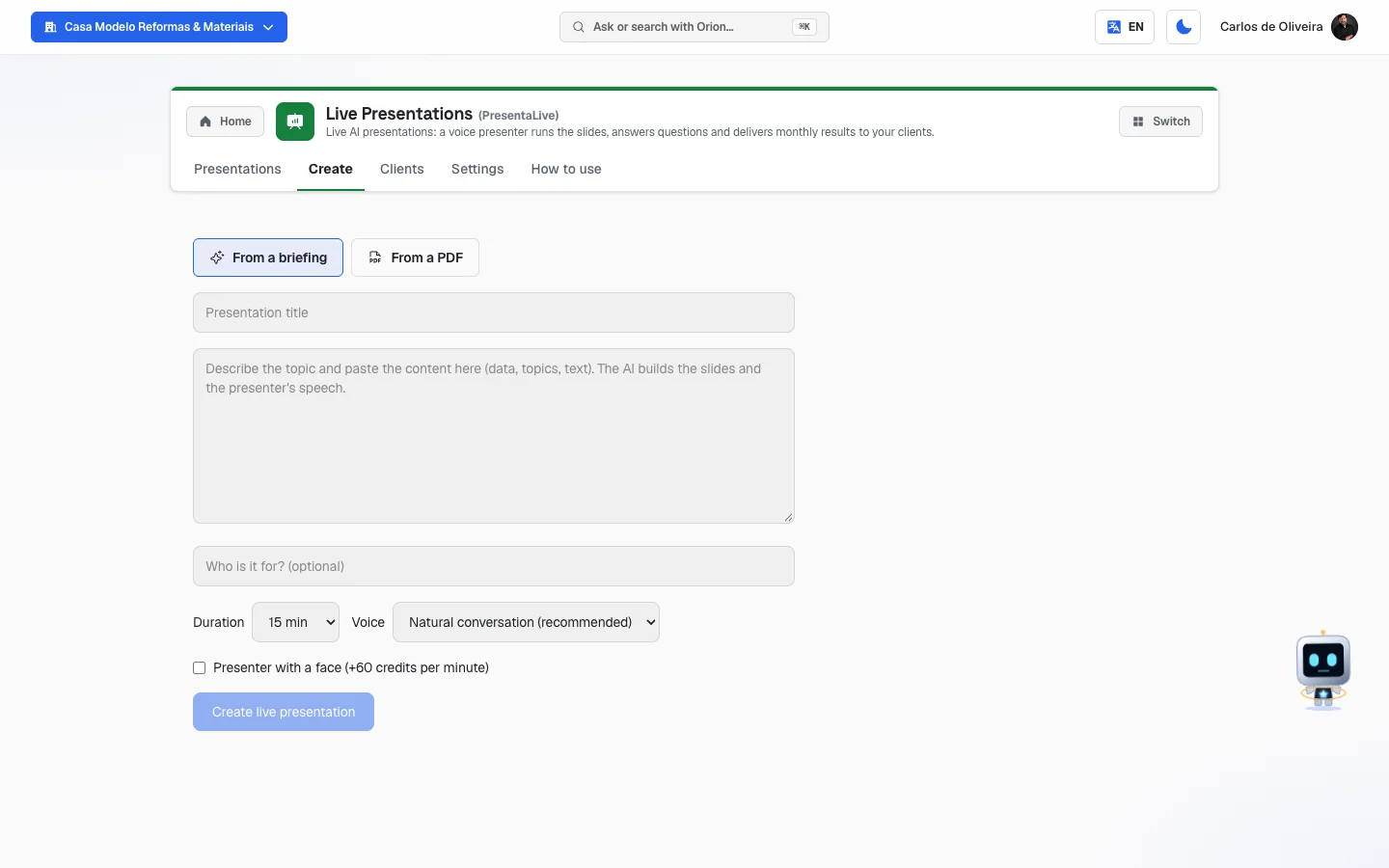 Create tab in briefing mode, with the Title, content, Duration, Voice fields and the presenter-with-a-face checkbox
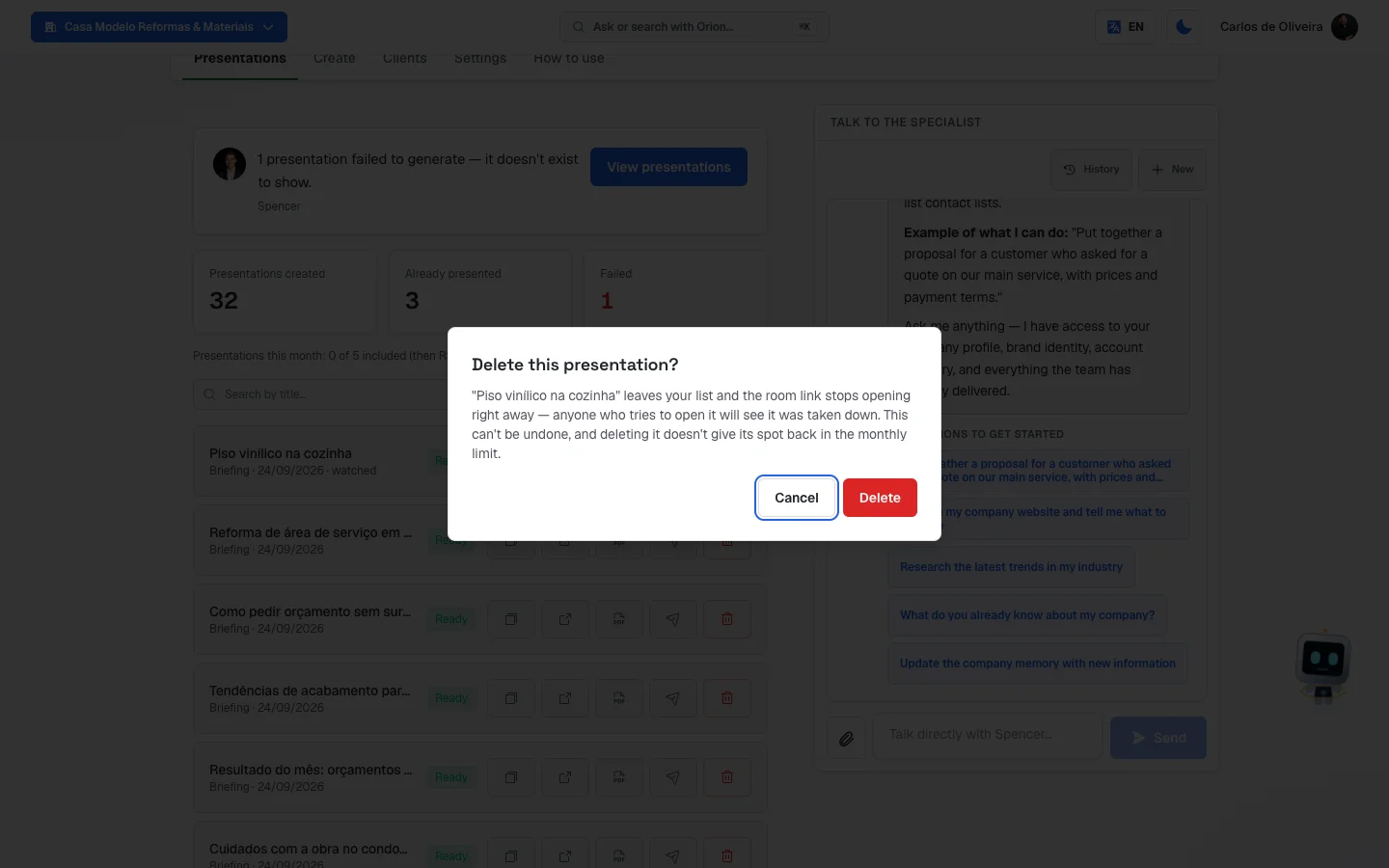 The "Delete this presentation?" question open over the Presentations tab, with the red Delete button
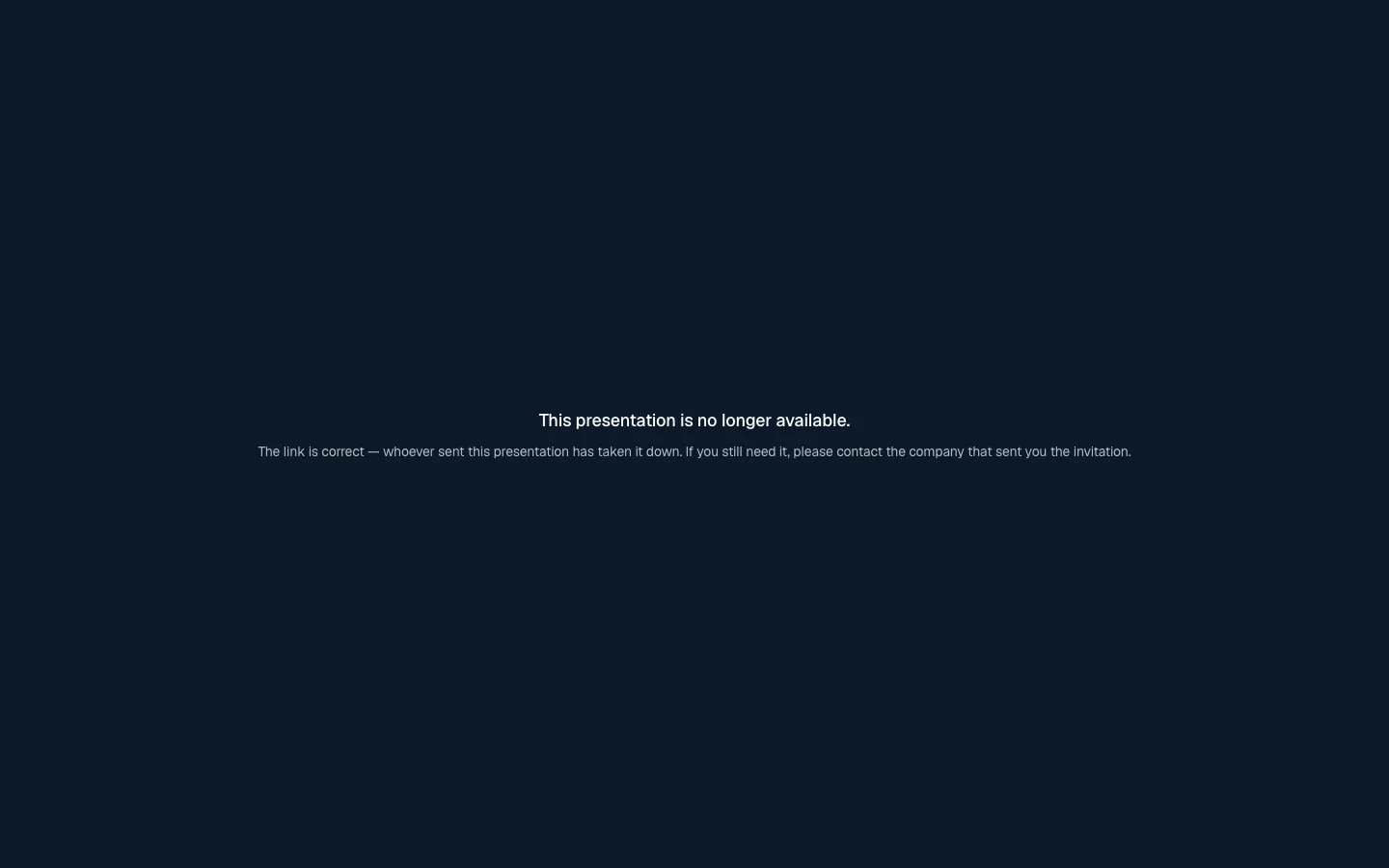 The room showing "This presentation is no longer available."
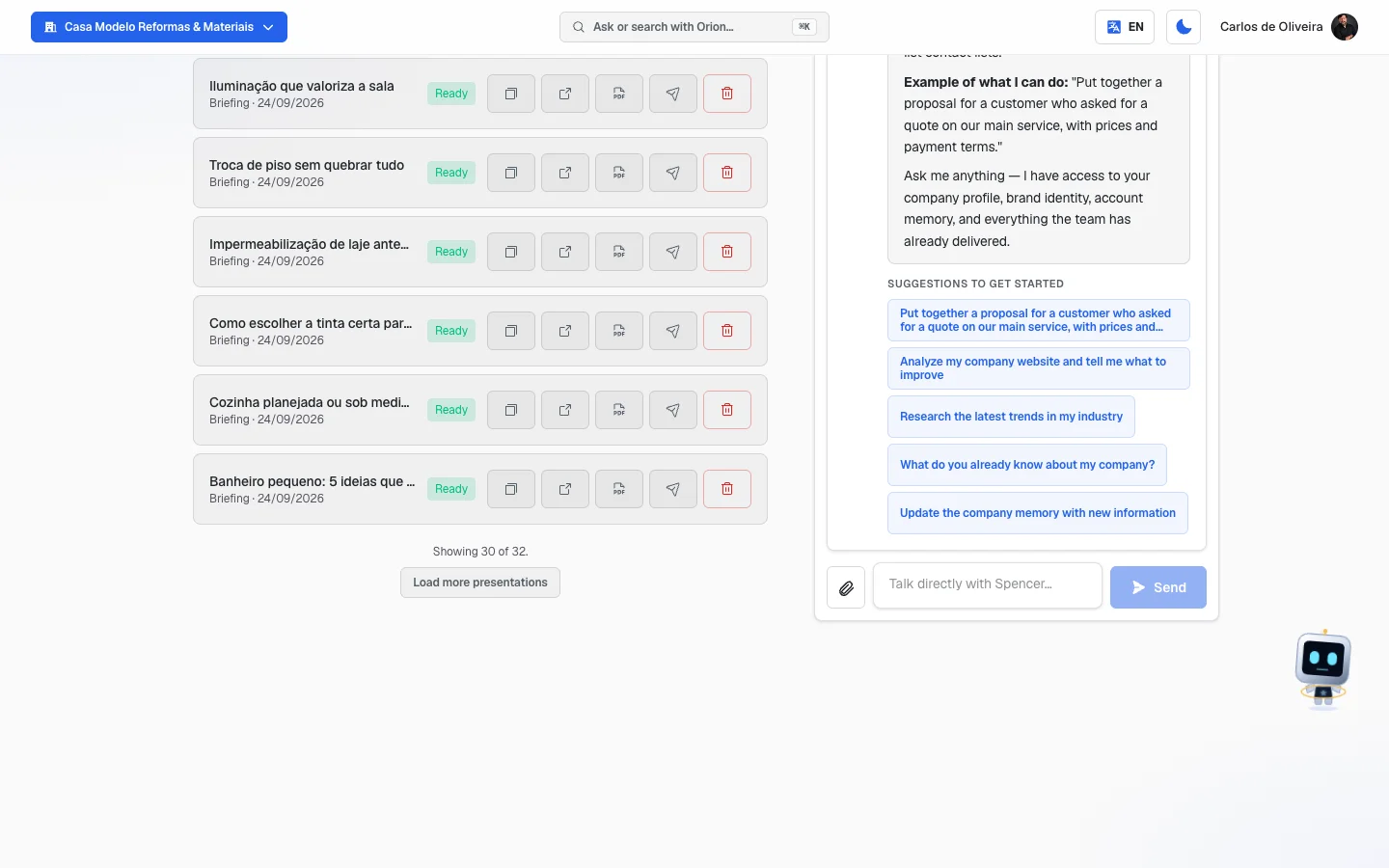 End of the Presentations tab list, with "Showing 30 of 32." and the Load more presentations button