

Pricing
Where to find it: Home → Your apps → Pricing (at the top of the screen the module shows with the same name, Pricing)
Address: /app/modulos/precificacao
What it's for
The most expensive question in your business is "how much do I charge?". Almost every owner answers it off the top of their head: look at what the guy down the street charges, pick a round number and move on. Then the year goes by working hard and having little left over — and nobody can say which service the money is disappearing in.
The Pricing module solves this with three screens. On the Price table you write down what you sell, what it costs you and what you charge — and the system calculates each item's margin on its own (how much of every dollar that comes in actually stays in your pocket). In the Simulator you find out whether it pays more to raise or lower the price: the calculation shows how much you would earn in each scenario, already counting that raising the price makes you sell a bit less — and already subtracting the tax on the sale, which goes up along with the price. And on Home you write, in your own words, the house rule: how much discount you can give, which promotions you run, why the prices are what they are. The one who talks with you here is Hélio, this module's assistant.
Everyday example: you own a hair salon. A blowout costs $50 and you think it's your best seller. You enter blowout, haircut, coloring and conditioning treatment in the table, with the cost of materials and the time for each one. The moment the margin shows up next to them, you discover that coloring — which you thought was the most profitable — is the one that leaves the least, because the product is expensive. In five minutes you know where to make changes.
What this module does NOT do. It doesn't charge your customer, doesn't issue invoices and doesn't change the prices in your store or on your website. It is your calculator and your price notebook: what you decide here, you apply where you sell.
Before you start
- The Pricing module has to be active on your account. If it isn't, the screen shows the module's name, the description and the Activate in catalog button.
- The first time you open the module, an invitation appears at the top of the screen to set it up by chatting with Hélio. It's optional: the tabs below already work, and each reply from the specialist uses AI credits. Click Chat with Hélio so Hélio gets to know your company (when you're done, click Complete setup) or Dismiss to remove the invitation without chatting.
- Have your cost at hand. Before sitting down at the screen, work out how much it costs you to do each thing you sell once: materials, parts, packaging, commission, card-reader fee, the fuel for the visit. Without the cost, the system can't calculate the margin — and the screen shows a dash ("—") instead of the number.
- Know how much tax you pay on what you sell, as a percentage (in Brazil, for example, Simples or ISS; elsewhere, VAT or sales tax…). Don't know? Take the amount of your last tax payment of the month and divide it by what you invoiced that month: a $600 tax payment on $10,000 invoiced is 6%. When in doubt, your accountant knows the number by heart.
- Nothing else is required. You don't need to connect anything, or have a store, or have a website.
Getting started
- On Home, under Your apps, click Pricing. You land on the Home tab, with Hélio's chat beside it. The module's tabs are on the app bar, at the top of the screen.
- If the invitation to the setup conversation shows up, chat with Hélio and click Complete setup, or click Dismiss. The tabs work either way.
- Click the Price table tab.
- At the top of the table, fill in Sales tax (%) with the percentage you pay on what you
sell (e.g.:
6). If you pay no tax on sales, leave it empty. - Click Add item. A blank row appears.
- Fill in Product / plan (the name of what you sell), the Cost and the Price.
- Look at the Margin column: the number shows up on its own, without you doing anything — already net of tax.
- Repeat for each product or service. You can enter up to 40 items.
- Click Save table. The "Table saved" notice appears. The tax is saved along with it.
- Click the Simulator tab. In the Load from a table item box, choose the item you want to test — price, cost and volume come in filled out, and the tax comes from the table.
- Choose the Business type and the Price sensitivity and read the table of scenarios that appears.
- Go back to the Home tab, click Edit strategy and write your discount and promotion rules. Click Save strategy.
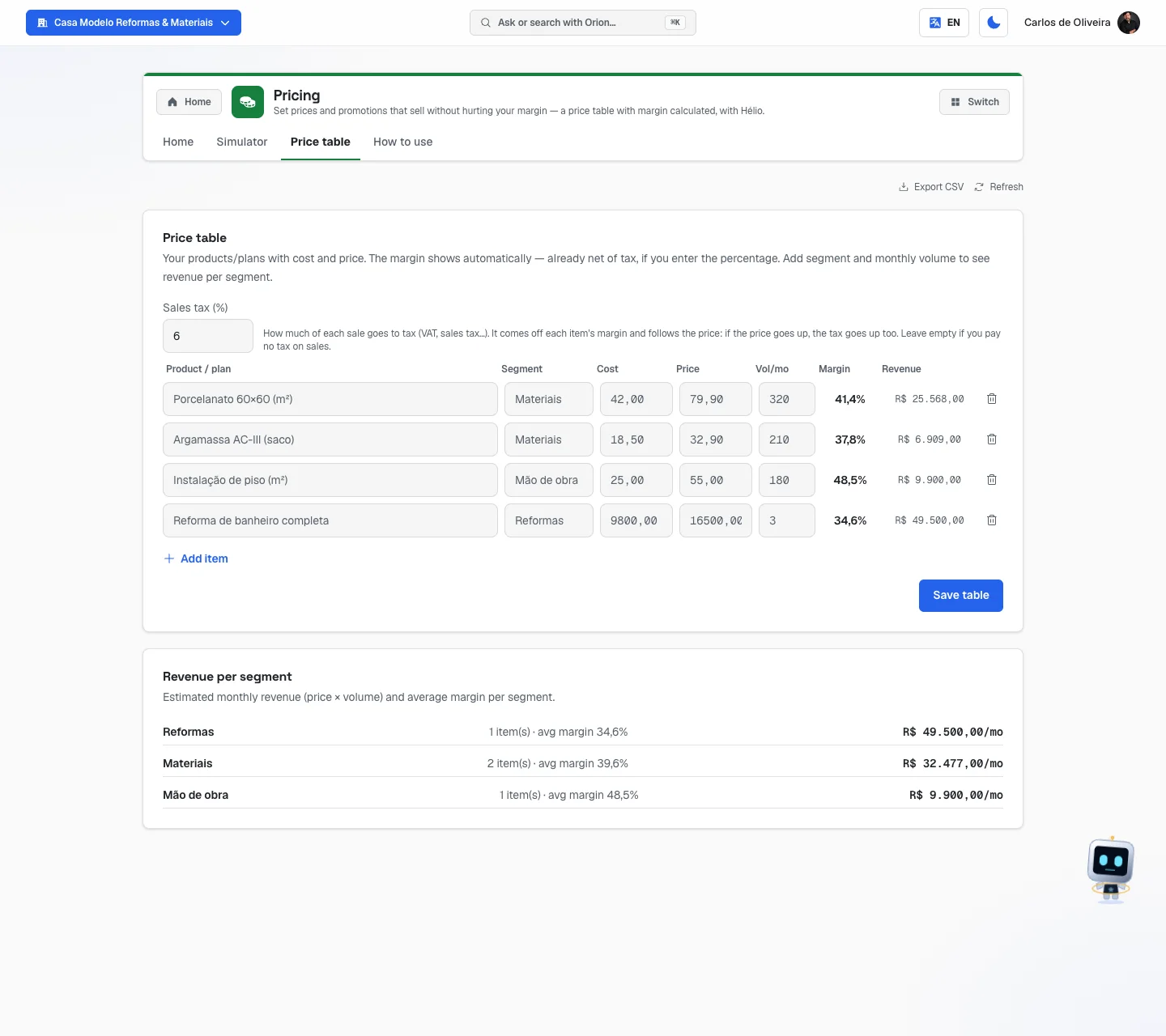 Price table tab with Sales tax at 6% and four items filled in (porcelain tile, mortar, floor installation and bathroom renovation), each with Segment, Cost, Price, Vol/mo, the calculated Margin and the Revenue; below, the Revenue per segment card with three groups, from the one that earns the most to the one that earns the least
Understanding margin (read this first)
Margin is how much is left of every dollar your customer pays you, as a percentage. The calculation the system makes is this:
Margin = (Price − Tax − Cost) ÷ Price × 100
where Tax = Price × your sales-tax % (zero, if you left it empty).
If you charge $100, spend $40 to deliver and pay 6% tax on the sale, the tax on that sale is $6 and the margin is 54%: of every $100 that comes in, $54 is yours. With no tax filled in, the same calculation would give 60%. The higher the margin, the more is left over.
Why the tax is a percentage and not an amount of money: because it's charged on top of what you sell. If the price goes up from $100 to $120, the 6% tax goes up with it, from $6 to $7.20. The system does this calculation on its own everywhere — in the table, in the simulator and in Hélio's answers. That's why you should not add the tax to the cost: the cost is what you spend to deliver, and it doesn't change when the price changes.
Two important warnings:
- Margin is not final profit. What's left still has to pay rent, electricity, salaries and the accountant — and the tax, if you left the tax field empty. A high margin on a product you sell twice a month doesn't pay the electricity bill; a medium margin on a product you sell three hundred times does.
- Negative margin is a loss. If the Price, minus tax, doesn't cover the Cost, you are paying to work. Hélio's panel, on the Home tab, counts how many items are in that situation and shows the number in an alert color.
The tabs, one by one
Home
/app/modulos/precificacao/inicio
- What you see here:
- The chat with Hélio beside the screen (on this tab it is always visible).
- At the top, Hélio's note: one sentence about the state of your prices. It can be "There are no products in your price table yet — without them there's no margin to calculate.", "Your prices are healthy, but X products are selling below cost." or "Your pricing is in order: X products priced, Y% average margin.". Next to the sentence there's a button that takes you straight to the tab where it gets fixed.
- Three numbers: Products priced, Average margin and Below cost.
- The Edit strategy button and, in the top corner, Refresh.
- What you can do: talk with Hélio and write your pricing strategy.
The screen opens in reading mode — the form only appears when you click Edit strategy. That's on purpose: the screen is for looking at the situation, not for filling out a form every day.
Step by step — writing the strategy:
- On the Home tab, click Edit strategy.
- Fill in the four fields (explained below). None is required.
- Click Save strategy. "Strategy saved" appears.
- To give up without saving, click Cancel.
Saving here doesn't touch your price table. This screen saves only the four text fields. Your items, with Segment, Cost, Price and Vol/mo, stay exactly as they were on the Price table tab — and so does the Revenue per segment card.
Each field explained:
| Field | What to write |
|---|---|
| Anchoring | The comparison trick you use so the customer sees a price as good. The screen's own example: "an expensive plan that makes the middle one look great". E.g.: "I always show the full package first, so the middle one looks cheap". |
| Promotions | The promotions you run. Example from the screen: "5% off with PIX, 2 free months on annual" (PIX is Brazil's instant payment). |
| Discount policy | How much you can discount and under what conditions. E.g.: "up to 10% for payment in full; above that, only I authorize". It's the field that stops each employee from making up a discount. |
| Rationale | Why your prices are what they are. Whether the goal is margin, volume or entering a new market. |
What you write here, Hélio reads in the next conversations. That's how he stops giving generic advice and starts talking about your business.
Simulator
/app/modulos/precificacao/simulador
This is the module's most powerful screen — and the one that touches your selling price directly. It answers one question only: if I change the price, do I make more or less money?
The logic is simple to understand: when you raise the price, you earn more on each sale, but you sell a bit less. When you lower it, you sell more, but earn less on each one. Where is the right point? The simulator tests nine different prices (from 20% below to 20% above your current price, in steps of 5) and shows how much is left at each one.
- What you see here: the Price simulator card with the fields and — as soon as the first three fields are filled in — the Price scenarios card, with a colored recommendation strip and a table.
- What you can do: only simulate. Nothing you type here is saved and nothing changes your real price. It's a calculator: you do the math, understand it and then decide.
Step by step:
- On the Simulator tab, if you already have items in the table, use the Load from a table item box and choose one. Price, cost and volume come in filled out.
- If you prefer, fill them in by hand: Current price (R$), Variable cost / unit (R$) and Volume / month (units).
- Check the Sales tax (%). It already comes with the percentage you saved on the Price table tab. If you didn't save one, it comes empty — fill it in.
- Choose the Business type.
- Choose the Price sensitivity.
- Read the colored strip right below — that's the recommendation.
- Check the table: the row marked with 🏆 is the highest-profit one; the one marked (current) is your price today.
Each field explained (in business-owner language):
| Field | What to write |
|---|---|
| Current price (R$) | How much you charge today for one unit — one service, one product, one monthly fee. You can type it with a comma (100,00) and even with R$ in front. |
| Variable cost / unit (R$) | How much it costs you to deliver one more. It's only what goes up when you sell one more: materials, parts, packaging, salesperson's commission, card-reader fee, fuel for that visit. It does not include rent, electricity, fixed salary, internet, accountant — you pay those the same whether you sell or not. The tax doesn't go in either: it has its own field, right next to it. |
| Volume / month (units) | How many you sell per month today. It can be approximate. |
| Sales tax (%) | How much of what you sell goes to tax, as a percentage (in Brazil, Simples or ISS; elsewhere, VAT or sales tax…). E.g.: 6 or 6,5. It comes filled in with what you saved in the Price table; changing it here only applies to this simulation. Empty = no tax: the screen warns that the profit is before tax. A MEI (Brazil's individual micro-entrepreneur regime), whose tax is a fixed amount per month, types 0. |
| Business type | Tells the system how much your market tends to run away from a high price. The options are explained in the table below. |
| Price sensitivity | A fine adjustment on top of the previous option, depending on how well you know your customers: Rigid (buys even if pricey), Medium (default) or Sensitive (avoids high price). |
The Business type options, and what each one means:
| Option | When to pick it |
|---|---|
| Local / emergency service | Whoever calls you needs it now and doesn't shop around for prices: drain cleaner, locksmith, leak repair. Hardly loses any customers when the price goes up. |
| Recurring service / subscription | Monthly fee, contract, plan: gym, weekly cleaning, monthly maintenance. |
| Niche / premium product | Something special that few people do your way: a custom-ordered artisan cake, a made-to-measure piece. |
| Retail / e-commerce | A common product that the customer finds in several places and compares online. |
| Commodity / highly competitive | Everyone sells the same thing and the customer decides on price. Here raising the price hurts more. |
How tax enters the calculation. The calculation on this screen is what accountants call contribution margin: it includes the price, the sales tax and the cost that varies with each sale. Fixed expenses (rent, salaries, accountant) are left out on purpose — they don't change from one scenario to another, and would only get in the way of the comparison. The tax, on the contrary, enters each scenario and follows the price: it is calculated on that scenario's revenue. In the +20% scenario, the tax per sale also goes up 20% — and the profit the table shows is already what's left after it.
Why this matters: if the tax were a fixed amount of money added to the cost, it would stay still when the price goes up, and the simulator would show a profit bigger than the real one precisely in the higher-price scenarios — the ones it tends to recommend. With the tax as a percentage, the scenario that wins the 🏆 is the one that really gives the most profit.
What the scenarios table shows:
| Column | What it is |
|---|---|
| Scenario | How much the price would change, in percent, from −20% to +20%. The row for your current price is written (current); the highest-profit one comes with 🏆. |
| Price | The price in that scenario, in money. |
| Volume | How many units the system estimates you would sell at that price. |
| Revenue | Price × Volume. It's the money that comes in. It is not what's left over. |
| Tax | Shows up when you enter the tax. It's your percentage applied to that scenario's Revenue — that's why it grows when the price goes up. |
| Profit | Revenue minus the tax and minus the variable cost. It's what's left to pay the fixed bills and become your profit. This is the column that matters. |
| Margin | The percentage left from each sale at that price, already net of tax. |
The colored strip ends with a sentence about tax: "Profit already net of the 6% sales tax, which rises and falls with the price." when you entered the percentage, or "No tax entered: this profit is BEFORE tax." when the field is empty.
Above the table the sentence "Estimated elasticity …" appears. Elasticity is just the technical name for "how much the volume reacts to the price". The bigger the number, the more people give up when you raise the price. You don't need to understand that number — it comes from your two choices (business type and sensitivity).
An example to understand it (made-up numbers)
⚠️ The numbers below are made up, just to teach. They are not market prices, not a suggestion from the system and not meant for your business. Use your numbers on the screen.
Imagine a drain-cleaning technician. Today he charges $200.00 per call, spends $60.00 on materials and fuel for each one, does 30 a month and pays 6% tax on what he invoices. He fills it in like this:
- Current price (R$): 200.00
- Variable cost / unit (R$): 60.00
- Volume / month (units): 30
- Sales tax (%): 6
- Business type: Local / emergency service
- Price sensitivity: Medium (default)
The scenarios table would come out like this (a few scenarios, to fit here):
| Scenario | Price | Volume | Revenue | Tax | Profit | Margin |
|---|---|---|---|---|---|---|
| −10% | $180.00 | 32 | $5,760.00 | $345.60 | $3,494.40 | 60.7% |
| −5% | $190.00 | 31 | $5,890.00 | $353.40 | $3,676.60 | 62.4% |
| 0% (current) | $200.00 | 30 | $6,000.00 | $360.00 | $3,840.00 | 64% |
| +5% | $210.00 | 29 | $6,090.00 | $365.40 | $3,984.60 | 65.4% |
| +10% | $220.00 | 29 | $6,380.00 | $382.80 | $4,257.20 | 66.7% |
| +15% | $230.00 | 28 | $6,440.00 | $386.40 | $4,373.60 | 67.9% |
| +20% 🏆 | $240.00 | 27 | $6,480.00 | $388.80 | $4,471.20 | 69% |
And the colored strip at the top would say: "Best profit: raise price to $240.00 (+20%) → profit $4,471.20/mo (+$631.20 vs. today), volume ~27 units. Profit already net of the 6% sales tax, which rises and falls with the price."
How to read this in plain English: going from $200 to $240, this technician would lose about 3 calls a month — but would end the month with $631.20 more in his pocket, already paying the higher tax, and working less. Three fewer calls is half a day free.
Notice the Tax column: each call at $200 pays $12 in tax; at $240, it pays $14.40. That's why the tax can't be added to the cost: if he had put $12 more into the cost, the simulator would show $4,536.00 of profit in the +20% scenario — $64.80 more than he will see at the end of the month.
An important detail in this example: the best scenario landed on the last row of the table (+20%), which is the limit the simulator tests. When that happens, it's a sign that maybe you could raise it even more. It's worth redoing the calculation by putting the new price ($240.00) in the Current price field and looking again.
And if the 🏆 lands on a negative row? Then the message is the opposite: your price is too high for your market, and lowering it a little would bring more people and more profit at the end of the month.
And if the 🏆 lands on the 0% row? The screen writes: "Your current price is already the best-profit one in this simulation." In other words: it's good, don't touch it.
Remember: this is an estimate, not a crystal ball. It assumes your audience behaves like the average of the business type you picked. Use it as a starting point — and, if you raise the price, watch your sales over the following weeks.
Price table
/app/modulos/precificacao/tabela
- What you see here: at the top, the Sales tax (%) field. Below it, the list of your products and services, one row each, with the columns Product / plan, Segment, Cost, Price, Vol/mo, Margin, Revenue and a trash can. In the top corner there are Export CSV and Refresh. At the bottom, if you fill in the volumes, the Revenue per segment card appears.
- What you can do: enter your tax, add, edit and delete items, save the table and download everything as a spreadsheet.
The Sales tax (%) field: there is just one for the whole company. Type the percentage you pay
on what you sell (e.g.: 6; it accepts 6,5). As soon as you type it, the Margin column for
all items changes — it now shows what's left after the tax. The tax is saved along with the
table, on Save table, and from then on it also applies in the Simulator and in Hélio's
answers in the chat. Don't pay tax on sales? Leave it empty. Are you a MEI? Type 0 — your tax is
a fixed amount per month, which doesn't change with the price.
Step by step — adding an item:
- On the Price table tab, check the Sales tax (%) at the top.
- Click Add item.
- Fill in the columns (see below). The name, the cost and the price — plus the tax at the top — are what matter for the margin.
- Repeat as many times as you need — the limit is 40 items.
- Click Save table. "Table saved" appears.
- To delete a row, click the trash can at the end of it and then Save table.
The table does not save by itself. If you type and leave the tab without clicking Save table, you lose what you wrote.
Each column explained:
| Column | What to write |
|---|---|
| Product / plan | The name of what you sell, the way you say it. The screen's example is "Pro plan". |
| Segment | A group, so you can compare families of products. E.g.: "Premium", "Basic", "Service", "Resale". You can leave it empty — then the item goes into a group called General. |
| Cost | How much it costs you to deliver one unit. Same concept as in the simulator: only what varies with each sale — and without the tax, which has its own field at the top. |
| Price | How much you charge. |
| Vol/mo | How many you sell per month. Optional — it lets the system estimate the revenue. |
| Margin | You don't fill it in. It appears on its own as soon as cost and price are there, already net of sales tax. Shows "—" while one of the two is missing. |
| Revenue | You don't fill it in. It's Price × Vol/mo. Shows "—" if the volume is missing. |
The money fields accept the Brazilian way of writing: 99,90, 1.234,50 and even
R$ 1.234,50. After the table is saved and reopened, the numbers come back the same way, with a
comma: what you typed as 79,90 shows as 79,90. The Margin, the avg margin in the
Revenue per segment card and the Revenue also come out in the Brazilian format
(41,4%, R$ 25.568,00).
The Revenue per segment card appears at the bottom when at least one item has a volume filled in. For each segment it shows how many items it has, that group's avg margin and the estimated monthly revenue. The groups are ordered from the one that earns the most to the one that earns the least — it's the picture of where your money comes from.
Step by step — downloading the spreadsheet:
- On the Price table tab, click Export CSV.
- The file
tabela-de-precos.csvdownloads to your device. It opens in Excel or Google Sheets. - Besides what's on the screen, the spreadsheet also has the Markup % column (how much you add on top of the cost — it's the calculation a lot of people in retail use: a cost of $40 turning into a price of $100 is a 150% markup, and a 60% margin before tax). Markup doesn't involve tax: it's just the relationship between price and cost.
- The spreadsheet also has the sales tax (%) column, right before the margin (%) one — so whoever opens the file knows the margin already came out with the tax subtracted.
The Export CSV button stays grayed out while there are no items.
Empty state: with no items, the screen shows "No items in the table", the explanation "Each product or service lands here with cost, margin and suggested price." and two hints: "Ask Hélio in the chat" and "Or add a row below".
How to use
/app/modulos/precificacao/como-usar
Every module has this tab at the end. It's the module's manual inside the system itself.
How to read the numbers
The three numbers on the Home tab:
| Number | What it means |
|---|---|
| Products priced | How many items in your table have cost and price filled in. An item with only one of the two doesn't count — and that's why sometimes you have 10 rows and the number shows 6. |
| Average margin | The average of the margins of all items that have a margin calculated — already net of tax, just like the table's Margin column. It's a general thermometer: if it drops from one month to the next, some cost (or the tax) went up and you didn't pass it on. It appears rounded to a whole number (72%, not 71.6%), while the table's Margin column shows one decimal place. It's not a discrepancy: they are two different numbers — one is the average of all items, the other is that item's margin. |
| Below cost | How many items are causing a loss: the Price, minus the sales tax, doesn't cover the Cost (these are the rows with negative margin). With no tax entered, it's simply price lower than cost. If it's greater than zero, the number turns alert-colored and it's the first thing to fix. |
In the Revenue per segment card:
- The money value on each row is a monthly estimate (price × volume), not your real revenue. It's only good if the volumes you typed are realistic.
- Each segment's avg margin tells you which product family sustains the business. A segment that brings in a lot of revenue with a low margin is a warning sign: it's a lot of work and little is left over.
In the Simulator's table: the column you should look at is Profit, not Revenue. High revenue with low profit is the most common mistake of people who price by gut feeling — you sell a lot, work a lot and nothing is left.
Frequently asked questions
Do I need to know accounting to use this? No. You need to know three things: how much it costs you to do something once, how much you charge and how much tax you pay on what you sell. The screen calculates the rest.
What exactly do I put in "Cost"? Only what goes up when you sell one more: materials, parts, packaging, commission, card-reader fee, the fuel for that visit. Rent, electricity and fixed salary do not go in — you pay them the same whether you sell or not. And the tax doesn't either: it goes in the Sales tax (%) field, at the top of the Price table.
Where do I put the tax, and which number? In the Sales tax (%) field, at the top of the Price table — as a percentage, not in money. If you don't know your percentage, divide the amount of the month's tax payment by what you invoiced that month ($600 ÷ $10,000 = 6%). Once you save it, it applies in the table, in the simulator and in Hélio's answers. You can also tell Hélio in the chat ("my tax is 6%, save it"): he uses it in the simulation and writes it to your table — the same rule as the field, from 0 to 99%. If the number he understands isn't valid, he tells you and the tax that was already saved stays there.
I changed the price in the simulator. Did that change my real price? No. The simulator doesn't save anything and doesn't change anything anywhere. It's a calculator. If you decide to change the price, go back to the Price table, change the Price field and click Save table — and then change it where you actually sell.
The margin showed up as "—". What was missing? The Cost or the Price is missing on that row (or the price is zero). Fill in both and the number appears right away.
Can I have the same product with different prices for different customers? You can: add two rows with names that help you understand ("Haircut — walk-in" and "Haircut — monthly package") and use the Segment column to separate them.
Where do I say how much discount my employee can give? On the Home tab, Edit strategy button, Discount policy field.
How many products fit in the table? Up to 40 items. Blank rows are discarded when you save.
When something goes wrong
| Symptom | What to check | What to do |
|---|---|---|
| The screen shows the module's description and the Activate in catalog button | The module isn't active on your account. | Click Activate in catalog. |
| "We couldn't verify your access right now." | It was a connection failure, not a missing subscription. | Click Try again. |
| "No items in the table" | You haven't added anything yet. | Click Add item or ask Hélio for help in the chat. |
| The Margin column shows "—" | Cost or price is missing on that row, or the price is zero. | Fill in both fields. |
| The Revenue column shows "—" | The Vol/mo is missing on that row. | Fill in how many you sell per month. |
| "Couldn't save" | It may be a dropped connection. | Click Save table again (or Save strategy). If it keeps happening, refresh the page (F5) and redo it. |
| I typed the items, left the tab and everything vanished | You didn't click Save table. | Nothing is saved automatically. Enter them again and save before leaving. |
| "Fill in price, cost and volume to see the scenarios." in the Simulator | One of the first three fields is missing, or what you typed didn't turn into a number. | Fill in all three. Use a comma for the cents (100,00). |
| The simulation doesn't appear even with the three fields filled in | The Current price has to be greater than zero and the cost can't be negative. | Check that no letter or odd symbol was left in the fields. |
| Hélio's panel says "I couldn't read your data right now…" | The system couldn't read your table at that moment. That doesn't mean it's empty. | Click Refresh in the top corner in a few moments. |
| Hélio warns "…X products are selling below cost." | An item is causing a loss: price lower than cost, or a price that, minus tax, doesn't cover the cost. | Click the button next to the note (it takes you to the table), find the rows with negative margin and fix the price or the cost. |
| The Export CSV button is grayed out | The table is empty. | Add at least one item and save. |
| I filled in the tax and all the margins went down | That's expected: now the margin shows what's left after tax. | Nothing to do. If some item ended up with negative margin, that's the one causing a loss. |
| I typed the tax and it came back empty after I left the tab | You didn't click Save table — the tax is saved along with the table. | Type it again and click Save table. |
| I typed 150 as the tax and it turned into 99 | The tax accepts 0 to 99%. A bigger number is a typo. | Type the right percentage (e.g.: 6). |
| The Simulator shows a different tax from the one I saved in the table | You changed the number in the Simulator itself. There it only applies to that simulation and isn't saved. | To change it for good, edit it in the Price table and click Save table. |
| The Simulator's strip says "No tax entered: this profit is BEFORE tax." | The Sales tax (%) field is empty. | Fill in your percentage. If you're a MEI, type 0. |
| Hélio says the tax wasn't entered | There is no tax saved in the Price table. | Save the percentage in the table, or tell him in the chat ("my tax is 6%, save it") — he writes it to the table and simulates again. |