

Podcast
Where to find it: Home → Your apps → Podcast
Address: /app/modulos/podcast
What it's for
A podcast is a radio show that people listen to whenever they want, on their phone. They subscribe to your show in an app (Spotify, Apple Podcasts, and others) and, every time you release a new episode, it lands on their device on its own.
For a small business, this solves a specific problem: getting customers to trust you before they ask for a quote. Someone who hears you talk for half an hour about leaks, renovations, or food already arrives with the decision half made. It's the opposite of an ad, which interrupts — here the person chose to listen to you.
The Podcast module is your production company. Inside it you plan the show with Tiago, the podcast specialist: he helps you define what the show is about, who it's for, how often it comes out — and writes the outline for each episode (the opening hook, the script in blocks, the summary, and the calls to action). Then you record the audio, upload the file here, and click put on air. The system builds your show's official address, creates a public page for you to share, counts how many real people downloaded each episode, and keeps everything.
Everyday example: you run a salon. You ask Tiago in the chat for an outline on "how long a keratin smoothing treatment really lasts." He gives you back the hook, the script in five blocks, and the calls to action. You read it on your phone, record twenty minutes in the back of the salon, export the MP3, upload it here, click Put on air, and send the page link to your customers' WhatsApp group. Anyone who has already subscribed to the show gets it in their app on their own.
Important, so there are no surprises: the system writes the script and takes care of the publishing. It doesn't record or generate the audio — the voice is yours — and it doesn't create the cover image: you provide the address of an image you already have. What you need to do with your own hands is record and export an MP3 file.
Before you start
- The Podcast module has to be active on your account. It's a separate product: no umbrella plan includes it. Without it, the screen shows the purchase door and any button says "Podcast is not active on your account. Turn it on in the Modules tab to send episodes."
- The first time you open a module, an invitation from Tiago appears at the top of the screen: "Want to set up … by chatting with Tiago?". It's optional — the tabs already work — and each reply from him uses AI credits. Chatting helps Tiago get to know your company. To make the invitation go away, click Dismiss or, after chatting, Complete setup.
- A cover image. It has to be square, between 1400 and 3000 pixels on each side,
in JPG or PNG, and it has to be published at some internet address that starts with
https://and opens the image directly. The system doesn't host the cover for you — you paste its address. - A contact email. Podcast apps require it.
- The audio as MP3. Up to 200 MB per episode, the equivalent of about 3 hours of show. MP3 only — other formats are rejected.
- You don't need a Spotify or Apple account to produce. You only need them on the day you register the show in those platforms' catalogs — and that's done just once.
First steps
- On Home, under Your apps, click Podcast. You land on the Home tab.
- If the invitation to set up by chatting with Tiago appears, you can click Chat with Tiago, answer, and then click Complete setup — or click Dismiss and go straight on, because it's optional.
- Still on the Home tab, fill in the Podcast strategy (concept, audience, format, frequency, pillars, and distribution) and click Save strategy. If you prefer, chat with Tiago in the chat beside it and ask him to fill it in — he writes directly into the fields and you see it right away.
- Go to the Podcast tab and fill in the Show details: name, host, description, email, topic, language, the cover image, and the Show address. Click Save show.
- Right below, the Where your show lives box appears, with two addresses. Copy the first one (Address for podcast apps).
- Register that address on Spotify for Podcasters and on Apple Podcasts, just once. From then on, everything you publish here reaches them on its own.
- Go back to the Episodes tab and click Add episode — or ask Tiago in the chat for an outline. Fill in the Episode title and save.
- Record the episode and export it as MP3.
- Go back to the Podcast tab, to the Episodes on air part. Find the episode and click Send the audio.
- Click Mark episode as ready and then Put on air. Done: the episode is published.
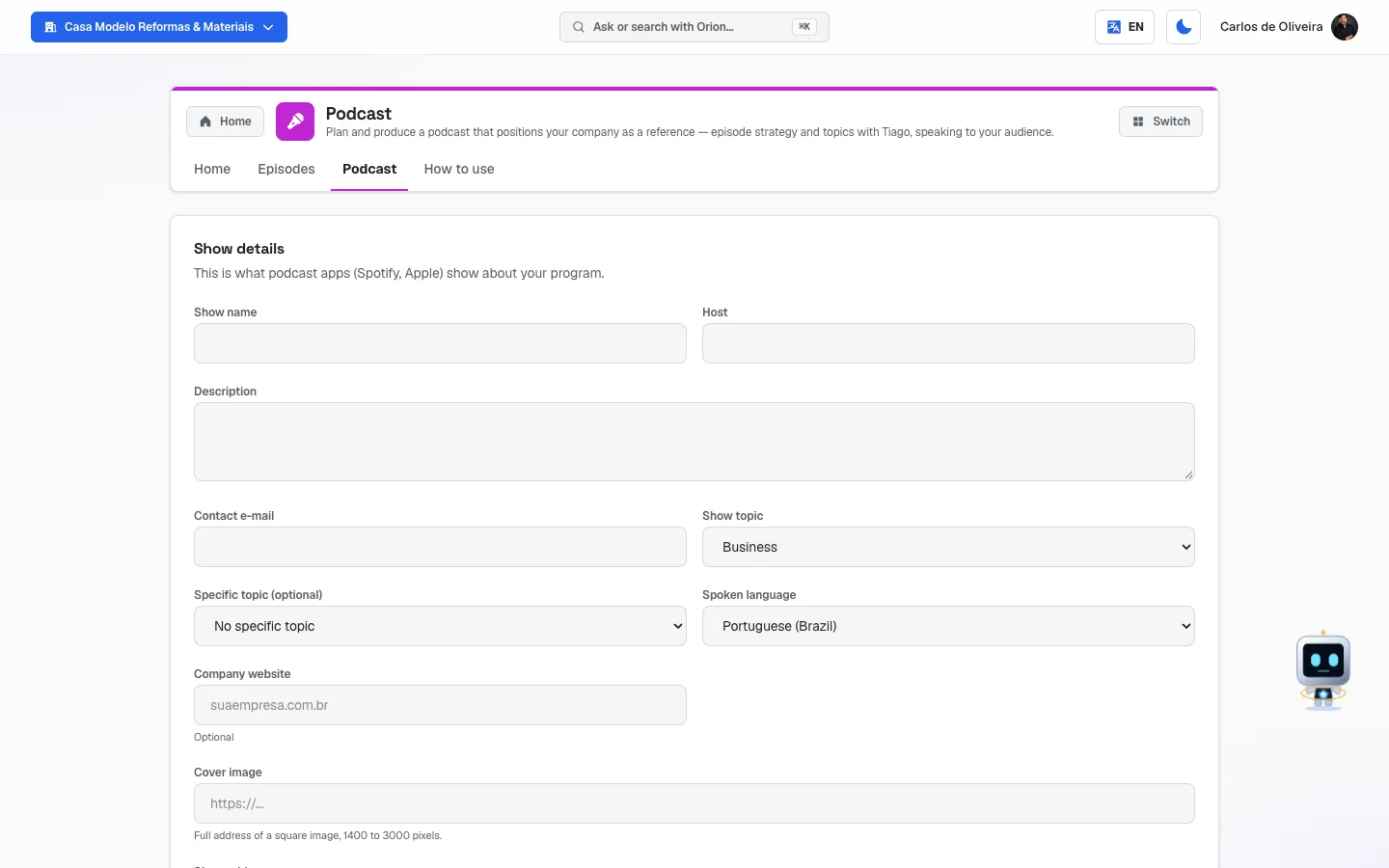 Podcast tab with the "Show details" box still blank: name, host, description, email, topic, language, website, cover image, and show address
Understand the episode's pipeline (read this first)
An episode goes through stages, and each stage has a name on the screen. In the Podcast tab, each episode is a card with the stage written in the right corner.
| Stage on the screen | What it means |
|---|---|
| Idea | The outline has just been born. It only has a title (and whatever Tiago wrote). |
| Script ready | The script is final. It still needs to be recorded. |
| Ready to go on air | The audio is already here and the episode can be published. |
| On air | It's published: it shows up in your feed, on the show page, and in the apps. |
There are four stages, not five. The system has a stage name called "Producing the audio", with a "Produce the audio" button — but no path on the screen leads an episode there, so you'll never see that stage or that button. The reason is simple: you're the one who records the episode's audio. The system doesn't produce the audio; it stores, publishes, and distributes the file you send. That's why the episode goes from Script ready straight to Ready to go on air as soon as the file arrives. (If the system ever starts recording the audio on its own, this stage lights up — today it's just a reserved spot.)
How the episode moves along: each card has a button that takes it to the next stage. In Idea, the button is Mark script as ready. In Script ready, it's Mark episode as ready — and it only turns on once the audio has been sent (without audio, the button stays off and explains why: "Send the audio before marking it as ready."). In Ready to go on air, the blue Put on air button appears.
The system never publishes an episode without audio. It's a deliberate safeguard: an episode on air with no file would look broken in the listener's app.
The tabs, one by one
Home
/app/modulos/podcast/inicio
- What you see here:
- At the top, Tiago's panel: a message from him about the state of the show, with three numbers — Episodes published, In production, and Latest aired. When none is published, Latest aired shows —, not an invented date.
- A Refresh link, to reload the data without leaving the screen.
- The Downloads box, with two numbers: Downloads (total) and Last 30 days.
- The Podcast strategy box, with six fields.
- Beside it (or below, on a phone), the Talk to the specialist chat — it's where you talk with Tiago.
- What you can do: see your audience, write the show's strategy, and chat with Tiago.
Step by step — writing the strategy:
- On the Home tab, scroll down to Podcast strategy.
- Fill in the fields (none is required; fill in what you know).
- Click Save strategy. "Strategy saved" appears.
Each field explained:
| Field | What to write |
|---|---|
| Concept | What the show is about, in two lines. Example from the screen itself: "behind the scenes of health entrepreneurs". |
| Target audience | Who you want listening. The more specific, the better: "neighborhood salon owners who want to raise their average ticket," not "women." |
| Format | Interview, you talking alone, two hosts. |
| Frequency | Weekly, biweekly, monthly. Be realistic — better one a month that comes out than one a week that fades away. |
| Content pillars | 3 to 5 topics that recur. They're what gives the show its identity and keeps you from running out of ideas. |
| Distribution | Where you'll promote it: Spotify, YouTube, clips for social media, WhatsApp group. |
This strategy isn't decoration: it's what Tiago reads before writing each outline. The better it's filled in, the more the script sounds like you.
Episodes
/app/modulos/podcast/episodios
This tab is where the outlines are born — the written content of each episode. The audio doesn't go in here; it goes in the Podcast tab.
- What you see here: one card per episode, each with the title at the top and four text fields. At the bottom of everything, the Add episode button. At the top, the Refresh link.
- What you can do: create, edit, and delete outlines.
Each field explained:
| Field | What to write |
|---|---|
| Episode title | The name of the episode. It's the only required field — without it the system warns "The episode needs a title". |
| Hook (30s open) | The first half minute: the line that keeps the person from skipping. Usually a question or a strong statement. |
| Structure / script | The episode in blocks. It doesn't have to be word for word — bullet points are enough so you don't get lost while recording. |
| Show notes | The episode summary, with links and timestamps. Heads up: this text becomes the episode description in podcast apps and on the show page. If it's empty, the system uses the Hook instead. |
| Calls to action | What you ask of the listener at the end: "message me on WhatsApp," "subscribe to the show," "send in your question." |
Step by step — creating an outline by hand:
- On the Episodes tab, click Add episode.
- Fill in the Episode title and any fields you like.
- Click Save. "Episode created" appears.
Step by step — asking Tiago for the outline:
- Open the chat with Tiago (it's beside the Home tab).
- Ask for the outline, saying the topic. For example: "write me the outline for an episode about how long keratin smoothing lasts."
- Tiago writes it and saves it on his own: the episode already appears filled in on the Episodes tab, with hook, script, show notes, and calls to action.
- Read it, adjust whatever you like, and click Save.
What the artificial intelligence does on its own here: it writes text — the strategy and the episode outline. That's all. There's no audio, voice, or cover generation inside this module.
To delete an outline: open the card and click Delete, in the bottom left corner.
Empty state: when there are no episodes, the screen shows "No episodes yet" with two tips: "Ask Tiago for an outline in the chat" and "Or add one below".
Podcast
/app/modulos/podcast/podcast
This is the real production tab: the show details, the public addresses, and sending the audio. The screen has three parts.
Part 1 — Show details
This is what podcast apps show about you.
Each field explained:
| Field | What to fill in |
|---|---|
| Show name | The name of the podcast. |
| Host | Your name or the company's. |
| Description | The text that appears in the apps, explaining what the show is about. |
| Contact e-mail | An email of yours. Podcast apps require it — it's how Apple confirms the show is yours. |
| Show topic | The category, chosen from a list. Only the categories on the list are valid: they're the only ones the apps accept. |
| Specific topic (optional) | A subcategory. It only appears when the chosen category has subcategories. If you change the main category, this one is cleared. |
| Spoken language | Portuguese (Brazil), English (US), or Spanish. |
| Company website (optional) | The address of your website. |
| Cover image | The full address (starting with https://) of a square image, 1400 to 3000 pixels, in JPG or PNG. |
| Show address | The end of your page's link, after /podcast/. Letters, numbers, and hyphens only. Example: cafe-com-obra. |
| The show contains explicit language | Check it only if it applies. It's a required warning in the apps. |
About the cover: as soon as you paste the address, the system measures the image right away and tells you on the spot. If it's right, "Cover is valid (1500 × 1500)." appears in green. If not, the reason appears in red: it's not square, it's too small, it's too large, it's not JPG or PNG, or it didn't open.
About the show address: while you type, the system checks whether it's free and shows "Address available" in green or the reason in red. Choose it with care — it's this address that Spotify and Apple use to find your show.
Step by step — saving the show:
- On the Podcast tab, fill in the Show details fields.
- Click Save show. "Show saved" appears.
- If something is missing, a red box appears at the top with the title "Fix this before saving:" and the list of what's wrong. The problem field gets a red border, and it goes away as soon as you start fixing it.
If you change the address after the show is on air: the system asks for confirmation in a little window, Change your show's address?. Read it before confirming:
- The old address keeps working for 30 days and the system notifies Spotify and Apple automatically, so they take your listeners along with them.
- Even so, some app may not follow the change — and whoever uses that app would have to subscribe to the show again.
- If you change it again within those 30 days, the first address's deadline doesn't start over: it keeps counting from today's change.
To proceed, click Yes, change the address.
Part 2 — Where your show lives
It appears after the show is saved. There are two addresses, each with a Copy button:
| Address | What it's for |
|---|---|
| Address for podcast apps | This is the show's technical address (it ends in rss.xml). You paste it once into Spotify for Podcasters and Apple Podcasts, and your show enters their catalog. From then on, everything you publish here reaches them on its own. |
| Show page | This is your show's public page, at autoagencia.io/podcast/ followed by the address you chose. It's the one you send to customers, paste in your Instagram bio, and print on your business card. |
What the listener finds on the Show page: the cover, the name, the host, the description, your website link, and the episode list. Each episode shows the date, the length, the description (your show notes), and a player to listen right there, without installing anything. There's also a Listen in your podcast app box, with the show's address and a Copy button, for people who prefer to subscribe on Spotify or Apple.
Where the episode ends up, in short: you publish here → it goes into the show's official address and the public page right away → the podcast apps where you registered that address go and fetch it on their own and deliver it to whoever subscribed. The system doesn't "send" the episode to Spotify; Spotify is the one that comes to get it. That's why the initial registration, done just once, is the step that can't be skipped.
Part 3 — Episodes on air
The list of your episodes, from oldest to newest. All the outlines you created in the Episodes tab appear here, each at its own stage.
- What each card shows: the title, the stage, and a line with the file size, the length, and how many downloads it has had — for example, "Audio sent (48 MB · 52 min · 310 downloads).". When there's no audio yet, it shows "No audio yet. Send an MP3 file of up to 200 MB.".
- The buttons, depending on the stage:
- Send the audio (or Replace the audio, if there's already one).
- Download the audio — saves the file to your computer.
- The next-stage button (Mark script as ready / Mark episode as ready).
- Put on air — the blue button, only at "Ready to go on air".
- Take off air — only at "On air".
Step by step — sending the audio and publishing:
- On the Podcast tab, scroll down to Episodes on air and find the episode.
- Click Send the audio and choose the MP3 file on your computer.
- Wait. Large files show progress on the button itself ("Sending… 40%"). Don't close the page.
- When "Audio sent" appears, click Mark episode as ready.
- Click Put on air. "Episode on air" appears and the label changes to On air.
There's no scheduling the publication. There's no date or time field anywhere in this module: the episode goes on air the instant you click Put on air, and not before. If you want it to premiere on a Tuesday at 7 a.m., that's when you need to click. What you can do ahead of time is everything else — the outline, the script, and the audio upload can be ready weeks in advance, waiting in Ready to go on air.
A tip that's on the screen itself: the default export from most editing programs (normal quality, stereo) fits comfortably within the limit. You don't need to lower the audio quality.
Step by step — taking an episode off air:
- On the episode's card, click Take off air.
- Read the warning: it leaves the podcast apps and the show page, and you can put it back on air later without using up another episode of your plan.
- Confirm by clicking Take off air.
About the number of episodes: the Podcast module includes 8 publications per month — it's the same number for everyone who has the module; there's no podcast plan with more or fewer. The count resets at the turn of the month — at 9 p.m. on the last day, not at midnight (the clock for that count is London's, not Brasília's). There's no charge for an extra episode: if you go past 8, the publish button refuses until the month turns over; no bigger invoice goes out without you asking for it.
When they run out, the screen warns: "You have published every episode included in your plan this month. The count resets next month." Republishing an episode that was already on air (because you fixed the audio, for example) doesn't use up a new publication.
What counts is PUBLISHING, not creating. You can have as many outlines, scripts, and audio uploads as you like — none of that counts. What counts is the click on Put on air, and only the first time for each episode.
⚠️ The screen doesn't show a counter. In this version there's no place that says "you've already published 5 of 8 this month": you find out it's over when the warning above appears. If you plan to publish several at once, count them yourself.
About numbering: the episode number is assigned when it goes on air for the first time, and never changes afterward — not even if you take it off air and put it back.
How to use
/app/modulos/podcast/como-usar
Every module has this tab at the end. It's the module's manual inside the system itself.
How to read the numbers
Downloads (total) — how many times your episodes have been downloaded, ever. Downloads (last 30 days) — the same, only for the last month.
What counts as one download, exactly: it counts every time someone starts listening to an episode of yours — in the podcast app, on the website, or on the show page. In detail:
- It counts the start of the listen, once each time it starts. The podcast app doesn't download the file all at once: it asks for it in pieces, and then asks again every time the listener skips ahead, goes back, or resumes where they left off. Only the start goes into the count — if every piece counted, your number would come out many times bigger than the real audience, and you would be selling sponsorship with a number that doesn't exist.
- The same person listening again counts again. If a listener plays the same episode on Monday and again on Friday, that's two. This is deliberate: we don't store the internet address (IP) or the device ID of the person listening — that would be tracking people, and the module measures audience, not individuals. Without storing who they are, there's no way to know it's the same person.
- The day is your day. The count closes on Brasília time, so a listen at 10 p.m. falls on the right day, not the next one.
Two rules that apply to all the audience numbers in this module, and that you should know before selling sponsorship with them:
- Bots don't count. The automated programs that sweep the internet indexing content are identified and left out. The number you see is real people. Anyone who arrives without identifying themselves is also treated as a bot — when in doubt, the system leaves them out rather than inflate your number.
- A dash isn't zero. When — appears in place of the number, it means "I don't know yet" — either the screen is loading, or there hasn't been a single real listener yet. It's different from "zero downloads".
The greater-than-or-equal sign (≥): if the total appears as ≥ 12,345, your show already has too much history for the system to add up in one go at that moment. The real number is higher than the one shown. The screen explains this below the number. It's on purpose: a wrong number would be worse than an honest floor.
Downloads per episode — appears on each card's line, in Episodes on air. It's the number that shows which topics your audience really wants.
On Tiago's panel (Home tab):
- Episodes published — how many have already gone on air.
- In production — how many are at any stage before "On air": idea, script, production, or ready.
- Latest aired — the date of the most recent published episode, or — if none has been.
Frequently asked questions
Does the system record the episode for me? Does it generate the audio with an artificial voice? No. The system writes the script (hook, structure, show notes, and calls to action) and takes care of all the publishing. The recording is yours: you record with whatever you have — phone, headphones with a mic, a simple recorder — export it as MP3, and send it here.
And the cover, does the system create it? No. You provide the address of an image that already exists on the internet, square, between 1400 and 3000 pixels, in JPG or PNG. If you want a cover made for you, that's the job of another module (image creation) or a designer; here you just say where it is.
Will my episode show up on Spotify on its own? After you register the "Address for podcast apps" once on Spotify for Podcasters and Apple Podcasts, yes: they come and fetch new episodes on their own. Before that registration, the episode exists on your public page, but not in the apps.
What's the difference between the Episodes tab and the "Episodes on air" part of the Podcast tab? They're the same episodes, seen two ways. On the Episodes tab you write the content (title, hook, script, show notes, calls to action). On the Podcast tab you take care of the audio file and the publishing.
Can I replace the audio of an episode that's already on air? Yes. Click Replace the audio on the episode's card and send the new file. You don't use up a new publication from your plan for that.
How many people really listened? The number of downloads is the closest thing there is. It counts who downloaded the episode, not who listened to the end — no app gives that information to the show's owner.
I canceled the module. Do I lose my audio? Not right away. When you cancel, the three tabs keep opening in view-only mode, with a yellow notice at the top showing two dates written out in full: the day the show goes off the air and the day the audio files are deleted. Until that second date you can download all the episodes with the Download the audio button, on the Podcast tab. After it there's no way to recover them. If you subscribe again before then, everything that was saved comes back with you.
When something goes wrong
| Symptom | What to check | What to do |
|---|---|---|
| "Podcast is not active on your account. Turn it on in the Modules tab to send episodes." | The module isn't purchased. | Turn on the Podcast module in the catalog. |
| "We could not load your data right now. This is on us, not you…" | Momentary read failure. | Click Try again. Nothing was lost — the form doesn't open blank on purpose, so you don't save over what already exists. |
| "I could not save the episode. Please try again shortly." | Momentary failure when saving the outline. | Try again. If it persists, reload the page. |
| "The episode needs a title" | The Episode title field is empty. | Fill in the title and save again. |
| "Give your show a name." / "Write a description of the show…" / "Tell us who hosts the show." | Required show-details fields left blank. | Fill in the fields marked in red and click Save show. |
| "Enter a contact e-mail — podcast apps require it." | The email is missing. | Enter an email of yours, in the format name@company.com. |
| "The cover must be square — the same width and height." | The image is rectangular. | Crop the image into a square and publish it again. |
| "The cover is too small: use an image of at least 1400 by 1400 pixels." | Image below the minimum. | Use a larger version. |
| "The cover is too large: use an image of at most 3000 by 3000 pixels." | Image above the maximum. | Make the image smaller. |
| "I could not open that image. Check the address…" | The address is wrong, the image was taken down, or its site blocks access. | Paste the address into the browser: it has to open the image by itself, with no page around it. |
| "That address does not open a JPG or PNG image…" | The image is in another format (WEBP, for example). | Convert it to JPG or PNG and publish it again. |
| "That address is already taken by another show. Please choose another one." | Someone else already uses that address. | Choose another one in the Show address field. |
| "That is the address you used before…" | You changed the address and want to go back to the previous one before the deadline ends. | Pick a different address, or wait for the deadline to pass. |
| "The address change still needs to be confirmed…" | You changed the address while the show was on air and didn't confirm. | Save again from the screen and click Yes, change the address in the little window. |
| "We only accept MP3 audio. Convert the file and try again." | The file isn't MP3. | Export the audio as MP3 from your editing program. |
| "That file is not really an MP3, even though its name ends in .mp3." | Someone renamed the file instead of converting it. | Really convert it to MP3. |
| "The file is larger than we can accept (200 MB…)" | Episode too long or exported in very high quality. | Export in normal quality (stereo) or split it into two episodes. |
| "The file did not reach us in full. Nothing was saved…" / "Part of the file did not arrive." | The connection dropped in the middle of the upload. | Send it again, preferably on a stable connection and without switching networks midway. |
| "That file is empty." | The file has 0 bytes. | Check the audio on your computer and export it again. |
| "Your session expired. Refresh the page, sign in again and send the audio." | You left the screen open for too long. | Reload the page, sign in again, and repeat the upload. |
| "Fill in and save the show details before sending the episode audio." | You tried to send audio without having saved the show. | Fill in Show details and click Save show. |
| "Send the episode audio before putting it on the air." | The episode got to "ready" without a file. | Click Send the audio on the card. |
| "You have published every episode included in your plan this month…" | The month's allowance is used up. | Wait for the month to turn over, or talk to the team about upgrading the plan. Taking an episode off air doesn't give the allowance back. |
| "This episode's audio is no longer available and it went off the air." | The file was lost. | Send the file again so the episode goes back on air. |
| "We could not confirm the new audio. Rest assured: the episode is still on the air." | The file swap didn't complete. | Send the file again. In the meantime, the episode on air keeps the old audio. |
| "No episodes yet" on the Podcast tab | You haven't created any outline yet. | Go to the Episodes tab, click Add episode — or ask Tiago for an outline in the chat. |
| The next-stage button is dimmed and won't click | The episode is trying to go to "ready" without audio. | Hover over it: "Send the audio before marking it as ready." appears. Send the audio first. |
| "I could not download the audio. Please try again shortly." | Momentary download failure. | Try again. If the session expired, reload the page and sign in again. |
| Yellow notice "Your Podcast was cancelled — save a copy of your audio" | The module was canceled and you're within the window to save your archive. | Use Download the audio on each episode before the date written in the notice. To start producing again, subscribe to the module again. |
| The show disappeared from the apps | The deadline after cancellation passed and the show went off the air. | Resubscribe to the module. What was saved comes back. |