

Lead Capture & Messaging (OmniLeadHub)
Where to find it: Home → Your apps → OmniLeadHub (at the top of the screen the module shows as Lead Capture & Messaging)
Address: /app/modulos/omnileadhub
Just hired it? Rebeca's Guide takes you from zero to the service working, step by step and with photos.
What it's for
Today customers contact you however they like: Instagram, WhatsApp, Messenger, Telegram, TikTok, your website chat or email. Each of those places is a different app, and someone on your team has to keep watching all of them. This module brings everything into a single inbox.
Whoever answers first is Rebeca — an artificial intelligence assistant who works for your company. She answers right away, in the tone you set, finds out who the person is, understands what they want and sends the contact to your sales pipeline. When someone asks to talk to a real person, or when she doesn't know the answer, she calls you.
An example: you own a company that converts stoves to gas. At 10 p.m., someone messages you on Instagram asking the price. Rebeca answers right away with what you wrote in her material, asks the neighborhood, saves the phone number and creates the contact in your pipeline. In the morning, you open the Conversations tab, read what happened and, if you want, take over and carry on yourself. Or you send the conversation straight to the phone of the installer who covers that area.
The module's golden rule: each channel has a single owner. Never two assistants in the same inbox, or the customer gets duplicate replies.
Before you start
- The module has to be active on your account.
- On first entry, an invitation from Rebeca appears at the top of the screen: "Want to set up … by chatting with Rebeca?". It's optional — the tabs already work — and each reply from her uses AI credits. To set up by chatting, click Chat with Rebeca; to make the invitation go away, click Dismiss or, after chatting, Complete setup.
- To connect Instagram and Messenger: have a professional Instagram linked to a Facebook Page, and be the one who authorizes it.
- To connect Telegram: you need to create a bot in Telegram itself (the screen teaches the step by step).
- To connect WhatsApp: a phone with the number that will answer, at hand, to scan the QR code.
- For the website chat: someone who can paste a snippet of code into your website.
- It's worth having written down in advance: your prices, deadlines and service rules. It's what Rebeca will use to answer.
Getting started
- On Home, under Your apps, click OmniLeadHub (at the top of the screen it shows as Lead Capture & Messaging). The module's tabs are on the app bar, at the top of the screen.
- Go to the Settings tab. Fill in the Agent name, the Role (persona) and the Tone of voice. Write the Greeting (first message) and the After-hours message.
- Still on Settings, in the What she needs to know to sell card, fill in Catalog and prices and Script and service rules. Click Save material. Without this, Rebeca doesn't state prices or deadlines — she says she'll confirm and calls you.
- Go to the Channels tab and connect the first channel. The fastest is Website chat: click Hand to Rebeca and paste the code that appears into your website.
- Go to the Areas tab and click New area. Create at least one (e.g.: "Sales"), describing what it handles. It's from this description that Rebeca decides where to send the contact.
- In the area you created, write the Name of who will answer, choose the type of number and click Add person. Then click Send invite and send the link to that person's phone.
- Send a test message through the channel you connected and check that it shows up in the Conversations tab.
Besides the tabs below, the module has an extra tab called How to use, with a short summary written by the system itself.
The tabs, one by one
Conversations
/app/modulos/omnileadhub/conversas
This is the single inbox.
- What you see here: the screen splits in two: the list of conversations on the left and the open conversation on the right. Above the list are the search by name, the Filters button (channel, who is handling, stage and when the last message came — your choice is kept for the next visit) and two tabs: All and Waiting on you. At the top of the open conversation, the arrows move to the previous or next one in the list.
- What you can do: read everything Rebeca talked about, take over the service, hand it back to her, send the contact to the pipeline and hand the conversation off to an area.
- In the list on the left, each row shows the contact's name (or "No name yet"), the channel and the time of the last message. An orange tag appears when the conversation is not with Rebeca: human (someone took over) or waiting (waiting for a human).
- At the top of the open conversation, a sentence says who's at the wheel: "Rebeca is handling this", "You are handling this" or "Rebeca asked for a human and keeps replying until you take over".
- Step by step — taking over a conversation:
- In the Conversations tab, click the conversation in the list on the left.
- Click Take over, below the conversation.
- The notice "You took over. Rebeca stopped replying." appears and the box to write in shows up below.
- Write your reply and click Send.
- When you're done, click Return to Rebeca so she goes back to answering.
- While Rebeca is answering, the reply box is closed on purpose and the screen explains: "Take over to reply — that way Rebeca will not answer over you."
- Step by step — sending the contact to the pipeline:
- With the conversation open, look at the gray strip just below the top — it's the contact card, with phone and email.
- Click Send to pipeline.
- When it's already there, the strip shows the In the pipeline tag and the button goes away.
- If the contact hasn't given a phone or email yet (common on Telegram and direct messages), the strip warns: "No phone or email yet — ask for a contact to send this to the pipeline." and the button doesn't appear.
- Step by step — handing the conversation off to an area:
- With the conversation open, click Hand off to an area.
- Choose the Area from the list.
- Click Hand off now.
- The chosen person gets a summary of what has already been discussed and continues from their own WhatsApp. You keep seeing everything here.
- If nobody in the area is available at that moment, this appears: "Nobody is available right now — we deliver as soon as someone is back." That is not an error.
- After the handoff, a strip inside the conversation shows who the contact went to ("With Name, from Sales.") or that it's in the queue, along with the Summary.
- A message that couldn't go out is marked not delivered in the history.
When Rebeca asks for a person — the "waiting" tag
She doesn't offer human service on her own, and she doesn't ask for a person just because she doesn't know how to answer something. There is only one trigger: the contact themselves asking to talk to a person, and asking for the third time. The first two times she doesn't say she'll call someone — she answers the question again, in more detail than in the previous reply. This is on purpose: promising "someone will call you right away" before actually calling is an empty promise.
The third time she says someone on the team will talk to the person, and then one of three things can happen:
- There is an area with at least one person with the "phone connected" tag → the conversation goes to that person, gets the waiting tag and the strip inside the conversation shows who it went to (or that it's in that area's queue).
- She was unsure which area handles that case → instead of guessing, she asks the contact and keeps answering until she knows.
- No area has anyone with a connected phone → Rebeca keeps answering and doesn't let go of the wheel. It's better for her to keep talking than for the contact to be left in silence waiting for someone who wasn't called.
In none of the cases does she stop answering on her own: even with the waiting tag, she keeps answering until someone clicks Take over. That's because the person only exists during business hours and she answers 24 hours a day.
When she can't find a piece of data in your base (a price that isn't written down, for example), she does not pass the contact to anyone: she says she'll confirm and stays in the conversation. If this is happening too much, the way to fix it is to complete Catalog and prices in the Settings tab, not to wait for a person.
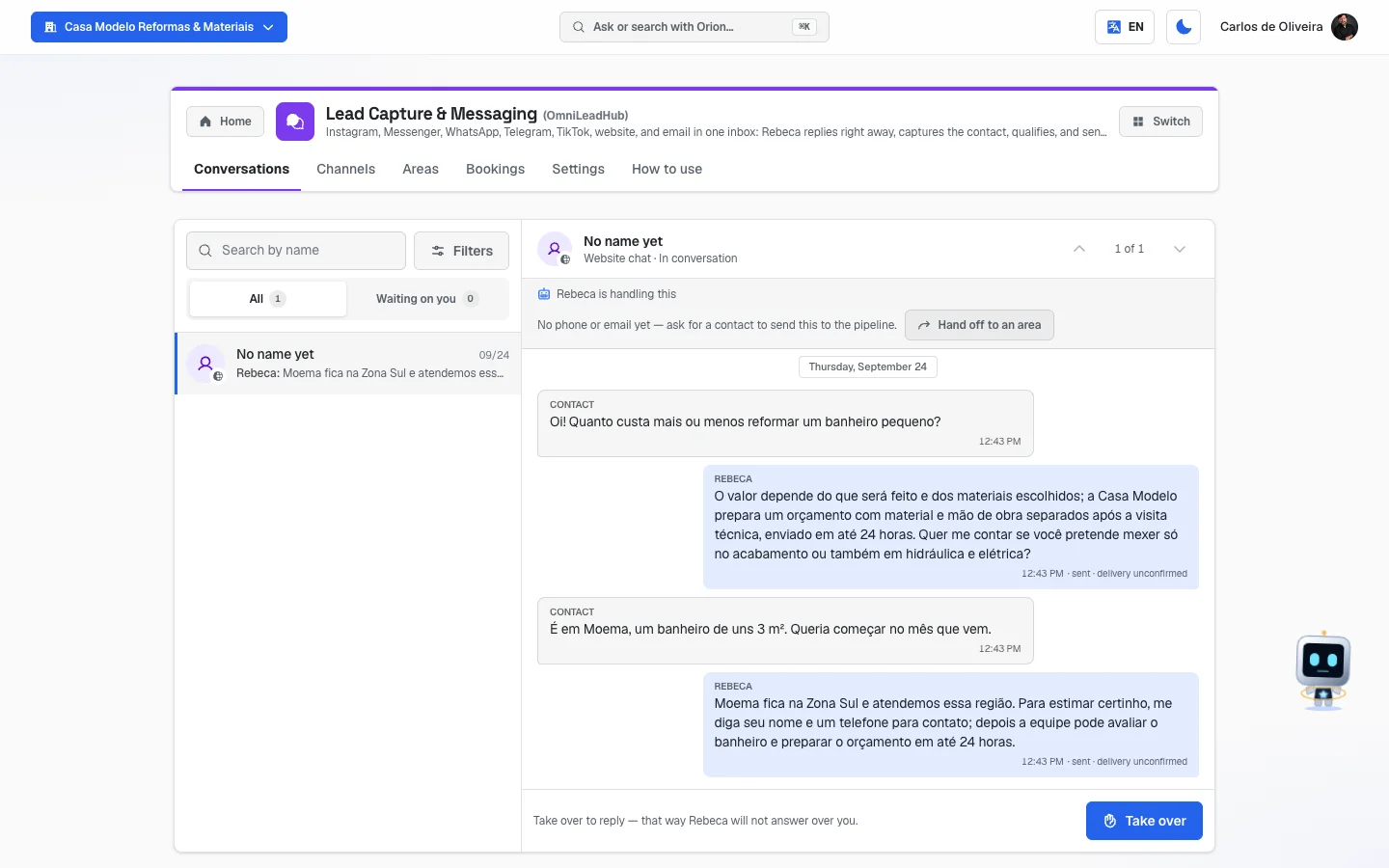 Conversations tab with the list on the left, the open conversation on the right and the Take over button at the bottom
Channels
/app/modulos/omnileadhub/canais
- What you see here: the list of the seven channels, one per card. Each shows a tag: connected (green), reconnect (red) or pending approval (yellow). When something is pending, the card explains what it is.
- What you can do: connect and disconnect each channel, change account or number, and get the website chat code.
- When a channel is with an agent other than Rebeca, the card says "Handled by:" and the name of who it is.
Step by step — connecting the website chat
- In the Channels tab, on the Website chat card, click Hand to Rebeca.
- Below it appears the box "One step left: put the chat on your site", with a snippet of code.
- Click Copy code.
- Paste that code into your website, before the end of the page. (If you don't work on the website, send that code to whoever takes care of it.)
Step by step — creating the sales email inbox
- In the Channels tab, on the Email card, click Create sales inbox.
- The system creates an address and shows which one it is. From then on, everything that arrives there goes into the Conversations tab.
Step by step — connecting WhatsApp
- In the Channels tab, on the WhatsApp card, click Connect.
- Choose between Use the current number (the WhatsApp your company already uses) and Connect a dedicated number (a SIM just for Rebeca).
- A QR code appears. On that number's phone, open WhatsApp → Linked devices → Link a device and scan the code.
- Keep the screen open: the code refreshes by itself and the screen tells you when the phone connects ("WhatsApp connected to Rebeca.").
Step by step — connecting Instagram and Messenger
- In the Channels tab, on the Instagram Direct (or Messenger) card, click Connect.
- You are taken to Facebook's authorization screen. Authorize your company's Page.
- When you come back, a success notice appears. If it says "Authorization saved. The channel turns on by itself once Meta approves", everything is fine: just wait.
Step by step — connecting Telegram
- In the Channels tab, on the Telegram card, click Connect.
- Follow the 4 steps the screen itself shows: open BotFather on Telegram, tap Start, send the
message
/newbot, answer the two questions (the name the customer sees and the bot's @username, which must end in "bot") and copy the long code it gives back. - Paste that code into the Bot token field and click Connect.
TikTok The TikTok card shows only the text Pending, with no button. It can't be connected yet: it is missing TikTok's messaging-partner authorization. When it comes through, the channel turns on by itself.
How to disconnect a channel
- Click Disconnect (Instagram, Messenger, Telegram) or Hand back (WhatsApp, website chat, email) and confirm. The confirmation exists because changing who answers changes what your customer gets on the other side.
- On WhatsApp there is also Remove number, which is stronger: Hand back only takes Rebeca off and keeps the connection; Remove number deletes the connection, and to use that WhatsApp again you have to scan a new QR.
Areas
/app/modulos/omnileadhub/areas
An area is not a channel. Channel answers "where does the contact come in". Area answers "who handles that contact". Sales, support, a specific service.
- What you see here: at the top, the explanation: "Areas are where a lead goes: sales, support, a specific service. Rebeca reads each description to decide where to send it — and, when unsure, asks the customer before choosing." Below, one card per area, with the name, the description, the hours and the list of people in that area. Each person shows the phone tag (QR code not scanned yet, phone connected or phone disconnected) and the type of number. A turned-off area appears with the paused tag.
- What you can do: create areas, set business hours, register who answers and connect each person's phone through an invite link.
- Step by step — creating an area:
- In the Areas tab, click New area.
- Fill in the Area name.
- In the big field, write what this area handles. Careful: this is exactly the text Rebeca reads to decide where to send the contact. Be specific (e.g.: "converting stoves to gas cylinders, quotes and installation").
- Choose the Time zone.
- Click Create area.
- Step by step — putting someone in the area:
- On the area's card, write the Name of who will answer.
- Choose the type: Company number or Personal number.
- Click Add person.
- Click Send invite. The link is copied automatically — send it to that person's phone.
- The person opens the link on their own phone and scans the QR. The tag changes from "QR code not scanned yet" to phone connected.
- Each field explained:
- Company number: every sales conversation from that phone shows up in the panel.
- Personal number: only conversations with people who are already your contacts show up. Use it for a salesperson's private phone.
- Step by step — setting the hours:
- On the area's card, click Answers at any time — set business hours (or View or change business hours).
- Check the days the area is open and adjust the opening and closing hours.
- An unchecked day shows as closed.
- With no day checked, the area answers at any time.
- Outside the hours, the contact waits and is delivered as soon as the area opens.
- Pause takes an area out of rotation without deleting it. Resume brings it back.
- Deleting: the trash can next to Pause removes the whole area; the trash can next to Send invite removes only that person. Both ask for Confirm first. When the person's phone is already connected, Disconnect phone appears in place of Send invite (also with Confirm).
- The limit is 10 connected phones in total, adding up all the areas.
- As long as no area exists, Rebeca marks the conversation for human service and it stays waiting in the panel.
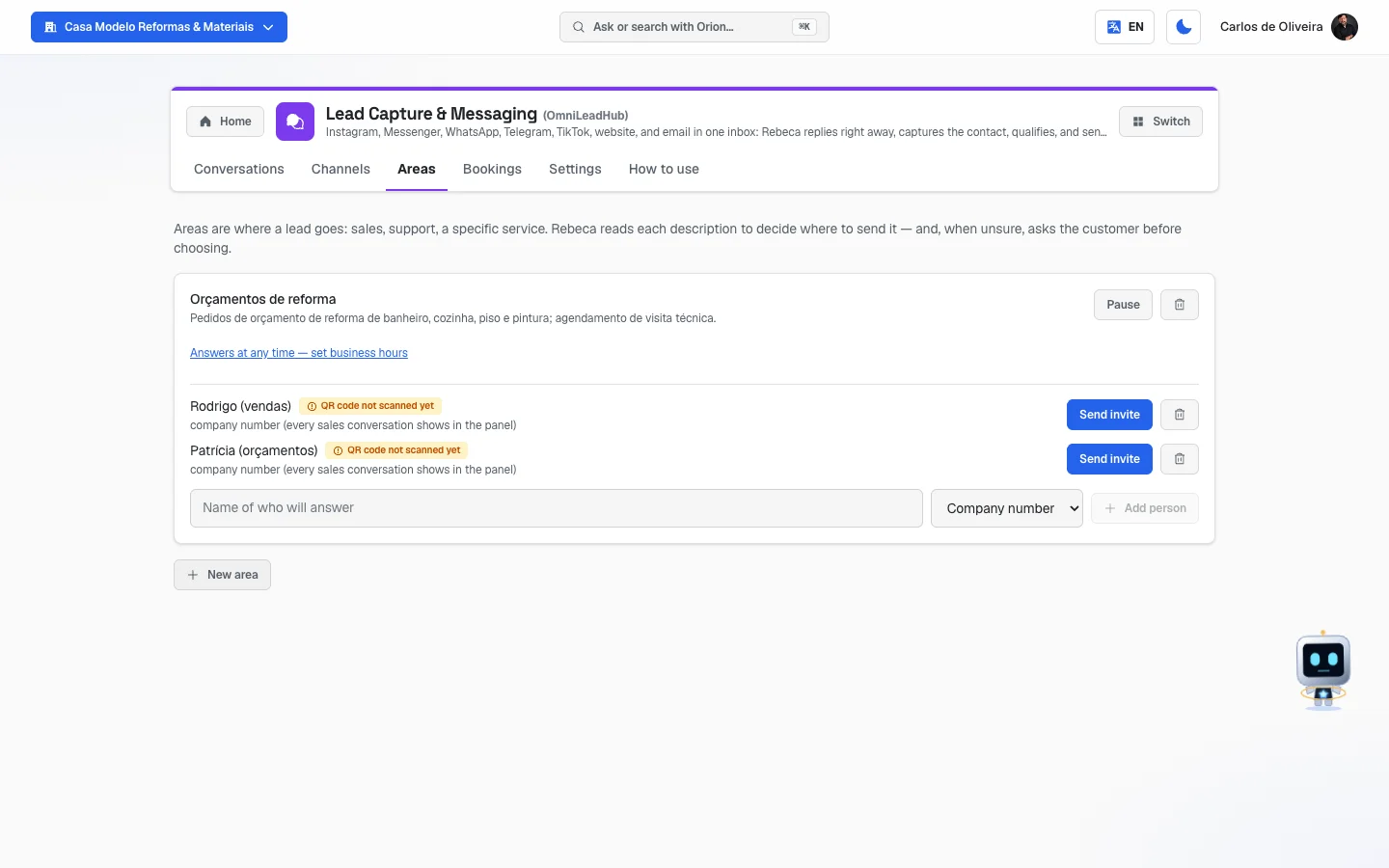 Areas tab with the explanation at the top and the card for the renovation quotes area: the description, the "Answers at any time — set business hours" link, the Pause and trash can buttons, two people with a company number and the "QR code not scanned yet" tag, each with Send invite, and below it the row to add another person; under the card, the New area button
Bookings
/app/modulos/omnileadhub/reservas
This tab is for restaurants and businesses that already have their own booking system. It connects that system to Rebeca.
Which system works today: the connection is made with TeamUbuntu (
teamubuntu.cl) — it is the only booking system with a ready-made connection on the platform. The screen speaks generically about "your company's booking system" because whoever provides the address and the key is the company that runs your system; but if you don't use TeamUbuntu you won't be able to connect: Test connection simply doesn't find the system on the other side. If you use another system and want that connection, talk to support so we can evaluate it.
- What you see here: an explanation of what the connection does and, if it isn't connected yet, the form to connect. If it already is, the name of the connected company, the address and the locations Rebeca handles appear.
- What you can do: test and connect, choose which locations Rebeca handles, set the main location and disconnect.
- With the system connected, "Rebeca recognizes returning guests by phone, answers menu questions with today's prices and files the booking request right in the chat".
- Important, and it's written on the screen: "Every booking Rebeca files comes in as PENDING and waits for your team's approval — she never confirms a table on her own."
- Step by step — connecting:
- In the Bookings tab, fill in the System address.
- Fill in the Access key. Both pieces of information are provided by the company that runs your booking system.
- Click Test connection.
- If it works, the list of companies appears. Check Which company?.
- In Which locations does Rebeca handle?, leave checked only the addresses she should handle.
- In Main location, choose the location she assumes when the customer doesn't say which one they're talking about.
- Click Connect.
- To undo it, click Disconnect. Rebeca goes back to just answering, without checking bookings.
- The access key is never shown back on the screen, not even after it's saved.
Settings
/app/modulos/omnileadhub/configuracao
This is where you teach Rebeca. There are six cards.
Identity, messages, hours and questions (the first card)
- Each field explained:
- Agent name: the name she uses to introduce herself.
- Role (persona): Customer service, SDR, Sales, Tech support, FAQ or Custom.
- Tone of voice: Formal and professional, Casual and friendly, Excited and energetic or Consultative and expert.
- Greeting (first message): the first sentence that whoever arrives receives.
- After-hours message: what she answers when your company is closed.
- Specific instructions (optional): rules of your own, in free text. E.g.: "Never promise delivery on Sundays."
- Business hours: check the days your company is open and the hours. With no day checked, she answers at any time.
- Qualifying questions: what she needs to find out before passing the contact to you. She asks one at a time, as the conversation flows — never like a form.
- Ask for a satisfaction rating at the end: turned off, she never asks for a rating.
- Click Save configuration when you're done.
What she needs to know to sell
- Catalog and prices: write your products, services and amounts.
- Script and service rules: how you want her to run the conversation.
- Click Save material.
- The rule is clear on the screen: "Rebeca only states price, deadline and coverage if it is written here or in your company profile. Anything not written, she says she'll confirm and calls you."
Files she reads
- Upload the proposal, the catalog, the price list or the service manual as a file. The text becomes memory and Rebeca starts answering from what's written in them.
- Careful: these files belong to your company and apply to the whole agent team, not only to Rebeca. They are the same ones that show up in Memory.
Learn from a web page
- Step by step:
- Paste the address of one of your pages into the field (e.g.: your pricing page).
- Click Teach this page.
- It appears in the list below, with how many chunks were learned and the date.
- Only teach pages that your company controls or trusts: their text becomes your company's word in Rebeca's mouth.
- What gets stored is the content from the day you taught it. If the page changes, teach it again.
- The limit is 20 pages. To remove one, click Forget.
Who Rebeca is and What she does not do — two text boxes explaining her role. Worth reading: Rebeca handles people who are arriving, she is not technical support. She doesn't open tickets, doesn't promise repair deadlines and doesn't solve problems for people who are already customers.
How to read the numbers
This tab has no scoreboard of numbers. What it has are states, and this is how to read each one:
- Who's at the wheel of a conversation:
- "Rebeca is handling this" — everything is automatic.
- "You are handling this" — someone on your team took over; Rebeca is silent in that conversation.
- "Rebeca asked for a human and keeps replying until you take over" — she signaled that she needs a person, but keeps answering so the customer isn't left hanging.
- Contact tag on the card: In the pipeline means that contact has already become a deal in your CRM. As long as it hasn't, the Send to pipeline button shows up.
- State of the handoff to an area: "Queued for Sales" means nobody in that area is available right now. "With Name, from Sales" means it has already been delivered.
- A channel's tag: connected (working), reconnect (stopped and needs you) and pending approval (waiting for the platform to approve — there is nothing you can do, and the channel turns on by itself when it comes through).
- A person's tag in an area: phone connected, QR code not scanned yet or phone disconnected.
- not delivered on a message: the message was saved in the history but didn't reach its destination.
Frequently asked questions
If I answer along with Rebeca, does the customer get two replies? No, because the system doesn't allow it. While she is answering, the box to write in stays closed. You have to click Take over first — and then she stops.
Can Rebeca make up a price? She only states price, deadline and coverage if it's written in her material (Settings tab) or in your company profile. Outside of that, she says she'll confirm and calls you.
What's the difference between channel and area? A channel is where the customer arrives from (Instagram, WhatsApp, website). An area is who will handle that customer (sales, support, installation). Mixing the two up makes the contact reach the wrong person.
Do I need a new phone for WhatsApp? No. You can use the number the company already has. Just remember that, when you do, Rebeca becomes the only one answering on it — whoever answered there steps out.
My channel shows "pending approval". Did I do something wrong? No. It means the platform (Meta or TikTok) is still approving the access. The channel is already ready and turns on by itself when the approval comes through. On Instagram and Messenger, even with that tag, the Connect button works normally. TikTok, on the other hand, has no button at all: it just shows as Pending because the connection to it doesn't exist yet.
Does Rebeca answer outside business hours? Yes, she answers 24 hours a day. The hours you set are so she knows when to use the after-hours message and when to hand the contact to a person.
When something goes wrong
"This account is already connected to another company. Disconnect it there before connecting here." The same Instagram/Facebook account is connected in another registration. Trying again won't help — you have to disconnect it on the other side first.
"No Facebook Page on that account." Your professional Instagram has to be linked to a Facebook Page. Fix that on Facebook and try again.
Channel with the "reconnect" tag — the card says the reason:
- "Scan the QR code on the phone so the number starts receiving." → click Connect on the WhatsApp card and scan.
- "This WhatsApp number is disconnected and receiving nothing. Scan the QR code again."
- "Telegram did not accept the message delivery address. Connect again."
"Session expired — reload the page." It happened when trying to connect Instagram/Messenger. Reload and try again.
The conversation doesn't reach the panel. Check in the Channels tab that the channel has the connected tag. On the website chat, also check that the code was really pasted into the page.
Nobody receives the conversations handed off to an area. Check, on the area's card (Areas tab): that the area isn't paused; that someone has the phone connected tag; and that business hours are open right now. Without someone with a connected phone, the contact waits.
"You reached the limit of 20 pages. Remove one to teach another." In the Settings tab, Learn from a web page card, click Forget on a page you no longer use.
"No text could be read from that page — it may be image-only or block readers." The page you tried to teach has no text the system can read. Use another one, or copy the content into the Catalog and prices field.
"Limit of 10 connected phones reached. Disconnect one before adding another." In the Areas tab, use Disconnect phone on someone who no longer answers.
When disconnecting Telegram, a notice about /deletewebhook appears.
It means Telegram no longer accepted the token to clean up the connection on its side. If the bot
still exists, open @BotFather on Telegram and send /deletewebhook.