

Push Notifications
Where to find it: Home → Your apps → Push (at the top of the screen the module shows up as Push Notifications)
Address: /app/modulos/notificacoes-push
What it's for
Have you ever gotten one of those little alerts that pops up in the corner of your computer screen, or at the top of your phone, even with the site closed? "Your order is out for delivery", "Today-only sale". That's a push notification. It's not an SMS, not a WhatsApp, not an email: it's an alert that the browser itself (Chrome, Edge, Firefox) delivers to the person's screen, at no cost per message and without needing their phone number.
The Push Notifications module is where you build that channel. It solves an annoying problem: people who visit your site and leave without giving you a phone number vanish forever. With push, that person can agree to receive your alerts with one click, without typing anything, without installing anything, without giving you their phone number. Later you send an alert and they come back.
The one who works with you here is Camila, the module's specialist. She writes the texts, chooses who gets them and builds the automatic sequences, if you ask her in the chat.
An everyday example: you have a pizzeria with a website. On Friday morning you open the Send tab, write "Friday is promo day: large pizza for the price of a medium until 10 p.m.", choose Everyone, and click Send now. Anyone who agreed to receive your alerts sees the little banner appear on their phone right away, taps it and lands straight on your menu.
How people give permission to receive
This is the most important thing to understand: you don't choose who receives. The person chooses.
The path is this:
- The person visits your site.
- A soft invite (and a bell) appears asking whether they want to receive your news. You write that text, in the Capture tab.
- If they click yes, their browser asks again, with its own official little window: "this site wants to send notifications — allow or block?".
- Only if they click allow do they become a subscriber, and start counting in your subscriber number.
In other words: there are two "yeses". And the second one is given to the browser, not to you. That's why there's no buying a push list or uploading a contact list here: either the person clicked on your site, or they aren't in your audience.
Why overdoing it kills the channel
The same browser that lets the person in lets them out — and leaving is easier than joining: one tap on "block notifications from this site" and it's over. They don't warn you, don't reply, they simply disappear from your list. And they don't come back: to come back they would have to dig for the permission deep in the browser settings, and nobody does that.
And that's the only way out. The alert that lands on their screen has a title, a message, the icon and nothing else: there's no "I don't want to receive this anymore" link inside it, and no unsubscribe button. The way out is the browser's — blocking notifications from that site. That's how it works because the permission was given to the browser, not to you: the browser is in charge. On your side, the effect is automatic and you don't have to do anything — when the person blocks, the next send attempt comes back rejected and the system removes that person from your list on its own, without charging anything for them.
So the math is simple: every alert you send for no reason isn't neutral, it's a piece of your audience leaving for good. Three alerts a week about an "unmissable sale" cost more than the two orders they generated.
The system helps you with this in two ways:
- If you send the same alert twice to the same people, it doesn't send it again. The screen explains: "That same alert had already gone out to these people. I didn't send it again so I wouldn't bother anyone who already got it — and nothing was charged."
- There's a daily limit of alerts per account. If you go over it, the system blocks the send and tells you how many you've already sent today and what the limit is.
What that daily limit is, exactly. The math is simple and doesn't change: the limit is 5,000 alerts per day, or the size of your monthly allowance — whichever is greater. In other words, if your plan includes fewer than 5,000 alerts per month, the day's cap is 5,000 (you hit the month's allowance much earlier); if it includes more, the day's cap becomes that number, so the protective limit never stops you from using what you subscribed to. The day rolls over at midnight Brasília time.
The exact number only appears written on the screen when you hit it (the message says "You've already sent N alerts today and the daily limit is M…"). There's currently no place that shows your daily cap before that — which is why it's here.
But both limits are a safety net, not a strategy. The strategy is yours: send when you have something the person gains by clicking.
Before you start
- The Push Notifications module has to be active on your account. If it isn't, the screen shows the module's name and the message that it's part of a product you haven't subscribed to yet.
- The first time you open a module, an invitation from Camila appears at the top of the screen: "Want to set up … by chatting with Camila?". It's optional — the tabs already work — and each reply from her uses AI credits. Chatting helps Camila get to know your company. To make the invitation go away, click Dismiss or, after chatting, Complete setup.
- To change anything on the Capture tab you need to be the owner or an administrator of the account. Anyone who isn't can view it, but not change it — the screen warns: "You can view these settings, but only account admins can change them."
- If your pages are built on AutoAgency, you just flip the switch and that's it.
- If you want the invite on your own site (a WordPress site, for example), you'll need two things: paste a code into the site's header and upload a file to its main folder. If you don't work with those things, line up whoever looks after your site.
- Your site has to be secure (https) for the browser to accept notifications. Every modern site already is.
Getting started
- On Home, under Your apps, click Push. You land on the Capture tab.
- If the invitation to set up by chatting with Camila appears, you can click Chat with Camila, answer, and then click Complete setup — or click Dismiss and go straight on, because it's optional.
- On the Capture tab, check the Invite visitors of my pages box.
- Write the Invite text in Portuguese. If you leave it blank, the system uses the default text ("Want news and offers?").
- Click Save.
- If you have your own site, do the two steps in the On your own site section (the code and the file). They're explained further down, step by step.
- Wait for people to subscribe. Follow the number on the Reports tab (Subscribed people).
- When you have people, go to the Send tab, write the first alert and send it.
- After that, ask Camila in the chat to build an automatic sequence — they show up on the Flows tab.
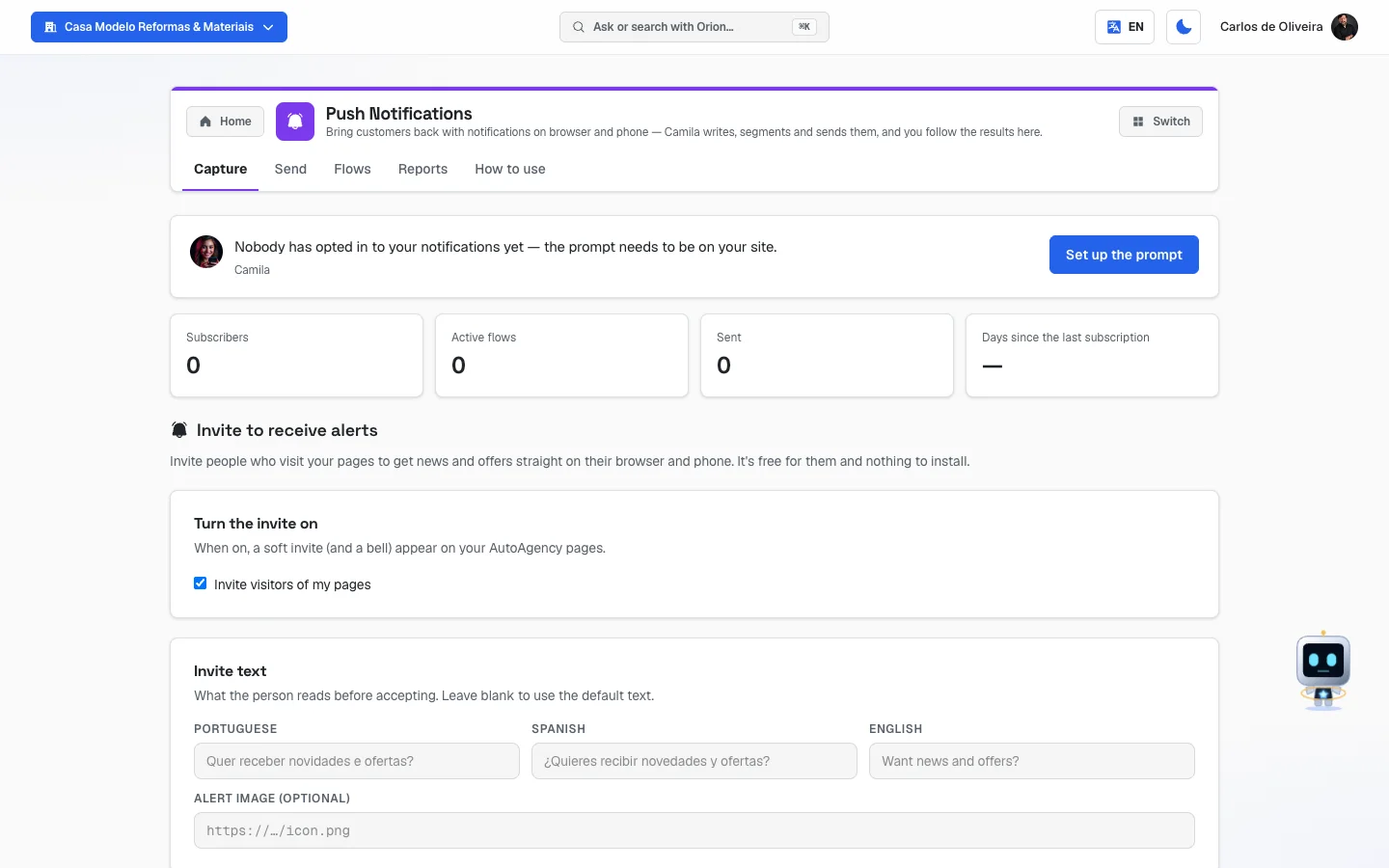 Capture tab with Camila's panel at the top, the "Invite visitors of my pages" box checked, the three invite text fields and the alert image field
The tabs, one by one
Capture
/app/modulos/notificacoes-push/captura
This is where you build the invite — the front door. Without it, nobody subscribes and all the other tabs stay empty.
- What you see here:
- At the top, the module panel: a note from Camila with a button for the next step (for example, Set up the prompt) and four numbers — Subscribers, Active flows, Sent and Days since the last subscription.
- The title Invite to receive alerts, with the explanation: "Invite people who visit your pages to get news and offers straight on their browser and phone. It's free for them and nothing to install."
- Three sections: Turn the invite on, Invite text and On your own site.
- The Save button, at the bottom.
- What you can do: turn the invite on/off, write its text, choose the format and grab the code for your site.
Step by step — turning the invite on for AutoAgency pages:
- On the Capture tab, in the Turn the invite on section, check the Invite visitors of my pages box.
- Scroll down to Invite text and write the text in Portuguese.
- Click Save. The notice "Settings saved." appears.
Step by step — putting the invite on your own site:
- In the On your own site section, choose under How it shows on the site between Soft invite + bell and Bell only (see the difference right below).
- Click Copy code. "Code copied!" appears.
- Paste that code at the top of every page of the site, inside the
<head>. If your site is WordPress, any plugin that inserts code into the header will do. - Come back and click Download the file. It downloads a file called
push-sw.js. - Upload that file to the site's main folder — the same folder where the home page
is. On WordPress, that's the folder where the
wp-config.phpandwp-contentfiles are, reachable through your hosting's file manager. - Click Save.
Both steps are required. If you paste the code and forget the file, the bell appears, the person clicks, and nothing happens — they don't subscribe and neither they nor you find out. It's the most common failure of this module, and that's why Camila warns you in the panel when it happens (see "When something goes wrong").
Each field explained:
| Field | What to do |
|---|---|
| Invite visitors of my pages | The master switch. When checked, the invite and the bell appear on your pages built on AutoAgency. |
| Invite text — Portuguese / Spanish / English | The sentence the person reads before accepting. Up to 200 letters. Blank, it uses the default text. Only fill in Spanish and English if you serve people in those languages. |
| Alert image (optional) | The address of an image (the icon that shows up alongside the alert). Usually your company's logo. You can leave it blank. |
| How it shows on the site | Soft invite + bell: a little banner appears inviting them, and a bell also stays on the screen. Bell only: nothing appears on its own; whoever wants it clicks the bell. More discreet, converts less. |
About the invite text: this is the sentence that decides whether the person accepts or not. Say what they gain, not what you want. "Want news and offers?" works; "Turn on notifications" says nothing.
Send
/app/modulos/notificacoes-push/disparo
This is the screen for sending an alert right now, by hand. On the right side is the Talk to the specialist chat, where you talk to Camila (on a phone it appears at the bottom).
- What you see here: the title Send an alert now, with the explanation "Write the alert, choose who gets it, and send. It lands on the browser and phone of everyone who opted in.", and two sections: The alert and Who gets it.
- What you can do: write the alert, choose the audience, see how many people it goes to before sending, and send it.
Step by step — sending an alert:
- On the Send tab, write the Title (up to 80 letters). The counter is in the corner.
- Write the Message (up to 240 letters).
- Under Where the click goes, paste the address of the page that opens when the person taps
the alert. It starts with
/(your home page). - In the Who gets it section, choose the Audience.
- If you want to reach a smaller group, type a label in the box below and press Enter. You can add several.
- Look at the gray box below: it says "Goes to N person(s)" and, when applicable, how many sends still fit in your month.
- Click Send now.
- A confirmation appears: "Send this alert?", saying how many people it goes to and warning that it can't be undone. Read it and confirm with Send now.
Each field explained:
| Field | What to write |
|---|---|
| Title | The first line, in bold, that the person reads. Up to 80 letters. Straight to the point: "Free shipping today only". |
| Message | The line below. Up to 240 letters. The screen itself suggests: "Say in one sentence what the person gets by clicking." |
| Where the click goes | The address that opens when the person taps the alert. Send them to the page of what you're advertising, not to the home page. |
| Audience | Who gets it. See the table below. |
| Label | A tag for filtering a smaller group. If you add more than one, only people who have all of them receive it. |
The five audiences:
| Audience | Who they are |
|---|---|
| Everyone | All subscribed people. |
| Who clicked recently | People who tapped any of your alerts within the window of days you choose. They're the most engaged. |
| Who never clicked | People who already received alerts and never tapped any. Good for testing a different topic — carefully. |
| Who joined recently | People who subscribed within the window of days chosen. Good for welcomes. |
| Who went quiet | People who already received alerts and haven't clicked in that many days. Good for trying to bring them back. |
Three of these audiences (Who clicked recently, Who joined recently and Who went quiet) open a second box for you to choose the window: In the last 7 / 15 / 30 / 60 / 90 days. It starts at 7.
The preview box (the gray one, at the bottom):
- "Calculating…" — the system is counting. While it does, the send button stays disabled, on purpose: the number on screen isn't the final audience yet.
- "Goes to N person(s)" — how many people receive it. Below it, when there's a limit, how many sends still fit in the month.
- "You don't have anyone opted in yet. Turn the invite on in the Capture tab to start gathering subscribers." — your audience is empty.
- "Nobody fits this audience right now. Choose another audience or remove the labels to reach more people." — you have subscribers, but the filter you built doesn't reach anyone.
The result, after sending:
A Send result block appears with one of these outcomes:
| What appears | What it means |
|---|---|
| Sent: N + "No failures." or "Didn't arrive: N…" | It worked. Failures are usually a device that's turned off or a browser that was uninstalled — not your mistake. |
| "N more person(s) to go: the alert keeps going out on its own until it's done." | The send is large and goes out in batches. You don't have to do anything, you can close the screen. |
| "That same alert had already gone out to these people." | Protection against repeats. Nothing went out again and nothing was charged. |
| "The alert didn't reach anyone…" | Every attempt failed. Nothing was charged. Try again in a few minutes. |
Flows
/app/modulos/notificacoes-push/reguas
A flow here means an automatic sequence: an alert (or a series of them) that fires on its own when something happens, without you clicking anything. The screen's own explanation: "Sequences that fire on their own when something happens — for example, someone abandons a cart and gets a reminder hours later."
- What you see here: the title Automatic alerts and a table with your sequences, showing Name, When it fires, Who gets it, Status, Created and Actions.
- What you can do: pause, resume and archive sequences. Creating a sequence is done with Camila — you ask in the chat.
There's no create-sequence button anywhere in the system — and it's not an oversight of this page. We checked the module's four tabs and the rest of the dashboard: the only door is the chat. Camila has the tool for building sequences and it works for notifications (it's the same one she uses for email, SMS and WhatsApp). Tell her what to alert about, for whom and how long after the trigger, and the sequence appears in this table already turned on. After that, you pause, resume and archive it here on the screen.
The triggers (the "When it fires" column):
| Trigger | Fires when… |
|---|---|
| Welcome | The person has just subscribed. |
| Abandoned cart | The person put something in the cart and left without buying. |
| Post-purchase | The person has just bought. |
| Re-engagement | The person went quiet and you want to bring them back. |
| One-off send | It was a single send, made on the Send tab. |
The three statuses:
| Status | What it means |
|---|---|
| On | It's running. It appears in green. |
| Paused | It's stopped, but stays on the list. It can be resumed. |
| Archived | It stopped running and left the list. It no longer appears here. |
Step by step — pausing or resuming:
- On the Flows tab, find the sequence's row.
- Click Pause (if it's on) or Resume (if it's paused).
- A notice appears confirming: "Flow paused." or "Flow resumed."
Step by step — archiving:
- Click Archive on the sequence's row.
- A confirmation appears: "Archive this sequence?", warning that it stops running and leaves this list, and that you can just ask Camila if you want to build it again.
- Click Archive to confirm.
- Empty state: if you have none, "No sequence yet" appears, with the tip: "Ask Camila in the chat: say what you want to alert about and when, and she'll build it for you."
Reports
/app/modulos/notificacoes-push/relatorios
- What you see here: the title How the alerts are doing and the numbers for the last 30 days. The period is fixed at 30 days — there's no selector.
- What you can do: just look. It's a read-only screen.
- Blocks on the screen:
- Performance — four numbers: Subscribed people, Alerts sent, Clicks and Click rate.
- Sales in the same period — only appears if there was an attributed sale in the period.
- Your usage — how many sends you've used in the month. It appears for those who don't administer the account.
A dash (—) in place of the number is not zero. If no alert went out in the period, there is no click rate — showing "0%" would make it look like poor performance where there was no campaign at all.
- Empty states:
- With nobody subscribed: "Nobody has opted in yet. Turn the invite on in the Capture tab and paste the code on your site to start gathering subscribers."
- With subscribers but no sends: "You already have subscribers, but no alert went out in this period. Use the Send tab to fire the first one."
How to use
/app/modulos/notificacoes-push/como-usar
Every module has this tab at the end. It's the module's manual inside the system itself.
How to read the numbers
On Camila's panel (the box at the top of the Capture tab):
- Subscribers — how many people agreed to receive your alerts and are still valid today.
- Active flows — how many automatic sequences are turned on.
- Sent — how many notifications have gone out, over the whole life of the account.
- Days since the last subscription — how many days it's been since anyone new subscribed. This number exists for a specific situation: when the invite goes offline (someone removed the code from the site, the file disappeared), the Subscribers total sits frozen at a nice-looking number and you don't notice the door closed. If this number starts climbing without stopping, go back to the Capture tab and check that the invite is still on your site.
On the Reports tab (last 30 days):
- Subscribed people — the size of your audience today.
- Alerts sent — how many notifications went out in the last 30 days.
- Clicks — how many people tapped the alert.
- Click rate — of every 100 alerts delivered, how many were clicked. It's the number of the module: if it keeps falling from campaign to campaign, you're sending too much or sending what nobody wants.
- in attributed sales and conversions — how much you sold in the same period. Read it carefully: the screen itself warns that "This is the total attributed sales in the same period, as context only — it does not mean the alerts caused those sales."
- N of M sends used this month — your usage against what's included.
- extra sends, which don't expire — extra packs you bought; those don't expire at the end of the month.
Frequently asked questions
Is this the same as SMS or WhatsApp? No. SMS and WhatsApp need the person's phone number and are charged per message. A push notification doesn't need any phone number — the person agrees with one click on your site — and it's delivered by their browser.
Can I upload my customer list here? No, and it's not a system limitation: it's how the technology works. The person has to have clicked "allow" in their browser, on your site. There's no way to subscribe someone without them having done that.
Does the person need to keep the site open to receive it? No. That's the whole point: the alert arrives with the site closed, and even with the browser closed, as long as the device is on and has internet.
How many alerts a week should I send? There's no magic number, but there is a signal: look at the Click rate on the Reports tab with each campaign. While it stays steady, you're at the right pace. When it starts falling campaign after campaign, you've gone too far. And remember: people who get tired don't complain, they just block — and they don't come back.
I sent the same alert twice by accident. Did people get it twice? No. The system notices and doesn't send it again to anyone who already got that same alert. It tells you on the screen and doesn't charge anything.
How does a person stop receiving my alerts? Through their browser: in the site's settings, "block notifications". The alert itself doesn't carry an unsubscribe link — it has a title, a message and an icon, and nothing else. As soon as they block, your next send attempt comes back rejected and the system removes that person from your list on its own. You don't have to do anything, and you're not charged for them.
How many alerts can I send per day? The daily limit is 5,000, or the size of your monthly allowance — whichever is greater. In practice, those with an allowance smaller than that hit the month's limit first. The number only appears written on the screen when you hit it.
Can I cancel an alert after sending it? No. The confirmation says so in so many words before you send: "can't be undone". That's why it's worth checking the gray box ("Goes to N person(s)") before clicking.
I put the code on my site and the bell appears, but nobody subscribes. Why?
Almost certainly the second step is missing: the push-sw.js file in the site's main folder. Without
it the person clicks and nothing happens. Check the Capture tab, On your own site section,
step 2 — and Camila also warns you about it in the panel.
When something goes wrong
| Symptom | What to check | What to do |
|---|---|---|
| The screen shows the module's name and says it's part of a product you haven't subscribed to yet | The Push Notifications module isn't active on your account. | Turn on the module in the catalog. |
| "You can view these settings, but only account admins can change them." | You're not an owner or administrator of the account. The fields are locked. | Ask whoever administers the account to make the change. |
| Camila warns in the panel: "N people clicked the bell and could not turn it on: the push-sw.js file is missing from your site root." | The file from step 2 isn't in the site's main folder. People are trying to subscribe and can't. | Go to the Capture tab, click Download the file and upload push-sw.js to the site's main folder. This is the module's most urgent notice. |
| "Nobody has opted in to your notifications yet — the prompt needs to be on your site." | Empty audience. | Check the Invite visitors of my pages box and, if it's your own site, do the two steps in the On your own site section. |
| "Days since the last subscription" climbing without stopping | The invite may have gone offline: someone removed the code from the site, or the site was republished without it. | Open your site and see whether the invite/bell still appears. If not, paste the code again. |
| The Send now button says "Calculating…" and is stuck | The system is still counting the audience. The number on screen isn't the final one yet. | Wait a moment. It unlocks on its own. |
| The Send now button is disabled | The Title is missing, the Message is missing, the audience is at zero, or the month's sends are used up. | Fill in the title and message; if the audience is at zero, change the audience or remove the labels. |
| "Nobody fits this audience right now…" | The filter you built doesn't reach anyone. Labels add up: anyone who doesn't have all of them is left out. | Set the audience back to Everyone and remove the labels. |
| "You've used all of this month's sends. Talk to me to unlock more." | The monthly allowance of sends is used up. | Talk to Camila in the chat to unlock more. |
| "You've already sent N alerts today and the daily limit is M…" | You hit the daily protective cap. | Send the rest tomorrow or pick a smaller group. |
| "There are still N alert(s) going out from an earlier send…" | The previous send is still in the queue. | Wait for it to finish or pick a smaller group, so nobody is left halfway. |
| "That same alert had already gone out to these people." | Protection against repeats: same title, message and audience as the previous send. Nothing went out and nothing was charged. | If it was meant to be a new alert, change the text. |
| "The alert didn't reach anyone…" | Every attempt failed. Nothing was charged. | Try again in a few minutes. If it keeps happening, call Camila in the chat. |
| "Didn't arrive: N" in the result | Normal. The device may be off or the person uninstalled the browser. | Nothing to do. It's not your mistake. |
| "I couldn't send right now. Try again in a moment." | A momentary failure. | Try again. The system doesn't send twice to anyone who already got it. |
| "I couldn't save right now." on the Capture tab | Failure while saving the settings. | Click Save again. |
| "I couldn't change that right now." on the Flows tab | Failure while pausing/resuming/archiving. | Try again in a few moments. |
| The numbers on the Reports tab show as — | There were no sends (or there are no subscribers) in the last 30 days. A dash is not zero. | Read the explanatory sentence right below the numbers; it says which of the two cases it is. |