

Influencer Marketing
Where it is: Home → Your apps → Influence (at the top of the screen the module shows as Influencer Marketing)
Address: /app/modulos/marketing-influencia
What it's for
You've probably thought about paying someone on Instagram or TikTok to talk about your business. That woman who gives hair tips in your city, the guy who shows home renovations, the food page from your neighborhood. That's influencer marketing: instead of advertising yourself, you partner with someone who already has the attention of the audience you want.
The problem, in practice, is never the idea — it's the mess. You find three profiles, DM two of them, one answers, you agree on a price by voice message, they post on a Tuesday without warning, you don't know whether it brought in any customers and, three months later, you don't even remember how much you paid. And then you conclude that "influencers don't work", when in fact it was never possible to measure.
The Influencer Marketing module organizes that path from start to finish, in four steps:
find the influencer, talk to them, agree on the campaign and track the
result. Each step has a tab. And the piece that ties it all together is the creator code — a
nickname like ANAFIT that becomes a tracked link and a word the follower types in your
WhatsApp. It's through it that the system can tell you, weeks later, how many leads that
partnership brought in and how much each one cost.
Everyday example: you own a barbershop. On the Discover tab, you search for "barbershop" in your city and the system returns a list of creators. You analyze two you liked, add them to your list, DM each one, close with one of them for $300 plus a free haircut. You mark them as "closed", click Start campaign and the system builds the agreement, sends it by email and creates a link of their own. They accept on their phone, send the video, you approve it, they publish. You copy the tracked link, they put it in their bio, and the Home tab starts showing how many people clicked, how many became leads and how much you paid for each one — compared with what your paid ad costs over the same period.
What the system does and what you do yourself
It's worth making this clear right away, because it's question number one:
The system does:
- Searches for creators in your niche and analyzes their profile (engagement, risk, email).
- Keeps your list of creators with everything that was agreed.
- Builds the agreement document, generates the PDF and emails it to the creator.
- Gives the creator a link of their own, where they accept the agreement, send the delivery and report the publication — without creating an account and without installing anything.
- Nudges the creator by email when their stage's deadline is tight or has already passed.
- Notifies you by email when a partnership has gone past its deadline.
- Creates the tracked link and counts the clicks, and counts as a lead anyone who types the creator's code in your WhatsApp.
- Calculates how much you invested, how many leads came in and how much each lead cost.
You do (outside the system):
- Talk to the influencer. The first contact is yours: DM, WhatsApp, email. The system doesn't send outreach messages on Instagram.
- Negotiate the price. How much they charge, whether they accept a trade, how many stories, all of that is your conversation. You only note in the system what was agreed.
- Pay. The module makes no payments at all. There's no Pix (Brazil's instant payment), no boleto (the Brazilian bank slip), it doesn't issue invoices. You pay outside, your own way, and record it in the Cost field just so the numbers add up.
- Ask them to use the link and say the code. Tracking only works if the creator actually puts your link in their bio and says the code in the video. The system even gives you the ready-made sentence to copy, but you're the one who agrees on this with them.
Before you start
- The Influencer Marketing module needs to be active on your account. Without it the screens warn you that "The Influencer Marketing module is not active on this tenant" (tenant = your company's account).
- The first time you open the module, an invitation from Igor appears at the top of the screen: "Want to set up … by chatting with Igor?". It's optional — the tabs already work — and each reply from him uses AI credits. Chatting helps Igor get to know your company. To make the invitation go away, click Dismiss or, after chatting, Complete setup.
- For the tracked link to turn into a real lead, it helps to have your company's WhatsApp registered on your profile. Without a number, the link takes the person to your website (or to the AutoAgency page, if there's no website) and you lose the best part of the tracking.
- Some actions on the Discover tab use credits: analyzing a creator in depth and the premium search. The simple search is free. The system always shows the cost and asks for confirmation before spending.
- Optional: connect your company's professional Instagram account, on the Discover tab. If you don't connect it, the search works the same way, through an AutoAgency partner account.
First steps
- On Home, under Your apps, click Influence. You land on the Home tab. The module's tabs sit on the app bar, at the top of the screen.
- If the invitation to set up by chatting with Igor appears, you can click Chat with Igor, answer, and then click Complete setup — or click Dismiss and go straight on, because it's optional.
- Still on Home, scroll down to Campaign brief and fill in the five fields: what you want, what kind of creator fits, what they need to deliver, what must appear and what's forbidden. Click Save brief. (Or ask Igor in the chat beside it and review.)
- Go to the Discover tab, write your Niche and the City, and click Search. The search is free.
- On the profiles that interested you, click Analyze in depth (1 credit). Confirm the spend. You start seeing the engagement, the risk and, when there is one, the contact email.
- Click Add to CRM on the ones you want to approach. They go onto your list with the status to reach.
- Go to the Influencers tab. Contact each one outside the system (DM, WhatsApp) and, as the conversation moves along, change the status: reached → negotiating → closed.
- On the creator you closed, fill in the Cost, the Code, the date window and the Creator's email. Click Save.
- Still on them, click Start campaign. You're taken to the Campaign tab.
- On the Campaign tab, write the Brief and the Agreement (deliverables, price, deadline, terms) and click Send agreement. The creator gets an email with their link.
- From there on, you just follow along: they accept, send the delivery, you approve, they publish.
- Go back to the Influencers tab, click Copy tracked link and Copy coupon instructions, and send both to the creator.
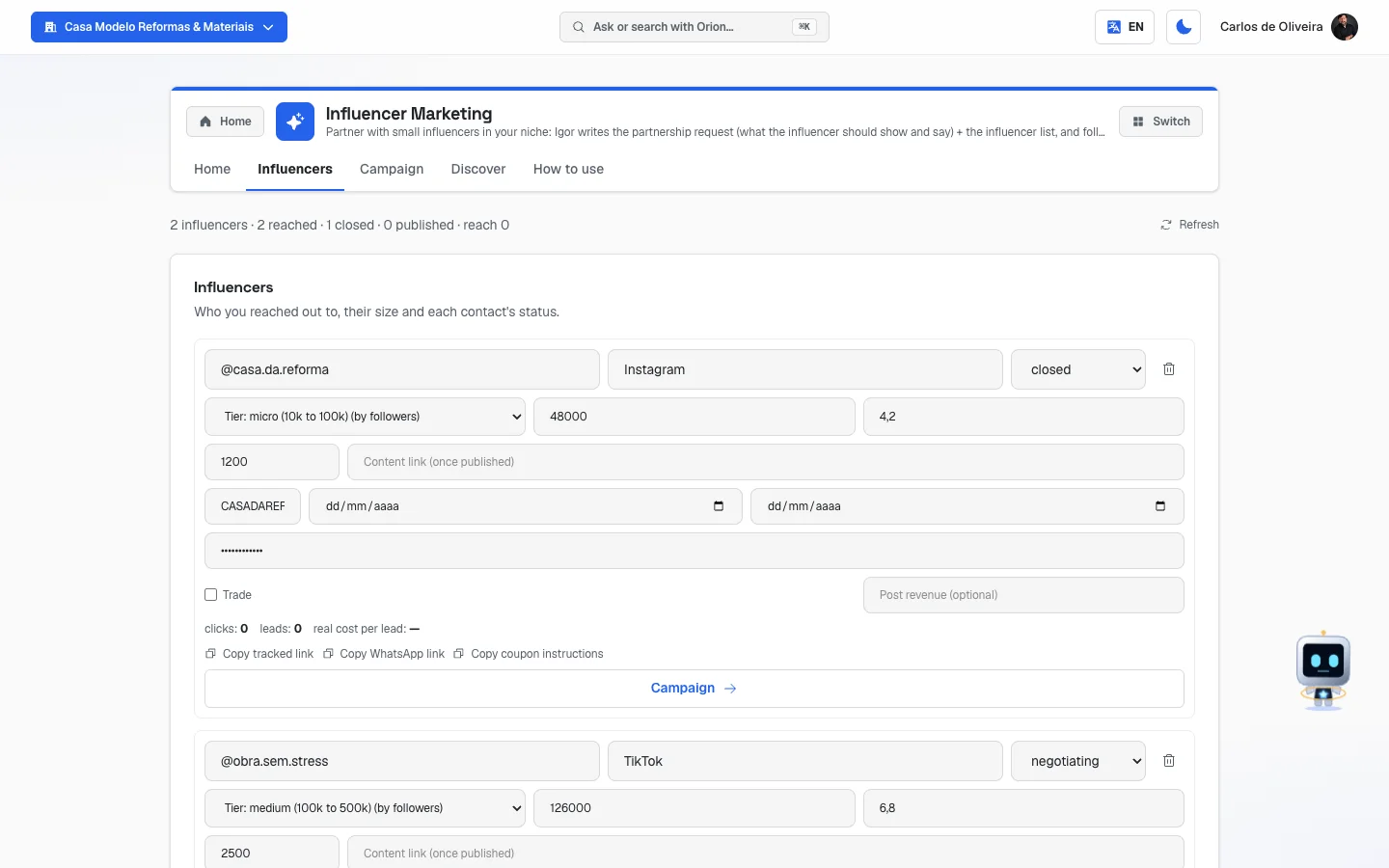 Influencers tab with the summary line "2 influencers · 2 reached · 1 closed · 0 published · reach 0" at the top and two registered creators; the first, as closed, shows all the fields, the clicks and leads line, the three copy buttons and the blue Start campaign button
The full path, from start to finish
It's worth reading this timeline once, because it explains why the tabs are in this order:
| Step | Where it happens | Who does it |
|---|---|---|
| 1. Find who has the right audience | Discover tab | The system searches; you choose. |
| 2. Put them on your list | Discover tab → Add to CRM | You. |
| 3. Talk and negotiate | outside the system (DM, WhatsApp, email) | You. |
| 4. Note what was agreed and mark as closed | Influencers tab | You. |
| 5. Start the campaign | Influencers tab → Start campaign | You, in one click. |
| 6. Send the agreement | Campaign tab → Send agreement | The system sends the email and the PDF. |
| 7. Accept the agreement | the creator's link, on their phone | The creator. |
| 8. Send the delivery (the video, the photo) | the creator's link | The creator. |
| 9. Approve or request an adjustment | Campaign tab | You. |
| 10. Publish and report the link | the creator's link (or you paste it on the Campaign tab) | The creator. |
| 11. See the result | Home tab and Influencers tab | The system counts on its own. |
| 12. Pay the creator | outside the system | You. |
How the system manages to measure: each creator on your list has a code. If you don't
write one, the system creates one from their @ (for example, @ana.fit becomes ANAFIT).
That code does two things:
- It generates a short tracked link. Whoever clicks it is counted as a click and lands straight in your company's WhatsApp, with the message already written: "Hi! I came from @ana.fit's recommendation (code ANAFIT). I'd like more information."
- It becomes a keyword. If someone writes
ANAFITin your WhatsApp, even without having clicked any link, that conversation is counted as a lead coming from that creator.
That's why the Copy coupon instructions button exists: it copies the ready-made sentence for you to send the creator — "Ask them to say in the video: 'use code ANAFIT' — whoever writes ANAFIT on your WhatsApp counts as a lead from this creator."
The tabs, one by one
Home
/app/modulos/marketing-influencia/inicio
- What you see here:
- At the top, Igor's panel: a note from him about your partnerships, plus three numbers — Partnerships in progress, Waiting on the creator and Waiting on you. The last one turns into an alert when something is stuck waiting for you. Next to it comes a shortcut button (View the campaign, Find creators or View the list).
- A Your influencer brief box with the text you wrote, and a What's been done here box with Igor's deliverables.
- A summary line of your list, like "4 influencers · 3 reached · 1 closed · 1 published · reach 82,000".
- Three result numbers: Investment, Attributed leads and Real cost per lead. This block only appears once there's investment or a lead.
- The Campaign brief section, which is a form for you to fill in.
- A Refresh on the right.
- What you can do: read the scoreboard, write the brief and chat with Igor in the chat beside it.
The comparison with paid traffic: when you also run ads through the platform, a line under the numbers says how much the ad cost per lead over the same period and concludes with one of two sentences:
- "Your influencer campaign is cheaper than paid traffic 🎉"
- "Paid traffic is cheaper than influencer marketing this period"
It's the most honest yardstick there is: it doesn't help for the partnership to look pretty if the lead costs more than advertising.
Step by step — writing the brief:
- On the Home tab, scroll down to Campaign brief.
- Fill in the five fields (all of them are free text).
- Click Save brief. "Brief saved" appears.
Each field explained (Campaign brief):
| Field | What to write |
|---|---|
| Goal | What you want from this. E.g.: "get known in the neighborhood", "get quote requests", "sell the summer combo". |
| Ideal influencer profile | What kind of creator suits you. E.g.: "women aged 25 to 40 who talk about beauty, from Goiânia, between 5 and 50 thousand followers". |
| Deliverables | What they have to deliver. E.g.: "1 reel up to 60 seconds and 3 stories, between March 10 and 20". |
| Must-haves | What can't be missing from the content. E.g.: "tag @mystore, say the code, put the link in the bio for 7 days". |
| Not allowed | What can't appear. E.g.: "don't mention competitors, don't talk about politics, don't use swear words". |
The brief doesn't go to the creator on its own. It's your reference document. What reaches the creator is the Brief and the Agreement you write on the Campaign tab — and there you can copy what you already wrote here.
But there's a shortcut, and it's Igor. None of the brief's text is copied by itself to the campaign card; instead, Igor reads the five fields of the brief and knows how to write that creator's brief and agreement straight onto the card, on request, in the chat on the Home tab. Ask like this: "build @fulano's brief and agreement from my brief". He writes it, and you review it on the Campaign tab.
You can ask him to send the agreement too — but it never happens on its own: Igor only sends it after you confirm, in so many words, right there in the chat. If you don't confirm, he sends back the confirmation request and stops. The screen path (Send agreement, on the Campaign tab) still works and is the same send.
Influencers
/app/modulos/marketing-influencia/influenciadores
This is your list of creators. Think of it as the address book: who you've already approached, where each conversation stands, what was agreed and what result each one delivered.
- What you see here: at the top, the summary line and a Refresh. Below, one box per creator, with all the fields open for editing.
- What you can do: add a creator by hand, edit, change the status, copy the tracking links and start the campaign of anyone who has already closed.
- Empty state: "No influencers yet", with two hints: "Ask Igor in the chat" or "Or add a row below".
Step by step — adding a creator by hand:
- On the Influencers tab, click Add influencer. A blank box appears.
- Fill in the @ (e.g.: @ana.fit) and the Platform (e.g.: Instagram).
- Fill in what you already know: the tier, the Followers and the Engag. %.
- Click Save.
If you came from the Discover tab, a good part of this already comes filled in on its own.
Each field explained:
| Field | What to write |
|---|---|
| @ (e.g.: @ana.fit) | The creator's username, with the @ sign. |
| Platform (e.g.: Instagram) | Instagram, TikTok, YouTube. |
| The tier box (it's the first of the three boxes on the creator's second row, right to the left of Followers; it has no label written above it — until you choose, it shows "Tier: … (by followers)") | A selection box with four options, and only these four: nano (under 10k), micro (10k to 100k), medium (100k to 500k) and macro (500k or more) — the same scale the Discover tab uses on its own. If you leave it unchosen, the box shows the tier calculated from the Followers you typed next to it. Anyone who comes from the Discover tab arrives already classified. |
| Followers | How many followers they have. It goes into the "reach" of the summary line when the creator reaches the published status. |
| Engag. % | The engagement: out of every 100 followers, how many like or comment. A low number with lots of followers is a sign of a cold audience. |
| Cost | How much you agreed to pay in cash. This is the amount that goes into the cost-per-lead calculation. |
| Content link | The address of the post once it's out. While the creator hasn't published, the field says "(once published)"; when you mark the status as published, it starts saying "(paste here)" and gets highlighted. |
| Code | The creator's nickname for tracking, letters and numbers only, in capitals (e.g.: ANAFIT). It needs at least 3 characters. If you leave it blank, the system creates one from the @. |
| Window start / Window end | The dates when their campaign is valid. The system uses that window to know which leads count as theirs and to calculate the campaign's deadlines. If you leave it blank, every lead with that code counts, from any date. |
| Creator's email (to send the agreement) | Required in practice: it's where the email with the agreement and the reminders goes. Without an email, the creator receives nothing and you have to send the link by hand. |
| Trade | Check it when payment is in product or service instead of cash. E.g.: you give a free haircut in exchange for the post. |
| Trade value | How much, in money, what you gave away is worth. It only appears when Trade is checked. It goes into the total investment, because a freebie is a cost too. |
| Post revenue (optional) | How much you earned because of that partnership, if you can work it out. It's what lets the system calculate the ROI. |
A creator's five statuses:
| Status | What it means |
|---|---|
| to reach | They're on your list, you haven't talked to them yet. |
| reached | You sent a message. Waiting for a reply. |
| negotiating | They replied. You're settling on price and format. |
| closed | Agreed. This is where the Start campaign button appears. |
| published | The content is live. |
Each creator's result numbers: after the creator is saved, a line appears inside their box with clicks, leads and real cost per lead (they start at 0, and the cost shows "—" while there's no lead) and, when you entered revenue, the ROI.
The three copy buttons:
| Button | What it copies | When it works |
|---|---|---|
| Copy tracked link | The creator's short link. Ask them to put it in their bio or story. | After saving the creator for the first time. |
| Copy WhatsApp link | A link that opens the conversation directly in your company's WhatsApp, with the recommendation message already written. | Only if there's a WhatsApp registered on the company profile. |
| Copy coupon instructions | The ready-made sentence for you to send the creator explaining the code. | Only when the creator has a code. |
Step by step — starting the campaign:
- Check that the creator has the closed status and the Creator's email filled in.
- Click Start campaign. The button only exists on closed creators.
- The system saves the list and creates the pipeline for that partnership. "Campaign started" appears and you're taken automatically to the Campaign tab.
- From then on, while the partnership is in progress, that creator's box shows a Campaign button, which takes you straight there.
It's one partnership in progress per creator. If you try to start another while the current one hasn't finished, the system warns: "This creator already has a campaign pipeline in progress."
When the partnership reaches its end — published, or ended by you —, the creator is free for another with your company: with their status at closed, the Start campaign button shows up again. After a publication, the system changes their status to published; to hire them again, change the status to closed and the button appears.
Campaign
/app/modulos/marketing-influencia/campanha
This is where the partnership really moves, step by step, until publication. Each creator becomes a card.
- What you see here: at the top, "N campaign(s) in progress" (it only counts the ones that haven't reached the end yet) and a Refresh. If there's a delivery waiting for you, a yellow banner warns: "N delivery(ies) awaiting your approval". Below, one card per partnership. The ones you ended go in a separate section, further down: Ended partnerships.
- What you can do: write the brief and the agreement, send the agreement, approve or reject the delivery, record the publication and end a partnership that isn't going any further.
- Empty state: "No campaign started", with the hint "Go to the Influencers tab, mark a creator as closed and click 'Start campaign'". If all your partnerships have already been ended, the title changes to "No campaign in progress".
The eight stages of a campaign:
| Stage (as it appears on the screen) | What's happening | Who has the ball |
|---|---|---|
| Preparing the brief | You're writing what you want and the terms. | You |
| Agreement sent — awaiting acceptance | The creator got the email and hasn't accepted yet. | The creator |
| Agreement accepted — awaiting the delivery | They accepted. Now they have to produce and send. | The creator |
| Delivery received — awaiting your approval | The video or photo arrived. You need to look at it. | You |
| In revision with the creator | You asked for a correction and explained the reason. | The creator |
| Approved — awaiting publication | It's cleared. It just has to go live. | The creator |
| Published | It's done. The publication link is saved. | Nobody |
| Closed | You ended the partnership before publication, writing the reason. It stays saved for reference. | Nobody |
Each card also shows how long it's been stuck at that stage — "waiting on you for 3 day(s)", "waiting on the creator today", "published 12 day(s) ago", "ended 2 day(s) ago" — and, while the partnership is in progress, a deadline label:
| Label | What it means |
|---|---|
| on time | There's still slack. |
| at risk | Less than 24 hours left until that stage's deadline. |
| overdue | The deadline has passed. |
The deadline for each stage (the system calculates it on its own, you don't configure it):
- Agreement sent: 5 days for the creator to accept.
- Agreement accepted: until the Delivery deadline you set; if you don't set one, until 3 days before the end of the window; if there's no window, 14 days.
- Delivery received: 2 days for you to decide.
- In revision: 3 days for them to resend.
- Approved: until the end of the campaign window; with no window, 7 days.
What the system does by itself with those deadlines: every day it looks at the open partnerships — the published and the ended ones are left out. When the ball is with the creator and the deadline is at risk or overdue, it sends an email to the creator (at most one per stage per day), always with their link. And it sends you a single summary email per day, with the subject "Overdue deadlines in the campaign pipeline", listing who is late and at which stage.
Step by step — building and sending the agreement:
- On the Campaign tab, find the creator's card (it starts at Preparing the brief).
- In the Brief field, write what the creator needs to know about the campaign.
- In Deliverables, write quantity, format and dates. This field is required — without it the send is blocked with the notice "Describe the deliverables before sending the agreement."
- Fill in the Agreed value and the Delivery deadline.
- If it's a trade, check Trade (product/service instead of cash) and enter the Estimated trade value.
- In Terms, write the must-haves, the not-allowed items and the posting deadline.
- Check the Creator's email.
- Click Save if you want to save and continue later, or go straight to Send agreement.
- The confirmation "Send the agreement?" appears, saying the creator will get an email with the portal link.
- Confirm. The system generates the agreement PDF, creates the creator's link and sends the email with the subject "Your publication agreement is ready".
If the email doesn't go out, the system warns: "Agreement is ready, but the email couldn't be sent. Copy the portal link and send it manually." Use Copy the creator's portal link and send it over WhatsApp.
After the creator accepts, the brief and the agreement get locked: "This campaign has already moved on and can no longer be edited here." That's deliberate — what was accepted can't change on its own.
Step by step — approving or requesting an adjustment on the delivery:
- When the stage is Delivery received — awaiting your approval, click View submitted delivery (or View submitted file, if they sent a file) and look at the content.
- Liked it? Click Approve. The creator gets an email "Your delivery was approved!".
- Didn't like it? Click Request adjustment, write in the What needs to change? (required) field and click Send adjustment request. They get an email "Adjustment requested on your delivery" with your text and resend through the same link.
The reason for the adjustment is required: "Explain what needs adjusting." Without it they don't know what to do and will ask you on WhatsApp.
Step by step — recording the publication:
- When the stage is Approved — awaiting publication, the creator can report their own link themselves, through the link on their phone.
- If they don't report it, paste it yourself in the Publication link (once the creator posts) field and
click Save. The link has to start with
https://. - The stage becomes Published and the View publication button appears.
Step by step — ending a partnership that isn't going any further:
It's for when the creator vanishes, gives up, or you two can't agree. You can end it at any stage before publication — even after they've accepted the agreement.
- On the Campaign tab, on the partnership's card, click End partnership — it's on the same line as Copy the creator's portal link, on the right side.
- The window "End the partnership with @fulano?" opens, saying what happens from there.
- Write in the Why are you ending it? (required) field — at least 3 letters. E.g.: "the creator stopped replying". While the reason is empty, the button stays grayed out.
- Click End partnership. This appears: "Partnership ended. The creator gets no more reminders and their link stopped opening."
What happens right away:
- The creator stops receiving the deadline reminder emails.
- Their portal link stops opening: whoever opens it sees "Portal closed" and the sentence "This portal was closed by the company that sent you the link." They lose access to the brief, the agreement and the agreement PDF from there.
- The partnership leaves your daily email "Overdue deadlines in the campaign pipeline" and the numbers on Igor's panel.
- The card moves to the Ended partnerships section, with the Closed label, the date (Ended on) and the Reason you wrote. It isn't deleted.
- The creator is free for another partnership with your company (see Step by step — starting the campaign, on the Influencers tab).
The reason is yours alone. The creator doesn't get an email announcing the ending and never sees the text you wrote. If you want to explain it to them, talk outside the system (WhatsApp, DM).
There's no going back. An ended partnership doesn't reopen. If you change your mind, start another with the same creator — it's born with a new link.
Only the account owner or an admin can end one. Whoever is a team member sees the notice "Only the account owner or an admin can end a partnership. Ask whoever manages the account."
What the creator sees on their link (good for you to know, because they'll ask you):
- A page with your brand's name and the title "Campaign with...".
- The Brief you wrote.
- The Agreement, with deliverables, value, trade and terms, and a Download agreement PDF button.
- A green ✅ I read and accept button. After they click, "Accepted on" is recorded with the date.
- A Submit delivery space, where they paste the Content link or send a file (image, video or PDF, up to 50MB). If you requested an adjustment, they see your note there under "Adjustment requested:".
- Once approved, a Published? space for them to paste the link to the live publication.
- At the end, "Publication confirmed! 🎉".
- If you end the partnership, in place of all that: "Portal closed", with the sentence "This portal was closed by the company that sent you the link." — without your reason.
They don't create an account, don't install anything and don't need a password.
Discover
/app/modulos/marketing-influencia/descobrir
This tab is for finding creators you don't know yet.
- What you see here: a search form, a card about the Instagram connection and, after searching, the results as cards with photo, @ and number of followers.
- What you can do: search for free, analyze a profile in depth (costs credits), run the premium search (costs credits) and add creators to your list.
The three ways to search:
| Way | Cost | What it returns |
|---|---|---|
| Search (main button) | Free | A list of creators with photo, @ and followers. No engagement, no email. |
| Analyze in depth (on each card) | 1 credit per creator | Adds engagement, comparison with the tier's average, risk level, contact email (when there is one) and a few sample posts. |
| Premium search (Creator Marketplace) | 3 credits per search | Instagram creators that already come analyzed in depth, without you having to spend 1 credit per profile. |
Step by step — searching and adding a creator:
- On the Discover tab, write the Niche (e.g.: women's fashion, barbershop).
- If you want, fill in the City (optional), the Country, the platform (All platforms, Instagram, TikTok or YouTube) and the range of Min. followers and Max. followers.
- Click Search. It's free.
- On the profiles that interested you, click Analyze in depth (1 credit).
- Confirm in the "In-depth analysis — 1 credit" window, by clicking Analyze for 1 credit.
- Look at the result: risk label, engagement and, if there is one, the email.
- Click Add to CRM. The button turns into On your list.
- Go to the Influencers tab to continue from there.
You can only add after analyzing. The Add to CRM button only appears on the card after the in-depth analysis has been done — or when the creator came through the premium search, which already brings everything analyzed.
What comes along when you add: the @, the platform, the tier, the followers, the engagement, the link and the contact email — the same one the in-depth analysis found. It lands straight in the Creator's email field on the Influencers tab, which is where the agreement is sent from. If the analysis didn't find any email, the field stays blank and you type it in there.
The risk labels:
| Label | What it means |
|---|---|
| low risk | The numbers add up. An audience that looks real. |
| medium risk | Something's off. Worth looking at the sample posts before closing. |
| high risk | A sign of a bought or inflated audience. Be careful. |
| not enough data | It couldn't be assessed. It's neither bad nor good, it's a lack of information. |
Engagement shows up like this: "engagement 4.2% (tier average: 2.8%)". The number in parentheses is the average for those with that audience size. Being above average is a good sign; far below, a sign of a cold audience.
The Instagram connection (the card in the middle):
You don't need to connect anything to search. By default, "the search runs through AutoAgency's partner account". But you can connect your company's professional Instagram account, with the Connect Instagram button, and then the search starts running through your account. The possible notices:
- Searching through your account — everything's fine. "If it becomes unavailable, the search automatically falls back to the partner account."
- Your Instagram account connection has expired — click Connect again. In the meantime the search keeps working through the partner account.
- Your account "is not part of the Instagram Creator Marketplace yet" — the search keeps going through the partner account. To use yours, enable the Creator Marketplace in Meta Business Suite.
- Disconnect puts everything back on the partner account.
Notices that can appear after searching:
- "No creators for these filters" — try a broader term or another city.
- "The search couldn't reach the data source right now" — the screen explains that "this doesn't mean the niche is empty — and this attempt didn't use your quota". Try again in a few minutes, without changing the filters.
- "You've made too many searches in the last hour. Try again shortly."
- "followers unavailable on TikTok" — TikTok doesn't always report that number.
How to use
/app/modulos/marketing-influencia/como-usar
Every module has this tab at the end. It's the module's manual inside the system itself.
How to read the numbers
On Igor's panel (top of the Home tab):
- Partnerships in progress — how many campaigns haven't reached the end yet: neither published nor ended by you.
- Waiting on the creator — how many are stuck on their side.
- Waiting on you — how many are stuck on your side. Above zero, it turns into an alert. It's the number you should bring to zero every week.
On the list's summary line: "4 influencers · 3 reached · 1 closed · 1 published · reach 82,000". Each number counts whoever has already arrived at that stage or beyond it: reached also includes whoever is negotiating, closed or already published; closed includes whoever has already published. The reach is the sum of followers only of the creators who have published (published status) — which is why it stays at 0 while nobody has published, even with big creators on the list. It's a rough estimate of how many people those publications could reach — not how many people actually saw them.
In the result block on the Home tab:
- Investment — everything the partnership cost: the cash plus the estimated value of the trade. When there's a trade, the line below separates them: "$300.00 in cash · $80.00 in trade".
- Attributed leads — how many people reached you because of the creators, whether by clicking the tracked link and landing in your WhatsApp, or by writing the creator's code.
- Real cost per lead — the investment divided by the leads. It's the number of the module: how much you paid for each person who raised their hand. It shows "—" while there's no lead at all.
In each creator's numbers (Influencers tab):
- clicks — how many times their tracked link was clicked.
- leads — how many became a real conversation.
- real cost per lead — what you paid that creator divided by their leads. It's what lets you compare two creators fairly: the one with more followers isn't always the cheapest per lead.
- ROI — only appears if you fill in the Post revenue. It's the return: 100% means you received double what you invested; 0% means you broke even; negative means a loss.
An important note about the counting:
- Clicks are counted since forever: every click on that creator's link, since the first day, goes into the count.
- Leads depend on the date window. If you filled in the Window start, the system only counts the conversations that arrived within that period — and never counts today, because the numbers close by whole days. In other words, today's lead shows up tomorrow. If you left the window blank, it counts every conversation with that code, from any date.
Frequently asked questions
Does the system talk to the influencer for me? Only after you two have already agreed. The first contact — the DM, the "hi, I have a proposal" — is made by you, outside the system. From the moment you click Start campaign onward, then yes the system takes over: it sends the agreement by email, gives them a link, nudges when they're late and notifies you.
Does the system pay the influencer? No. There's no payment inside the module: no Pix, boleto, card or invoice. You agree and pay outside, however you prefer, and note the amount in the Cost field just so the cost-per-lead numbers add up.
Who negotiates the price? You. The module doesn't suggest or close prices. It keeps what you agreed and puts it in the agreement document.
Does the influencer need to create an account on AutoAgency? No. They get a link by email, open it in their phone's browser and do everything from there: read the agreement, accept, send the video and report the publication. No sign-up, no password, no app.
Do I really need to use the code and the tracked link? If you want to know whether the partnership delivered results, yes. Without the link and without the code, the system has no way to connect a new customer to that creator — and the lead and cost-per-lead numbers stay at zero even if the partnership sold. Send the creator the two ready-made texts, with Copy tracked link and Copy coupon instructions.
What is a "trade"? It's paying with a product or service instead of cash (barter). You give a dinner, a haircut, a piece of clothing, and they post in exchange. In the system, check the Trade box and write how much it's worth. The value goes into the total investment, because a freebie also comes out of your pocket.
What is "engagement"? Out of every 100 followers, how many actually interact (like, comment). A profile with 100 thousand followers and engagement of 0.3% is usually worth less than one with 8 thousand and 6%.
Does the search cost money? The simple search doesn't. Analyzing a profile in depth costs 1 credit, and the premium search costs 3 credits. The system always shows the confirmation window before spending anything.
I started the campaign by accident, or the partnership didn't work out. Can I stop it? Yes, at any stage before publication. On the partnership's card, on the Campaign tab, click End partnership, write the reason and confirm. Right away, the creator stops receiving the reminder emails, their link stops opening and the partnership leaves your daily summary "Overdue deadlines in the campaign pipeline". It isn't deleted: it stays under Ended partnerships, with the date and the reason. It can't be reopened, but the same creator is free for another partnership. Only the account owner or an admin can end one. (While the creator hasn't accepted the agreement, you can also simply fix the brief and the agreement on the card itself.)
Does the creator find out that I ended it? They don't get any email. If they open the link, they see that the portal was closed by the company that sent the link — but they never see the reason you wrote. If you want to explain it, talk to them outside the system.
When something goes wrong
| Symptom | What to check | What to do |
|---|---|---|
| The screen says "The Influencer Marketing module is not active on this tenant." | Is the module subscribed on your account? | Turn on Influencer Marketing in the Catalog. |
| The Start campaign button doesn't appear on the creator | Is their status at closed? Did you save after changing it? | Change the status to closed and click Save. The button only exists on closed ones. |
| "This creator already has a campaign pipeline in progress." | They already have a partnership that hasn't reached the end yet (neither published nor ended). | Click the Campaign button on their box, which takes you straight to it. If that partnership isn't going any further, end it there with End partnership and start another. |
| "Describe the deliverables before sending the agreement." | The Deliverables field is blank. | Write quantity, format and dates, and try sending again. |
| "Agreement is ready, but the email couldn't be sent. Copy the portal link and send it manually." | The creator's email is wrong, or the send failed. | Click Copy the creator's portal link and send it over WhatsApp. Then fix the email on the card. |
| The creator says they received nothing | Was the Creator's email field filled in when you sent? Did you ask them to check spam? | Check the email on the card on the Campaign tab, and use Copy the creator's portal link to send it over WhatsApp. |
| "This campaign has already moved on and can no longer be edited here." | The creator already accepted the agreement. | What was accepted doesn't change. Agree on the change with them outside the system and, if it's big, click End partnership on the card (with the reason) and start another with Start campaign on the Influencers tab. |
| The End partnership button in the confirmation window is grayed out | The Why are you ending it? field is empty or has fewer than 3 letters. | Write the reason in a few words. The button lights up on its own. |
| "Only the account owner or an admin can end a partnership. Ask whoever manages the account." | You signed in as a team member. | Ask the account owner or an admin — or ask to be made an admin. |
| "This campaign has already been published — there is nothing left to end.", "This partnership has already been ended." or "This partnership has just changed stage. Refresh the page and check before ending it." | The screen was out of date: while it was open, the creator published or someone on the team ended the partnership. | Click Refresh and check the card. |
| "Explain what needs adjusting." | You clicked send on the adjustment request with the field empty. | Write what needs to change and send again. |
| "This delivery has already been decided." | You (or someone else on the team) already approved or requested an adjustment on this delivery. | Refresh the page. The stage has already changed. |
| "Only an approved campaign can be marked as published." | The delivery hasn't been approved yet. | Approve the delivery first, then record the publication link. |
| "Enter a valid link starting with https://" | The pasted link doesn't start with https://. | Copy the full address of the post from the browser bar. |
| Clicks and leads are zero even though the post is live | Did the creator put the tracked link in their bio? Did they say the code in the video? Does the date window cover the publication day? | Send them the link and the coupon instructions again, and check the window dates on their box. Remember that today only goes into the count tomorrow. |
| The Copy WhatsApp link button is grayed out | There's no WhatsApp registered on the company profile. | Register the company's WhatsApp. Without a number, the tracked link takes the person to your website instead of the conversation. |
| The Copy tracked link button is grayed out | The creator hasn't been saved yet, or the link hasn't been generated yet. | Click Save on the list and refresh the page. |
| "You've made too many searches in the last hour. Try again shortly." | Hourly search limit. | Wait a little and try again. |
| "The search couldn't reach the data source right now" | A problem with the data source, not your filters. | Try again in a few minutes, without changing the filters. That attempt didn't use your quota. |
| "Premium feature is being enabled for your account — use the free search for now." | The premium search isn't enabled on your account yet. | Use the Search button (free) and Analyze in depth in the meantime. |
| Add to CRM doesn't appear on the creator's card | You haven't analyzed that profile in depth yet. | Click Analyze in depth (1 credit) and confirm. The button appears right after. |
| The email "Overdue deadlines in the campaign pipeline" arrived | It's the daily summary of late partnerships. | Open the Campaign tab and look at the cards with the overdue label. If any of those partnerships isn't going any further, use End partnership on its card: the next summary comes without it. |