

LGPD / Compliance
Where it is: Home → Your apps → LGPD (at the top of the screen the module shows as LGPD / Compliance)
Address: /app/modulos/lgpd
What it's for
First things first: what is the LGPD? LGPD is Brazil's General Data Protection Law — a Brazilian law that applies to practically everyone who writes down a customer's name and phone number. It's not just for banks and big companies. If you run a pizzeria and keep the phone number of people who order delivery, the law applies to you.
What the law asks of you, in business-owner language, is basically this:
- Say what you do with people's data. That's the privacy policy.
- Have a legitimate reason to keep each piece of data. The law calls this a "legal basis."
- Know which data you use, what for, and how long you keep it. That's the processing register.
- Respond to anyone who asks for their own data back, or asks you to delete it. And answer within the deadline.
- Tell your website visitors about cookies and let them choose.
This module is where you organize those five things, without legalese. Leading it is Diana, the module's specialist: she writes the privacy policy, builds the processing register, generates the cookie banner and alerts you three days before a deadline runs out — and again, with a different sentence, when it does.
This module has three names, and all three are real. In the catalog, where you subscribe, it's called LGPD & Compliance (with an ampersand). Inside the system, at the top of the screen, it shows as LGPD / Compliance (with a slash). Under Your apps, where a long name doesn't fit, just LGPD. It's the same module in all three places.
A day-to-day example: you own a salon. You keep all your clients' WhatsApp numbers so you can send promotions. One of them messages you: "I want you to delete my number." That's a data subject request — and the law gives you 15 days to answer. You log the request on the Requests tab, and the system starts counting the days. When three days are left, the request's card turns amber saying how many days remain, and Diana nudges you in the panel. If the deadline passes, the card turns red and her sentence changes to say the deadline is over.
What the module handles on its own and what's still yours
This is important and the module's own screen says so: this module gives practical guidance, not a legal opinion.
The module does for you:
- Writes the text of the privacy policy (you ask Diana in the chat).
- Keeps the processing register in an organized list.
- Calculates your compliance score (the 0-to-100 grade) and shows where the gaps are.
- Counts the days on data subject requests, switches on the alert when three days are left and changes the alert when the deadline passes.
- Generates the cookie banner code, ready to paste.
Still your responsibility:
- Publishing the privacy policy on your website. The module writes the text; putting it online is up to you.
- Pasting the cookie banner on your site. The module generates the code; installing it is up to you — the screen itself says automatic installation doesn't exist yet.
- Logging every data subject request that comes in. The system can't tell on its own that a client messaged you on WhatsApp asking for deletion. You have to write it down.
- Answering the request for real — sending the data, correcting it, deleting it. The module tracks the deadline; you're the one who delivers.
- Deleting the data from your systems when someone asks.
- Talking to a lawyer in a specific case: a contract, an ANPD fine (ANPD is the government agency that enforces the LGPD), a lawsuit. The screen says so right at the top of the Home tab.
Before you start
- The LGPD & Compliance module has to be active on your account. If it isn't, the screen shows the module's name and a message that it's part of a product you haven't subscribed to yet.
- The first time you open a module, an invitation from Diana appears at the top of the screen: "Want to set up … by chatting with Diana?". It's optional — the tabs already work — and each reply from her uses AI credits. Chatting helps Diana get to know your company. To make the invitation go away, click Dismiss or, after chatting, Complete setup.
- Nothing else is required to start. The four tabs begin empty and you fill them in whatever order you like.
- For the cookie banner to work, you'll need access to your website's code (or to someone who has it).
Getting started
- On Home, under Your apps, click LGPD. You land on the Home tab.
- If the invitation to set up by chatting with Diana appears, you can click Chat with Diana, answer, and then click Complete setup — or click Dismiss and go straight on, because it's optional.
- On the Home tab, read the notice at the top. It reminds you that Diana gives practical guidance and doesn't replace a lawyer.
- Go to the Privacy policy tab. In the chat, ask Diana to write your business's policy. She writes it, you read it, adjust it and click Save policy.
- On the same tab, check the five boxes you've already taken care of. Each one you check raises your score.
- Go to the Processing records tab and list every way you use your customers' data. Start with the obvious ones: "customer records," "WhatsApp list," "invoice."
- Go back to the Home tab and click Generate banner. Copy the code that appears and paste
it into your website, before the
</head>line (or ask whoever looks after your site to do it). - From here on, every time a customer asks for their data or asks for deletion, you log it on the Requests tab.
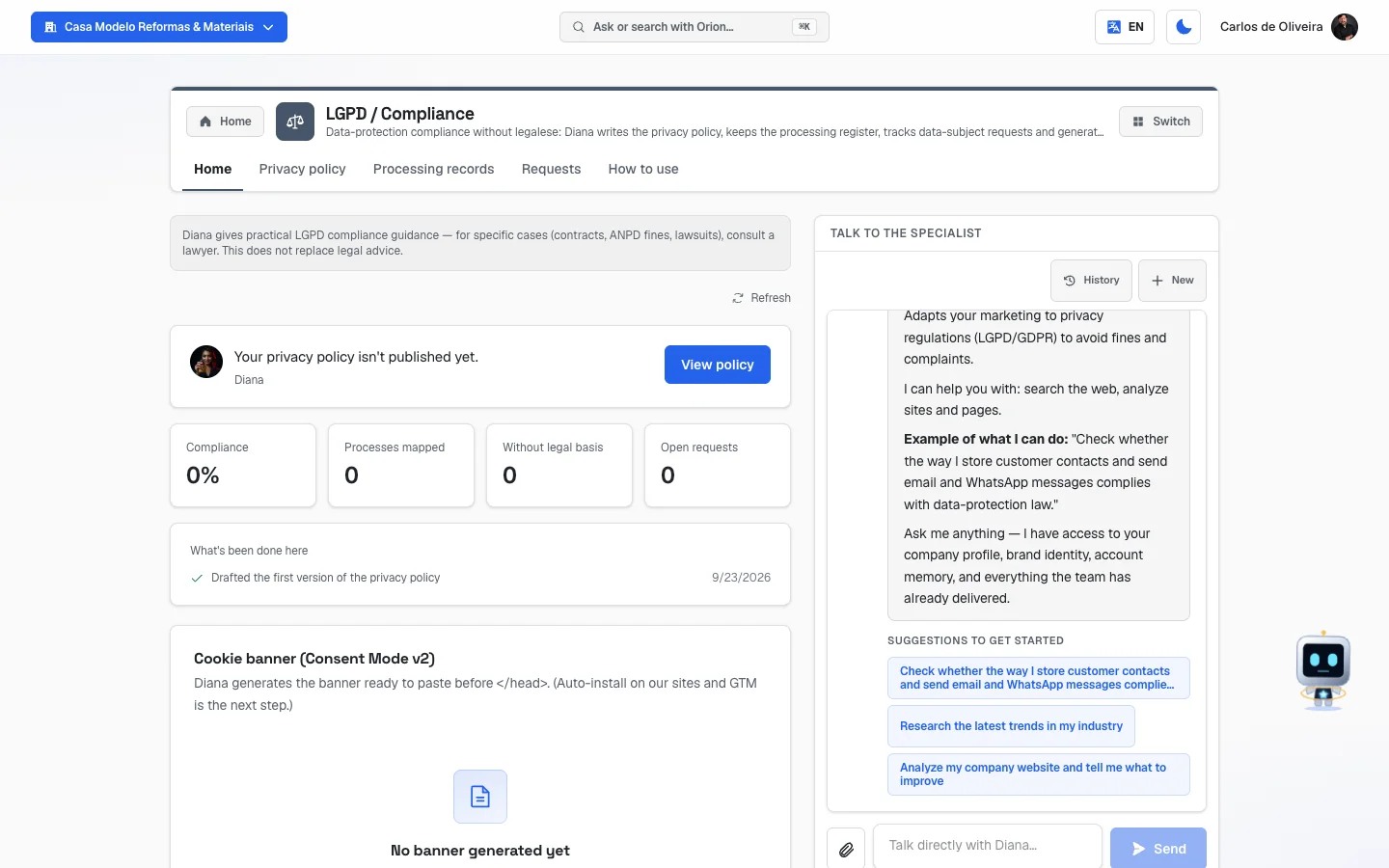 Home tab with Diana's panel at the top, the compliance score and the cookie banner section
The tabs, one by one
Home
/app/modulos/lgpd/inicio
The panel is on the left; on the right is the Talk to the specialist chat, where you talk to Diana (on a computer they sit side by side; on a phone the chat appears below).
- What you see here:
- At the top, a fixed gray notice: "Diana gives practical LGPD compliance guidance — for specific cases (contracts, ANPD fines, lawsuits), consult a lawyer. This does not replace legal advice."
- A Refresh link to reload the data.
- Diana's panel: a note from her about how your compliance is going, with a button for the next step (for example, View policy), plus four numbers — Compliance, Processes mapped, Without legal basis and Open requests.
- The Cookie banner (Consent Mode v2) section.
- What you can do: generate the cookie banner and talk to Diana.
The cookie banner, explained:
A cookie banner is that little strip that appears when you visit a website: "this site uses
cookies, do you accept?" The law requires that visitors be able to choose. The module generates the
code for that strip, ready to go — but you're the one who pastes it into your site. The
section's own description is honest about this: "Diana generates the banner ready to paste before
the </head> of your site."
And what is that "Consent Mode v2" in the section name? It's the official name Google gave to the arrangement between your banner and the measurement tools (Google Analytics, Google Ads). Translating what the generated code does, in order:
- As soon as the page opens, everything that isn't essential starts out DENIED — neither Analytics nor Google Ads can store anything about that visitor until they choose.
- The strip appears with its two buttons: Accept and Decline non-essential.
- If the person accepts, the code tells Google's tools they're now allowed; if they decline, the tools keep storing nothing. The choice is saved in their browser, and the strip doesn't show up again.
That's why the technical term stayed in the section name: if you send the code to whoever looks after your site, that's the word they'll recognize. For you, it's enough to know it's the cookie banner and that it denies by default.
Step by step — generate and install the banner:
- On the Home tab, scroll down to the Cookie banner (Consent Mode v2) section.
- Click Generate banner. While it works, the button changes to Generating….
- When it finishes, the date it was generated appears, along with a box containing the code.
- Copy all the code in the box.
- Paste it into your website, at the top of every page, before the
</head>line. If you don't touch your site's code, send this code to whoever looks after it. - If you want a new banner later, the button changes to Regenerate.
- Empty state: if you've never generated one, you see "No banner generated yet," with the explanation that the banner brings your site into compliance with the LGPD and the hint to use the Generate banner button right below.
Privacy policy
/app/modulos/lgpd/politica
The privacy policy is the text that explains to people who visit your site or become your customers what you do with their data: what you collect, why, who you share it with and how the person can ask to opt out.
- What you see here: a large text box with your policy, five checkboxes and the Save policy button.
- What you can do: write (or paste) the policy and check what you've already taken care of. The screen's description says: "Ask Diana to generate it, or write/paste it here. Check the dimensions already compliant."
Step by step:
- On the Privacy policy tab, ask Diana in the chat to write your business's policy — or write it yourself in the big box.
- Read and adjust the text. It starts empty, with the placeholder "Policy text…".
- Check the boxes that already apply to you (see the table below).
- Click Save policy. The message "Policy saved" appears.
- Publish this text on your website. The module doesn't do that for you.
The five checkboxes explained:
| Checkbox | Check it when… |
|---|---|
| Legal basis defined | You can say, for each piece of data you keep, why you have the right to keep it (the person's consent, fulfilling a contract, a legal obligation, etc.). |
| Valid consent | When you ask for permission, the person is really choosing — it's not a pre-checked box or fine print hidden away. |
| Use matches purpose | You use the data only for what you promised. Did you take the phone number to schedule the service? Don't use it to sell something else without telling them. |
| Data security | The data is protected: passwords, controlled access, no open spreadsheet in the group's WhatsApp. |
| Data subject rights | There's a clear way for the person to ask for their data, correct it or delete it — and you know how to handle it. |
Every box you check raises your compliance score. Checking without really having done it only fools yourself: the score is a working tool, not a diploma.
Processing records
/app/modulos/lgpd/tratamentos
"Processing" is the name the law gives to anything you do with a person's data: collecting, storing, using, sharing, deleting. Keeping a client's phone number on your phone is processing. Sending a promotion on WhatsApp is another. Issuing an invoice with the CPF (Brazil's individual taxpayer ID number) is another.
This register is called the RAT (Registro de Atividades de Tratamento, or processing activity register). It's the map of which data your company uses and why — and it's the first thing they ask for if an inspection comes knocking.
- What you see here: the Processing register (RoPA) block, with the list of your processing activities, the Add processing link and the Save button.
- What you can do: add, edit and delete processing activities.
Step by step — adding a processing activity:
- On the Processing records tab, click Add processing. A blank box appears.
- In the first field, write the name of the activity (the field starts with the word Processing). Example: "Customer records."
- In the dropdown next to it, choose the legal basis. It starts at "— legal basis —," with a reddish border, precisely so you don't forget.
- In the three fields below, fill in Purpose, Data collected and Retention.
- Repeat for each way you use data.
- Click Save. The message "Saved" appears.
- To delete a row, click the trash can icon to its right and then Save.
Each field explained:
| Field | What to write |
|---|---|
| Processing | The nickname of that activity, the way you'd say it. "Customer records," "WhatsApp list," "Job applicants' resumes." With no name filled in, the row is discarded when you save. |
| legal basis | Why you have the right to use that data. See the table right below. |
| Purpose | What it's for. "Schedule the service and notify the customer," "Issue an invoice." |
| Data collected | Exactly which data. "Name, phone, address," "Name, CPF." |
| Retention | How long you keep it. "5 years," "As long as the person is a customer," "6 months after the service." |
The legal bases, in plain English:
| Legal basis | Use it when… |
|---|---|
| Consent | The person expressly authorized it. E.g.: they checked "I want to receive promotions." |
| Legitimate interest | You have a legitimate business interest and it doesn't harm the person. E.g.: keeping the service history to serve them better. |
| Contract | You need the data to deliver what was contracted. E.g.: the address to make the delivery. |
| Legal obligation | The law requires you to keep it. E.g.: CPF on the invoice. |
| Credit protection | Credit checks and collections. |
| Exercise of rights | You need to keep it to defend yourself in a lawsuit or to claim a right. |
A processing activity without a legal basis is the biggest hole in your score. Diana's panel has a number just for this — Without legal basis — and it stays on alert as long as there's any. If you're unsure which basis to choose, ask Diana in the chat.
- Empty state: if there are none, you see "No processing recorded," with the explanation that the register is the map of which data the company uses and why — the basis of compliance — and two hints: add below, or ask Diana in the chat.
Requests
/app/modulos/lgpd/solicitacoes
What a data subject request is. The "data subject" is the person who owns the data — in your case, your customer. The LGPD gives them the right to ask for things about their own data, and you're obligated to handle them. In practice this reaches you as a WhatsApp message, an email or a phone call: "I want to know what data you have about me," "I want you to delete my record," "my name is spelled wrong, please fix it."
That request has a deadline. The module's screen states the 15-day legal deadline: the section's description says "Access, correction or deletion requests. 15-day legal deadline — amber warning at 3 days or less, red once the deadline has passed."
This tab is where you write down those requests. The system can't tell on its own that someone asked you for something over WhatsApp — you're the one who logs it. What the system does is count the days and warn you before time runs out.
- What you see here: the Data subject requests block, with the list of logged requests, the Log request link and the Save button.
- What you can do: log a new request, change a request's status and delete records.
Step by step — logging a request:
- On the Requests tab, click Log request. A blank box appears, already showing today's date and the status Open.
- In the first field (Subject), write the name of the person who asked.
- In the Contact field, write the person's phone number or email.
- In the first dropdown, choose the type of request (see the table below).
- In the date field, confirm or correct the date the request reached you. That's the date the deadline starts counting from — don't make it up and don't leave it blank.
- In the last dropdown, leave it on Open until you've resolved it.
- Click Save. The message "Saved" appears.
- When you've handled the request for real, come back here, change the status to Done and click Save again.
The five request types:
| Type | The customer is asking to… |
|---|---|
| Access | See which data you have about them. |
| Correction | Fix wrong data (a misspelled name, an old phone number). |
| Deletion | Delete their data from your system. |
| Portability | Receive their data in a format they can take somewhere else. |
| Objection | Have you stop using their data for a certain purpose — for example, stop sending promotions. |
The four statuses:
| Status | Means | Does the deadline count? |
|---|---|---|
| Open | It arrived and nobody has touched it yet. | Yes |
| In progress | You're working on it. | Yes |
| Done | You handled it and answered. | No |
| Refused | You turned the request down, with a reason. | No |
Refusing is a valid answer. Not every request has to be accepted — there are cases where the law requires you to keep the data even if the person asks for deletion (an invoice, for example). Mark it as Refused instead of leaving it open forever: the record of the refusal is exactly what inspectors want to see, and it also stops the deadline from running.
The card colors:
- Normal border — all in order, with more than three days of deadline ahead.
- Amber border with "N days left before the 15-day deadline" — the early warning. It appears when three days or fewer remain. On the last day the sentence changes to "The 15-day deadline ends today. Answer today."
- Red border with the warning "15-day deadline overdue" — the deadline has passed and the request is still open. Resolve it today.
- Amber border with the warning "Invalid opening date — without it the 15-day deadline cannot be counted. Please fill it in." — the date field is empty or has a value the system didn't understand. Without a date, the deadline simply isn't counted, and a risk goes invisible. Fill in the date and save.
How the day count is done, so there are no surprises. The clock starts at midnight of the date you filled in under opening date and ends at midnight of the 15th day after it. The number shown on the card is whole days, rounded down — a request you log this morning shows 14, not 15, because today is already running. That's on purpose: the number never promises a day you don't have. (This calculation has an automatic check that keeps the deadline from changing without anyone noticing.)
- Empty state: if there are none, you see "No data subject requests," with the explanation: "When someone asks for their own data (view, correct, delete), log it here to answer within the deadline."
How to use
/app/modulos/lgpd/como-usar
Every module has this tab at the end. It's the module's manual inside the system itself.
How to read the numbers
The four numbers are in Diana's panel, on the Home tab.
- Compliance — your grade, from 0% to 100%. It's made of two equal halves:
- Half one: how many of the five checkboxes on the Privacy policy tab are checked. Five out of five = 100% of this half.
- Half two: of all your processing activities, how many already have a legal basis chosen. All with a legal basis = 100% of this half.
- In practice: if you checked 3 of the 5 boxes and 8 of your 10 processing activities have a legal basis, the math is (60% + 80%) ÷ 2 = 70%.
- If you have no processing activities logged, that half counts as zero — so the most you can reach with the checkboxes alone is 50%.
- Processes mapped — how many processing activities you've listed on the Processing records tab.
- Without legal basis — how many of them have the legal basis left blank. It stays on alert as long as it's greater than zero. This is the number that drags your score down the most.
- Open requests — how many data subject requests haven't been completed or refused yet. It goes on alert when any of them has passed its deadline or is three days or fewer from passing it.
What Diana says in the panel, and what each sentence means:
Diana says one sentence at a time: the list below is in priority order, and the first one that applies to your case wins.
| Sentence | Means |
|---|---|
| "N data subject requests are past the 15-day legal deadline — answer today." | The deadline passed and the request is still open. It's the module's most urgent warning — it comes before all the others. |
| "N data subject requests are close to the legal response deadline." | The early warning: three days or fewer until it runs out, and there's still time. |
| "Your privacy policy isn't published yet." | The text box on the Privacy policy tab is empty. |
| "Your compliance is up to date: policy published and N data processes mapped." | Nothing pending at the moment. |
When the number is 1, the sentence comes in the singular ("1 data subject request is past the…").
Frequently asked questions
I have a small business. Does the LGPD really apply to me? It does. The law doesn't distinguish by company size — it's about whoever handles people's data. If you keep a customer's name, phone, address or CPF, you're processing data. What changes is the size of the effort: a salon doesn't need the same structure as a bank. That's why this module is simple.
If I fill in everything here, am I 100% compliant with the law? No. This module organizes you and reminds you of what's missing, but some parts depend on you acting in the real world: publishing the policy on your site, pasting the banner, really deleting data when someone asks. And for a specific case — a contract, an ANPD fine, a lawsuit — the screen itself tells you to consult a lawyer.
A customer asked me to delete their data. Am I required to delete everything? Not always. There's data the law requires you to keep anyway — the invoice is the classic example. In that case you delete what you can, explain what you can't and why, and log the request as Done (or Refused, if you turned down the whole request). If you're unsure about the case, ask Diana in the chat.
I forgot to log a request and 20 days have passed. What do I do? Log it now with the real date the request arrived, not today's date. The card will show up red — and it's supposed to. Resolve the request and mark it Done. Entering the wrong date only erases the problem from your screen, not from your company.
Does the cookie banner show up on my site by itself after I click Generate banner?
No. The button generates the code; pasting it into your site is up to you. The screen is clear
about this: the banner comes "ready to paste" before the </head>. Automatic installation doesn't
exist yet.
My score is at 45%. Is that bad? It's a start. Look at the two numbers beside it: if Without legal basis is high, that's where you'll climb fastest — open the Processing records tab and choose the legal basis for each row. If you have no processing activities logged, the score can't go past 50% no matter what, because half the grade comes from there.
Can Diana write the whole privacy policy for me? She can. Ask in the chat on the Privacy policy tab. She writes it, you read it, adjust whatever doesn't fit your business and click Save policy. After that, you're the one who publishes the text on your site.
When something goes wrong
| Symptom | What to check | What to do |
|---|---|---|
| The screen shows the module's name and says it's part of a product you haven't subscribed to yet | The LGPD & Compliance module isn't active on your account. | Activate the module in the catalog. |
| "We couldn't verify your access right now." | It's a connection failure, not a missing contract. | Click Try again. |
| A request card is amber with "N days left…" or "…ends today" | It's the early warning: the 15-day deadline is three days or fewer from running out. | Handle it now, while there's still time. Then change the status to Done (or Refused, with a reason). |
| A request card is red with "15-day deadline overdue" | The request is still open more than 15 days after the opening date. | Handle the request today and change the status to Done (or Refused, with a reason). |
| A request card is amber with "Invalid opening date…" | The date field is empty or has a value the system didn't understand. Without a date the deadline isn't counted. | Fill in the date the request arrived and click Save. |
| A processing activity I typed disappeared after saving | The processing name field was left blank. A row without a name is discarded. | Click Add processing again and fill in the first field before saving. |
| The legal basis dropdown has a reddish border | That processing activity has no legal basis chosen. | Pick one of the options from the list and click Save. |
| "Couldn't save" | Failure while saving. | Click Save again. If it keeps happening, refresh the page (F5) and redo it. |
| "Couldn't generate the banner" | Failure while building the banner code. | Click Generate banner again in a few minutes. |
| The Compliance score doesn't go up even after I checked the boxes | Half the grade comes from processing activities with a legal basis. With none logged, the ceiling is 50%. | Go to the Processing records tab, log your data uses and choose the legal basis for each. |
| The panel says "Your privacy policy isn't published yet" even though I saved | The text box on the Privacy policy tab is empty — saving the checkboxes alone doesn't count. | Write or paste the policy text and click Save policy. |
| "No banner generated yet" | You haven't clicked Generate banner yet. | Click Generate banner, in that same section. |