

Ideal Customer Profile
Where it is: Home → Your apps → Audience (at the top of the screen the module shows up as Ideal Customer Profile)
Address: /app/modulos/icp-persona
In Your apps this module shows up with the short name Audience. Its full name, which appears at the top of the screen when you open it, is Ideal Customer Profile. It's the same module — just two names for the same thing.
First of all: what these two words mean
You'll see two odd words in here. They're simple:
Ideal customer (the system sometimes calls it ICP, short for "ideal customer profile") is the type of customer that's most worth it to you. Not just anyone who pays. It's the one who pays well, doesn't give you headaches, comes back and even refers you. Example: you're a gas fitter. Your ideal customer might be "owner of a small neighborhood restaurant that has an industrial stove and can't stop operating". Not "anyone with a kitchen".
Persona is a flesh-and-blood person inside that type. You give them a name, an age, a job, and write what they feel, what they want and what makes them buy. Example: "Mrs. Marcia, 52, owner of the corner diner, got burned by a makeshift gas hookup before and now only calls a professional who gives an invoice". The persona is there so that everyone on your team (and the AutoAgency agent team) stops talking "to the general public" and starts talking to Mrs. Marcia.
What it's for
Everyone who advertises spends money on people who were never going to buy. You boost a post and it shows up to a thousand people; seven hundred don't have the problem you solve, two hundred have no money, and the hundred left may not even live in your city. You paid for the thousand. That waste doesn't show up on the bill in any obvious way — it shows up as "expensive ads" and "a budget that doesn't add up".
This module exists to put an end to that. You answer a few simple questions about who already buys from you and, from your answers, the system writes your ideal customer profile and draws the personas. After that, everything on the platform changes aim: the ad copy speaks to the right pain, the artwork uses the right language, and the ad targeting (the choice of who gets to see it) stops being a guess.
What you gain, in money: fewer ads served to people who would never buy, more quote requests from people who really close, and a ready answer for every objection you're tired of hearing ("seemed expensive", "I'll think about it", "my brother-in-law does it").
Everyday example. You have a salon. Today you boost everything to "women, 18 to 65, in my city". After half an hour in this module, you find out that whoever pays for the most expensive service is always the same type: a woman aged 35 to 50, who works outside the home, always books on Saturday morning and chooses through Instagram, not Google. The ad starts aiming at that. The same money, spent on half the people, brings double the appointments.
Where this work gets used afterward (this is the most important part)
This module isn't a form that sits stored in a drawer. What you fill in here is read by other parts of the platform:
| Who uses it | How it uses it |
|---|---|
| Brand | The Brand panel checks whether you already have an audience defined. Without one, Bruno (the Brand assistant) warns: "Audience comes before brand: without knowing who you speak to, any identity is a guess." |
| Brand voice (used by the agents who write your texts) | When the identity is saved in the Brand module, the system puts together your market + the names, ages and occupations of your personas into one "audience" line and stores it in the brand voice. The Content & Copy agents start writing aimed at that audience. |
| Ads (Google, Meta, Microsoft) | The Audiences tab turns each persona into ready-made audiences — searches, interests, age and where to advertise — to copy and use in campaigns. |
| SDRConvert (active prospecting of companies) | On the Home tab there's a Send to SDRConvert button, which sends the sectors, sizes, regions and roles you defined, so prospecting goes after the right companies. |
| Otávio himself | This module's assistant gets the profile and personas already prepared every time you chat with him. |
Before you start
- The Ideal Customer Profile module has to be active on your account. If it isn't, the screen shows the module's offer with the Activate in catalog button instead of the tabs.
- The first time you open a newly purchased module, an invitation appears at the top of the page to set it up by chatting with Otávio, this module's assistant: "It's optional — the tabs below already work. Each reply from the specialist uses AI credits." Chat with Otávio lets him get to know your company; Dismiss removes the invitation without chatting. If you open the chat, the Complete setup button at the end of it also removes the invitation.
- It doesn't need any connection, any password or any third-party account. Just your answers.
- For the voice conversation to work, the browser will ask permission to use the microphone — you need to allow it.
- If you're a franchise unit: the audience is defined by the network's head office. You see everything, but in read-only mode, with the notice "Network audience — set by <name>". You don't need to redo this work.
First steps
- On Home, under Your apps, click Audience. You land on the Home tab.
- If Otávio's invitation shows up, you can accept (Chat with Otávio) or click Dismiss — the tabs already work either way.
- Click the Discover tab (on the app bar, it's the first tab, before Home).
- Click Answer by text and answer 6 to 10 simple questions about your business. There's no wrong answer — write the way you'd say it.
- At the end, Otávio shows "Here's what I understood". Read it, fix whatever is off and click Save profile and personas.
- Go to the Personas tab and check the people he drew. Open each one's Buying journey and fill in the four moments (explained further below).
- Go to the Audiences tab, pick a persona and the buying stage, wait for the audiences to appear and click Copy. That text is what you (or whoever handles your ads) use when building the campaign.
- Done. From here on, the rest of the platform already knows who you're talking to.
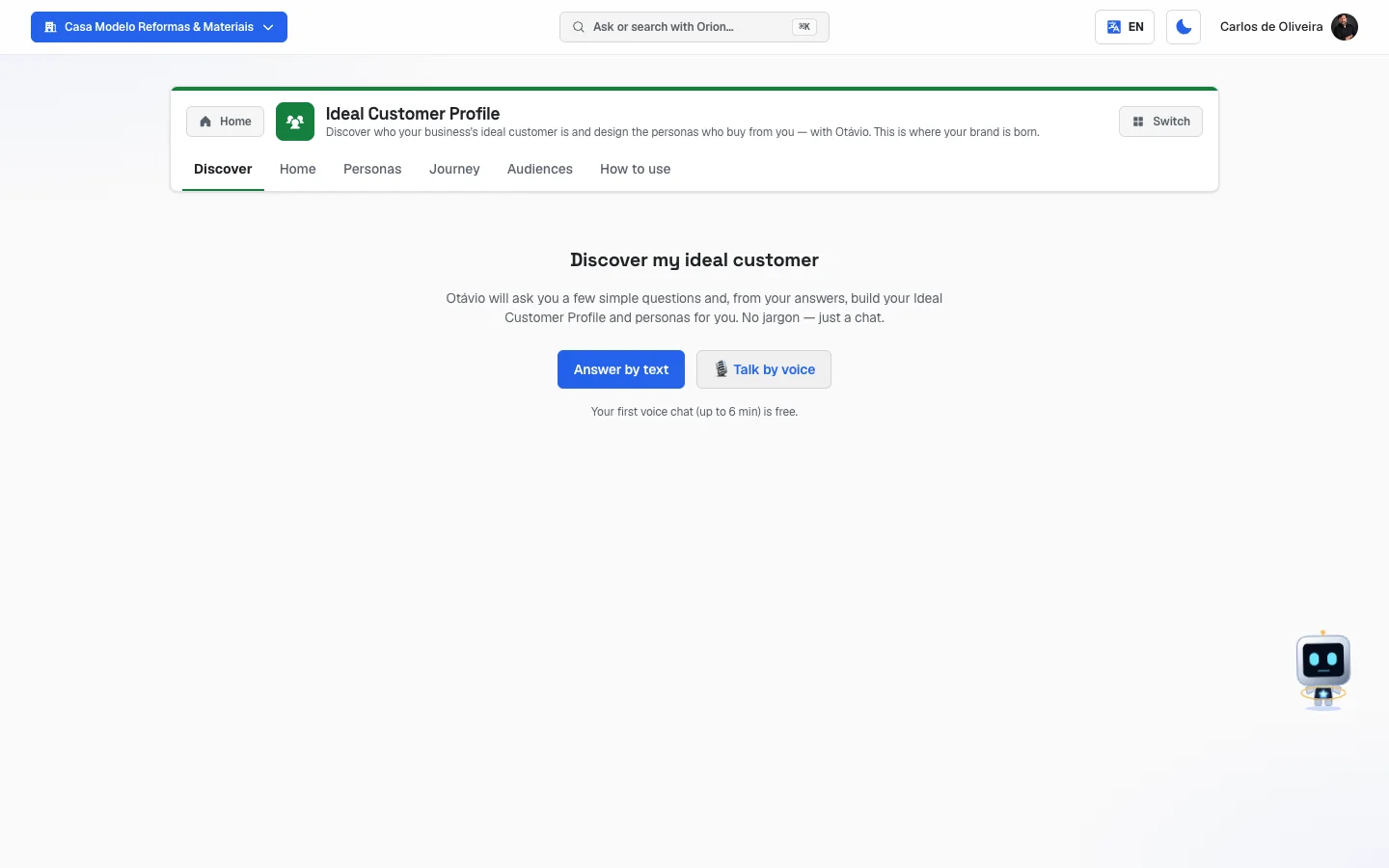 Discover tab before the interview starts, with the "Answer by text" and "🎙️ Talk by voice" buttons
The tabs, one by one
The tabs are on the app bar, at the top of the screen, in this order: Discover, Home, Personas, Journey, Audiences and How to use. When you open the module, the system goes straight to Home — the Discover tab sits right above it in the list.
Discover
/app/modulos/icp-persona/descobrir
This is the easy-path tab. Instead of facing a blank form, Otávio interviews you and writes the form for you.
- What you see here: the title "Discover my ideal customer", a short explanation and two buttons: Answer by text and 🎙️ Talk by voice. Below, the notice: "Your first voice chat (up to 6 min) is free."
- What you can do: do the interview one way or the other, review the result and save.
Step by step — text interview:
- On the Discover tab, click Answer by text.
- One question shows up at a time, with the count on top ("Question 1 of ~6") and a little progress bar.
- Write your answer in the box ("Answer in your own words…") and click Continue. The button only turns on after you write something.
- Don't know the answer? Click Skip, in the left corner. No problem at all.
- There are at least 6 and at most 10 questions. Otávio decides when to stop, based on how much you've already told him.
- At the end "Here's what I understood" shows up, with everything editable. Fix whatever you like.
- Click Save profile and personas. "All set! 🎉" appears.
Heads-up on the review screen: the seven profile boxes show up without titles, one below the other. The order is always this: market, size, pains, objections, where the person searches, decision triggers and notes. It's the same order as the fields on the Home tab, if you want to compare them side by side.
About what he asks: the questions revolve around six topics — what your business sells, who already buys from you and why, who your best customer was, who you don't want as a customer, where those people look for you and what makes them close.
Step by step — voice conversation:
- On the Discover tab, click 🎙️ Talk by voice. The button turns into "Preparing…".
- The screen changes to "I'm listening…" and a voice widget appears in the middle.
- Tap the widget, allow the microphone when the browser asks and talk to Otávio as if it were a phone call.
- The conversation lasts 6 minutes at most — it ends on its own at that time.
- When he says goodbye, wait on that screen. Below, it says "Waiting for the chat to finish…" and the system fetches the result every few seconds.
- If you get tired of waiting, click "I'm done — see my profile" to force the fetch.
- When the profile is ready, you land on the same review screen as the text path.
What it costs: your company's first voice conversation is free. From the second on, the minutes spoken are deducted from your credits (rounding up: 3 and a half minutes count as 4).
If you're a franchise unit: this tab doesn't run the interview. It shows "The audience belongs to the network" and sends you to see the finished profile on the Home tab.
Home
/app/modulos/icp-persona/inicio
It's the profile form, and it's also where the chat with Otávio lives, in the right-hand column (on mobile it shows up below). This is the only tab in the module that has the chat alongside.
- What you see here:
- At the top, Otávio's panel: a note from him about how your audience is doing, three numbers and, when it exists, a "Who your ideal customer is" box with the text of your profile.
- The Ideal Customer Profile section — "The TYPE of customer most worth it for your business." — with seven fields.
- The For B2B prospecting section — "Sectors, sizes, regions and roles — what SDRConvert uses to prospect." — with four list fields.
- A Refresh link in the right corner, to reload what's saved.
- What you can do: fill in by hand, ask the AI to fill in, save and send the profile to SDRConvert.
Each field explained (Ideal Customer Profile section):
| Field | What to write |
|---|---|
| Market / segment | What type of people or companies buy from you. E.g.: "neighborhood physio clinics". |
| Size | The size of that customer. E.g.: "small local business, 1–5 people". If you sell to individuals, write their profile ("middle-class family with their own home"). |
| Main pains | The problem that makes this person look for you. E.g.: "empty schedule on weekdays". Write it in the words the customer uses, not yours. |
| Buying objections | What they say before saying no. E.g.: "thinks it's pricey, doesn't know the brand". |
| Where they search / buy | Where this person looks for someone like you. E.g.: "Google, Instagram, referral". |
| Decision triggers | What makes them decide on the spot. E.g.: "strong pain, urgency, promo". |
| Notes | Any useful detail that didn't fit in the other fields. |
Step by step — filling in the profile:
- On the Home tab, write in each field. You can leave fields blank.
- If you want a ready first version, click Fill with AI help. The button turns into "Filling…".
- Check everything. The system says "Filled — review and adjust." on purpose: what it wrote is a guess, not the truth about your business.
- Click Save profile. "Profile saved" appears.
The "Fill with AI help" button may cost credits. It researches the internet about your line of business before writing. When it researches, the notice changes to "Filled with research (N credits)." — N is what was charged. When it doesn't need to research, it charges nothing.
Each field explained (For B2B prospecting section):
These four fields only matter if you sell to companies. In each one you write one item per line (press Enter for the next one).
| Field | What to write |
|---|---|
| Sectors | The industries of the companies you want to serve. E.g.: "dental clinics" on one line, "accounting offices" on the other. |
| Sizes | Their size. E.g.: "1–10 employees", "11–50 employees". |
| Regions | Where they are. E.g.: "São Paulo capital", "Greater ABC". |
| Roles | Who you need to talk to over there. E.g.: "owner", "sales manager". |
Step by step — sending the profile to SDRConvert:
- Fill in the four fields and click Save profile.
- Click Send to SDRConvert.
- If there's nothing new since the last send, only "Nothing new to send" shows up and nothing happens.
- If there is, a box opens: "Confirm what will be sent to SDRConvert:" listing, field by field, what it + adds (in green) and what it − removes (in red).
- Read it carefully — what's in red will disappear over there.
- Click Confirm send. "Sent to SDRConvert" appears. To back out, click Cancel.
If you don't have SDRConvert, in place of the button the sentence "Available once you have SDRConvert." appears and the rest of the module works normally.
If your company is a unit of a network (franchise): the profile shown on the screen is the head office's — in a network, the audience is the same for every unit, and only head office edits it (it's the same rule as for the personas). What the button sends is exactly that head office profile, and it goes into your SDRConvert account, not head office's: the one who prospects is your unit. In other words, the list of + adds and − removes you check before confirming is always the comparison between the network's audience and what's in SDRConvert today for your unit.
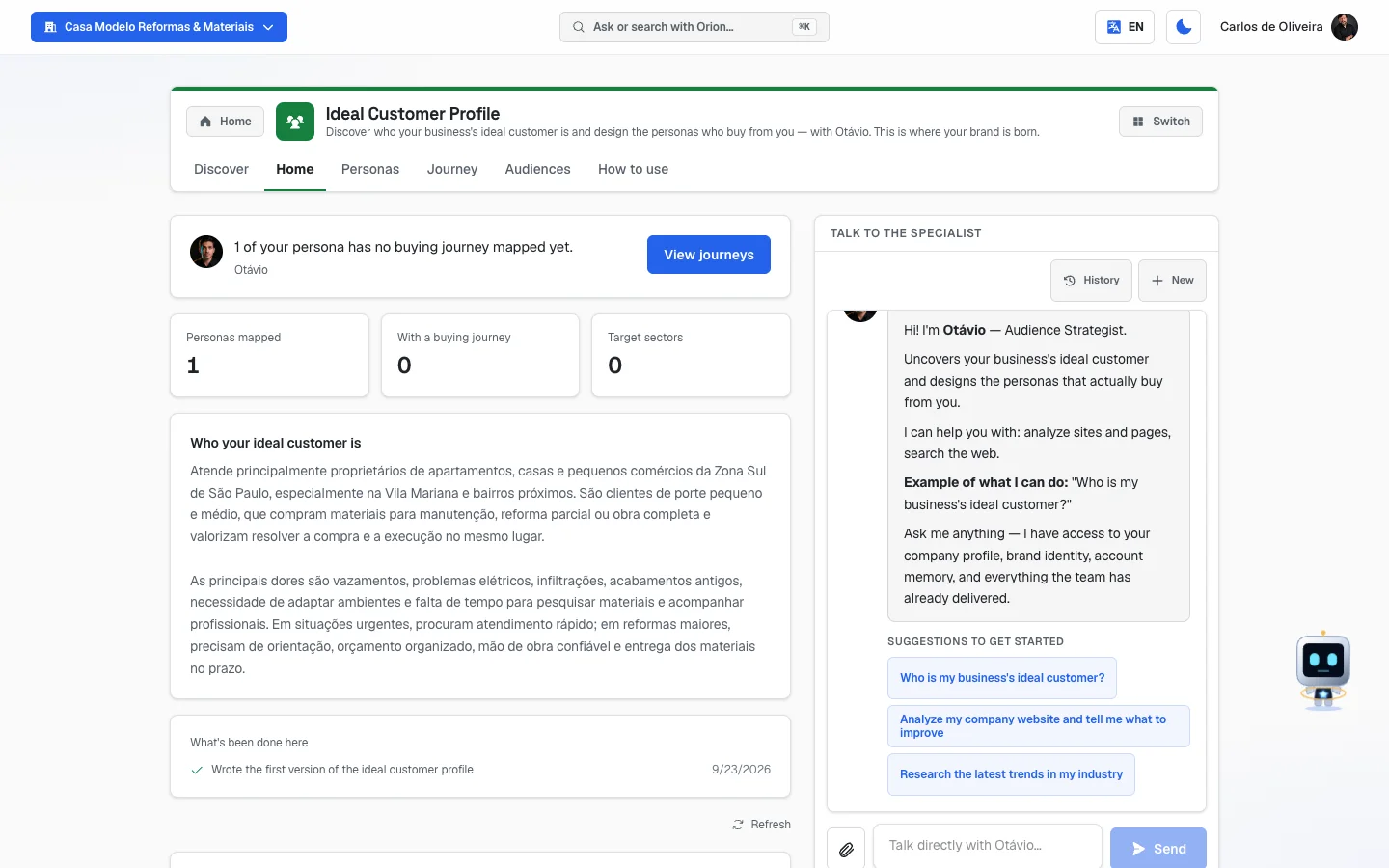 Home tab with Otávio's panel at the top, the three numbers and the start of the profile form
Personas
/app/modulos/icp-persona/personas
- What you see here: the Personas section — "Concrete people within your ideal customer — with a name and a face." — with one card per persona. If there are none, it shows "No personas yet" with the explanation and two tips: ask Otávio in the chat, or add one right there.
- What you can do: create, edit, delete personas and map each one's buying journey.
Step by step — creating a persona by hand:
- On the Personas tab, click Add persona, at the end of the list.
- Fill in the Persona name, up top, in the bold field. It's the only required field — without it the notice "The persona needs a name" shows up.
- Fill in what you know in the other fields (the table below explains each one).
- Click Save. "Persona created" appears.
Each field explained:
| Field | What to write |
|---|---|
| Persona name | A real person's name. "Mrs. Marcia", "Mr. Jorge from the market". It lets everyone at your company talk about the same person. |
| Age range | The age, as a range. E.g.: "35 to 50". Write it with two numbers — that's what the Audiences tab uses to build the ad's age on each platform. |
| Occupation / routine | What they do for a living and what their day looks like. |
| Pains | What bothers them. Separate with commas or one per line. |
| Desires | What they really want. Separate with commas or one per line. |
| Channels | Where they are and where they're from. E.g.: "Instagram, WhatsApp, Goiânia, Setor Bueno". |
| A day in the life | A paragraph describing their routine, from morning to night. It helps you know what time to talk to them — and it's carried, along with the other fields, to every assistant that writes for you. |
| Buying trigger | What makes them decide on the spot. |
A tip worth money: the "Where to advertise" on the Audiences tab comes from the cities and neighborhoods you marked as service area in your company record. Keep that list up to date. In the Channels field, writing the places with a capital letter ("Goiânia", "Setor Bueno", "Greater ABC") also helps — it's what the tab uses when automatic generation doesn't respond.
The persona's "Fill with AI help" button: writes a first version of the fields based on the profile you already saved on the Home tab. It does not touch the buying journey you've already filled in, and the name you wrote is kept. Just like the one on the Home tab, it can consume research credits.
The Buying journey (inside the persona's card):
- On the persona's card, click the Buying journey bar. It opens.
- Four blocks appear, in this order: DISCOVERY, CONSIDERATION, DECISION and POST-SALE.
- Each block has four fields: Pain at this stage, Channel, Key message and Objection.
- Click Save at the end of the card to record it.
Next to the name "Buying journey" the count "N/4 stages" appears — how many of the four blocks have at least one field filled in.
| Journey field | What to write |
|---|---|
| Pain at this stage | What this person is feeling at that specific moment, which is different from the previous moment. |
| Channel | Where you reach them at that moment (Google, Instagram, WhatsApp, referral, visit). |
| Key message | The sentence that works at that moment. Talking price to someone who doesn't even know they have a problem doesn't work. |
| Objection | What holds the person back at that moment, and that you need to answer first. |
To delete a persona: click Delete, in the left corner of the card. It disappears right away, with no confirmation.
Journey
/app/modulos/icp-persona/jornada
- What you see here: the same journey content, but turned inside out. Instead of "one persona and their four moments", this screen shows "one moment and all its personas". There are four numbered sections, in the order the customer walks through:
| No. | Moment | What happens there |
|---|---|---|
| 1 | Discovery | "The person realizes they have a problem." |
| 2 | Consideration | "They compare solutions and providers." |
| 3 | Decision | "They choose and close the purchase." |
| 4 | Post-sale | "After the purchase: retention and referral." |
- Inside each section a card per persona appears, with that moment's Pain, Channel, Message and Objection. A moment with nothing filled in shows "Not mapped for this stage yet."
- What you can do: just look. It's a read-only screen — to edit, go back to the Personas tab.
- Empty state: with no persona registered, "No journey mapped yet" shows up and the tip to create personas on the Personas tab.
How to use this in practice: look at the section that's emptiest. That's where you're losing people without noticing. Almost everyone has Decision filled in (it's the price part) and Discovery blank — and Discovery is exactly where the cheap ad lives.
Audiences
/app/modulos/icp-persona/publicos
This is the tab that turns all the work above into something you paste straight into an ad screen.
- What you see here: the Ad audiences section, with two selection boxes: Persona and Buying stage. After you choose, the message "Generating this persona's audiences…" appears for a few seconds and then the Audiences — <persona name> panel with three cards side by side: Google Ads, Meta (Instagram and Facebook) and Microsoft Ads.
- What you can do: choose, copy, download as text and ask for a new version. This screen does not create the campaign or touch your ad account — it hands you the audiences ready to use in your campaigns, or to pass to whoever handles your ads.
- Empty state: with no personas, "No audiences yet" shows up. With personas but none chosen, "Pick a persona above to see the audiences." shows up.
Step by step:
- On the Audiences tab, choose the persona in the Persona box (it starts at "— choose —").
- Choose which moment of the purchase they're in, in the Buying stage box. The options are All stages, Discovery — still understanding the problem, Consideration — comparing options, Decision — ready to buy and Post-sale — already a customer (the same names as the Buying journey, on the Personas tab).
- Wait for the "Generating this persona's audiences…" message to go away and check the three cards.
- Click Copy to take everything to the clipboard ("Audiences
copied" appears), or Download as text to download a
publicos-nome-da-persona.txtfile. - Use it in your campaigns, or send it to whoever handles your ads.
What comes in each card:
| Card line | What it is | On which card |
|---|---|---|
| (sentence at the top of the card) | How to use that audience on that platform, at that buying stage. | All |
| Search keywords | 8 to 15 short searches, the way the person types them into Google — for example "bathroom remodel vila mariana" or "bathroom remodel quote". Only for services and products your company offers. | Google Ads and Microsoft Ads |
| Interests | 5 to 10 interest categories, in the format Meta uses — for example "Home renovation" or "Interior decoration". | Meta |
| Age | The persona's Age range, converted to what each platform accepts: on Google, the ranges 18-24, 25-34, 35-44, 45-54, 55-64 and 65+; on Microsoft Ads, 18-24, 25-34, 35-49, 50-64 and 65+; on Meta, the exact age (e.g.: 42-50). | All |
| Where to advertise | The cities and neighborhoods you marked as service area in your company record. Without that, it comes from the address and region you provided. | All |
Where the platform gets all of this: the audiences are generated by AI from the
chosen persona, the buying stage and what your company does (the services on the Your
company record screen, at /app/ficha, the line of business, the description and the service area). That's why a search for a service
you don't offer shouldn't show up — and, if it does, the company record is the place to
fix it. No snippet of a sentence from the persona's fields is shown as a keyword: a term
with more than six words or with sentence punctuation is discarded.
What the buying stage changes: the searches and the how-to-use sentence.
| Stage chosen | What kind of search shows up |
|---|---|
| Discovery | Searches from people still understanding the problem ("how", "how much does it cost"). |
| Consideration | Searches from people comparing options and prices. |
| Decision | Searches from people who want to hire now ("quote", "near me", the neighborhood name). |
| Post-sale | Searches for maintenance, replacement and the next service. |
| All stages | A mix, starting with the ones from people who already want to hire. |
Generate again: the result is saved — going back to the tab doesn't generate everything again. When you edit the persona, the audiences are generated again on their own. If you want another version without changing anything, click Generate again. Generating the audiences doesn't use credits.
If automatic generation doesn't respond: the screen tells you and builds the audiences from the persona's data and your company's services, with short terms only. Click Generate again to try the full version. If there's still nothing to show, it says "We can't build this persona's audiences yet." — fill in their pains, desires and buying trigger on the Personas tab.
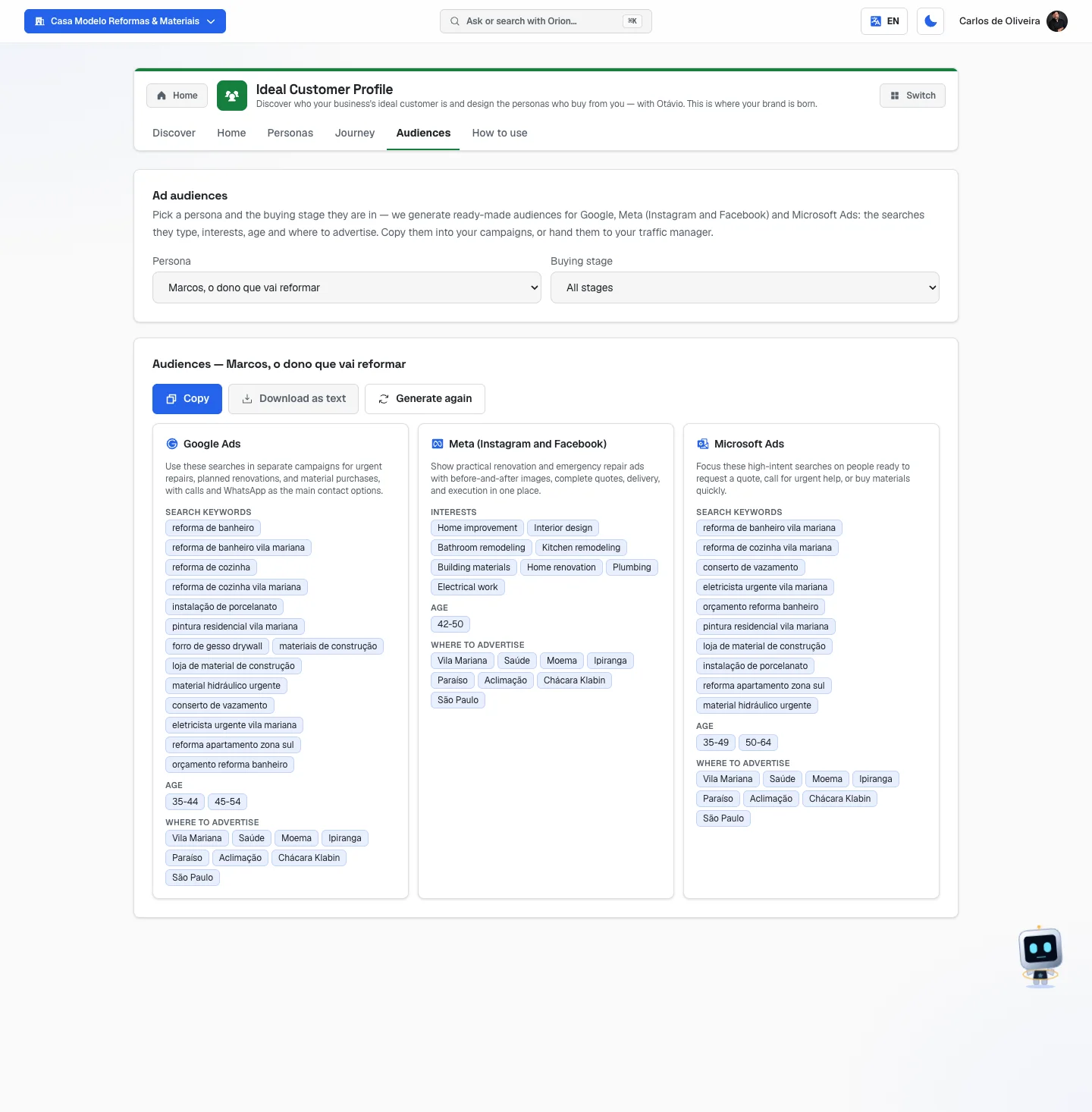 Audiences tab with a persona chosen and the three cards (Google Ads, Meta, Microsoft Ads) filled in
How to use
/app/modulos/icp-persona/como-usar
Every module has this tab at the end. It's the module's manual inside the system itself.
How to read the numbers
On Otávio's panel (top of the Home tab):
- Personas mapped — how many personas you have registered. One already helps; two or three are usually enough for a local business. You don't need ten.
- With a buying journey — how many of those personas you've written at least one field in at least one of the four stages of the journey for. It's the same count as the "N/4 stages" shown on the Personas tab: an open, blank stage doesn't count. If this number is lower than the one above, Otávio calls you on it: "N of your personas have no buying journey mapped yet."
- Target sectors — how many lines you wrote in the Sectors field of the B2B prospecting section. It stays at zero if you sell to individuals — and that's perfectly fine.
Otávio's note changes depending on your state, always showing the most urgent thing first:
| If you don't have yet… | He says | And the button leads to |
|---|---|---|
| any profile | "I don't know your ideal customer yet — give me a 5-minute chat and I'll build the profile." | Start the chat → Discover tab |
| any persona | "You have the customer profile, but no persona — it's the persona that gives it a face and a story." | Create persona → Personas tab |
| a journey on some persona | "N of your personas have no buying journey mapped yet." | View journeys → Journey tab |
| (everything's in order) | "Your audience is mapped: N personas across M sectors." | — |
On the Discover tab: "Question 3 of ~6" means you're on the third and that
there should be about three left. The number after the ~ is an estimate and can go up to
10, depending on how much you tell him.
On the Personas tab: "2/4 stages" next to Buying journey means you filled in two of the four moments for that persona.
Frequently asked questions
Do I have to answer all the interview questions? No. Any question can be skipped with the Skip button. And before saving you always review and can change everything Otávio understood.
What if I don't know who my ideal customer is? That's why I came here. That's exactly what the interview is for. It doesn't ask "who's your ideal customer" — it asks who already buys from you, who the best customer you've ever had was and who you don't want to serve. The profile comes from your answers, not from your theory.
How many personas do I need? Start with one. Two or three cover a local business well. You only need more than one when you sell to really different types of people — for example, a restaurant that serves families on weekends and executives at Tuesday lunch.
If I change the profile, does the rest of the platform change on its own? In part. You update the ads yourself (by copying the new audiences from the Audiences tab). SDRConvert only receives it when you click Send to SDRConvert. And the "brand voice", which the text agents use, is only rewritten when the identity is saved in the Brand module — so, after a big audience change, it's worth opening Brand, on the Home tab, and clicking Save identity so the change gets there.
Is talking by voice better than answering by text? The result is the same — both paths end on the same review screen. Voice is faster for people who don't like typing. The first conversation is free; from the second on it uses minute credits.
Can my franchise unit change the audience? No. Once the network's head office has defined it, your unit sees the profile and personas in read-only mode, with a notice of who defined it. You sell to the same audience as the network, so you don't need to redo this work.
When something goes wrong
| Symptom | What to check | What to do |
|---|---|---|
| The screen shows the module's offer instead of the tabs | The Ideal Customer Profile module isn't active on your account. | Click Activate in catalog. |
| The screen says "We couldn't verify your access right now." | It was a connection failure, not a missing subscription. | Click Try again. |
| The invitation to set up the module by chatting with Otávio appears at the top of the page | It's the invitation for the initial conversation. It's optional — the tabs already work. | Click Chat with Otávio (and, at the end of the chat, Complete setup) or Dismiss. |
| The panel says "I'm preparing the first version of this for you — check back in a few minutes." | Otávio is writing the first version of your profile on his own. | Wait a few minutes and reload the page. |
| The panel says "I couldn't prepare the first version. You can ask me to try again." | Automatic generation failed. | Ask him in the chat to try again, or fill it in yourself on the Home tab. |
| "Couldn't continue right now. Try again." during the text interview | A momentary failure. The answers you've already given aren't lost — they stay on the screen. | Answer the same question again, or click Skip. |
| "Couldn't start the voice chat right now. Try again." | Failure preparing the call. | Try again, or use Answer by text. |
| The voice conversation ended and the screen is still on "Waiting for the chat to finish…" | The result takes a few seconds to be ready after you say goodbye. | Click "I'm done — see my profile". If that doesn't fix it, repeat the interview or do it by text. |
| "Couldn't build the profile from that chat. Try text or again." | The recording couldn't be used (noise, a very short conversation). | Do the interview by text or try voice again, somewhere quieter. |
| "Couldn't save. Try again." on the review screen | Failure while recording. | Click Save profile and personas again. Don't close the tab before — the text exists only on the screen. |
| "The persona needs a name" | The name field, at the top of the card, is empty. | Write a name and click Save again. |
| "Couldn't fill right now." when using the AI | Momentary failure of the automatic fill. | Try again in a few minutes, or write by hand. |
| I clicked Send to SDRConvert and "Nothing new to send" showed up | What's here is already the same as what's there. | Nothing to do. If you changed something just now, click Save profile first. |
| Where the SDRConvert button should be, "Available once you have SDRConvert." shows | You don't have SDRConvert subscribed. | Ignore it — or subscribe to SDRConvert in the catalog. The rest of the module works the same. |
| The Audiences tab says "We can't build this persona's audiences yet." | Automatic generation didn't respond and the persona has too little short data for the fallback to use. | Click Generate again. If it continues, go back to the Personas tab and fill in Pains, Desires and Buying trigger. |
| "Couldn't generate the audiences right now." | Momentary failure. | Click Try again. |
| A search for a service you don't offer showed up | Your company record has too many or too few services. | Fix the services in your company record and click Generate again. |
| Where to advertise came out empty or with the wrong place | Your company record has no service cities marked. | Mark the cities and neighborhoods where you serve in your company record and click Generate again. |
| Age came out empty | The Age range field doesn't have two two-digit numbers. | Write it in the format "35 to 50" or "35-50" and save the persona. |
| I filled in a field, left the tab and it went back to what it was | You didn't click that section's save button. | On this screen nothing saves on its own: click Save profile (Home tab) or Save (persona card). |
| Everything shows in gray, not editable, with the notice "Network audience — set by …" | Your account is a franchise unit. | That's expected. Whoever changes the audience is the network's head office. |