

Crisis Management
Where to find it: Home → Your apps → Crisis (at the top of the screen the module shows up as Crisis Management)
Address: /app/modulos/gestao-crise
WHAT TO DO NOW
If you opened this manual because something is happening right now — a review wrecking your rating, a video going viral, an angry customer in a WhatsApp group — start here. The explanation of how everything works comes later. Follow the steps in order.
1. Take a breath and don't reply yet. The first angry reply is the one that becomes a screenshot. You have a few minutes. Use them.
2. Open the module. On Home, under Your apps, click Crisis → the Incidents tab.
3. Log what's happening. In the Log manually box:
- In Incident description, write in one line what happened. No frills: "customer posted a video saying they found a hair in the food", "1-star review accusing us of fraud".
- Choose the type in the first box (the table of types is further down; if in doubt, choose Other).
- In Platform, write where it's happening: Google, Instagram, TikTok, Reclame Aqui (a Brazilian consumer complaints site), a WhatsApp group.
- Choose the Level. In one sentence: Level 4 is "it's on fire right now", Level 3 is "it will catch fire if nobody does anything", Level 2 is "annoying, but manageable", Level 1 is "just keeping an eye on it".
- Click Log.
4. Go to the War-room tab. It's the command room for this crisis. Your incident is already there, as a button at the top of the screen.
5. Ask Juliana for the plan. Juliana is this module's crisis specialist. Her chat is on the Home tab (it doesn't appear next to the War-room). Go back to the Home tab and, in the chat, write: "what do we do about this crisis?". She will propose actions — a reply text, a public statement, tasks.
6. Read each proposed action and decide. Each one has Approve and Reject buttons. Nothing — absolutely nothing — is published unless you click Approve. The screen itself repeats it: "Nothing is published without your approval. Juliana proposes the actions below; you decide what runs."
7. Go back to the Incidents tab and change the status. As soon as you start acting, switch the selection box on the row from monitoring to responding. This isn't bureaucracy: it's what stops the response clock from running against you.
8. Follow up. When things calm down, change it to contained. When it's completely over, closed.
And a hard reminder, but one that saves companies: deleting doesn't solve it. Deleting a comment, deleting a post, deleting a review — all of that is usually what makes the thing grow. Responding calmly, acknowledging what's true and saying what you're going to do is what works.
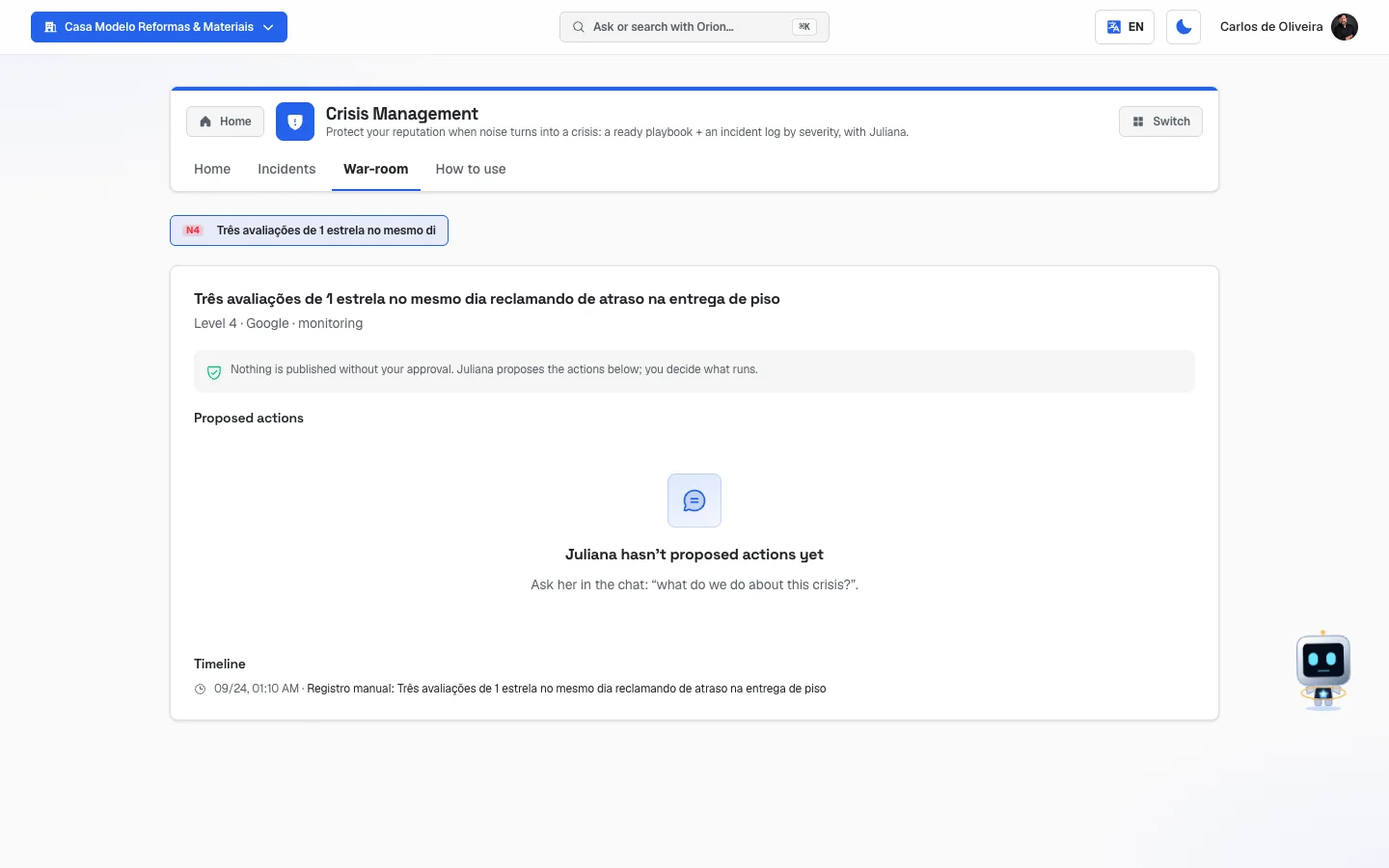 War-room tab with the incident button (N4) at the top, the title, "Level 4 · Google · monitoring", the box with the green shield "Nothing is published without your approval", the notice that Juliana hasn't proposed actions yet and the timeline with the manual entry
What it's for
Every company, at some point, takes a hit to its reputation. A badly served customer who records a video. A competitor who sends people to leave one-star reviews. A complaint people share around. This isn't rare — it's just a matter of time.
The problem is never the first comment. The problem is what happens in the following six hours, when nobody knows who replies, what to reply and whether to reply at all. In that vacuum, a complaint becomes a topic, and a topic becomes the first Google result when someone searches for your company's name.
This module exists so that you don't have to think about any of that in a panic. It keeps your plan written in advance (who speaks, what gets said, who decides), watches the internet every six hours to warn you before you find out through a friend's WhatsApp, and opens a command room with the text ready for you to approve or reject.
An everyday example: you own a salon. On a Thursday night four one-star reviews come in within two hours. If monitoring is on, you get an email with the subject "⚠️ Reputation alert" before you notice. You open the module, the incident is already there classified, Juliana already has a reply text ready for each review, you read it, adjust whatever you want and approve. By Friday morning it's been answered instead of growing.
What is the "war room" (command room)
War room is the name for the kind of room where, in an emergency, everyone who makes decisions gathers around a single table, with all the information on the wall, until it's resolved.
In here it's exactly that, only on a screen. When a crisis is open, the War-room tab gives you, in one place:
- Which crisis you're handling — the buttons at the top, one per open incident, each with the level in front (N1, N2, N3, N4). You click to switch crises.
- What's already known — the level, the platform and the status of that incident.
- What to do — the proposed actions from Juliana, with the Approve and Reject buttons.
- What's already been done — the timeline, with the time and date of everything that happened in that crisis, from the first entry to the last approved action.
The timeline isn't decoration. After it's over, it's your record of what was done and when — useful for the team, for insurance, for the lawyer, and so you don't repeat the mistake next time.
Before you start
- The Crisis Management module has to be active on your account. Without it, the screens show the notice "Crisis Management is part of the Crisis Management module. Turn it on in the Modules tab to use it."
- For automatic monitoring to work, your company name has to be filled in on the company profile. Without a registered name, there's nothing to search for on the internet. The city also helps: it's what makes the search look at your region.
- Monitoring comes turned off. You have to turn it on in the Home tab. It isn't turned on by itself, not even by subscribing to the module.
- Alerts arrive by email, and go to everyone who is an owner or administrator of the account — not just one person. If your account is served by an agency, its owners and administrators receive them too. There is no screen to choose another recipient: who receives them is defined by each person's role on the team screen. To include someone, promote that person to administrator; to remove them, demote them to visitor.
- If you're a visitor on the account (read-only role), you can see everything, but you can't log incidents, change statuses, approve actions or turn monitoring on — the screens warn "Only team members can…".
Getting started (do this on a calm day)
- On Home, under Your apps, click Crisis. You land on the Home tab. The module's tabs are in the app bar, at the top of the screen.
- In the Automatic monitoring box, click Turn monitoring on. The line next to it changes to "On — you'll get email alerts."
- Click Start from a template and choose the type of crisis closest to your
business (if in doubt, Viral complaint). The five fields appear filled in with a ready
plan: read it, swap whatever is in brackets — like
[name and phone]— for your own details, and change whatever doesn't fit. Prefer to write from scratch? Click Edit protocol. If you get stuck, ask Juliana in the chat. - Click Save playbook. Before that, nothing is saved — not even the template.
- Agree with your team: who warns whom, and how fast. Check it in the Escalation field — the template brings a suggestion per level, but the names and phone numbers are your team's.
- That's it. Now, the day it happens, you'll have a plan instead of a scare.
What is a "playbook" and why write it beforehand
A playbook is the ready plan — the step-by-step you write today to use on the day you won't be able to think. It's the difference between "what do we do?" and "open the file and follow it".
It lives on the Home tab, behind two buttons: Start from a template, which fills in everything with a ready plan (see right below), and Edit protocol, for writing or editing by hand. There are five fields:
| Field | What to write |
|---|---|
| First-hours protocol | The steps, in order, for the first hour: who gets warned, who checks whether it's true, when you reply. E.g.: "1. Whoever sees it warns the team group. 2. Nobody replies anything before I see it. 3. Within 2h, public reply. 4. Customer called privately." |
| Spokesperson / committee | Who decides and who speaks. Only one person speaks for the company — their name and phone number here. |
| Base statement | The standard text, ready to go, that you adapt on the spot. The recipe that works has four parts: acknowledge what happened, show that you care, own what's yours, and say what you're going to do. |
| What to monitor (manual) | What you follow with your own eyes: which words to search for, in which places (WhatsApp groups, neighborhood pages, Reclame Aqui). |
| Escalation | From what point things move up a level and who gets involved. E.g.: "Level 3 or 4: call me, any time." |
Heads up on one detail of the Escalation field. The example written in gray inside it is "Rules per level (level 3+ triggers the human team)", and that can give the impression that the system calls someone on its own from level 3. It doesn't. The five playbook fields are your own notes: the system stores them, shows them on screen and hands the text to Juliana as context, and nothing else reads what's written in them. Who warns whom, at what level and on which phone, is your team's agreement — and that's exactly why it's worth writing here, where everyone can find it in a pinch.
What the level actually changes in the system is two things, and neither calls anyone: the response clock from the SLA table further down (it's the level that decides whether the deadline is 2 or 48 hours), and the sentence Juliana picks in the panel — from level 3 up she switches to "this needs a response now". The alert email doesn't depend on the level: it goes out whenever the monitor opens a new incident, whether level 1 or 4.
None of this is required for the module to work. But whoever writes it beforehand responds in minutes; whoever doesn't responds in hours — and hours, in a crisis, are what make the difference.
Start from a template (the ready plan)
Don't know what to write? You don't have to start from a blank page. The system has six ready plans, one for each type of crisis, and any of them fills in the five fields at once.
Step by step:
- On the Home tab, click Start from a template. (If the playbook is already open for editing, the same button sits right above the fields.)
- The question "Which crisis fits your business best?" appears, with six options. Choose the one most related to your day to day — the table below helps.
- The five fields appear filled in, and a notice right above them says the plan isn't saved yet.
- Read it calmly. Replace whatever is in brackets —
[name and phone],[contact],[product/service]— with your own details, and change anything that doesn't fit your company. - Click Save playbook. Only here does the plan take effect.
| Template | Who it usually suits |
|---|---|
| Review bombing | Those who live on Google reviews: salons, restaurants, repair shops. |
| Viral complaint | Any business. It's the most general plan — if in doubt, choose this one. |
| Product/service failure | Those who install or repair: gas, plumbing, electrical. |
| Customer service crisis | Those who handle lots of WhatsApp or phone contacts and may build up a queue. |
| Negative press | When a bad story about the company comes out in a newspaper, website or on TV. |
| Internal/employee crisis | A problem that starts inside the company: an employee, a former employee or a partner. |
What comes in each field:
- First-hours protocol: the steps, one per line and numbered, and then the list of tasks — each with a suggested owner and a deadline, continuing the numbering. E.g.: "6. Reply to the 1–2★ reviews — owner: Support — deadline: within 6 hours".
- Spokesperson / committee: who should speak for the company in that type of crisis, followed by
[name and phone]for you to fill in. - Base statement: a ready text to adapt, with the pieces in brackets to swap out.
- What to monitor (manual): where to look, which words to search for, how often and what to write down — including the places automatic monitoring doesn't see (social media, groups, your WhatsApp and your phone).
- Escalation: one rule for levels 1 and 2, another for 3 and another for 4, with the same deadlines as the response clock (24, 6 and 2 hours). Like the whole playbook, it's an agreement of your team: the system doesn't call anyone (see the box above).
If you had already written something, the system asks "Replace your text with the template?" before touching it. Keep my text leaves everything as it was; Use the template replaces the five fields. Even after replacing, nothing has been saved: clicking Cancel, the plan goes back to what was saved.
The template comes in the language your panel is in (Portuguese, Spanish or English). If none of the six fits, use Viral complaint as a base and adjust it — or ask Juliana in the chat.
The levels and the clock (SLA)
Every incident has a level from 1 to 4. The level decides how much time you have to respond before the system considers the deadline missed. That deadline is what the screen calls the SLA (just a technical name for "the agreed response time").
| Level | What it usually is | Response deadline |
|---|---|---|
| 4 | On fire right now: a 1-star review, a coordinated wave, a serious accusation. | 2 hours |
| 3 | About to catch fire: a complaint on a reputation site, negative press. | 6 hours |
| 2 | Annoying, but manageable: a 2-star review, one bad mention. | 24 hours |
| 1 | Just keeping an eye on it. | 48 hours |
On each incident's row a colored tag shows the state of the clock:
- on time (green) — you still have time.
- SLA at risk (orange) — time is running out. It appears when less than a quarter of the deadline is left.
- SLA breached (red) — the deadline has passed.
The clock starts running the moment the incident is detected or logged, and it's calculated from the level. A level 4 incident logged at 11 p.m. has a deadline until 1 a.m. Nobody is going to fine you for missing the deadline — the number exists so you can see what's stuck.
The types of incident
When logging, you choose a type. It's there to organize things and so Juliana knows which recipe to apply.
| Type on the screen | When to use it |
|---|---|
| Review bombing | Several bad reviews at once, especially if they look coordinated. |
| Viral complaint | A post, video or audio message from a customer spreading around. |
| Product failure | The product or service really failed, and that became a topic of conversation. |
| Service crisis | Someone was served badly and the story is going around. |
| Negative press | A bad story about you came out on a website or in a newspaper. |
| Internal crisis | A problem that starts inside the company: an employee, a partner, a process. |
| Other | When nothing above fits. If in doubt, use this one. |
The tabs, one by one
Home
/app/modulos/gestao-crise/inicio
- What you see here:
- At the top, the Refresh link.
- Juliana's panel: a note from her about the situation, sometimes with a shortcut
button. She speaks one sentence at a time, and the first one on the list that applies wins:
- "There are N high-level incidents — this needs a response now." (View incidents button, which goes to the Incidents tab)
- "N incidents being tracked." (View incidents button)
- "Your crisis protocol isn't written yet — without it the response comes late." (Build protocol button, which goes to the Home tab itself — that's where, with the Edit protocol button, the plan gets written)
- "No open crisis: N incidents recorded and closed."
- Three numbers: Open, Mentions and Highest level.
- The Automatic monitoring box, with the on/off button.
- A Your crisis protocol box with the text you wrote.
- A What's been done here box.
- Beside it, the chat with Juliana.
- What you can do: turn monitoring on and off; write the playbook — from scratch, with the Edit protocol button, or from a ready plan, with the Start from a template button; chat with Juliana.
The Automatic monitoring box. The screen explains: "When on, we check your Google reviews and web mentions every 6 hours and email you if something negative shows up. Off by default."
Step by step — turning monitoring on:
- On the Home tab, find the Automatic monitoring box.
- Click Turn monitoring on.
- The line next to it changes to "On — you'll get email alerts." and the notice "Monitoring on" appears.
- To turn it off, click Turn monitoring off. Turning it off is always allowed.
What monitoring does, in plain terms: every six hours, the system (1) looks at your Google profile and compares the rating and reviews with the last time it looked, to spot new negative reviews; (2) searches the internet for mentions of your company's name along with complaint words (complaint, scam, Procon (Brazil's consumer protection agency), fraud, lawsuit and similar), giving extra weight when the mention is on a reputation site, like Reclame Aqui or consumidor.gov (the Brazilian government's complaints portal). When it finds something, it opens the incident on its own and sends you a single email with everything it found in that round — never one email per incident.
What it does NOT do: it doesn't read social media in real time, doesn't enter WhatsApp groups and doesn't see what's said in audio or video. Keep an eye on those places yourself and log by hand whatever it doesn't catch.
Step by step — writing the playbook:
- On the Home tab, click Start from a template to start from a ready plan (see Start from a template, further up), or Edit protocol to write by hand.
- Fill in or adjust the five fields (the table is further up).
- Click Save playbook. The notice "Saved" appears.
- To leave without saving, click Cancel. Everything you changed since the last save is discarded — including an applied template — and the plan goes back to what was saved.
Incidents
/app/modulos/gestao-crise/ocorrencias
This tab is the list of everything that is — or was — on fire.
- What you see here:
- At the top, the summary: "N incidents · N open · N critical · N SLA breached".
- The Incidents box, with one row per incident: the colored Level tag, the description, the type, the platform (or the source), the clock tag and the status selection box.
- The Log manually box.
- The explanation on the screen: "The monitor opens incidents automatically from Google reviews and negative web mentions. You can also log one manually. Handle each one in the War-room."
- What you can do: log incidents and change the status of each one.
The statuses and what each one means:
| Status | What it means |
|---|---|
| monitoring | Detected. You're keeping an eye on it, you haven't acted yet. It's how every incident starts. |
| responding | You're acting now: replying, publishing, calling the customer. |
| contained | It stopped growing. It still deserves attention, but it's no longer an emergency. |
| closed | It's over. It leaves the "open" lists and disappears from the War-room tab. |
Step by step — logging an incident by hand:
- On the Incidents tab, go to the Log manually box.
- In Incident description, write what happened (it needs at least two letters; otherwise "Describe the incident" appears).
- Choose the type in the first selection box.
- In Platform, write where it's happening.
- Choose the Level in the last box (it starts at Level 2).
- Click Log. The notice "Incident logged" appears.
Step by step — changing the status:
- On the incident's row, open the selection box on the right.
- Choose the new status. It saves immediately, with no confirm button.
If the list is empty: "No open incidents" appears, with the line "Good sign — reputation is calm. Detected negative mentions land here." That's good news, not an error.
War-room
/app/modulos/gestao-crise/warroom
- What you see here:
- At the top, a button for each incident that is not closed, with the level in front (N1 to N4). Click one to choose which crisis to handle. When you open the tab, the first one comes already selected.
- The title of the chosen incident and, below it, the level, the platform and the status.
- A box with a green shield and the promise: "Nothing is published without your approval. Juliana proposes the actions below; you decide what runs."
- Proposed actions — what Juliana suggests doing.
- Timeline — everything that happened in that crisis, with date and time.
- What you can do: approve or reject each proposed action.
The types of action that can appear:
| Type | What it is |
|---|---|
| Review reply | The text to publicly reply to that review. |
| Public statement | The text for you to publish on your social media or send to whoever asks. |
| Task | Something for someone to do (call the customer, check a batch, train the team). |
The status of each action:
- awaiting you — proposed, not yet decided. It's the only one where the buttons appear.
- done — you approved it and it was processed.
- rejected — you rejected it.
Step by step — approving an action:
- On the War-room tab, choose the incident with the button at the top.
- Read the proposed action. The full text appears on screen — it's not a summary.
- Click Approve (or Reject, if it doesn't work).
- If you approve, a notice appears saying what happened, and the result is kept in a green box below the action.
What really happens when you approve. This is important so there are no surprises:
- Review reply: if the connection to Google is enabled for your account, the reply is published and the result says "Reply published on Google." If it isn't, the system returns the text ready for you to paste yourself — and says so in so many words. In that case, copy the text, open your Google profile and paste it there.
- Public statement: the system doesn't publish anything on your social media. It returns the approved statement, ready for you to copy and post.
- Task: it's recorded on that crisis's timeline. You or your team are the ones who carry it out.
In short: approving means saying "this text is good". Except for the Google reply (when enabled), publishing is still an act of yours.
If there's no action yet: "Juliana hasn't proposed actions yet" appears, with the tip "Ask her in the chat: 'what do we do about this crisis?'". Her chat is on the Home tab.
If there's no open crisis: the whole tab shows "No open crisis", with the line "When the monitor detects something serious, the command room opens here with proposed actions."
How to use
/app/modulos/gestao-crise/como-usar
Every module has this tab at the end. It's the module's manual inside the system itself.
How to read the numbers
On the Incidents tab, in the top line:
- N incidents — the total already logged, open or not.
- N open — how many are not yet in closed. It's the number that matters today.
- N critical — how many of the open ones are level 3 or 4. If that number is greater than zero, that's where you look first.
- N SLA breached — how many of the open ones have already passed the response deadline. Ideally, zero.
On the Home tab, the three big numbers:
- Open — how many crises are in progress. It turns an alert color when it's greater than zero.
- Mentions — how many mentions were added up in the incidents that Juliana noted through the chat. An incident opened by the monitor or by the Log button doesn't store a mention count, so it counts as zero here — that's why this number can stay at zero even with the Incidents tab full.
- Highest level — the highest level among all incidents. It's for answering at a glance "how big is the worst problem I have today?".
The three numbers add up both sources. Your crises are stored in two places: what the monitor and the Log button record (that's what the Incidents tab shows) and what Juliana notes through the chat when you tell her about a case. The numbers on the Home tab count both together. If you've never told Juliana about a case through the chat, the Open here is the same as the "N open" on the Incidents tab — with one caveat: the Incidents tab loads the 200 most recent incidents, so on an account with more than 200 the number on the Home tab (which counts all of them) is larger, and it's the correct one. (Before September 22, 2026 these three numbers only saw what Juliana wrote: you logged a level 4 crisis through the screen and the panel beside it kept saying "No open crisis". That's already fixed.)
In the alert email: the subject already carries the level — "⚠️ Reputation alert (level 4) — your business" — or, when there's more than one, "⚠️ Reputation alert — N issues (max level 4)". Inside there's the Open the crisis panel button, which opens the War-room tab — the command room where you approve the actions. (Until September 22, 2026 that button pointed to an address that doesn't exist and landed on the "page not found" screen; today an automatic check blocks any email link to a nonexistent screen.)
Frequently asked questions
Do I need to turn monitoring on? Doesn't it come on already? No, it doesn't. It comes off on purpose, and you have to turn it on in the Home tab. While it's off, no alert email is sent.
I don't know what to write in the playbook. Is there a ready example? There are six. On the Home tab, click Start from a template and choose the type of crisis closest to your business: the five fields appear filled in, you adjust whatever you want and click Save playbook. The step by step is in Start from a template, further up.
Does the monitor watch Instagram, TikTok and WhatsApp groups? No. It looks at Google reviews and mentions of your company's name in internet searches. Social media and groups are still up to you — when you see something there, log it by hand on the Incidents tab.
Can Juliana publish anything without me seeing it? No. Every action is born as a proposal and stays on hold until you click Approve. And even after it's approved, most actions only return the text ready for you to publish — the only publishing the system can do on its own is the reply to a Google review, and only when that connection is enabled for your account.
Did I delete one by accident? Can an incident be undone? On the screen, there's no button to delete incidents. The way is to change the status to closed — it leaves the open lists and the War-room, but the history stays.
Nobody on my team can log incidents. Why? That person is probably on the account as a visitor (read-only role). The screen warns "Only team members can log incidents." Change their role on the team screen.
The deadline (SLA) was missed. Will anything happen? Nothing automatic. The deadline is a visual alert for you, not a charge. But a missed deadline at level 3 or 4 is exactly the kind of thing that turns a small problem into a big one.
I'm on vacation. Who does the alert go to? To the email of all owners and administrators of the account (plus the agency's, if your account is served by one). There's no screen to point to another address: if you want someone else to receive it while you're not looking, promote that person to administrator on the team screen (full menu → Account → Team), and they start receiving it. Also agree on the rest — who calls whom — in the playbook's Escalation field, which is a note, not automation.
I canceled the module. Does monitoring keep running? No. For the monitor to run, you need the module active and monitoring turned on. If either is missing, it doesn't run.
When something goes wrong
| Symptom | What to check | What to do |
|---|---|---|
| "Crisis Management is part of the Crisis Management module. Turn it on in the Modules tab to use it." | Is the module subscribed on your account? | Turn on Crisis Management in the Modules tab. |
| I turned monitoring on and no alert ever arrives | Is the company name filled in on the profile? Is the city filled in? | Complete the company profile. Without a registered name, there's nothing for the system to search for. |
| I turned monitoring on and nothing shows up on the Incidents tab | Has it been more than 6 hours since you turned it on? | The check runs every 6 hours. Wait for the next round. And remember: nothing showing up can also be the right answer — nothing bad is being said. |
| "Couldn't change" when turning monitoring on/off | Are you a visitor on the account? | Ask whoever administers it to change your role, or to turn it on for you. |
| "Only team members can turn the monitor on." | Your role is read-only. | Ask for your role to be promoted on the team screen. |
| "Only team members can log incidents." / "…change the status." / "…approve actions." | Same thing: visitor role. | Same. |
| "Describe the incident" when logging | The description field is empty or has just one letter. | Write at least two letters — in practice, a short sentence. |
| I chose a template and my text disappeared from the playbook | You clicked Use the template on the question "Replace your text with the template?". | If you haven't saved yet, click Cancel: the plan goes back to what was saved. If you already saved, the screen has no undo button — write again the part you want to keep. |
I saved the template and the text still has brackets, like [name and phone] | Those are the blanks the template leaves for your details. | Click Edit protocol, replace each bracketed piece with the real detail and save again. |
| "Couldn't log" | Failure at the moment of saving. | Click Refresh and try again. |
| "Couldn't change status" | The incident may have been changed in another tab. | Click Refresh and choose the status again. |
| The War-room tab says "No open crisis" and I just logged one | Did the incident you logged end up as closed? | Go back to the Incidents tab and set the status to monitoring or responding. Only a non-closed incident appears in the War-room. |
| "Juliana hasn't proposed actions yet" | Nobody has asked her for the plan yet. | In the chat, write: "what do we do about this crisis?". |
| "Couldn't approve" / "Couldn't reject" | The action may have already been decided in another tab. | Reload the page (F5). If it already shows as done or rejected, there's nothing to do. |
| I approved a reply and the result says "Text ready to publish…" instead of publishing | The connection to Google isn't enabled for your account yet. | Copy the text from the green box, open your Google profile and paste the reply there. |
| I approved a statement and it didn't go to my social media | It's that way by design. | Copy the text from the green box and publish it on your social media. |
| I got an alert email about something that has nothing to do with me | The monitor searches by the company name and can pick up a namesake. | Log the incident as closed. If it happens a lot, check that the name on the company profile is spelled exactly right. |