

Retention / CS
Where to find it: Home → Your apps → Retention (at the top of the screen the module appears as Retention / CS)
Address: /app/modulos/fidelizacao-cs
What it's for
Winning a new customer is expensive. You pay for ads, you answer questions, you give a discount, you do the job — and then the person disappears. Six months later you're paying for ads again to find someone else, when the first person could have come back three times in the meantime.
This module is about the part almost nobody organizes: getting customers to come back and stay. It has two sides. The first is the loyalty program: what reward brings a person back (cashback, a club, a birthday offer), what the customer tiers are and what each tier gets, and which messages should go out at each moment. The second is the customer care plan (CS): what to do in the first days of a new customer, how often to talk to them, and what the signs are that they're about to disappear.
Both sides sit on top of a single list: the customer roster. You put each customer in it with how much they spend each time, how many times a year they buy, what tier they're in, and whether they're doing well, so-so, or badly. From that list the system works out three things on its own that are worth gold: how much each customer is worth per year, who your best customers are, and who is about to leave.
Everyday example: you run a salon. You put your 40 clients in the roster. The system shows you that the average client spends $2,400 a year. Three are marked red — they haven't been in for far too long. That's almost $7,000 a year walking out the door. You call the three of them this afternoon. That's what the module is for.
Two assistants help you: Fernanda takes care of the loyalty side, and Carla takes care of the customer success side. You talk to both of them in the same chat.
Before you start
- The Retention / CS module has to be active on your account. Without it the address won't even open: the system takes you to the Your modules list and highlights the Retention / CS card with a colored border in the Explore modules block, scrolling the screen down to it. No error message appears inside the module — that detour is the notice. Right from there you can subscribe, with the button on the card.
- The first time you open a newly purchased module, an invitation appears at the top of the page to set it up by chatting with Fernanda: "It's optional — the tabs below already work. Each reply from the specialist uses AI credits." Chat with Fernanda lets her get to know your company; Dismiss removes the invitation without chatting. If you open the chat, the Complete setup button at the end of it also removes the invitation.
- Nothing else is required. This module doesn't pull data from anywhere: everything here is something you write. You don't need to connect WhatsApp, ads, or anything else.
- It helps to have on hand, before you build the roster: the list of your customers, an idea of how much each one spends each time and how many times a year they buy. It doesn't have to be exact — an estimate is enough to get started.
- Screen limits: up to 200 customers in the roster, up to 12 tiers in the program, and up to 20 rules.
First steps
The first time, when the module has just been purchased, the invitation to set it up by chatting with Fernanda appears at the top of the page — it's optional, and the tabs already work. Click Chat with Fernanda to let her get to know your company, or Dismiss to remove the invitation.
- On Home, under Your apps, click Retention. You land on the Home tab.
- The Home tab starts almost empty on purpose: it's for reading, not writing. If Fernanda is still preparing the first version of your program, her message says "I'm preparing the first version of this for you — check back in a few minutes."
- To write, click Edit program. The form appears.
- Fill in the Main mechanic — in one or two sentences, what makes customers come back.
- Click Add tier and write your program's tiers (for example: Silver, Gold, Diamond) and what each one gets.
- Click Add rule and write what should happen at each moment: on the left, the trigger ("7 days after the purchase"), on the right, the action ("send a message asking if everything went well").
- Click Save program.
- Go to the Customer success tab and fill in the four fields. Click Save plan.
- Go to the Client portfolio tab, click Add customer, and enter the first one. Click Save.
- Go back to the Home tab. The numbers now appear in Fernanda's panel.
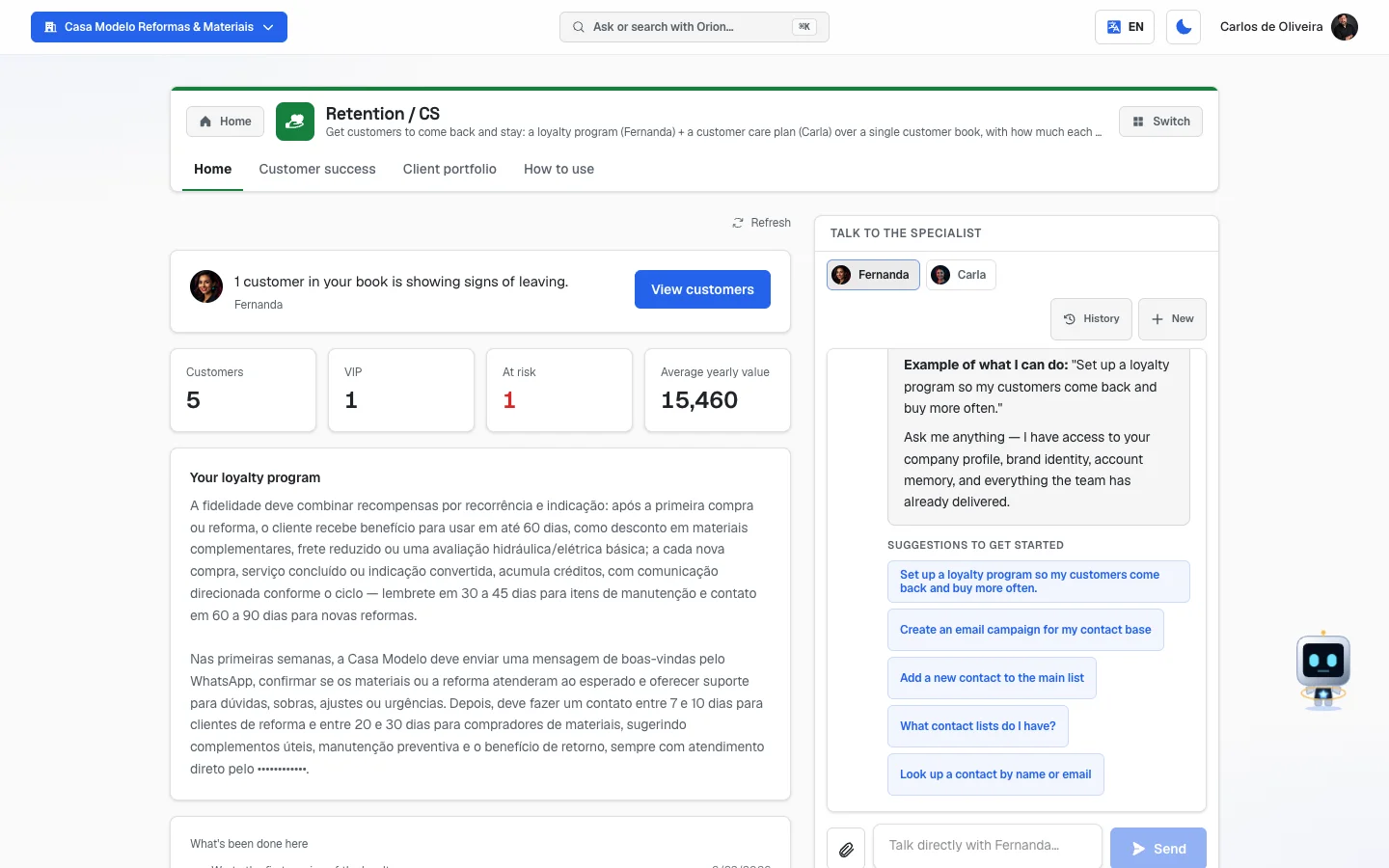 Home tab with Fernanda's panel (message + the four numbers) and the "Edit program" button
The tabs, one by one
Home
/app/modulos/fidelizacao-cs/inicio
This is the entry screen. By default it's in read mode: it shows what's already written and the numbers, with no form.
- What you see here:
- At the top right, the Refresh button (reloads the numbers).
- Fernanda's panel: a message from her with a shortcut button and four numbers — Customers, VIP, At risk, and Average yearly value.
- A Your loyalty program box, with what you (or Fernanda) have already written. It only appears when something has been written.
- A What's been done here box, with the assistants' deliveries.
- The Edit program button.
- Beside it (or below, on a phone), the Talk to the specialist chat. Both assistants are here: you switch between Fernanda and Carla with the little buttons above the chat.
- What you can do: read the summary, chat with Fernanda or Carla, and edit the loyalty program.
If the screen looks empty, it isn't broken. Until you write something, there's nothing to show. The way forward is the Edit program button.
Step by step — writing the loyalty program:
- On the Home tab, click Edit program. Fernanda's panel stays at the top, and right below it the Loyalty program box opens ("How to make customers come back. Ask Fernanda in the chat or write here."). Whatever is already written — by you or by Fernanda — appears inside the fields, ready for you to adjust.
- Fill in the Main mechanic. The example on the screen is: "PIX cashback, VIP club, birthday offer…" (PIX is Brazil's instant payment system).
- Under Tiers and benefits, click Add tier. Write the tier's name in the first field — "Tier (e.g.: Gold)" — and what it gets in the second, Benefit. Repeat as many times as you need (up to 12).
- Under Lifecycle rules (trigger → action), click Add rule. In the first field write the trigger — "Trigger (e.g.: post-purchase)". In the second, the Triggered action. Up to 20 rules.
- To delete a row, click the trash can on the right side of it.
- Click Save program. "Saved" appears and the screen goes back to read mode. (If you change your mind, click Cancel — nothing is saved.)
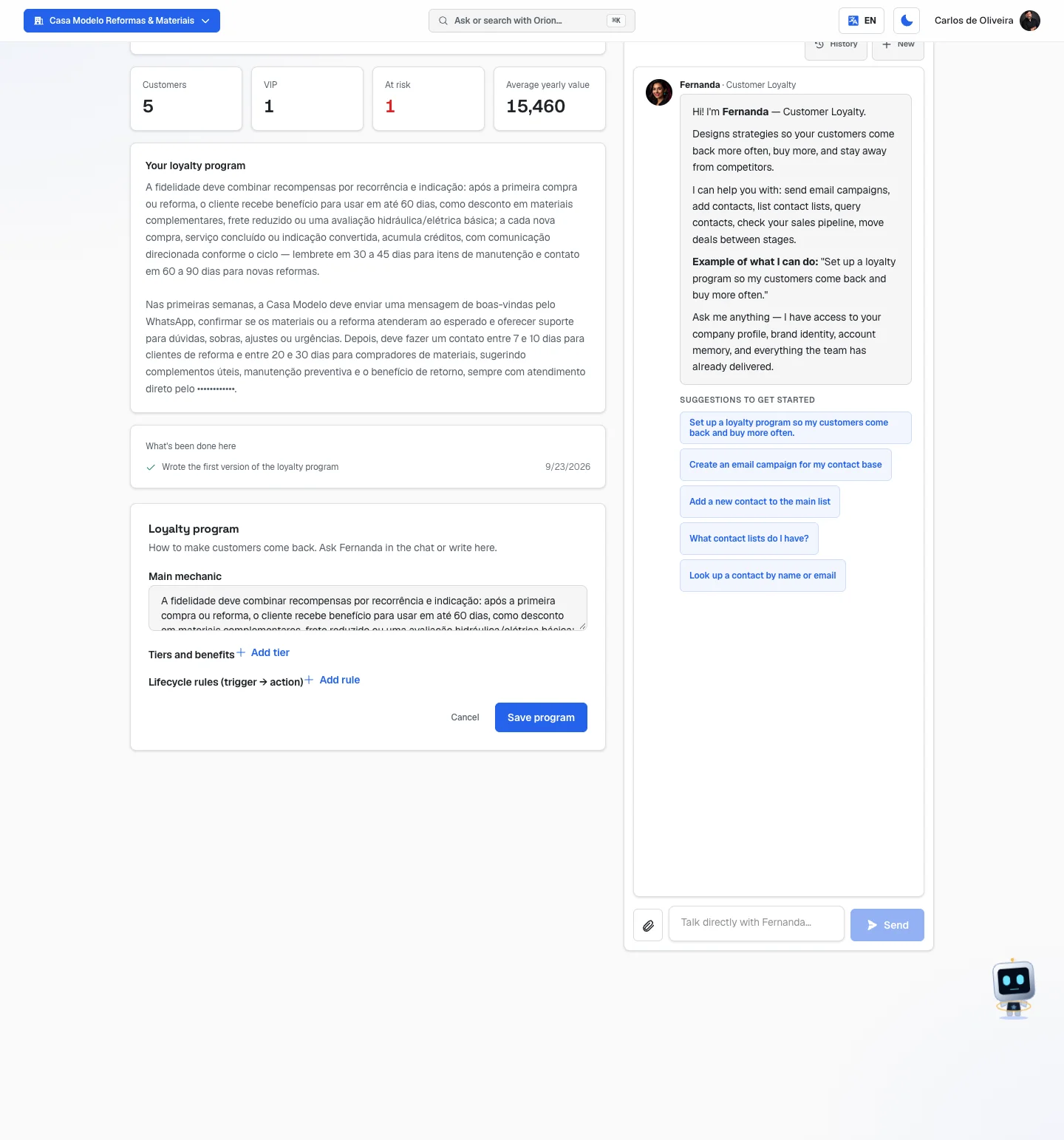 Home tab in edit mode: Fernanda's panel at the top and, below, the Loyalty program box with Main mechanic, Tiers and benefits, Lifecycle rules, and the Cancel and Save program buttons
Each field explained:
| Field | What to write |
|---|---|
| Main mechanic | In one or two sentences, the reward that makes customers come back. "Every 10th haircut, the 11th is free." "5% back with PIX on every purchase over $200." |
| Tier (e.g.: Gold) | The name of each step in your program. Use the name you'll use when talking to the customer. |
| Benefit | What that tier gets. "10% discount and priority service." |
| Trigger (e.g.: post-purchase) | The moment that sets off the action. "7 days after the purchase," "birthday," "90 days without buying." |
| Triggered action | What should be done at that moment. "Send a WhatsApp message asking if everything went well," "Send a 15% coupon." |
Important about the rules: despite the name "Lifecycle rules," the module doesn't send any message on its own. What you write here is the plan: it's saved, the assistants read it to help you, and it's from this plan that you (or the automation module) set up the real sending.
Customer success
/app/modulos/fidelizacao-cs/cs
This is where Carla's customer care plan lives. If the loyalty program is about rewarding, the care plan is about following up: what to do with the customer from day one so they don't disappear.
- What you see here: the Refresh button at the top right and the Customer care plan section, with four text fields and the Save plan button. The section's description says: "How to delight, retain and expand. Ask Carla in the chat or write here."
- What you can do: write and save the plan, and chat with Carla.
- Beside it (or below, on a phone), the Talk to the specialist chat — the same one as on the Home tab, with the little buttons to switch between Fernanda and Carla above it. This tab is Carla's: just pick her name and ask.
Step by step:
- On Home, under Your apps, click Retention → Customer success tab.
- Fill in the four fields (none is required — fill in whatever makes sense).
- Click Save plan. "Saved" appears.
Each field explained:
| Field | What to write |
|---|---|
| The customer's first days | What happens in the first weeks of a new customer, and what the moment is when they finally see the value of what you do. The example on the screen is: "What happens in the first 30 to 90 days and when the customer sees the value". |
| How often to check in with the customer | How often you sit down with the customer to review what's going on. The example the screen itself gives is: "E.g.: quarterly results review". If your business is a walk-in shop, write whatever makes sense: "call every 3 months." |
| Signs the customer may leave | Here you list what turns on the yellow light. The example on the screen: "Buys less, pays late, gives a low satisfaction score…". In plain words: bought less, paid late, complained. |
| How to sell more to existing customers | The example on the screen: "Offer a bigger or complementary service when the customer is happy" — in other words, offering something extra right after the customer has had a good result with you. |
Client portfolio
/app/modulos/fidelizacao-cs/carteira
This is the list that makes everything else work. The numbers across the whole module come from here.
- What you see here:
- At the top, a summary line: "N customers · X VIP · Y at risk · Average yearly value R$ Z". Beside it, the Refresh button.
- The Customer roster section, with one block per customer: on top, the name, the R$ per purchase, the purchases per year, and the trash can; below, the tier box and the color box. The section's sentence talks about health (green, yellow or red) — that's the color (🟢/🟡/🔴) you choose for each customer.
- The Add customer button and, at the end, the Save button.
- What you can do: add, change, and delete customers.
- Empty state: "No customers in the book," with the tips to add a row below or ask the team in the chat.
Step by step:
- On the Client portfolio tab, click Add customer. A blank row appears.
- Write the Customer name.
- Fill in R$ per purchase — how much this person spends, on average, each time.
- Fill in Purchases/yr — how many times a year they buy.
- In the first dropdown, choose the tier: New, Recurring, Loyal, or VIP.
- In the second, choose the status: 🟢 Green, 🟡 Yellow, or 🔴 Red.
- Repeat for the other customers (up to 200).
- To delete someone, click the trash can on the right side of the row.
- Click Save. "Roster saved" appears.
The box names disappear when you type. Customer name, R$ per purchase, and Purchases/yr appear written inside the box only while it's empty. Once it's filled in, the box shows only what you typed: in the top row, the first box after the name is R$ per purchase and the second is Purchases/yr.
A row without a name is discarded. If you add a row, fill in the value per purchase, and forget the name, it disappears when you save. Always fill in the name first.
Each field explained:
| Field | What to write |
|---|---|
| Customer name | What you call this person or business. It's required. |
| R$ per purchase | The average value of each of their purchases. If they spend about $180 per visit, write 180. A well-made guess is enough. |
| Purchases/yr | How many times a year they buy. If they come once a month, write 12. |
| New / Recurring / Loyal / VIP | What step this person is on in your relationship. You decide — the system doesn't calculate this. |
| 🟢 Green / 🟡 Yellow / 🔴 Red | How healthy this relationship is today. Green = all good. Yellow = something's off, needs attention. Red = they'll leave if you do nothing. You decide this one too. |
How to use
/app/modulos/fidelizacao-cs/como-usar
Every module has this tab at the end. It's the module's short manual inside the system itself.
How to read the numbers
All the numbers in this module come from one thing: what you typed in the Client portfolio tab. Empty roster = zeroed numbers.
The four numbers on the panel (Home tab):
| Number | What it is |
|---|---|
| Customers | How many rows you've entered. |
| VIP | How many you marked as VIP. |
| At risk | How many you marked as 🔴 Red. When it's more than zero, the number is highlighted as an alert — and Fernanda's message becomes "N customers in your book are showing signs of leaving." This is the number to look at first every day. |
| Average yearly value | How much one of your customers is worth, on average, per year. |
The summary line (Client portfolio tab): it's the same thing in a single sentence — "12 customers · 3 VIP · 2 at risk · Average yearly value $2,400". It's the same number the panel on the Home tab shows, with the same name: both come from the same calculation. (Elsewhere in the market this number is called LTV, short for "how much a customer is worth over time" — here the screen uses only the plain-language name.)
How the Average yearly value is calculated:
- For each customer: R$ per purchase × purchases per year. Someone who spends $200 and buys 12 times is worth $2,400 a year.
- Then the system takes the average across customers.
- Only customers with the R$ per purchase filled in count toward the average. Anyone whose value is blank or zero counts in the total number of customers, but is left out of this calculation — so they don't drag the average down for no reason.
About tiers and colors: the system decides neither of them. It only counts. If you mark everyone as Green, the panel will say everything is fine. The roster is only useful if you're honest when you fill it in.
If "—" appears in place of the numbers along with the message "I couldn't read your data right now — this doesn't mean it's zero. Try refreshing in a moment.": the system couldn't read your roster at that moment. You haven't lost anything. Click Refresh.
Frequently asked questions
Does the module send the messages on its own? No. Here you write the plan: what should happen and at what moment. The real sending is done by you or by the sending modules (WhatsApp, email, automation). The name "Lifecycle rules" refers to the trigger → action format, not to an automatic send.
Do customers show up in the roster on their own? No. This list is typed by hand. That's on purpose: it's your read on who's doing well and who isn't — and nobody calculates that for you.
What's the difference between Fernanda and Carla? Fernanda takes care of getting customers to come back: reward, tiers, coupons, club. Carla takes care of getting customers to stay: first days, follow-up, signs that they're going to leave. Both read the same roster and both are in the same chat — which appears beside the Home and Customer success tabs. Just switch the name above the chat.
I saved on the Client portfolio tab. Does that erase what I wrote on the other tabs? No. Each tab saves only its own part. The program, the care plan, and the roster don't overwrite each other.
Do I have to fill in everything? No. Only the Customer name is required, in the roster. But without the R$ per purchase and the Purchases/yr, the yearly value number doesn't appear — and it's exactly that number that shows you how much money is at stake.
How many customers fit? Up to 200 in the roster, 12 tiers in the program, and 20 rules. If you have more customers than that, use the roster for the ones that matter most.
When something goes wrong
| Symptom | What to check | What to do |
|---|---|---|
| The invitation to set up the module by chatting with Fernanda appears at the top of the page | It's the invitation for the initial conversation: the module was just purchased and you haven't chatted or dismissed it yet. It's optional — the tabs already work. | Click Chat with Fernanda (and, at the end of the chat, Complete setup) or Dismiss. |
| The Home tab looks empty | Have you written anything yet? The panel only shows what exists. | Click Edit program and write. Or ask Fernanda in the chat. |
| The panel shows "I'm preparing the first version of this for you — check back in a few minutes." | Fernanda is writing your program for the first time. | Wait a few minutes and click Refresh. |
| The panel shows "I couldn't prepare the first version. You can ask me to try again." | The automatic generation didn't work. | Ask her in the chat to try again — or write it yourself under Edit program. |
| The numbers show as "—" with a message saying the data couldn't be read | Momentary read failure. It does not mean the roster is empty. | Click Refresh. If it keeps happening, reload the page (F5). |
| "Couldn't save" | Connection, or the session expired. | Don't close the tab: try Save again. If it still doesn't work, copy the text to a notepad, reload the page, and paste it back. |
| I entered a customer and it vanished after saving | Did the row have the Customer name filled in? | A row without a name is discarded. Enter it again with the name filled in. |
| A tier or a rule vanished after saving | Were both fields in that row empty? | A row with both fields blank is discarded. Fill in at least one. |
| Average yearly value is zero and I have customers | Do the customers have the R$ per purchase filled in? | Anyone with that field blank is left out of the calculation. Fill in the R$ per purchase and the purchases per year and save. |
| At risk is at zero and I know I have lapsed customers | Did you mark anyone as 🔴 Red? | The system doesn't guess. Open the roster and mark the right color for each one. |
| I can't find Carla's chat | Which tab are you on? | The chat appears beside the Home and Customer success tabs — not on Client portfolio. Go to one of those two and pick her name above the chat. |
| I opened the module's address and landed on the Your modules list, with the Retention card highlighted | The module is not active on your account — and that's the only thing that causes this detour: if the access check failed, the screen would open anyway. | Subscribe with the button on the highlighted card itself. If you're sure you already paid, open the menu with your name, at the top right, and check My Subscriptions — that's where you'll see whether billing is up to date. Reloading the page doesn't change this detour. |
| I clicked Add customer but can't add any more | Does the roster already have 200 customers? | That's the screen's limit. Delete the ones that no longer make sense to follow. |
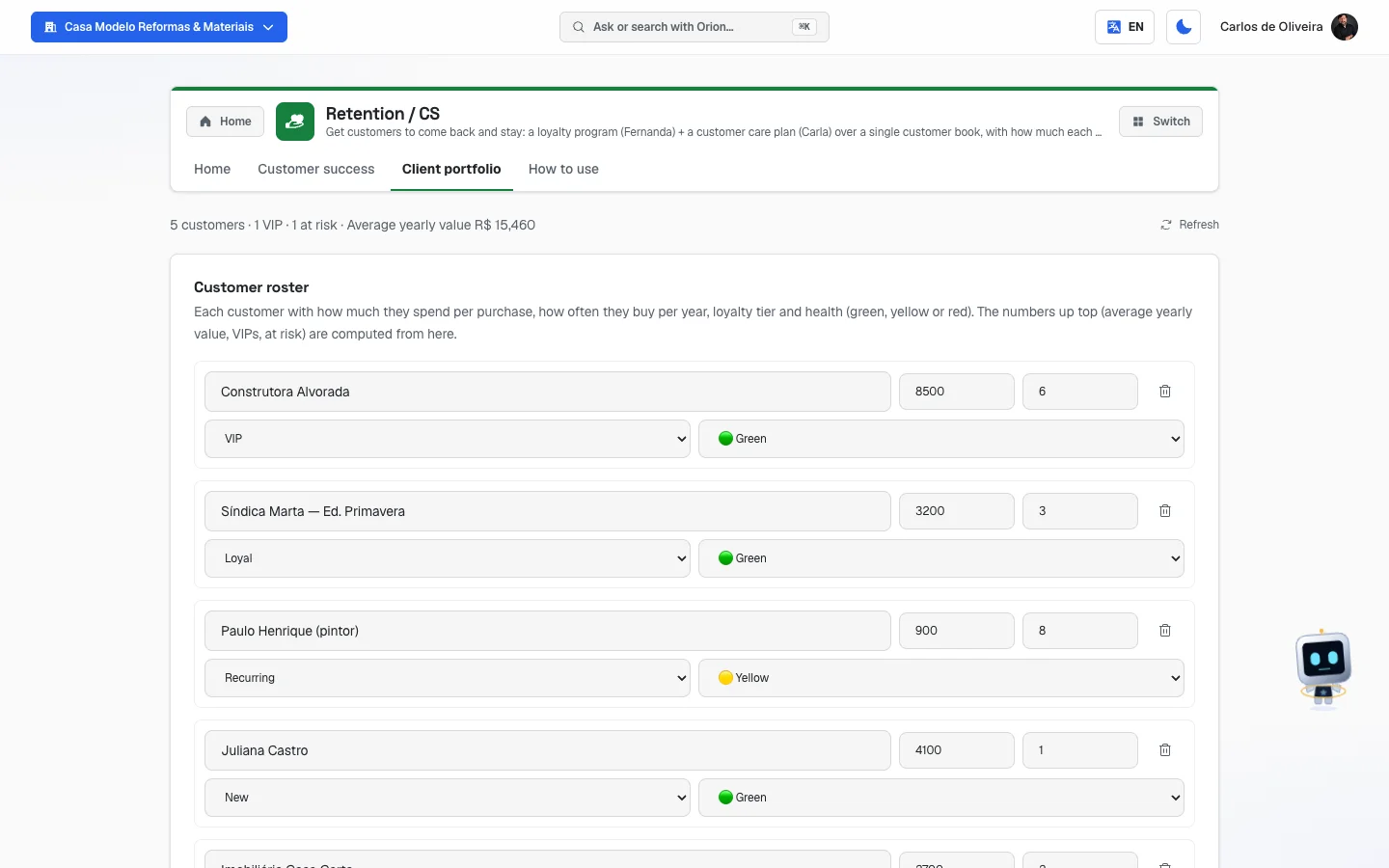 Client portfolio tab with five customers filled in — on top of each block the name, the ticket, the purchases per year, and the trash can; below, the tier box (VIP, Loyal, Recurring, New) and the color box (Green, Yellow, Red) — and, at the top, the summary line "5 customers · 1 VIP · 1 at risk · Average yearly value" with the Refresh button