

Content & Copy
Where to find it: Home → Your apps → Copy (at the top of the screen the module appears as Content & Copy)
Address: /app/modulos/conteudo-copy
What it's for
This module writes text for your business. You ask for it in a conversation — the way you'd message an employee — and you get the text ready to copy and paste. "Copy," in the module's name, is just what the advertising world calls promotional writing.
There are four kinds of text: post captions (for Instagram, Facebook and LinkedIn), ad copy (the headline and body of a paid ad), brand storytelling (the story of your business, told in a way that hooks people) and microcopy (those short bits of text on buttons, forms and screen messages).
What makes the text sound like you is the brand voice: a profile you fill in just once, saying how your business talks, who it talks to, and what should and should not appear in the texts. After that, every text the system writes follows those rules.
A day-to-day example: you own a hair salon. In the Configuration tab you write that the tone is "friendly and upbeat, speaks to the client as 'you'" and that the audience is "women from the neighborhood, ages 25 to 50." Then, in the Home tab, you click Post caption and finish the sentence: "…a progressive smoothing treatment promotion in March." Three caption options come back in your tone. You save the one you liked best in the Library — and next month all you have to do is copy it and change the date.
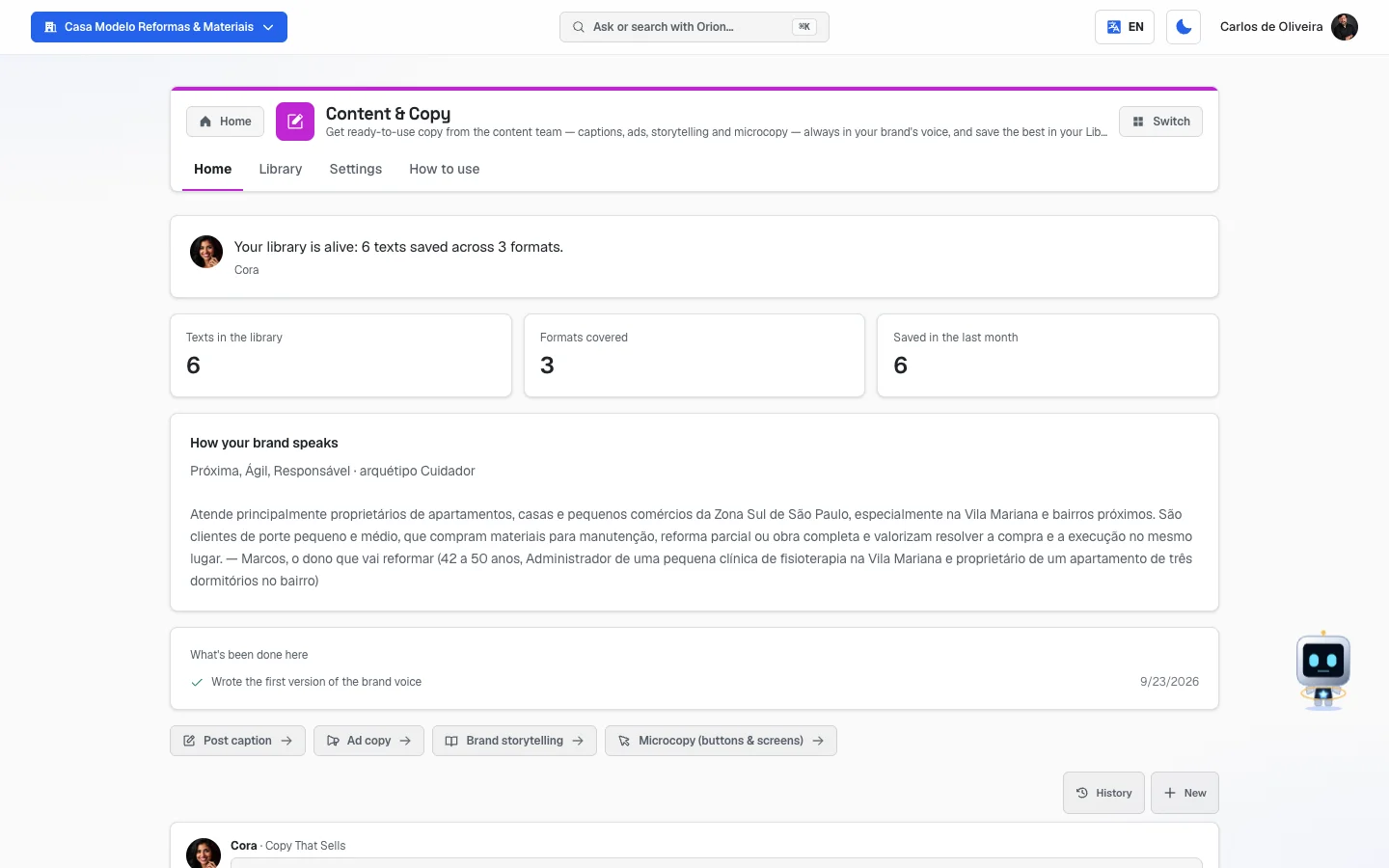 Home screen of the Content & Copy module, with the four quick-action buttons and the conversation below
Before you start
- The Content & Copy module has to be active on your account. If it isn't, the screen warns you: "The copy library and brand voice are part of the Content & Copy module. Turn it on in the Modules tab to use it."
- It isn't required, but filling in the brand voice before you ask for your first text is strongly recommended. Without it, the text comes out sounding like any company.
- If your business is a branch of a chain or franchise, the brand voice is set by headquarters. You can read the chain's voice but you can't change it: when you save, the system answers "The brand identity is set by the chain's headquarters. You can edit your branch's details."
First steps
- On Home, under Your apps, click Copy (at the top of the screen it appears as Content & Copy). The module's tabs are in the app bar, at the top of the screen.
- Open the Configuration tab.
- Fill in the five brand voice fields (they're explained in detail below). The more specific, the better — that's what the screen itself says: "The more specific, the more the copy sounds like you."
- Click Save. The message "Brand voice saved" appears.
- Go back to the Home tab. Click one of the four quick actions, for example Post caption.
- The start of the request is already written in the conversation. Finish it with your case and send it.
- Read what comes back. If you want to change something, just ask in the same conversation ("make it shorter," "take out the word unmissable," "start with a question").
- Like it? Go to the Library tab, click Add, choose the type, give it a title, paste the text and click Save.
The tabs, one by one
The tabs are in the app bar, at the top of the screen. Besides the three tabs below, the module has a How to use tab at the end, with a short summary inside the system itself.
Home
/app/modulos/conteudo-copy/inicio
- What you see here: at the top, a panel with the photo of Cora (the system's text specialist), a sentence about how your brand and your library are doing, and a shortcut button. Below it, three numbers: Texts in the library, Formats covered and Saved in the last month. When the brand voice is filled in, a panel also appears with what you wrote about tone and audience. Finally, the four quick-action buttons and the conversation.
- What you can do: ask for any text, in your own words or using a quick action.
- Step by step:
- Click one of the four quick actions:
- Post caption — captions for Instagram, Facebook and LinkedIn.
- Ad copy — the headline, description and call to action of an ad.
- Brand storytelling — a short story about your business.
- Microcopy (buttons & screens) — short texts for buttons, success messages and error messages.
- The start of the request appears written in the conversation box. Finish it with the topic.
- Send it and keep chatting until the text is the way you want it.
- Click one of the four quick actions:
- You can also write straight into the box, without using any quick action.
- The sentence at the top changes depending on your situation. If the brand voice is blank, it says: "I don't know how your brand speaks yet — without that every text of mine sounds like any company.", with the Set the voice button. If it's half filled in, it points out what's missing. If the library is empty, it invites you to save the texts that work, with the Open the library button.
Library
/app/modulos/conteudo-copy/biblioteca
- What you see here: the title Copy Library ("Store and reuse the texts your team created.") and your collection of approved texts, one card under the other. Each card shows the type (in small letters, at the top), the title and the text (up to four lines). At the top right, the Add button and a row of filters: All, Caption, Ad, Storytelling, Microcopy and Other. When nothing is saved, it says: "No saved texts yet".
- What you can do: save texts to reuse, copy with one click, filter by type and delete what you no longer need.
- Step by step — saving a text:
- Click Add.
- Choose the type in the first box: Caption, Ad, Storytelling, Microcopy or Other.
- Write a Title that will help you find it later (for example: "Caption — Tuesday promotion").
- Paste or write the text in the large field.
- Click Save. The card appears at the top of the list.
- Step by step — reusing a text:
- If you want, click the filter for the type you're looking for.
- Find the card and click the copy icon (the two little sheets). "Copied" appears.
- Paste it wherever you need it — in an Instagram caption, in an ad, in an email.
- Each field explained:
- Type — what the text is for. It's used to filter later and to count the "formats covered" in the panel on the Home tab.
- Title — the internal name. Only you see it.
- Text — the content itself.
- The card's two buttons are Copy (the little sheets) and Delete (the trash can). Delete happens right away, with no confirmation.
- The Save button only turns on when both title and text are filled in. If one is missing, the system warns: "Fill in title and text".
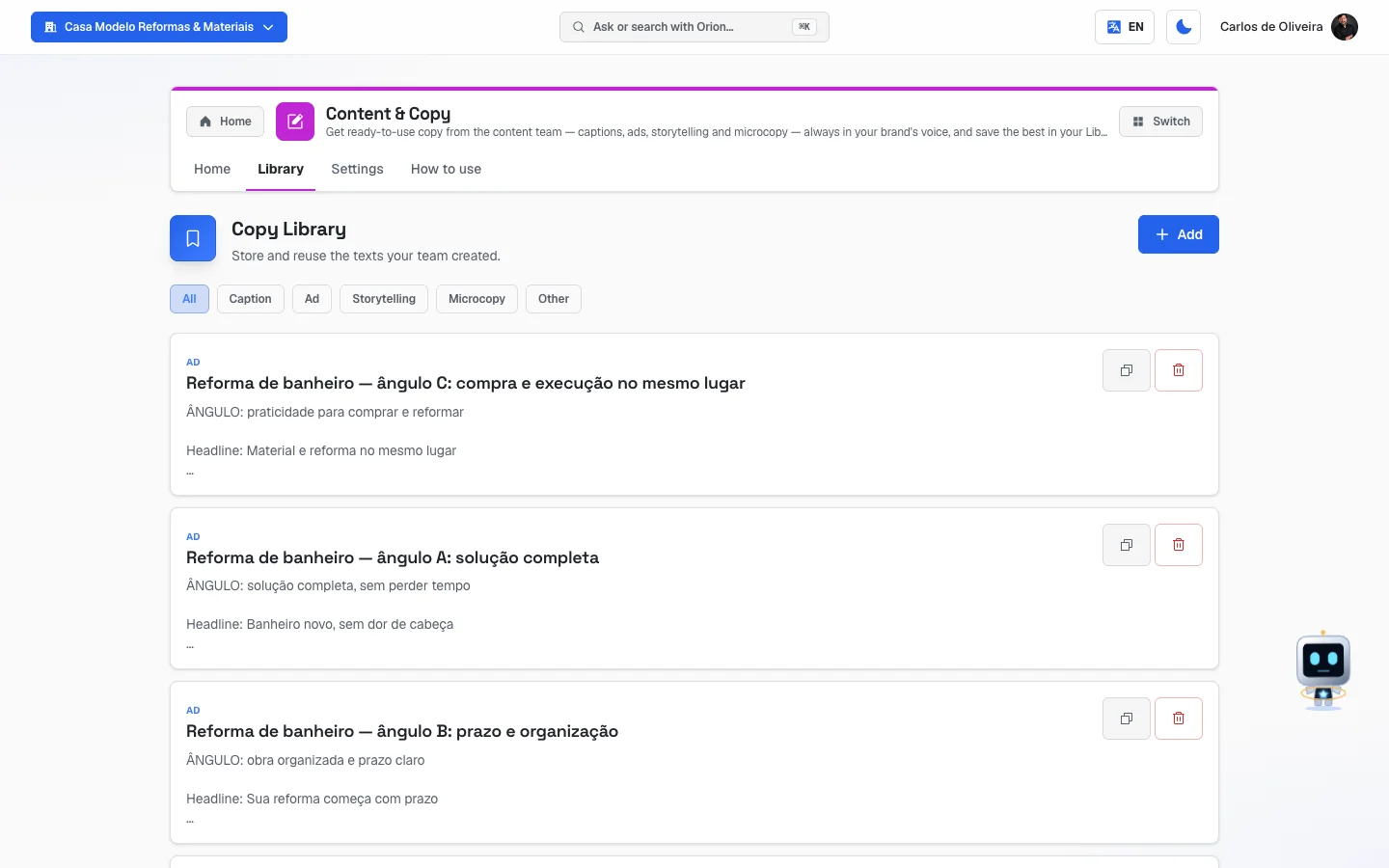 Library tab with the Add button at the top, the row of filters (All selected) and three saved cards — one Microcopy, one Ad and one Caption —, each with the copy and delete buttons on the right
Configuration
/app/modulos/conteudo-copy/config
- What you see here: the Brand voice block, with five text fields and the Save button. The screen explains what it's for: "Set your brand's tone and rules. The content team uses this in every copy it writes — in chat and shortcuts."
- What you can do: teach the system how your business talks. You fill it in once and it applies to everything.
- Step by step:
- Fill in the five fields below.
- Click Save. "Brand voice saved" appears.
- You can come back and change it whenever you like — it applies from the next text you ask for.
- Each field explained:
- Tone / style — the way of speaking. The screen's own example: "friendly and direct, no jargon; uses 'you'".
- Target audience — who you're talking to. Example from the screen: "local small-business owners".
- Do — what you always want in the texts. Example: "short sentences, clear CTA, benefit-focused". (A CTA is the phrase that calls for action, like "message us on WhatsApp" or "order now.")
- Don't — what should never appear. Example: "avoid technical terms, exaggerated promises".
- Examples / references — paste phrases from your brand that you already like, to serve as a model.
- The first four fields are the ones the system counts to say the voice is complete. As long as the audience or the "Don't" is missing, the sentence on the Home tab warns that the voice is half filled in.
How to read the numbers
The three numbers are on the Home tab, at the top:
- Texts in the library — how many texts you've saved in total. It's not a performance number: it's the size of your archive of ready texts.
- Formats covered — how many different types (caption, ad, storytelling, microcopy) you already have at least one saved text for. It goes from 0 to 4. It helps you notice if you're only making captions and forgetting the rest.
- Saved in the last month — how many texts entered the library in the last 30 days. If it shows zero but you have texts saved, Cora warns that the library is idle.
There is no number here for likes, reach or how the text performed after being published — this module takes care of writing and saving.
Frequently asked questions
Do I have to fill in the brand voice before asking for my first text? It isn't required, but it's strongly recommended. Without it the text comes out generic. It's the first thing the screen asks of you.
Does the text come ready to publish? It comes as a ready-made suggestion. Read it first and, if you want to change something, ask for the adjustment in the same conversation — "shorter," "no emoji," "start with a question."
Where do the texts I liked go? Only where you save them. The conversation doesn't automatically save anything to the Library: you have to go to the Library tab, click Add and paste the text there.
Can I use a saved text somewhere else in the system? Yes. Copy the text with the card's copy button and paste it wherever you need it — in a caption, in an ad, in an email.
I changed the brand voice. Do the texts that were already saved change on their own? No. What was in the Library stays the same. The new voice applies to the texts you ask for from then on.
I'm a franchise branch and I can't save the brand voice. Why? Because the voice is set by the chain's headquarters, so all the branches speak the same way. You can read the chain's voice on this screen, but only headquarters can change it.
When something goes wrong
"The copy library and brand voice are part of the Content & Copy module. Turn it on in the Modules tab to use it." → The module isn't active on your account. Go to the Modules tab and turn it on.
"Fill in title and text" → You clicked Save in the Library with one of the two fields blank. Fill in both.
"Couldn't save" when saving the brand voice → Try again in a few moments. If it keeps happening, check whether you're a franchise branch — in that case the message is a different one, about the chain's headquarters.
"The brand identity is set by the chain's headquarters. You can edit your branch's details." → Your account is a branch and the voice comes from the chain. There's nothing to fix: ask headquarters if any part of the voice needs to change.
"Couldn't copy" when clicking the copy button → The browser blocked the copy. Open the card, select the text with the mouse and copy it with Ctrl+C (or Cmd+C on a Mac).
"No saved texts yet" even though I've already asked for several texts in the chat → That's normal. What's written in the conversation doesn't go into the Library by itself. Copy the text from the conversation and save it with the Add button.
Cora says she doesn't know how my brand speaks → The brand voice is blank. Click the Set the voice button in the message itself: it takes you straight to the Configuration tab.
The texts are coming out in a tone that isn't mine → Open the Configuration tab and be more specific in Tone / style and in Don't. Also paste, in Examples / references, two or three phrases of your own that represent the brand well.