

AI Outbound Calling
Where to find it: Home → Your apps → AI Prospecting (at the top of the screen the module shows as AI Outbound Calling)
Address: /app/modulos/campanhas-voz
What it's for
You have a list of potential customers, and you know that if you called all of them, you'd close deals. But calling 300 people is a full-time job: most don't pick up, plenty aren't the right person, and by the tenth call you've run out of patience.
This module puts an AI agent to work making those calls for you. She calls, introduces herself, says whatever you want said, listens to the person, asks questions and decides what to do with whoever is interested: book a meeting on your calendar, send a WhatsApp with more information, or transfer the call to you on the spot, with the person still on the line.
You don't have to write a script word for word. You pick a persona (the way of speaking: more consultative, more direct, more informal), write five lines about what you sell, and the AI runs the conversation. People who don't pick up get called again later, at the interval you set. If someone asks not to be bothered anymore, the agent politely says goodbye.
Day-to-day example: you sell air-conditioning maintenance to businesses. You upload a list of 200 building managers and offices, pick the "Tito — Casual local" persona, write that the service is a twice-a-year cleaning, that the problem is dirty air and a high electric bill, and that the invitation is a free evaluation visit. The AI calls Monday to Friday, from 9 a.m. to 8 p.m. Of the 200, 74 pick up, 18 agree to the visit — and those 18 go straight into your Google calendar, with a reminder.
The agent in charge of this module is Íris — the same one as in the AI Phone Support module, which is why the phone numbers are shared between the two.
Before you start
- The module has to be active on your account. Otherwise, the Settings tab shows the purchase screen with the Activate in catalog button, and the screens warn that "The Voice Campaigns addon is not active on this tenant" (tenant = your company's account).
- The invitation to set up by chatting. The first time you open a module, an invitation from the specialist appears: "Want to set up … by chatting with Íris?". It's optional — the tabs already work — and each reply from the specialist uses AI credits. Chatting helps the specialist get to know your company. To make the invitation go away, click Dismiss or, after chatting, Complete setup.
- An outbound phone, bought in the Connections tab. It has to be Active and marked as Outbound (calls) or Both — a receive-only number can't dial. Buying the number only works once the module's subscription is paid: during the trial period the screen warns that the number "is activated as soon as the subscription goes through". There is no limit on the number of outbound numbers.
- A contact list with phone numbers, in the Lists tab. A contact without a phone number is ignored.
- Call minutes. The monthly fee already includes 100 minutes per month. Only what goes over that is charged to your credit. How many minutes the month has used shows in the Panel tab.
- Optional, depending on what you want the AI to do on the call:
- To book a meeting: Google (calendar) connected in Integrations.
- To send a WhatsApp after the call: Verified WhatsApp (Meta's official one) connected, with at least one message template approved by Meta.
- To transfer the call live: a phone of yours, answered by a real person, where the call will be passed.
Consent is your responsibility. The screen itself warns: "Make sure consent is documented in the contact's record before uploading a list."
First steps
- On Home, under Your apps, click AI Prospecting. You land on the Panel tab.
- If the invitation to set up by chatting appears, you can click Chat with Íris, answer, and then click Complete setup — or click Dismiss and go straight on, because it's optional.
- Go to the Connections tab. In the Buy new number block, choose the country, under Purpose choose Campaigns — makes outbound calls, click Search available numbers and then Buy this on the number you like.
- Go to the Lists tab → New list, give it a name and click Create list. Open the list with Open list and click Import CSV to upload your spreadsheet.
- Go to the Campaigns tab and click + New campaign. You land in the Editor.
- Fill in the Name, choose the Audience (your list) and the Number shown to the person you call.
- Under Calling agent (persona), choose the agent's way of speaking.
- Under Voice and language, listen to the voices with the ▶ button and pick one.
- Fill in the Campaign context: service, offer, pain and invitation. They're five short fields, but everything the AI is going to say comes from them.
- Under What the agent does during the call, switch on what you want her to do: book a meeting, send a WhatsApp or transfer the call to you.
- Check Retry (attempts) and Send window.
- Scroll down to Prompt preview and read it. That's where everything the AI received as instructions is shown, in text.
- Click Publish ▶.
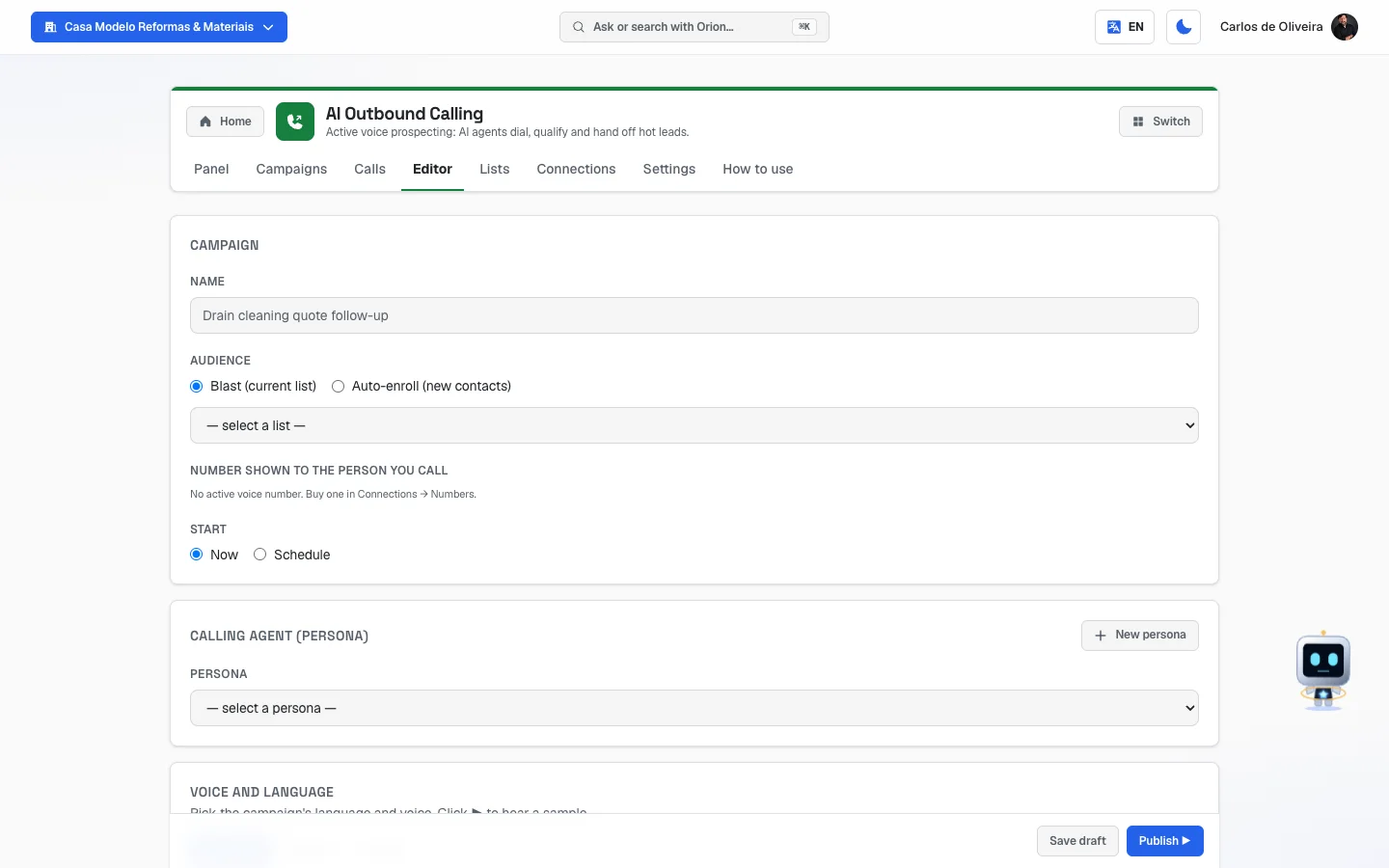 Editor tab of the voice campaign, with the Campaign, Voice-SDR (Persona) and Voice and language blocks visible
How the dialing works (read this first)
The queue. When you publish, each contact on the list enters a dialing queue. The system checks the queue every minute and calls whoever is next.
The time window. Every campaign has allowed days and hours — by default, Monday to Friday, 9 a.m. to 8 p.m., in São Paulo time. Outside of that, nobody gets called: the call is rescheduled for the next valid time.
When the person picks up. The agent speaks first. In Portuguese, the opening goes something like: "Hi! This is [persona name]. This call is recorded. Can I take a minute of your time?" — the recording notice comes in the first sentence, always, in any language (in Spanish, "Esta llamada se graba"; in English, "This call is recorded"). In her first reply, she introduces herself as your company's virtual assistant; if the person doesn't agree to being recorded, she apologizes and ends the call. From there the conversation is free-flowing: she follows the instructions you wrote in the Campaign context, speaks in short sentences, pauses for the person to answer and doesn't make up urgency or promises. A call is capped at 10 minutes.
At the end of the conversation she logs the qualification: what she understood about the name, the pain, who decides, the timing, and she gives a score from 0 to 100. If you switched on the other actions, she can also book the meeting, send the WhatsApp or transfer the call to a human — always during the call.
When the person doesn't pick up (or the line is busy), the call is marked as unanswered and the contact goes back into the queue for another try after the interval you set under Retry (attempts) — respecting the time window. When the attempts run out, that contact is closed as a failure, with "no answer" as the last result.
If the person asks not to be called anymore, the agent records the request right then, still during the call, thanks them and hangs up — without insisting and without offering an alternative. The phone number goes into the Who asked not to be called list, in the Settings tab, with the date and the reason in the person's own words. From then on, before every call attempt the system checks that list: whoever is on it doesn't get called, neither in that campaign nor in any other of yours.
If you've been using this module since before September 22, 2026, read this. Until that date the record wasn't happening. The agent was told to end the call politely, the screen promised that the request was recorded, the system really did check the list before every call — but nothing ever wrote to it. In practice: someone who asked not to be called again was called again on the next attempt, and the list of people who asked to be removed was always empty. That has been fixed. If you have campaigns published from before that date, republish them (open the campaign in the Editor and click Publish again) — it's the republishing that hands the new instruction to the agent.
You can also take someone off the list, in the Who asked not to be called block of the Settings tab, with the Remove button — and the screen itself warns: that frees the number to receive campaigns again, so use it with care.
What's saved from each call. When the call ends, the system records: whether the person answered, didn't answer, was busy or the call failed; how long it lasted; the audio recording (when there was a conversation); the transcript (the whole conversation in text); the analysis of the conversation; the cost; and, for each contact, the qualification profile the agent filled in — name, pain, who decides, timing and the score from 0 to 100. The minutes count toward your usage for the month: the first 100 come with the monthly fee, and only what goes over is charged to your credit.
Where you read all this: in the Calls tab. The Panel and each campaign's scoreboard show the numbers added up. To find out what was said with a specific person, open the Calls tab: every call is there, one by one, and when you open one you read the profile the agent filled in, listen to the recording and read the whole conversation in text. The step by step is in Calls, in the tabs part.
About the audio. Every call in which the person talked with the agent is recorded as audio, on our side: when the call ends, we fetch the recording from the voice company that places the calls and store it in our own storage. You listen to each one in the Calls tab, by opening the call — the player sits right below the header. It's what backs the notice the agent gives in the first sentence: she says she's recording, and the recording exists.
- A call without a conversation has no audio — unanswered, busy, or one that didn't connect. In those cases the screen says the call has no recording.
- How long it's kept: up to 12 months after the call, and only while your company is a customer. After 12 months, the recording is deleted — our copy and the voice company's copy. If your account is closed, all the recordings go with it.
- Calls made before audio started being stored (September 2026) have no recording — only the conversation in text.
The same goes for the AI Phone Support module, on incoming calls — there, the audio is stored when you switch on the recording notice.
The tabs, one by one
This module's tabs are in the app bar, at the top of the screen, next to the name AI Prospecting.
Panel
/app/modulos/campanhas-voz/painel
- What you see here:
- At the top, Íris's note: a sentence about what matters most right now, with a shortcut button. For example: "No outbound phone connected — without it I can't dial anyone." with the Connect phone button; or "There's no call list — build one in Contacts and I'll get started." with the Build list button; or, when everything is fine, "2 campaigns dialing, with 7 transfers to a human this month."
- Four numbers about how things are right now: Campaigns dialing, Campaigns in draft, Outbound phones and Call lists.
- Eight numbers for the month: Calls this month, Answer rate (the share of calls in which the person picked up), Average call time, Qualified leads, Meetings scheduled, Transfers, WhatsApp follow-up messages (WhatsApp messages sent after the call) and Minutes this month — how many call minutes the month has used, against the 100 in the monthly fee (e.g. "34 of 100 included").
- Below, Active campaigns: each campaign with a little bar, the percentage and the line "Dialing · 12/200 completed · 8 in progress".
- What you can do: just look and use the shortcut button.
- While it loads it shows "Loading metrics…".
- Empty state: "No active campaign", with the explanation "When a voice campaign is running, its scoreboard (calls, answered, conversions) shows up here." and the hint "Create one in the Campaigns tab".
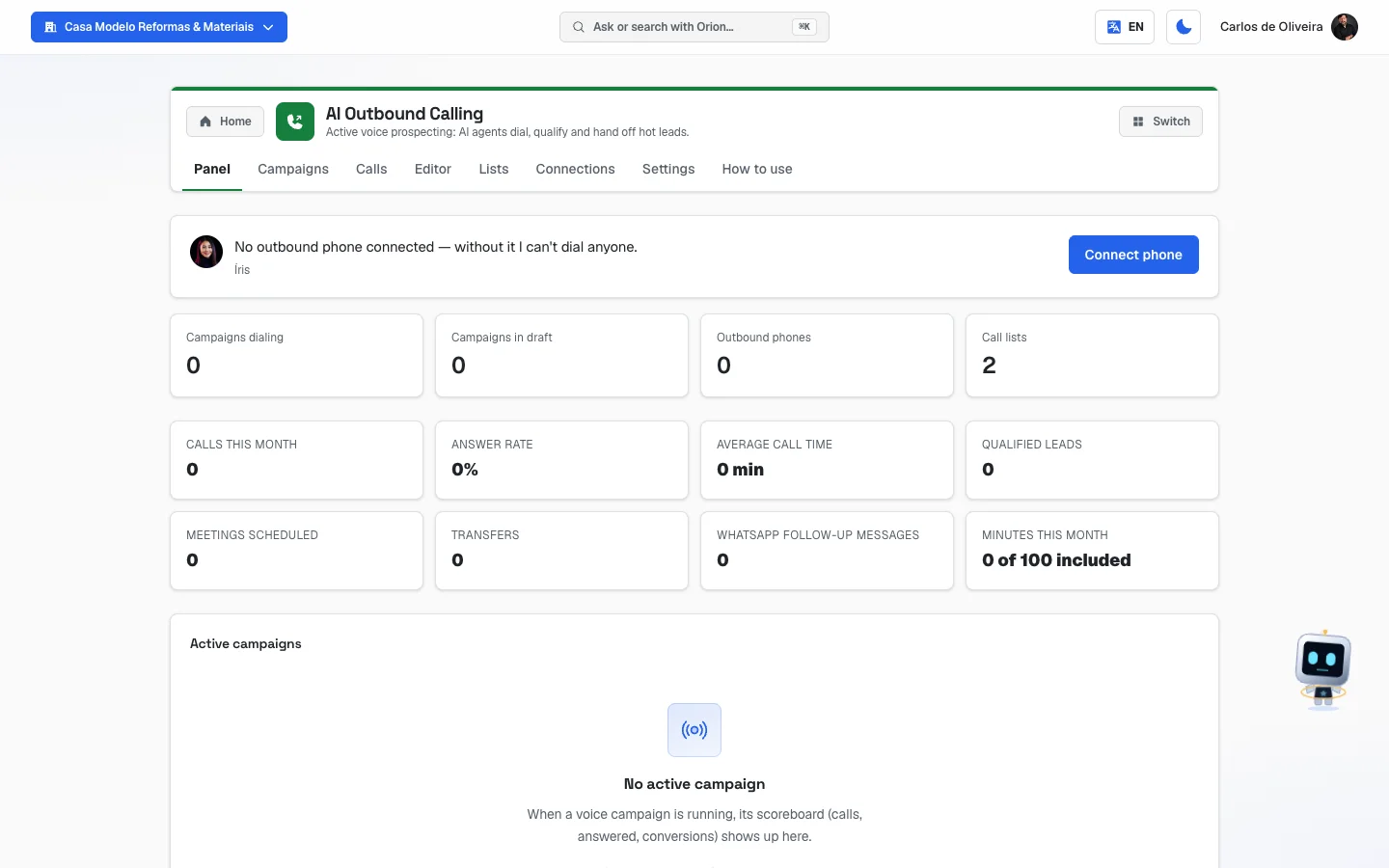 Panel tab of voice prospecting in a company that doesn't have an outbound phone yet: Íris's note with the Connect phone button, the four numbers for right now, the eight numbers for the month, all at zero, and the Active campaigns box empty
Campaigns
/app/modulos/campanhas-voz/campanhas
- What you see here: the table of your campaigns, with the columns Name, Status, Persona, Audience, Enr. / Dial. / Qual., Last activity and Actions. In the top corner, how many campaigns exist and the + New campaign button.
- What you can do: create, start, pause, resume, duplicate, delete and see the result of each campaign.
What each situation (Status) means:
| Status | Means |
|---|---|
| Draft | You're putting it together. Nobody was called. |
| Scheduled | It's ready and starts on the date set. |
| Running | It's dialing now (inside the time window). |
| Paused | Stopped. You paused it, or the system paused it because there's no active subscription. |
| Completed | It's finished. |
| Failed | Something went wrong. |
| Archived | Deleted after it had already run. It doesn't dial anymore. |
The Persona column shows the nickname of whoever speaks — for example, "Lobo", "Nina" or "Custom", when it's a persona you created yourself.
The Audience column shows the list and, in parentheses, (Blast) (today's list) or (Automatic) (also whoever joins the list later).
The Enr. / Dial. / Qual. column is three numbers stuck together: how many people entered the campaign, how many have already been called, and how many were qualified (got a score from the AI).
The buttons in the Actions column are the same as in the other campaigns module: 📈 opens the scoreboard, ▶ starts or resumes, ⏸ pauses, 📊 opens in the Editor, 📋 duplicates (creates a copy as a draft) and 🗑 deletes (a draft is erased for good; a campaign that already ran is archived).
Each campaign's scoreboard (📈 button): Calls, Pickup rate, Avg. duration (in minutes:seconds), Qualified, Meetings, Transfers (calls handed to a person on the team) and WhatsApp follow-ups.
- Empty state: "No campaigns yet" / "A voice campaign calls your list with the message you approve." and the + New campaign button.
- Error: "Error loading campaigns."
Calls
/app/modulos/campanhas-voz/ligacoes
This is where you read what the agent talked about with each person.
- What you see here: the list of all the calls from your campaigns, from the newest to the oldest — including the ones that weren't answered. In each row: the contact's name (or the phone number, if the list had no name), the phone number, the company and the campaign; the day and time of the call; how long it lasted (when the person picked up) or which attempt it was (when they didn't); the score from 0 to 100, if the agent has given one; and a label with the result.
- If you have more than one campaign, the Campaign selector appears at the top, to see only the calls from one of them. The default is All campaigns.
- There are 25 calls per page. Use Older and Newer to move between pages.
What each result means:
| Label | Means |
|---|---|
| Answered | The person picked up and talked with the agent. |
| No answer | It rang and nobody picked up. The contact goes back into the queue, per Retry (attempts). |
| Busy | The line was busy. It also goes back into the queue. |
| Calling now | The call just went out and hasn't ended yet. |
| Did not connect | The call never connected (invalid number, the carrier refused it, etc.). |
To read a call, click Open on its row. The screen shows, from top to bottom:
- Who, when and how it ended — name, phone number, company, campaign, day and time, duration, attempt number and the result. If during the conversation the agent booked a meeting, transferred the call to your team or requested the follow-up WhatsApp, that appears right below.
- Call recording — a player with the audio of the whole conversation: press play to listen, drag to skip a stretch. See About the audio, further up.
- Conversation summary — a short paragraph with what was said, when the summary exists.
- Qualification profile — what the agent noted: Name, Pain point, Decision maker, Timing, Notes and the Score from 0 to 100. A field she couldn't find out shows as "not provided". The profile is the contact's, not the call's: if the person was called more than once, the profile shows the latest record.
- The conversation — everything that was said, start to finish, in bubbles: on the left the Agent, on the right the contact, each line with the minute it happened. In the middle of the conversation, in italics, appear the actions the agent took at that moment — for example, "The agent booked a meeting on your calendar" or "The contact asked not to be called again — the request was recorded".
To go back, click Back to calls.
What this is for in practice: checking whether a person with a high score is really a good contact before calling them; discovering the argument that worked in the calls that turned into meetings; and, when the campaign yields little, reading the short conversations to understand where the person gave up — and adjusting the Campaign context in the Editor.
-
Empty state: "No calls yet" — and the explanation that, as soon as a published campaign starts calling, every call shows up there, including the unanswered ones.
-
Call without a profile: "The agent didn't fill in this contact's profile." It happens when the person doesn't pick up or hangs up early.
-
Call without a conversation: if the person didn't pick up, "There was no conversation". If they picked up and the conversation still doesn't show, the screen warns that the text didn't reach us — in that case, contact support.
-
Error: "I couldn't load the calls right now. Nothing was lost — try again.", with the Try again button.
-
Call without a recording: in the Call recording block, "This call has no recording: the person never talked with the agent." — that's the case for unanswered, busy and not-connected calls. If the person picked up and there's still no recording, the screen says "This call has no saved recording." (it happens with calls from before audio started being stored, or when the voice company didn't deliver the audio). If the recording exists but didn't load at that moment, the screen warns you and asks you to open the call again.
Editor
/app/modulos/campanhas-voz/editor
It's the longest screen in the module. It's a stack of blocks, from top to bottom. Fill them in order.
Block 1 — Campaign
| Field | What to fill in |
|---|---|
| Name | Just so you can find it later. E.g.: "Drain cleaning quote follow-up". It needs at least 3 characters to publish. |
| Audience | Blast (current list) calls whoever is on the list today. Auto-enroll (new contacts) also picks up whoever joins the list later. Below, choose the list — the box shows the name and how many contacts it has. |
| Number shown to the person you call | The phone number that will show up for whoever receives the call. The box only shows active numbers that can call (Outbound or Both). |
| Start | Now or Schedule, with date and time. |
If "You don't have a contact list yet. Create the first one in this module's Lists tab and come back to pick it." appears, go to the Lists tab and create one. If "No active voice number. Buy one in Connections → Numbers." appears, go to the Connections tab.
Block 2 — Calling agent (persona)
The persona is the agent's way of being: the tone of voice, the conversation style, how much she asks before offering. Choose one in the Persona box. They come split into two groups: Library (curated by AutoAgencia) and Created by you.
The ones that come ready-made:
| Persona | When to use it |
|---|---|
| Lobo — Consultative B2B | Selling to businesses. Listens more than he talks, asks before proposing. |
| Nina — Direct B2C | Selling to consumers. Goes straight to the offer, friendly and to the point. |
| Carla — Premium B2B | Talks to the decision maker, focused on return on investment. |
| Tito — Casual local | Neighborhood services: beauty, food, maintenance, gyms. Informal tone. |
| Vera — Reactivation | A former customer who went quiet. Acknowledges the earlier relationship without being pushy. |
Step by step — creating your own persona:
- Click New persona, in the corner of the block.
- Under Display name, write what you want to call her. E.g.: "Pedro — quotes agent".
- Under System base prompt, describe the agent — in running text, as if you were explaining to a new employee. It needs at least 40 characters.
- Click Create persona. It's already chosen in the campaign.
The screen warns: "Voice and language are chosen on the campaign, not the persona." And also: what you sell (product, offer, invitation) does not go here — it goes in the Campaign context block, right below. The persona is just the way of speaking.
Block 3 — Voice and language
"Pick the campaign's language and voice. Click ▶ to hear a sample."
- Click the language: Português, Español or English.
- The list of voices for that language appears, each with a name and a short description.
- Click the round ▶ to hear the sample; click again to stop.
- Click the row of the chosen voice. It gets a green ✓.
Block 4 — Campaign context
This is where you say what the AI is going to say. It's not a script word for word: it's five pieces of information the AI uses to run the conversation in its own way.
| Field | What to write | Example from the screen |
|---|---|---|
| Product/service | What you sell, in a few words. | "Sink and sewer drain cleaning" |
| Offer | What the person gets if they say yes. | "Free visit + 10% off the first job" |
| Pain we solve | The problem they have today. | "A clogged sink shutting down the restaurant kitchen" |
| Main invite | The invitation that closes the call. Write it as a question. | "Can I book the technician's visit for tomorrow?" |
| Short company summary | Two or three lines about who you are. | "We're Example Drain Cleaning, serving the south side of the city for 12 years…" |
The screen warns about two important things: the agent uses this context on the call, along with the persona; and write in the campaign's language — if the call is in Spanish, write the context in Spanish.
Block 5 — What the agent does during the call
There are four actions. Check the box to switch each one on.
| Action | What happens on the call |
|---|---|
| Log qualification | Always included (it can't be switched off). At the end of the conversation, the AI notes the name, pain, who decides, timing and a score from 0 to 100. |
| Schedule meeting | When the person agrees to talk with a human at a set time, the AI creates the event on your Google calendar, with a video call link, and sets up reminders. |
| Send WhatsApp follow-up | When the person asks for material or prefers to continue in writing, the AI sends, right after the call, a message template already approved by Meta. |
| Transfer now (live) | When the person is very interested and wants to talk with someone now, the AI says "Transferring the call. Please hold for a moment." and passes the call to your phone. |
When you switch each one on, a field appears below:
- Schedule meeting → Which calendar to book on: choose the Google calendar. If Google isn't connected, "Connect Google under Integrations to pick a calendar." appears. If the account has no visible calendar, the screen warns about that too.
- Send WhatsApp follow-up → Which message to send after the call: choose the template. Only the templates Meta has already approved appear. If the official WhatsApp isn't connected, "Connect official WhatsApp to pick the message." appears.
- Transfer now (live) → Phone of who takes the transfer (with country and area code): the number
of whoever will receive the call, starting with the plus sign, the country code (55 in
Brazil) and the area code. You can write it with spaces and a dash. E.g.:
+55 11 91234-5678.
Block 6 — Retry (attempts)
How many times to call someone who didn't pick up, and how long to wait between tries.
-
Maximum attempts — a slider from 1 to 5. The number chosen shows in the title itself.
-
Delays between attempts (hours) — three fields: After attempt 1, After attempt 2 and After attempt 3. The default is 2 hours, 24 hours and 72 hours. In other words: it called and they didn't pick up, it tries again in 2 hours; no answer, it tries the next day; no answer, it tries three days later.
-
Leave a voicemail — "When the call goes to voicemail, the agent reads this text." When you check it, the Voicemail text field appears, and it becomes required.
The message you write here goes along with the agent's instructions. When whoever picks up is an answering machine or a recording — recorded voice, a request to leave a message, that beep —, she doesn't try to chat: she waits for the beep, reads exactly the text you wrote and hangs up. So write a message that makes sense said out loud, from start to finish, to someone who isn't going to answer.
Two important things. The first: whoever recognizes that it's a voicemail is the agent herself, by listening — there is no automatic detector before the call. That works well for a regular voicemail, which announces itself; but a very short or confusing recording can pass for a person. The second: if you've been using this module since before September 22, 2026, the message wasn't being said. The field was required to publish, the text was saved, and it never reached the agent. Fixed — but for campaigns already published before that date you need to republish them (open in the Editor and click Publish again).
Block 7 — Send window
The same fields as in the other module: Start (h), End (h), the Days of the week buttons (Mon to Sun) and the Time zone, chosen from a list by name (e.g.: Brasília time). The default is 9 a.m. to 8 p.m., Monday to Friday, in Brasília time. The start hour has to be earlier than the end hour, and at least one day of the week has to be switched on.
Block 8 — Prompt preview
This box shows, in text, exactly the instruction the agent receives: the persona's way of being, the context you wrote, the enabled actions and the call rules. Read it before publishing — it's the way to check what the AI is going to do without having to listen to a call. The Refresh preview button recalculates the text.
The call rules that appear there, and that apply to every campaign:
- The opening already says the call is recorded; in her first reply, the agent introduces herself as the company's virtual assistant, and if the person doesn't agree to being recorded, she ends the call politely.
- Short sentences, with a pause for the person to answer.
- No false urgency and no promises that can't be kept.
- If the person asks not to be called anymore, end the call politely.
Save and publish
At the bottom, Save draft (all you need is the Name) and Publish ▶. If something is missing, a red banner appears at the top:
| Warning | What to do |
|---|---|
| "The name must have at least 3 characters." | Write a longer name. |
| "Pick the agent who will make the calls." | Choose the persona in block 2. |
| "Select an active voice number." | Choose the phone in block 1 — or buy one in the Connections tab. |
| "Select a contact list for the blast." | Choose the list under Audience. |
| "Set the phone number the call is transferred to." | Fill in the phone of whoever takes the transfer, or switch off the Transfer now action. |
| "Invalid transfer phone number. Include country and area code, e.g. +1 555 123 4567." | Write the number starting with + and the country code (55), then the area code and the number. |
| "Pick the approved message sent on WhatsApp after the call." | Choose the message, or switch off the WhatsApp follow-up action. |
| "Pick the Google Calendar where meetings will be booked." | Choose the calendar, or switch off the scheduling action. |
| "Voicemail enabled — fill in the message text." | Write the message, or uncheck Leave a voicemail. |
| "Invalid window: start hour must be earlier than end hour." | Fix the hours in block 7. |
| "Select at least one weekday in the window." | Switch on at least one day button. |
| "The selected voice number is not active." | In the Connections tab, check the number's status. |
| "A campaign needs an outbound number. Set the number to Outbound (or Both) in Connections, or buy a campaign number." | In the Connections tab, on your number, click Direction and choose Outbound (calls) or Both. |
When you publish, the system sets up the agent with the persona, voice and context you chose, and puts the list in the queue. If you scheduled it for the future, the campaign stays Scheduled until the date.
Lists
/app/modulos/campanhas-voz/listas
It's the same screen that appears in the WhatsApp Campaigns module — a list created here works for both.
- What you see here: how many lists you have, the New list button and one card per list with its name, description, number of contacts and the Open list button.
- What you can do: create lists, import contacts from a spreadsheet, delete contacts and send the list to email marketing (or to Kommo, only in a company that already had Kommo connected).
Step by step — creating a list:
- In the Lists tab, click New list.
- Write the name (the example on the screen is "Ex: Hot leads — October") and, if you want, the Description (optional).
- Click Create list.
Step by step — importing the contacts from a spreadsheet (CSV):
- Click Open list.
- Click Import CSV and choose the file.
- Check the Column mapping box: for each column in your spreadsheet, say which field it goes to — Name, Email, Phone, Company, Position, City, State, Notes or — ignore —. The system already guesses the obvious ones.
- The screen shows how many rows it found and a preview of the first 3.
- Click Import N contacts. At the end it shows "N contacts imported (N skipped)".
For calling, what matters is the phone number. A contact without a phone number stays saved in the list, but the voice campaign doesn't call it — it's closed as a failure as soon as its turn comes.
The cleanup (automatic scrubbing):
- Phone: the system keeps only the digits, throwing away parentheses, dashes and spaces. If fewer than 8 digits are left, the phone number is discarded. Write it with the area code.
- Email: everything goes to lowercase; without an "@" or too short, it's discarded.
- The entire row is only discarded when not even a name, phone or email is left.
- Whoever asked not to be called stays in the contact list, but isn't called: the check is done before every call.
- Import at most 5,000 rows at a time.
Inside the open list you can also: see the table (Name, Email, Phone, Company, City) with the 200 most recent contacts, delete a contact with the trash can on its row, use Add to email list and Back to lists — and Sync Kommo, which only appears for a company that already had Kommo connected.
Deleting a list deletes all of its contacts — the confirmation says "Delete "X" and all its contacts?".
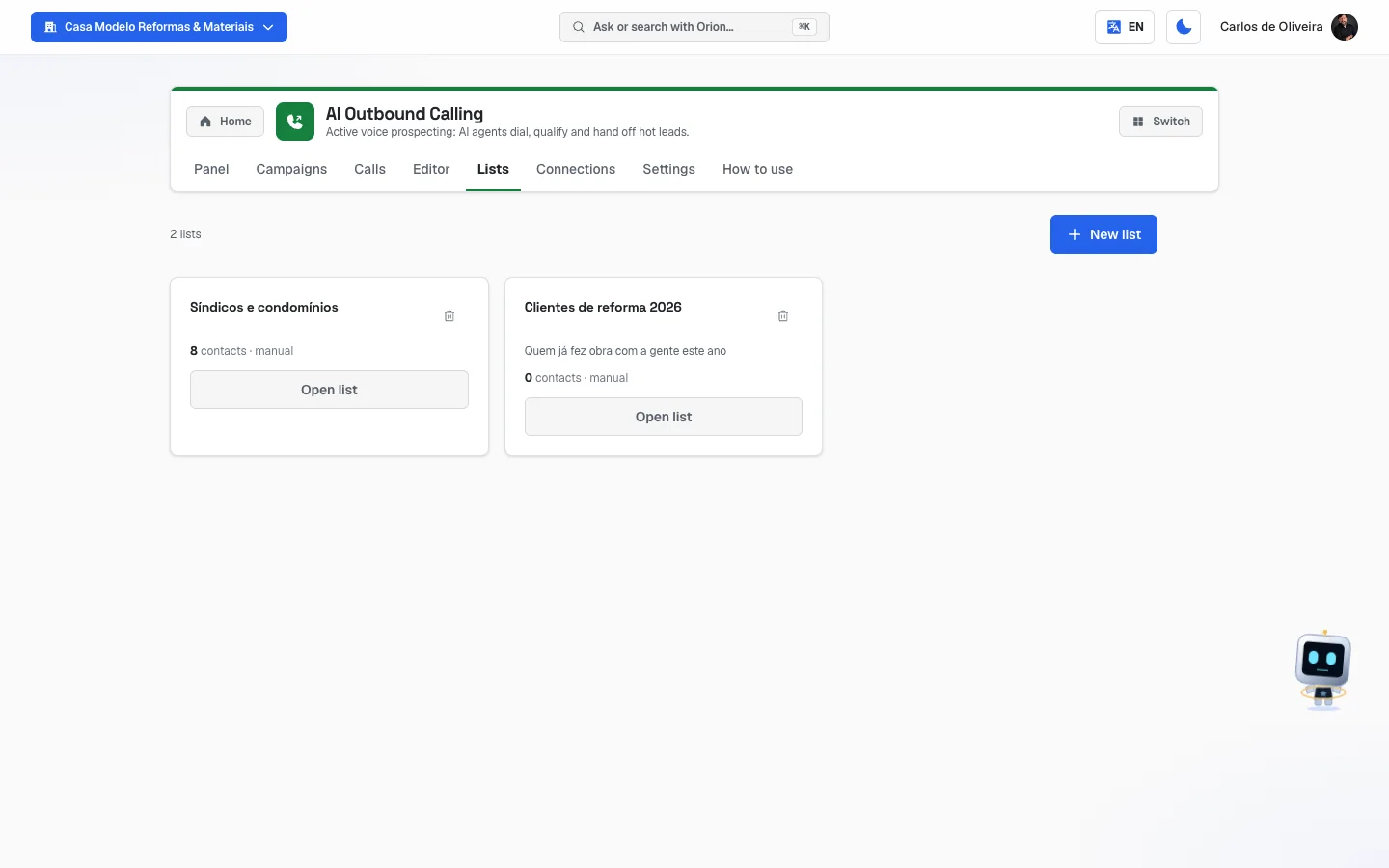 Lists tab with two or three list cards and the New list button
Connections
/app/modulos/campanhas-voz/conexoes
This is where the phones are. At the top, a notice: "The numbers here are shared with Íris (Voice Support). For outbound campaigns, prefer numbers marked as outbound or both." In plain English: it's the same list of phones for both voice modules, and the campaign only uses the ones that can make calls.
The screen explains: "Use one inbound number for Íris to answer (1 per account) and as many outbound numbers as you need for prospecting campaigns."
Block 1 — Your numbers. A table with Number, Country, Direction, Status, Created on and Actions.
- The Direction is what the number can do: Inbound (only receives), Outbound (only calls) or Both (receives and calls).
- The Status can be Active, Inactive, Released or Being released.
- The Direction button changes the number's function: Inbound (receives), Outbound (calls) or Both.
- The Release button gives the number back. The confirmation warns: "This action ends the monthly charge, but the number cannot be recovered afterward."
Block 2 — Use a number I already have. If you already have a number with us (idle, or used today only to track calls), you can reuse it.
- Write the number in Number, in international format (
+551150287000). - Under What for, choose Place calls (campaigns).
- Click Check number. The system answers whether it can be done or not, and shows the warnings for the case.
- If everything is fine, click Use this number (or Got it, use it anyway, when there's a warning to accept).
Block 3 — Buy new number.
- Choose the Country.
- Choose the Type: Local, Mobile or TollFree.
- If you want, fill in Area code (optional) and Contains digits (optional) (to pick a number with a nice sequence).
- Under Purpose, choose Campaigns — makes outbound calls.
- Click Search available numbers. Up to 10 options appear, with city and region.
- Click Buy this on the number you chose. "Number purchased for outbound campaigns." appears.
The screen reminds you that some countries require documentation (KYC) before the purchase: "If the purchase fails with a bundle error, contact support."
Empty state: "You haven't connected a number yet" / "The voice number is what answers and makes this module's calls." / "Use the block below to buy your first one".
Settings
/app/modulos/campanhas-voz/config
There are two boxes.
1. Privacy and compliance (LGPD, Brazil's data protection law). A text explaining the rules that apply to every call: the request is recorded automatically when the contact asks not to be called anymore, the call is recorded for quality and auditing, and the configured business window is respected (by default, business days from 9 a.m. to 8 p.m. in your account's time zone). And the reminder: make sure consent is documented before uploading a list.
2. Who asked not to be called. "Contacts who asked not to receive calls anymore. Removing frees the number to receive campaigns again — use with caution." The table has Phone, Opt-out date, Reason and Action.
Step by step — taking someone off the list:
- In the Settings tab, find the phone number in the table.
- Click Remove.
- The screen asks "Remove opt-out?" and warns that the contact "will start receiving campaign calls again. Confirm only if you have up-to-date consent for voice contact."
- Confirm only if it's true.
- Empty state: "Nobody asked to be removed" / "Whoever asks to stop receiving calls shows up here and is respected automatically."
- If the module isn't active, this tab shows only the purchase screen, with the list of what the module does and the Activate in catalog button.
How to use
/app/modulos/campanhas-voz/como-usar
Every module has this tab at the end. It's the module's manual inside the system itself.
How to read the numbers
In Íris's note (Panel tab):
- Campaigns dialing — how many are calling or scheduled right now.
- Campaigns in draft — how many you started and didn't publish.
- Outbound phones — how many active numbers you have.
- Call lists — how many lists exist on your account.
In the eight numbers for the month (Panel tab):
- Calls this month — how many calls were made since the 1st, answered or not.
- Answer rate — out of every 100 calls, how many were answered. Between 20% and 40% is normal in cold prospecting. Far below that is usually an old list or a bad time of day.
- Average call time — how long an answered call lasts, on average. A 10-second call is people hanging up on you; a 2-minute one is a real conversation.
- Qualified leads — for how many people the AI managed to fill in the profile (score from 0 to 100, pain, who decides, timing).
- Meetings scheduled — how many landed on your calendar.
- Transfers — how many calls were passed live to a human.
- WhatsApp follow-up messages — how many messages were sent after the call.
- Minutes this month — how many call minutes were used since the 1st, against the 100 that come with the monthly fee (e.g. "34 of 100 included"). As long as you're within the 100, you don't pay anything beyond the monthly fee. If you go over, the number says by how much (e.g. "130 — 30 over the 100 included"), and only those extra minutes are charged to your credit — each charge shows up in the statement on the Credits screen.
In the Active campaigns bar: "12/200 completed" means that 12 of the 200 people have already had their case closed (they talked, or the attempts ran out); "8 in progress" are the ones still in the queue.
In each campaign's scoreboard (📈 button):
- Calls — calls made in that campaign.
- Pickup rate — how many were answered, as a percentage.
- Avg. duration — average time of the answered ones, in minutes:seconds.
- Qualified, Meetings, Transfers, WhatsApp follow-ups — the concrete result of the campaign. These four are where you see whether it was worth it.
Frequently asked questions
Can the person tell it's a robot? The agent introduces herself as a virtual assistant right at the start and says the call may be recorded. She doesn't pretend to be human.
What if the person wants to talk to a real person right then? Switch on the Transfer now (live) action and register your phone. When the person asks, the AI says it's going to transfer and passes the call over, with them still on the line.
Do I have to write the whole script? No. You fill in five short fields in the Campaign context and choose a persona. If you want to check what the AI is going to do, read the Prompt preview at the end of the Editor.
Can I use the same number that answers my customers? You can, if it's marked as Both in the Connections tab. But the safest thing is to have a number just for prospecting, separate from the customer support number.
How many times does the system call the same person? Whatever you set under Retry (attempts) — from 1 to 5 times, with the interval you choose. The default is 3 attempts: 2 hours, 24 hours and 72 hours later.
Does she call in the middle of the night? No. Outside the time window, the call is rescheduled for the next valid time.
What language does she speak? The one you choose in the Voice and language block — Portuguese, Spanish or English. Write the Campaign context in that same language.
Is the call recorded? Yes, when the person talks with the agent. She says in the very first sentence that the call is recorded, and the system stores the audio of the conversation, the conversation in text (transcript), the duration and the result of each call — you open all of that in the Calls tab. The audio is kept for up to 12 months; the details are in About the audio, further up. A call with no conversation (unanswered, busy) has no audio.
Where do I see what the agent said to a contact? In the Calls tab: find the contact in the list and click Open. The profile she filled in and the whole conversation in text appear.
When something goes wrong
| Symptom | What to check | What to do |
|---|---|---|
| The screen says "The Voice Campaigns addon is not active on this tenant." | Is the module purchased? | Settings tab → Activate in catalog. |
| Íris's note says "No outbound phone connected" | You don't have a number, or the one you have is receive-only. | Connections tab: buy a number choosing Campaigns — makes outbound calls, or change the Direction of an existing number to Outbound or Both. |
| "A campaign needs an outbound number..." when publishing | The number's direction is set to Inbound. | Connections tab → Direction button → Outbound (calls) or Both. |
| "The selected voice number is not active." | The number's status in the Your numbers table. | If it's Released, buy another one. If it's Being released, wait. |
| When buying the number, the screen warns that the subscription is in a trial period | The number is really bought from the carrier, and that only happens with a paid subscription. | Wait for the subscription to go through (or talk to support). The warning explains: "is activated as soon as the subscription goes through". |
| "An outbound campaign number requires the Voice Campaigns product active." | The module isn't purchased. | Settings tab → Activate in catalog. |
| "An inbound number requires an active Voice Attendant (Íris)." | You tried to buy an inbound number, which belongs to the other voice module. | For the campaign, choose Campaigns — makes outbound calls under Purpose. |
| "Pick the agent who will make the calls." | You skipped block 2 of the Editor. | Choose a persona or create your own under New persona. |
| The calendar box says "Connect Google under Integrations to pick a calendar." | Google isn't connected on your account. | Connect Google under Integrations and come back. Or switch off the Schedule meeting action. |
| The calendar box says no calendar was found | The connected Google account has no visible calendar. | Reconnect under Integrations, or check that the account has at least one calendar. |
| The WhatsApp follow-up box says "Connect official WhatsApp to pick the message." | There's no Verified WhatsApp (Meta's official one) connected. | Connect Verified WhatsApp in the WhatsApp Campaigns module, Connections tab, or switch off the WhatsApp follow-up action. |
| "No Meta-approved template yet — sync your templates." | You have the connection, but no approved template. | In the WhatsApp Campaigns module → Connections → Sync templates. If there are none, create one and submit it for approval in Meta's WhatsApp Manager. |
| "Invalid transfer phone number. Include country and area code, e.g. +1 555 123 4567." | The number was written without the +, the country code or the area code. | Write + + 55 + area code + number. Spaces and a dash can stay. |
| The campaign is Running but no calls go out | Is it a day and time inside the Send window? Does the list have contacts with a phone number? | Wait for the window to open or adjust the hours in the Editor. Check the Phone column in the Lists tab. |
| The campaign paused by itself | The module's subscription lapsed, or the account is paused/archived. | Check the module's status in the catalog. Once it's resolved, click ▶ to resume. |
| Answer rate is very low | Old list, bad time of day, or an outbound number from another state. | Try a different time, clean the list and prefer a number with the area code of the region you serve. |
| A customer complained that they keep getting calls even though they asked to stop | Check whether their phone number appears in the Who asked not to be called list, in the Settings tab. | If it isn't there, take the contact off the list in the Lists tab so it doesn't go back into the queue, and tell support. |
| "Voice campaign not found." | The campaign was deleted while the screen was open. | Refresh the page (F5). |
| "Error loading campaigns." | A momentary connection drop. | Refresh the page (F5). If it persists, contact support. |
| "Only the workspace owner or admin can run this action." | Publishing, pausing, importing contacts and buying or releasing a number are actions for the account owner or an administrator (admin). | Ask the account owner to do it, or ask them to promote you to administrator. |