

Contact Tracking
Where it is: Home → Your apps → OmniLeadTrace (at the top of the screen the module shows as Contact Tracking)
Address: /app/modulos/calltracking
Why two names? In Your apps the module appears under its short name, OmniLeadTrace. When you open it, the screen title is Contact Tracking (OmniLeadTrace). It's the same module. Its assistant is called Caio.
What it's for
You advertise. The phone rings. You answer, you close the job — and you never find out where that person came from. Was it the Google ad? Facebook? Someone who found you on the map? At the end of the month you look at the ad bill and can't tell how much of it turned into work. It's money going in and out in the dark.
Contact Tracking turns on the light. It gives you a new phone number, which takes the place of yours in your ads and on your website. Anyone who calls that number lands on your regular phone, normally, like any other call — but the system notes where that person came from before they called. Then, on the screen, each call shows up with a name, time, length, the recording of what was said, and the source: "Google Ads", "SEO / Organic", "Meta Ads", and so on.
An everyday example: you're a plumber. On Tuesday nine calls come in. Looking at the screen you see that six came from the Google ad and three from a regular search (no ad). Of the six from the ad, four lasted more than a minute and turned into jobs; two were salespeople pitching something. You mark each one and, the following week, Google is already bringing in more people like the ones who closed — because the system tells it which calls were worth it.
The module also handles WhatsApp: once you connect your WhatsApp here, every conversation that arrives from your ads becomes a contact on this same screen, just like a call. And, when nobody answers the phone, it can automatically send a message to the person who called, so you don't lose the customer.
Before you start
- The Contact Tracking module has to be active on your account. Without it the screen shows the sign-up notice with the activate button.
- You need to know which phone you want the calls to land on (your regular cell phone, the store's phone, your assistant's). That's the number you enter in the setup.
- You need to know the area code (in Brazil, the DDD) of the region where you serve customers. The system already suggests the area code from the phone on your profile, but you can change it.
- Optional, but it's what makes the magic work on your website: having a website, so you can install the code that swaps the displayed phone for the tracking number.
- Optional: a cell phone with the Zoiper app installed, if you want to answer calls through the app without using up minutes.
- Optional: your company's WhatsApp Business, if you also want to track WhatsApp conversations.
Getting started
- On Home, under Your apps, click OmniLeadTrace. You land on the Contacts tab.
- Click the Settings tab. It opens on the Numbers sub-tab.
- In the Area code step, check the area code and fill in Forward calls to with the real number where you want the phone to ring. Click Search numbers.
- In the Choose number step, pick in Channel for this number where that number will be used (start with Primary) and click one of the numbers in the list.
- Click Activate number. The first number is included in your plan.
- You land on the Confirmation step. If you see Number active, it's already working. If you see Activating, just wait — it can take a few hours and the team takes care of everything.
- Go back to the Numbers already configured list and click Run test now. The system calls you. Answer. Once the test is approved, the number shows Active and tested ✓.
- Still on the Numbers sub-tab, scroll down to Install on my website, click Copy, and ask whoever looks after your website to paste that code into the site. That's what swaps the phone shown on the site for the tracking number.
- Publish the new number in your ads and materials too.
- Go back to the Contacts tab. From now on every call shows up there on its own.
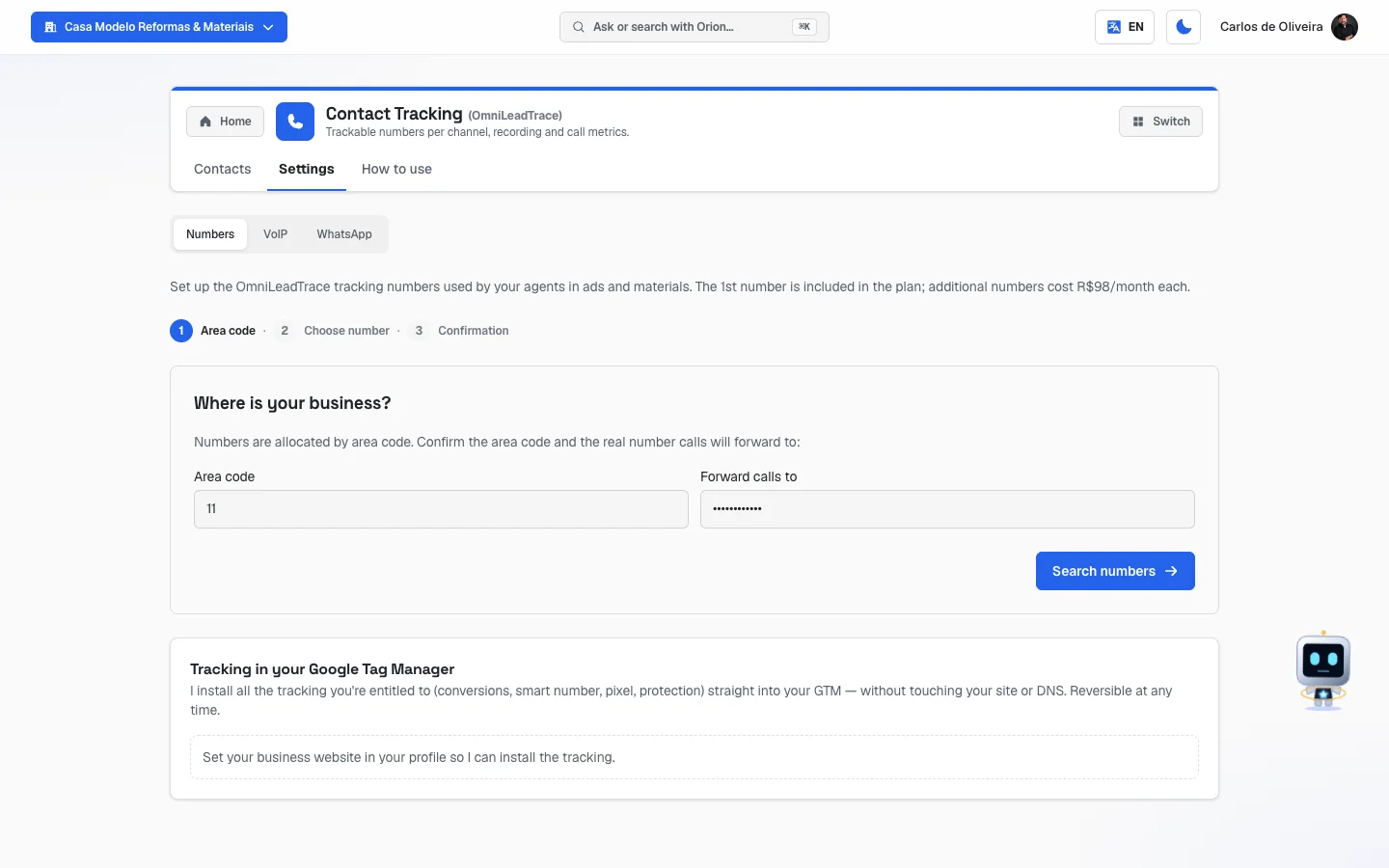 Settings tab → Numbers sub-tab, showing the three steps (Area code, Choose number, Confirmation) at the top
Understanding the tracking number (read this first)
This is the part that confuses people the most. Let's take it slowly.
Why is there a number different from mine?
Because a phone, on its own, can't tell where the person came from. When someone calls your cell phone directly, all that arrives on the screen is their number — nothing more. There's no way to know whether they found you through the ad, on Google, on a flyer or by word of mouth.
The tracking number solves that because it's a number that's only yours, used in one place only. If the number in the Google ad is A, every call that arrives on A came from the Google ad. It's the same idea as handing out a different business card at each trade fair, so you know which fair brought in customers — only automatic.
But will I have to answer on a new phone?
No. This is the most important point of the module. The tracking number isn't a device and it isn't a SIM card. It's just a front door. The call comes in through it and goes right out to your regular phone — the one you typed in the Forward calls to field. Your cell phone rings the way it always has. You answer the way you always have. The customer doesn't even notice the call went through another number.
In the Numbers already configured list, each number shows the phrase "Rings on your phone:" with the real destination number. That's where you check where calls are going, and that's where you change it, in the Change forwarding link, if you switch phones.
And on my website, which number will the customer see?
If you install the code from Install on my website, the website starts showing the tracking number in place of yours, automatically, on every visit. When someone arrives through an ad, you find out which campaign made the phone ring. When someone arrives directly or through regular search, the call shows up all the same in your panel, marked SEO / Organic or Direct / organic.
Can I have more than one number?
Yes. The first one is included in the plan. From the second one on it's an extra number, paid monthly — the activate button already shows the price and takes you to payment before it's released. It's useful for separating sources: one number for Google Ads, another for Meta Ads, another for Google Business Profile. In Channel for this number you say what each one is for.
Note what the system itself explains on that screen: the channel is a usage preference — when the visit comes from that channel, that's the number that appears. Tracking keeps working on every visit, even from the other channels.
And the recording?
Every answered call is recorded by default. The recording is kept on the contact, in the Contacts tab: you click ▶ to listen right there and ⬇ to download the file. It's useful for checking what was agreed and for coaching whoever answers. There's no voice message announcing that the call is being recorded.
How long the recording is kept: up to 12 months after the call, and only while your company is our customer — whichever comes first.
- When the call turns 12 months old, the audio is deleted automatically. The contact stays in the list, with time, length, source and marking; only the recording buttons disappear from that line.
- If you close your account, the recordings are deleted along with the rest of your data, when the account is permanently deleted.
- Want to keep a recording longer? Download the file with ⬇ before the deadline and store it wherever you like. Once deleted, a recording doesn't come back.
If you'd rather not record, turn off the Record calls toggle on that number, in the Numbers sub-tab. Everything else stays the same: tracking, length and contact marking keep working — only the audio stops being saved.
What are the minutes?
Every minute of a call that goes through the tracking number is taken from your balance, which appears at the top of the Contacts tab as Balance: N min. When the balance drops to 300 minutes or less, a box to buy more shows up right there, in packs of 100 minutes. When it drops to 50 minutes or less, the number turns red — that's the warning that it's running out. The module's message is direct: when the balance reaches zero, calls stop being tracked.
Where this balance comes from — and why it comes back on its own. The plan already includes 1,000 minutes per tracking number, every billing cycle (about 30 days): with one number, that's 1,000 minutes; with two, 2,000, and so on. When the cycle turns over, the balance refills to full on its own, and numbers that had been paused for lack of balance start working again without you having to ask.
Pay attention, because this is the part that confuses people the most: the balance is replenished, not added up. What was left over from the previous cycle — including the 100-minute packs you bought along the way — does not carry over to the next month. Buying a pack is for not running out of number until the cycle turns over, not for building a reserve.
The screen shows only the current balance; it doesn't write the date of the next turnover. If you need to know when your cycle turns over, ask the team or your agency. And before it runs out you get a warning: the system sends a notice when you've used 70% and another when you reach 90% of the cycle's minutes — one of each, per cycle. If an agency looks after your account, those notices go to it, since it's the one that replenishes the minutes.
The tabs, one by one
Contacts
/app/modulos/calltracking/contatos
This is the main screen — where you see who got in touch with you.
- What you see here:
- At the top, Caio's panel: a sentence saying how the module is doing (for example, that there's no active number, or how many calls came in) and, next to it, a button that takes you straight to where you fix it. Below it, four numbers: Numbers tracking, Calls this month, Minutes left and Not sent to Google.
- Balance: N min — your minute balance. While the system is fetching it, a dash (—) appears; that doesn't mean zero. If there's an error, it shows "could not read".
- Four tiles for the chosen period: Contacts, Answered, Qualified and Avg duration. While they load they show a dash (—), never zero.
- The Calls by source box, in bars: where the period's calls came from.
- The filter bar and, below it, the list of contacts.
- What you can do: filter, search, listen to and download recordings, mark each contact, message the person on WhatsApp, call them back, buy minutes and export the list as PDF or Excel.
The filters, one by one:
| Filter | What it does |
|---|---|
| Search by name, number or keyword… | Searches for whatever you type. The search waits until you stop typing before it runs. |
| Today / 7 days / 30 days / 90 days | The period. It starts at 30 days. |
| All types / Calls / WhatsApp | Shows only calls, only WhatsApp conversations, or both. |
| Answered & missed / Answered calls only / Missed calls only | The call's status. It's locked when you choose WhatsApp as the type — because answered/missed only exists for calls. |
| All markings / Pending / Sale / Good lead / Bad lead/spam / Fraud | Shows only the contacts with that marking. |
| ✕ Clear | Removes all the filters at once. It only appears when a filter is on. |
On the right side there are two little buttons to switch how you view the list — as Cards or as a List (table) — and the PDF and Excel buttons, which download the report. The file respects the filters you left on and comes out with the whole period, not just what's on the screen. If there's a lot, the first line of the file warns that it was cut off and how many contacts came through.
Right below the filters the system writes how many contacts there are: "Showing X of Y contacts." or "N contacts in this period.". If the list is longer, use the Load more contacts button at the bottom of the page.
What shows up on each contact:
- The person's name (or their number, if there's no name). When there's a valid phone, clicking the name opens their WhatsApp.
- The date and time, the number and, for a call, the length or the word missed.
- An icon next to the name says where the call was answered. Hover over it and the explanation appears: Answered on VoIP app (the cell phone icon) or Answered on regular phone (the telephone icon). When neither icon appears, it's because the system couldn't tell where the call was answered — this happens with missed calls, with WhatsApp conversations and with calls logged before June 29, 2026, when the system didn't record this yet. It's not a defect, and it doesn't change anything else on the line: time, length, source and recording are all still there.
- The source — where the person came from. The possible labels are explained further down.
- The keyword, when there is one: what the person typed into Google before clicking.
- A red Call back tag, when it's a missed call from the last 48 hours.
- A recovery tag, when the call was missed and the system tried to win the person back on WhatsApp (see the table in "How to read the numbers").
- The recording buttons: ▶ to listen right there (it turns into ⏸ to pause) and ⬇ to download.
- The marking control and, on WhatsApp contacts, the tag for sending to Google.
When the list has any recording, the screen reminds you of the deadline just above it: "Recordings stay available for up to 12 months after the call, while the account is active — download the ones you want to keep."
📷 This screen has no screenshot — each incoming call becomes a card in the Contacts tab, with the contact's name, time, length and source. The card holds the recording buttons and the control for marking the contact.
Step by step — marking a contact:
- In the Contacts tab, find the person in the list.
- If the artificial intelligence has already suggested a marking, a button with a little star ✨ appears that says Confirm: <marking>. One click and it's confirmed.
- If there's no suggestion, click Mark and choose from the list.
- To change a marking that's already been set, click the ⋯ button next to it and choose another one under Mark as.
What each marking means — and what it does:
| Marking | Means | What happens |
|---|---|---|
| Sale | It turned into a job, it turned into money. | Teaches Google to find more people like this. |
| Good lead (same name in the filter) | A real customer, still negotiating. | Teaches Google to find more people like this. |
| Discard (in the filter: Bad lead/spam) | Wasn't a customer: wrong number, salesperson, just curious. | Removes the contact from the ads. |
| Fraud | A fake click or contact, on purpose. | Removes the contact from the ads. |
When you mark Discard or Fraud, a sentence appears below explaining what really happened in that case: for calls, "Calls can't be removed from ads; kept as internal learning."; for WhatsApp contacts that came from an ad, "Removed from ads so Google stops looking for similar ones."; and, when the contact didn't generate a conversion on Google, the system tells you it's kept only as internal learning.
The ⋯ menu on each contact holds: Chat on WhatsApp, Call back (opens your own phone's dialer) and the four markings.
Step by step — buying minutes:
- In the Contacts tab, look at the Balance at the top. When it reaches 300 minutes or less, a quantity box and a buy button appear next to it.
- Choose how many 100-minute packs you want (1, 2, 3, 5 or 10).
- Click the Buy button — it already shows the total price.
- The system opens the payment screen. Once the payment is done, the balance goes up.
If your account is served directly by the agency, this buy option doesn't appear: replenishing minutes is handled with them.
Special screen states:
- "Loading contacts…" — it's fetching.
- "Could not load your contacts" — there was a read error. The screen warns that this does not mean there are no contacts, and offers the Try again button.
- "No contacts with these filters" — the combination of filters you chose didn't find anyone.
- "No contacts in this period" — nobody came in during the chosen period. The tip is to widen it to 30 or 90 days.
Settings
/app/modulos/calltracking/configuracao
This tab has three sub-tabs at the top: Numbers, VoIP and WhatsApp. It opens on Numbers.
Numbers sub-tab
/app/modulos/calltracking/configuracao?aba=numeros
- What you see here: at the top, a sentence explaining that the 1st number is included in the plan and that extra ones are billed monthly, and the three steps for getting a number — Area code, Choose number and Confirmation. Below them there's always the Tracking in your Google Tag Manager box. Once you already have numbers, you also see the Numbers already configured list, the Install on my website box and the Notify Meta (Facebook/Instagram) box.
- What you can do: get a number, change where calls are forwarded, turn recording on and off, turn missed-call recovery on and off, test the number and install tracking on your website.
Step by step — requesting a number (the first one or an extra):
- On the Numbers sub-tab, if you already have a number, first click Add another number.
- In the Area code step, fill in:
- Area code — your region's code (numbers only).
- Forward calls to — the real phone where you want to answer, with the country and area code (e.g.: +55 11 99999-9999).
- Click Search numbers.
- In the Choose number step, pick in Channel for this number what the number is for: Primary, Google Ads, Meta Ads, Google Business Profile or Landing Pages.
- Click a number in the list. Each option shows the number and the city.
- Click Activate number. If it's an extra number, the button shows the monthly price and takes you to payment; the number is released once the payment goes through.
- In the Confirmation step, check the channel and the number under Configured numbers. Click Go to contacts to start using it.
If the search finds nothing, the screen says "No numbers available in this area code." and suggests trying another area code.
Each field explained:
| Field | What to fill in |
|---|---|
| Area code | The code of the region where you serve customers (11, 62, 34…). The system already suggests the one from your profile. |
| Forward calls to | The phone that will actually ring. It can be a cell phone or a landline. It's what you change later under Change forwarding. |
| Channel for this number | Where this number will be published. It's a usage preference — tracking works on every visit, even from the other channels. |
The "Numbers already configured" list:
Each number in the list shows the channel, the number itself and a status dot:
| Status | What it means | What you do |
|---|---|---|
| 🟢 Active and working | It's live, receiving calls. | Nothing. |
| 🟢 Active and tested ✓ | Besides being active, it has already passed an approved test call. | Nothing. |
| 🟡 Activating — we handle everything for you | Still being released by the carrier. It can take a few hours. | Wait. If you want to check, click Check now. |
On each number in the list you also have:
- Rings on your phone: <number> and the Change forwarding link — to change the destination. When you click, the Forward calls to field appears with the Save and Cancel buttons.
- The Record calls toggle. On: "you can listen to calls later to coach your team". Off: "calls are not recorded (tracking still works)".
- The Recover missed calls on WhatsApp toggle. On: whoever calls and isn't answered gets, 3 minutes later, a message from your WhatsApp to continue the conversation there. Off: the missed call is only logged here.
- The Run test now link, when the number is active and hasn't been tested yet. It triggers a test call and the screen says: "Test call started — answer on your phone."
Step by step — installing tracking on your website (the automatic way):
- On the Numbers sub-tab, find the Tracking in your Google Tag Manager box.
- Click Install tracking in my GTM. Depending on how your account is set up, the button may read See what I'll install (you approve first) — then the system shows the list of what it's going to do and you click Approve and apply.
- If a notice appears saying that Tag Manager or WordPress still needs to be connected, use the links the screen itself offers to fix it. If the notice is "Set your business website in your profile so I can install the tracking.", first enter your website's address under My company.
- To undo it, there's the Remove tracking button. Nothing changes in how your website looks.
Step by step — installing tracking on your website (the manual way):
- On the Numbers sub-tab, scroll down to Install on my website.
- Click Copy.
- Send the code to whoever looks after your website and ask them to paste it before the
</head>. - Done: the phone shown on the website becomes the tracking number.
Step by step — notifying Meta (Facebook/Instagram):
- On the Numbers sub-tab, scroll down to Notify Meta (Facebook/Instagram).
- Fill in Pixel ID with your pixel's number.
- Fill in Conversions token (CAPI) with the code you get from your Meta account.
- Click Save. The Configured tag appears.
- To change only the pixel later, leave the token blank — it keeps the one that was already there. To turn everything off, click Remove.
This is so that, when a call that came from a Meta ad turns into a real contact, Meta gets notified and improves your campaigns.
📷 This screen has no screenshot — with a tracking number purchased, its box shows "Rings on your phone:", the "Record calls" toggle and the "Recover missed calls on WhatsApp" toggle.
VoIP sub-tab
/app/modulos/calltracking/configuracao?aba=voip
- What this is, in plain words: a way for your tracking number's calls to ring inside an app on your cell phone, over the internet, instead of ringing like a normal call. The advantage is that this way no minutes are used. And if the app is closed, the call falls back to your regular cell phone on its own — you never lose a customer.
- If you don't have a number yet: the screen shows "Set up a number first" and the Go to Numbers button.
- What you see here: the invitation VoIP App — answer calls on your phone, at no cost, the buttons to download the app (App Store and Google Play), the See the full step-by-step link and, below, each of your numbers with the activation buttons.
Step by step — activating the app:
- First download the app. On the VoIP sub-tab, click the App Store button (iPhone) or the Google Play one (Android) and install the Zoiper app on the phone that will answer. The screen warns you in yellow: download and set it up before activating.
- Click Enable VoIP App on the number you want.
- Read the confirmation and click Activate now.
- The setup panel opens with three options — pick whichever is easiest for you:
- Scan QR — open the AutoAgency app on your phone, tap the QR icon in the top left corner and point the camera at the code on the screen.
- Copy the details — copy Server, Username and Password and paste them into Zoiper, in the manual setup option. There's also the Answering on a computer? Download the app link.
- Send via WhatsApp — click Send configuration and send everything ready to go to whoever will answer the calls.
- When Zoiper shows "Online", calls already ring on the phone through the app.
- To check, click Check connection now. The system gives the app a nudge and reports back.
Write the password down. The screen warns that the password appears only once. If you lose it, you can click Generate new password — but be careful: that disconnects the app that was already set up, and you have to set it up again with the new password.
What "Check connection now" answers:
| Answer | What it means |
|---|---|
| Online — receiving calls in the app | All good. |
| App offline — open Zoiper (calls are falling back to your phone) | The app is closed. You're not losing calls: they're going to your regular phone. |
| Couldn't verify right now. Try again. | The system couldn't finish the test. It doesn't mean it's down. |
WhatsApp sub-tab
/app/modulos/calltracking/configuracao?aba=whatsapp
- What it's for: connecting your company's WhatsApp so that every conversation that arrives from your ads becomes a contact in the panel and a conversion sent to Google Ads — just like a call. That way Google learns to bring in more people who actually talk to you.
- What you see here: the explanation box, the yellow Before connecting: 3 settings in your WhatsApp Business box, the choice of how the website will generate the lead, and the connection screen.
The 3 settings the screen asks for before connecting:
- Use WhatsApp Business (not regular WhatsApp) — it's free and it's the app the system uses to track conversations.
- Turn off the automatic greeting message — the reply that goes out on its own when someone writes. It makes the customer think they've already been answered and not reply again, and then the conversation doesn't count as a conversion.
- You can keep only the away message (outside business hours) — that one is transparent to the customer and doesn't get in the way of measurement.
Choose first: "How will your website generate WhatsApp leads?"
| Option | What it is |
|---|---|
| Connect my WhatsApp (Recommended) | Your real conversations become the conversions — the most accurate mode and the one that best catches fraud. |
| Use a form on the website | Whoever clicks your WhatsApp button fills in a name and phone first. You don't need to connect anything on your WhatsApp. |
Step by step — connecting WhatsApp:
- On the WhatsApp sub-tab, choose Connect my WhatsApp.
- Under How do you want to connect your WhatsApp?, choose:
- Scan QR Code — if you have another device or a computer to scan with (it's the fastest).
- Connect by code — if you only have this one phone and can't scan your own QR. Type this phone's WhatsApp number with the area code and tap Get code. Then, in WhatsApp: Settings → Linked devices → Link a device → Link with phone number and type the code.
- When it connects, you'll see: "All set! Every WhatsApp conversation becomes a tracked contact and a conversion in Google Ads."
Important: here WhatsApp is used to track conversations. The system doesn't reply to anything from your customers. Automatic replies are another module (Ava), and they only work if you subscribe to it.
Disconnect × Remove connection: they're different things, and the screen itself explains it. When you disconnect, the device goes away but the connection stays saved and asks for the QR again on its own. When you remove the connection, it ceases to exist — to use this WhatsApp again you connect from scratch, with a new QR.
How to use
/app/modulos/calltracking/como-usar
Every module has this tab at the end. It's the module's manual inside the system itself.
How to read the numbers
On Caio's panel (top of the Contacts tab):
| Number | What it is |
|---|---|
| Numbers tracking | How many tracking numbers you have active. |
| Calls this month | How many calls came in over the last 30 days. |
| Minutes left | How much of your balance is left. It goes on alert when it gets close to 50 minutes. |
| Not sent to Google | Contacts that came from an ad and whose conversion hasn't been reported to Google yet. Until it goes up, Google keeps optimizing without knowing that click turned into a customer. |
The four period tiles (Contacts tab):
| Number | What it is |
|---|---|
| Contacts | How many contacts came in during the chosen period — calls and WhatsApp conversations together. It's the same number as the sentence shown above the list ("N contacts in this period."), with no filter applied. |
| Answered | Out of every 100 calls, how many were answered. It's the percentage of calls with someone on the other end. |
| Qualified | How many calls lasted long enough to be a real conversation — from 45 seconds (30 seconds in emergency businesses). An 8-second call doesn't count. |
| Avg duration | How long your calls last, on average. It shows in minutes:seconds. |
The first tile counts both; the other three, only calls. Contacts adds up calls and WhatsApp conversations. Answered, Qualified and Avg duration — like the Calls by source box — only talk about calls, and that's on purpose: a WhatsApp conversation isn't answered or missed, has no call length and doesn't go into those three calculations. So don't try to cross-check one against the other: if you have 40 contacts and 25 calls, Answered is the percentage of the 25, never of the 40.
A dash (—) is not zero. When the system is still fetching, it writes — in place of the number. A real zero shows up as 0.
The "Calls by source" box shows, in bars, where the calls came from. The longest bar is the source that brings you the most people — that's how you decide where to invest.
The source labels that can show up:
| Label | What it means |
|---|---|
| Google Ads | The person clicked your ad, opened the website and called from the website. |
| Google Ads — call from ad | The person clicked the "Call" button on the ad itself. They never opened the website. |
| Google Ads — WhatsApp from ad | The person clicked the WhatsApp button on the ad. |
| SEO / Organic | There was no paid click at all. They found you through regular search. |
| Direct / organic | They entered the website without coming from a campaign. |
| Meta Ads | Came from a Facebook or Instagram ad. |
| Google Business Profile | Came from your Google listing/on the map. |
| Landing Pages / Main / WhatsApp | Came from that number's channel. |
| Other sources | A source that doesn't fit any of the above. |
The tags for sending to Google (only on WhatsApp contacts):
| Tag | What it means |
|---|---|
| Sent to Google | This contact's conversion has already been reported to Google Ads. |
| Sending pending | Came from an ad, but sending hasn't been confirmed yet. The system tries again on its own. |
| No ad | Organic contact — didn't come from an ad, so it doesn't generate a campaign conversion. |
The recovery tags (only on missed calls):
| Tag | What it means |
|---|---|
| recovery sent | The system sent the WhatsApp message to whoever called. |
| replied on WhatsApp | The person replied. Go talk to them. |
| recovery sent by SMS (WhatsApp offline) | The company's WhatsApp was down, so the message went out by SMS. The reply arrives there. |
| withheld number | The caller didn't show their number. There's nowhere to send a message. |
| recovery turned off | The Recover missed calls on WhatsApp toggle is off for that number. |
| called again and was answered | The person called back and this time someone answered. No message was needed. |
| already got a message today | They already received a recovery message in the last 24 hours. |
| no recovery: old call | The call is more than 1 hour old. The message no longer makes sense. |
| no recovery: WhatsApp disconnected | There's no WhatsApp connected on the account. Connect it on the WhatsApp sub-tab. |
| message not delivered | The send attempt failed. |
The "Call back" tag appears on missed calls from the last 48 hours. It's the queue of people you can still win back today.
Frequently asked questions
Will I have to carry two phones? No. The tracking number isn't a device or a SIM card. The call comes in through it and goes right out to the phone you entered in Forward calls to. Your regular cell phone rings the way it always has.
Does the customer see that they're calling a different number? They see the number that's in the ad or on the website — which is the tracking number. On their end, it's a normal phone for your company. They don't notice anything different.
I changed phones. Now what? Go to Settings → Numbers, find your number in the Numbers already configured list, click Change forwarding, type the new phone and click Save. It takes a minute.
Who listens to the recordings? You do, in the Contacts tab. Each recorded call has a ▶ button to listen and a ⬇ button to download the file. If you'd rather not record, turn off the Record calls toggle on that number.
How long can I count on a recording? Up to 12 months after the call, and only while your company is our customer — whichever comes first. After that the audio is deleted automatically and can't be recovered. If you want to keep one longer, download it with ⬇ before then.
How do I request an extra number? Under Settings → Numbers, click Add another number and go through the three steps again. The first number is included in the plan; from the second on it's an extra paid monthly, and the activate button itself shows the price and takes you to payment before it's released.
My minutes ran out. What happens? The module's notice is clear: when the balance reaches zero, calls stop being tracked — the advertised number is paused. There are two ways to get back: wait for the billing cycle to turn over, when the 1,000 minutes per number come back on their own and the number is reactivated, or buy right now in the Contacts tab itself, with the button next to the Balance. If your account is served by the agency, they're the ones who replenish it.
Why is there a contact marked "SEO / Organic" if I'm paying for ads? Because not everyone who calls came from the ad. Someone who found you through regular search or typed in your website directly comes in with that source. It's good information: it shows what your name already brings in on its own, without you paying per click.
Do I really need to connect WhatsApp? It's not mandatory, but without it the WhatsApp conversations that come from your ads aren't counted or sent to Google — and Google keeps not knowing which ads bring in people who actually talk to you.
When something goes wrong
| Symptom | What to check | What to do |
|---|---|---|
| The screen shows the sign-up offer instead of the module | Is the Contact Tracking module active on your account? | Activate the module with the button the screen itself shows. |
| Caio's panel says "No tracking number active" | You haven't gotten a number yet. | Click the panel's button and follow the three steps under Settings → Numbers. |
| The number has been Activating for hours | That's normal: it can take a few hours and the team takes care of everything. | Click Check now. If it continues, wait. |
| "Couldn't check now. Try again." when clicking Check now | A momentary failure of the check. | Click again in a few seconds. |
| "No numbers available in this area code." | There are no free numbers in that region right now. | Click Change area code and try a neighboring area code. |
| Calls aren't reaching my phone | Is the Rings on your phone: field showing the right number? | Click Change forwarding and fix it. Then click Run test now and answer. |
| Caio's panel says "No calls in the last 30 days" | Is the number published on the website and in the ads? | Install the code from Install on my website (or use Install tracking in my GTM) and replace the phone in the ads with the tracking number. |
| "Could not load your contacts" | It was a failure reading the list — it does not mean there are no contacts. | Click Try again. |
| "No contacts with these filters" | Some filter or search is on. | Click ✕ Clear. |
| The list disappears when choosing WhatsApp together with Answered calls only | Answered/missed only exists for calls — that combination searches for nothing. | Set the status back to Answered & missed. The screen explains this in the message itself. |
| "No contacts in this period" | Nothing came in during the chosen range. | Change the period to 30 days or 90 days. |
| An old call's recording disappeared | Is the call more than 12 months old? | That's the deadline: the recording is kept up to 12 months after the call and then deleted automatically, with no way back. The contact stays in the list. To keep one longer, download it with ⬇ before the deadline. |
| "Could not build the report right now." when exporting | A momentary failure generating the file. | Close the notice and try again. |
| The balance shows as "could not read" | A failure reading the balance. | Reload the page. This doesn't affect tracking. |
| "Balance: — min" | The system is still fetching. It's not zero. | Wait a few seconds. |
| The VoIP app is enabled but doesn't ring | Is Zoiper open and showing "Online"? | Click Check connection now. If it says App offline, open Zoiper. Calls keep landing on your regular phone in the meantime. |
| I lost the VoIP password | The password appears only once. | Click Generate new password and set up the app again with it. That disconnects the old app. |
| The VoIP setup QR doesn't appear | The screen says "QR unavailable now — use the other options." | Use Copy the details or Send via WhatsApp. |
| WhatsApp conversations aren't becoming contacts | Is WhatsApp connected on the WhatsApp sub-tab? Is the automatic greeting turned off? | Connect WhatsApp and turn off the automatic greeting message in WhatsApp Business. |
| WhatsApp keeps asking for the code all the time | There's already a saved connection on the company — that's the one that keeps asking. | If you won't use that number here anymore, click Remove connection so it stops asking. |
| The GTM box says no Tag Manager or WordPress is connected | One of the connections for automatic tracking install is missing. | Use the links the screen itself offers, or install by hand with the code from Install on my website. |
| The button to install tracking doesn't appear for me | Only the account owner or administrator can install. | Ask the account owner to do it. |