

Automation
Where to find it: Home → Your apps → Automation
Address: /app/modulos/automacao
What it's for
Every business has a handful of tasks that repeat every week, always the same, and that nobody likes doing. Letting the customer know the order has shipped. Reminding whoever booked a time. Passing the lead that came in from the ad to the salesperson. Asking, a week later, whether everything went well. None of them is hard. All of them depend on someone remembering — and that's where they fail.
This module makes those tasks run on their own. You turn it on once and that's it: from then on, every time that thing happens, the work gets done. Without you remembering, without you opening the system, even on Sunday at 10 p.m.
The module has an assistant, Leo. You can pick an automation from the Gallery — which comes ready, with the text already written — or ask him for a different one, in the chat, in your own words.
Everyday example: you're a gas fitter and you advertise on Facebook. Today, when someone fills in the ad form, you only find out when you check your phone — sometimes three hours later, and the person has already called someone else. With the automation on, the second the person fills in the form, the lead has already entered your sales funnel and your phone has already buzzed with their name and number. You call within five minutes, while they still have the problem fresh in mind.
What is a "flow" (read this first)
Flow is the name the system gives an automatic rule. It always has the same shape, and it's this simple:
When X happens, do Y.
That's all. The "X" is the trigger — the event that sets the rule off. The "Y" is the steps — what must be done, in order.
A few examples, in everyday words:
| When this happens (the trigger) | … do this (the steps) |
|---|---|
| Someone fills in the form on my site | Send me a WhatsApp with the name, the phone number and what the person wrote |
| An order comes in on my store | Confirm the purchase with the customer on WhatsApp, and then send the tracking code |
| Someone books a time with me | Confirm with the person the day before, and send the reminder with the address on the morning of the appointment |
| A customer puts things in the cart and doesn't check out | Wait 4 hours, and then send a light reminder with the link to finish |
Notice that a step can be waiting. "Wait 4 hours", "wait seven days", "wait until the morning of the next day". That's what makes it possible to do things like ask the customer, a week after the purchase, whether everything went well — something nobody does in practice, because nobody remembers.
Those waiting times come ready-made and can't be changed on the screen. Each recipe in the Gallery already comes with its own — 4 hours on the abandoned cart, 4 days on the overdue-boleto sequence (a boleto is Brazil's bank-slip payment), 7 days on the after-sale follow-up, and so on. There's no field to shorten or stretch it. The Gallery card doesn't show that number; to see it before turning on, click Test before turning on on the card: the scenario test lists the steps with the times, in Leo's voice ("I would wait 4 hours — long enough not to feel pushy"). The full list is also here in this manual, in "What the Gallery offers ready-made". If a time doesn't work for your business, ask Leo on the Home tab: he builds a custom automation with the time you want, and it shows up in the Flows tab.
Each time a flow runs, that's called an execution (the system also says "run"). Every execution is logged in the History tab, with the result.
Before you start
- The Automation module has to be active on your account.
- The account can't be paused. A paused account turns the whole module off.
- The ready-made automations need connected tools to work. They use one or
more of these:
- WhatsApp — to send a message to you, to your salesperson or to the customer.
- CRM — to open the contact's card in your sales funnel.
- Online store — to know when an order came in or a cart was left sitting.
- Google Business Profile — to know when someone reviewed your business.
- You don't need to connect everything. Connect what makes sense for you. Each automation says, right on the card, what's missing: "Missing connection: WhatsApp".
- Connecting those tools is done in Integrations. It isn't a tab of this module: it's a
screen in the main menu, on the left, where all your account's connections live — and in the
menu it's called "All connections" (address
/app/integracoes). The system usually calls it "Integrations"; it's the same screen. The shortest way to get there is through the automation's own card: the orange link "Missing connection: …" opens that Integrations screen directly, without going through the menu — there you pick the tool the card said is missing. - Your account has an allowance of executions per month — a number of times the automations can run, included in what you already pay. You see how much you've used in the History tab. If you go over it, nothing gets turned off: each extra execution costs the price shown in the catalog, in your country's currency, and goes on your next invoice — and you get an email beforehand, at 80% and 100% of the allowance.
First steps
- On Home, under Your apps, click Automation. You land on the Gallery tab.
- Look at the cards. Each has a name, a sentence about what it does, a green sentence with the gain it brings, and a badge in the corner: On, Available or Needs setup.
- Use the filter buttons right above the cards (All, Local service, Clinic, Online store, Real estate, Education, General) to see only what fits your business.
- Choose an automation that's marked Available and click Test before turning on.
- A Here's what would happen window opens, with the numbered steps and the exact text that would go out. Read it. At the bottom it reminds you: "This is only a test — nothing was sent or charged."
- Like it? Click Turn on. A confirmation appears asking "Turn this automation on?" and warning that before turning it on a test is run — if it passes, it starts running on its own. Click Turn on again.
- "Done — I've turned this automation on." appears and the card's badge changes to On.
- In the following days, go back to the History tab to see it actually running.
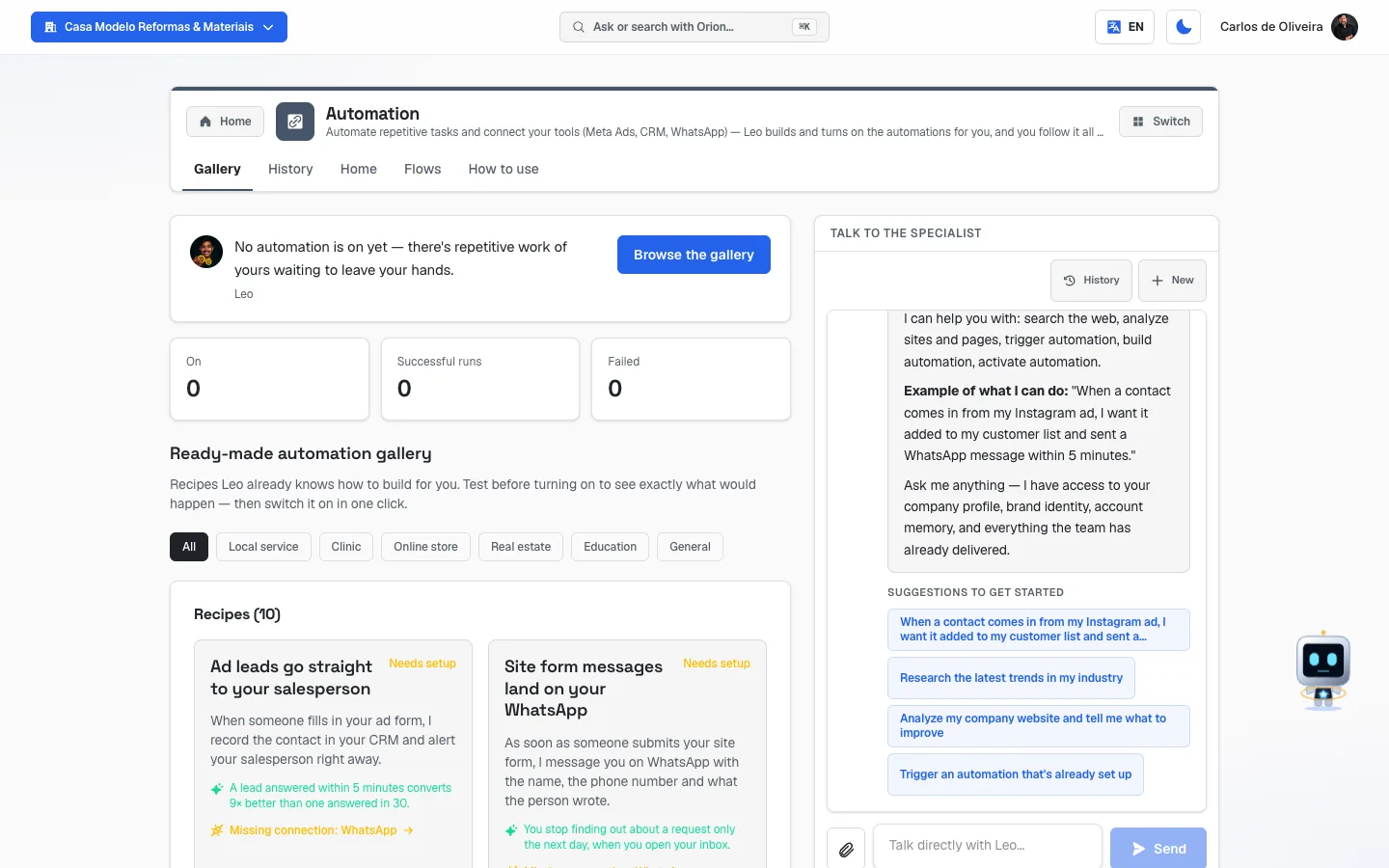 Gallery tab: at the top, Leo's note with the numbers On, Successful runs and Failed; below, the filters by type of business and the Recipes (10) box, with cards marked Needs setup; on the right, the chat with Leo
The tabs, one by one
Gallery
/app/modulos/automacao/galeria
It's the tab you land on when you open the module, and it's where most of the work happens. This is where the recipes live — automations Leo already knows how to build, ready, with the text written. You don't have to design anything.
- What you see here:
- At the top, Leo's panel with a note from him and three numbers: On, Successful runs and Failed. When nothing is on yet, the note is "No automation is on yet — there's repetitive work of yours waiting to leave your hands.", with the button Browse the gallery.
- The title Ready-made automation gallery and the explanation: "Recipes Leo already knows how to build for you. Test before turning on to see exactly what would happen — then switch it on in one click."
- A row of filters by type of business.
- The Recipes box, with the count in parentheses — Recipes (10) when the filter is on All — and the cards, two per row on the computer.
- Alongside, on large screens, the chat with Leo, in the Talk to the specialist box.
- What you can do: filter, test, turn on and turn off automations.
What each card shows:
| Part | What it is |
|---|---|
| Name | The automation's name, in business-owner language. |
| Badge (right corner) | On (green), Available (gray) or Needs setup (orange). |
| The top sentence | What it does, written by Leo in first person: "When someone…, I…". |
| The green sentence | The gain — why it's worth turning on. |
| The line with the pulse icon | Only on the ones that are on. How many times it ran in the last 7 days. |
| Missing connection: … (orange) | Only when something's missing. Says what's missing and is a direct link to the Integrations screen. |
| The buttons | Test before turning on and Turn on (or Turn off, if it's already on). |
The runs line deserves attention, because it's the proof that "On" means something:
- "X runs in the last 7 days" — it's working.
- "No runs in the last 7 days" — it's on, but nothing happened. It can be normal (nobody filled in the form this week) or it can be a sign that the thing that should trigger it isn't arriving. If a whole week goes by like this on an automation that should run every day, it's worth checking whether the tool is still connected.
- "I could not measure the runs yet" — the system couldn't count right now. It's not the same as zero.
Step by step — testing before turning on:
- On the automation's card, click Test before turning on. The button changes to Testing….
- The Here's what would happen window opens, with the numbered steps and the content of each one — including the text of the message that would go out, with a sample customer.
- Read it and close it. Nothing was sent, nothing was charged, nobody received a message.
Use this as much as you like. It's free and it's how you see, with your own eyes, what your company is going to send to your customers before it sends it.
Step by step — turning an automation on:
- On the card, click Turn on.
- The question "Turn this automation on?" appears with the notice: "Before turning it on, I run a scenario test. If it passes, «automation name» starts running on its own."
- Click Turn on.
- If it works: "Done — I've turned this automation on." and the badge changes to On.
If it doesn't turn on, the message says why:
| Message | What it means | What to do |
|---|---|---|
| "Your plan doesn't include automations yet." | The module isn't subscribed or the account is paused. | Turn on the Automation module in the Catalog. |
| "You need to connect a tool before turning it on." | One of the tools this recipe uses isn't connected. | Click the orange Missing connection: … link on the card and connect it. |
| "The test didn't pass — I turned nothing on." | The scenario test failed. Nothing was left half-on. | Try again in a few minutes. If it repeats, ask Leo for help in the chat. |
| "This recipe is already on." | It was already active. | Nothing to do. |
Step by step — turning off:
- On the card, click Turn off.
- "Turn this automation off?" appears with the notice that it "stops running immediately. You can turn it back on anytime."
- Click Turn off. "Automation turned off." appears.
If you see "I couldn't turn it off: the automation is still running. Try again shortly.", it's literal: it is still on. Try again. The system doesn't pretend it turned it off.
What the Gallery offers ready-made
There are ten recipes. These are all of them, with the trigger (what makes the automation go off), what it does and what needs to be connected:
1. Ad leads go straight to your salesperson Needs: WhatsApp + CRM · For: local service, clinic, real estate, education, general When someone fills in your ad form, the contact is recorded in your CRM and your salesperson gets a WhatsApp alert right away. Steps: record the contact in the CRM → alert the salesperson on WhatsApp. Why it's worth it: a lead answered within 5 minutes converts 9× better than one answered in 30.
2. Site form messages land on your WhatsApp Needs: WhatsApp · For: local service, clinic, real estate, education, general As soon as someone submits your site's form, you get a WhatsApp with the name, the phone number and what the person wrote. Steps: message you on WhatsApp. Why it's worth it: you stop finding out about the request only the next day, when you open your inbox.
3. New reviews arrive with a reply already drafted Needs: Google Business Profile · For: local service, clinic, general When someone reviews your business on Google, Leo writes a reply and sends it to you on WhatsApp with a link: one tap on the link and the reply is published on the review, on Google. Steps: write the reply and send it for your one-tap approval.
How do I approve it? The message arrives with the review (who wrote it, the stars and the comment), the full text of the reply and the line "To publish it on Google or ask for a change, tap here" with the link. When you tap, the Publish reply on Google screen opens — sign in with your login, if it asks — showing the review and the reply again. Tap Publish this reply and "Done! ✓ The reply is now published on your Google profile." appears. If your email notices are turned on, the same link also arrives by email, as the Publish this reply button.
Nothing goes to Google without your tap — Leo doesn't publish on your listing by himself. Want to change something? On the same screen, under "Want to change something?", write the change — for example "make it shorter" or "thank them by name" — and tap Ask for a change. Leo rewrites it right there and the button now publishes the new version. Don't want to publish? Tap Don't publish and the review stays without a reply. Replying to the WhatsApp message doesn't publish or change anything: everything happens on the link's screen.
The reply is written in your company's tone, by the same intelligence Renata uses in Local SEO: it reads what you told us when you registered the business (what it does, what sets it apart, the audience) and writes in your account's language.
If Google doesn't accept it right away, the screen says "Google didn't accept the reply right now, and it was NOT published": try again through the same link in a few minutes. The link is good for 7 days; after that the review stays without a reply and you can reply directly on your Google profile. Only the account owner or an administrator can publish through the link.
With this automation on, Renata (from Local SEO) doesn't reply by herself to the reviews on your Google: the approval of each reply is yours, through the link.
The reply changes depending on the review: on a good one, a personalized thank-you, mentioning what the person praised, with an invitation to come back; on a bad one (1 or 2 stars), empathy, no arguing, an apology and an invitation to sort it out privately — it never thanks someone who complained for "the good experience". If writing in the company's tone fails once, a simpler standard text goes out (which thanks on 4 and 5 stars and apologizes on 3 or less) — you read it in full in the message before deciding. Why it's worth it: a business that replies to its reviews shows up better in search and builds trust with people who are still deciding.
4. Purchase confirmed and tracking sent Needs: Online store + WhatsApp · For: online store, general As soon as an order comes into your store, the purchase is confirmed with the customer on WhatsApp, and the tracking code is sent when the order ships. Steps: confirm the purchase with the customer → send the tracking code. Why it's worth it: "Where is my order?" is the question that eats most of your support time — and it disappears when the customer already knows.
5. An abandoned cart becomes a friendly reminder Needs: Online store + WhatsApp · For: online store, general When someone puts products in the cart and doesn't check out, the system waits a few hours and sends a light, no-pressure reminder with the link to finish. Steps: wait 4 hours before reaching out → remind the customer about the cart. Why it's worth it: most carts are abandoned out of distraction, not rejection.
6. Polite collection, at the right moments Needs: WhatsApp + your customer's billing records · For: local service, clinic, education, general It reminds the customer 3 days before the due date, follows up gently 1 day after it lapses and makes one last try on the fifth day. Steps: remind 3 days before → wait until the day after the due date → follow up gently → last try on the fifth day. Why it's worth it: you get paid more, with less friction, and nobody has to make the awkward call. ⚠️ This one can't be turned on yet — see the notice at the end of this list.
7. Seven days later, you ask if everything went well Needs: WhatsApp · For: online store, local service, clinic, general A week after the purchase, the customer is asked whether everything is fine — and you get an alert right away if the answer isn't good. Steps: wait seven days → ask the customer how it went. Why it's worth it: an unhappy customer heard early becomes a solved problem; heard late, they become a bad review.
8. Lapsed customers get an invitation to come back Needs: CRM + WhatsApp · For: online store, local service, clinic, general When a customer hits 90 days without buying, they get an invitation to come back and their card is opened in your CRM so the salesperson can follow up. Steps: open the win-back card in the CRM → invite the customer back. Why it's worth it: selling again to someone who already bought costs a fraction of what it costs to win a new customer.
9. The customer's birthday turns into a same-day offer Needs: CRM + WhatsApp + customer's date of birth on file · For: online store, local service, clinic, education, general On the customer's birthday, they get a greeting together with a special offer valid that week. Steps: send the birthday greeting with the offer. Why it's worth it: it's the message with the highest response rate of the year. ⚠️ This one can't be turned on yet — see the notice below.
10. Booked customers are reminded the day before and on the day Needs: WhatsApp · For: clinic, local service, education, general One day before the scheduled time the customer is asked to confirm, and on the morning of the appointment they get the reminder with the address. Steps: confirm the appointment the day before → wait until the morning of the appointment → send the reminder with the address. Why it's worth it: a no-show is an empty slot nobody pays for.
⚠️ Two recipes always stay on "Needs setup": Polite collection, at the right moments and The customer's birthday turns into a same-day offer. It's not a problem with your account, and connecting anything else won't help: the platform doesn't yet have anywhere to store your customers' date of birth or the boletos that you charge your customers. Without that data, the automation would turn on and never fire — or, worse, send "Happy birthday!" to someone whose birthday it isn't. They stay locked on purpose until the platform gets those fields.
Where each automation's "when" comes from:
| Trigger | Fires when… |
|---|---|
| Form | Someone submits a form on a site or a landing page built on the platform. |
| Ad lead | A lead arrives from your ads, or a WhatsApp contact coming from a tracked ad. |
| Order / Cart | An order comes in or a cart is left sitting on your connected online store. |
| Review | A new review shows up on your Google Business Profile. |
| Booking | Someone books a time through your public booking page. |
| Date | Once a day, in the morning, the system checks the calendar (it's the trigger for the 90-day reactivation). |
History
/app/modulos/automacao/historico
- What you see here:
- The title Execution history and the explanation: "Every time an automation runs, it shows up here — with the result and, if something fails, the reason in plain language."
- Right below, your allowance: "X of Y executions this month", and the line that says how much each execution above it costs: "Nothing is turned off if you go over. Each execution above the allowance costs the price shown in the catalog, in your country's currency, and goes on your next invoice — you get an email at 80% and 100%." (An account whose usage is covered by AutoAgency doesn't pay overage and doesn't see this line.)
- Two filter boxes: All recipes and All statuses.
- The list of executions, from newest to oldest (up to 100).
- What you can do: filter and read. It's a read-only screen.
What each row shows: an icon and a status badge, the automation's name and the date and time it ran.
| Status | Icon | Means |
|---|---|---|
| Success | green ✓ | It ran in full and it worked. |
| Failure | red ⚠ | Some step wasn't completed. It opens an explanation below. |
| Running | spinning wheel | It's happening now, or it's still in a waiting step. |
When there's a failure, a box appears below the row with three sentences, in this order:
- What happened — which step wasn't completed, by the name you read in the Gallery. E.g.: "The automation couldn't finish the step 'Alert the salesperson on WhatsApp'."
- Why — the reason, in plain language.
- What to do (in orange) — the instruction. It only appears when it's something you can fix. When the problem is ours, there's no instruction, because there's nothing for you to do.
The failure reasons that can appear:
| Why | What to do |
|---|---|
| "Your company's WhatsApp is disconnected." | Reconnect it in Integrations → WhatsApp. |
| "The connection to that system has expired." | Reconnect the system in Integrations. |
| "The other system asked us to slow down. We'll retry on our own." | Nothing. The system tries again by itself. |
| "The other system was down at that moment. We're watching it." | Nothing. It's on the other side. |
| "Some data arrived in an unexpected format. We're already checking." | Nothing. It's already in our hands. |
| "We hit a problem and are already looking into it." | Nothing. |
- Empty state: "No executions with this filter", with the tip to clear the filter.
- If it fails to load: "I couldn't load the history right now. Try again in a moment."
Home
/app/modulos/automacao/inicio
- What you see here: the chat with Leo, with four ready-made shortcuts and — once there have been executions — a Latest executions box with the five most recent.
- What you can do: ask for an automation that isn't in the Gallery, or ask for help with
the ones you already have. The shortcuts are:
- Automate a task — you describe a repetitive task and he builds the flow. The conversation starts with him asking what the trigger is and what result you expect.
- Connect two tools — wire two tools into a single flow.
- Lead → CRM in minutes — build the path from the ad lead to the CRM and WhatsApp within 5 minutes.
- Review my flows — a diagnosis of your active flows and where to improve.
- In the Latest executions box, each row shows the status icon, the date and the automation's name. The See everything in the History tab link takes you to the full list.
When you ask Leo for an automation, he's the one who builds it. What you need to give him is the when and the what: "when an order above $500 comes in, message me on WhatsApp". Talk the way you'd talk to an employee.
Flows
/app/modulos/automacao/fluxos
- What you see here: the title My automations and the list of everything that's been built for your company — both the Gallery recipes you turned on and the ones Leo built custom for you. Each row has the name and, on the right, On (green) or Off (gray).
- What you can do:
- Turn on / Turn off — the link on the right of each row. This is where you turn on and off the automation Leo built custom for you, which has no card in the Gallery. When you turn it off, it stops right away; the link becomes Turn on and you turn it back on whenever you want.
- Change in the Gallery — appears in place of the link on automations that came from a ready-made recipe. Those are turned on and off on their card, in the Gallery, because there the system also redoes the test and takes care of the rest; touching them here would leave the Gallery saying "On" about something that stopped.
- Ask Leo for an automation — takes you to the Home tab, with the chat.
- Refresh — reloads the list.
- Empty state: "You don't have any active automations yet", with the explanation that "An automation is work that runs on its own — billing, alerts, follow-ups — with nobody having to remember." and two tips: turn on a ready-made recipe in the Gallery tab, or describe a repetitive task to Leo.
What's the difference between Gallery and Flows? The Gallery is the menu: what's there to turn on, including what you haven't turned on yet. Flows is the list of what's already built in your company, on and off.
Where you turn it on and off depends on where the automation was born: what came from a recipe in the Gallery is turned on and off on its card, in the Gallery; what Leo built custom for you has no card there, and is turned on and off here, in the Flows tab. Each row already shows the right link for its case — you don't need to memorize it.
How to use
/app/modulos/automacao/como-usar
Every module has this tab at the end. It's the module's manual inside the system itself.
How to read the numbers
In the Gallery, on the card of each automation that's on:
- "X runs in the last 7 days" — how many times it ran in the last week. It's the number that proves it's actually working, and not just marked as on.
- "No runs in the last 7 days" — it's on and hasn't run even once. Ask yourself: did the thing that should trigger this automation happen at all this week? If so and it still came out zero, check History for failures, and check whether the tool it uses is still connected.
- "I could not measure the runs yet" — the system couldn't count right now. That's not zero. Come back later.
In the History tab:
- "X of Y executions this month" — how many times your automations ran in the month, and how many are included in what you pay. Every run of every automation counts as one. If you're getting close to the limit, look at which automations run the most and see whether all of them need to be on.
- The proportion of Success to Failure in the list: an isolated failure is normal (the other system was down for a minute). A repeated failure, always on the same step and always with the same reason, is something to fix — and the red box says exactly what.
Frequently asked questions
Can Leo turn an automation on or off without me confirming? No. Turning on and off always ask for an explicit confirmation on the screen. And there's one more safeguard: a recipe doesn't turn on if the scenario test doesn't pass.
If I run a test, does anyone get the message? No. The test only shows you what would happen, step by step, with a sample customer. The window itself warns: "This is only a test — nothing was sent or charged."
I turned an automation on. How do I know it's really working? Two screens answer. On its card, in the Gallery, you see how many runs there were in the last 7 days. And in the History tab you see every time it ran, with the date, the time and the result.
What if the tool the automation needs isn't connected? It won't even turn on. The card shows Needs setup and says what's missing, with a link to the connect screen. That's better than turning it on and having it never fire.
Two automations show as "Needs setup" and I connected everything. Why? They're probably the collection one and the birthday one. Those two need data the platform doesn't store yet (the customer's date of birth, and the boletos you charge your customers). It's not your mistake and connecting anything else won't help.
Can I turn one off at any time? Yes. It stops running right away, and you can turn it back on whenever you want.
Is there a limit on how many times the automations can run per month? There's a monthly allowance, included in what you already pay. How much you've used shows up right at the top of the History tab.
What if the allowance runs out mid-month? No automation is turned off — they keep running normally. Whatever goes over the allowance is charged: the price per execution shown in the catalog, in your country's currency, added to the module's next invoice, on a line that states the quantity and the month (for example, "Automation — 1,234 executions above the allowance for August/2026"). The calculation is done on the 1st, for the month that just ended.
So it's not a surprise, you get two emails from Elisa: one when you reach 80% of the allowance and another when you reach 100% — each once a month, saying how much you've used, how much the overage costs and how to reduce it. If your agency is the one paying your account, the notice goes to them.
An allowance running out too early is usually a sign of an automation firing more than it should — History shows which ones show up the most.
Can I ask for an automation that isn't in the Gallery? Yes. Go to the Home tab and describe the task to Leo, in your own words. Tell him the when (what makes the thing start) and the what (what he should do).
When something goes wrong
| Symptom | What to check | What to do |
|---|---|---|
| "Your plan doesn't include automations yet." when trying to turn on | Is the module subscribed? Is the account paused? | Turn on the Automation module in the Catalog. If the account is paused, sort out the pause first. |
| The card shows Needs setup and the Turn on button is grayed out | Which tool is missing? | Click the orange Missing connection: … link — it takes you straight to the Integrations screen. Connect it and come back. |
| "The test didn't pass — I turned nothing on." | The scenario test failed. | Nothing was left half-on. Try again in a few minutes; if it persists, ask Leo for help in the chat on the Home tab. |
| "I couldn't build the test." | Error while building the simulation. | Try again in a moment. |
| "I couldn't turn it on right now. Try again in a moment." | Temporary error. | Try again. |
| "I couldn't turn it off: the automation is still running." | The turn-off wasn't accepted. | The automation keeps running. Try again until "Automation turned off." appears. |
| The automation is On but shows "No runs in the last 7 days" | Did the thing that should trigger it happen this week? Is the tool still connected? | Check History. If there are failures, the red box says the reason. If there's neither failure nor success, the trigger didn't arrive — check the tool's connection. |
| In History: "Your company's WhatsApp is disconnected." | WhatsApp went down. | Reconnect it in Integrations → WhatsApp. |
| In History: "The connection to that system has expired." | A tool's authorization ran out. | Reconnect the system in Integrations. |
| In History: "The other system asked us to slow down." | It's not on you. | Nothing to do — the system retries by itself. |
| In History: "The other system was down at that moment." | It's not on you. | Nothing to do. |
| "No executions with this filter" | A filter was left on. | Set the boxes back to All recipes and All statuses. |
| "I couldn't load the history right now." | Temporary failure while loading. | Refresh the page (F5) and try again. |
| "You don't have any active automations yet" in the Flows tab | None has been turned on yet. | Go to the Gallery tab and turn on a recipe, or ask Leo for one in the Home tab. |
| The month's allowance is almost used up | Is some automation firing a lot? | Look in History at which ones show up the most and turn off the ones that aren't worth it — in the Gallery, if they came from a ready-made recipe; in the Flows tab, if Leo built it. Going over the allowance doesn't turn anything off; whatever goes over costs the price per execution shown in the catalog, in your country's currency, on the next invoice. |
| I want to turn off an automation Leo built for me and I can't find its card | A custom automation has no card in the Gallery. | Go to the Flows tab and click Turn off, on its row. |
| "This automation came from the Gallery — turn it on or off there, on its card." | You tried to turn off a ready-made recipe from the Flows tab. | Open the Gallery tab and use the button on its card. That's where the system also redoes the test. |