

24/7 AI Phone Support
Where to find it: Home → Your apps → Phone AI (at the top of the screen the module appears as 24/7 AI Phone Support)
Address: /app/modulos/atendimento-voz
Three names, one module. In Your apps it appears as Phone AI, which is the short name. When you open it, the title at the top of the screen is the full name: 24/7 AI Phone Support. And on our website, on the products page — where you probably got to know it before subscribing —, it's called Voice Support (AI). These are the three names of the same product, each in its own place: the storefront, the menu and the screen.
What it's for
Every time the phone rings and nobody picks up, that's a quote that went to a competitor. And you can't always answer: you're under a sink, in the car, in the middle of a job, asleep at 11 p.m. on a Saturday.
This module puts an artificial intelligence attendant to answer in your place. Her name is Íris. She answers on the phone and can also answer by voice inside your site — the person clicks a button and talks to her from their own computer or phone, without dialing.
What happens when the customer calls
- The phone rings and Íris picks up — right away, at any hour, with no queue and no "please hold".
- If you turned recording on, the first thing she does is let the caller know the call is being recorded.
- She understands what the person needs. Since she studied your site's content, she answers about your business: what you do, how it works, whether you serve that area.
- Depending on how you set her up, she takes down the contact, schedules a callback or drives the sale — explaining what it solves, what it costs, booking a demo and even sending a link on WhatsApp.
- When the person asks to talk to a human, she transfers the call to the phone you specify. If it's outside the hours you set — or if you didn't turn on transfer — she takes a message instead of transferring.
- Everything that was said is recorded in your panel.
What she solves and what she doesn't
She solves on her own: answering right away, replying with what's in your site's content, understanding what the person wants, noting who called and why, scheduling a callback, and (in Sales mode) explaining the price and sending the link.
She hands off to a person: when the customer asks to talk to someone. Then she transfers — as long as you've turned transfer on and entered the phone that receives.
She doesn't: decide for you. If transfer is off, the call ends with her — and Íris tells you so in the panel, in no uncertain terms: "Human handoff is off — when the attendant can't solve it, the call ends there."
Everyday example: you're a gas fitter and you've got your hand inside a water heater. The phone rings. Íris answers, finds out it's a lady who smells gas in the kitchen, explains what she should do right now, takes the address and the phone number, and transfers to your cell because the lady asked to talk to you. You pick up already knowing what it's about.
Before you start
- The module has to be active on your account. If it isn't, the Settings tab shows the Voice Agent — Inbound offer, with a description of what it does.
- The first time you open a module, an invitation from Íris appears at the top of the screen: "Want to set up … by chatting with Íris?". It's optional — the tabs already work — and each reply from her uses AI credits. Chatting helps Íris get to know your company. To make the invitation go away, click Dismiss or, after chatting, Complete setup.
- You'll need your site's address so Íris can study your business. Without it she answers, but doesn't know how to answer about you.
- To answer real phone calls, you need a connected number. You can buy one in the Connections tab or use one you already have.
- For transfer to work, you need a phone number with area code that will receive the transferred calls.
- In some countries, paperwork may be required before buying a number. The screen warns about this at the bottom of the Connections tab.
First steps
- On Home, under Your apps, click Phone AI. You land on the Panel tab.
- If the invitation to set up by chatting with Íris appears, you can click Chat with Íris, answer, and then click Complete setup — or click Dismiss and go straight on, because it's optional.
- Go to the Settings tab. You see a numbered list of three steps.
- Step 1 — Create Íris. Click Create. That creates the attendant with a voice in Portuguese and your brand's personality. When it works, the number 1 turns into a green ✓.
- Step 2 — Train on website content. Type your site's address into the field
(e.g.:
https://seusite.com.br) and click Sync. Íris reads the site and starts answering about your business. - Step 3 — Enable in-call actions. Click Register. That's what lets her take down the contact, schedule a callback and transfer to a human during the conversation.
- Scroll down to Voice and language, listen to the samples on the ▶ button, pick the voice that fits your business and click Save voice & language.
- Scroll down to How she answers and choose between Reception and Sales. Also tick whether you want to Record the calls. Click Save and apply.
- Scroll down to Transfer to a human, tick Enable transfer, type the phone number with area code that will receive the calls and click Save transfer.
- Go to the Connections tab and connect a phone number — buying a new one or using one you already have.
- If you want Íris answering by voice inside your site, copy the code from the Embed Íris on your site section (in the Settings tab) and paste it into your site, at the bottom of the page — or send the code to whoever runs your site.
- Call your own number and test it.
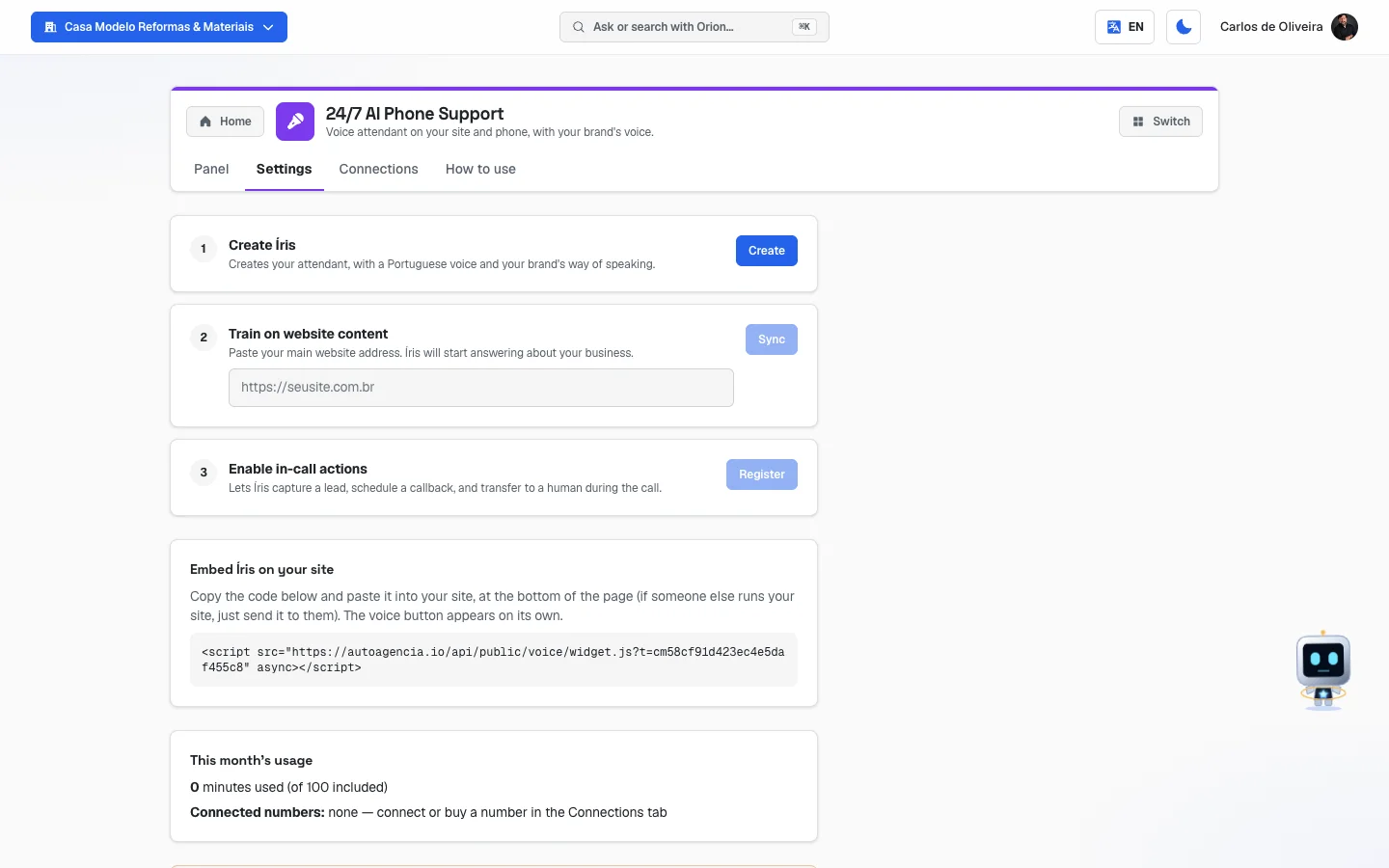 Settings tab before step 1: the numbered list of the three steps with the Create button, the box with the site tag, the month's usage and the LGPD notice (Brazil's data protection law)
The tabs, one by one
Panel
/app/modulos/atendimento-voz/painel
This is the entry screen. On the right side is the Talk to the specialist chat, where you talk to Íris (on a phone it appears at the bottom).
- What you see here: Íris's panel — a note from her about how your phone service is doing, plus three numbers: Minutes talked this month, Phones live and Minutes over the plan.
- What you can do: read the diagnosis, click the shortcut the note offers and talk to Íris.
Íris's note is the heart of this tab. It always shows the most urgent problem first, and comes with a button that takes you straight to the screen where it gets fixed. The table in the "How to read the numbers" section explains each possible sentence.
Where you read what happened on each call
This is the question that comes up the most, and the answer has two parts.
What Íris noted down lives in Contacts, not in this module. On each answered call, she saves the person in a list called Leads (Voz), which the system creates on its own the first time. Open the Lists tab of the Sites app (or My contacts, in the full menu, under More) and open that list: each row is a person who called, with the name they gave, the phone number, the neighborhood and a notes field where Íris writes what she understood — for example "Need: leak in the kitchen | Asked to talk to a human | Source: voice attendant (Íris)". If they asked for a callback at a certain time, that goes in there too. When she gets the person's phone number, one call becomes one contact only, even if she notes things at different moments of the conversation — what she finds out later is added to what was already written, without creating a second contact.
For this to work, step 3 of the Settings tab — "Enable in-call actions", Register button — has to be done. That step is what gives Íris the pen to write things down. Without it, she answers and chats, but nobody finds out who called.
The word-for-word conversation and the audio have no screen today. The system keeps the full transcript and, when you turn on the Record the calls option, also keeps the audio file — for up to 12 months after the call, and only while your company is our customer, whichever comes first. After that, or when the account is deleted for good, the audio is deleted on its own and doesn't come back — the same rule as the recordings in Contact Tracking. But no screen in the system opens a call answered by Íris so you can read the conversation or listen to the recording. What reaches you is the summary she writes in Contacts. Don't look for a call list here: this module's three tabs (Panel, Settings, Connections) don't have that screen.
Careful not to mix this up with other modules. There are, in fact, call screens in the system — but they show those modules' calls, never Íris's:
- Contact Tracking → Contacts has an audio player for the calls that came in through your ads;
- SDRConvert → Calls has Recording and Transcript links for the calls made by its cadences.
If you open one of those screens looking for the call Íris answered, you won't find it: they're different records.
Settings
/app/modulos/atendimento-voz/config
This is where you create the attendant and decide what she's like. The tab is long; it's organized into blocks, from top to bottom.
Block 1 — The three steps (the numbered list)
| Step | What it does |
|---|---|
| 1. Create Íris | Creates the attendant, with a voice in Portuguese and your brand's personality. Once it's created, the button is renamed Update. |
| 2. Train on website content | You paste the site address and click Sync. Íris reads the content and starts answering about your business. It only unlocks after step 1 and with the address filled in. |
| 3. Enable in-call actions | Click Register. It's what lets Íris register a contact, schedule a callback and transfer to a human during the conversation. It only unlocks after step 1. |
Each completed step swaps the number for a green ✓. If a step fails, a red box appears at the top reading "This step didn't complete", with the reason.
Blocks 3 to 6 only appear after step 1. Until Íris has been created, the tab shows only the three steps, the Embed Íris on your site box, the This month's usage and the LGPD notice — that's what you see in the photo above. Once you click Create, the Voice and language, How she answers, Turn the attendant off and Transfer to a human blocks start to appear.
Block 2 — Embed Íris on your site
A box with a code and the instruction: "Copy the code below and paste it into your site, at the bottom of the page (if someone else runs your site, just send it to them). The voice button appears on its own." That's what puts the button to talk to Íris inside your site — different from the phone, which is handled in the Connections tab.
Block 3 — Voice and language
- What you can do: choose the attendant's language and voice. The screen says: "Click ▶ to hear a sample before saving."
- Click Save voice & language. When you save, the attendant is reconfigured with the new voice.
Block 4 — How she answers
Here you decide what Íris is on a call. There are two options, and they change the result quite a bit:
| Option | What she does |
|---|---|
| Reception | "Takes the call, understands the need and captures the contact." It's the choice for people who don't want to lose calls. |
| Sales | "The call is the sale: explains what solves it and what it costs, books a demo and sends the link." It's the choice for people who sell something standardized, with a set price. |
In addition:
- Record the calls (checkbox) — "She says in her first sentence that the call is recorded, and the audio is kept with the conversation." When you tick it, the recording notice is automatic.
- Link she sends (only appears in Sales mode) — the address she sends to the customer. It goes "from your account's WhatsApp, after she confirms the number on the call. With no link, she closes by booking the demo."
Click Save and apply. When it works you see: "The attendant answers this way now."
Block 5 — Turn the attendant off
- What it does: deletes the attendant and she stops answering. But "her voice, language and style stay saved here — if you want her back, just create her again in step 1."
- Step by step: click Turn her off, and then Confirm. To back out, click Cancel.
There's no "pause" for Íris — and that's on purpose. Look all you want: there's no pause or unpause button on any tab of this module. The only two states you control are created (step 1) and off (this block). When you turn her off, she's really deleted from the voice service — and the panel goes back to saying "The attendant hasn't been created yet", not "paused". To bring her back, step 1 will be waiting with the Create button, and her voice, language and style are still saved.
Block 6 — Transfer to a human
This is the block that decides what happens when the customer asks to talk to a person. The screen explains: "When the caller asks to speak with a person, Íris transfers the call. Outside business hours (or off), she takes a message instead of transferring."
Step by step:
- Tick Enable transfer.
- Fill in Phone that receives the call (with area code). Without it you can't save — the screen warns: "Enter the transfer phone number to enable."
- If you want to limit the hours, tick Only transfer during business hours.
- Click the days of the week that apply (Sun to Sat). The ticked ones are highlighted. It starts ticked from Monday to Friday.
- Choose the hours in From … to …. It starts at 09:00 and 18:00, in Brasília time.
- Click Save transfer. You see "Saved!".
Block 7 — This month's usage
Shows how many minutes were talked, how many are included, how much went over the plan and which numbers are connected.
Block 8 — The LGPD notice
A yellow box, at the end of the page, with a responsibility that's yours and not the system's: "when publishing Íris on a site or connecting a phone number, let users know the call may be recorded and analyzed by AI for quality and record-keeping. Provide a data-deletion channel."
In plain words: if you record calls, you have to tell whoever calls (the Record the calls option already makes Íris say so in the first sentence) and you have to have a way for the person to ask for their data back or ask for it to be deleted. If you have the LGPD module, log those requests in its Requests tab.
Connections
/app/modulos/atendimento-voz/conexoes
This is where the phone numbers live. The screen explains at the top: "Here you buy and manage your voice phone numbers. Use one inbound number for Íris to answer (1 per account) and as many outbound numbers as you need for prospecting campaigns."
The rule that matters: each number has a direction, which is what it's for.
| Direction | What for |
|---|---|
| Inbound (receives) | The reception number: it's the one Íris answers on. You can only have one per account. |
| Outbound (calls) | Outbound number: makes the prospecting campaigns' calls. You can have as many as you want. |
| Both | Receives and calls. |
The tab has three blocks:
Block 1 — Your numbers
- What you see here: a table with Number, Country, Direction, Status, Created on and Actions.
- What you can do:
- Direction — opens a menu to switch between Inbound, Outbound and Both. The notice "Direction updated." appears.
- Release — gives the number back.
Step by step — releasing (giving back) a number:
- Click Release on the number's row.
- Read the confirmation. It warns that the number "will be disconnected from Íris and released on Twilio. This action ends the monthly charge, but the number cannot be recovered afterward."
- If you're sure, click Release.
There's no going back. Once released, the number goes back on the market and someone else can take it. If it's printed on your car, on your card or on Google Business Profile, think twice.
The possible statuses: Active, Inactive, Being released and Released.
- Empty state: if you don't have any, you see "You haven't connected a number yet", with the explanation that "the voice number is what answers and makes this module's calls" and the tip to use the block below to buy your first one.
Block 2 — Use a number I already have
It's for people who already have a number on the platform — idle, in stock, or used today only to track where calls come from — and want to put it to answer, without buying another one.
Step by step:
- Type the number into the Number field, in international format (e.g.:
+551150287000). - Under What for, choose: Receive calls (the attendant), Place calls (campaigns) or Receive and place.
- Click Check number. The system analyzes it and shows what's going to happen.
- Read the warnings carefully. See the table below.
- If you can go ahead, click Use this number. If there are serious warnings, the button is renamed Got it, use it anyway.
What the warnings mean:
| Warning | Means |
|---|---|
| "The number is free in your stock — nobody uses it today." | Clear path. You can go ahead. |
| "This number currently belongs to [company]. Continuing takes it away from them." | The number is with another customer. If you go ahead, it leaves them. |
| "[company] has call tracking subscribed — this number is part of the service they pay for." | You're about to take a number out of a service someone is paying for. |
| ⚠️ "the website swaps the page phone for this number — N visits in the last N days. After the change, whoever calls it reaches the AI attendant, not your team." | Real attention needed. That number is showing on the site right now. Whoever calls will start talking to the AI, not to a person. |
| "This number tracks the "[name]" channel today. It stops tracking — calls start being answered by the AI." | You'll lose the source information for those calls. |
| "The N calls already received stay saved — the number's role changes, not its history." | Reassuring: the history isn't lost. |
| "Set as an outbound number: it places campaign calls and doesn't receive any." | Confirmation that this number isn't going to answer. |
The reasons for refusal:
| Refusal | What to do |
|---|---|
| "This number isn't in your telephony account — you can only use a number that's already yours." | Use the Buy new number block. |
| "This number is already another company's voice attendant." | Can't be done. Pick another. |
| "This number is already your attendant — nothing to do." | It's already set up. |
| "You already have an inbound number. Set the other one to outbound, or release it first." | It's the rule of 1 reception number per account. |
| "Confirm the warnings above to continue." | Read the warnings and click Got it, use it anyway. |
Block 3 — Buy new number
Step by step:
- Choose the Country (Brazil, United States, Portugal, Spain, Mexico, Argentina, Chile or Colombia).
- Choose the Type: Local (a landline from a city), Mobile (cell phone) or TollFree (0800).
- If you want, fill in Area code (optional) — it only appears for Brazil and the United States.
- If you want, fill in Contains digits (optional) to look for a number with an easy-to-remember sequence.
- Under Purpose, choose: Inbound — Íris answers (1 per account), Campaigns — makes outbound calls or Both (receives and calls).
- Click Search available numbers.
- The list shows up to 10 numbers, with the city/region and the Voice and SMS tags.
- Click Buy this on the number you choose.
At the bottom of the tab there's a notice: in some countries paperwork may be required before the purchase. If the purchase fails with an error of that kind, contact support.
How to use
/app/modulos/atendimento-voz/como-usar
Every module has this tab at the end. It's the module's manual inside the system itself.
How to read the numbers
The three numbers on the panel (Panel tab):
- Minutes talked this month — how much conversation time Íris had this month. If you have a plan subscribed, it shows as "used/included" (e.g.: "37/100"). Without a plan, it shows only the number.
- Phones live — how many numbers are connected and working. If it's zero, nobody can call Íris.
- Minutes over the plan — how much you went over what's included. It turns to an alert color when it's greater than zero.
In the "This month's usage" block (Settings tab):
-
N minutes used (of M included) — the same consumption, written out.
-
— overage: N min — only appears when you went over the plan.
-
Connected numbers — the list of your numbers. If there are none, you see "none — connect or buy a number in the Connections tab".
Until September 2026 that line said "none (phone support coming soon)", and that was confusing: it suggested that answering on the phone didn't exist yet. It does — the Connections tab buys and connects numbers today. All that was missing was your number. If you still see the old sentence, it's the same thing: go to Connections.
What Íris says on the panel, in order of urgency:
| Sentence | Means | What to do |
|---|---|---|
| "The phone attendant isn't subscribed yet…" | The module isn't active. | Subscribe. |
| "The attendant hasn't been created yet: pick the voice and language and I'll put her on the line." | Step 1 wasn't done. | Settings tab → Create. |
| "Your attendant is paused — whoever calls now won't be answered by her." | Rare state: the attendant was created, but isn't live. No button on the screen produces that state — if it shows up, it was because of a failure in the middle of a setup. | Settings tab → step 1 → Update. That button is what puts her back live; don't look for "unpause", it doesn't exist. |
| "No phone connected — the attendant is ready, but there's no number to take the call." | A number is missing. | Connections tab. |
| "The attendant hasn't studied your site yet — she'll answer, but she won't know about your business." | Step 2 wasn't done. | Settings tab → step 2, paste the site address and Sync. |
| "Call logging isn't enabled — without it, callers never become saved contacts in Contacts." | Step 3 wasn't done: Íris answers, but doesn't take anyone down. | Settings tab → step 3 → Register. |
| "You've gone N minutes over your plan this month — the excess is billed separately." | Consumption above what's included. | Keep an eye on consumption. |
| "Human handoff is off — when the attendant can't solve it, the call ends there." | Nobody receives the calls she can't handle. | Settings tab → Transfer to a human. |
| "Attendant live on N phones, with N minutes talked this month." | Everything in order. | Nothing. |
Frequently asked questions
Will the customer notice they're talking to a robot? Íris speaks with a natural voice and you choose which voice she uses. But don't treat it as a trick: if you record calls, you must give notice — and the Record the calls option makes her do it on her own, right in the first sentence.
And if Íris doesn't know the answer? If you turned transfer on, she passes the call to the phone you specified. If transfer is off, or if it's outside the hours you set, she takes a message. That's why it's worth turning transfer on: without it the call simply ends.
Do I need to buy a new number? Can't I use mine? It depends on where your number is. If it's already on the platform — idle, in stock, or used only to track calls — use the Use a number I already have block, in the Connections tab. If it's with a carrier outside here, the way is to buy a new number.
What's the difference between Íris on the site and Íris on the phone? They're two paths to the same attendant. On the site you paste the tag from the Embed Íris on your site section, and a voice button appears on the page — the person clicks and talks from their own device. On the phone you connect a number in the Connections tab, and she answers regular calls. You can have both.
Can I have more than one number answering? To receive (Íris answering), only one per account. To place prospecting campaign calls, as many as you want.
What happens if I turn the attendant off? She stops answering immediately. But her voice, language and style stay saved — just click Create (step 1) again when you want to bring her back. You don't lose the setup.
Can I just pause her, without turning her off? No. The module has two states and nothing in between: the attendant is created and answering, or she's off. There's no pause button. If the idea is to stop receiving calls for a short while, turning her off and creating her again later does exactly that, without losing anything.
What's the difference between Reception and Sales? Reception answers, understands and takes down the contact — she doesn't try to close anything. Sales drives the conversation all the way: explains what it solves and what it costs, books a demo and sends the link on WhatsApp. Choose Reception if each of your quotes is different; choose Sales if you sell something with a set price.
Can releasing a number be undone? No. The confirmation warns: the monthly charge ends, but the number can't be recovered afterward. If that number is published out there, don't release it.
When something goes wrong
| Symptom | What to check | What to do |
|---|---|---|
| The Settings tab shows the "Voice Agent — Inbound" offer instead of the steps | The module isn't active on your account. | Subscribe right there, or through the catalog. |
| Red box "This step didn't complete" | One of the three steps failed. The reason appears under the title. | Read the reason and try again. If it keeps happening, talk to Íris in the chat. |
| Step 2 (Sync) is locked | Step 1 isn't finished, or the site address field is empty. | Do step 1 and fill in the site address. |
| Step 3 (Register) is locked | Step 1 isn't finished. | Do step 1 first. |
| Íris answers but doesn't know anything about my business | Step 2 wasn't done, or the site has changed since. | Settings tab → step 2 → paste the address and click Sync. |
| Whoever called doesn't show up in Contacts | Step 3 wasn't registered — without it Íris doesn't take anyone down. | Settings tab → step 3 (Enable in-call actions) → Register. |
| I want to read a call's conversation and can't find where | That screen doesn't exist today, in any module. What reaches you is the summary Íris writes in Contacts, in the Leads (Voz) list. | Open Contacts → Leads (Voz) list and read the contact's notes field. |
| Nobody can call Íris | There's no connected number, or it isn't set as inbound. | Connections tab: check whether there's a number with direction Inbound and status Active. |
| The Save transfer button is grayed out | Transfer is ticked but the phone number is blank. | Fill in the Phone that receives the call (with area code). |
| "Couldn't save. Check the phone number or your permissions." | The phone number is in an invalid format, or you don't have permission. | Type the number with area code. If it persists, ask whoever administers the account. |
| The customer asks to talk to a person and the call ends | Transfer is off, or it's outside the set hours. | Settings tab → Transfer to a human: turn it on and check the days and hours. |
| When trying to use a number: "This number isn't in your telephony account…" | The number isn't from your account here. | Use the Buy new number block. |
| When trying to use a number: "You already have an inbound number…" | There can only be one reception number per account. | Set the other one to outbound, or release the current one first. |
| When trying to use a number: "Confirm the warnings above to continue." | There are warnings that require explicit confirmation. | Read the warnings and click Got it, use it anyway. |
| "No numbers available with those filters." | The search was too specific. | Remove the area code and the "contains digits", or change the type (Local / Mobile / TollFree). |
| Buying the number fails with a paperwork error | Some countries require paperwork before the purchase. | Contact support, as the tab's footer says. |
| "Couldn't save." on Voice and language | Failure while saving the preference. | Click Save voice & language again. |
| "Couldn't apply." on the How she answers block | Failure applying the setup to the attendant. | Click Save and apply again. |
| This month's usage says "none — connect or buy a number in the Connections tab" | There's no number connected to the account. It's not a lack of resources: it's the lack of your number. | Connections tab → connect or buy a number. |