

Press Relations
Where to find it: Home → Your apps → PR (at the top of the screen the module appears as Press Relations)
Address: /app/modulos/assessoria-imprensa
What it's for
Showing up in the newspaper, on your city's news site, on the podcast in your industry. You can't buy that: someone has to find your story interesting and decide to tell it. That "someone" is a journalist, and the work of offering the story to them has a name — press relations.
This module does that work from the inside. You write your story once (this is called a press release), build the list of journalists who cover your topic, and send the story to them — one by one, each person getting their own email, not a mass email. Then the module keeps track: who opened it, who replied, who published. And anyone who didn't reply gets a follow-up on its own, at most twice.
What you get out of this is the hardest thing to buy: credibility. Everybody knows an ad is paid. A newspaper article isn't. And an article stays on Google forever, working for you every day.
A day-to-day example: you own a pizzeria and you just set up a kitchen that donates leftovers to a shelter. That's neighborhood news. You write the release telling the story, Helena (this module's specialist) finds the journalists who cover food and neighborhood news in your city, you send it to eight of them and two reply. One publishes. The following month, anyone searching for "pizzeria" in your area finds the article before they find your competitor.
What a "pitch" is (read this first)
A pitch is the offer of a story idea: the email you send to one journalist offering your story. A "story idea" is the subject of an article. So a pitch is, in plain words, the invitation: "hi, I have this story, are you interested?".
The math is simple and worth memorizing:
1 release × 1 journalist = 1 pitch.
If you have one release and pick eight journalists, you've created eight pitches. Each one becomes a separate email, addressed to that person. Nobody sees who else received it.
The pitch has three parts you control:
- The release — the base text of the story. Written once, on the Home tab.
- The email subject — the line the journalist reads in their inbox. It starts out as the release's title, but you can change it.
- The pitch text — the body of the email. It starts out as the release body plus the About the company paragraph, and you can adjust it.
What happens after you send
The email goes out, and from there the module tracks on its own whatever can be tracked. That pitch's row changes its label along the way:
| Label | What it means | Who sets it |
|---|---|---|
| to send | The pitch is ready, but hasn't gone out yet. | — |
| sent | The email went out. | The system, when you send. |
| opened | The journalist opened the email (or clicked a link in it). | The system, on its own. |
| replied | The journalist replied. | You, by clicking Replied on the pitch's row. |
| published | An article came out. | You, by hand, pasting the link. |
| declined | The journalist asked not to receive any more. | The system, when they click unsubscribe. |
| bounced | The email didn't arrive and won't: the address doesn't exist (or the journalist's server refused it for good). | The system, on its own, when the email provider reports that the email bounced. |
When an email bounces, three things happen on their own. If the journalist's address doesn't exist, the provider that delivers the pitches notifies the platform, and:
- the pitch gets the bounced label, with the sentence "The email didn't arrive: the address doesn't exist or refused it for good. This send went back to your monthly allowance." right under the subject;
- the send goes back to your allowance — you don't pay for an email that didn't arrive. The number "N of N pitches left this month," at the top of the tab, goes back up. The refund applies to the month the pitch went out and happens only once per pitch, even if the notice arrives repeated;
- that address is blocked for new sends — for all the platform's customers, just like someone who asked to unsubscribe. Trying to send another pitch to it comes back with the notice "an email to this address already bounced for good — add the right address on the Media tab", without costing anything.
That pitch's automatic follow-up stops too. Only a permanent bounce counts: when the problem is temporary (full inbox, the journalist's server down for a while), the provider retries on its own and nothing changes here. And a pitch that was already marked as replied or published keeps that label — what bounced, in that case, was only the follow-up email; even so the send is refunded and the address is blocked.
What to do when "bounced" appears: find the journalist's correct email (on the outlet's website or in their profile), add it on the Media tab as a new contact, remove the old contact and create a new pitch for them.
Three important notes about this:
- The journalist's reply lands in your email inbox, not in here. The email goes out from AutoAgency's address, but set up so that "reply" goes to the account owner's email — the person who created the account on the platform. You read the reply in your normal email and come back here to mark Published when the article comes out. There's no screen to point to another address: if replies need to land in a different inbox (a press inbox, for example), the way to do it today is for the account owner to forward them in their own email. (Until September 22, 2026 the pitches went out with no "reply" address at all, and the journalist's reply went to an inbox of ours that nobody reads.)
- Anyone who doesn't reply gets a follow-up on their own. If you leave the follow-up option checked, the system sends the same pitch again (same subject, same text) after the number of days you chose — at most twice. The follow-up stops on its own when the journalist opens the email, asks to unsubscribe or when the email bounces. When they reply, click Replied on the pitch's row: the reply arrives in your email, not here, and that click is the only way for the system to know — without it, someone who replied without loading the email's images can get the follow-up. Marking Published also stops it. Each follow-up uses one from the allowance and counts toward the daily cap, like a normal send. If the allowance or the daily cap is used up, it tries again the next day — but the blocked attempt counts as one of the two (the system would rather lose a follow-up than risk sending the same one twice). Follow-ups go out twice a day, during business hours (around 10 a.m. and 5 p.m.). (Until September 23, 2026 no follow-up ever got out — the scheduler's own lock blocked the send; it's been fixed.)
- Each send uses one from your monthly allowance (the number of pitches your module includes per month). That number comes from the plan you signed up for and so it differs from customer to customer — there's no fixed number for everyone, which is why this manual doesn't quote one. The real number, yours, always shows on screen: at the top of the Pitches tab ("N of N pitches left this month") and again in the confirmation window, before any email goes out. It resets at the start of the month. A send whose email bounced for good is refunded to that allowance (see "When an email bounces," above). (The counter comes from your account's usage meter, never from a hand-written value.)
Before you start
- The Press Relations module has to be active on your account. Without it, the screens show the notice "Press Relations is a separate module. Turn it on in the Modules tab to use it."
- You need at least one release written (Home tab) and at least one journalist in the list (Media tab). Without both, the button to create pitches stays grayed out.
- You don't need to connect any email, and there's nothing to set up: the send goes out from an address on the platform itself, kept separate from the system emails precisely to protect deliverability, and journalists' replies go to the account owner's email. If whoever is going to handle the press isn't the account owner, arrange the forwarding with them — there's no screen to change that address.
What's fixed today, and why. The module has four settings inside — the email that receives replies, the sender's name, a custom email domain and the cap on sends per day —, but none of the three tabs shows a screen to change them. In practice, everyone works with the factory values today, and they're good ones: replies to the account owner, sender with your company's name ("Your Company via AutoAgency," pulled from the company profile), the platform's domain, and a cap of 40 pitches per day. That daily cap is deliverability protection (blasting hundreds of emails at once is the short road to landing in everyone's spam) and it applies per account, per day: if you select more than that, the excess comes back with the notice "daily cap reached — the rest goes tomorrow" and the pitches are kept as drafts, without using up your allowance.
First steps
- On Home, under Your apps, click PR. You land on the Home tab.
- Click New release and write your story. Fill in at least the Title — without a title the system refuses with the notice "The release needs a title."
- Click Save release.
- Go to the Media tab. If the list is empty, ask Helena in the chat: "find journalists who cover my industry in my region". You can also add contacts by hand with Add journalist.
- Check the contacts that show up. You decide who stays.
- Go to the Pitches tab and click Create pitches.
- Choose the release, check the Email subject and the Pitch text, and select the journalists under Recipients.
- Decide whether you want automatic follow-up and after how many days.
- Click Create N pitch(es). They start out as drafts — nothing has been sent yet.
- In the list, tick the box for the ones you want to send and click Send N.
- Confirm in the window that appears. Only then do the emails go out.
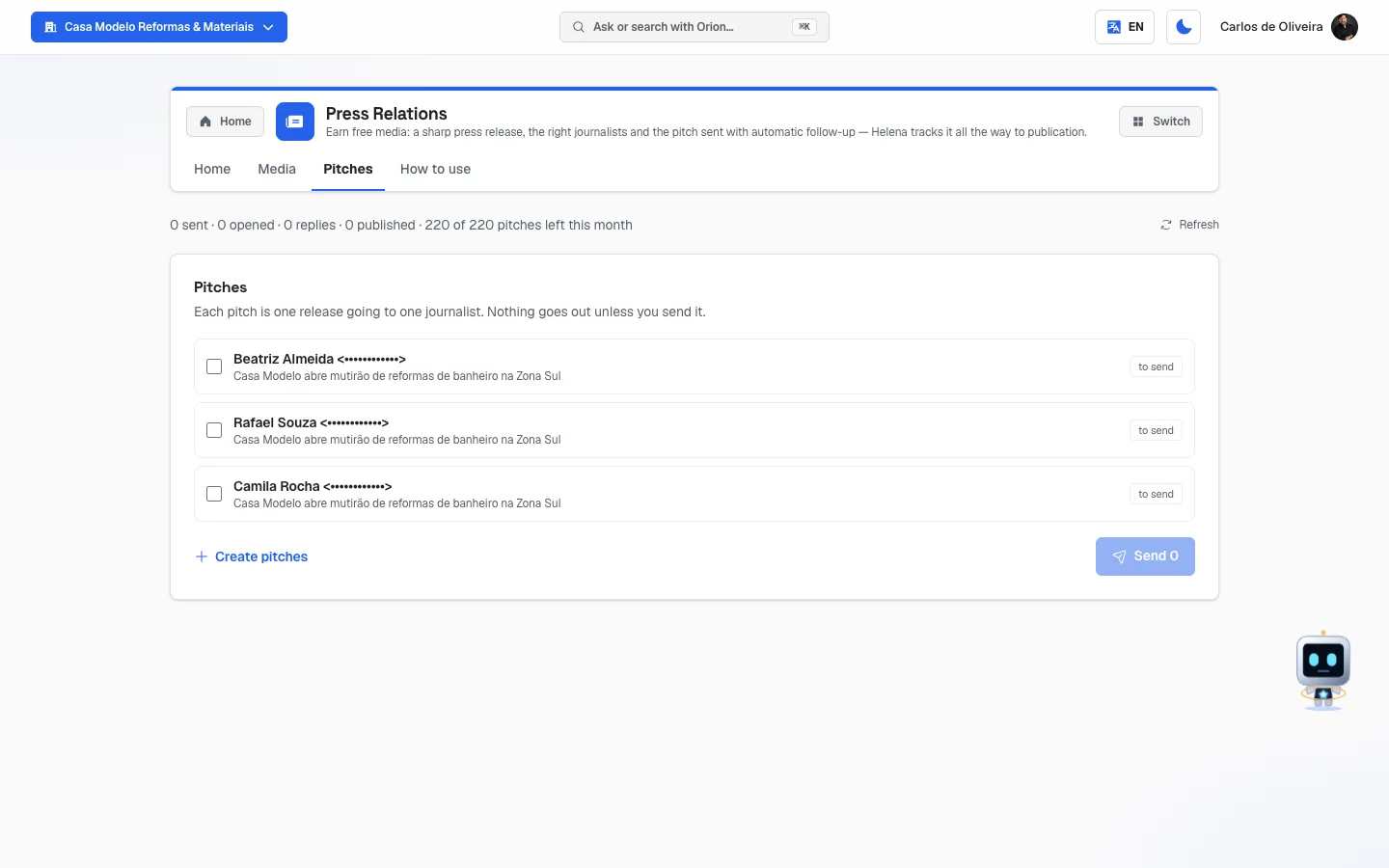 Pitches tab with the summary line at the top (sent, opened, replies, published and remaining allowance) and three pitches from one release, still with the "to send" label
The tabs, one by one
Home
/app/modulos/assessoria-imprensa/inicio
- What you see here:
- At the top, the Refresh link.
- Helena's panel: a note from her about the state of your PR, sometimes with a
shortcut button. The possible sentences are:
- "N journalists replied and are still waiting on you." (View pitches button) — this one beats all the others, because the window on a story is short.
- "You don't have any press release written to pitch yet." (Write release button)
- "N of your releases are ready, but none was sent to a journalist." (View pitches button)
- "Your PR is running: N pitches and N stories landed."
- Three numbers: Press releases, Pitches sent and Placements.
- A panel with your most recent release.
- Next to it, the chat with Helena.
- Below, the Press releases panel, with the list of your releases.
- What you can do: write, edit and archive releases; talk to Helena.
Step by step — writing a release:
- On the Home tab, click New release.
- Fill in the fields (see the table below).
- Click Save release.
Each field explained:
| Field | What to write |
|---|---|
| Title | The headline of your story, the way a newspaper would write it. It's the only required field, and it's what becomes the email subject. E.g.: "Neighborhood pizzeria starts donating 60 meals a week". |
| Subtitle | A supporting line, explaining the title. |
| Body | The story itself: what happened, when, where, with whom, why. Write for someone who doesn't know your company. |
| About the company (boilerplate) | The standard paragraph about your company (in press circles it's called the boilerplate), which goes at the end of every release: what you do, since when, where you serve. Write it once and reuse it. |
To edit a release, click the pencil icon on its row. To archive, click the box icon. The system asks "Archive this release?" and warns: "It leaves the list, but pitches already sent keep their history intact."
An archived release disappears from the list and can no longer become a new pitch. What was already sent stays in the history.
Media
/app/modulos/assessoria-imprensa/midia
This is your press address book: who you can reach out to.
- What you see here:
- At the top: "N journalists · N outlets" and the Refresh link.
- The Journalists panel — the people who receive your pitches. Each row shows the name, the email, the outlet and the beat, and a label saying where the contact came from: Helena (she found it) or manual (you typed it in).
- The Outlets panel — the newspapers, sites, magazines and newsletters in the list, with a filter by tier.
- What you can do: review, fix, add and remove journalists.
Outlet and journalist are different things: the outlet is the newspaper (the company); the journalist is the person who writes for it. The one who receives your email is always the person, never the outlet.
What "tier" is: it's the size of the outlet. The screen explains it like this: "Tier 1 is major press; tier 4 is newsletters and niche — usually the fastest to reply." Translated into everyday terms: tier 1 is the national newspaper, hard to get into; tier 4 is the industry blog and the neighborhood newsletter, which tend to reply. For most local businesses, tier 4 is where the first article comes out.
Step by step — adding a journalist by hand:
- On the Media tab, click Add journalist.
- Fill in Journalist's name and Email — both are required; without them it shows "Name and email are required."
- If you know it, fill in the Beat (e.g.: Business) — it's the area the person covers.
- If you want, choose the Outlet (optional) in the selection box.
- Click Add.
Step by step — asking Helena to find journalists:
- On the Media tab, look at Helena's chat next to it (it lives on the Home tab; on the other tabs, use the module's chat).
- Ask: "find journalists who cover my industry in my region".
- The contacts she finds go into the list with the Helena label.
- Check them before using them. Fix whatever is wrong and remove anyone who has nothing to do with your topic.
To remove a journalist, click the trash can on their row. The system asks "Remove this journalist?" and warns that they "leave your list and stop receiving pitches. The history of what was already sent stays."
Empty states you may see:
- "Your media list is empty" — there are no journalists yet.
- "The outlet list hasn't been loaded yet" — ask Helena in the chat to load the list for your industry.
- "No outlets in this tier" — you filtered by a tier that has nothing. Click All.
Pitches
/app/modulos/assessoria-imprensa/pitches
- What you see here:
- At the top, the summary line: "N sent · N opened · N replies · N published · N of N pitches left this month".
- The Pitches panel, with one row per pitch: the journalist's name and email, the subject, the status label and, when there is one, the link icon to the published article.
- A fixed notice on the screen: "Each pitch is one release going to one journalist. Nothing goes out unless you send it."
- What you can do: create pitches, send them, and mark when the journalist replies or publishes.
Step by step — creating pitches:
- On the Pitches tab, click Create pitches.
- Choose the Press release in the selection box. The subject and the text fill in on their own from it.
- Check the Email subject. It's the first thing the journalist reads — it's worth polishing.
- Check the Pitch text. It comes with the release body plus the About the company paragraph. Adjust it as you like.
- Under Recipients, select the journalists who will receive it.
- Decide about automatic follow-up: the box "Follow up with non-responders (at most twice, and it stops the moment they reply)" comes checked. If you leave it checked, choose how many days to wait before following up (it starts at 4; ranges from 1 to 30). The journalist's reply arrives in your email — for the follow-up to stop, click Replied on their row (see below).
- Click Create N pitch(es).
- A notice shows how many were created. If any journalist had already received that same release, the notice says: "N pitch(es) created. N had already received this release." — the system doesn't let you send the same story idea twice to the same person.
After this step nothing has been sent. The pitches start out as drafts, with the to send label.
Step by step — sending:
- In the list, tick the box next to each pitch you want to send (only those in to send have a box).
- Click the Send N button.
- Read the confirmation window. It says exactly what's going to happen: "N
email(s) will go out to real journalists, with your address on reply-to. Uses N of the allowance
(N left)."
- If you selected more than what's left in the allowance, the notice changes: "You selected N pitch(es) but only N are left in this month's allowance. N will go out and the rest stay as drafts."
- Click Send.
The other way: asking Helena to send, through the chat. Besides the Send N button, you can simply ask her in the conversation. Here's how it works, and it never sends an email the first time:
- In the chat, ask: "send these pitches to the journalists".
- Helena replies saying how many pitches will go out, to whom (each person's name and email) and how many are still left in your monthly allowance — and she says, plainly, that nothing has been sent yet. If your allowance has already run out, she warns you in that same reply that the sends would come back blocked.
- You confirm. It works to click the approve button, when it appears, or simply to type the confirmation: "approved," "go ahead," "yes, go ahead," "do it," "proceed" — and their equivalents in Portuguese and Spanish.
- Only after that confirmation do the emails go out, and she tells you how many went out and which didn't, with the reason for each one.
Three things this lock guarantees, worth knowing. First: the "yes" has to be yours, in the current message — it doesn't help for Helena to "decide" that you already agreed earlier; the system checks your message from that moment. Second: a question doesn't count as authorization. If you write "go ahead?" with a question mark, or any sentence with a negation in it ("not yet, go ahead"), the system doesn't treat it as approval and nothing goes out. Third, and this one catches a lot of people: a bare "ok" isn't enough — nor is "send it." Write the confirmation using one of the words from the list above. (Checked by running the filter itself: "approved," "go ahead," "yes, go ahead," "do it" and "proceed" pass; "ok," "send it," "go ahead?" and "not yet, go ahead" don't pass.)
If any of them doesn't go out, a red notice appears with the reason. The possible reasons are:
| Reason on screen | What happened | What to do |
|---|---|---|
| asked to stop receiving | That journalist clicked the link to unsubscribe from the list (from any of the platform's customers). | Nothing. Respect it. Remove them from your list. |
| an email to this address already bounced for good — add the right address on the Media tab | An earlier email to that address bounced for good (yours or another platform customer's), and it was blocked. Nothing was charged. | Find the journalist's correct email, add it on the Media tab as a new contact and create a pitch for them. |
| invalid email | The address is misspelled. | Fix the email on the Media tab. |
| daily cap reached — the rest goes tomorrow | You hit the day's send limit. | Wait for the next day and send the rest. |
| monthly allowance used up | The month's pitches are all used. | Wait for next month or talk to support. |
| the provider refused the send | Technical failure on sending. | Try again in a few minutes. |
| already sent — following up is the automation's job | That pitch already went out before. | Nothing. The automatic follow-up takes care of nudging. |
Step by step — marking that the journalist replied:
- On the pitch's row (it appears for those in sent or opened), click Replied.
- The notice "Reply recorded — automatic follow-up stopped" appears and the label changes to replied. There's no undoing it: from then on that journalist won't get any more follow-ups for this pitch.
Step by step — marking that it was published:
- On the pitch's row (it works for those in sent, opened or replied), click Published.
- The window "Did it get published?" opens, asking: "Paste the article link. That's what goes into your earned-media history."
- Paste the address of the article (it has to start with
httporhttps). - Click Mark as published.
- From then on, the row gets a link icon that opens the article.
Empty states you may see: the text changes depending on what's missing, and each one sends you to a different place:
- "You don't have journalists in the base yet" → go to the Media tab.
- "The release is missing" → go to the Home tab and write one.
- "No pitches created yet" → click Create pitches.
How to use
/app/modulos/assessoria-imprensa/como-usar
Every module has this tab at the end. It's the module's manual inside the system itself.
How to read the numbers
On the Home tab:
- Press releases — how many stories you have ready to offer (it doesn't count the archived ones).
- Pitches sent — how many pitches have gone out, all added up.
- Placements — how many articles actually came out, that is, how many pitches have the link pasted in. It's the number that matters.
On the Pitches tab, in the top line:
- sent — how many emails went out.
- opened — how many journalists opened.
- replies — how many replied (the ones you marked).
- published — how many articles came out.
- N of N pitches left this month — the first number is how many you can still send this month; the second is the total your module includes.
How to use this in practice: the number that matters is how many sends you need to get one placement. If you sent 20 and got 1 article, that's your number — and it's normal. Journalism works like that: most people don't reply, and it's not personal. If nobody opens, the problem is usually the email subject. If many open and nobody replies, the problem is usually the story.
About "opened": that number is an estimate. Some email programs block the image that records the open, and others load it on their own. Treat it as a signal, not as a fact.
Frequently asked questions
Does the journalist see that I sent the same email to more people? No. Each pitch is an individual email, addressed only to them. Nobody is copied.
What email does the pitch come from? From an address on the platform itself, separate from the system emails. "Reply" goes to the account owner's email — the journalist's reply arrives in their inbox, not ours. There's no screen to choose another address.
And the name the journalist sees? Your company's name, with the platform behind it: "Joe's Bakery via AutoAgency". It's the name that's in your company profile — if you want to change how it shows up, change it there. The technical address is still the platform's, and that's what protects the delivery of your emails.
Do I have to keep nudging people who don't reply? No, if you leave the follow-up option checked when you create the pitches. The system follows up on its own, at most twice, and stops by itself when the person opens the email or asks to unsubscribe. If they reply, click Replied on their row — the reply arrives in your email and the system only finds out through that click.
The journalist replied to my email. Do I need to do anything here? Yes, one click: Replied, on their pitch's row. That's what takes the person out of the automatic follow-up — without it, they may get the same pitch again. The conversation itself you handle by email. When the article comes out, click Published and paste the link: that's how your media history is built.
Can I send the same release twice to the same journalist? No. The system blocks it and warns that the person already received that release. Following up is the job of the automatic follow-up, which has a limit. To talk to the same person again, write a new release, with a new story idea.
Where do I get the list of journalists? Ask Helena in the chat, telling her your industry and your region. She builds it and the contacts appear on the Media tab with the Helena label. Check everything before sending anything.
What happens if a journalist asks to unsubscribe? They stop receiving pitches from all of the platform's customers, not just yours — that opt-out list is shared. Their pitch gets the declined label and isn't followed up on anymore.
When something goes wrong
| Symptom | What to check | What to do |
|---|---|---|
| "Press Relations is a separate module. Turn it on in the Modules tab to use it." | Is the module subscribed on your account? | Turn on Press Relations in the Modules tab. |
| The Create pitches button is grayed out | Do you have at least one release and at least one journalist? | Write a release on the Home tab and/or add journalists on the Media tab. |
| "The release needs a title." | The Title field was left empty. | Write the title and save again. |
| "Pick a release." | You opened the creation form without choosing which story to send. | Choose in the Press release selection box. |
| "Pick at least one journalist." | No box was ticked under Recipients. | Select at least one name. |
| "Name and email are required." | One of the two was missing when adding the journalist. | Fill in both fields. |
| "N had already received this release." | Those people had already received that same story. | Normal. To talk to them again, write another release. |
| The Send button is grayed out | No pitch in to send was selected. | Tick the box of the pitches you want to send. |
| It warns "monthly allowance used up" | You already sent all the pitches included in the month. | Wait for the month to turn over (the counter resets) or talk to support. |
| It warns "daily cap reached — the rest goes tomorrow" | There's a limit on sends per day, to protect email deliverability. | Send the rest tomorrow. The pitches stay saved as drafts. |
| It warns "the provider refused the send" | Technical failure at the moment of sending. | Try again in a few minutes. If it persists, talk to support. |
| It warns "invalid email" | The journalist's address is wrong. | Fix it on the Media tab. |
| The list shows "(journalist removed)" | That journalist was deleted from the list after the pitch was created. | Nothing to do. The send history is still valid. |
| I marked Published and it wasn't accepted | The link has to be a full address, starting with http:// or https://. | Paste the article's full address. |
| The journalist says they didn't receive it | What's the pitch's label? | If it says bounced, the address doesn't exist (or refused it for good): the send already went back to your allowance and the address was blocked — find the correct email, add it on the Media tab as a new contact and create a pitch for them. If it says declined, they asked to unsubscribe. If it says sent or opened, no bounce was recorded: ask them to check their spam folder and confirm with them, letter by letter, that the address is the right one. |