

Email Verification (AIMailCheck)
Where it is: Home → Your apps → AIMailCheck (at the top of the screen the module shows up as Email Verification)
Address: /app/modulos/aimailcheck
In Your apps (and in the full menu) the module appears under the nickname AIMailCheck. When you go in, the screen title is the full name: Email Verification. It's the same thing.
What it's for
Email addresses go bad. The person changes jobs, cancels their provider, closes the company — and that email you jotted down two years ago simply stops existing. The problem is that you don't find out. You keep sending.
And that's where the damage is. When you send an email to an address that doesn't exist, the server on the other end sends the message back. This is called a bounce. The big providers — Gmail, Outlook, Yahoo — count how many of your messages come back. If too many do, they reach just one conclusion: "this sender doesn't know who they're writing to, must be spam". From then on they stop delivering your emails to the inbox and start throwing everything into the spam folder — including the good emails, to the right customers, who were waiting for your reply.
This is what the system calls your domain reputation (the score providers give your company's
address, like @suaempresa.com.br). It's a score that takes months to go up and one week of bad
sending to fall. And when it falls, the quote you sent a customer, the appointment confirmation,
the invoice — everything falls with it.
AIMailCheck solves this before it happens. You upload your contact list here and, address by address, it knocks on the door of each one's email server and asks "does this mailbox exist?". No message is sent — it's only the question. Then it hands you back the list sorted: these are alive, these no longer exist (take them off the list), and these are better not to risk. Then you send your campaign only to the ones that exist, and your reputation stays clean.
An everyday example: you have a salon and you've collected 1,800 customer emails over four years of appointments. You're about to send the Mother's Day promotion. If 300 of those addresses have already died, 300 messages bounce back at once — and Gmail marks your next promotion as spam for everyone. By running the list through here first, you find the 300, take them out, and the promotion reaches the 1,500 people who are still your customers.
Before you start
- The AIMailCheck module needs to be active on your account. Without it, the screens warn that "The AIMailCheck module isn't active on this tenant" (tenant = your company's account).
- You don't need to connect anything. No need to connect email, domain, or any tool. You just need to have your contact list somewhere — a spreadsheet, a file, or even copied from the screen.
- You get 100 free verifications when you activate the module. You can try it without buying anything.
- Important: only the account's owner or an administrator can spend credit (verify an email, create a batch) and create API keys. Someone who signs in as a viewer can only look. If the screen refuses with "Only the workspace owner or admin can perform this action", that's why.
Getting started
- On Home, in Your apps, click AIMailCheck. You land on the Home tab.
- Look at the Credits available number at the top. If you just activated, your 100 welcome credits are there.
- Click Verify now (or the Verify tab).
- Start small: leave the Single email button selected, type an address you know exists (your own) and click Verify. In a few seconds the result appears, with the color, the score and the reason written in plain language.
- Now the real list. Click Paste list and paste the emails — you can paste the whole spreadsheet, with names and phone numbers included. The system finds the emails among the rest.
- Click Count and see the cost. The screen shows how many unique addresses there are, how many are duplicates (they don't cost), how many are misspelled (they don't cost) and how many credits will be spent. Nothing is charged up to here.
- If the balance is enough, click Verify now. The screen takes you on its own to the Reports tab, with a progress bar.
- You can close the screen. The verification keeps running. Come back later to Reports and click your batch.
- Inside, click Valid only to download the clean list and use that file in your sending tool.
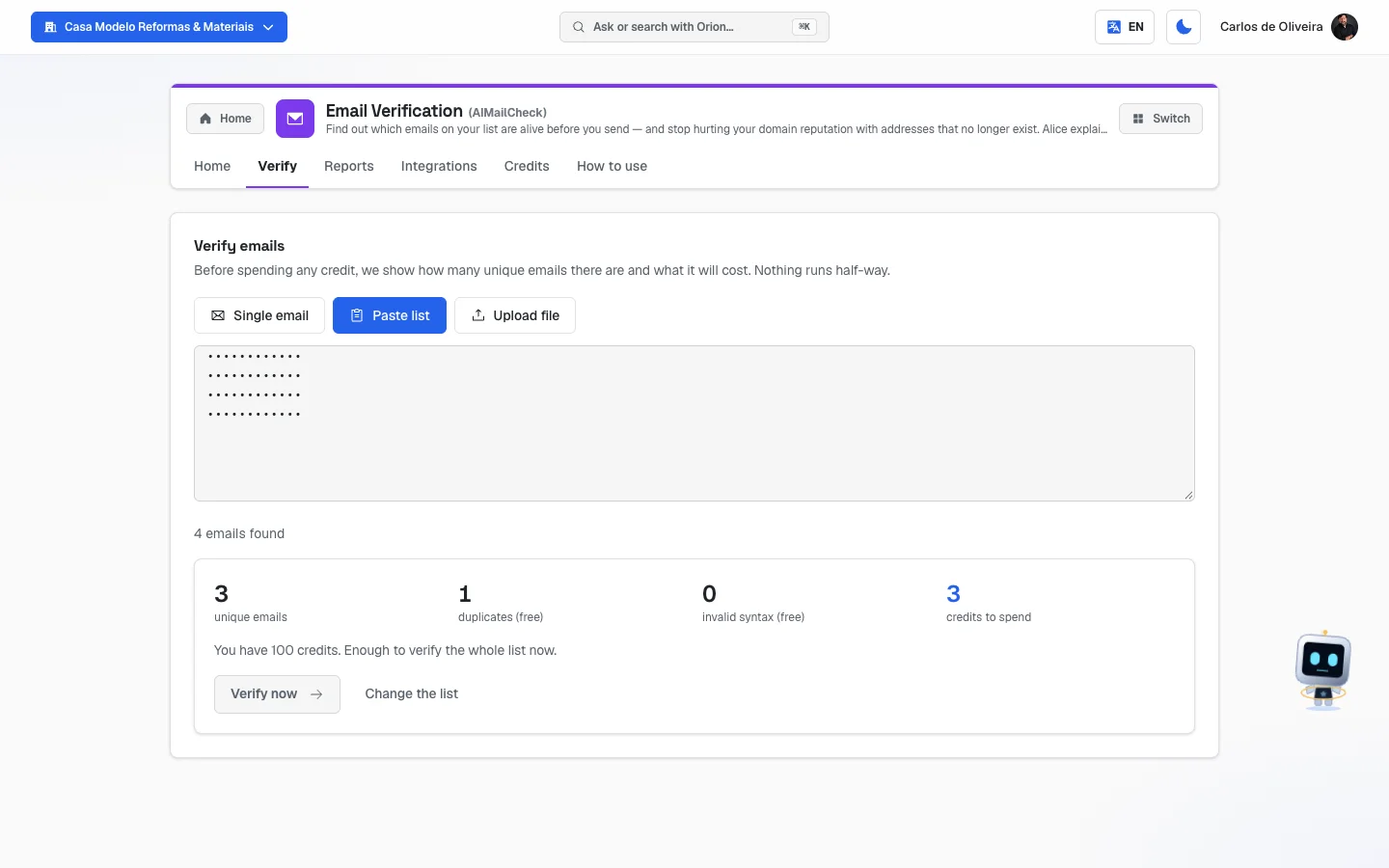 The Verify tab with the three buttons (Single email, Paste list, Upload file) and the cost preview for a pasted list with four emails, one of them a duplicate; since the sample company has no credit, the screen says how many are missing and shows the Buy a pack button
Understanding the four results (read this first)
Every verified email comes out with one of four verdicts, each with a color and a score from 0 to 100. The score is just a summary of the risk — the higher, the safer.
| Verdict | Color | What it means | What you do |
|---|---|---|---|
| Valid | green | The mailbox exists and responded. | You can send. It's your good list. |
| Invalid | red | The mailbox doesn't exist, the domain doesn't receive email, or it already refused before. | Don't send. Sending here hurts your domain's reputation. Take it off the list. |
| Risky | orange | It couldn't be confirmed, but it isn't an error. | Send with care: only to people who have replied to you at some point. |
| Unknown | gray | The server on the other end didn't answer in time. | It couldn't be confirmed right now. Re-verify in a few days. |
And, under the verdict, the system writes the reason, in plain language, with an explanation of what happened. These are the reasons that can show up:
| Reason | What it means, in practice |
|---|---|
| Mailbox confirmed | The recipient's server confirmed that this mailbox exists and accepts messages. |
| Invalid syntax | It's not a valid email: the @ is missing, there's a space, or the domain is incomplete. It cost no credit. |
| Disposable email | It's a throwaway email service, made to last minutes. Whoever uses that doesn't want to be found later. |
| Domain does not receive email | The address after the @ has no email server. Any message comes back. |
| Mailbox does not exist | The server answered that this mailbox doesn't exist. It's the worst address to keep on a list: every send counts as an error against you. |
| Bounced before | This address has already definitively refused messages in a previous send. It's not worth trying again. |
| Catch-all domain | The server accepts any address, real or not — so there's no way to know if this mailbox is real without sending. Send only to people who have already replied to you. |
| Provider blocks verification | Gmail, Outlook and a few others don't answer verification, on purpose. The address may be perfectly fine — it just can't be confirmed from outside. |
| Role address | It's an address for a department (contact@, sales@, support@), not a person. It usually has a strong filter and few replies. |
| Server deferred the answer | The server asked us to try later and kept deferring. It's an anti-spam protection — the address may be fine. |
| Temporarily failed before | This address already failed temporarily (mailbox full, server down). It may work again. |
| Server did not answer | The recipient's server didn't answer in time, even after new attempts. |
| Our failure (not charged) | The problem was ours, not the address's. The credit was refunded automatically. |
If you mistyped the domain (for example gmial.com), the result also brings a box asking "Did
you mean …?" with the right address.
The tabs, one by one
Home
/app/modulos/aimailcheck/inicio
- What you see here:
- A box Your list, clean, with four numbers for the period: Credits available, Verified in 30 days, Bad sends avoided and Ready to send.
- The Verify now button and — only when your balance is at zero — Buy credits.
- A box Latest checks, with each list you've already verified: the name, the date, how many emails it had, what state it's in, and the colored dots with how many came out valid (green), invalid (red) and risky (orange). While a batch is running, a little progress bar appears that moves on its own.
- A box Let verification happen on its own, with the Turn autopilot on button — it only appears while you haven't yet turned on automatic verification.
- What you can do: click any list to open its report, or go straight to verifying.
- Empty state: if you've never verified anything, "No list verified yet" appears, with the reminder that you got 100 free verifications and the Verify my list button.
Verify
/app/modulos/aimailcheck/verificar
- What you see here: three buttons at the top that change how you enter the emails: Single email, Paste list and Upload file. And a notice: "Before spending any credit, we show how many unique emails there are and what it will cost. Nothing runs half-way."
- What you can do: verify one address right away, or send a whole list.
Step by step — verifying a single email:
- On the Verify tab, click Single email.
- Type the address in the field (the example on the screen is
nome@empresa.com). - Click Verify. While it runs, "Talking to the recipient's mail server…" appears.
- The result appears right there, in a colored card with the verdict, the score and the reason.
If the server on the other end asks us to try later, this appears below: "The recipient's server asked us to try again later. This check did not use a credit." You don't pay for an "I don't know".
Step by step — verifying a pasted list:
- On the Verify tab, click Paste list.
- Paste the emails in the big box. It can be one per line, separated by commas, by semicolons, or the whole spreadsheet copied — with names, phone numbers and whatever else it has. The system picks out only the emails.
- Right under the box, it shows how many emails found.
- Click Count and see the cost.
- Check the preview (see the box right below) and click Verify now.
- The screen takes you to Reports, with your batch already open.
Step by step — verifying a file:
- On the Verify tab, click Upload file.
- Click Choose a file and pick the file on your computer. The screen accepts CSV, TXT, TSV and XLSX (the Excel spreadsheet), up to 10 MB and 100,000 rows. In a spreadsheet, the system reads all of its sheets — if your contacts are split into "Clients 2025" and "Clients 2026", both come together. There's no need to tidy anything first: it can have names, phone numbers and whatever else; we pick out only the emails.
- From there on it's the same: Count and see the cost → Verify now.
The cost preview (the box that appears before spending):
| Number | What it is |
|---|---|
| unique emails | How many different addresses there are in your list. |
| duplicates (free) | The same address appearing more than once. It counts only once. The others don't cost. |
| invalid syntax (free) | What isn't even an email (the @ is missing, there's a space). It costs nothing. |
| credits to spend | What will come out of your balance. It's the highlighted number. |
Below, the screen says how many credits you have and concludes one of two ways: "Enough to verify the whole list now" or "You need X more for this list".
- If it's enough, the button is Verify now.
- If it isn't, the system doesn't verify half-way. The button becomes Buy a pack and takes you to the Credits tab. It's on purpose: half a list verified is a list you can't use.
- The Change the list button clears the preview so you can fix the list and count again.
Reports
/app/modulos/aimailcheck/relatorios
- What you see here: the table of all your verifications, from newest to oldest, with the columns List, When, Emails, Result (a colored little bar with the proportion of each verdict) and State.
- What you can do: click any row to open the full report for that list, in a drawer that slides in from the right.
- Empty state: "No report yet", with the explanation that the first one shows up as soon as you verify your first list.
- Below the table, the "Removed from the sending list" box: all the addresses that automatic verification (the autopilot) took off your lists, with the email, why and when. This is where you check who left — nothing is erased, and the page shows 50 at a time, with Previous and Next when there are more. If the autopilot has never removed anyone, "Nobody has been removed yet" appears.
The states of a list:
| State | Means |
|---|---|
| Counting | The system is sorting out the unique addresses. |
| Out of credits | It stopped because the balance ran out. |
| Verifying | It's running. In the State column the percentage appears in place of the name. |
| Done | It finished. |
| Canceled | You told it to stop. |
Inside the report (the drawer that opens when you click a list):
- At the top: the list's name, how many unique emails and the state.
- If it's still running: the progress bar, the counter (
320 / 1.800) and the Stop button. - The What to do with this list box — it's the ready-made advice, in one sentence: how many to remove, how many to keep and how many call for care. When there's a problem, this appears below, in orange: "X% of your list would cause trouble when sending."
- Three download buttons: Download all, Valid only and Problems only.
- The Domains with most problems box — it shows which providers the bad addresses came from
(for example, lots of dead
@hotmail.com). - A row of filters: All, Valid, Invalid, Risky, Unknown, each with the number next to it. Click one to see only those.
- A search email field to find a specific address.
- The final table, address by address, with the columns Email, Verdict, Reason and Score. An address that hasn't been verified yet shows as queued. When there's a correction suggestion, it appears under the email with a little arrow.
- If the list is big, at the bottom there's Previous / Next to turn the pages.
Which file to download:
| Button | What's inside | What it's for |
|---|---|---|
| Download all | email, verdict, reason, score, flags and suggestion | It's the file that replaces your old list. |
| Valid only | a single column, with the good emails | It's what you paste straight into your sending tool. |
| Problems only | email, verdict, reason and score | It's the list of what to remove, with the why of each one. |
The files open straight in Excel and Google Sheets, with accents displayed correctly.
Integrations
/app/modulos/aimailcheck/integracoes
This tab has four numbered blocks. The first one is for everybody. The other three are only of interest to people who have their own website or system — if that's not you, you can read just the first one and ignore the rest.
1. Automatic verification — "the autopilot"
This is the part that saves the most work. With it on, every new contact is verified before the first send, and anyone invalid never receives a message. You don't need to remember to verify any list.
There are two switches:
| Switch | What it does |
|---|---|
| Email Marketing | Verifies the list on import and blocks sending to invalid addresses. |
| SDRConvert | Checks the contact's email before the cadence; if the mailbox doesn't exist, the agent looks for another address. |
And a selection box: Re-check every — 30, 60, 90 (the normal one), 180 or 365 days. The screen explains why: "mailboxes close over time — what was good a year ago may not be today".
Step by step:
- On the Integrations tab, tick the Email Marketing and/or SDRConvert checkbox.
- Choose how many days to re-verify in Re-check every.
- Done, it saves right away. There's no save button.
What happens to the invalid addresses the autopilot removes? Nothing is erased. They leave the sending list and go into quarantine, with the reason and the date. You see that list on the Reports tab, in the "Removed from the sending list" box — with the email, the why and the day. The only thing that changes is that they stop receiving messages — which is where they cost you dearly. Risky addresses are never removed on their own: only the invalid ones.
2. API keys
Only for people who have their own system. A "key" is a long password that your system uses to talk to ours. There are two kinds:
- New secret key — stays on your system's server. It's the one that can verify.
- New public key — goes on your website, in plain view of everybody. It can only see the verdict, nothing else.
Each key appears in the list with the name, the beginning of the code, the type, the per-minute limit and when it was last used. The trash icon revokes the key (turns it off for good).
The per-minute limit is how many queries that key can make each minute. It comes preset and can't be changed from the screen: 60 per minute on the secret key and 30 per minute on the public key — the public one is lower because it's in plain view of whoever visits your site. Bulk verification is the exception and has its own, tighter cap: 10 per minute, because each of those calls opens many connections at once. When it goes over either of them, the response comes with the notice "Limit of N calls per minute exceeded on this key. Try again shortly." — and the N in the message is always the number that applied on that call. Your system should wait a minute. If your volume is higher than that, talk to us.
The public key asks for your website's address, and that's not optional. Before clicking
New public key, type where it will run (for example meusite.com.br) in the field of the Key
for your website box — the button stays grayed out while the field is empty. Since the public key
is visible to any visitor, it only works at the address you register; that's what stops someone
else from copying the key and spending your credits. The address also covers www and
subdomains (loja.meusite.com.br). You can register more than one, separating them with commas. On
each public key's row Works on: … appears, and the link next to it changes the addresses
without needing to create another key.
Attention: when you create a key, it appears in full only once, in a green box that says "Copy now — this key will not be shown again". Copy it and keep it in a safe place before clicking Got it. If you lose it, just create another.
3. Protect your website form
The screen gives you a line of code to paste before your site's </body>. With it, when someone
types a wrong email into your form, the site itself warns them right away — before it becomes a
dead contact on your list. The Copy button copies the ready-made line.
By swapping data-modo="avisar" for data-modo="bloquear", the form doesn't even let the person
submit with an invalid email.
If you haven't created a public key yet, the orange notice appears: "Create a public key above for the snippet to work."
If the snippet doesn't work, check the key's address first. In the key list, a public key with no registered address appears in red, with "No website registered — this key does not work anywhere." Click register now and type your website's address. Public keys created before September 22, 2026 were born without an address and need that once.
4. Verify via API
A code example, for your programmer. It says the answer comes back in under 10 seconds and that there are also addresses for bulk list, batch status and balance.
Credits
/app/modulos/aimailcheck/creditos
- What you see here: three blocks — your balance, the packs for sale and the statement.
- What you can do: buy a pack and check where each credit went.
The rule of credits, in four lines:
- 1 credit verifies 1 email.
- Credits never expire. Whatever is left today still works a year from now.
- One-time payment, no subscription.
- It costs nothing: a duplicate email in the same list, an email with invalid syntax, an email you already verified in the last 24 hours, a disposable email address, a domain that doesn't receive email, and any failure that was ours (in which case the credit comes back on its own).
Step by step — buying a pack:
- On Home, in Your apps, click AIMailCheck → Credits tab.
- Look at the pack cards. Each one shows how many verifications come with it, the price, how much it works out per email and, on the biggest ones, a green badge with the discount (−24%, for example). The bigger the pack, the lower the price per verification.
- Click Buy on the pack you want.
- The system opens the payment screen. Finish the payment there.
- Come back. The credits go into your balance and show up in the statement as Pack purchase.
The statement (the table at the bottom): each row shows When, What and Credits, with an up arrow (came in) or a down arrow (went out). The types of entry are:
| Entry | What it is |
|---|---|
| Welcome bonus | The 100 free credits from activation. |
| Pack purchase | A pack you bought. |
| Verification | Credits spent on a list. Next to it "batch" appears. |
| Refund (our failure) | Credit returned because the problem was ours. |
- Empty state: "No activity yet", with the hint that the 100 welcome credits are the first entry.
How to use
/app/modulos/aimailcheck/como-usar
Every module has this tab at the end. It's the module's manual inside the system itself.
How to read the numbers
On the Home tab:
- Credits available — how many emails you can still verify. It turns red when it reaches zero.
- Verified in 30 days — how many addresses you checked in the last month.
- Bad sends avoided — how many invalid addresses you found in the last 30 days. It's the number that measures the service: each of those is an email that would have bounced and scratched your reputation.
- Ready to send — how many came out valid in the last 30 days.
In a list's report:
- Score (0 to 100) — the summary of that address's risk. 100 is a mailbox confirmed, open and responding. Near zero is a mailbox that doesn't exist. In the middle are the "couldn't confirm" ones.
- X% of your list would cause trouble when sending — the sum of the invalid plus the risky, over the total. It's the size of the damage you just avoided.
- The colored little bar in the Reports table — the proportion of each verdict in that list, at a glance. A lot of red = old list, needs cleaning.
- Domains with most problems — if a provider shows up a lot there, it's because a good part of the addresses of that kind has already died.
Frequently asked questions
Can verifying the list get me blacklisted? No. The conversation with the recipient's server comes from our server, not yours, and no message is sent — we only ask whether the mailbox exists and hang up. Your sending reputation isn't touched; it's precisely what this module exists to protect.
Why does my list have so many "risky"? Almost always it's a server that accepts any address. A lot of big companies set it up that way on purpose, to hide who works there. It's not our error or a defect in your list: it's the server not wanting to answer. The recommendation is to send only to people who have replied to you at some point.
Why do Gmail and Outlook come out "risky" and not "valid"? Because they don't answer verification, on purpose. The address may be perfectly fine — it just can't be confirmed from outside. That doesn't mean it's bad.
Do I need to keep the screen open while it verifies? No. You can close it. The verification keeps running on our side and the list continues from where it left off. Come back to Reports whenever you like.
How long does it take to verify a large list? It depends on the size of the list and on how many other people are verifying at the same time, so we don't promise a timeframe. The progress bar moves on its own and you don't need to keep watching.
If I verify the same email twice, do I pay twice? Within 24 hours, no. The system returns the same result without charging again. After that, yes — and it makes sense, because the mailbox may have closed in the meantime.
Do my credits expire? No. Never. Whatever is left keeps working.
When something goes wrong
| Symptom | What to check | What to do |
|---|---|---|
| The screen says "The AIMailCheck module isn't active on this tenant." | Is the module hired on your account? | Activate the AIMailCheck module in the Catalog. |
| "Only the workspace owner or admin can perform this action." | What's your role on the account? | Verifying an email spends credit, so only the owner or administrator does it. Ask whoever owns the account. |
| "You are out of credits. Each credit verifies 1 email, and they never expire." | Balance at zero. | Click Buy credits and choose a pack. |
| In the preview "You need X more for this list" appears and there's no verify button | The balance doesn't cover the whole list. | Buy the suggested pack, or click Change the list and send a smaller piece. The system doesn't verify half-way, on purpose. |
| "File over 10 MB. Split it into smaller parts." | The file is too big. | Open the spreadsheet, cut it into two or three parts and upload one at a time. |
| "— over the 100,000 limit. Split into parts." | The list has more than 100 thousand addresses. | Split into batches of up to 100 thousand. |
| The batch got stuck on Out of credits | The balance ran out midway. | Buy a pack. |
| I want to stop a batch that's running | — | Open the batch in Reports and click Stop, next to the progress bar. |
| "Batch not found." | The batch was deleted or the link is wrong. | Go back to the Reports tab and click the list from the table. |
| Lots of Unknown results | The servers on the other end didn't answer in time. | It didn't spend credit needlessly: re-verify those addresses in a few days. |
| The email is right but came out Invalid with the reason "Mailbox does not exist" | The server answered that this mailbox doesn't exist. | Confirm the address with the person. Often it's a swapped letter — if so, the system suggests the correction in the result itself. |
| "No report yet" | You haven't verified anything yet. | Go to the Verify tab. |
| "No activity yet" in the statement | No credit has come in or gone out yet. | Normal on a new account. |
| The site snippet doesn't work | Is there a public key created? | On the Integrations tab, click New public key and copy the snippet again — it already comes with the right key. |
| I lost the secret key I copied | The key only appears once, on purpose. | Revoke the old one with the trash icon and create a new one. |
| The New public key button is grayed out | The website address field is empty. | Type your website's address (e.g.: meusite.com.br) in the field next to it. A public key with no address wouldn't work anywhere. |
| The public key shows "No website registered" | It was created before the field existed. | Click register now, on its row, and type your website's address. |
| Your system received "This site isn't on this key's list of allowed domains" | The address the call came from isn't registered. | On the Integrations tab, click change on the key's row and add the address. |
| I uploaded a spreadsheet and got 0 emails found | The file may be password-protected or not a real spreadsheet. | Open it in Excel, confirm the emails are there, save as CSV and upload again. If the spreadsheet won't open, the screen warns "Could not open this spreadsheet. Save it as CSV and upload again." |